
How to apply an inventory count on a past date
This page is for inventory users and inventory managers who count stock on one day and enter the result later. When you apply the count, set the Counting Date to the date and time of the count: the stock movement of the count, the age of the stock it brings in and the last count date of the location all carry that date. Every inventory user can do it, with no special right.
Who |
Any Inventory user: no back-date right is needed. |
App |
Inventory, with the Inventory Backdate module; Accounting for the valuation entry |
Warning
Recording operations on a past date is not recommended in day-to-day work. It makes it easier to record incorrect data, deliberately or not, and it can discourage people from recording operations at the moment they happen. The feature is designed mainly for the initial implementation, when a company needs to enter operations that took place before it started using Viindoo.
Before you start
Your administrator turned on Inventory Backdate in Settings ‣ Backdate Operations, as Record operations on a past date explains.
Know how to process an inventory adjustment: this page only adds the date.
To book the valuation entry in the period of the count, the Accounting app is installed and the product category is valued automatically. The module Stock Account Backdate is then installed together with Inventory Backdate.
How do I apply a count on a past date?
Open Inventory ‣ Operations ‣ Adjustments ‣ Physical Inventory. Each line is one product in one location.
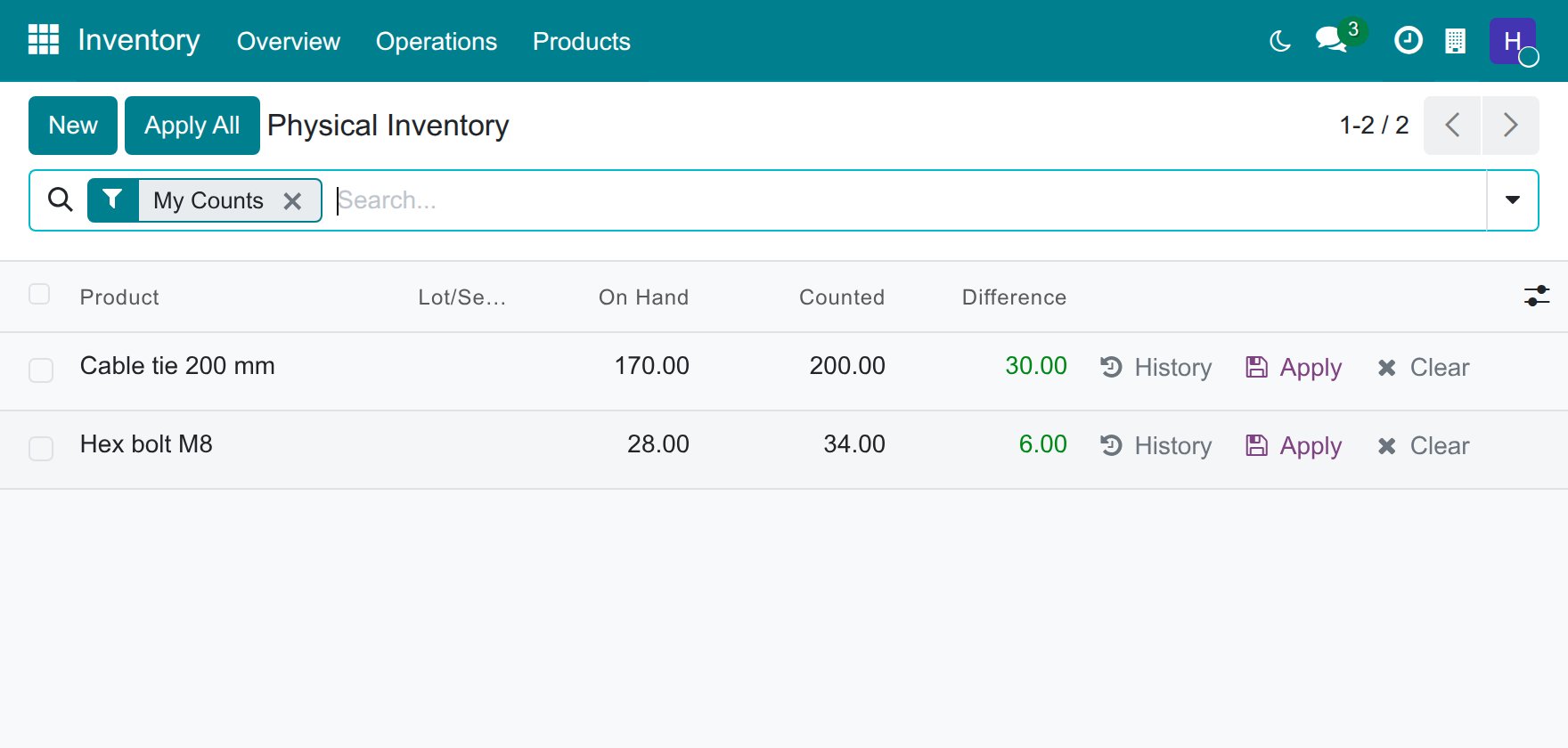
Enter the quantity you counted in the Counted column of each line.
Tick the lines to apply and click Apply at the top of the list. Apply All applies every line that has a counted quantity.
In the window Physical Inventory, keep or edit the Inventory Reason and set Counting Date to the date and time of the count, in your own time zone.
![Physical Inventory window opened from Apply with the Counting Date set to a past date]()
Click Update Quantities.
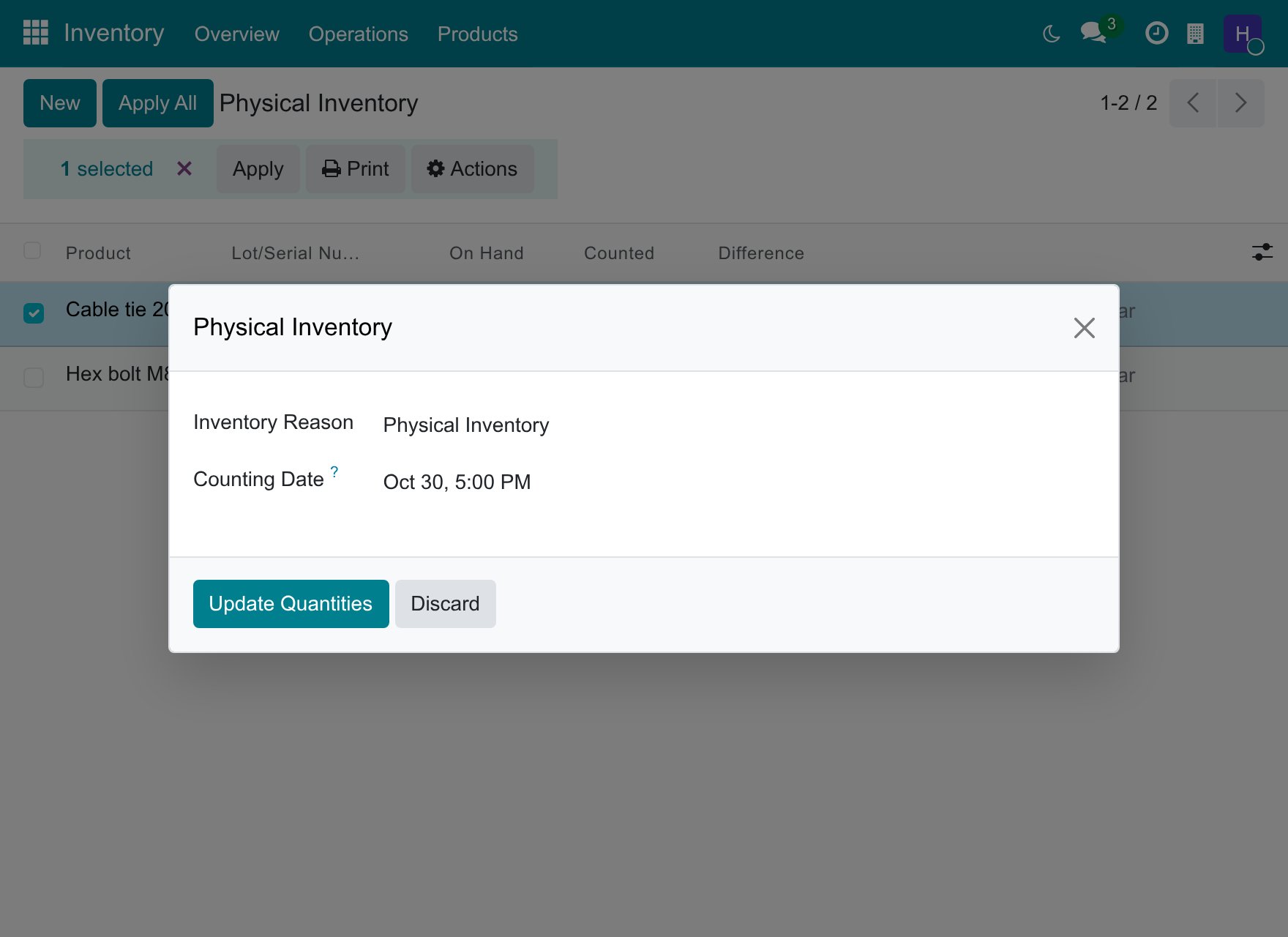
The counted quantity becomes the quantity on hand, and the count takes the counting date:
the stock movement of the count and its lines carry the counting date;
stock that the count brings in takes the counting date as its incoming date, so that the oldest stock leaves first in the order it really arrived (FIFO). Stock that already carries an incoming date in the location keeps it;
the last count date of the counted location (Last Inventory) is the counting day.
How do I choose the accounting date of a count?
For a product whose category is valued automatically, the window also shows Accounting Date: the day the journal entry of the count is booked. It proposes the day of the Counting Date, in your own time zone.
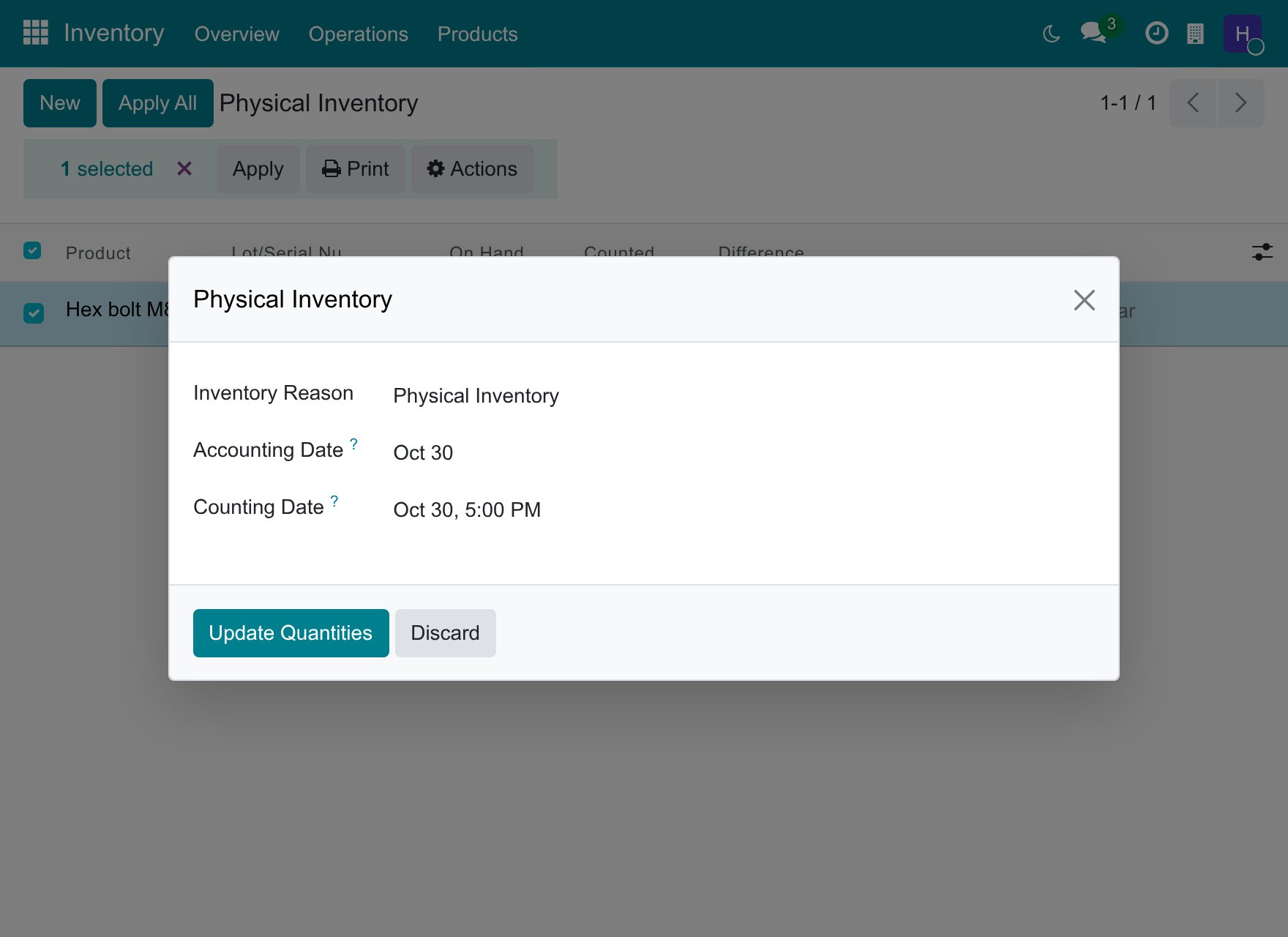
Keep the proposed day, so the entry sits in the accounting period of the count, or choose another day when the entry must be booked elsewhere. The Accounting Date cannot be in the future. For products valued periodically no entry is created at the count and the window shows the Counting Date only.
Note
A back-dated count is valued at the cost in force when you record it, not at the cost of the counting date. The inventory value at a past date follows the dates of the stock movements.
Why does Viindoo refuse my counting date?
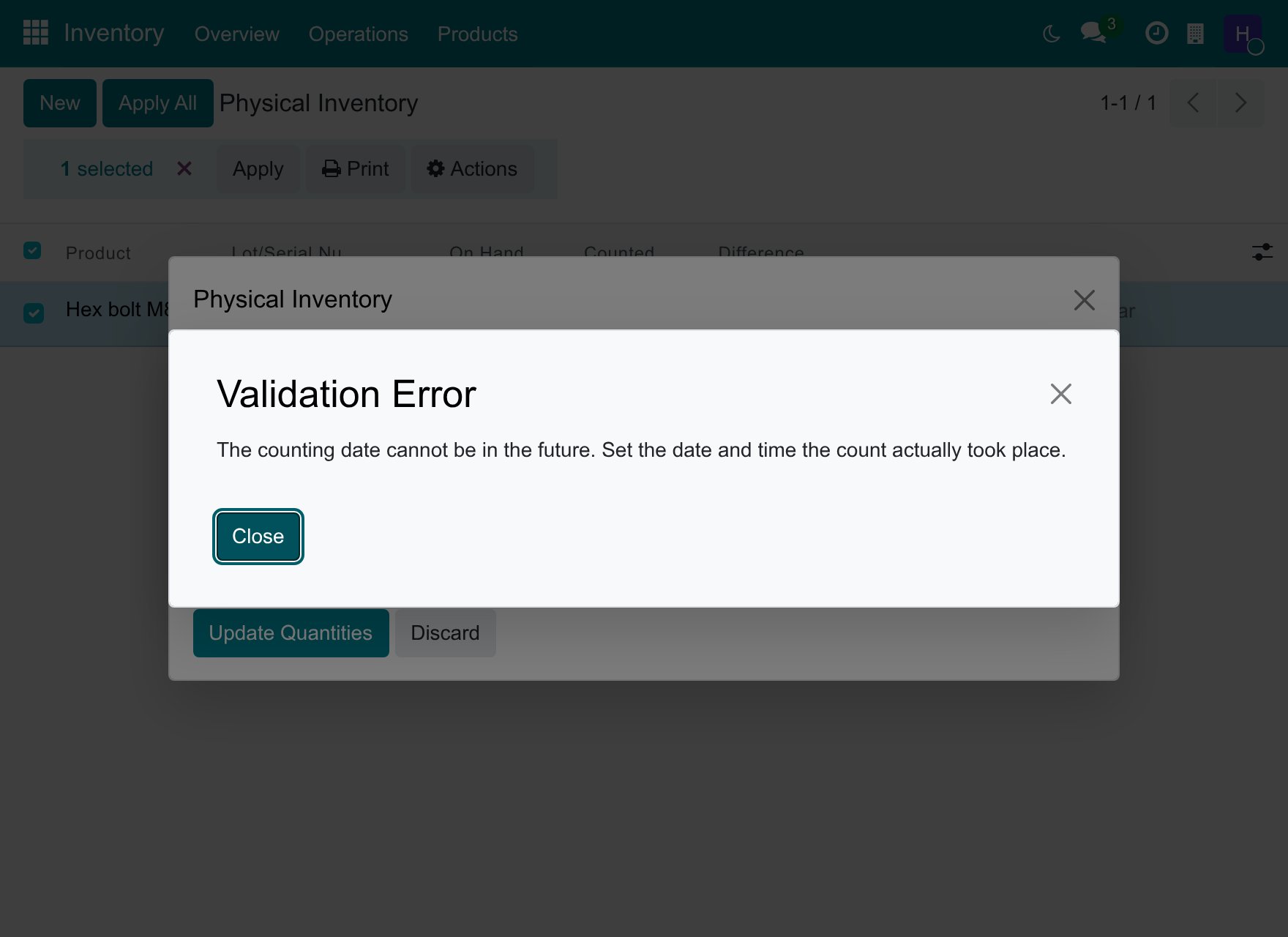
A Counting Date after the current time is refused with The counting date cannot be in the future. Set the date and time the count actually took place. Nothing is applied and the counted quantities stay as you entered them: click Close, correct the date in the window that is still open and click Update Quantities again. An Accounting Date in the future is refused the same way.
A count is never refused because of a locked accounting period: the movement keeps its date and Viindoo books the journal entry outside the locked period, as Accounting date of back-dated stock operations explains.
What happens to the other ways of applying a count?
The Apply button at the end of a line applies that line at the current time, without a window. Select the line and use Apply at the top of the list to choose the dates.
A quantity typed directly in the On Hand column is applied at the current time.
If other stock moves were done after you entered the counted quantity, Viindoo shows a conflict window. Whatever you choose there, the count keeps the counting date you set.
Common problems
Problem |
What to do |
|---|---|
The count is dated today. |
It was applied from the end of a line, or from the On Hand column. Select the lines and click Apply at the top of the list, then set the Counting Date. |
The window does not show an Accounting Date. |
The product category is valued periodically, or the Accounting app is not installed: no journal entry is created at the count. |
A count of an automatically valued product creates no journal entry. |
Ask your accountant to check the account of the Inventory adjustment location. |
The counting date is refused as being in the future. |
Enter a date and time up to the current time. |