
How to link Employees and Users
To link an employee and a user, either click Create employee on the user, or fill in the User field on the employee. Depending on roles and responsibilities, not every member of a company needs access to the software (for example security guards or office staff), so Viindoo manages two independent records:
Employees: the employee profiles of the company. An employee has no access to the software.
Users: the accounts that can log in and view, create, edit or delete data within the access rights they have been granted.
When an employee must work in the software (create sales orders, purchase orders, invoices, production plans, and so on), the administrator creates a user and links the employee and the user. One user can be linked to only one employee per company.
Who does this |
Application |
|---|---|
A user with the Officer: Manage all employees access level or higher; creating a user also needs access to Settings |
Settings and Employees |
Create Employee from existing User
How do I create an employee for a user who already exists?
Use this when a user already has a user account but no employee profile yet.
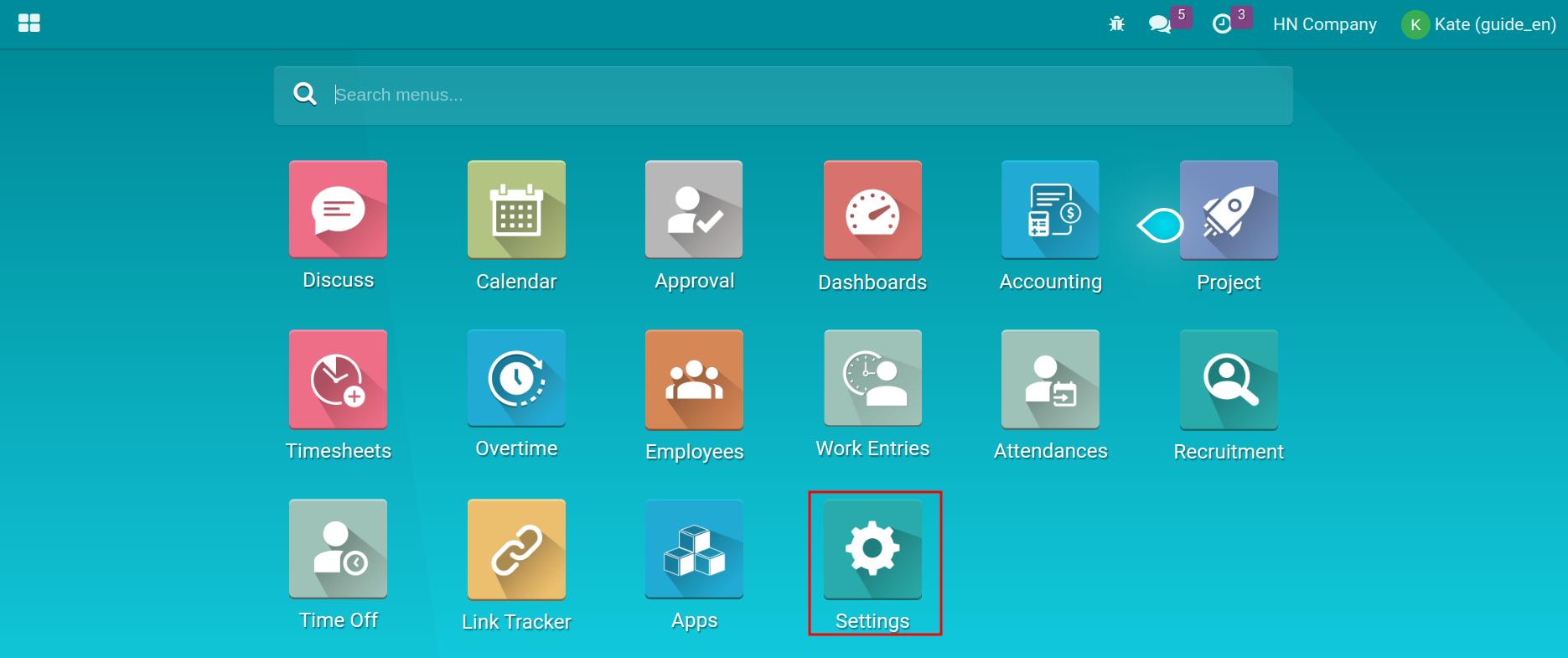
Open Settings.
![The Settings application]()
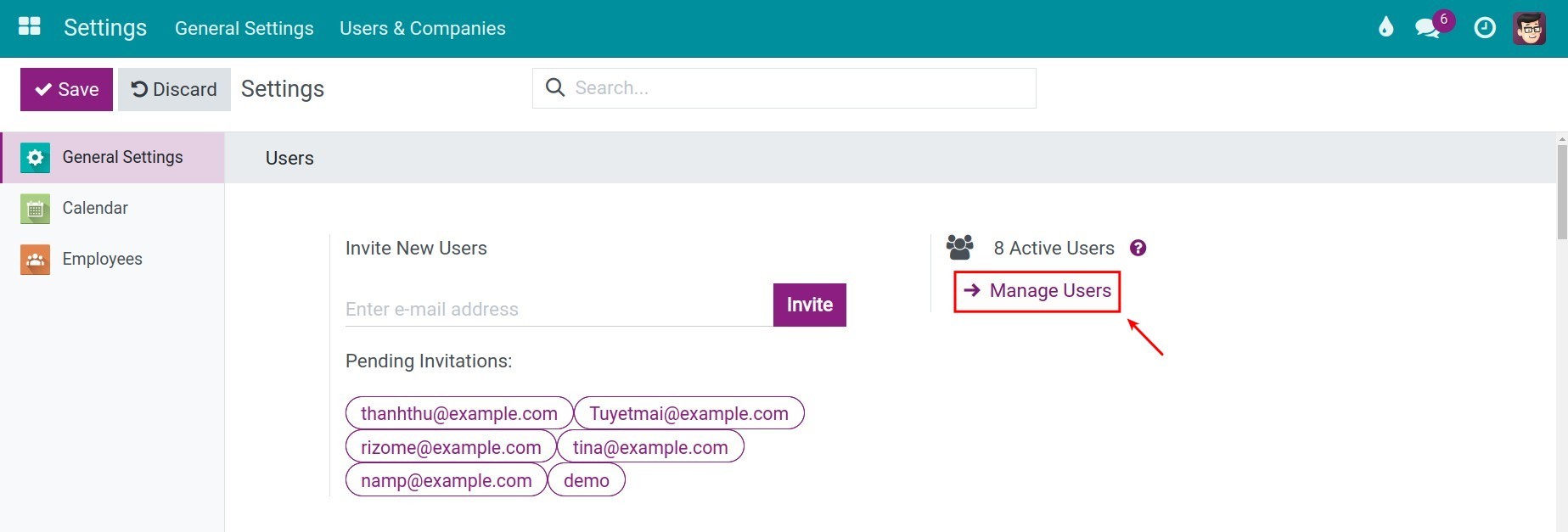
In the Users block, click Manage Users.
![The Manage Users link in Settings]()
Click the user who needs an employee profile.
![The users list filtered by the user's name]()
Click Create employee at the top of the user form. The button only appears for a user who has no employee yet.
![The Create employee button on the user form]()
The system creates the employee, named after the user. Click the Employee smart button on the user to open it.
![The employee created from the user]()
Open the Settings tab of the employee: the user is in the field User.
![The employee linked to the user in the User field of the Settings tab]()


Link User to existing Employee
How do I give an existing employee a user account?
Open the Employees application and click the employee.
![The employee in the Employees list]()
On the Settings tab, enter the name of an existing user in the field User and select it. If the user does not exist yet, go to the next step.
![The User field of the Settings tab with the users that match the text typed]()
If the user does not exist yet, click Create User in the header of the employee. In the Create User window, check the name and the email address taken from the employee, complete them if needed and click Save. The system creates the user and links it to the employee. The user stays Invited until the first login.
![The Create User window with the name and the email address of the employee]()
Open the Settings tab of the employee: the new user is in the field User. On the user, the Employee smart button opens the employee.
![The new user account with the Employee smart button]()


Important fields
Field |
Effect |
If left empty or wrong |
|---|---|---|
User (employee, Settings tab) |
Links the employee to the user. The work contact and the photo of the employee are taken from the user. |
The employee has no user and cannot log in. |
Create employee (user form) |
Creates an employee named after the user. |
Not shown once the user has an employee. |
Common problems
Problem |
Cause |
What to do |
|---|---|---|
A user is refused in User. |
The user is already linked to another employee of the same company. |
Choose another user, or clear the link on the other employee first. |
The user is not offered in User. |
Only internal users with access to the employee’s company are listed. |
Check the user type and the allowed companies of the user. |
Create employee is missing. |
The user already has an employee, or the user cannot open Employees as an Officer. |
Use the Employee smart button on the user, or ask for the Officer level. |
See also
Related article
Optional module