
Ship cross-border by truck: import
Guide information
Requirements
This tutorial requires the installation of the following applications/modules:
Freight Road (installs Freight Forwarder Management and Logistics Accounting automatically)
Freight Sale (installs automatically when Sales is installed; adds the Create Quotation button mentioned in Step 6)
A Less-than-Truckload (LTL) shipment shares one truck between several consignments, but Viindoo does not have a house/master structure for road the way it does for sea LCL - each LTL shipment you create in Viindoo is still one shipper, one consignee and one truck booking. If your cargo is one of several consignments riding the same truck, the shared trucking cost across consignees is worked out outside Viindoo and entered on each shipment separately (see Known limitations below). If a term below is new to you, see the Freight forwarding glossary.
Running scenario: Hai Long Logistics imports woven garment fabric rolls, 12,400 kg, for Đông Bắc Garment Co., Ltd. in Dong Ha, Quang Tri, from Vientiane Textile Supplier Co., Ltd. in Vientiane, Laos, carrier Lào Việt Transport, crossing at Lao Bao (Quang Tri). Buy rate VND 700,000 and sell rate VND 900,000 per tonne.
Before you start
The border crossing Lao Bao (Quang Tri) and the truck type are already in the system - they ship with Viindoo, so there is nothing to create; the carrier Lào Việt Transport must exist (see Set up carriers, agents, ports, airports and border crossings).
The freight product Road Freight - LTL and the Border / Infrastructure Charge are already set up (see Set up freight services and local charges).
If you keep a buy rate card for Road Freight - LTL with Lào Việt Transport (see Maintain carrier rates and vessel schedules), the Cost Price of the freight line fills in when the booking is confirmed in Step 4; this guide enters it by hand in Step 6.
Have the verified packing figures ready: 12,400 kg of fabric rolls and 38 CBM. Step 2 records one package through the shipment’s Packages smart button and assigns it to the truck, so the Delivery Note can print its weight and volume.
Viindoo does not hold a fixed weekly road schedule. Agree the pickup and arrival dates with Lào Việt Transport first; you record them on the booking in Step 2.
You are in the User: All Shipments group, or you are the Responsible of the shipment with User: Own Shipments - on any other shipment Own Shipments is read-only. See What Own, All and Admin can do inside a shipment.
Step 1: Create and confirm the import shipment
Confirming the shipment is what makes the Booking button appear in the header, so it comes before booking the truck, not after.
Go to and click New. Fill in:
Direction: Import.
Shipment Type: LTL.
Customer: Đông Bắc Garment Co., Ltd. - the party Hai Long will invoice. Customer is separate from Consignee.
Shipper: Vientiane Textile Supplier Co., Ltd..
Consignee: Đông Bắc Garment Co., Ltd..
Road Pickup: Vientiane Textile Supplier Co., Ltd. and Road Delivery: Đông Bắc Garment Co., Ltd. (see Decide the main-carriage endpoints below).
Before you confirm, open the shipment’s Packages smart button and click New. In the new row, enter Package Reference: Fabric rolls - 12,400 kg, Weight (kg): 12,400 and Volume (m³): 38 from the verified packing figures, then save the row. The shipment’s Total Weight and Total Volume now read 12,400 kg and 38 m³.
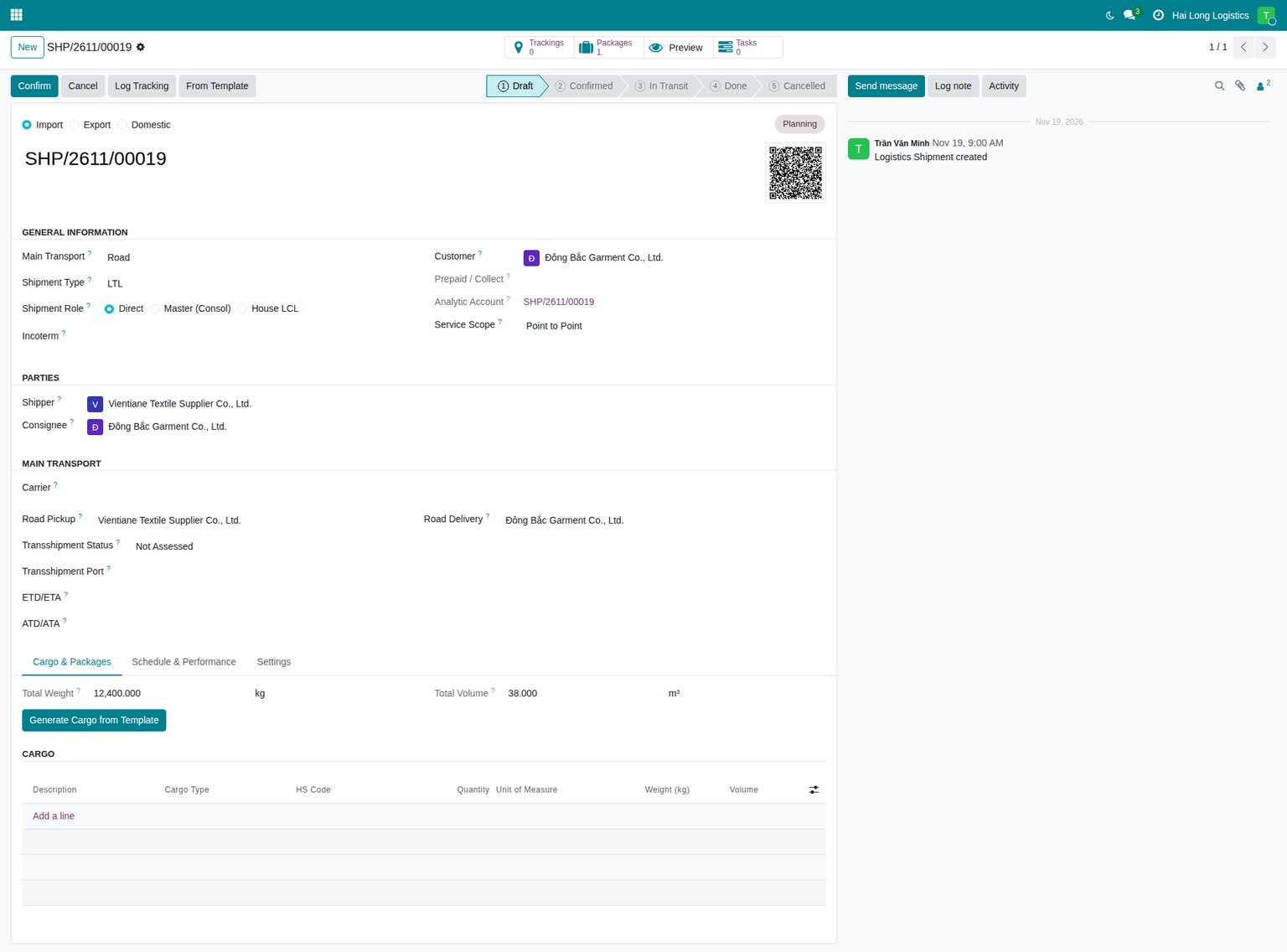
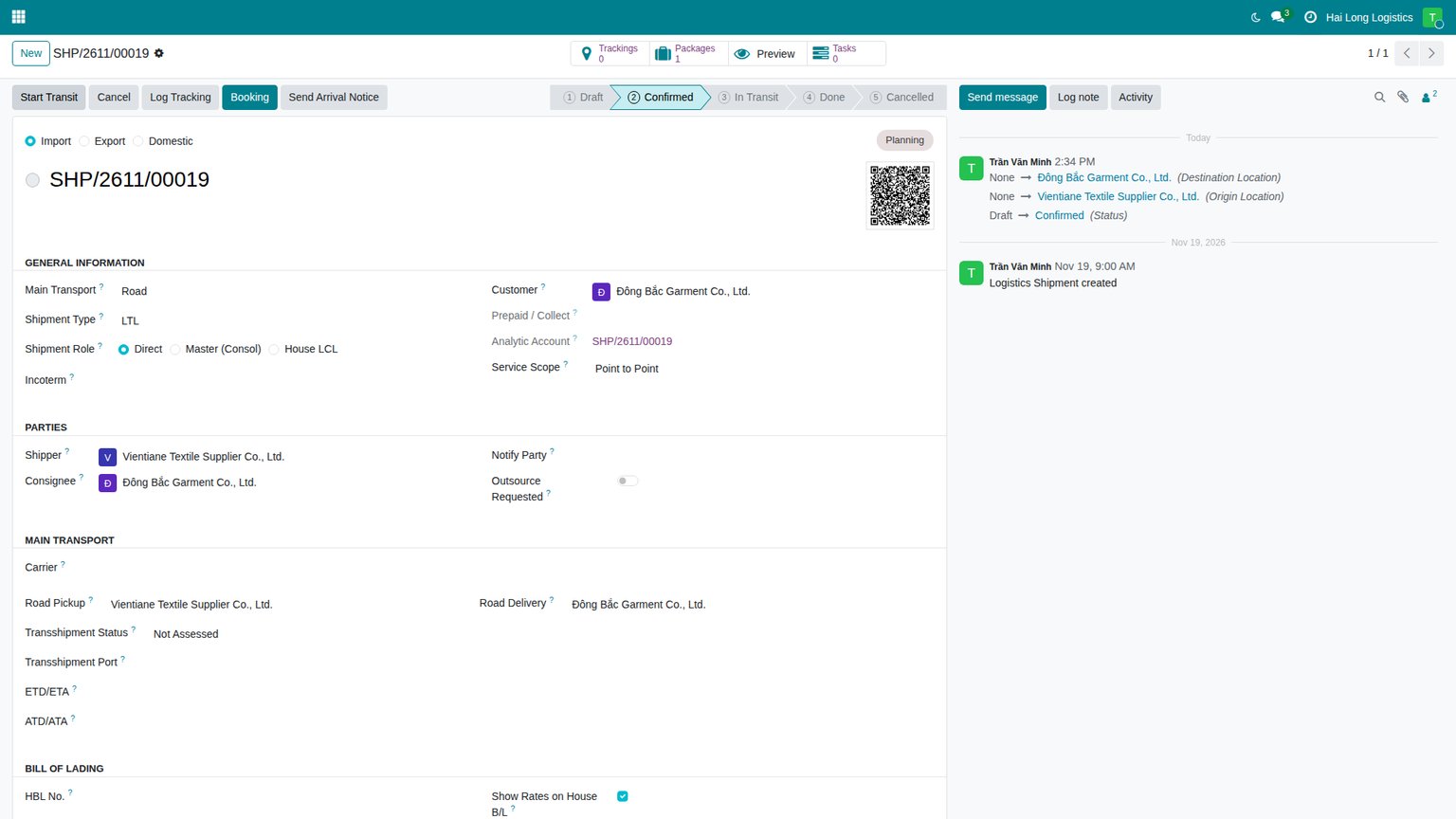
Click Confirm. After you click it: the status bar moves to Confirmed, Viindoo creates one Main Carriage leg from Road Pickup to Road Delivery, and the Booking button appears in the header.
Tip
Step 1 is done when: the shipment is Confirmed, Shipment Type reads LTL, Main Transport reads Road, Customer is Đông Bắc Garment Co., Ltd., and the Schedule & Performance tab shows one Main Carriage leg.
Decide the main-carriage endpoints
Option |
Use when |
What changes |
|---|---|---|
Fill in Road Pickup / Road Delivery |
The default for both road guides in this section |
The Main Carriage leg uses these two fields as its pickup and drop-off |
Leave them blank, use Origin/Destination |
The pickup and delivery points are exactly the Shipper’s and Consignee’s own addresses |
The leg falls back to Origin/Destination instead |
Fill Road Pickup / Road Delivery only when those endpoints are part of the agreed road service. Leave them blank when the main-carriage leg should use the Shipper’s and Consignee’s addresses as Origin/Destination. Check the shipment scope and actual pickup/delivery addresses before booking the truck.
Step 2: Book the truck
The booking is where the truck, the driver and the border crossing are recorded, and it is also where the Cargo Manifest and the Delivery Note are printed from.
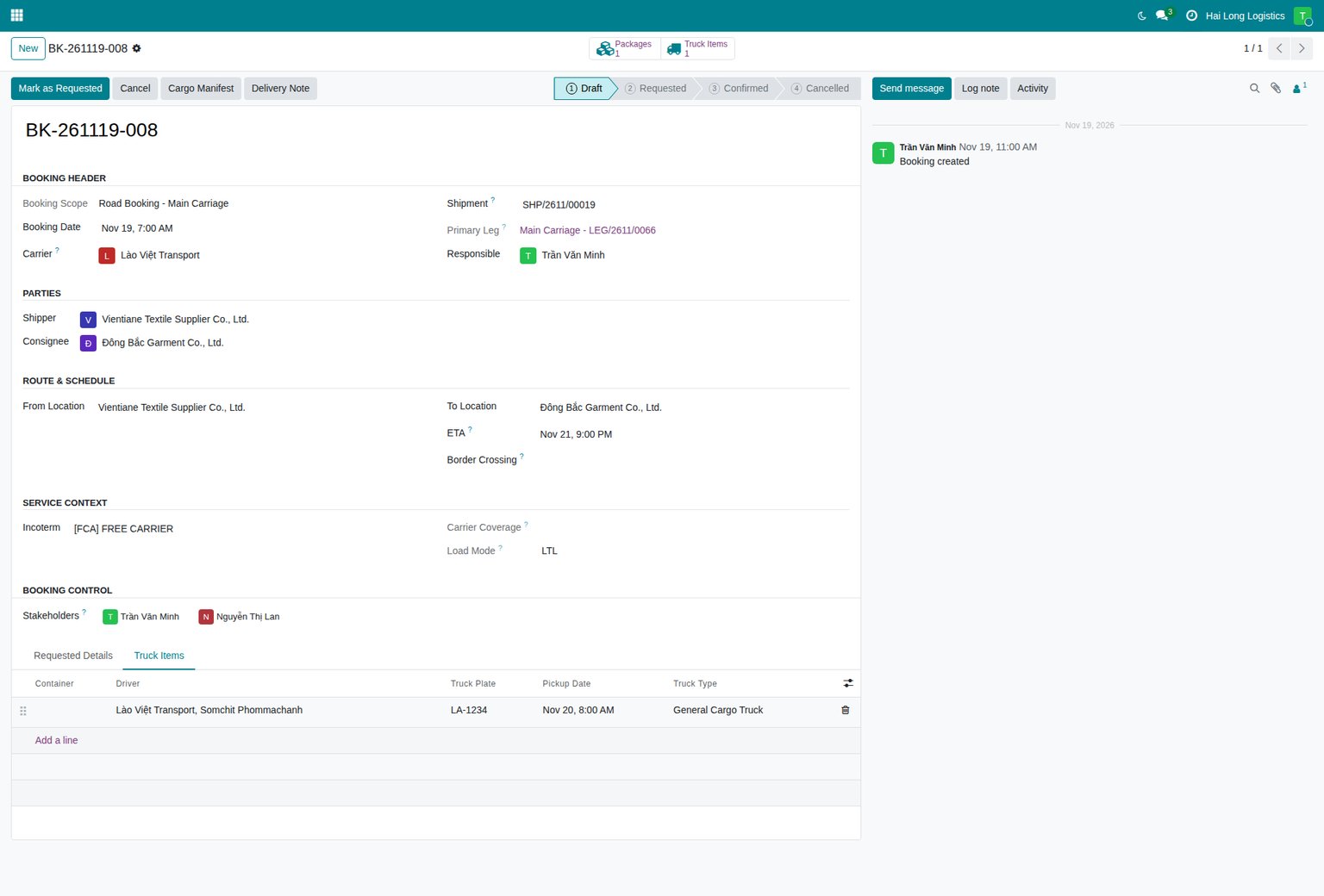
Click Booking in the shipment header. On the Create Booking window leave Booking Type on Main Carriage Booking (the default; the others are Feeder Booking, Pre-Carriage Booking and On-Carriage Booking) and set Carrier: Lào Việt Transport and Incoterm: [FCA] FREE CARRIER, as agreed in this example. Search by FREE CARRIER if the code FCA returns no records. The Requested Details block lists the package you saved in Step 1; leave it selected, then click Create.
On the new booking, in the Truck Items tab, fill in:
Truck Plate: LA-1234.
Driver: Somchit Phommachanh.
Pickup Date: 2026-11-20 08:00.
Truck Type: General Cargo Truck.
Packages (an optional column - show it from the column toggle): check that it holds the 12,400 kg package of this shipment. Without it, the Delivery Note prints a blank Weight column.
Then set ETA: 2026-11-21 21:00 on the booking.
Note
If Road Pickup or Road Delivery is filled in on the shipment but not the other one, Viindoo blocks the booking:
“Cannot create a Main Carriage Booking for shipment SHP/26xx/000nn. Set Road Delivery before creating the booking.”
Fill in the missing field, or clear both so the booking falls back to Origin/Destination, before clicking Booking again.
Step 3: Record the border crossing
The border crossing is the evidence you check against if there is ever a dispute about where and when the truck crossed.
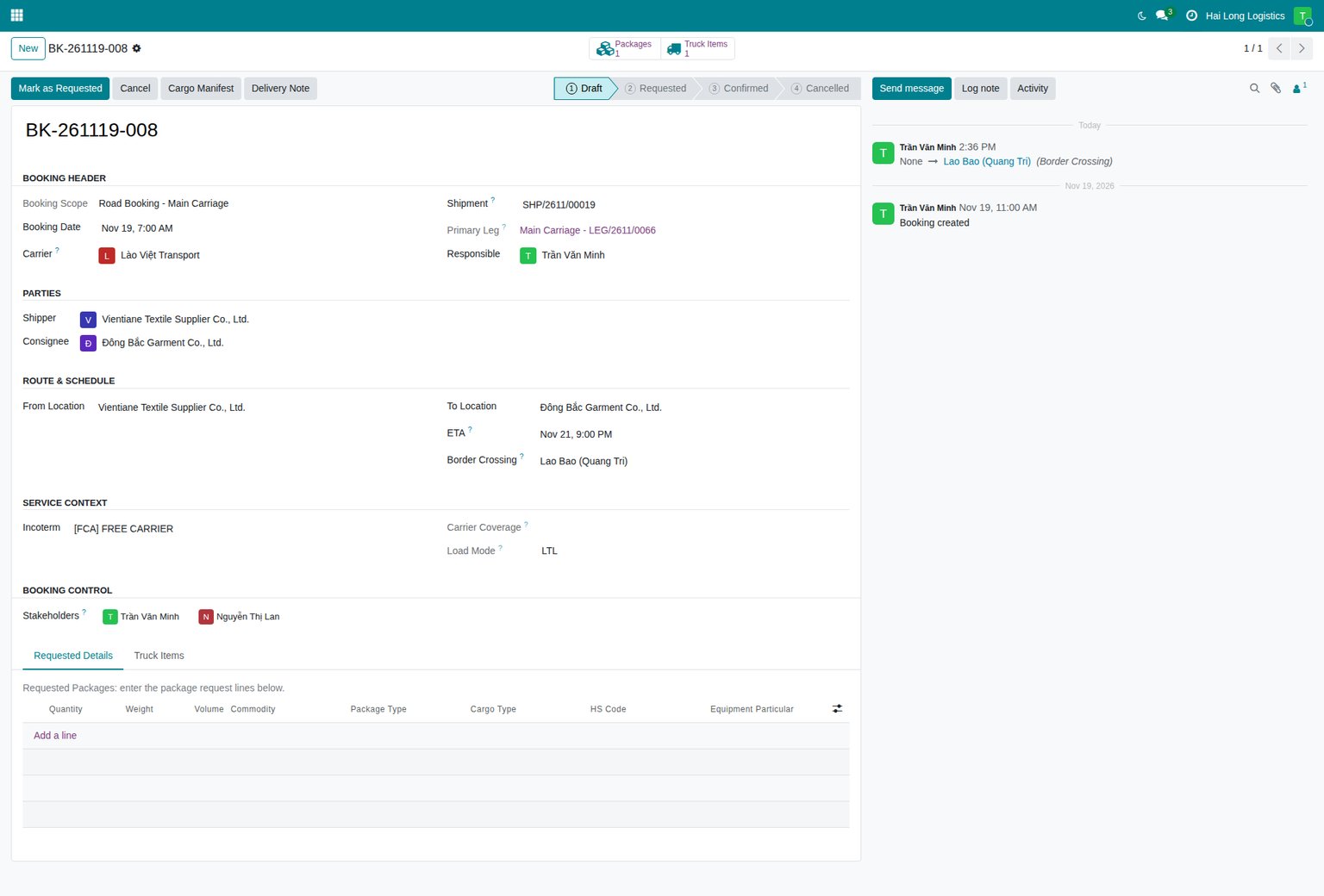
On the booking form, set Border Crossing: Lao Bao (Quang Tri) (this field only appears because the booking’s transport mode is truck and the shipment is not a domestic move).
Note
Border Crossing only records the place, not the time the truck actually crossed - there is no dedicated field for that. Log the crossing time as a Chatter note instead (see Known limitations).
Step 4: Confirm the booking
Confirming the booking links it to the shipment’s freight charge line and brings in the carrier as vendor.
On the booking form, click Mark as Requested, then once Lào Việt Transport confirms, click Mark as Confirmed.

After you click Mark as Confirmed, open the shipment’s Charges tab and check the Road Freight - LTL line: it carries the booking’s vendor, Lào Việt Transport, and a Cost Price filled in only when the carrier has a rate card for the product (a rate of 700 per kg here); otherwise the Cost Price is 0.0. The tab must hold only one Road Freight - LTL line.
Important
Once the shipment is Confirmed (Step 1), Road Pickup and Road Delivery are locked and can no longer be edited directly - to change either one, remove the Main Carriage leg on the Schedule & Performance tab first, then edit the field and book again.
Tip
Step 4 is done when: the booking’s status bar reads Confirmed and the shipment’s Charges tab shows one Road Freight - LTL line with Lào Việt Transport as vendor - Step 6 sets its quantity and price to 12,400 kg and VND 900.
Step 5: Print and sign the Delivery Note
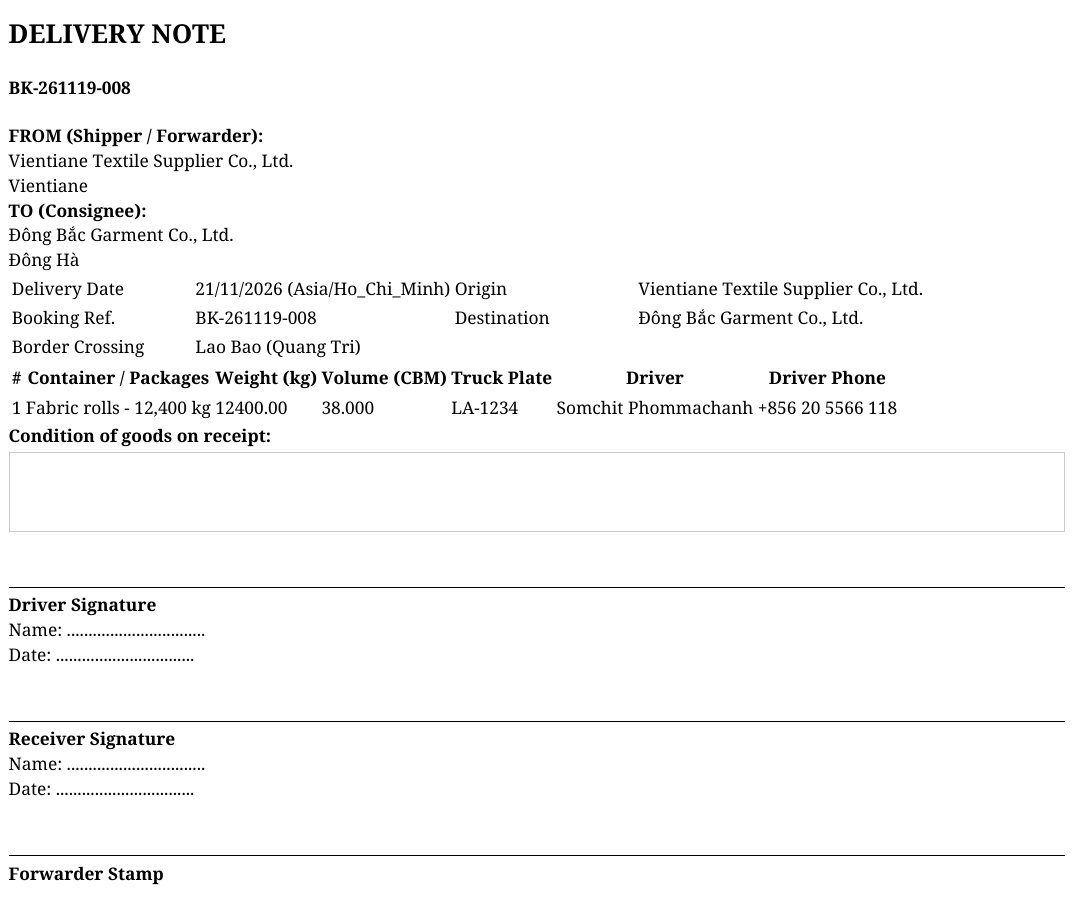
The Delivery Note is the signed proof of handover between the driver and Đông Bắc Garment - without it, a dispute about missing or damaged cargo has no paper trail.
On the booking form, click Delivery Note, print it, and have the driver and the consignee’s representative both sign it on delivery.
Tip
Step 5 is done when: the printed Delivery Note carries both the Driver Signature and the Receiver Signature before the truck leaves the delivery point.
Step 6: Enter the price and check gross profit
The Road Freight - LTL line has to carry the real quantity and rate before Gross Profit means anything.
On the shipment’s Charges tab (full workflow at Record charges, invoice the customer, and bill vendors):
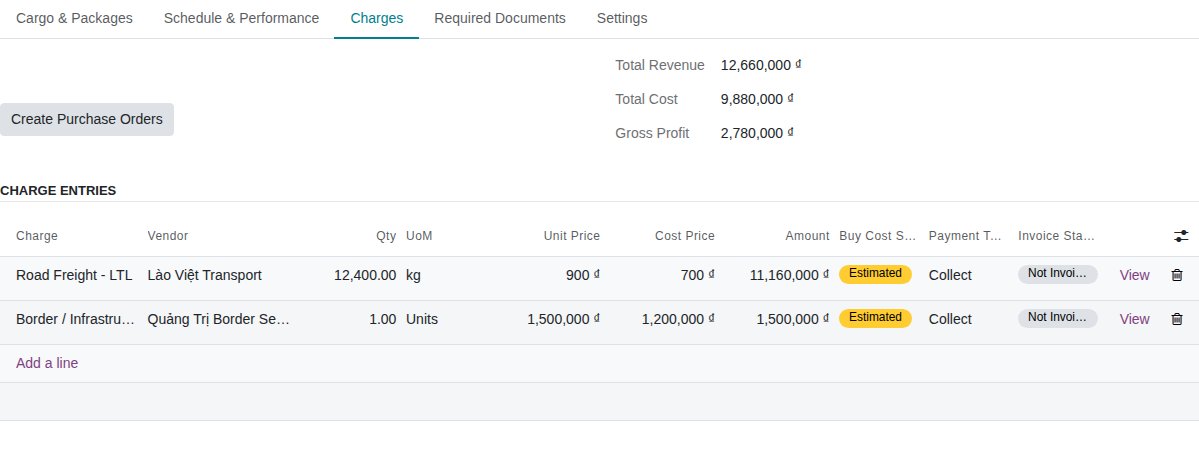
On the Road Freight - LTL line: Quantity: 12,400 (the product’s unit of measure is kg, not tonnes), Unit Price: 900, Cost Price: 700.
Add a line for Border / Infrastructure Charge: Unit Price: 1,500,000, Cost Price: 1,200,000, Vendor: Quảng Trị Border Services Co., Ltd..
Both lines show Buy Cost Status Estimated (the cost comes from a rate card or was typed by hand), Payment Term and Invoice Status Not Invoiced.
If your company sells through the Sales app, Lan (Sales) can now click Create Quotation on the shipment to turn these lines into a quotation; once a line is on an order, its Unit Price is read-only on the shipment, so change the price on the order. Accounting then invoices through Create Customer Invoice, and Operations pays the carrier with Create Purchase Orders, confirming them and using Create Bills on the Purchase Orders list (see Record charges, invoice the customer, and bill vendors).
Tip
Step 6 is done when: Gross Profit reads VND 2,780,000 (Revenue 11,160,000 + 1,500,000 minus Cost 8,680,000 + 1,200,000). The totals show Total Revenue 12,660,000, Total Cost 9,880,000 and Gross Profit 2,780,000, all in VND.
See also
Record charges, invoice the customer, and bill vendors - full charge recording and invoicing workflow, including how to send a debit note for a charge added later.
Known limitations
Step |
What Viindoo does today |
What you do instead |
|---|---|---|
Agree the pickup and arrival dates (Before you start) |
There is no fixed road schedule to pick a departure from |
Agree the dates with the carrier and type them on the booking (Pickup Date, ETA) |
The freight line quantity (Step 4) |
The Road Freight - LTL line is priced per kg, so its Quantity must be the weight and not 1 |
Set Quantity to the weight in kg and enter the sell price (Step 6) |
Printing the Delivery Note (Step 5) |
The Weight and Volume columns stay blank when the Truck Items line has no package or container |
Select the shipment’s package in the Packages column of Truck Items before printing |
Record the border crossing, customs clearance or delivery time |
There is no date-time field for any of these on the shipment or the booking - only the Border Crossing place field. The optional Freight Customs Deadlines module adds a Customs (Import) block (Customs Entry Due, Declared At, Released At) to the shipment, but there is still no per-house deadline for an LTL shipment |
Log the timestamp as a Chatter note (“Log a note”) on the shipment or the booking |
Several consignees sharing one truck |
There is no house/master entity for road: consolidation covers sea LCL and air shipments only, and an LTL road shipment cannot be added to it |
Create one shipment per consignee, and work out each one’s share of the shared trucking cost by weight or volume outside Viindoo before entering it on that shipment |
Splitting the shared trucking cost by weight or volume |
The Allocate Costs wizard (see Allocate shared master costs to house shipments) does not apply to this road LTL shipment |
Calculate the split outside Viindoo (spreadsheet) and enter each consignee’s share directly on their own shipment |
Troubleshooting
The booking is refused for a missing Road Delivery
Symptom: Clicking Booking shows: “Cannot create a Main Carriage Booking for shipment SHP/26xx/000nn. Set Road Delivery before creating the booking.”
Cause: Road Pickup is filled in but Road Delivery is empty (or the other way round) - since one of the two road fields already has a value, Viindoo does not fall back to Origin/Destination.
Fix:
Close the dialog and return to the shipment form.
Fill in the missing Road Pickup or Road Delivery, or clear both to use the Origin/Destination fallback.
Click Booking again.
The shipment will not confirm because no route is set
Symptom: Clicking Confirm shows: “Shipment SHP/26xx/000nn requires Road Delivery before confirming operation.” (or a message naming both fields, or a message that Origin and Destination must be different, depending on what is missing).
Cause: Neither Road Pickup/Road Delivery nor Origin/Destination gives Viindoo a usable pair of endpoints to build the Main Carriage leg from.
Fix:
Fill in at least one complete pair: Road Pickup and Road Delivery, or two different Origin and Destination values.
Click Confirm again.
Road Delivery cannot be edited after Confirm
Symptom: Editing Road Delivery on a Confirmed shipment shows: “Cannot change Road Delivery on shipment SHP/26xx/000nn because main-carriage legs already exist. Update the route legs or remove them before replanning.”
Cause: the Main Carriage leg created at Confirm already uses Road Pickup and Road Delivery as its endpoints, so Viindoo locks both fields to keep the leg from silently drifting away from what the shipment header says.
Fix:
Remove the existing Main Carriage leg on the Schedule & Performance tab.
Edit Road Pickup or Road Delivery.
Book the truck again (Step 2).
Gross Profit is negative right after the booking is confirmed
Symptom: Right after Mark as Confirmed, the Road Freight - LTL line is on the Charges tab, but Gross Profit shows negative, matching the cost price exactly.
Cause: no sell price has been entered on the line yet, so Revenue is 0 and Gross Profit is minus the cost.
Fix: follow Step 6 and enter the Unit Price you quoted the customer before reading Gross Profit.
See also
Related articles
Log tracking updates and notify the customer - recording a verified milestone and its date in the tracking history