
Chatter: follow records, log notes and send messages
Every quotation, order, invoice, task or contact in Viindoo has a chatter: a panel next to or below the form where you follow the record, write internal notes with Log note and email customers or vendors with Send message. Everything written there, including replies by email, stays on the record, so anyone who opens it sees the whole history.
Who |
Any internal user who can open the record. |
App |
All apps whose forms show the chatter (Sales, Purchase, Inventory, Accounting, Project, Contacts and more) |
Before you start
Have a Viindoo database: see How to sign up and create your Viindoo instance.
To send emails, your user must have an email address and the database must be able to send email: see How to connect Viindoo to your own mail servers.
Where is the chatter?
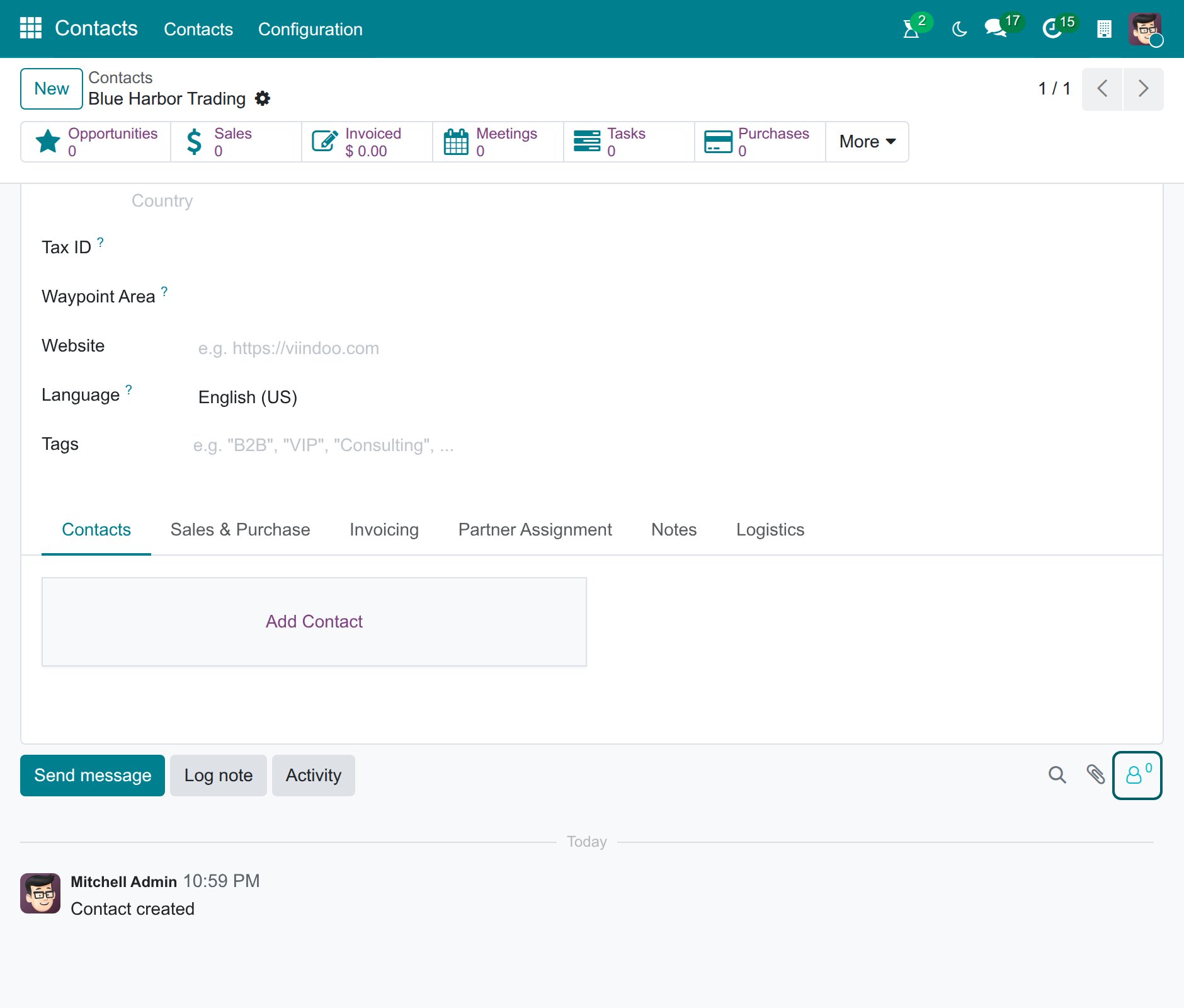
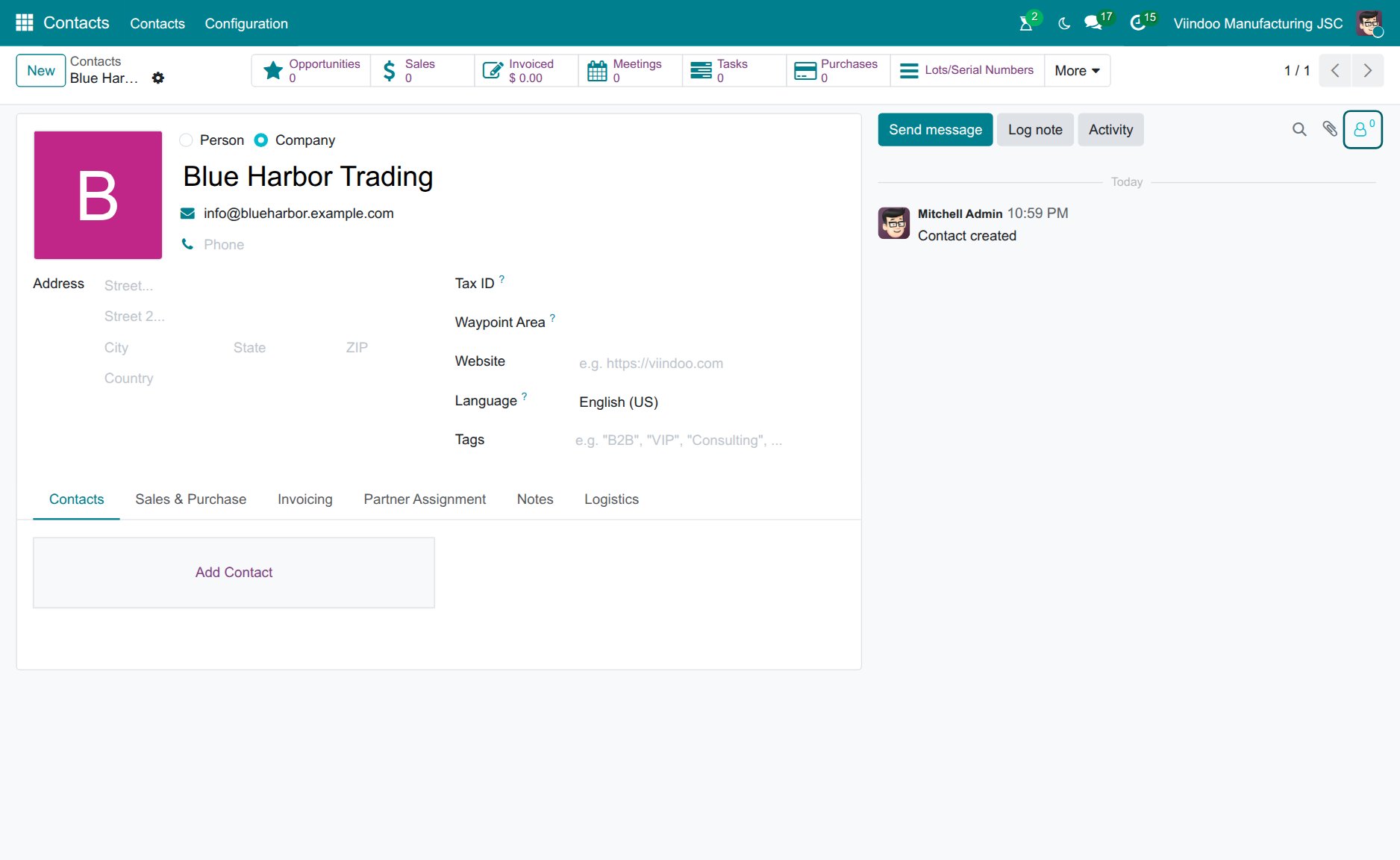
The chatter’s position depends on the width of your screen. On wide screens (about 1400 px and more) it is shown to the right of the form; on smaller screens or a narrow browser window it is shown below the form. There is no setting to change it.
How do I follow a record?
Followers are notified of new messages on the record.
Open the record, click the followers icon (the person icon with a number) at the right of the chatter toolbar and choose Follow.
![Followers menu of the chatter with the Follow option]()
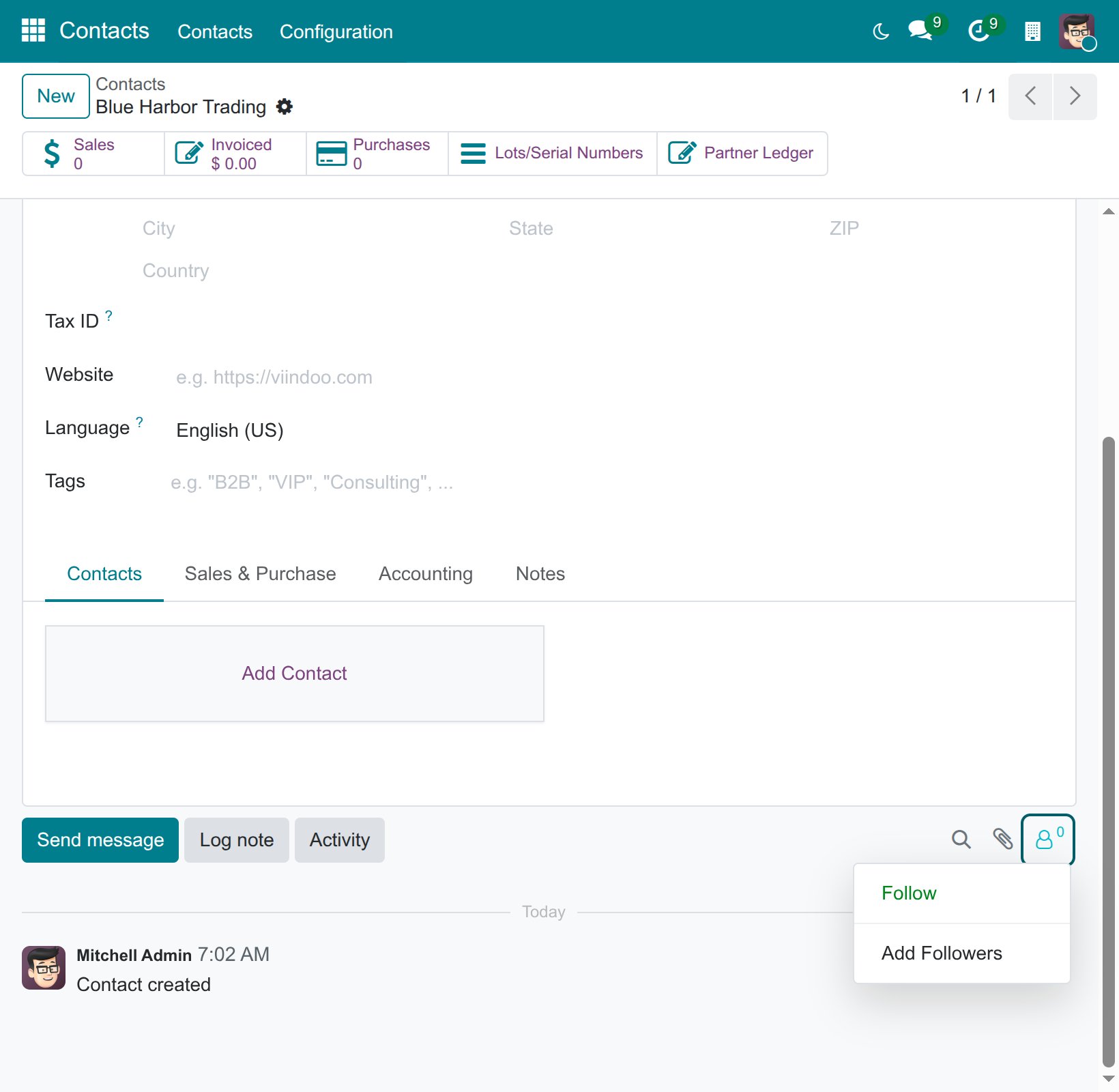
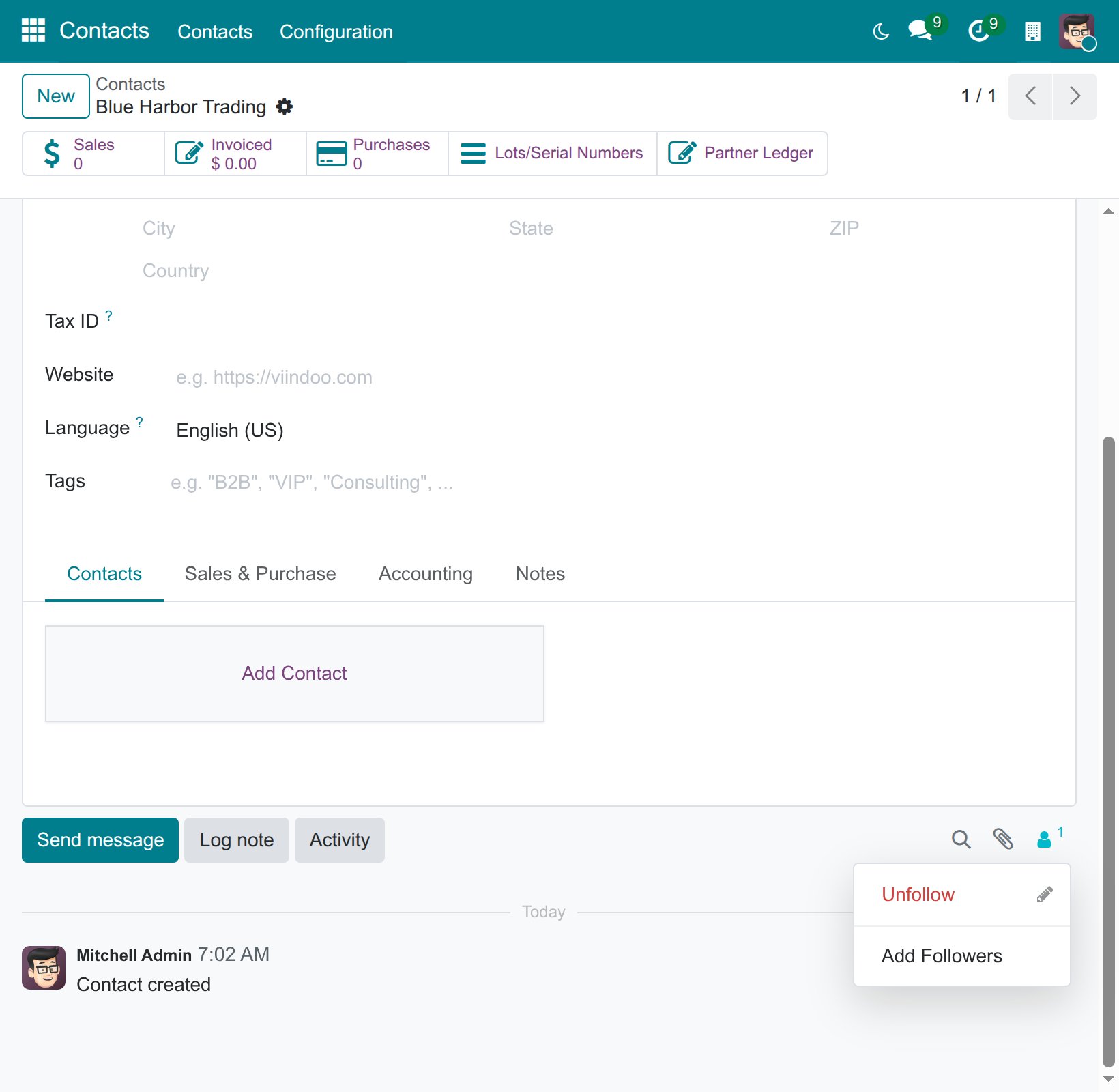
The icon is now filled in and the menu offers Unfollow instead of Follow: click it to stop following the record.
How do I add other people as followers?
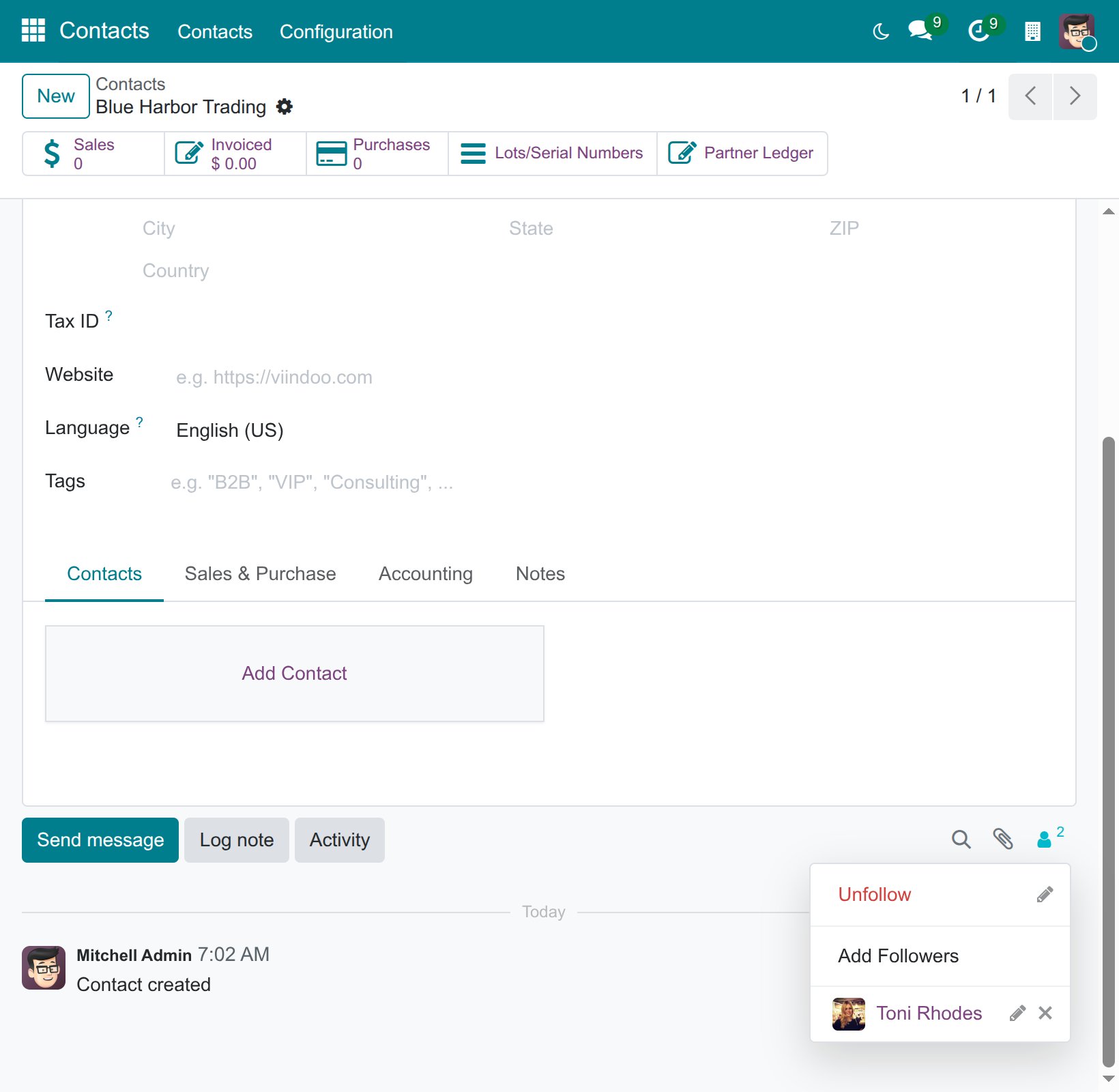
Click the followers icon, then Add Followers.
![Followers menu with the Unfollow and Add Followers options]()
In the Add followers to this document window, choose the contacts in Followers (see the table below) and click Add Followers.
![Add followers to this document window with Followers, Notify Recipients and the Add Followers button]()
To check the list, click the followers icon again. Click the cross next to a name (Remove this follower) to remove that person, or the pencil (Edit subscription) to choose which events notify them.
![List of followers with the Edit subscription and Remove this follower icons]()
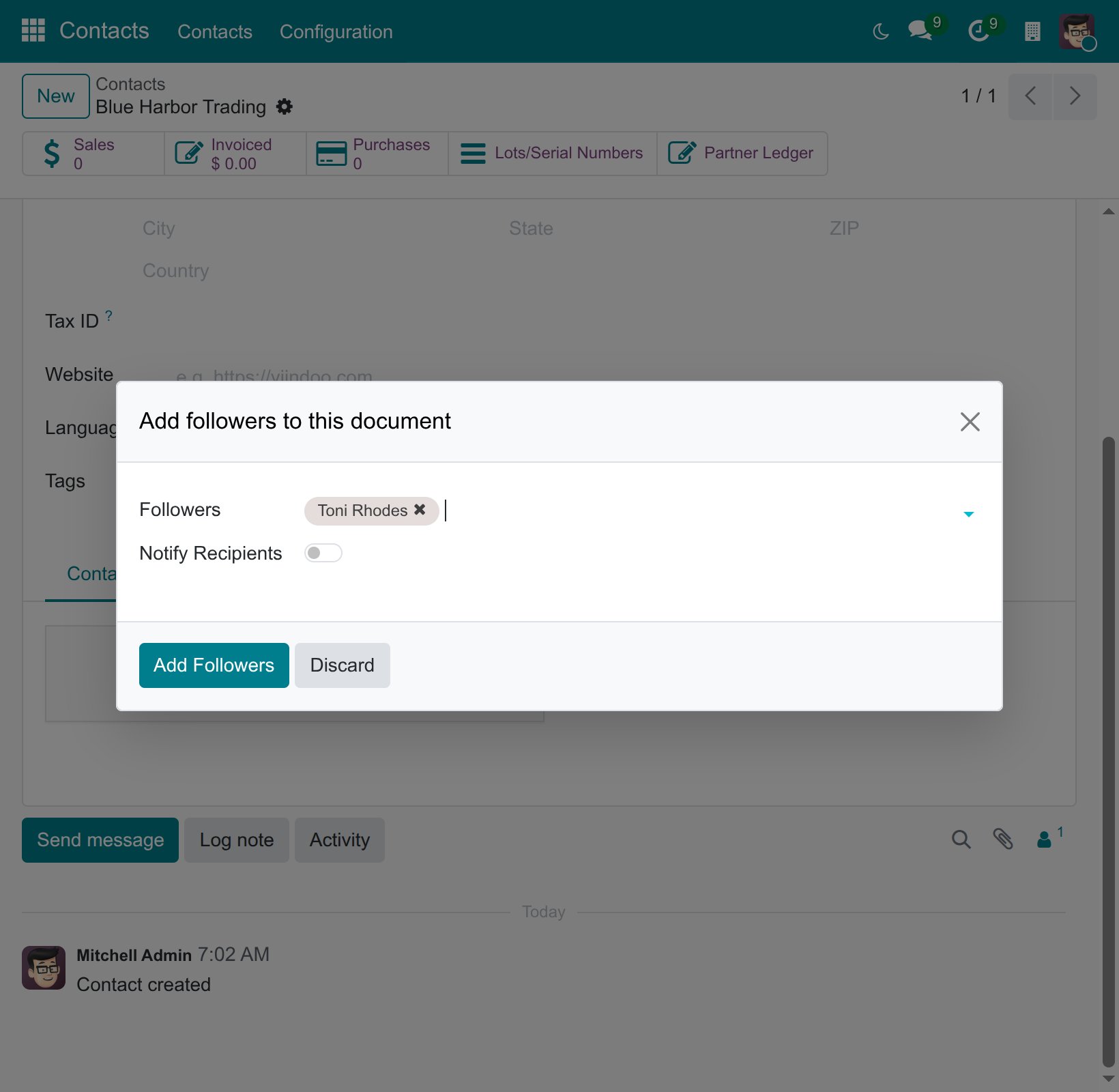
Field |
What it does |
|---|---|
Followers |
The contacts to add as followers. |
Notify Recipients |
Off by default. Turn it on to email the new followers that they now follow the record. |
Extra Comments |
A message added to that email. Shown only when Notify Recipients is on. |
How do I write an internal note or mention a colleague?
Log note is for your team only: it is never emailed to customers or vendors.
In the chatter, click Log note, type your note and click Log (or press Ctrl+Enter). To notify a colleague, type @ followed by their name and pick them from the list.
![Log note composer in the chatter with a colleague mentioned with @]()
For a longer note with formatting or attachments, click the Open Full Composer icon (the arrows at the right of the composer) to open the full-size editor, then click Log.
![Full-size Log note window with the Log and Discard buttons]()
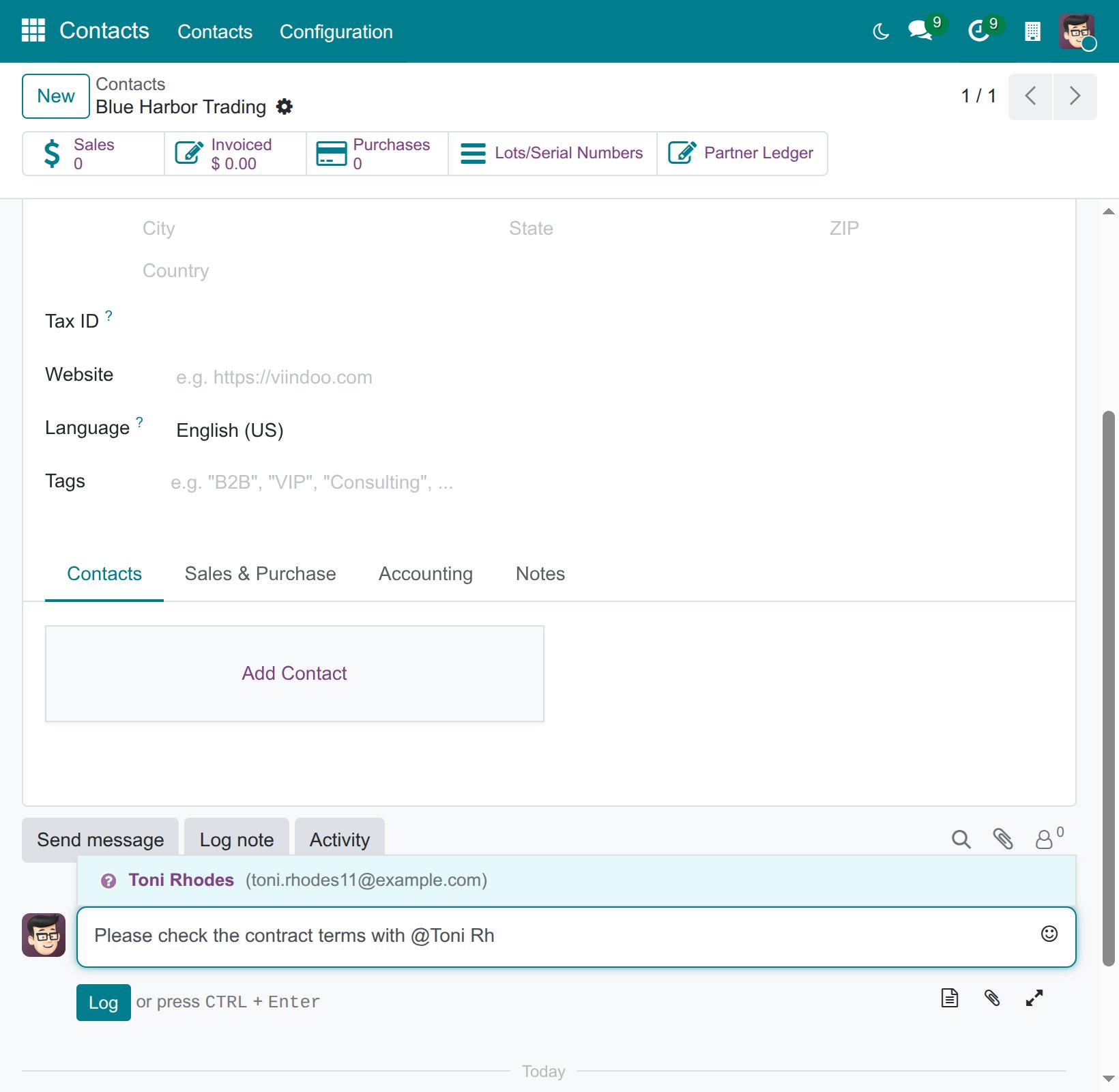
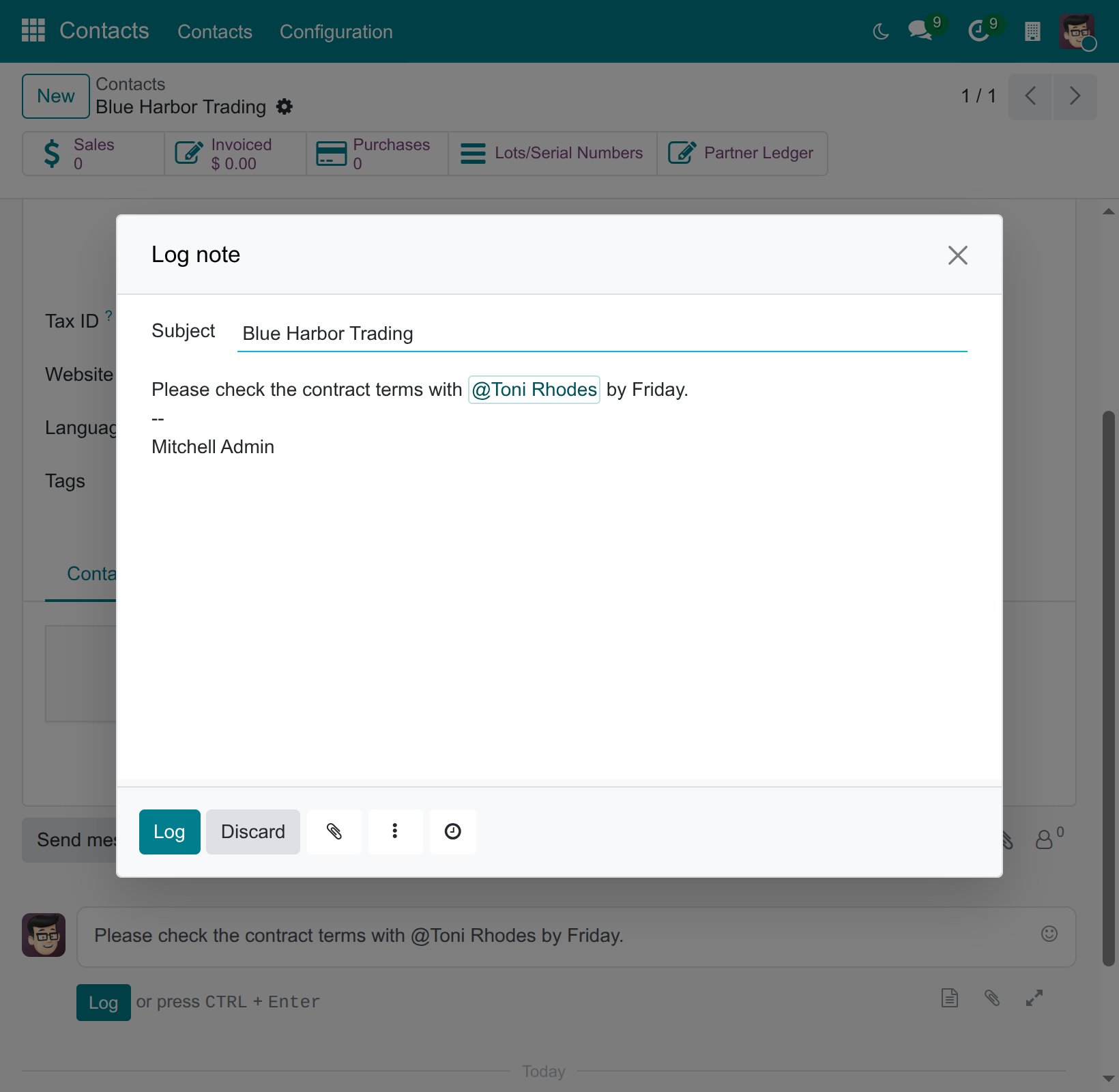
The mentioned colleague gets a notification in Viindoo, or an email if they chose to receive notifications by email.
How do I email a customer or vendor from a record?
Send message emails the followers of the record, for example the customer on a quotation. Their replies by email come back into the same chatter.
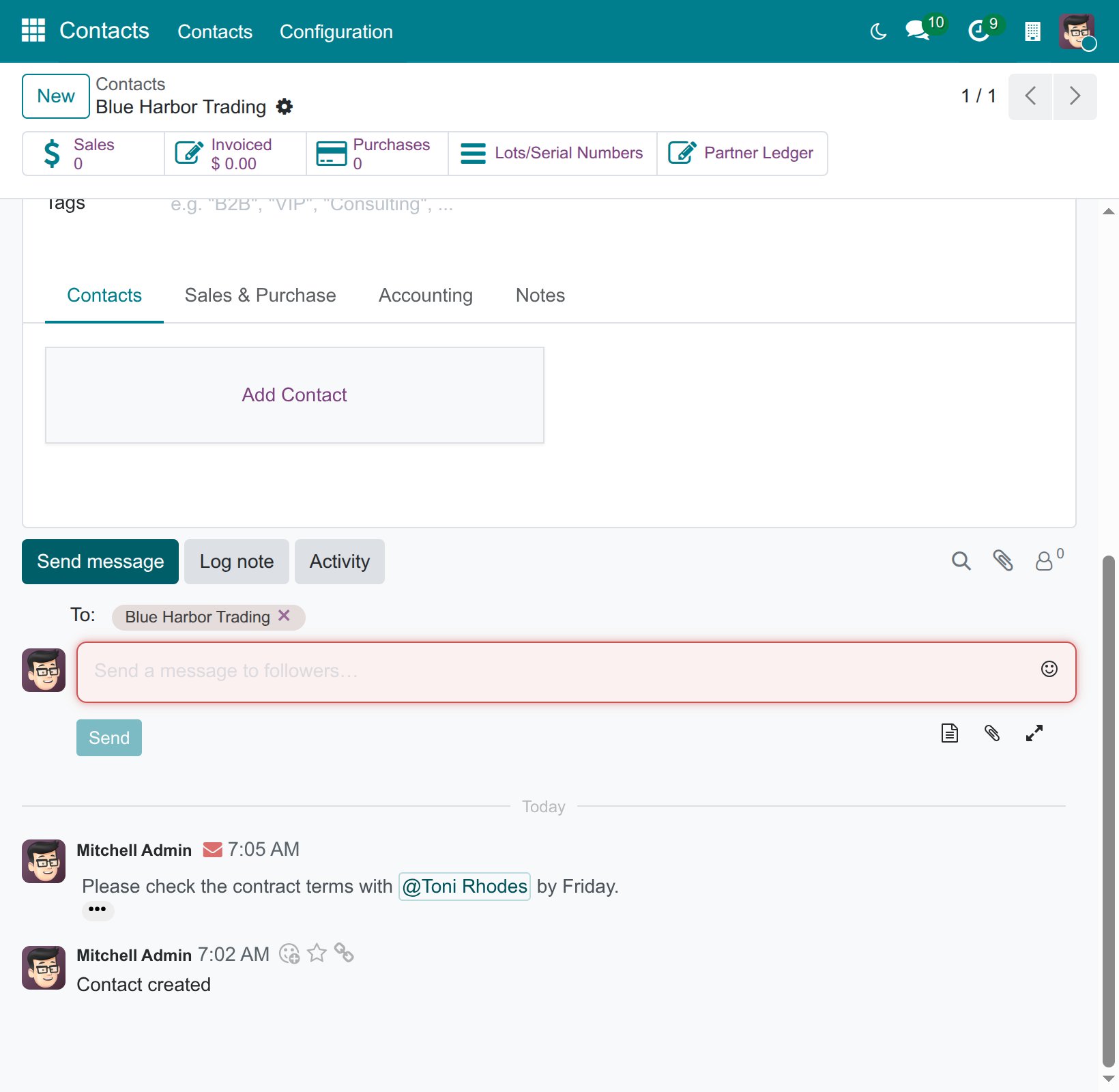
In the chatter, click Send message. The composer shows the recipients after To:. Click the Open Full Composer icon to open the full-size window.
![Send message composer with the recipients and the Open Full Composer icon]()
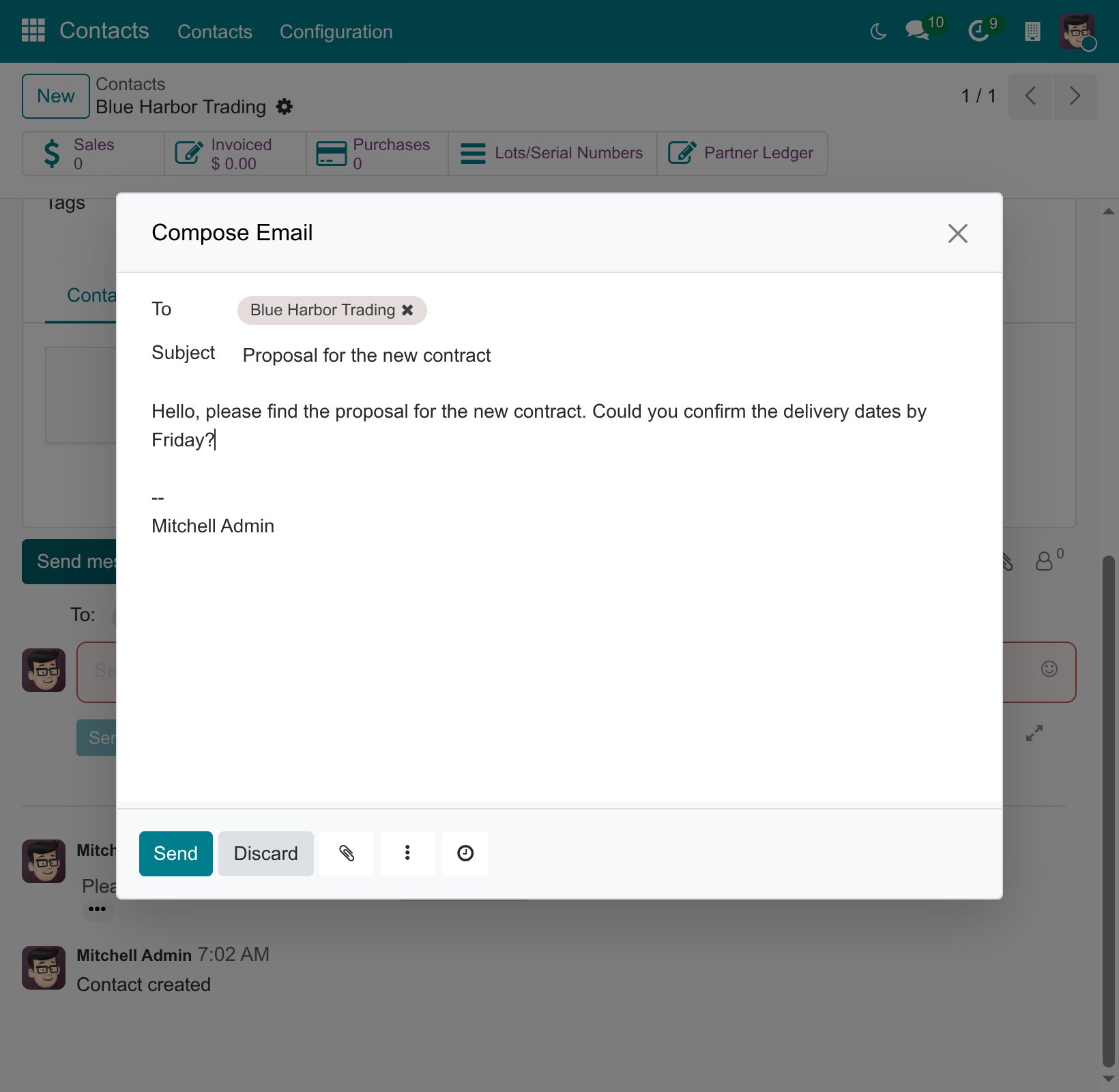
In Compose Email, check the recipients and the subject, write the message (see the table below) and click Send.
![Compose Email window with To, Subject, the message and the Send button]()
Field |
What it does |
|---|---|
To |
Who receives the email. By default, all followers of the record. Click the field to add another contact. |
Subject |
The email subject. |
Paperclip icon |
Attach files to the email. |
Clock icon in the footer |
Send Later: pick a date and time; the Send button becomes Schedule. |
Three-dot button in the footer |
Templates: choose a saved one under Select a Template, click Save as Template to keep the current subject and body for reuse, or Manage Templates to edit them. See How to create and edit email templates. |
What should I see after sending?
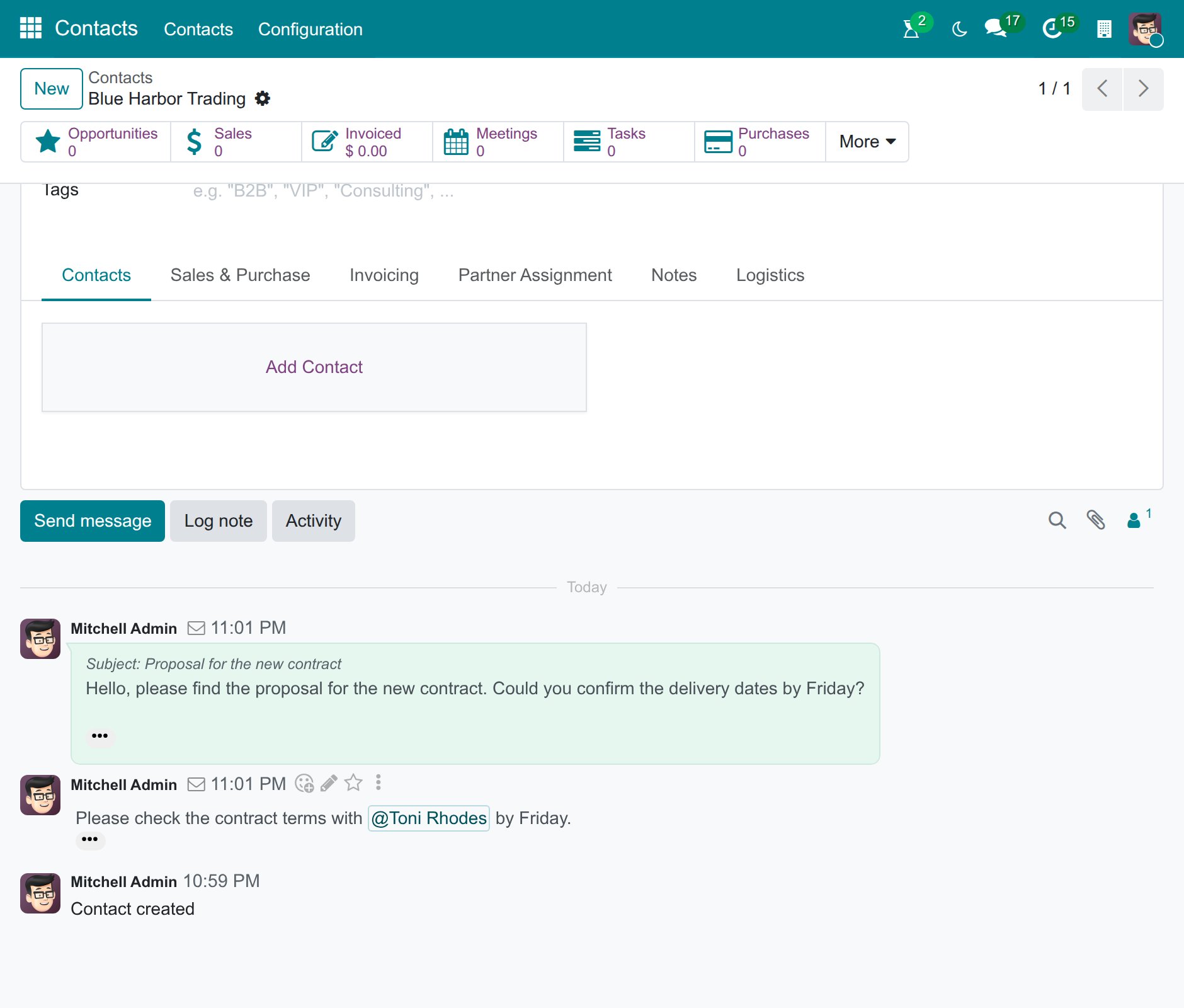
The chatter shows the message you sent in a green bubble, with its subject, and internal notes without a bubble. Replies by email from customers, vendors and colleagues are added to the same chatter.
Common errors
Problem |
What to do |
|---|---|
Unable to post message, please configure the sender’s email address. |
Your user has no email address (shown, for example, when you add followers with Notify Recipients on). Add it in your avatar menu, My Preferences, or ask the Administrator. |
The customer did not receive the email. |
Check that the customer is in To and has an email address, and that outgoing email is set up: see How to connect Viindoo to your own mail servers. |
A colleague did not see your note. |
Mention them with @. By default, followers are not notified of internal notes, only the people you mention. |
Next steps
How to create and edit email templates: prepare email templates to reuse in Send message.
Effective Communication with Viindoo Discuss: chat in channels instead of on a record.