
How to add landed costs to your stock value
To add freight, customs or insurance to the cost of goods you have received, turn on Landed Costs in the Inventory settings, create a service product marked Is a Landed Cost, then create a landed cost on the receipt: either with Create Landed Costs on the vendor bill or from Inventory ‣ Operations ‣ Adjustments ‣ Landed Costs. Viindoo splits the cost over the products and increases their stock value.
Who |
Inventory Administrator or Accountant |
App |
Inventory with Accounting (and Purchase) |
Before you start
Install the Inventory and Accounting apps; install Purchase if the costs come from vendor bills of purchase orders.
Landed costs apply only to products whose category uses the First In First Out (FIFO) or Average Cost (AVCO) costing method (see How to set up inventory valuation in Viindoo).
The goods must already be received (the receipt is Done).
How do I turn on landed costs?
Go to Inventory ‣ Configuration ‣ Settings.
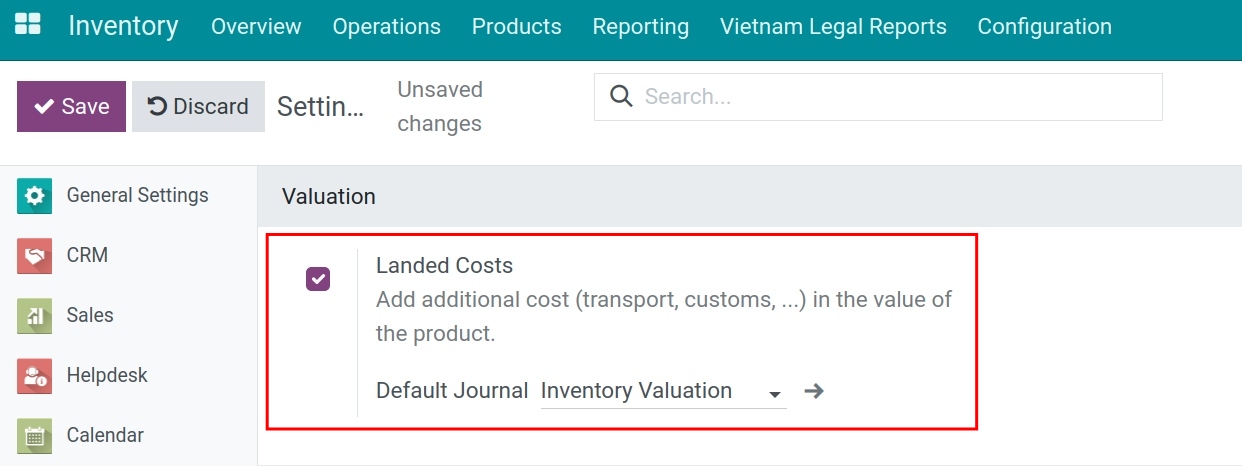
In the Valuation block, tick Landed Costs. This installs the Landed Costs module (
stock_landed_costs). Choose the Default Journal and click Save.![Landed Costs setting in the Valuation block of the Inventory settings]()
How do I create a landed cost product?
Create a product with Product Type Service (see How to create a new product).
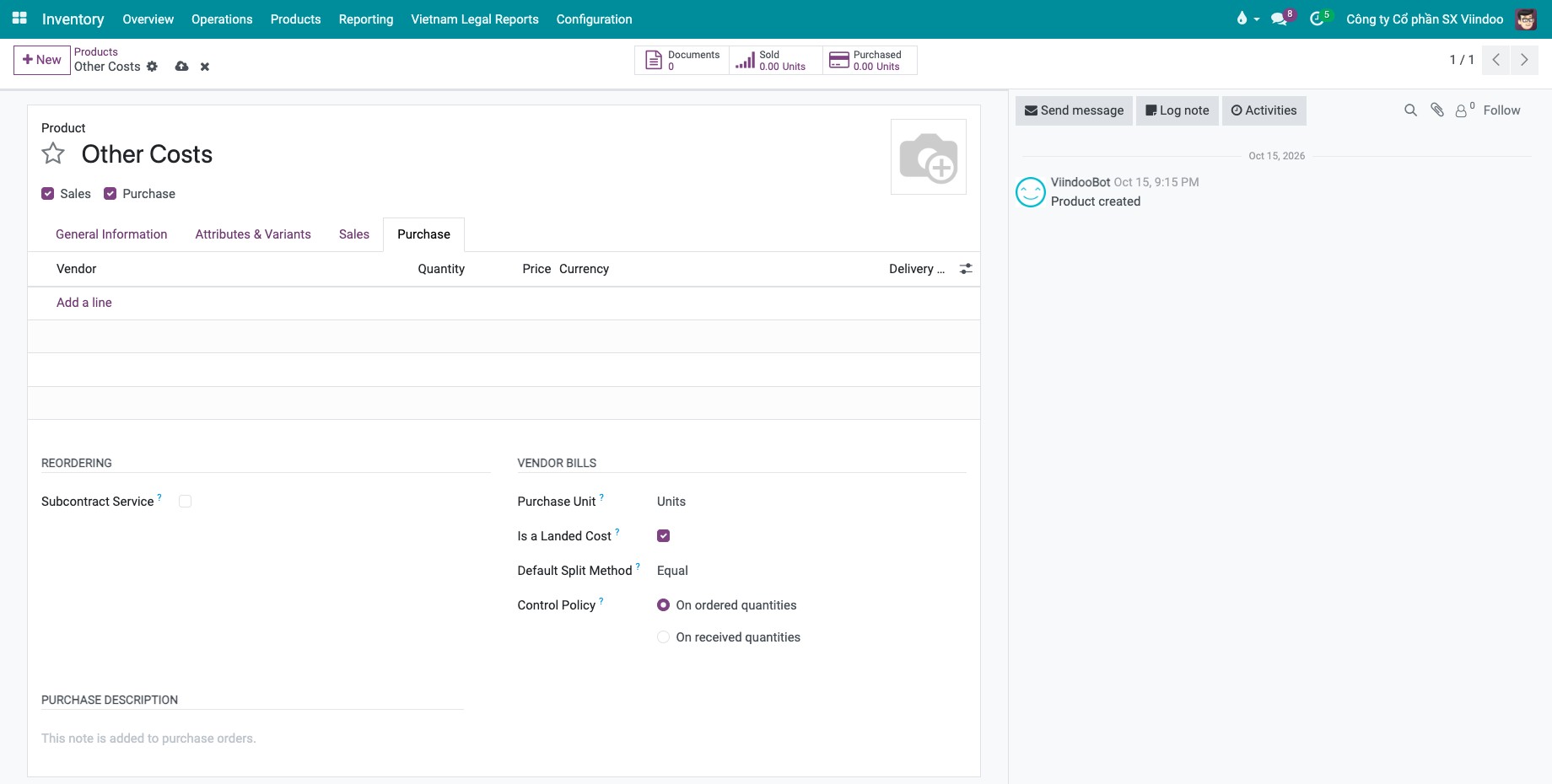
In the vendor bill section of the product, tick Is a Landed Cost and choose the Default Split Method. Click Save.
![Service product with Is a Landed Cost ticked and a default split method]()
Split method |
How the cost is shared between the products received |
|---|---|
Equal |
The same amount for each product line. |
By Quantity |
Proportional to the quantity of each product. |
By Current Cost |
Proportional to the current cost of each product. |
By Weight |
Proportional to the weight of each product. |
By Volume |
Proportional to the volume of each product. |
How do I allocate landed costs from a vendor bill?
Example: you received 100 pairs of Shoes A at 100,000 VND and pay 1,000,000 VND of transport.
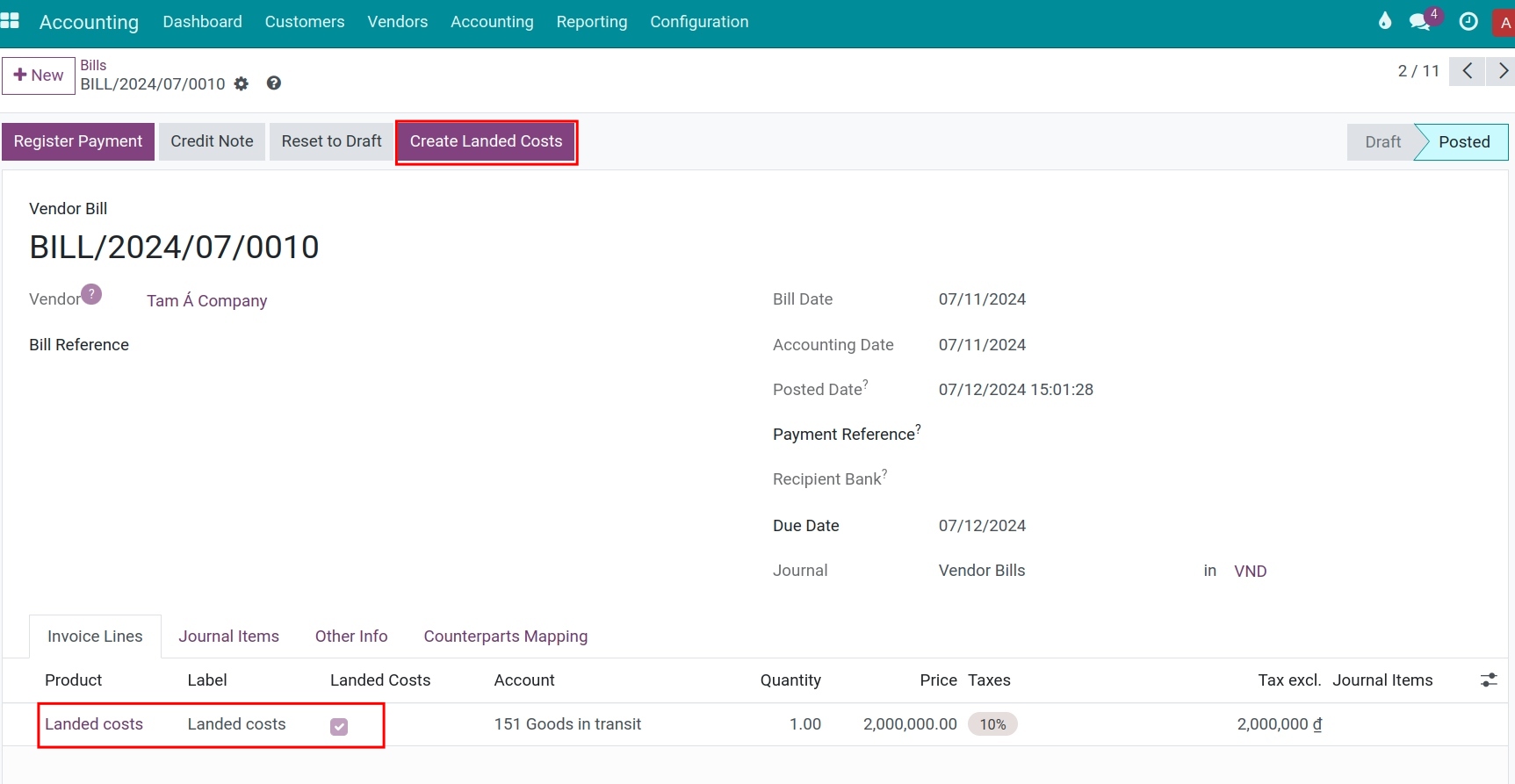
Open the vendor bill of the transport (create it in Accounting ‣ Vendors ‣ Bills with the landed cost product). On the bill lines, Landed Costs is ticked for service products marked Is a Landed Cost. You can show this column with the optional columns of the lines.
Confirm the bill, then click Create Landed Costs. Viindoo opens the new landed cost with the cost line of the bill.
![Vendor bill with the Create Landed Costs button]()
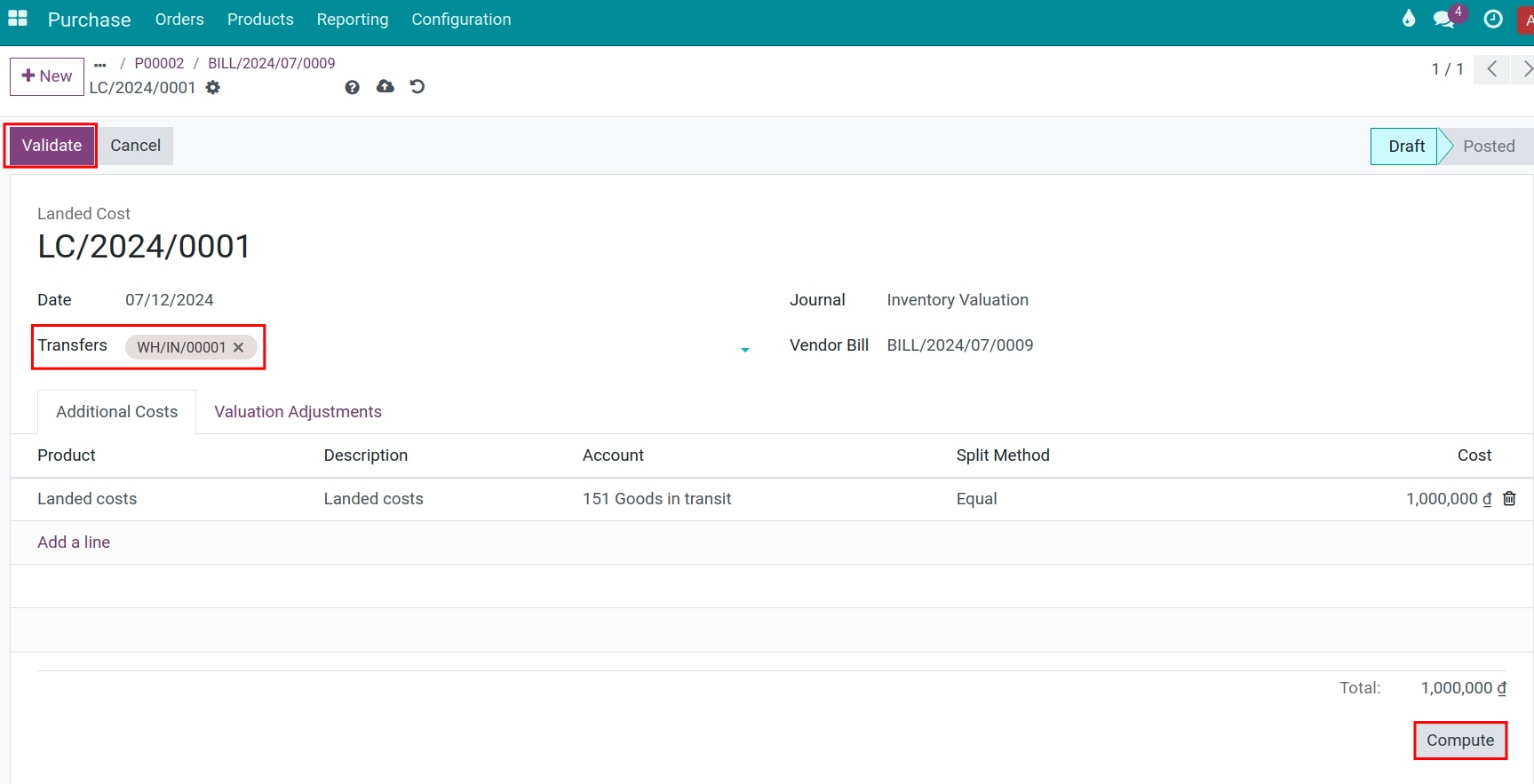
In Transfers, choose the receipt of the goods, then click Compute. Open the Valuation Adjustments tab to check the Additional Landed Cost of each product.
![Landed cost with the receipt selected and the Valuation Adjustments tab]()
Click Validate. The status becomes Done.
You should now see the value of the product increased by the landed cost in Inventory ‣ Reporting ‣ Valuation: here, 1,000,000 VND more on the 100 pairs, so each pair costs 10,000 VND more.
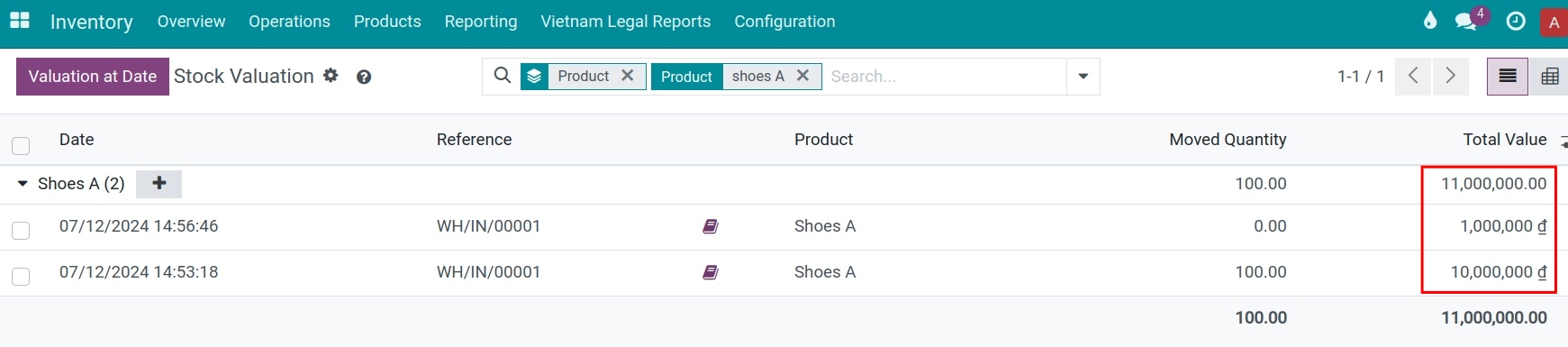
When the Landed Costs smart button of the bill shows a number, the bill already has its landed cost.
How do I create a landed cost without a vendor bill?
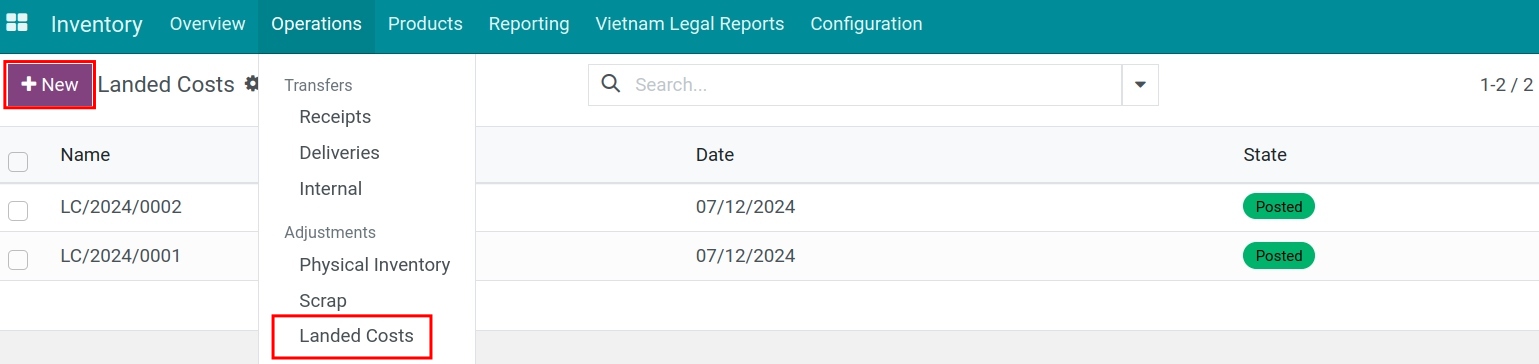
Go to Inventory ‣ Operations ‣ Adjustments ‣ Landed Costs and click New.
Choose the Date, the Journal and the Transfers of the received goods.
On the Additional Costs tab, add a line for each cost: Product, Cost, Account and Split Method.
Click Compute, check the Valuation Adjustments tab, then click Validate.
![New landed cost with the transfers and the additional cost lines]()
Common errors
Message |
What to do |
|---|---|
You cannot apply landed costs on the chosen Transfer(s). Landed costs can only be applied for products with FIFO or average costing method. |
Change the costing method of the product category to FIFO or Average Cost, or choose other transfers. |
Please define Transfers on which those additional costs should apply. |
Fill Transfers before Compute or Validate. |
Cost and adjustments lines do not match. You should maybe recompute the landed costs. |
Click Compute again after changing the cost lines. |
Validated landed costs cannot be cancelled, but you could create negative landed costs to reverse them. |
Create a landed cost with negative amounts on the same transfers. |
Please configure Stock Expense Account for product: … |
Set the accounts on the product category of the landed cost product. |
Next steps
Version notes
Landed Costs is a setting of the Valuation block; it installs the module.
The menu is Inventory ‣ Operations ‣ Adjustments ‣ Landed Costs.
If you also install Purchase and Track Landed Costs, you can enter landed costs on purchase orders.