
Biometric attendance device intergration using ICloud ADMS Protocol
With the cloud server protocol, called Icloud - ADMS in Viindoo, the attendance machine connects to Viindoo by itself and sends each punch over the internet. You need no static IP address and no port forwarding. Point the machine at the address of your Viindoo database, create the machine with its serial number, confirm it and click Upload Settings.
Who |
Users with the Attendances ‣ Administrator access right, and the person who sets up the machine. |
App |
Attendances |
Before you start
Install the Biometric Attendance Machines Integration module, see Biometric attendance device intergration.
The machine supports the cloud server mode (ADMS): its COMM menu has a Cloud Server Setting entry. If it has none, connect it over TCP or UDP instead.
The machine is connected to the internet.
Warning
TCP and UDP remain the default way to connect a machine. Use the cloud server protocol when the machine cannot be reached from Viindoo, because the machine then sends its data to your database over the internet.
How do I set up the machine?
On the machine, open Main Menu ‣ COMM ‣ Cloud Server Setting and set:
Server Mode: ADMS.
Enable Domain Name: on, when you type a domain name.
Server Address: the address of your Viindoo database, for example example.viindoo.com, without https://.
Server Port: 443 for a database on the internet.
Enable Proxy Server: off, unless your network uses a proxy; then type its address and port.
HTTPS: on, when the machine offers it.
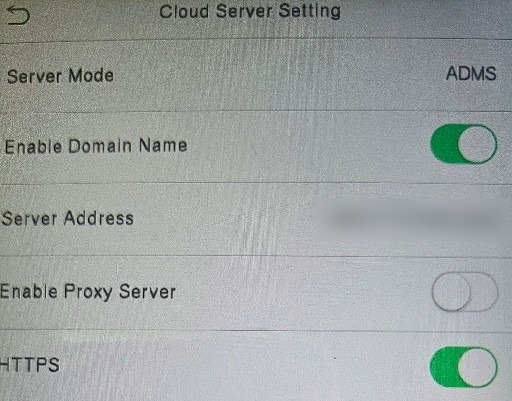
Then open Main Menu ‣ System Info ‣ Device Info and note the Serial Number of the machine.
How do I create the machine in Viindoo?
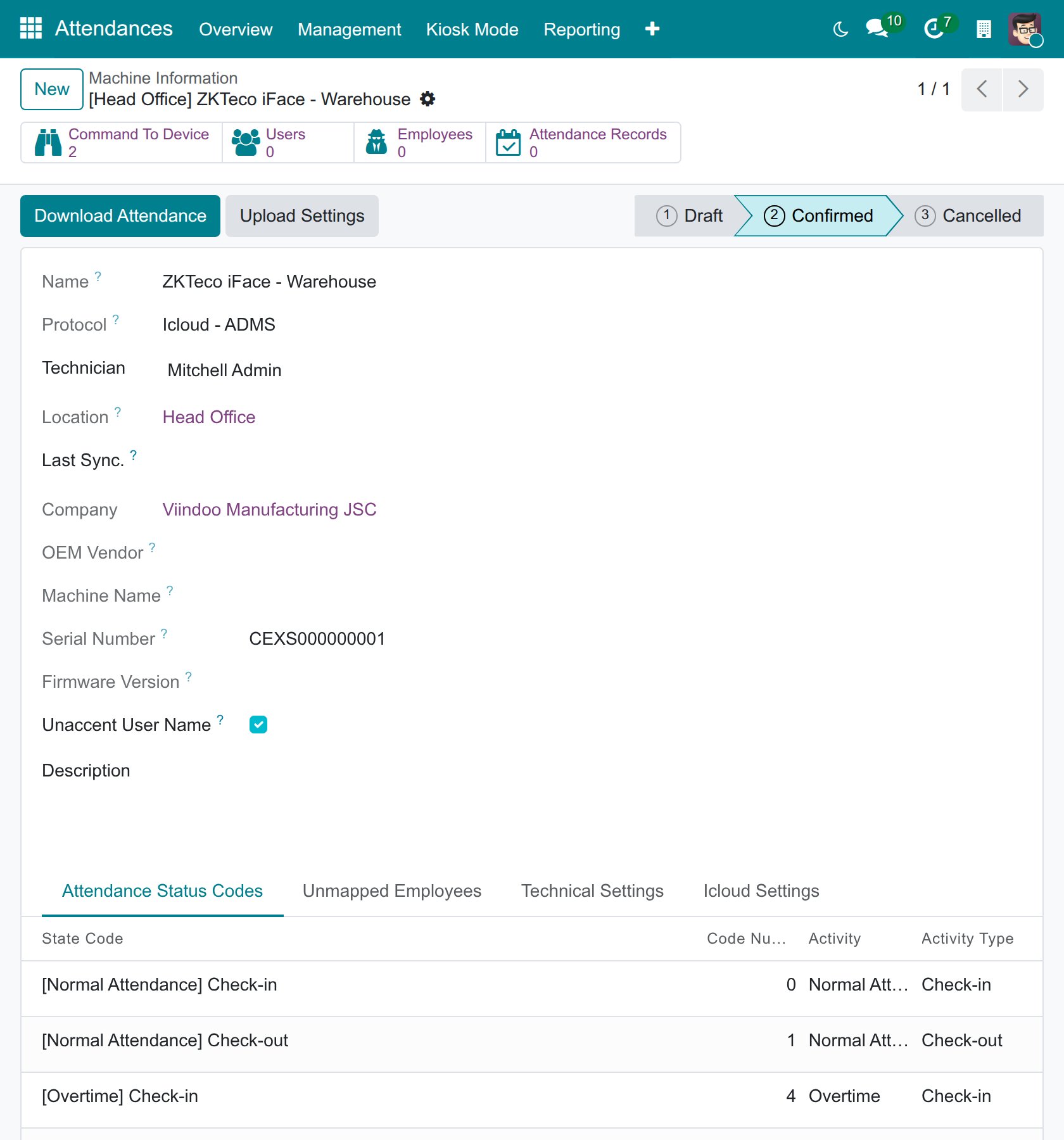
Go to Attendances ‣ Attendance Machines ‣ Machines Manager and click New.
Type the Name, choose Icloud - ADMS in Protocol, then choose the Technician and the Location.
Type the Serial Number of the machine exactly as the machine shows it, then click Save.
![An attendance machine with the Icloud - ADMS protocol and its serial number]()
Click Confirmed in the status bar, then click Upload Settings.
![The Upload Settings button and the Command To Device button of a confirmed machine]()
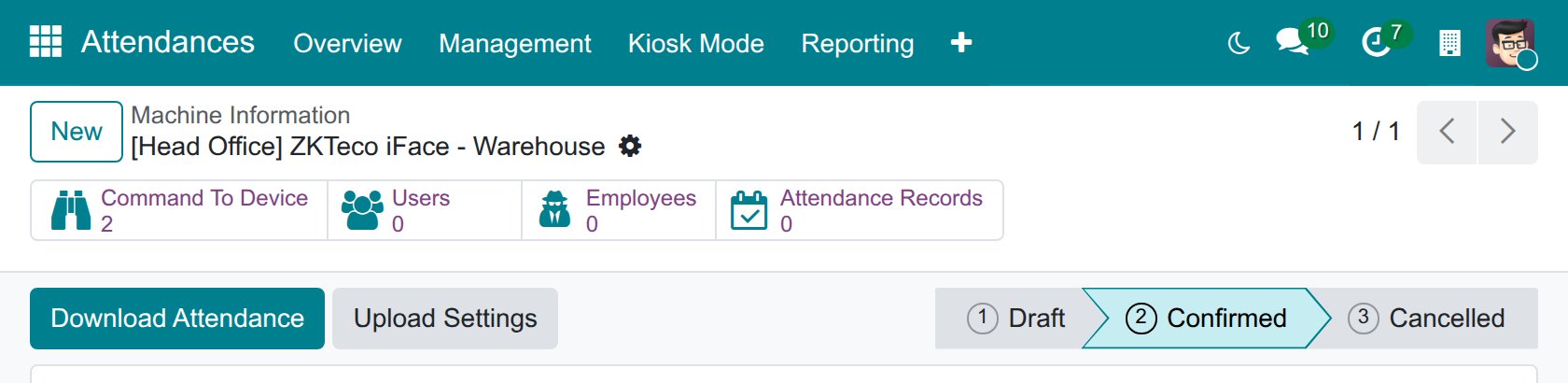
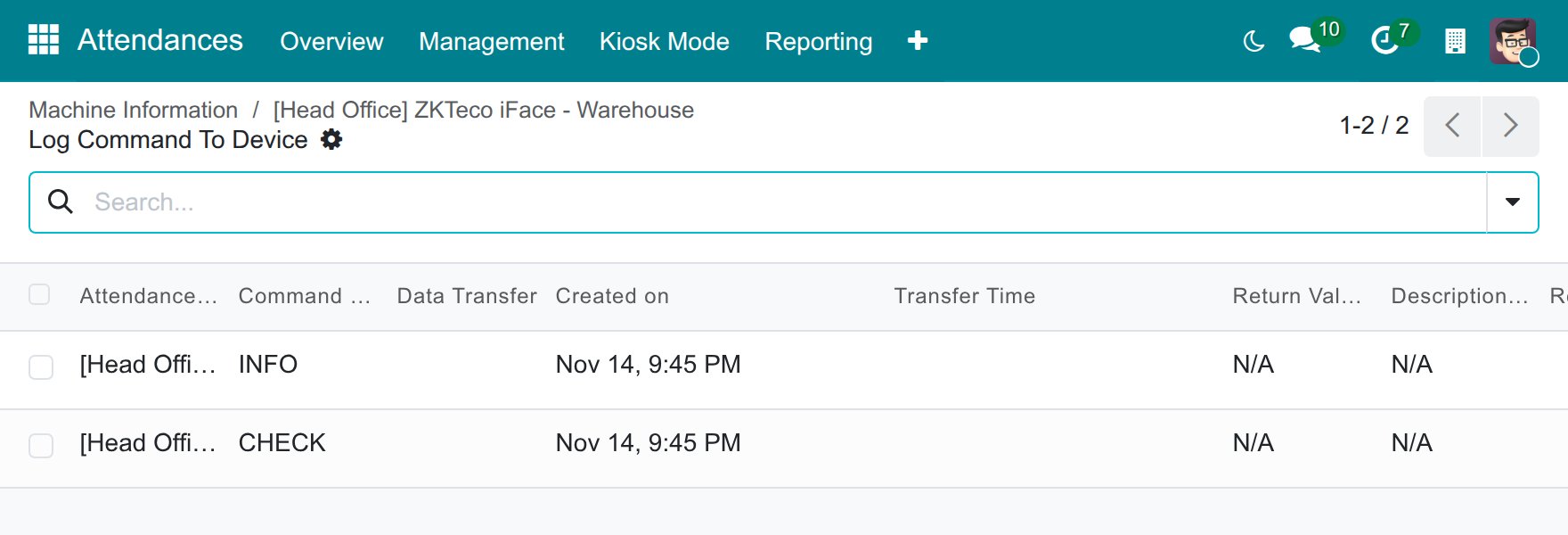
Upload Settings queues two commands for the machine. Click Command To Device to follow them: a command is Draft until the machine collects it, then it shows the answer of the machine. When the information command is done, the OEM Vendor, Machine Name and Firmware Version of the machine are filled.
How often does the machine send data?
The Icloud Settings tab of the machine sets how it talks to Viindoo. The default values suit most machines.
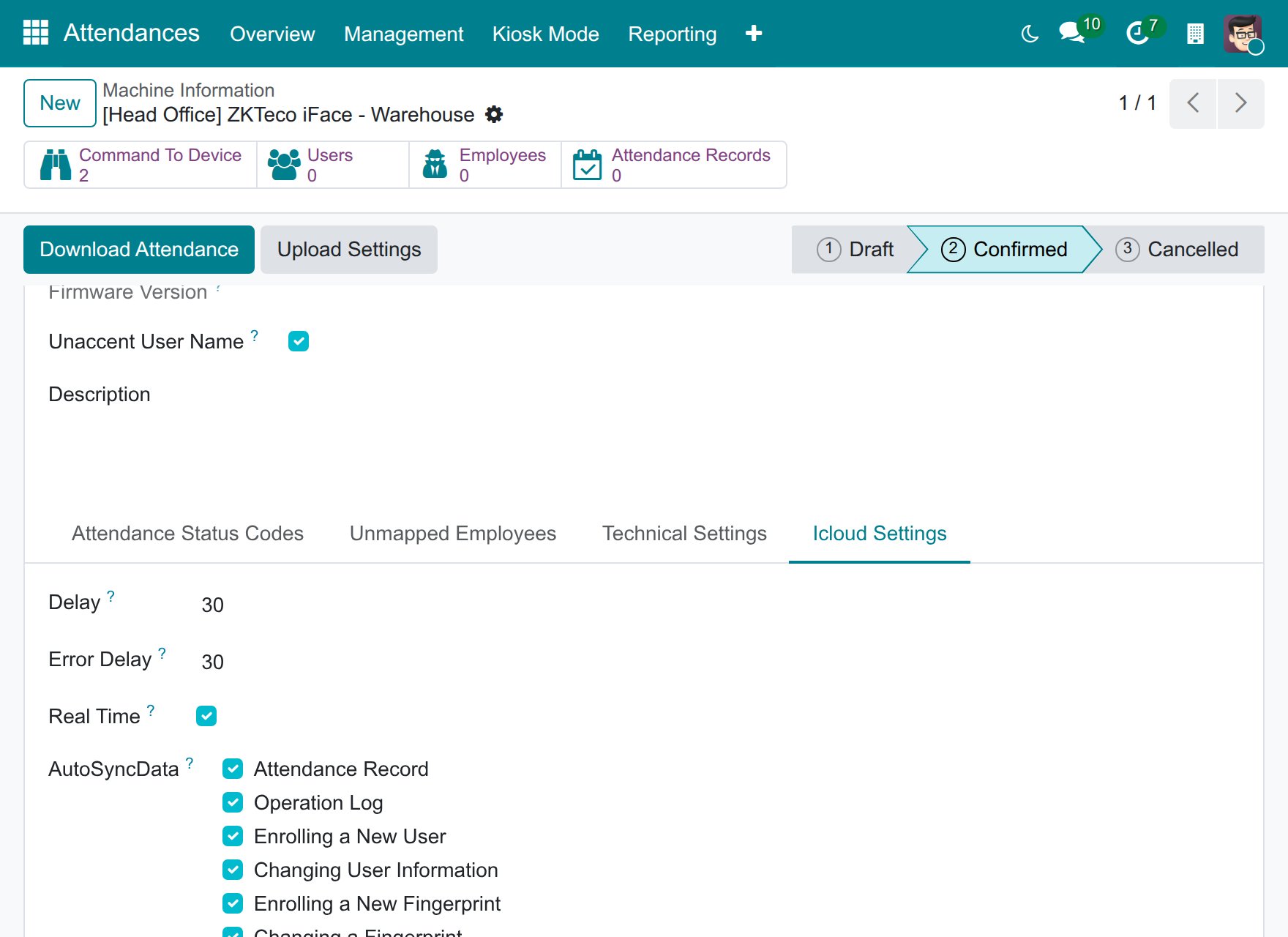
Field |
What it does |
|---|---|
Delay |
How many seconds the machine waits, while it has nothing to do, before it asks for the next command. 30 by default. A batch of commands, such as adding users, runs without waiting. |
Error Delay |
How many seconds the machine waits before it tries again after a network error. 30 by default. |
Real Time |
Sends each punch as soon as it happens. On by default. When you turn it off, the machine sends its data at the Trans Times (for example 00:00; 12:00) and every Trans Interval. |
AutoSyncData |
The kinds of data the machine sends: attendance records, operation log, new users, changed user information, new and changed fingerprints, fingerprint images, new faces. |
The other parts of the machine form, the status codes, the technical settings and the actions, work as for a TCP or UDP machine, see Biometric attendance device intergration. On an Icloud - ADMS machine, the actions are queued as commands and run when the machine next asks for them.
Common errors
Problem |
What to do |
|---|---|
The commands stay in Draft. |
Check that the machine is Confirmed and that its Serial Number is exactly the one of the machine: Viindoo accepts data only from a confirmed Icloud - ADMS machine with that serial number. |
The machine does not reach Viindoo. |
On the machine, check the internet connection and the Server Address: type only the domain, without www or https://. |
Data arrives slowly when many machines send at the same time. |
Turn off Real Time on some machines and set their Trans Times instead. |
Fingerprints registered on the machine do not appear in Viindoo. |
Link the machine users to the employees, keep Enrolling a New Fingerprint ticked in AutoSyncData, then wait for the next exchange with the machine. |
Next steps
Link Attendance device users with employees in Viindoo system: send the employees to the machine with Upload to Attendance Machine by Icloud.
Manage attendance data: read the punches received.
See also
Related articles
Optional modules