
Online payment activation and usage
Requirements
This tutorial requires the installation of the following applications/modules:
For the purpose of having a fast and convenient payment process, and also to facilitate the deal closing process, Viindoo Enterprise Management Software offers various online payment methods, supported by common services such as Internet banking, MoMo wallet, ZaloPay, VNPAY, etc.
Activate Invoice Online Payment
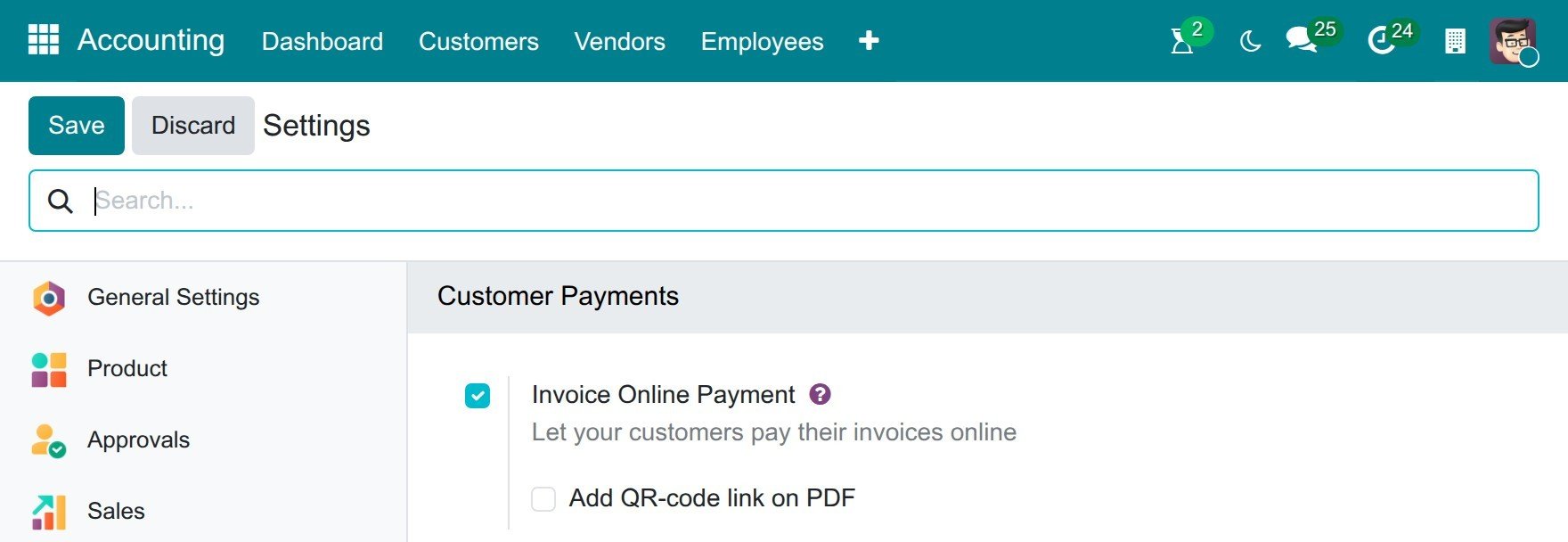
To activate the online payment feature, navigate to Accounting ‣ Configuration ‣ Settings, go to the Customer Payments section, and activate Invoice Online Payment.
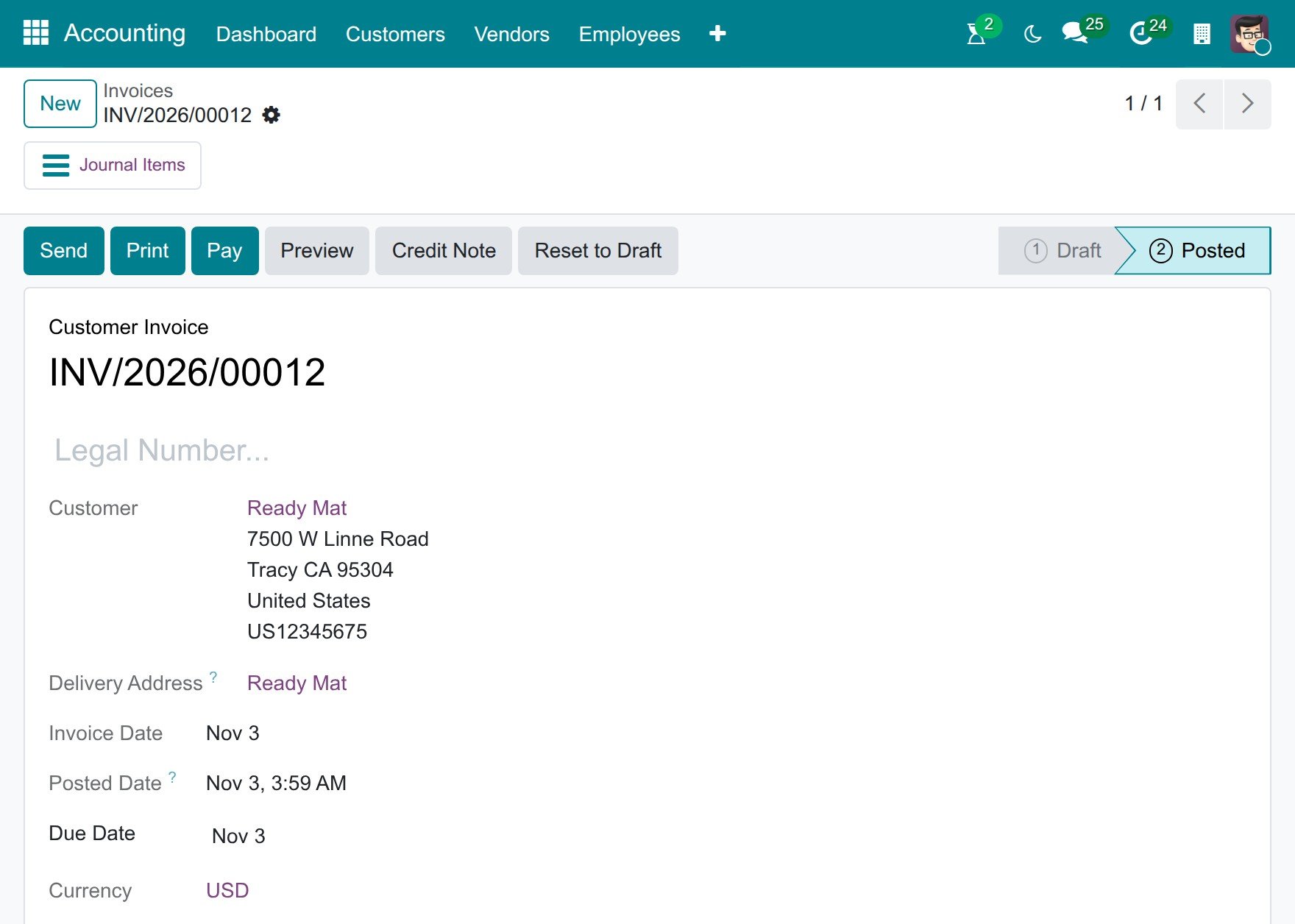
At the customer invoice, click the Preview button to preview the invoice directly on the website.
When pressing this button, you will be able to preview the details of the invoice before sending it to your customer:
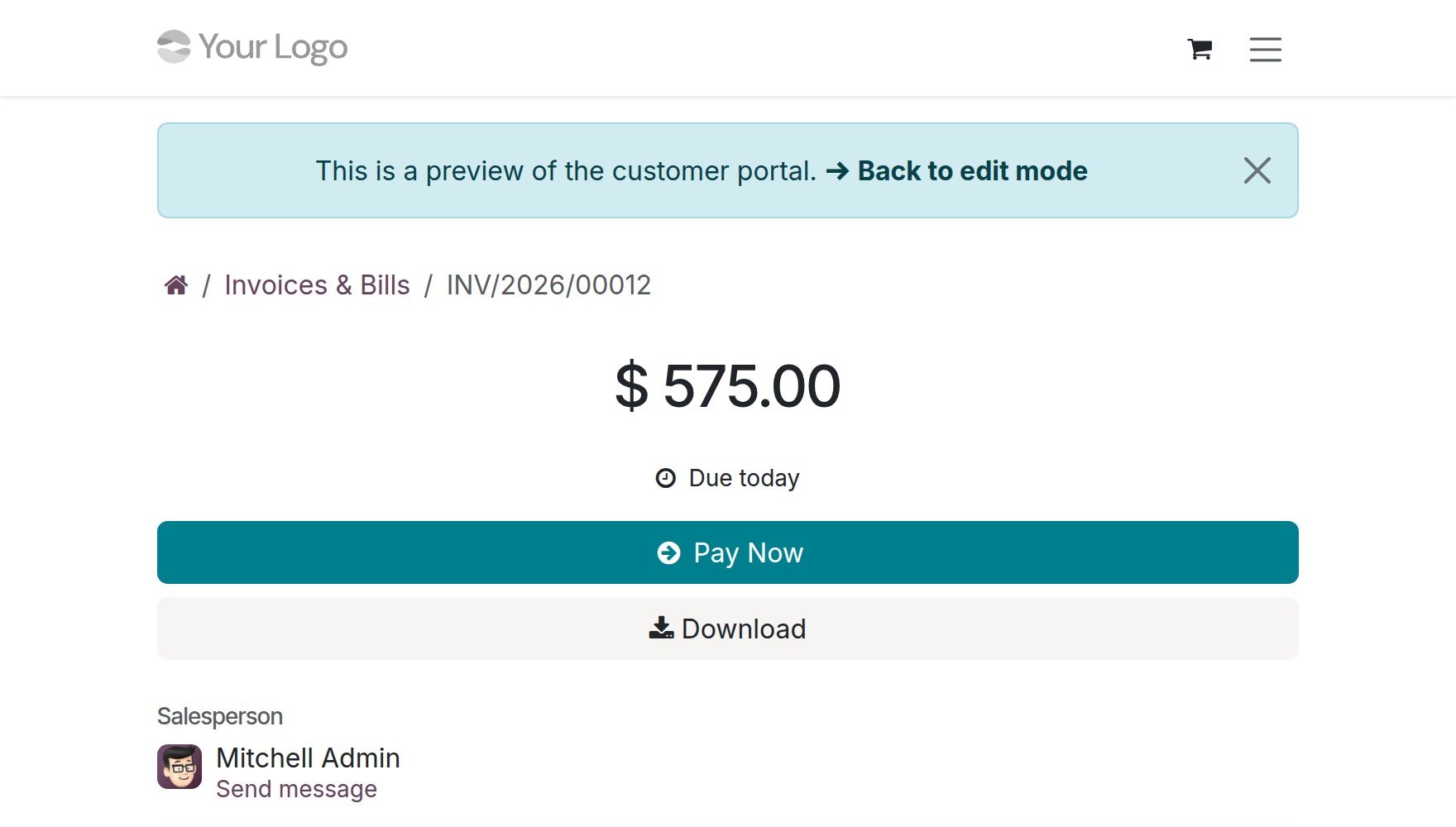
Customer online payment view
When the customer receives an email with the invoice that you send via email, they can see the invoice content by pressing the View Invoice button on this email.
They can process the payment for this invoice accounting with Pay Now. At this stage, the customer can choose their preferred payment method among the payment providers enabled for the invoice currency and the customer’s country, such as ZaloPay, VNPAY, MoMo or bank transfer, etc.
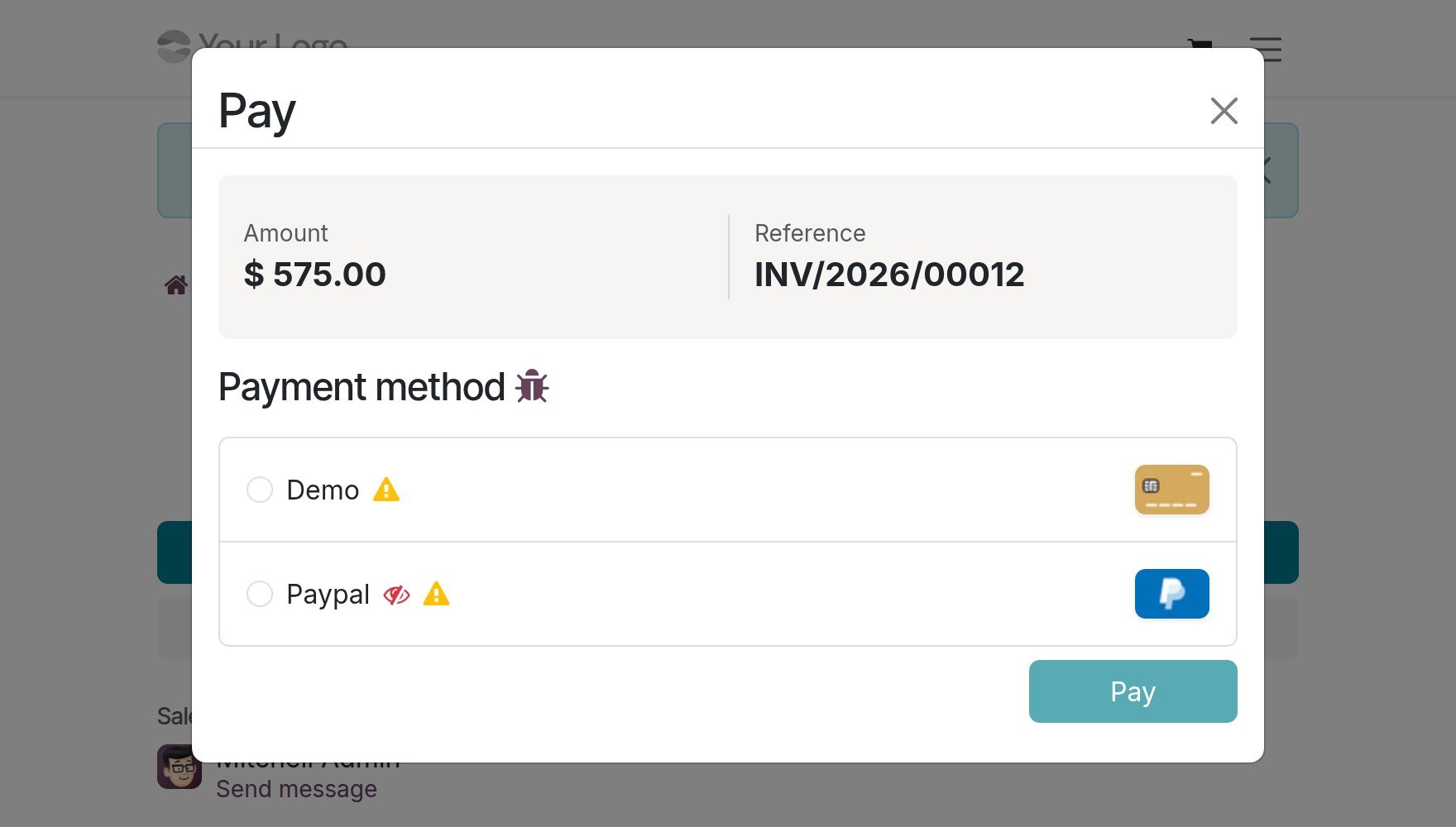
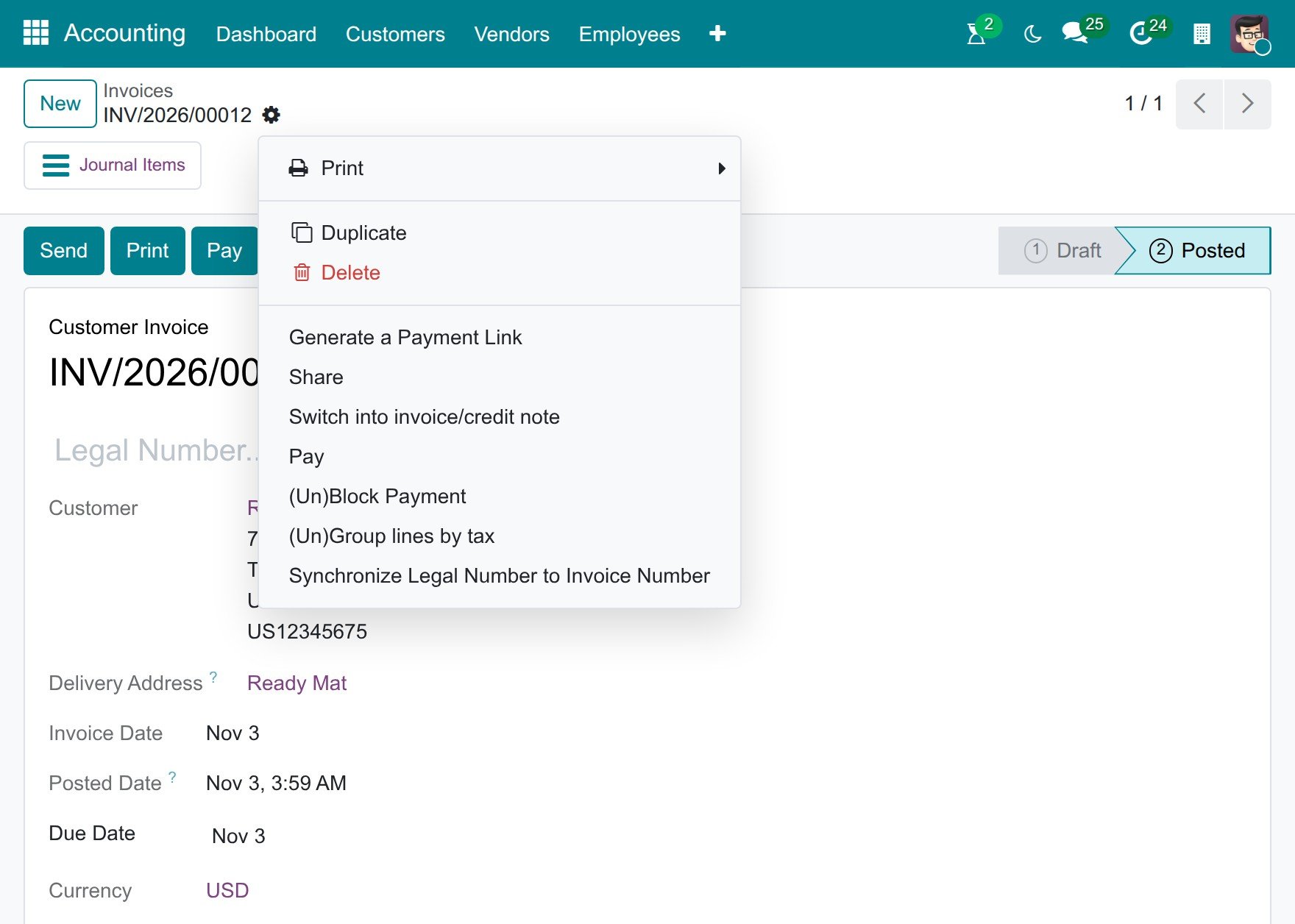
On the other hand, you can also create a payment link right from the Invoice by navigating to the gear menu then Generate a Payment Link:
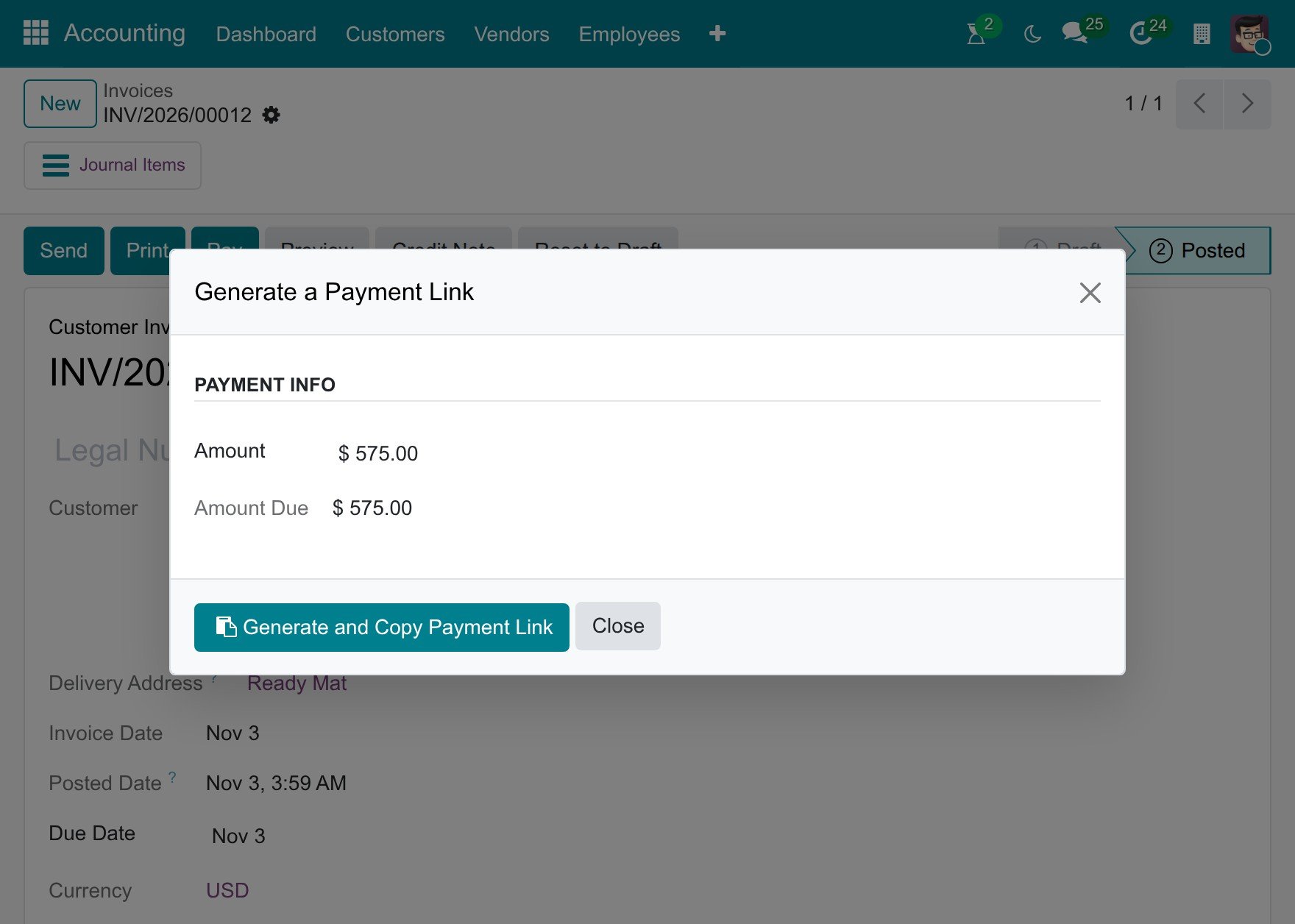
In the dialog, click Generate and Copy Payment Link, then send the copied URL to your customer via messages or other communication methods:
Tip
You can also create a payment link by sending an email from a quotation. More details on How to let customers pay quotations online.