
Issue an HBL or send an Arrival Notice
Guide information
Requirements
This tutorial requires the installation of the following applications/modules:
Freight Forwarder Management (installs Logistics Accounting automatically)
The House Bill of Lading (HBL) and the carrier’s Master Bill of Lading (MBL) are transport documents. Check their numbers, parties, route, cargo, containers, and sailing details against the records and instructions for the shipment before you release the HBL. For an import shipment, the Arrival Notice tells the consignee that cargo is expected and can carry other verified information your process requires. Confirm the carrier’s arrival date and free-time rules before sharing a Last Free Day. If a term below is new to you, see the Industry Glossary.
Running scenario: the Documentation officer issues the HBL for shipment SHP/2611/00010 of Phuoc An Wood Co., Ltd - 2 x Container 40FT HC, Cai Mep International Terminal to Port of Hamburg, carrier Maersk Line Vietnam - Hai Phong Branch, Incoterm FOB, Payment Term Prepaid - and sends the Arrival Notice for the import shipment SHP/2611/00011 of Viet Steel Co., Ltd (carrier Evergreen, Port of Busan to Cat Lai Terminal, 7 days of free time from the actual arrival date). The records are the Viindoo demo data, so yours will differ.
These are two separate examples on two separate shipments. Choose the workflow that matches the shipment you are handling:
Export shipment: Step 1: Record the HBL No. and MBL No., and check Prepaid / Collect - issue and check the HBL.
Import shipment: Step 3: Check the carrier’s free-time allowance - check free time and send the Arrival Notice.
Before you start
Check only the prerequisites for the workflow you need:
For an export HBL: the booking has the final sailing, and the carrier has confirmed that the containers are on board (see Rollover and Not Loaded (Container Exception) and FCL Export). Print HBL has no status check, so verify the sailing before you print.
For an import Arrival Notice: the shipment is Confirmed, In Transit or Done; its HBL No., MBL No., vessel, voyage, and Notify Party are recorded (see FCL Import). Check that the consignee or another notice recipient has an email address.
For either workflow: use User: All Shipments to edit shipment details and send the Arrival Notice. User: Own Shipments is read-only on shipments (see the Shipment Management field in the Logistics section of the user’s Access Rights tab, in ).
Step 1: Record the HBL No. and MBL No., and check Prepaid / Collect
HBL No. and MBL No. are independent free-text fields - Viindoo does not cross-check them. Get either wrong and the HBL printed in Step 2 already carries the mistake.
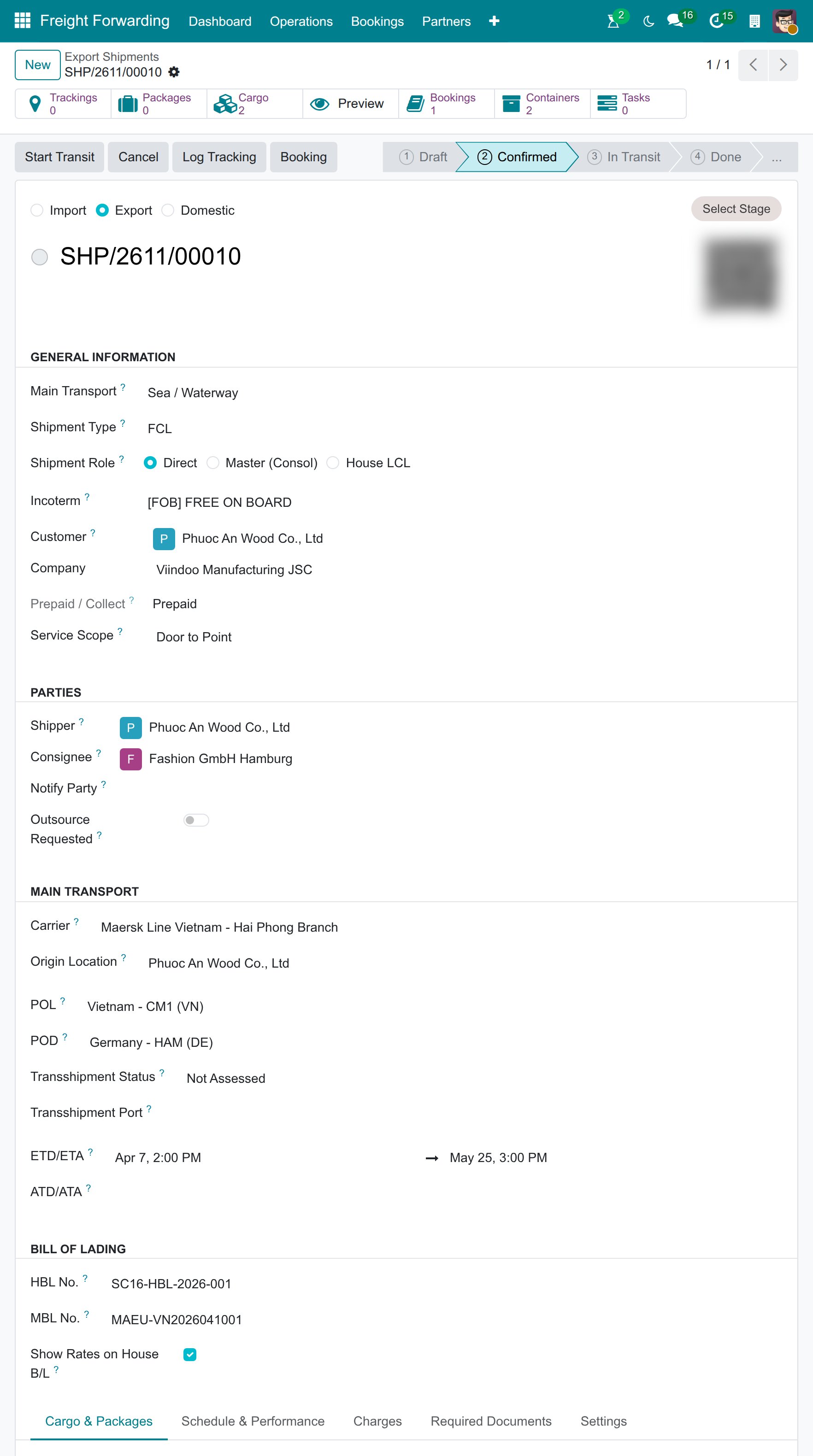
Go to and open the shipment SHP/2611/00010. Fill in, or check:
HBL No. (Bill of Lading group, which shows once the shipment is no longer a Draft): SC16-HBL-2026-001.
MBL No. (Bill of Lading group): MAEU-VN2026041001.
Show Rates on House B/L (Bill of Lading group): leave it ticked to print each charge’s rate on the HBL, or untick it to release the HBL without disclosing the rates (Step 2).
Prepaid / Collect (General Information group, below Company): read-only. Viindoo reads it from the Payment Term column of the Charges tab, where each charge is Prepaid or Collect according to the shipment’s Incoterm and the leg it sits on; it shows Mixed when the charges disagree. The demo shipment has no charge line yet, so it shows the value stored with the shipment, Prepaid.
Warning
Both fields are plain text - Viindoo does not validate the format against the carrier’s own numbering or flag a typo. Check character by character against the carrier’s own MBL copy before printing; the HBL PDF in Step 2 reads its B/L No. directly from HBL No..
Tip
Step 1 is done when:
The Bill of Lading group shows the HBL No. and the MBL No., and the MBL No. matches the carrier’s MBL exactly.
Prepaid / Collect reads Prepaid, matching the freight terms agreed with the customer. When it reads Mixed or is empty, open the Charges tab and set the Payment Term of the charges that state none.
Decide the B/L release type
There is no field for this on the shipment - whichever you pick, log it in the Chatter before printing.
Option |
Use when |
What changes |
|---|---|---|
Original B/L |
Payment is by Letter of Credit, or the bank requires presenting physical originals |
The full set (3 originals) must reach the bank before the L/C presentation deadline, about 21 days after the on-board date |
Telex Release / Surrendered |
Payment is by T/T, or the buyer at destination is a trusted, repeat counterpart |
The destination agent releases the cargo once the origin agent confirms the surrender - no courier wait |
Choose Original or Telex Release from the carrier’s release instructions and the customer’s contract or Letter of Credit requirements. Do not infer Telex Release from the absence of a Letter of Credit. Once the origin agent has confirmed surrender, log Telex Release in the Chatter.
Step 2: Print the House B/L
The HBL has to show the same containers, seals and on-board date as the carrier’s MBL, or a bank or the buyer at destination can refuse the document set.
From the shipment form, click the gear icon (Actions) next to the shipment reference and choose Print HBL.
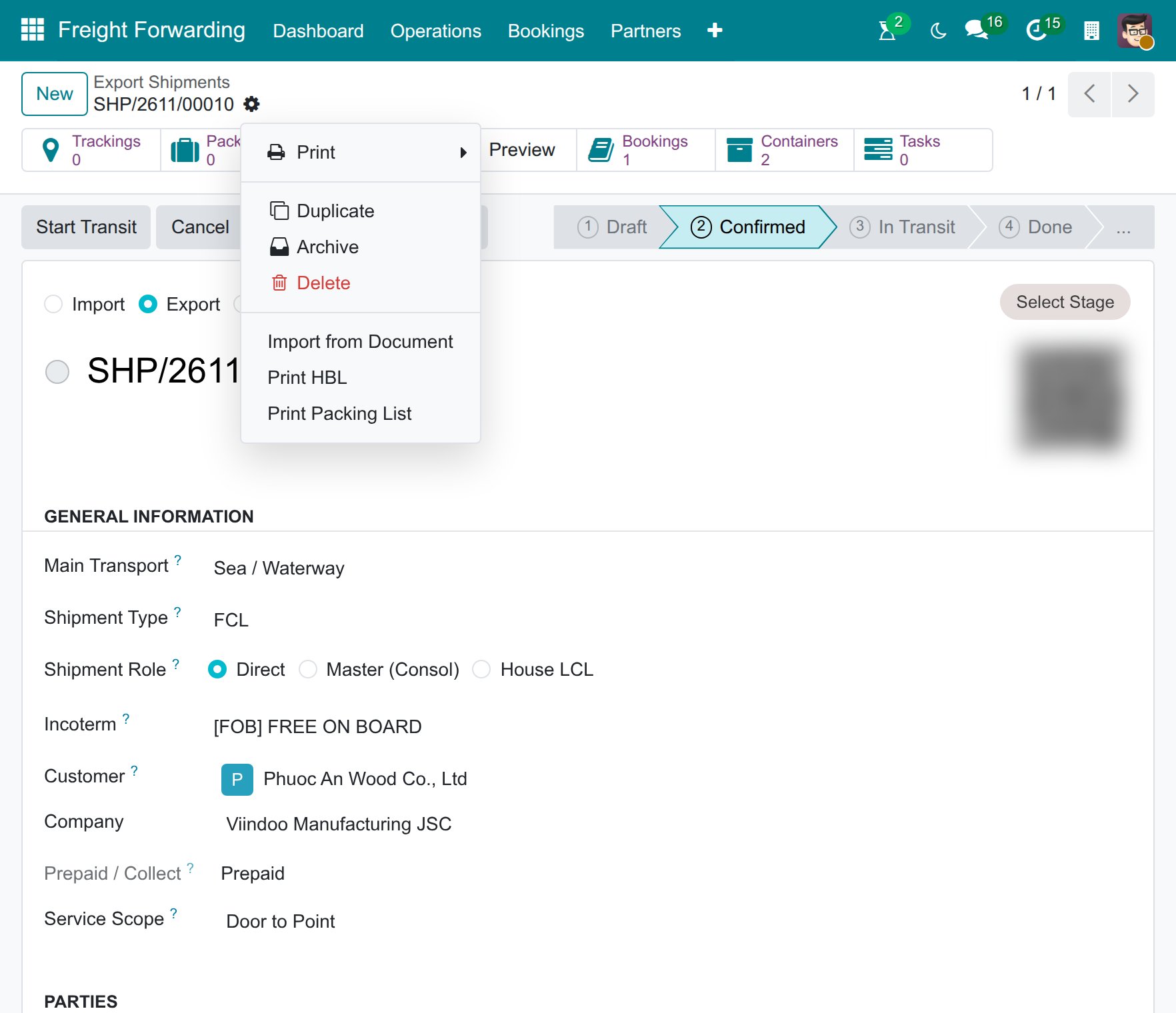
Fill in the Print HBL window:
Ex. Rate: 26,000 (only printed on the PDF - it is not saved back to the shipment).
Prepaid at: Cai Mep, the agreed place for freight payment. This printed label does not record or verify that the customer or carrier invoice has been paid.
Payable at: leave blank - this field is for the destination port on a Collect shipment.
No. of Original B(s)/L: keep the default 3 - it only prints on the PDF and does not record the release type decided above.
Total Prepaid (National Currency): 100,000,000 - the ocean freight only, converted at the rate above, not the local charges. It is free text: Viindoo does not calculate or check it.
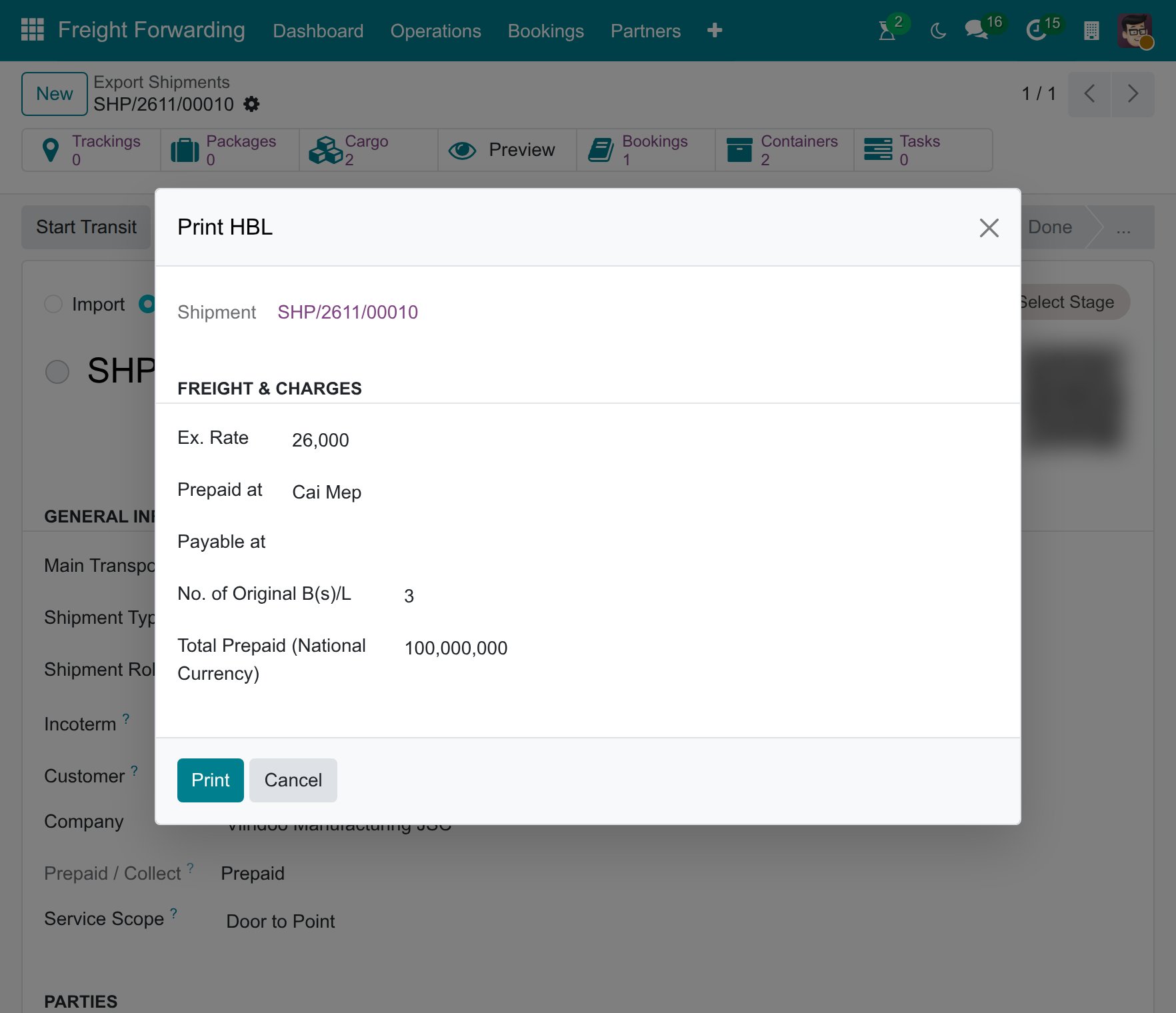
Click Print. Viindoo opens the HBL PDF - none of the values above are saved back to the shipment, so a corrected copy later means re-entering all of them from scratch.
The FREIGHT & CHARGES block of the PDF lists every charge of the shipment whose amount is above zero: its description, quantity, rate, unit and Prepaid or Collect. With Show Rates on House B/L unticked the rate column reads AS ARRANGED while the Prepaid or Collect column still says who pays. A shipment with no such charge prints one empty line carrying the shipment’s Prepaid / Collect value.
Note
Viindoo has no field for the release type decided above. Record the agreed instruction in Chatter, for example “Release instruction: Telex Release for HBL SC16-HBL-2026-001, destination agent <name>”. Describe the HBL as released only after the authorized party confirms release; printing a PDF alone does not confirm it.
Warning
Check the parcel quantity and the issue date before sending the HBL. The quantity printed for each container is the quantity of the cargo lines loaded into that container (see Load Cargo to Containers on the shipment), so a container with no cargo loaded prints no quantity. The Place and date of issue is the city of your company and the shipment’s creation date, not the date you print or release the HBL. Keep the copy for review until those details are correct.
Warning
The LADEN ON BOARD THE VESSEL date is the ETD of the Main Carriage leg - the planned departure, not the actual departure recorded by Start Transit. Print before the booking is updated and the HBL carries the old ETD; if the vessel sails on a later day than its ETD (for example after a rollover, see Rollover and Not Loaded (Container Exception)), update the ETD on the leg before printing.
Tip
Step 2 is done when:
The PDF shows B/L No. SC16-HBL-2026-001, both containers with seals matching the packing list, and Prepaid marked in the Prepaid/Collect column of every charge line, or on the single empty line when there is no charge.
The on-board date matches the sailing the carrier confirmed - not an older planned ETD.
Step 3: Check the carrier’s free-time allowance
The carrier’s Arrival Notice is the source for the arrival date and free-time allowance in this example. Check how the carrier counts the free days before calculating the Last Free Day, then record the date so Customer Service can include the confirmed information in its message to the consignee.
When the carrier’s Arrival Notice reaches your office, use its arrival date and free-time terms - not an estimate from Viindoo - to work out the date. At this point ATA has not been recorded on the shipment yet (that comes later, see FCL Import), and even once it is, Container Free Time (Days) has no field on any form, so the DEM Free Time Expiry and DET Free Time Expiry of each container and the shipment’s read-only Last Free Day stay empty (see Known limitations below). For an LCL or air import shipment, type the expiry date given by the warehouse’s Arrival Notice in Storage Free Time Expiry (Import Operations group): it becomes the shipment’s Last Free Day. On SHP/2611/00011 the arrival date is 2026-03-22 and the carrier gives 7 days of free time: Last Free Day 2026-03-29. If the vessel berths on a different day, recompute from the actual arrival date.
Post a Chatter note on the shipment: “Last Free Day: 29/03/2026 (7 days free time from the carrier, arrival 22/03/2026).” - this is the only record of the number before it goes into the Arrival Notice in Step 4.
Tip
Step 3 is done when: the Chatter has a note stating the Last Free Day, posted before the Arrival Notice is sent in Step 4.
See also
Container Execution Milestones - how the free-time dates of a container are computed once ATA is filled in.
Decide what to add to the Arrival Notice before sending
Option |
Use when |
What changes |
|---|---|---|
Send the template as printed |
No additional information is required by your team’s process, or the details are being sent through another confirmed channel |
The message contains the template information only |
Add the Last Free Day and the local charges due |
The date and any charge amounts have been confirmed for this shipment |
The consignee receives the verified deadline and charges that your team is authorized to communicate |
Include a Last Free Day only after confirming the arrival date and carrier’s counting rule. Include a charge only after confirming that it applies to this shipment and checking its amount with Operations or Accounting. If any detail is uncertain, confirm it before sending the notice.
Step 4: Send the Arrival Notice
The Arrival Notice starts the consignee’s clock - sent late, or missing the Last Free Day, the consignee can run past free time without ever being warned.
Go to and open SHP/2611/00011. On the shipment header, click Send Arrival Notice. The button shows while the shipment is Confirmed, In Transit or Done and no notice has been sent yet.
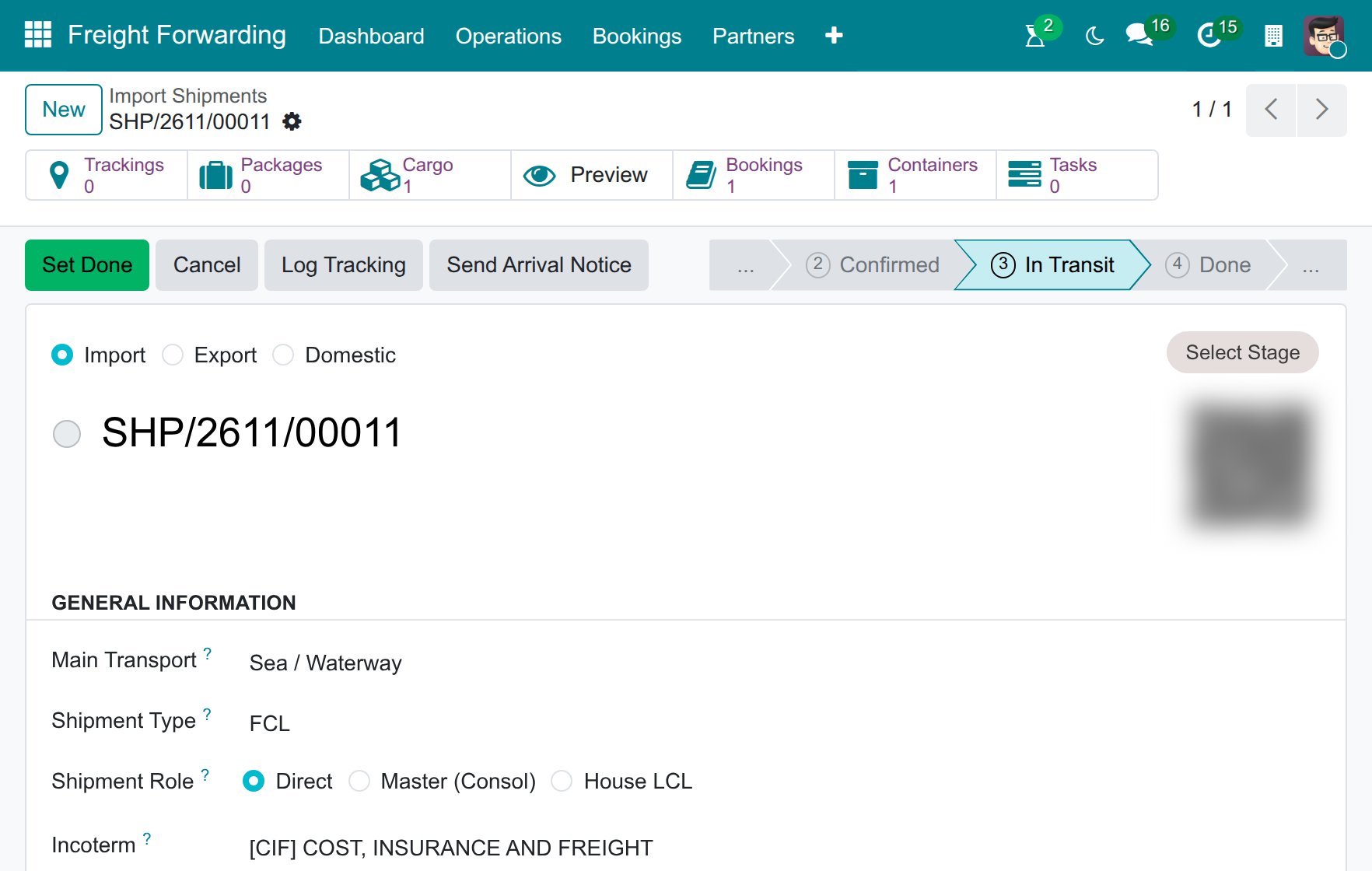
The compose window opens with:
Recipients: automatically the Consignee, the Notify Party and any 2nd Notify Party of the shipment’s bookings that have an email address - here only the consignee, Viet Steel Co., Ltd, so the partner appears once.
Subject Arrival Notice - SHP/2611/00011 / HBL SC17-HBL-2026-001 and a pre-filled body: Shipment Reference, HBL No., MBL No., Port of Loading, Port of Discharge and the Arrival Date (the ATA when it is recorded, otherwise the ETA).
Note
The template’s opening line reads “We are pleased to inform you that your shipment has arrived at the destination port.” This shipment sends the notice as soon as the carrier’s own Arrival Notice comes in - before the vessel has actually berthed. Edit that sentence to “is expected to arrive on …” before sending; the unedited line tells the consignee the cargo is already there while it is still at sea.
For this FCL shipment, replace cargo pickup at the CFS with container pickup at the container terminal. Confirm the collection instructions with the carrier before sending.
Before clicking Send, type into the message body:
“Last Free Day: 29/03/2026.”
The local charges due, if your team has confirmed them with the carrier or agent and checked them against the agreed customer prices. If these charges are already recorded in the shipment’s Charges tab, cross-check them there too (see Charges and Profitability). This notice is sent before the final charge-entry and invoicing checkpoint; do not create extra charge lines just to fill the email.
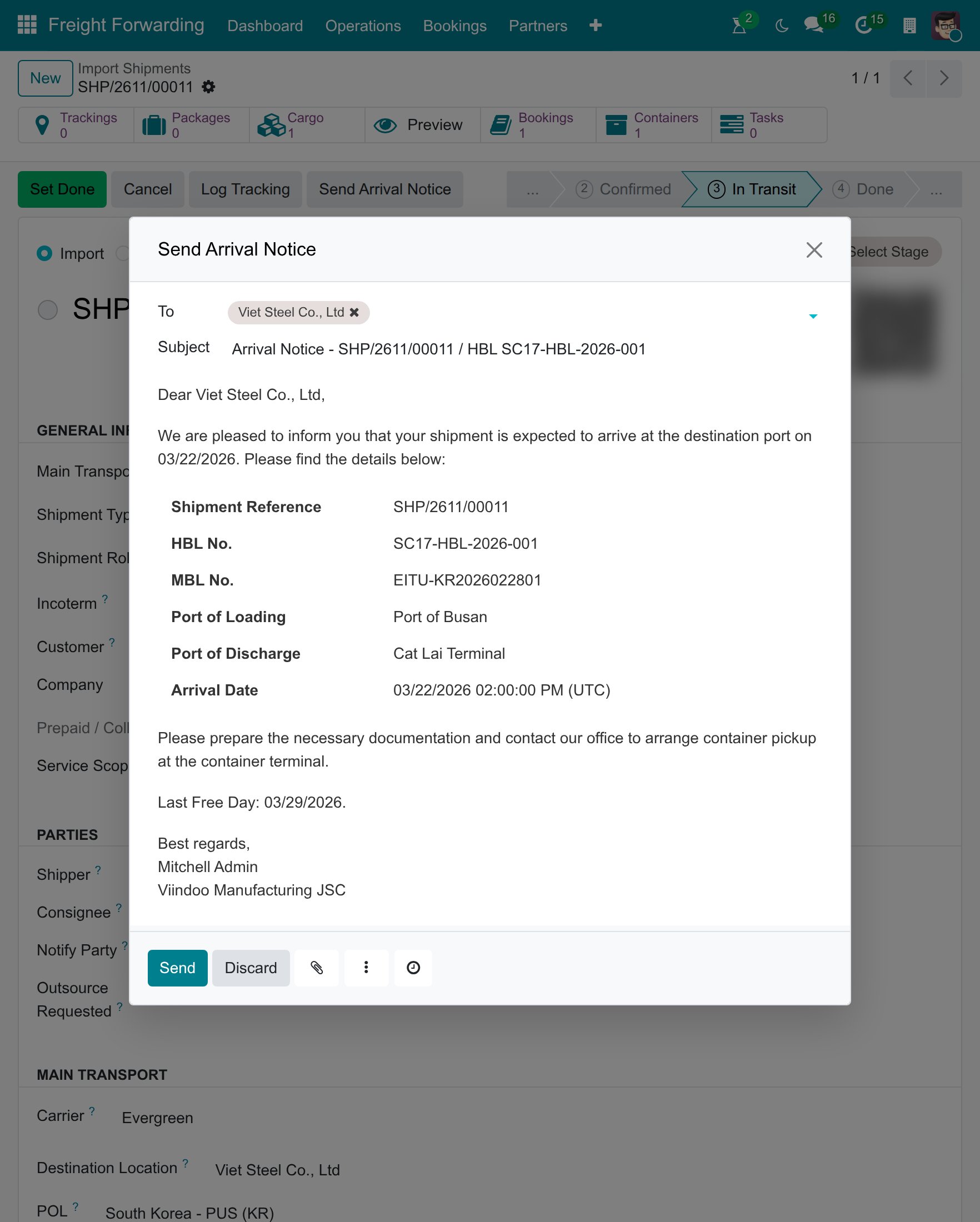
Click Send. Once the email has been sent to a recipient outside your own company, Arrival Notice Sent is stamped with the current date and time and the button disappears from the header.
Warning
This button works exactly once per shipment. Send it before typing in the Last Free Day and the charges, and there is no second system Arrival Notice - the correction has to go out as an ordinary Chatter message instead (see Troubleshooting).
Tip
Step 4 is done when:
The Chatter shows an email “Arrival Notice - SHP/2611/00011 / HBL SC17-HBL-2026-001” whose body includes the Last Free Day line.
Arrival Notice Sent on the shipment shows the date and time it was actually sent.
Known limitations
Step |
What Viindoo does today |
What you do instead |
|---|---|---|
Check the HBL can be issued |
Print HBL has no status check, and the on-board date printed is the Main Carriage ETD, not the actual departure |
Print only after the carrier confirms loading, and check the ETD against the carrier’s on-board date (Step 2) |
Record the B/L release type |
No field for Original B/L or Telex Release on the shipment |
Log the decision in the Chatter (Step 2) |
Pre-alert the destination agent after the HBL is issued |
No packaged pre-alert feature (HBL + invoice + packing list in one action) |
Use the Chatter or an external email, attaching the documents by hand |
Set the free-time days behind DEM Free Time Expiry, DET Free Time Expiry and Last Free Day |
Container Free Time (Days) has no field on any form |
Work out the Last Free Day by hand (Step 3) and log it in the Chatter |
Fill the Arrival Notice with Last Free Day and charges |
The template only carries Shipment Reference, HBL/MBL No., POL, POD and Arrival Date, and its opening line says the shipment has arrived even when sent before berthing, and its pickup instruction refers to a CFS even for FCL |
Edit the opening line and, for FCL, replace cargo pickup at the CFS with container pickup at the container terminal. Confirm collection instructions with the carrier, then type the Last Free Day and the charges into the compose window (Step 4) |
Track the consignee’s response to the Arrival Notice |
Arrival Notice Sent only stamps the send time, not a confirmation |
Create a manual Activity to remind yourself to follow up |
Troubleshooting
Send Arrival Notice does not appear
Symptom: The shipment header has no Send Arrival Notice button.
Cause: The button only shows for a shipment whose Direction is Import, whose status is Confirmed, In Transit or Done, and that has no notice sent yet. It never shows on an export shipment or on a Draft one.
Fix: Use Steps 1-2 for an export shipment - Arrival Notice only applies to an import one. For a Draft import shipment, confirm it first.
Send Arrival Notice is no longer available after the first send
Symptom: The button is gone from a shipment whose notice was already sent.
Cause: Arrival Notice Sent already carries a timestamp - Viindoo only allows this button to run once per shipment.
Fix: For a correction or a resend, use the Chatter’s Send message to email the consignee directly.
Nobody receives the Arrival Notice
Symptom: “Cannot send Arrival Notice for shipment “SHP/2611/00011”: no party outside your own company can be reached by email.”, followed by a line for each party and why it was skipped (for example Consignee (…): no email on file).
Cause: Every Consignee, Notify Party and 2nd Notify Party is missing an email or belongs to your own company.
Fix: Add the missing email on the partner’s record, then click Send Arrival Notice again.
See also
Related articles
FCL Export - the export flow leading up to this HBL
FCL Import - the import flow leading up to this Arrival Notice
Request documents and prepare the SI and draft B/L - preparing and approving the SI and Draft B/L
Charges and Profitability - recording the THC, CIC and D/O fee
Optional modules
Freight Air - an air import shipment uses a separate Arrival Notice template