
Overview of Helpdesk in Viindoo
Helpdesk turns every request from a customer or a colleague into a ticket, sends it to a team, follows it against a service level agreement (SLA) and closes it with a customer rating. This page is for helpdesk administrators, who install the app and give each person an access right, and for team leaders, who follow their team on the Overview.
Requirements
This tutorial requires the installation of the following applications/modules:
Viindoo Helpdesk
Who does what
Role |
What they do |
Access right to assign |
|---|---|---|
Helpdesk administrator |
Sets up teams, stages, SLA policies and ratings, gives each person an access right, follows all tickets and the reports. |
Administrator, in the Helpdesk field of the user |
Support agent |
Creates tickets, works the tickets assigned to them, changes stages and resolves tickets. |
User, in the Helpdesk field of the user |
Team leader |
Sees every ticket of the team, distributes the work, reads the Overview and the customer ratings of the team. |
User, and named as the Leader of the team |
Customer |
Sends a request on the portal, follows it and rates the support. |
Portal access, without a Helpdesk access right |
Installation
Go to Viindoo Apps, search for Helpdesk and hit Activate to activate the app. The Helpdesk app then appears on the home screen.
Helpdesk extensions that match your other applications, such as the website form, the timesheet link or the live chat command, install together with Helpdesk when the applications they connect to are already installed. Helpdesk Ticket Severity is the exception: you switch it on in .
Open, done and cancelled tickets
A ticket has one status, and the status comes from its stage:
Status |
When a ticket has it |
|---|---|
Open |
Its stage is not folded. With the stages that come with the app: New, Assigned, On Hold. |
Done |
Its stage is folded and is not a cancelled stage. With the stages that come with the app: Resolved. |
Cancelled |
Its stage is folded and is a cancelled stage. With the stages that come with the app: Cancelled. |
Closed |
Done or Cancelled. |
A ticket changes status only by changing stage. How to fold a stage and mark it as cancelled is in Stages.
Every screen of Helpdesk reads the same definition:
The menus My Tickets, Assigned to me and All Tickets open with the Open filter on. Remove the filter to see every ticket, or choose Closed to see the resolved and the cancelled tickets together. The Tickets buttons on a contact, a sales order or an SLA policy list every ticket of that record, whatever its status.
The Overview counts open tickets.
The Tickets Report measures Open, Done and Cancelled, so they add up to the Count of all tickets.
The customer portal offers the filters Open and Closed on the list of tickets.
The Helpdesk dashboard of the Dashboards app counts Resolved Tickets as done tickets and Backlog Tickets as open tickets.
Read the Overview
Open Helpdesk and choose Overview.
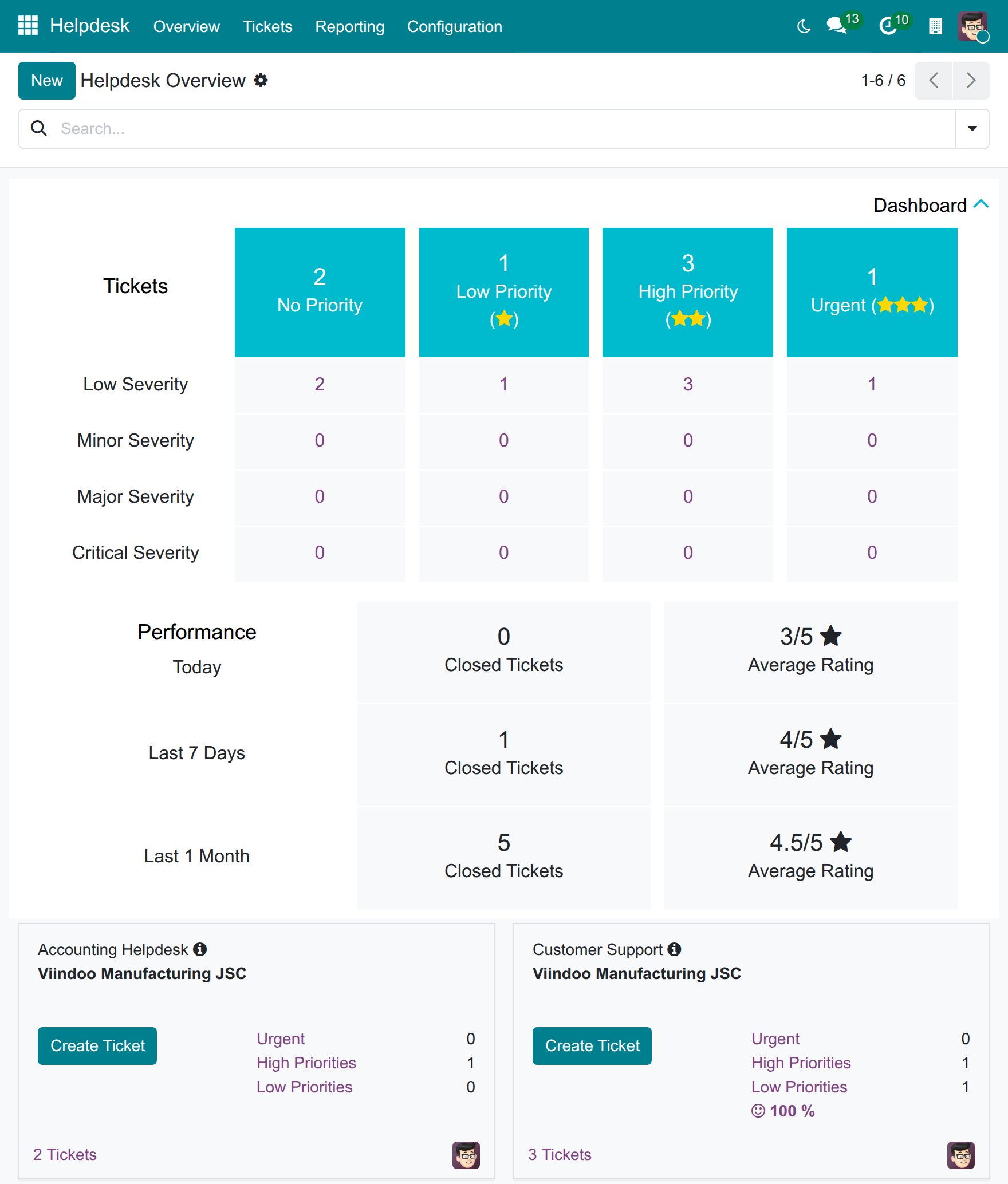
Tickets: the number of open tickets for each priority. Click a number to open the list of those tickets with the Open filter and the priority filter on, so the number you clicked is the number of rows you get.
Low Severity, Minor Severity, Major Severity, Critical Severity: when severity is switched on, each cell of the table is the number of open tickets with that severity and that priority. Click a number to open the list with the Open, the severity and the priority filters on.
Performance: for today, the last 7 days and the last month, the Closed Tickets (every ticket closed in the period, resolved or cancelled, counted by its Close Date) and the Average Rating. The average reads “No rating in this period.” when nobody rated.
One card for each team: the open tickets by priority, the Create Ticket button, the percentage of satisfied customers when rating is on, and the number of open tickets, which opens the list of the team’s tickets with the Open filter on.
Access Rights
Give each person the access that matches their job. Go to , open the user account and scroll to the Helpdesk section.
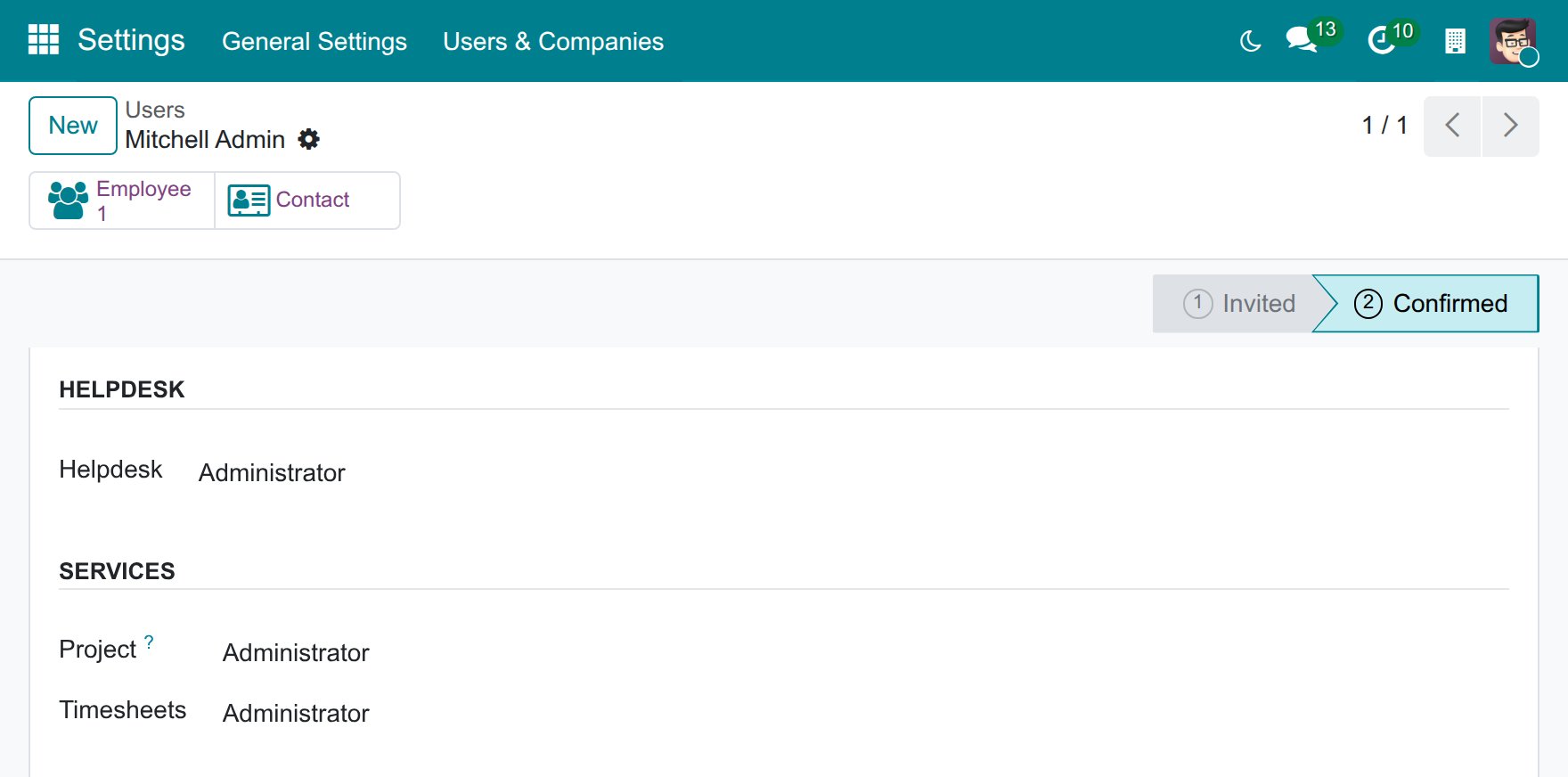
The Helpdesk field has three values:
Empty: the person has no access to the Helpdesk app. Customers on the portal need nothing more.
User: the person sees the Overview, My Tickets and Assigned to me, creates tickets and works on the tickets assigned to them. A team leader with this right also sees every ticket of the team.
Administrator: everything a user does, plus All Tickets, the reports and the configuration.
See also
Related article
Optional module