
How to create a time off type
To create a time off type, go to Time Off ‣ Configuration ‣ Time Off Types and click New. Name the type, choose who approves the requests and whether employees need an allocation, then click Save. Each kind of leave your company offers (annual leave, sick leave, marriage leave) is one time off type, so you can approve, count and report it separately.
Who |
Users with the Time Off ‣ Administrator access right. |
App |
Time Off |
Before you start
Install the Time Off app, see How to install Time Off and set up access rights. The Viin Time-Off module adds the Minimum Time-Off Duration field.
Choose the approver of each employee in the Time Off field of the Settings tab of the employee’s profile if the type is approved by the employee’s approver.
How do I create a time off type?
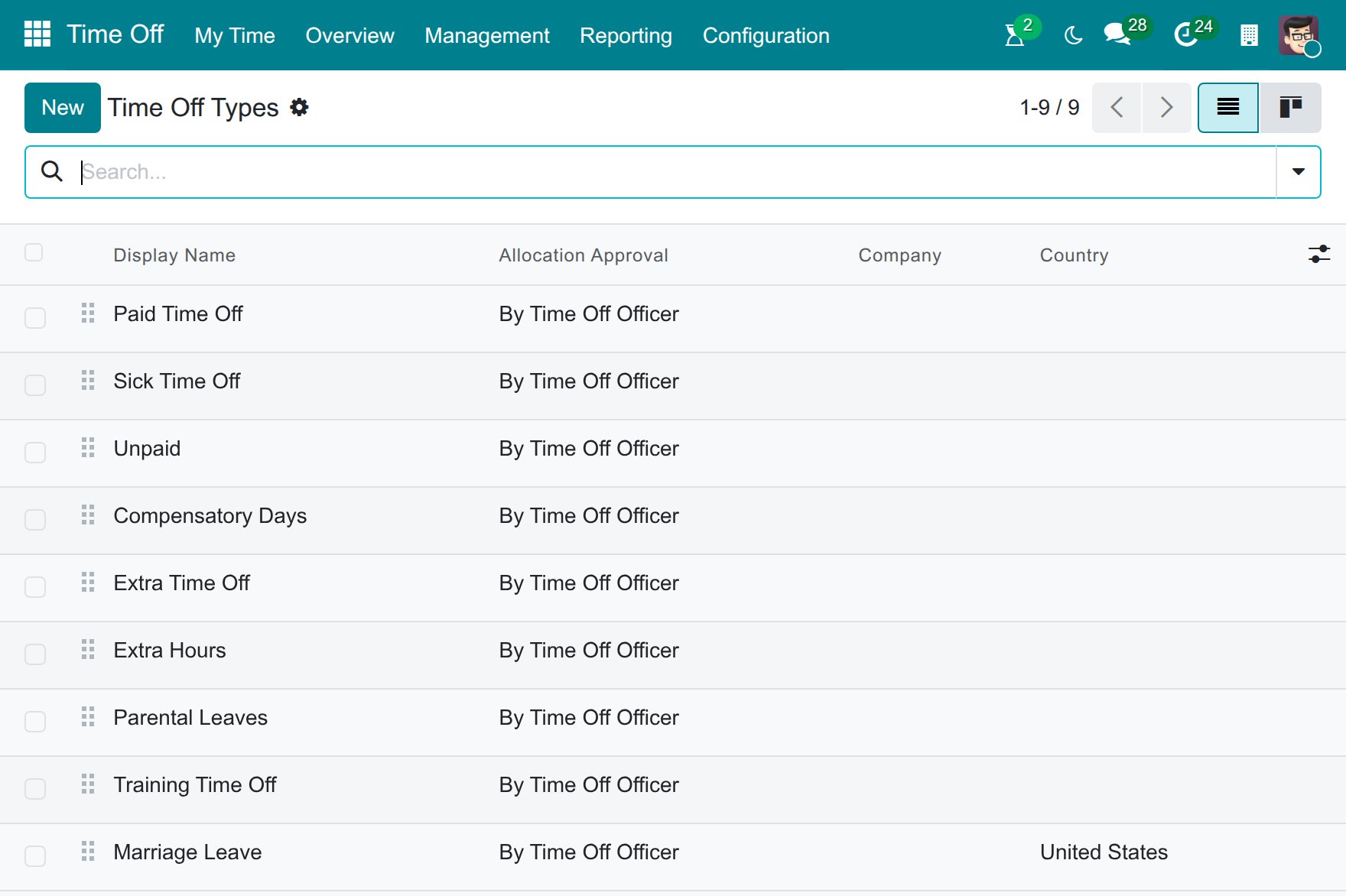
Go to Time Off ‣ Configuration ‣ Time Off Types. The list shows the types of the company. Click New.
![The list of time off types with the New button]()
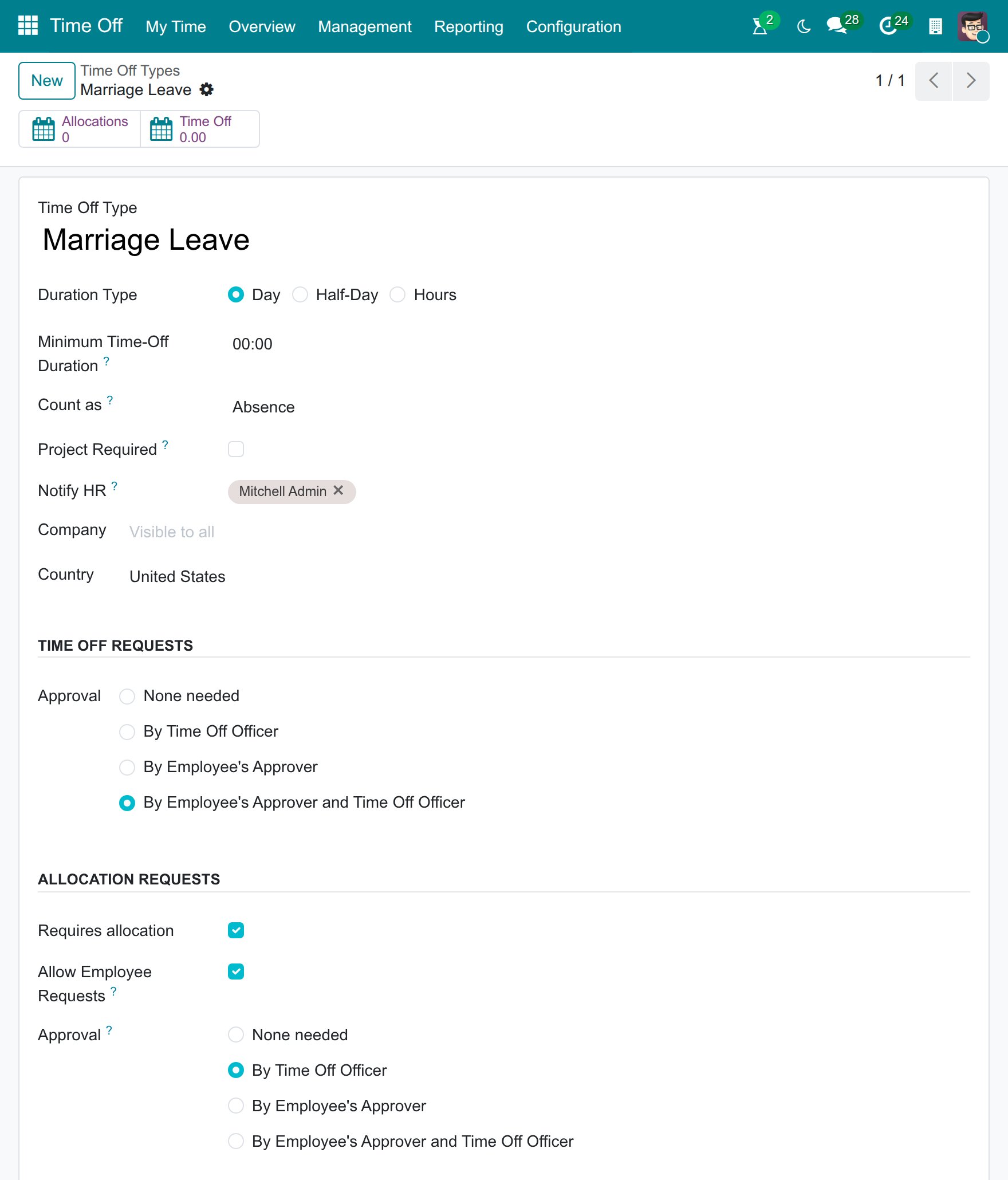
Type the name of the type, for example Marriage Leave. Choose the Duration Type (the smallest unit of a request) and, in Time Off Requests, the Approval of the requests. In Allocation Requests, choose whether an allocation is required and who approves the allocation requests.
![A time off type with the duration type, the approval of requests and the allocation requests]()
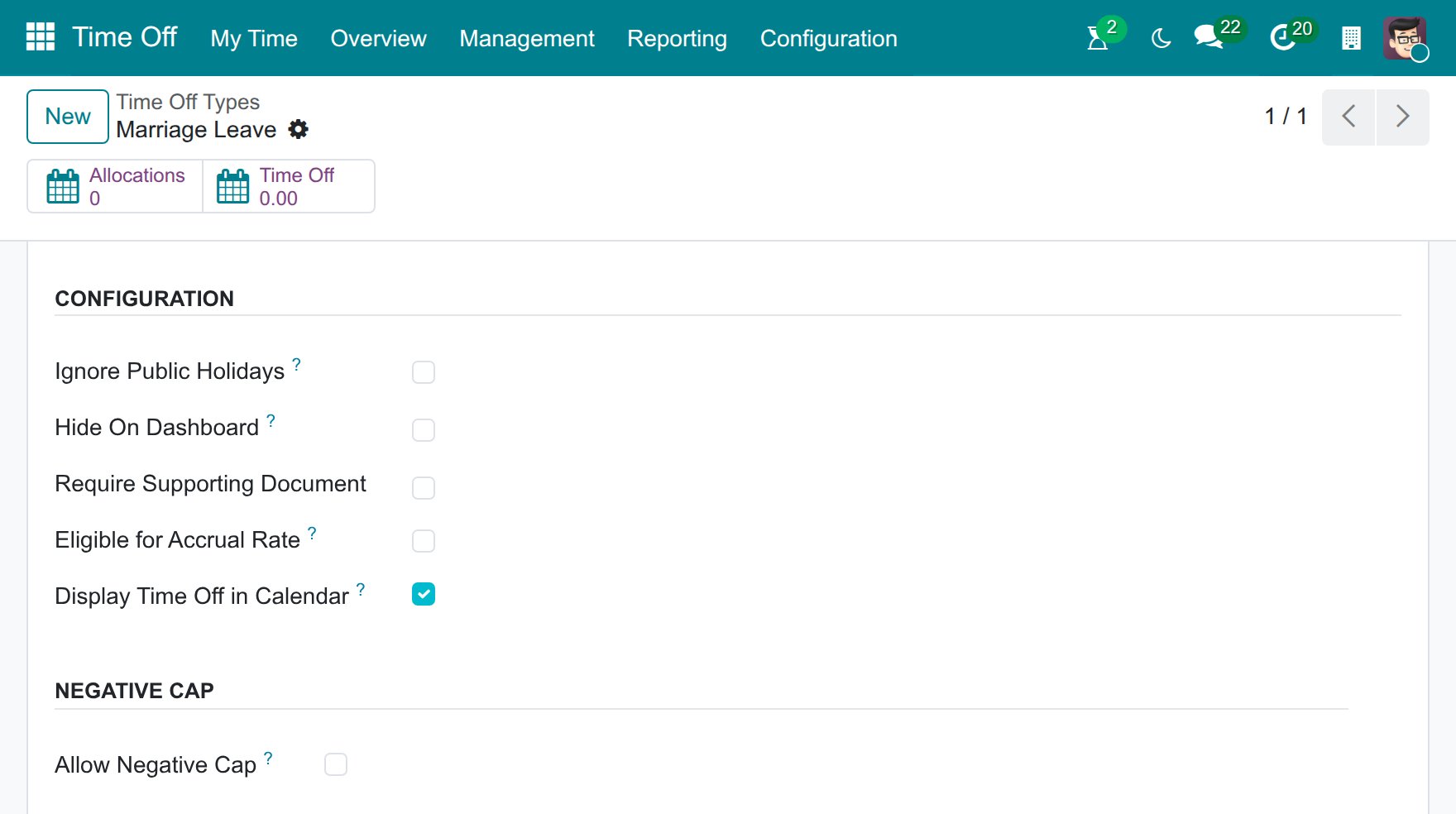
In Configuration and Negative Cap, set how the type behaves.
![The configuration and negative cap sections of a time off type]()
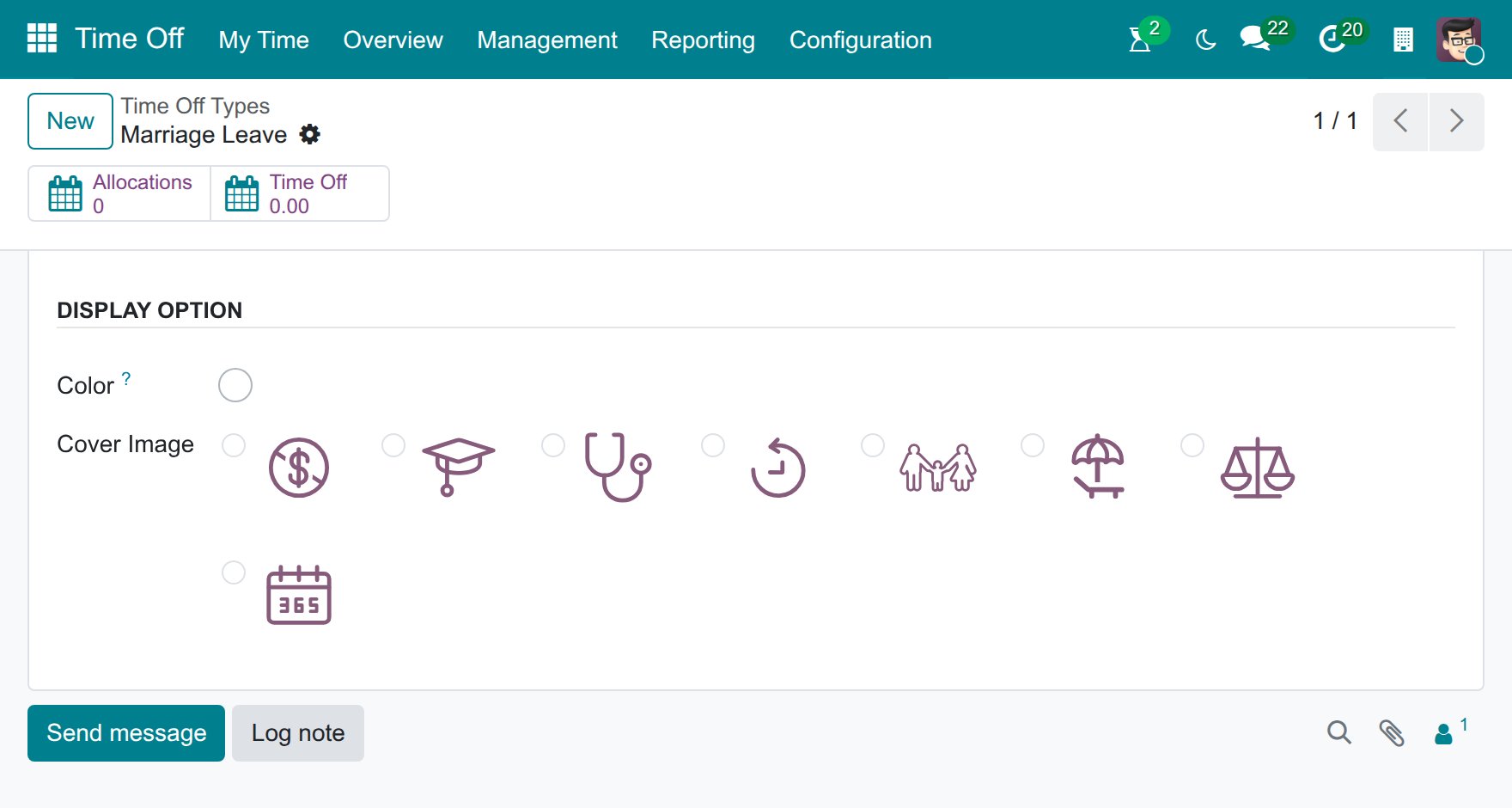
In Display Option, choose a Color and a Cover Image. They identify the type on the dashboard and on the calendar.
![The color and the cover image of a time off type]()
Click Save.
Once saved, the buttons at the top of the form show how many allocations and time off requests use the type, and how many accrual plans when at least one plan is linked to it.
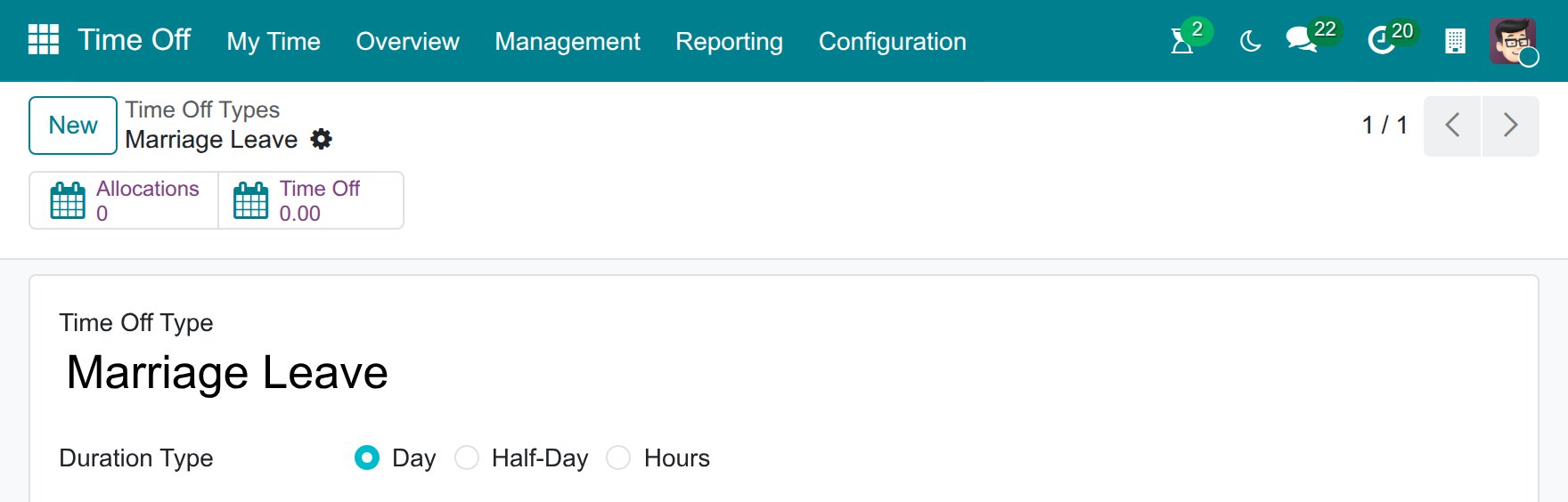
Which fields do I fill in?
General
Field |
What it does |
If it is wrong |
|---|---|---|
Duration Type |
Day, Half-Day or Hours: the smallest unit of a request. |
With Day, employees cannot request a part of a day. |
Minimum Time-Off Duration |
The shortest duration of a request of this type, in hours. Requires the Viin Time-Off module. |
Shorter requests are refused. |
Count as |
Absence or Worked Time. Accrual plans that are based on worked time use it to compute the days earned. |
Accruals are computed on the wrong days. |
Project Required |
Asks the employee to choose a project when requesting this type. Shown when the time off project timesheet module is installed. |
None. |
Notify HR |
The time off officers who are notified to approve a request or an allocation. Shown when an officer is part of the approval. |
Left empty, nobody is notified. |
Company |
Restricts the type to one company. Shown when several companies exist. Leave it empty to share the type. |
The type is missing in another company. |
Time Off Requests
Field |
What it does |
If it is wrong |
|---|---|---|
Approval |
None needed: a request is approved as soon as it is created. By Time Off Officer: an officer approves, and the officers chosen in Notify HR are notified. By Employee’s Approver: the approver of the employee approves. By Employee’s Approver and Time Off Officer: the approver gives the first approval, then an officer gives the second one. |
Requests wait for a person who cannot approve them. |
Allocation Requests
Field |
What it does |
If it is wrong |
|---|---|---|
Requires allocation |
Ticked: a request needs a valid allocation. Not ticked: employees take time off without an allocation. |
With the box ticked, an employee without an allocation cannot request time off. |
Allow Employee Requests |
Ticked: employees can ask for an allocation themselves with New Allocation Request. Shown when an allocation is required. |
Employees cannot send an allocation request. |
Approval (allocation) |
The same four choices as for time off requests, applied to allocation requests. |
Allocation requests wait for the wrong person. |
Configuration
Field |
What it does |
If it is wrong |
|---|---|---|
Ignore Public Holidays |
Ticked: the public holidays inside a request are counted in its duration. Not ticked: they are left out of the duration. |
Employees lose or keep balance on holidays by mistake. |
Hide On Dashboard |
Hides the balance of the type on the dashboard. A hidden type can still be chosen in a request. |
The balance does not show on the dashboard. |
Require Supporting Document |
Lets the employee attach a file, such as a medical certificate, to the request. |
None. |
Eligible for Accrual Rate |
Takes the type into account when accruals are computed. It is always on for the type Worked Time. |
Accruals are computed on the wrong days. |
Display Time Off in Calendar |
Each request of this type also creates an entry in the Calendar app. |
Leave does not show in the Calendar app. |
Allow Request on Top |
Lets users request another time off on top of a time off of this type. Shown for the type Worked Time. |
An overlapping request is blocked with a warning. |
Negative Cap
Field |
What it does |
If it is wrong |
|---|---|---|
Allow Negative Cap |
Lets employees request more days than the balance, so the balance goes below zero. Shown when an allocation is required. Enter the largest negative balance next to up to. |
Requests above the balance are blocked, or employees borrow more days than you intend. |
Display Option
Field |
What it does |
If it is wrong |
|---|---|---|
Color |
The color of the type on the dashboard and on the calendar. |
Two types look the same. |
Cover Image |
The icon shown with the balance of the type. |
None. |
Common errors
Problem |
What to do |
|---|---|
Employees cannot request this type. |
If the type requires an allocation, create an allocation for them first. |
An approver is not notified. |
Choose the officer in Notify HR, and set the approver in the employee’s profile for the By Employee’s Approver choices. |
A request is larger than the balance. |
Tick Allow Negative Cap on the type, or add days with an allocation. |
The balance of the type does not show on the dashboard. |
Untick Hide On Dashboard and check that the employee has an allocation. |
Next steps
How to create a time off allocation: give employees days of this type.
How to request time off: request time off.