
Manage Zalo Partner Links
Guide Info
Warning
The screenshots on this page use hypothetical sample data. The Zalo accounts, contacts, conversations and messages shown are illustrative only and do not belong to any real person or business.
Purpose
Help Admin/IT and CS Lead prevent a single real customer from being split into multiple contact records when that customer messages multiple Zalo OAs, reducing the risk of sending quotes, payment reminders, or ticket updates to the wrong record.
Typical Deployment Scenario
Example: your company operates 2 OAs:
Support OA using Application A.
Sales OA using Application B.
The same customer (Mr. Son) messages both OAs.
The system may record two separate Zalo partner links — one per OA/App. If your operations team doesn’t audit, one real customer could be split into multiple contact records, corrupting sales data, outstanding balances, or support history.
Why This Happens
Zalo identifies users by OA/App context. So the same real customer may carry different IDs across different OAs. What your operations team must maintain:
Business customer remains one unified partner in Viindoo.
Zalo partner links are just mapping layers so the system sends to the right person on each OA.
If you spot duplicate contacts, resolve them before continuing with business operations.
Key Concepts Before Acting
Zalo Partner Link: connection between a customer on Zalo and a partner record in Viindoo.
Shadow Contact (the Auto Shadow Contact box on the partner link): a contact created temporarily when the system lacks enough information to definitively determine the final customer record.
Sync Profile (button on partner link form): updates the latest profile information from Zalo into the system.
Audit Procedure Before Operations
Step 1 — Audit by OA
Go to .
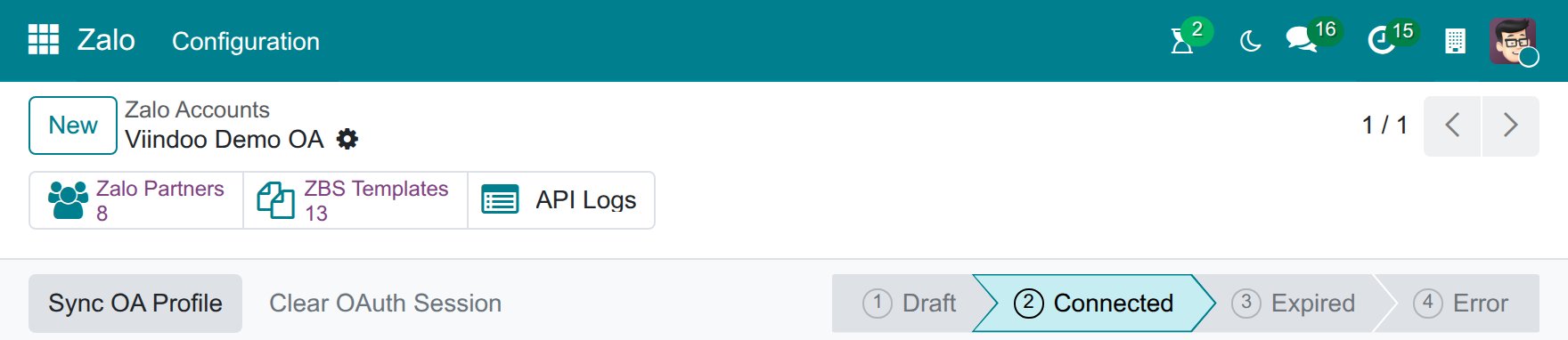
Open the OA you are operating.
Click the Zalo Partners button to open the Contacts linked to that OA.
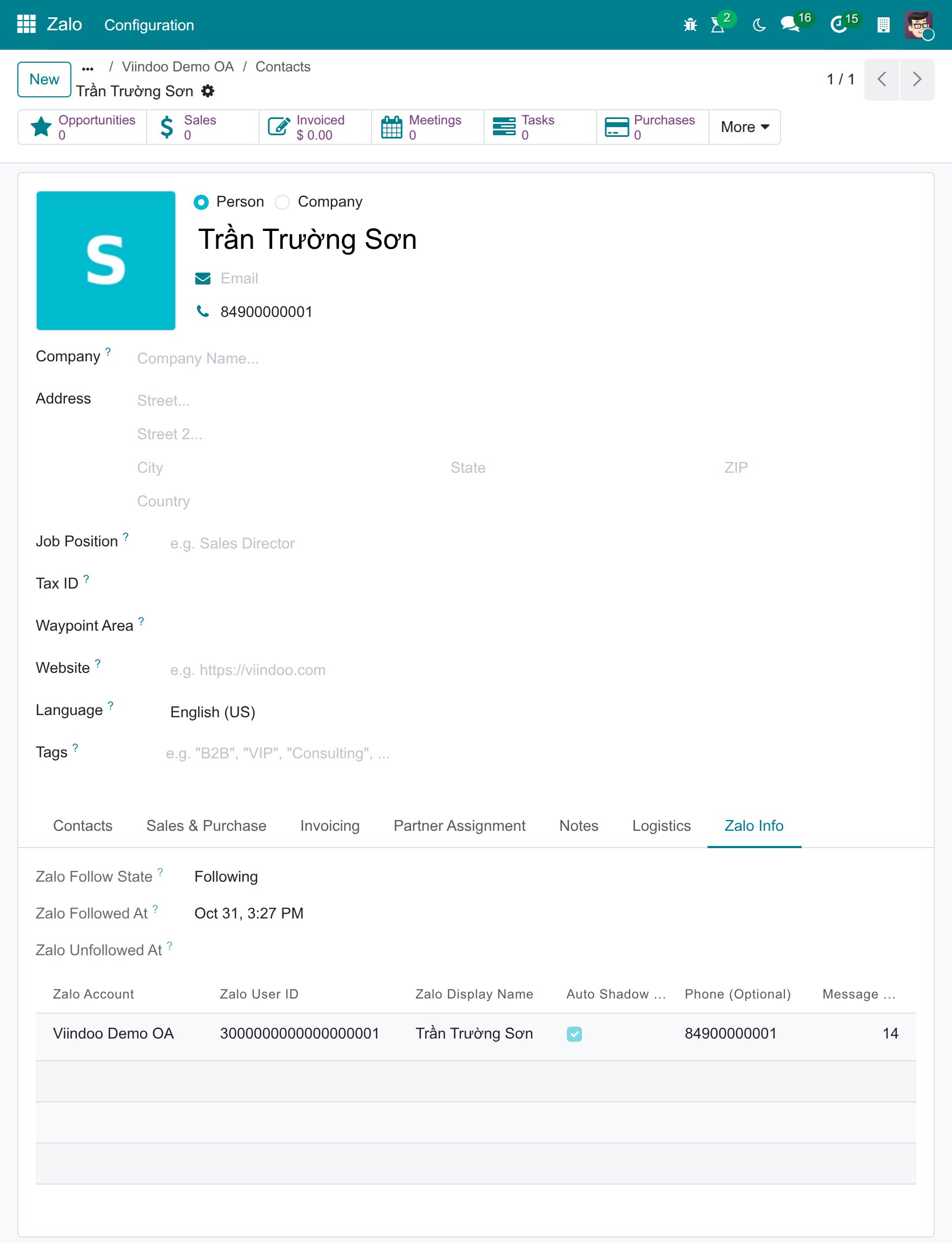
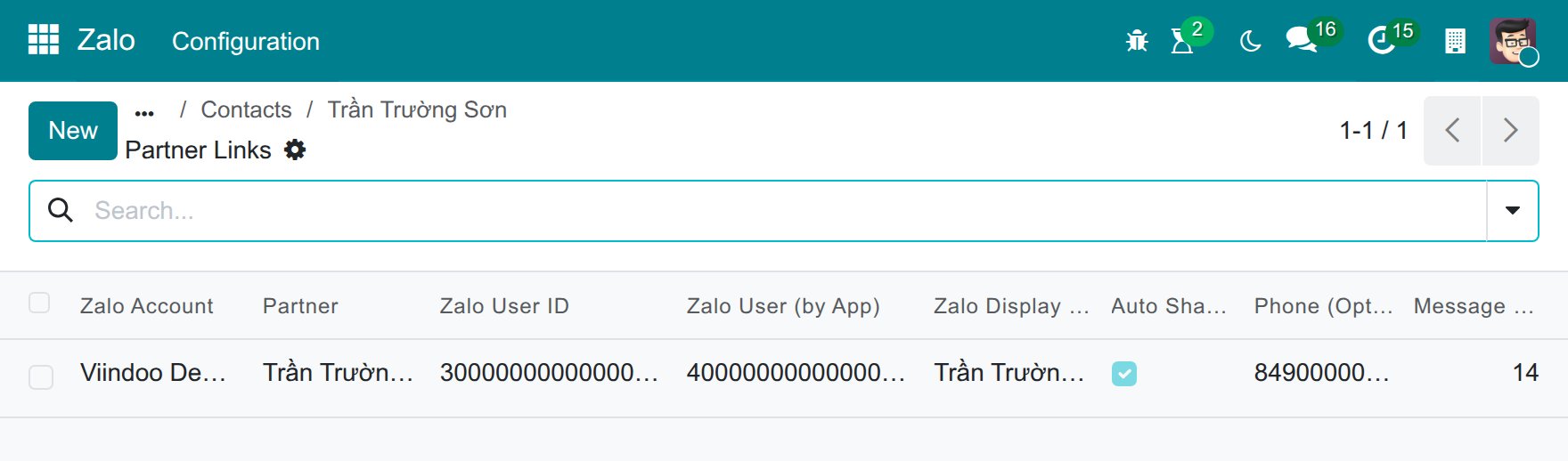
Open a contact with developer mode on. The Zalo Info tab and the Zalo Links button (under More when the screen is narrow) then list the Zalo links of that contact, one row per OA and application, with the Zalo display name, the Auto Shadow Contact box, the phone number and the message count. The Zalo Events button next to it opens the Zalo messages of the contact.
Review key points:
Customer names are easy to recognize.
Whether the Auto Shadow Contact box is ticked: those contacts were created automatically from an inbound message.
Whether message history exists for cross-reference (Message Count).
Step 2 — Sync Profile if Profile Data is Stale
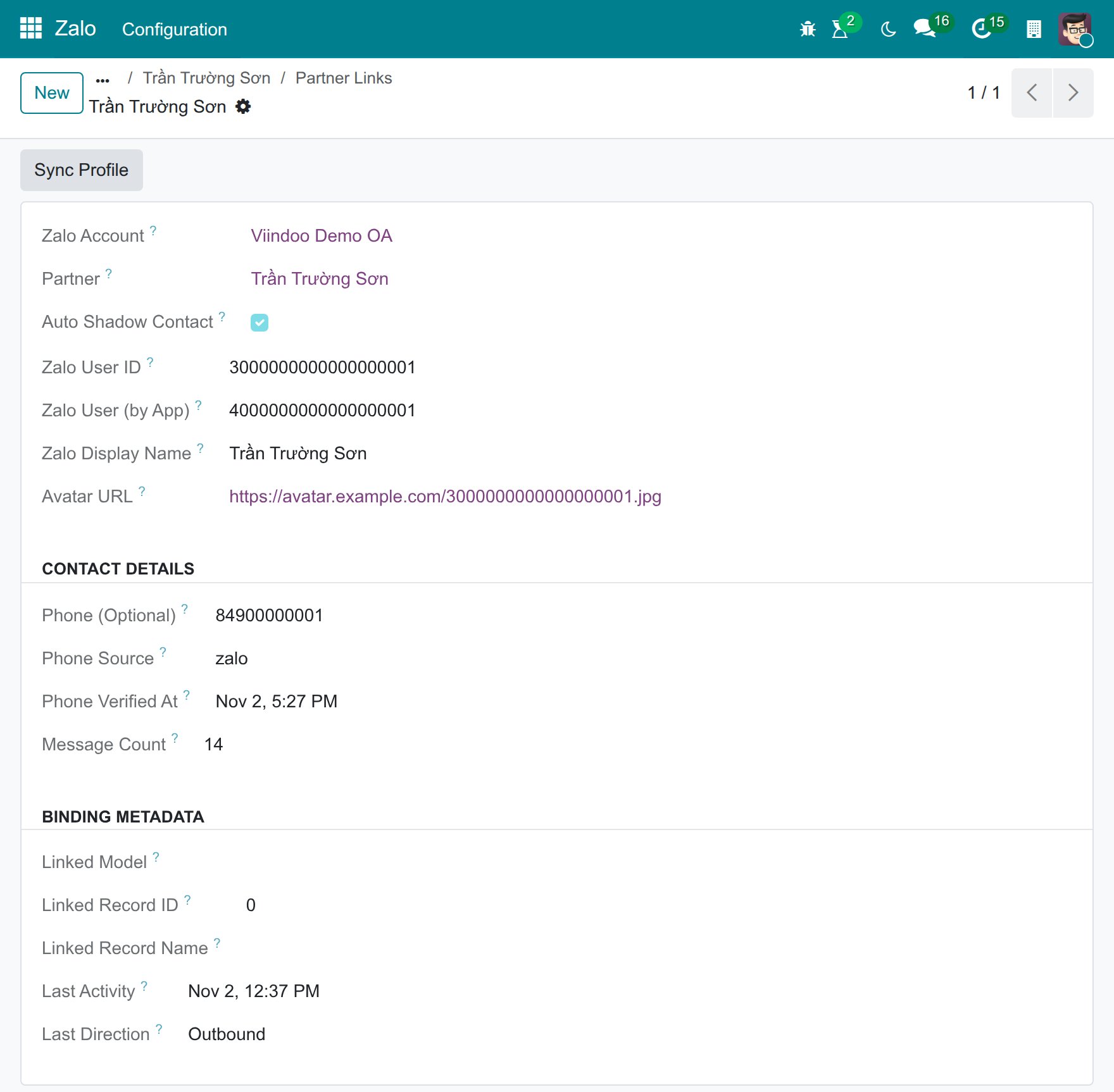
If display name or avatar is outdated, open the corresponding partner link record from the Zalo Links button of the contact and click Sync Profile to resync from Zalo.
After sync, the Zalo name and avatar on the link are updated to the latest profile from Zalo. The next send or check will use this fresh identification data, helping CS avoid misidentifying customers when one company operates multiple OAs.
Step 3 — Handle Suspected Duplicate Contacts
If not merged early, orders and balances scatter across separate records — accounting and CS later must manually reconcile.
When you discover the same real customer appearing as multiple separate contact records, merge them using the system’s contact management procedure, then re-audit the Zalo partner links.
Reference:
See also
Configure Zalo OA - Connect OA and check account status
Monitor and Troubleshoot Zalo — Diagnose send/receive errors when recipient cannot be determined
Reply to Zalo OA Messages — Reply to conversations after partner link is verified
Quick Decision Table
Observation |
Risk if Ignored |
Recommended Action |
|---|---|---|
Customer marked as shadow contact, not yet verified |
Send business content to unverified person |
Keep under review; verify further before business operations |
Same customer messages multiple OAs, appears as multiple contacts |
Split order/balance/ticket data — e.g., customer double-counted for debt across 2 records |
Merge contacts per duplicate contact procedure, then re-audit Zalo Partners |
Profile info on link is stale |
CS misidentifies the wrong person during handling |
Open link and click Sync Profile before continuing work |
Success Checkpoint
Tip
Before handing off to CS/Sales/Accounting operations:
Each operating OA has an auditable Zalo Partners list.
Customers interacting via multiple OAs have been checked for duplication (verified by reviewing Zalo Partners of each operating OA).
Profile information in use is current (synced as needed with Sync Profile button).
Common Issues and Solutions
Cannot see Zalo Partners button on OA: - Common cause: missing the Administrator access right of the Zalo application. - Solution: verify and correct the account’s role and permissions.
Same customer appears as multiple contacts: - Common cause: customer interacted via multiple OAs or contact data is inconsistent. - Solution: merge contacts per duplicate contact procedure, then re-audit links at each OA.
Shadow contact exists but customer identity is unclear: - Common cause: customer only recently initiated contact via Zalo. - Solution: verify customer information further before using for business notification flow.
Customer name or avatar is outdated: - Common cause: Zalo profile changed since last sync. - Solution: open the link and click Sync Profile to resync.