
How to create Timesheets from other apps
Requirements
This tutorial requires the installation of the following applications:
Time-Off Project Timesheet module, to book a time off on a project and a task
Create Timesheets upon Time off app
In some situations, employees have a time off but still get paid like traveling for business or working from home. At this point, the manager also needs to know the work that the employee performed. Viindoo software makes it easy to manage with the link between the Timesheets application and Time-off application.
Steps to configure
To create a timesheet when validating a time off, you need to make sure your system has successfully installed both Timesheets and Time Off. When both applications are installed, the link between them (the Timesheet when on Time Off module, project_timesheet_holidays) is activated automatically.
Check the Time Off feature of Timesheets
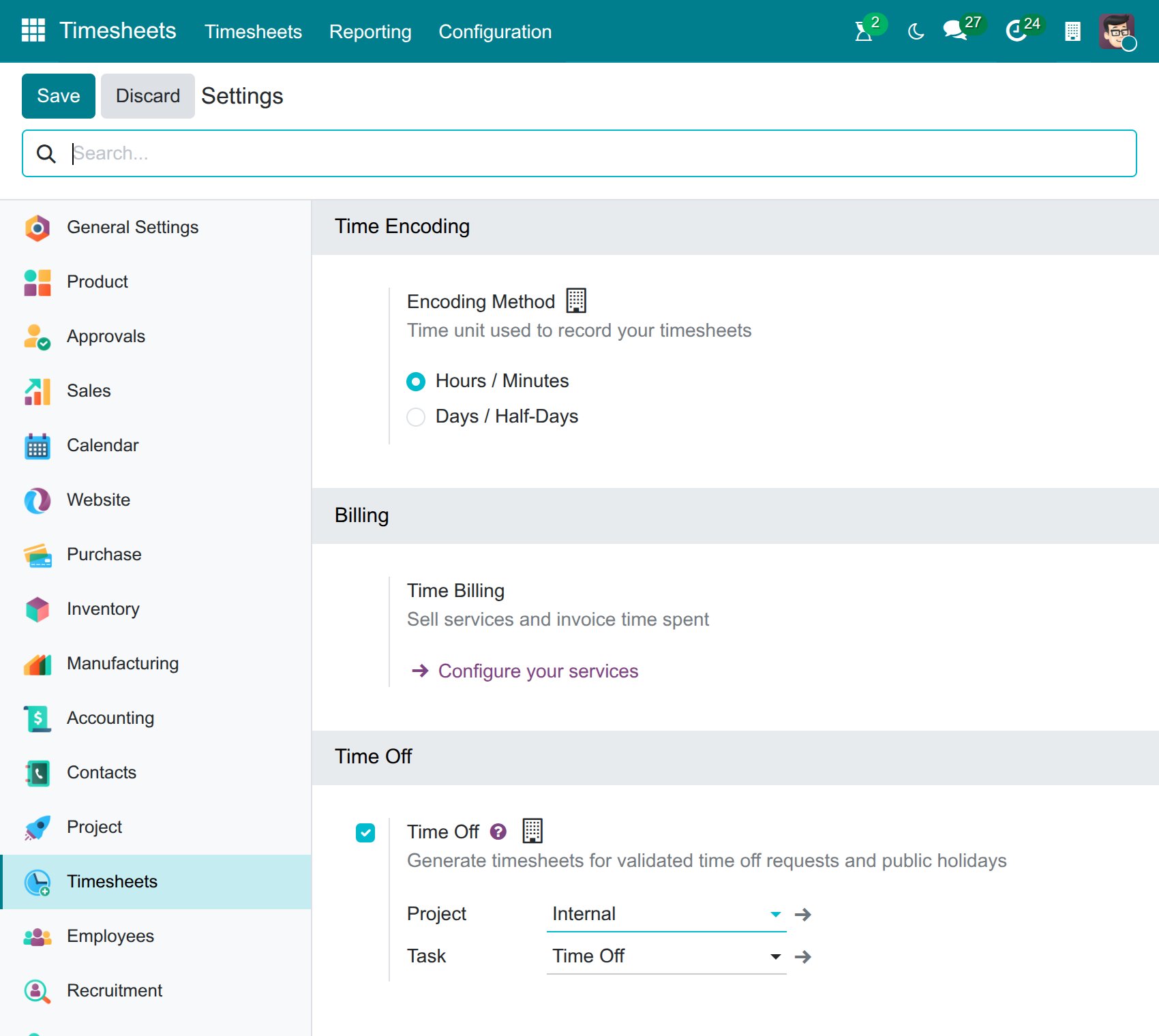
Go to Timesheets ‣ Configuration, in the Time Off section, make sure Time Off is ticked (tick it if it is not). Then select the suitable Project and Task where the timesheet needs displaying when validating a time off that has no project of its own. Next, press Save.
![The Time Off section of the Timesheets settings with the project and the task]()
Note
A timesheet is generated only when both the project and the task are set, so select both of them.
Check the Time Off Types which are applied to Timesheets
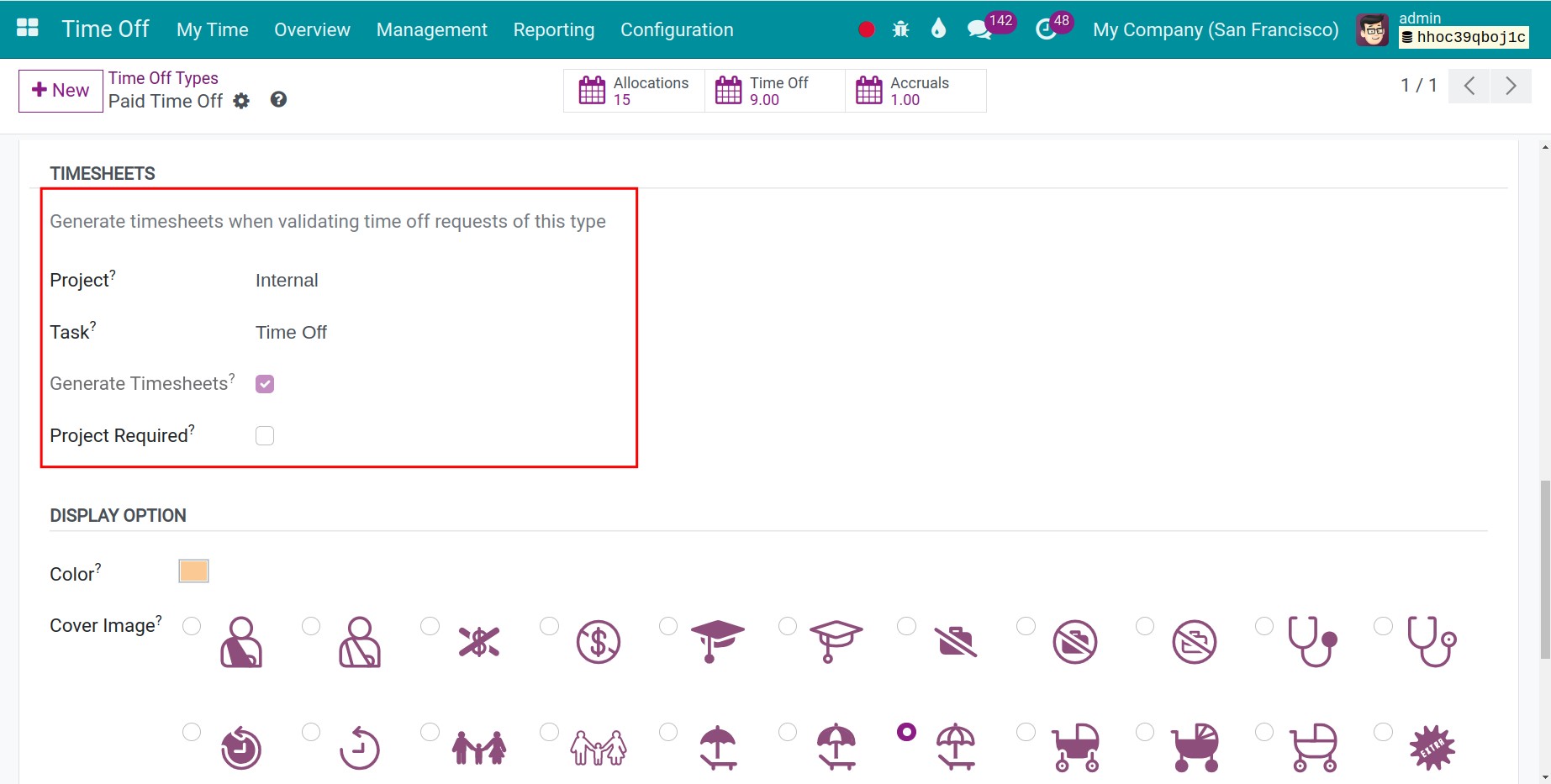
Next, check how each Time Off Type is booked on the timesheets. Go to Time Off ‣ Configuration ‣ Time Off Types and select the Time Off Type that you want to configure:
In the Time Off Requests section, select the Approval type when the employees create their Time Off requests.
Project Required: Tick it if the employee must select a Related Project on every time off request of this type (for example, a business trip that still counts as working time). The type is then counted as Worked Time. If it is left empty, selecting a project on the request is optional.
![The Time Off Type form with the Project Required option and the approval of requests]()
Note
If your system operates with multiple companies, you can select a specific company on the Time Off Type.
Now, let’s see how it works.
Display the timesheet record after Time Off Validation
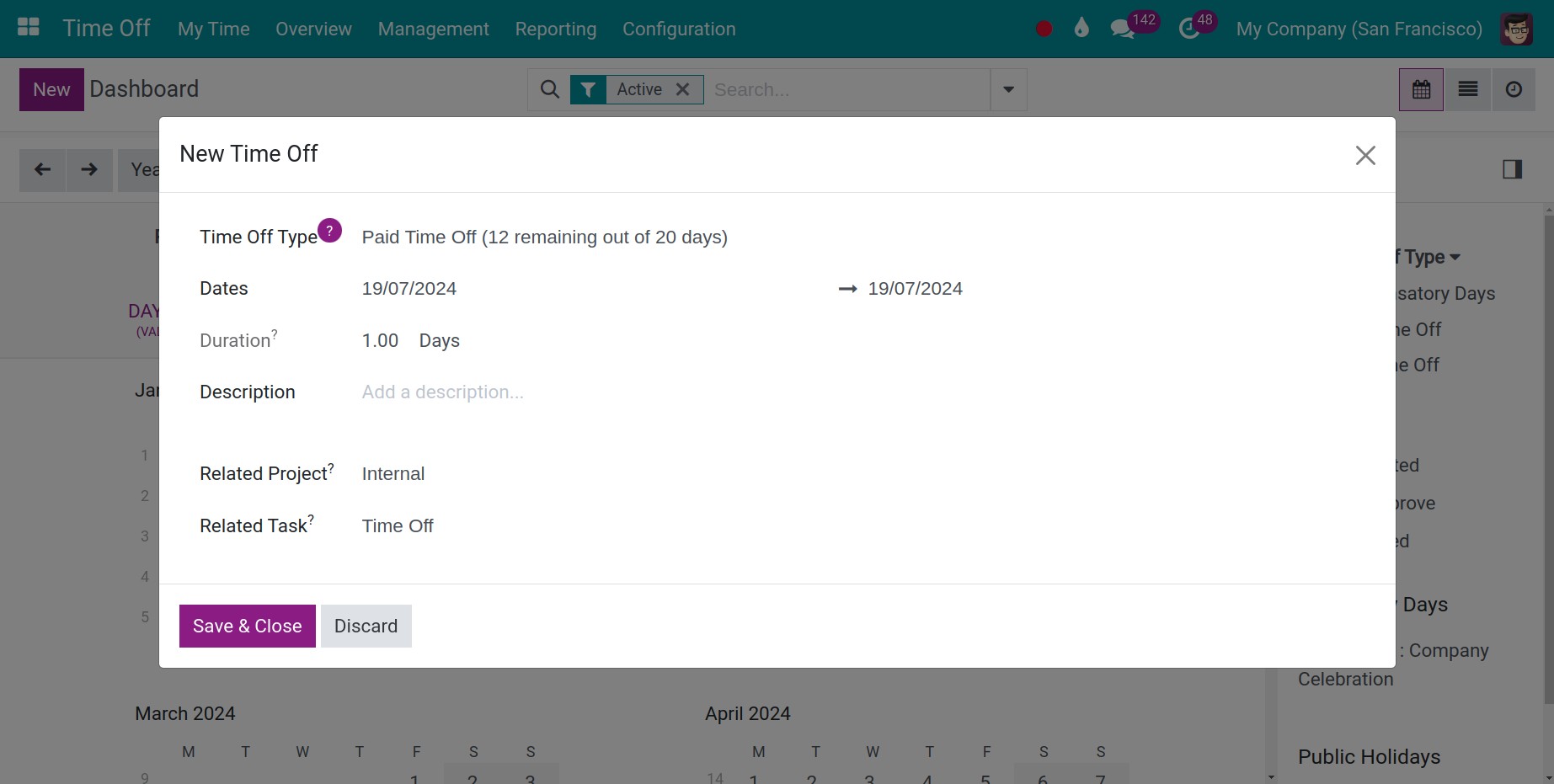
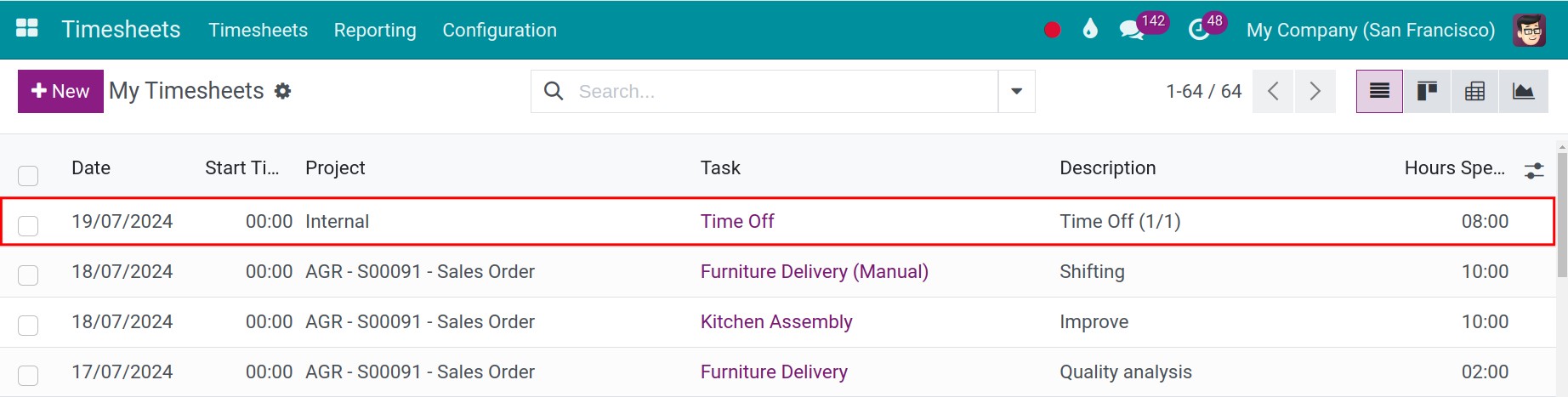
Once the employee has requested his time off and it has been validated, a new Timesheet will be created with the project and the task selected on the request, and the time of the request. The employee selects the Related Project and Related Task on the request itself; when the request has no project, Viindoo uses the project and the task of the Timesheets settings. This is an example:
The employee creates a new Time Off Request, for example for two days, and selects the Related Project and the Related Task:
The time off officer or the approver goes to Time Off ‣ Management ‣ Time Off, opens the request, and presses Approve.

If the time off type requires a second approval (as the Paid Time Off type does), the second approver opens the request again and presses Approve. The request becomes Approved.

Go to the application Timesheets ‣ Timesheets ‣ My Timesheets to take a look at the timesheet records automatically generated after the Time Off Request is approved.
Create Timesheets from Project app
To create timesheets on the project, you can refer at Guideline to timesheet in the project.
See also
Related articles:
Optional modules: