
How to set up the payment methods of a PoS shop
A payment method is a way to take the money of an order at the register: cash, a bank transfer, a card terminal or the customer account. Each shop shows its own list of payment methods to the cashier, and the journal of a method decides how its payments are booked when the session closes. Create the methods once, then add them to the shops that accept them.
Who |
Shop managers with the Point of Sale ‣ Administrator access right create and change the payment methods. Users with the Point of Sale ‣ User access right can only read them. |
App |
Point of Sale |
Before you start
Install a chart of accounts in the Invoicing app: it creates the cash and bank journals that the payment methods use, and the first payment methods of your shops.
A payment method cannot be changed while a session that uses it is open. Close and validate the session first.
Which payment methods can a shop offer?
The Journal of a payment method gives it its type.
Journal |
Type |
What happens at the closing of the session |
|---|---|---|
A Cash journal |
Cash |
The register counts the cash and the amount is booked in the cash journal. A cash method belongs to one shop only: create one cash method per shop. |
A Bank journal |
Bank |
The payments are booked in the bank journal, through the Outstanding Account of the method. |
No journal |
Customer account |
The payment becomes a receivable of the customer. The method needs Identify Customer, so the cashier must pick a customer on the order. |
Only Cash and Bank journals can be chosen.
How do I choose the payment methods of a shop?
Go to Point of Sale ‣ Configuration ‣ Settings and choose the shop in the Point of Sale field at the top.
In the Payment section, the Payment Methods field lists the methods of the shop. Click the cross of a method to remove it from the shop, or pick another method in the field to add it.
![The Payment Methods field in the Payment section of the Point of Sale settings]()
Click Save.
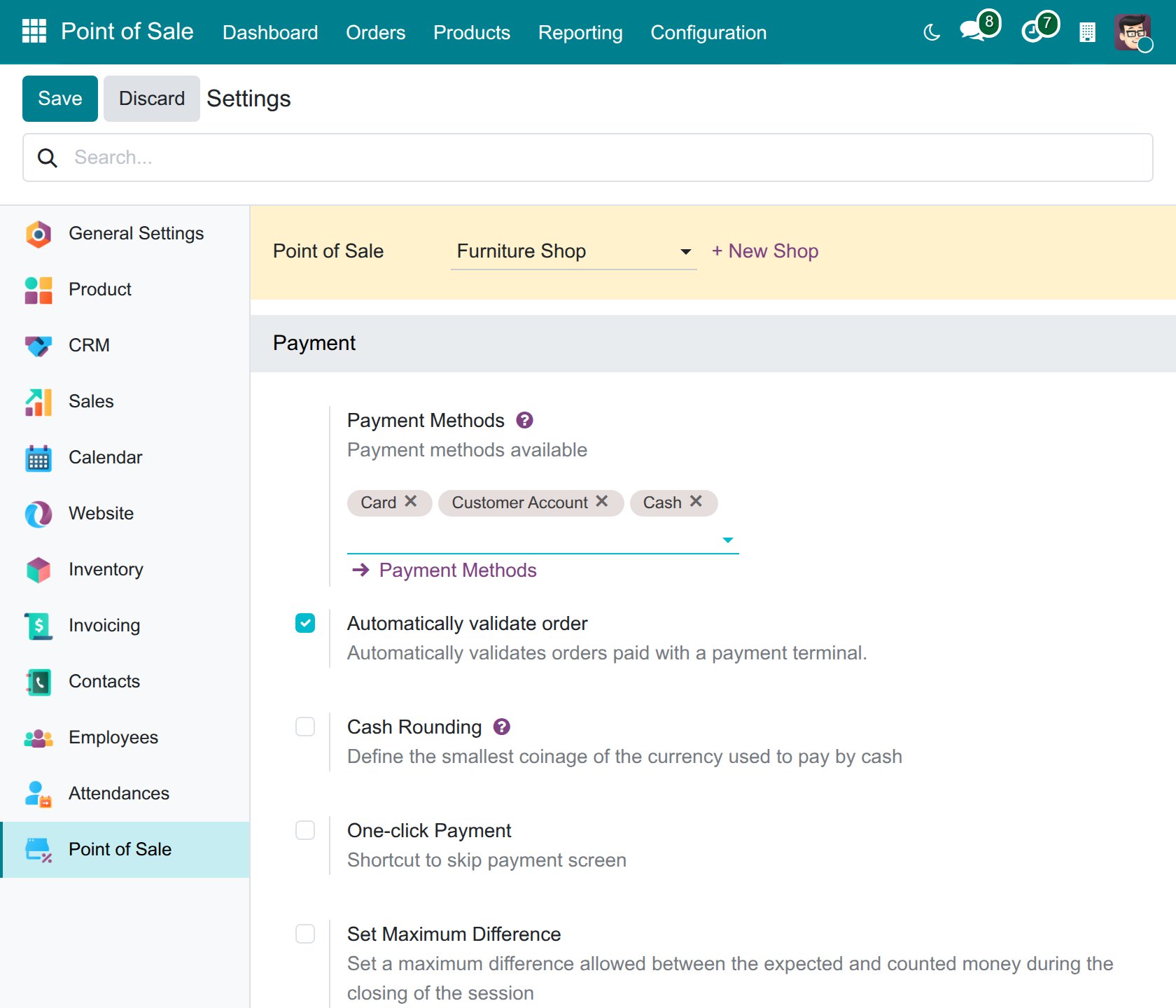
The field is read-only while the shop has an open session.
Note
The Payment Methods button under the field opens the list of all the payment methods, where you create a new one, as explained below.
How do I create a payment method?
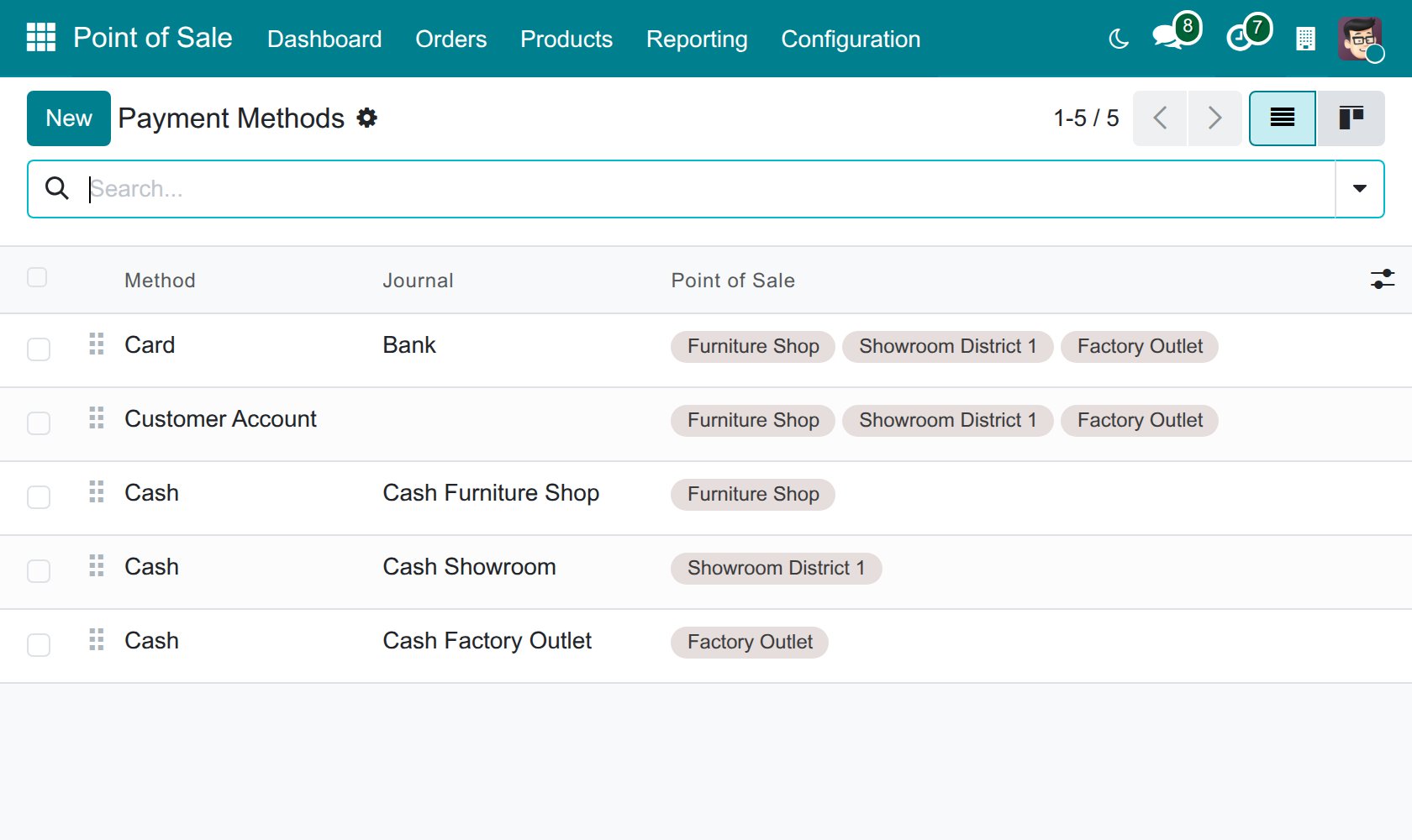
Go to Point of Sale ‣ Configuration ‣ Payment Methods. The list shows each method with its journal and the shops that use it.
![The list of payment methods with their journal and shops]()
Click New and type the name of the method in Method. The cashier sees this name when choosing how to pay.
Fill in the form according to the type of the method:
For a bank method, choose a Bank journal. Viindoo proposes the Outstanding Account; the user who reads the accounting can change it. Leave Intermediary Account empty to use the receivable account for the Point of Sale of the company.
For a cash method, choose a Cash journal that no other method uses.
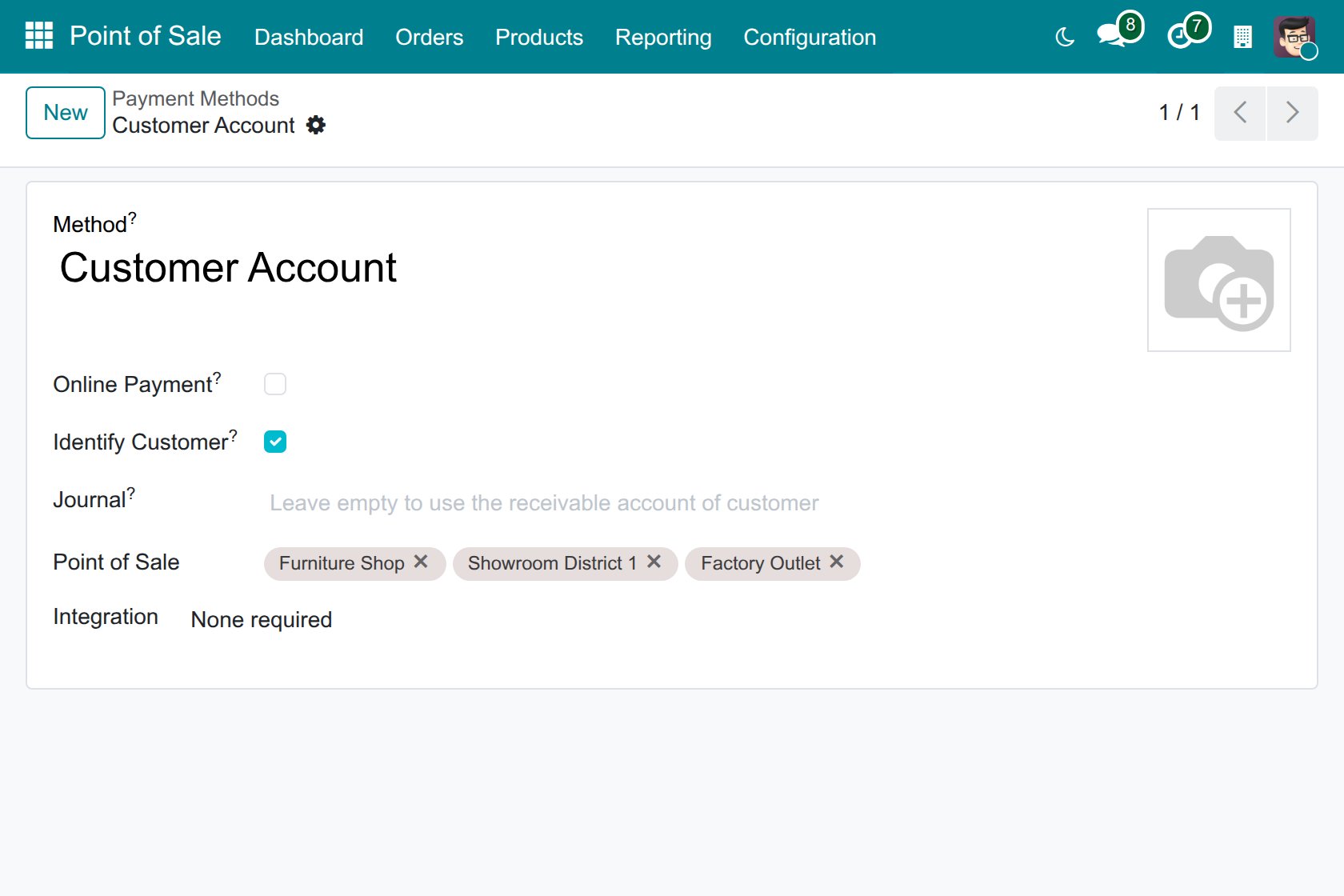
For a method without a journal, check Identify Customer and leave Journal empty.
In Point of Sale, choose the shops that accept the method.
![A bank payment method with its journal, outstanding account and shop]()
Click Save.
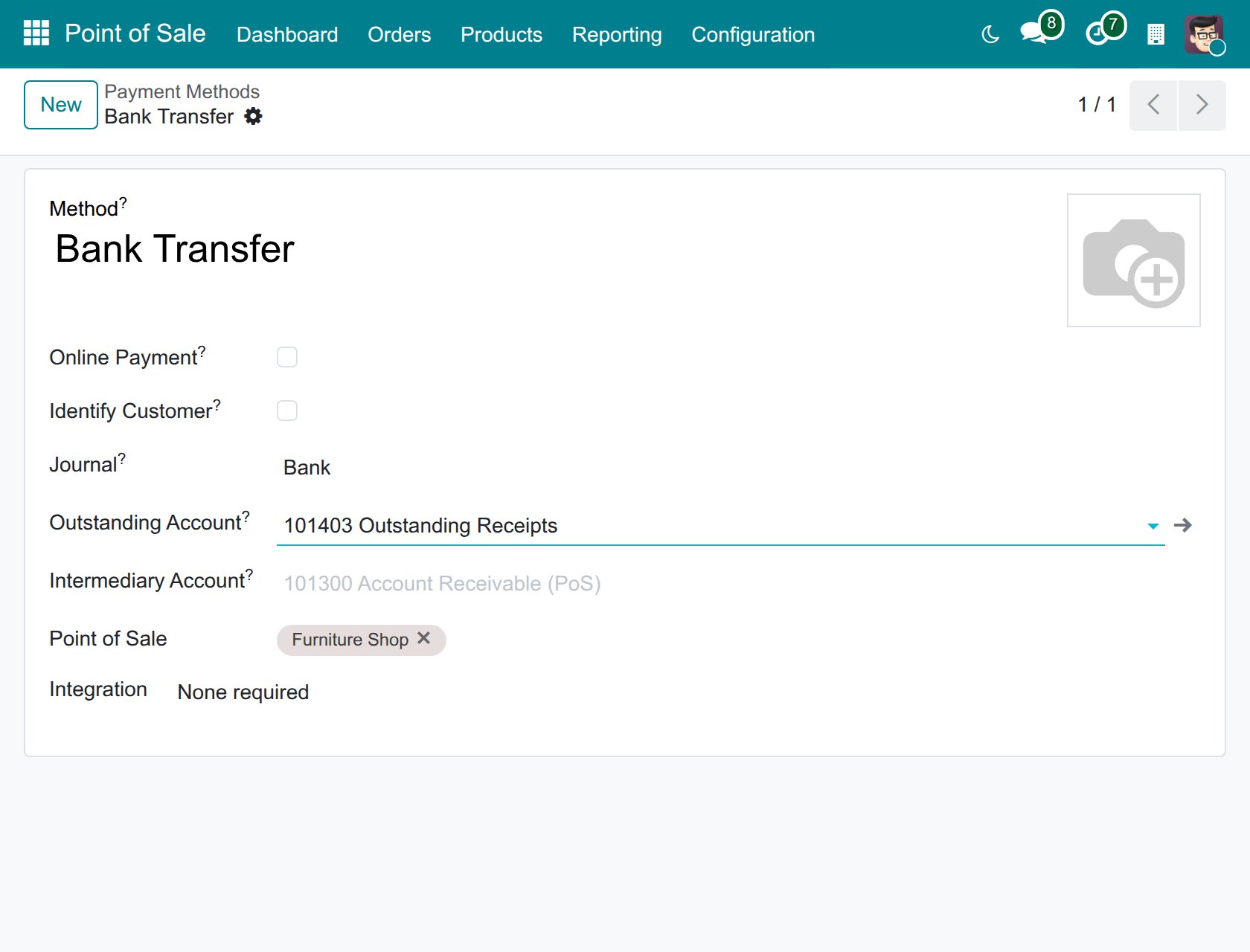
The Outstanding Account and Intermediary Account fields are shown to the users who can read the accounting. If your form shows an Online Payment checkbox, leave it unchecked for the methods in this page.
How do I create a method that records the customer account?
A customer who pays later owes the amount: the method has no journal and Identify Customer is checked. Viindoo books each payment on the receivable account of the customer and splits the journal entries by customer, which can slow down the closing of a big session.
How do I connect a payment method to a terminal or a QR code?
Under Integration, a payment method offers:
None required: the cashier takes the payment and confirms the amount.
Terminal: a payment terminal takes the payment. It needs a method with a Bank journal, and Integrate with lists the terminals whose module is activated in the Payment Terminals section of the Point of Sale settings, see Payment with a payment terminal in POS.
Bank App (QR Code): the register shows a QR code that the customer scans with a banking app. This choice appears when a QR code format is available for your bank accounts, and it needs a Bank journal with a bank account. When several formats are available, choose one in QR Code Format.
Choosing one integration clears the setting of the other one.
Common problems
Problem |
What to do |
|---|---|
Please close and validate the following open PoS Sessions before modifying this payment method. |
Close the sessions listed in the message, then change the method. |
You cannot assign the same Cash payment method to multiple POS Shops. |
Create a cash method with its own Cash journal for each shop. |
At least one bank account must be defined on the journal to allow registering QR code payments with Bank apps. |
Add the bank account to the Bank journal, then choose the QR code integration again. |
The Payment Methods field of the settings cannot be edited. |
The shop has an open session. Close it first. |
Next steps
Count the cash of a register: Advanced Cash Control: Setting up and Managing.
Round the cash amounts: Steps to activate Cash Rounding in PoS.