
Turn on freight features in Settings
Guide information
Requirements
This tutorial requires the installation of the following applications/modules:
The Freight Features block provides ten shortcuts for installing optional freight modules. Each checkbox corresponds to one module; its dependencies may install additional features. Ticking one and saving installs the module immediately; unticking one shows a warning that lists the modules it will remove, and saving then uninstalls them together with the data they hold. Bringing in a mode you do not sell adds menus nobody uses; leaving one out that you already sell means the field the next step needs is simply missing.
Example in this article: Duc, the Operations Manager, signed in as a user whose Role is Administrator (Settings is not open to the freight Administrator level alone), turns on Air Freight (Hai Long already books air shipments like L4) and Ocean LCL Consolidation (Hai Long consolidates LCL export shipments like L3), and leaves Road Freight off for now.
Activate Freight Forwarder Management
Logistics Shipment on its own only tracks a shipment internally - it has no booking, no charge line and no rate card. Freight Forwarder Management adds those. You can install it in either of two ways. Installing apps and opening Settings needs the Administration Settings access right, not only the freight Administrator level.
Go to .
Search “Freight Forwarder Management” and open its app card.
Install it.
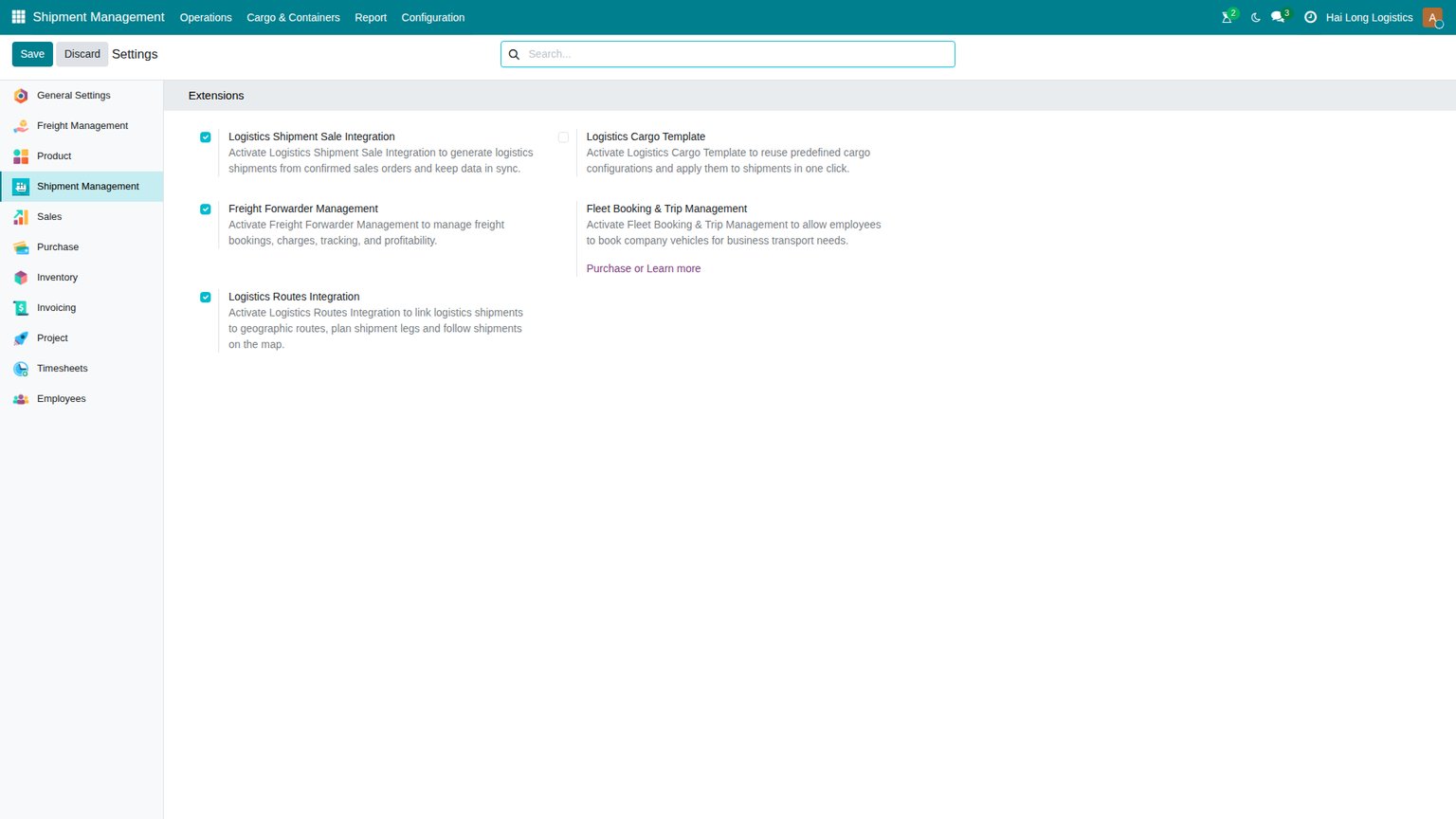
Alternatively, go to and tick Freight Forwarder Management in the Extensions block. When the module is not available in your deployment, the toggle shows a Purchase or Learn more link instead of a checkbox.
Once it is installed, a new app named Freight Management appears in Settings, with the Freight Features block described below and the two switches under Configure the two Freight Management switches further down this page.
See also
Choose the transport modes you sell
The Freight Features block shows 10 checkboxes. Turn on the modes and features Hai Long needs; required dependencies may activate other checkboxes too. If the Freight Management section is absent, follow the missing-section troubleshooting below.
Go to . Settings opens on the Freight Management section.
Under Freight Features, tick Air Freight and Ocean LCL Consolidation. Project Integration, Sale & Purchase Sync and Freight Dashboard may already be ticked, because other modules bring them in.
Click Save. Viindoo installs both modules and reloads the page.
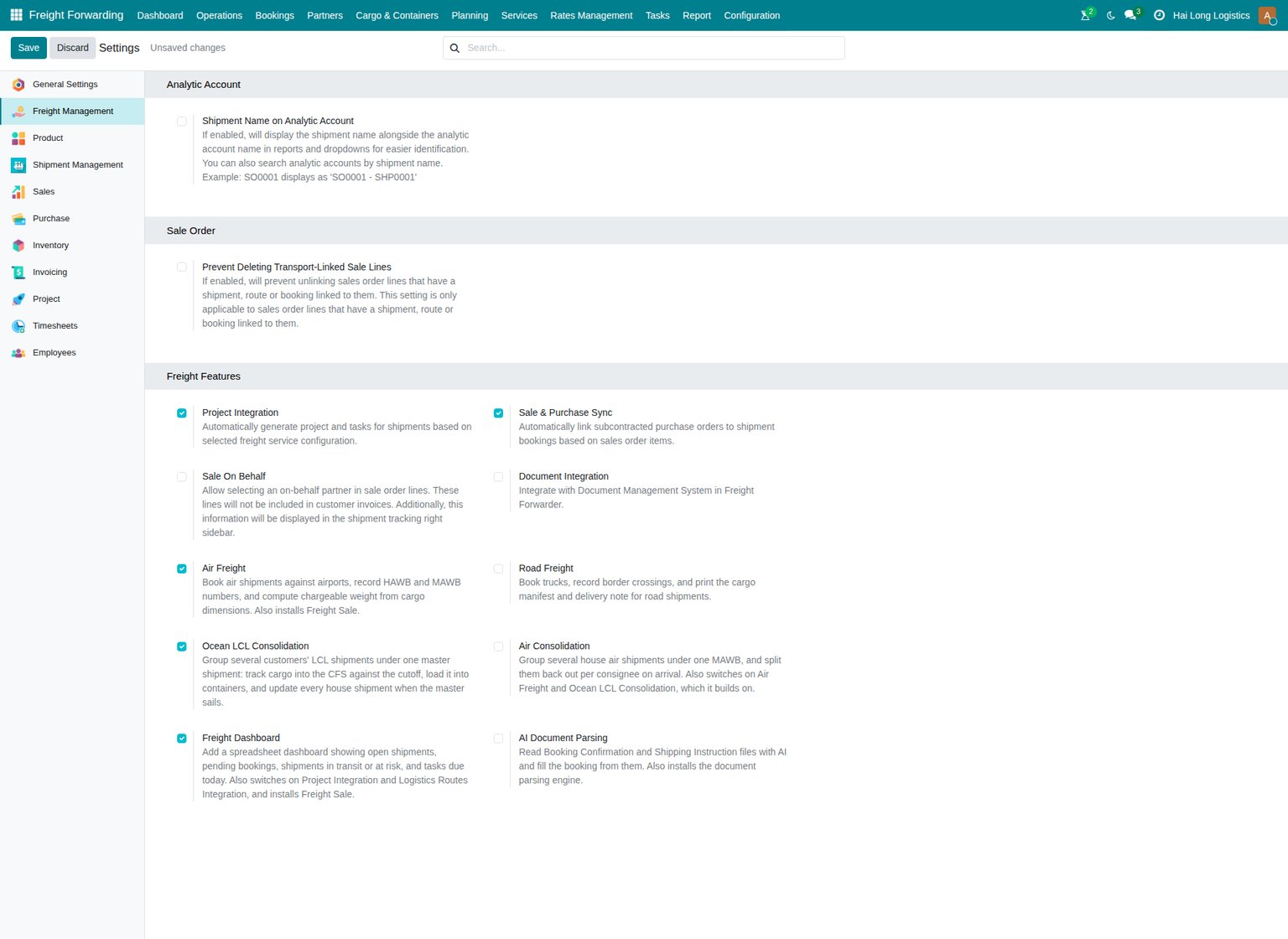
The 10 checkboxes, grouped by purpose:
Transport modes
Air Freight - adds airports, airway bill fields, and chargeable weight on air shipments.
Road Freight - adds truck types and border crossings for cross-border trucking.
Ocean LCL Consolidation - adds the Master/House shipment split, the Outturn Report and cost allocation for sea LCL.
Air Consolidation - the same Master/House split for air shipments under one MAWB.
Commercial and operations
Project Integration - creates project tasks for shipments, based on the freight services sold. This integration requires Freight Sale; it may install automatically if all dependencies are present.
Sale & Purchase Sync - lets a subcontracted service turn into a purchase order.
Sale On Behalf - tracks on-behalf payments made for the customer.
Documents, dashboard and AI
Document Integration - adds document requests such as Shipping Instruction and draft B/L.
Freight Dashboard - adds the Dashboard menu (Administrator only).
AI Document Parsing - fills a booking or shipment from an uploaded document.
Decide which transport modes to turn on
Turn on |
Use when |
What changes |
|---|---|---|
Air Freight |
You already have, or plan, at least one air customer this quarter (Hai Long: yes, L4). |
Airports, AWB fields and chargeable weight appear on shipments and rate cards. |
Ocean LCL Consolidation |
You regularly consolidate LCL export shipments under your own master, not through another forwarder (Hai Long: yes, L3). |
The Master/House split, Outturn Report and Cost Allocation wizard become available. |
Road Freight |
You have a signed road contract, not just a future plan. |
Truck types and border crossings appear; leaving it off adds nothing to clean up later. |
Turn on only the freight features the company is ready to operate. Confirm ownership, required master data and the supporting workflow with the process owner before enabling a feature; a visible menu alone does not mean its process is configured.
Warning
When Ocean LCL Consolidation is on, do not tick Subcontract Service on the ocean freight products you sell on LCL houses. The master’s booking buys the ocean leg once for every house, so a house order with that checkbox raises no purchase of the sea freight. See Consolidate LCL export shipments under a master.
Configure the two Freight Management switches
Go to , section Freight Management.
Shipment Name on Analytic Account - appends the shipment name to the analytic account, so it reads “SO0001 - SHP0001” instead of only the order number. Turn this on when Tuan needs to filter analytic reports by shipment name, not only by order number.
Prevent Deleting Transport-Linked Sale Lines - see the warning below before relying on this checkbox.
Important
Prevent Deleting Transport-Linked Sale Lines does not currently change any behavior. Whether this checkbox is ticked or not, a line on a sales order that has a shipment cannot be deleted at all, and the sales order itself cannot be deleted while its shipment is past Draft. Do not read the checkbox as the switch that controls this - the rule applies either way.
Tip
The setup is correct when: the Freight Forwarding app shows (Air Freight is installed) and (Ocean LCL Consolidation is installed) - not only that Settings shows the two boxes as ticked.
Troubleshooting
A freight feature cannot be installed
Symptom: Saving a feature selection fails, or the app cannot be found in Apps.
Cause: The module or one of its dependencies is unavailable in the deployment, or the installation reports an error. A checkbox does not purchase or download a missing paid module.
Fix:
In , remove the default Apps filter if necessary, search the module by name and check its availability and installation status.
If it is absent, ask the system administrator to make it and its dependencies available on the server and update the Apps list before retrying. If installation reports an error, have the administrator resolve that error before proceeding.
Turning off Prevent Deleting Transport-Linked Sale Lines still blocks the delete
Symptom: You turn the checkbox off, save, and still get an error when you delete a line of a sales order that has a shipment, or the sales order itself.
Cause: Neither check reads the checkbox. Deleting a line of an order that has a shipment is always refused, whatever the shipment’s status (the line and shipment names appear in the message):
You cannot delete sales order r <line> while it is linked to shipment <shipment>.
Deleting the whole order is refused while its shipment is not in Draft:
You cannot delete the sales r <order> if shipment is not in draft state.
Fix:
To change what was sold, edit the line (quantity or price) instead of deleting it.
To remove the whole order, cancel the shipment and click Reset to Draft on it - the button only shows on a cancelled shipment - then cancel and delete the sales order.
The Freight Management section is missing from Settings
Symptom: In , there is no Freight Management section, so no Freight Features block either.
Cause: Freight Forwarder Management is not installed, or the Role of your user is not Administrator - the Settings menu is shown only to administrators.
Fix:
Go to , search “Freight Forwarder Management”, and confirm it shows Installed; install it if not.
If it is installed, ask a system administrator to open Settings or to set the Role of your user to Administrator. The freight Administrator level of Shipment Management does not replace it (see Grant freight access by role).
Known limitations
The Settings checkboxes install or uninstall modules; they do not configure the workflows. Required dependencies can activate other features, so the checked boxes may exceed the choices you selected. Verify installed apps and configure their master data before Operations uses them. Uninstalling a feature can remove its data and dependent modules; review the uninstall dialog with the responsible process owner before confirming.