
How to install Inventory and give users access to it
To start with Inventory, activate the Inventory app from Apps, then open each person in and choose User or Administrator in the Inventory row of the Supply Chain section on the Access Rights tab. A User handles daily transfers; an Administrator also sets up warehouses, products and routes and reads the reports.
Who |
Users with the Administrator (Settings) access right. |
App |
Apps and Settings |
Before you start
Sign in as a user who can install apps (see How to install, upgrade and uninstall apps and modules).
Create the people who will work in the warehouse as users first (see How to create and manage user accounts).
How do I install Inventory?
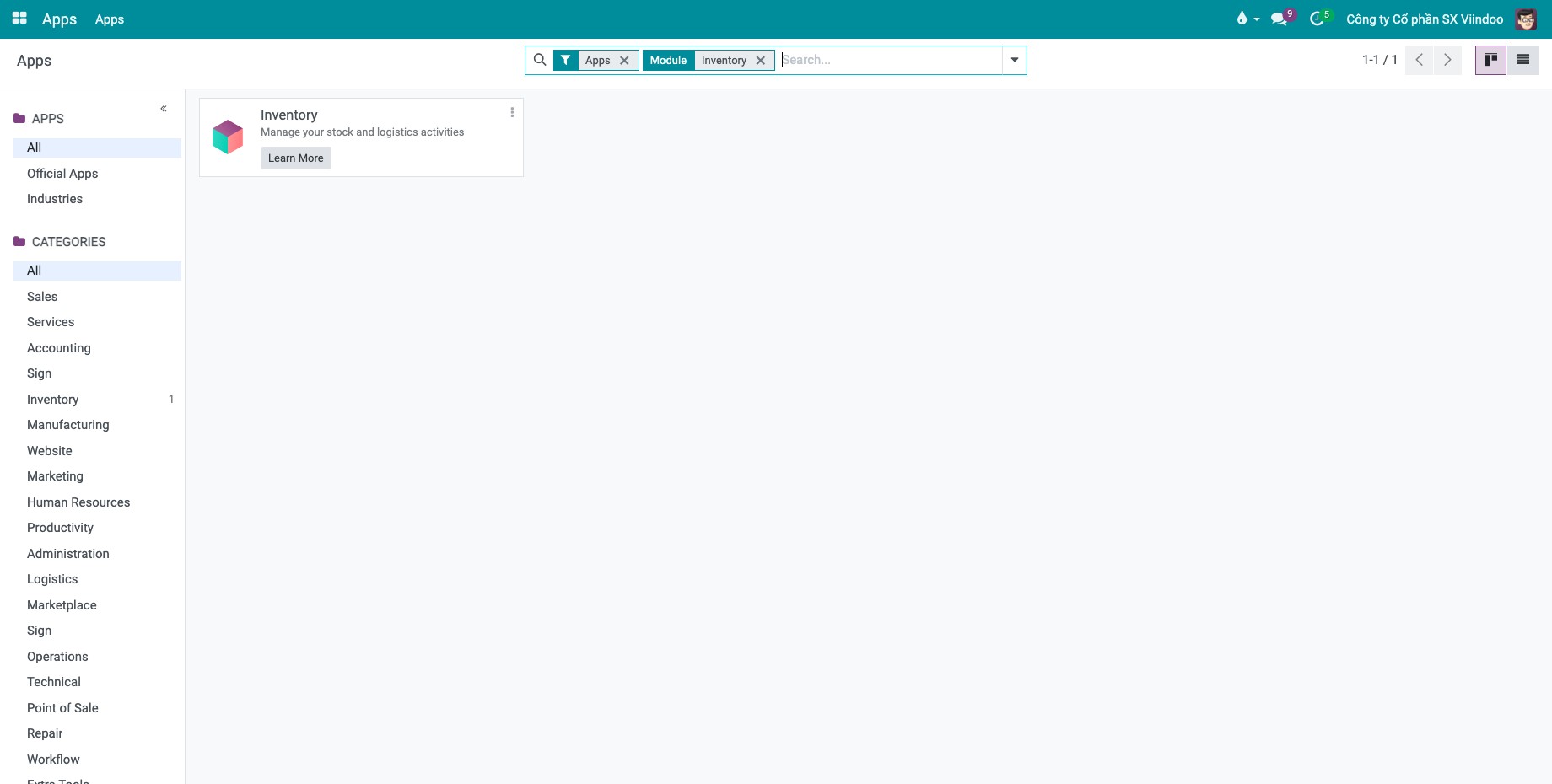
Open Apps and type Inventory in the search bar.
![Apps screen with Inventory typed in the search bar and the Inventory app card in the result]()
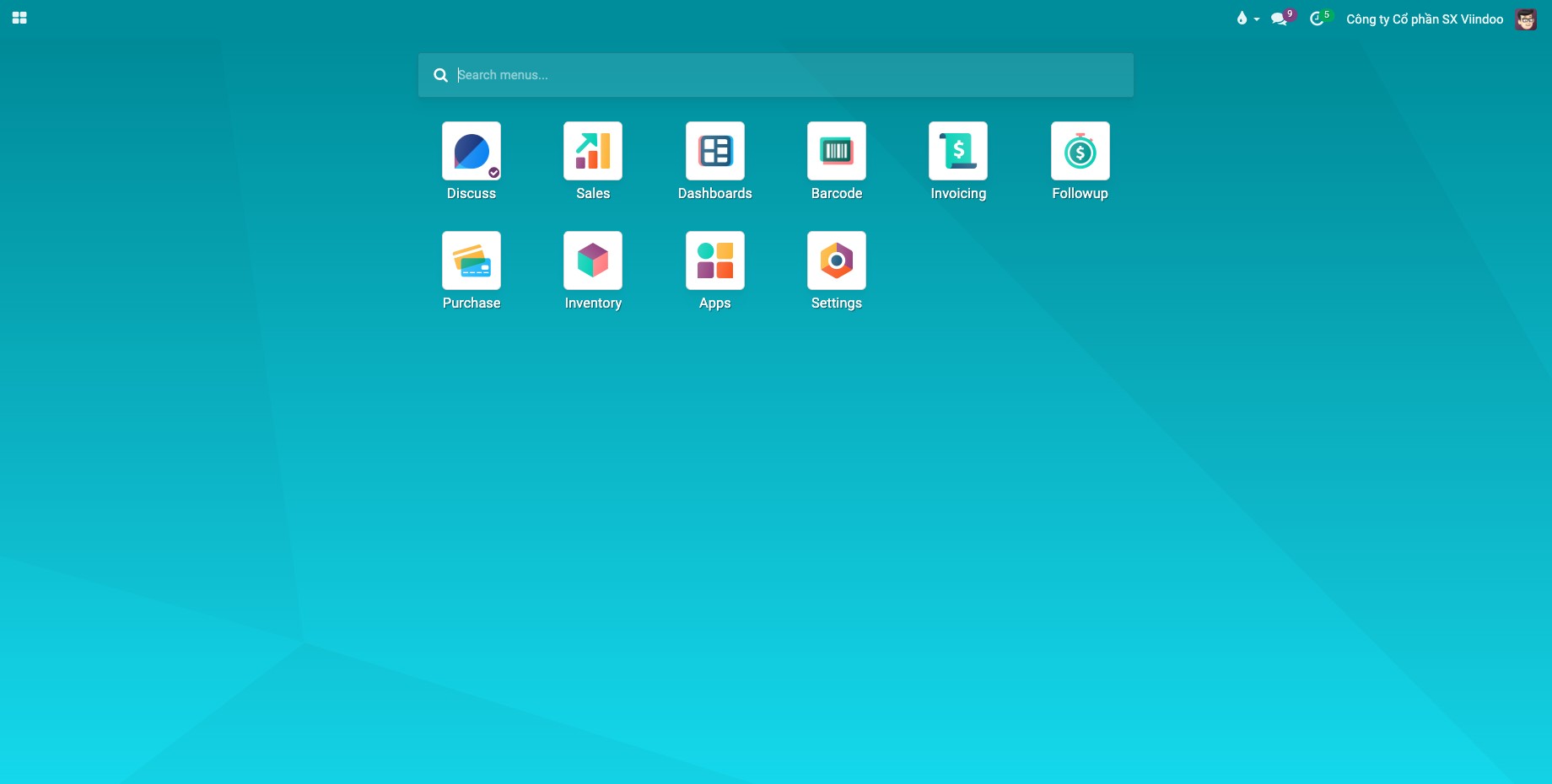
Click Activate on the Inventory card and wait until the screen reloads. Once the app is installed, its card shows only Learn More and the Inventory app appears on the home screen.
![Home screen with the Inventory app icon next to the other installed apps]()
Viindoo’s own extensions of Inventory, such as the extra filters of the transfer lists, are installed together with the app.
How do I give a user access to Inventory?
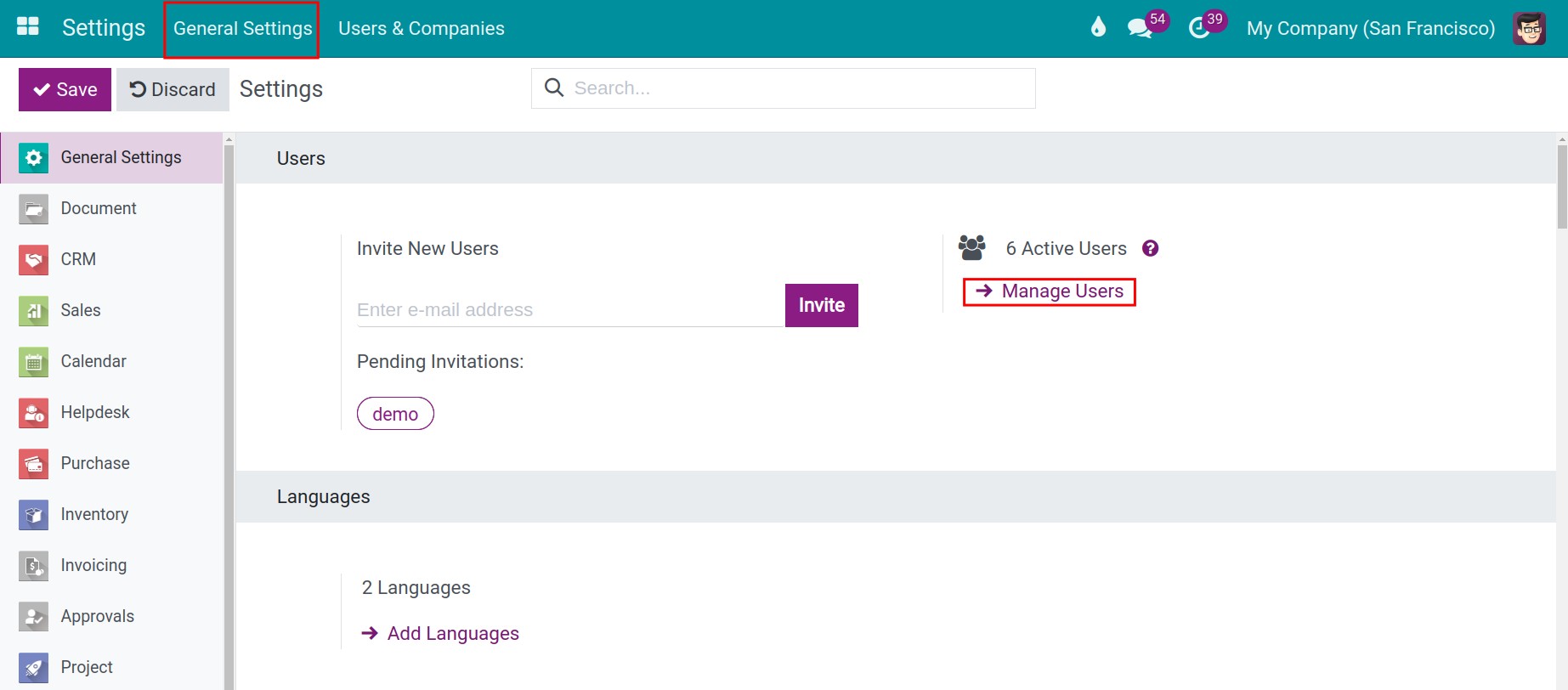
Go to and open the user.
![Users list in Viindoo Settings with a user selected to receive Inventory access rights]()
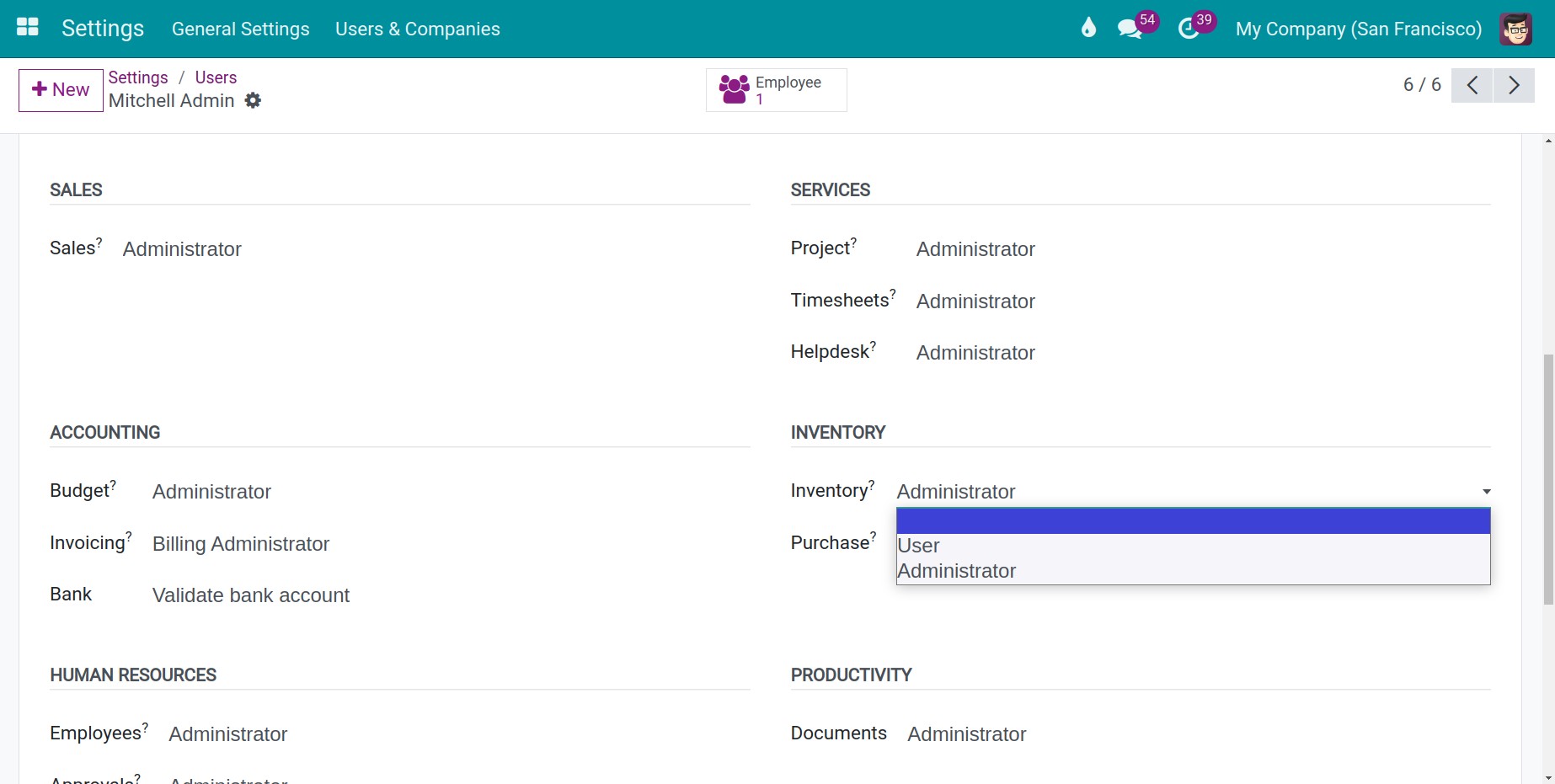
On the Access Rights tab, find the Inventory row in the Supply Chain section and choose User or Administrator. Choose No if the person must not open Inventory.
![Inventory field of the Access Rights tab with the User and Administrator choices]()
Click Save. The person sees the Inventory app the next time the page is loaded.
Which access level does each person need?
Access level |
What the person can do |
|---|---|
No |
No access: the Inventory app is not shown. |
User |
For warehouse staff. Opens Overview, Operations and Products. Creates, edits and validates transfers (receipts, deliveries, internal transfers). Creates lots or serial numbers and packages, scraps damaged goods and uses the Replenish button of the forecast report. Can read products, warehouses and locations but cannot create or change them. |
Administrator |
For the warehouse supervisor. Everything a User can do, plus the Reporting and Configuration menus and . Creates and edits products, product categories, units of measure, warehouses, locations, routes, operation types, putaway rules, storage categories and reordering rules. |
Note
Some options need the matching setting in first, for example Storage Locations, Lots & Serial Numbers or Packages. Only a user with the Administrator role in Settings can change them. When a menu is missing for a user who has the right access level, check that setting.
What should I see when it works?
The user opens Inventory and lands on the overview with one card per operation type. A User does not see the Reporting and Configuration menus.
Common problems
Problem |
What to do |
|---|---|
The user does not see the Inventory app. |
Their Inventory access right is empty. Choose User or Administrator, save, and ask them to reload the page. |
The user cannot find Reporting, Configuration or Replenishment. |
These menus are only for Administrator. Change the access level if the person needs them. |
The Inventory field is not on the Access Rights tab. |
The app is not installed yet. Activate it from Apps. |
Next steps
How to use the Inventory overview to see what to do: read the Inventory overview.
How to create a warehouse and its locations: set up your warehouses.
Record operations on a past date: let selected people record receipts, deliveries and scraps on the date they really happened.