
Configuration taxes on import/export
Requirements
This tutorial requires the installation of the following applications/modules:
The taxes are configured by the accountants: you need the Accounting: Administrator access right.
Import taxes configuration
The import taxes includes:
Import tax;
Excise tax;
Environmental tax;
Value added tax (VAT), etc.
To create a new tax, you navigate to Invoicing ‣ Configuration ‣ Accounting ‣ Taxes.

Clicking on the New button and follow the steps in this article Taxes and tax rules configuration. With taxes applied in import, you will need to pay attention to the following information fields:

General information area:
Tax Computation: Select the tax calculation as Percentage.
Tax Type: Select the Purchases option.
Import Tax Cost Product: When the Tax Type you selected above is Purchases, the system shows the product Import Tax Cost. This product is used to record the related import expenses or the landed costs, and you do not change it.
Amount: The rate of the tax, for example 10%.
Fiscal Position: The fiscal position Customs Declarations. The customs taxes belong to this fiscal position, which is never applied by itself to invoices and bills, so that the taxes are only applied by the customs clearance requests.
Definition tab, in Distribution for Invoices (and the same in Distribution for Refunds):
Two lines are required, each on its own account: a line of 100.00 of tax on the account of the other side of the entry (for example Expenses for an import duty), and a line of -100.00 of tax on the account Customs Taxes Payable, which is the amount owed to the customs authority.
The account owed to the customs authority must allow reconciliation, because the payment of the taxes is reconciled with it, and it must not be used in the tax closing.
Tax Grids: Select the corresponding tax grid for the taxable value and the tax value. In case the system does not have the necessary tax grids, you can create a new tax grid.
Advanced Options tab:
Activate the Affect Base of Subsequent Taxes feature. Depending on the tax calculation sequence, the following taxes are calculated according to the taxable value and the tax rates of the previous taxes. For Instance: Taxes such as excise tax, environmental tax, etc., if these taxes are being applied, those values will be calculated based on the dutiable value which included the import tax.

Tip
To arrange the calculation order of taxes, simply sort them in the list of taxes. The tax which is calculated first will be put on first by the drag and drop feature.
Value-Added Taxes (VATs) configuration
The system had already been created for you some of default VATs on the imported goods. You navigate to Invoicing ‣ Configuration ‣ Accounting ‣ Taxes to view:

However, depending on the localization of your company, you will need to check the accounts of the VAT in Distribution for Invoices. The line of 100.00 of tax is for the entry of the deductible VAT on the imported goods (for example Tax Paid), and the line of -100.00 of tax is for the amount owed to the customs authority.

In addition, with the VAT on the imported goods, you will not need to activate the Affect Base of Subsequent Taxes feature. Because the value of this tax will be calculated after all of the taxes applicable to the imported goods: on the Advanced Options tab, Is VAT is ticked and Base Affected by Previous Taxes is ticked.
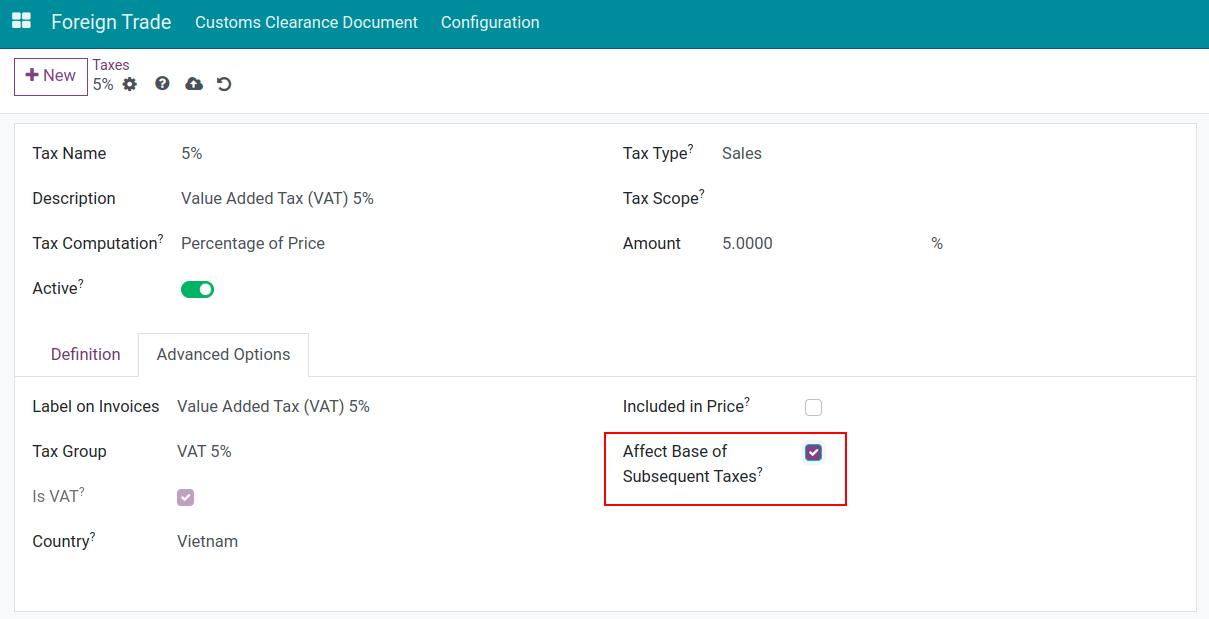
Export taxes configuration
Similar to the import taxes, you do the same as creating import tax, but there are some changes in the following fields:
Tax Type: Select the Sales option.
Import Tax Cost Product: This field does not appear when selecting the option above.
Distribution for Invoices: The line of 100.00 of tax is on the account Customs Taxes Payable, and the line of -100.00 of tax is on the other side of the entry (for example Product Sales).

How do I apply the taxes to the products?
Each product carries the taxes of its customs clearance requests on the General Information tab of the product form: Foreign Importing Taxes, below the purchase taxes, and Foreign Exporting Taxes, below the sales taxes. A new product receives the default import and export taxes of the company, and you can add or remove taxes on each product.