
Calculating overtime salary
This article will guide you on how to calculate the overtime salary in Payslips Batches (or Payslips) based on the employee’s contract salary, pay rate, and overtime hours.
Audience: payroll officers who prepare payslips with overtime pay.
Requirements
This tutorial requires the installation of the following applications/modules:
General Configuration
First, you need to define overtime rules for any time interval of a day. Each rule points to an overtime code, and the code carries the overtime pay rate in its Overtime Rates, with the period during which the rate applies. The pay rate is a setting that you maintain: edit it when your policy changes. For a company in Vietnam, the Vietnam - Overtime module already provides the codes, their rates and the rules, so that you only review them in . The rate is used in the overtime salary formula when the overtime period corresponds to the time specified in an overtime rule.

Activating Integration Overtime and Payroll
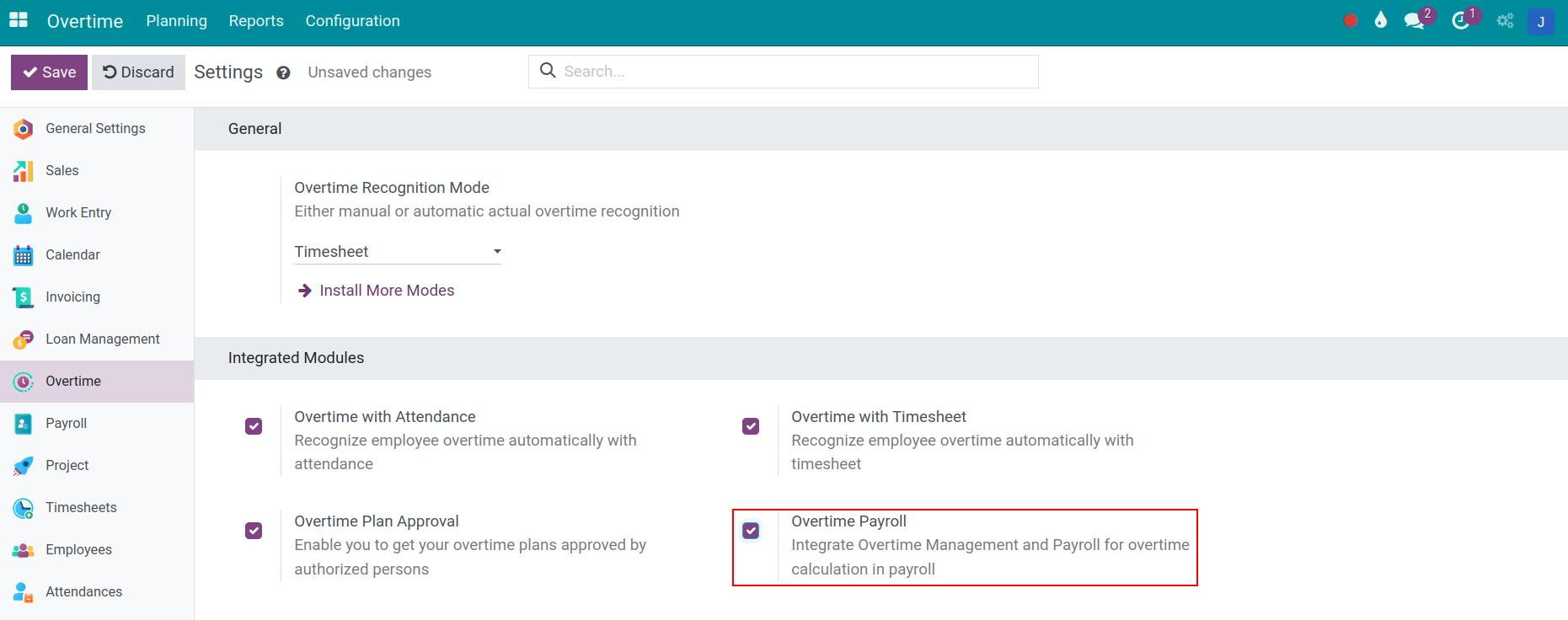
To calculate the overtime salary, you need to activate Overtime Payroll in , under Integrated Modules.
Define Overtime salary rules
When Overtime Payroll is installed, the overtime salary rules Taxed Overtime Work and Untaxed Overtime Work are added to the salary structure of each company, with a pre-set formula and order. Open them in .
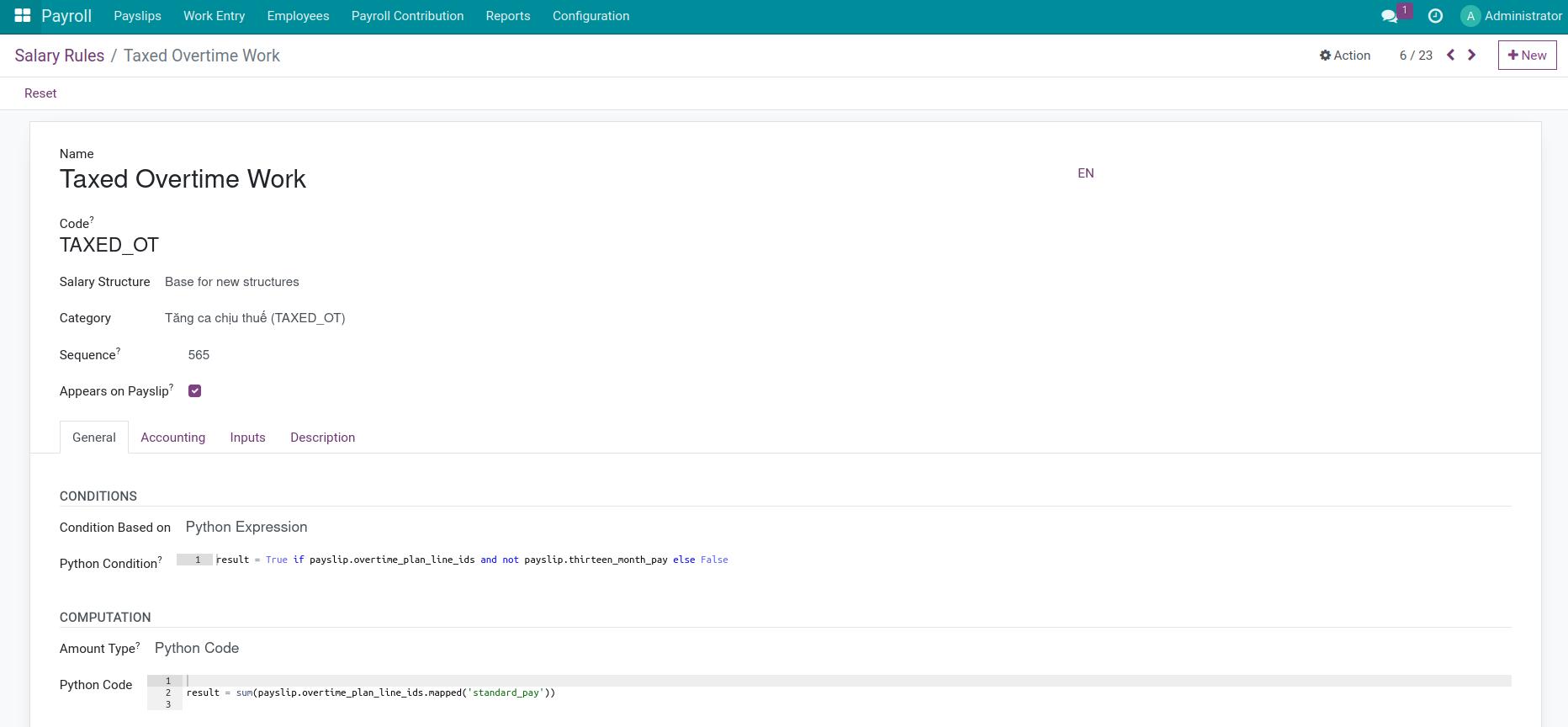
A rule is applied on a payslip that has overtime plan lines and a non-zero amount for that rule. The overtime pay of the payslip is split in two parts:
Taxed Overtime Work takes the part of the overtime pay that is subject to personal income tax. With the treatment Part paid above normal pay, it is the standard pay of the plan lines: the hours multiplied by the standard pay per hour.
Untaxed Overtime Work takes the rest. With the same treatment, it is the extra pay, which is the part of the overtime pay above the standard pay because of the pay rate.
The split follows the overtime tax treatment in force (see below). With the treatment All overtime pay, the whole overtime pay goes to Untaxed Overtime Work, the amount of Taxed Overtime Work is zero and the rule is not applied.
Define the overtime tax treatment
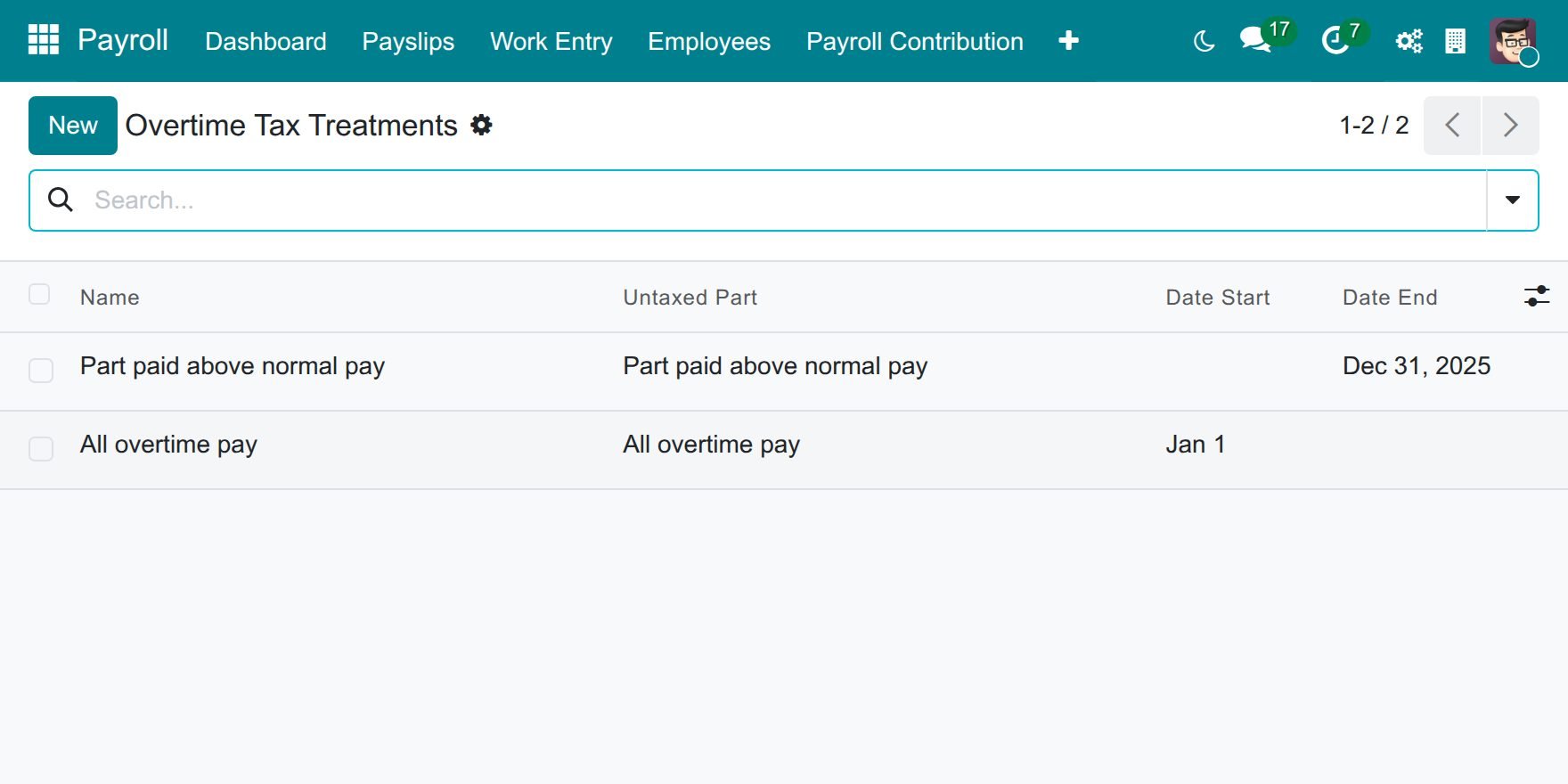
Which part of the overtime pay is free of personal income tax depends on the rules of your country and on your policy, so it is a setting with effective dates. Go to . The Vietnam - Overtime Payroll Localization module installs itself in a database that has a company in Vietnam and provides two treatments for the country: Part paid above normal pay until the end of 2025 and All overtime pay from January 1, 2026. They are ordinary data: edit their dates, or add a treatment for one company, when the law or your policy requires it. A treatment does not check the limits of the overtime hours: the payroll officer declares the pay beyond them as taxable income.
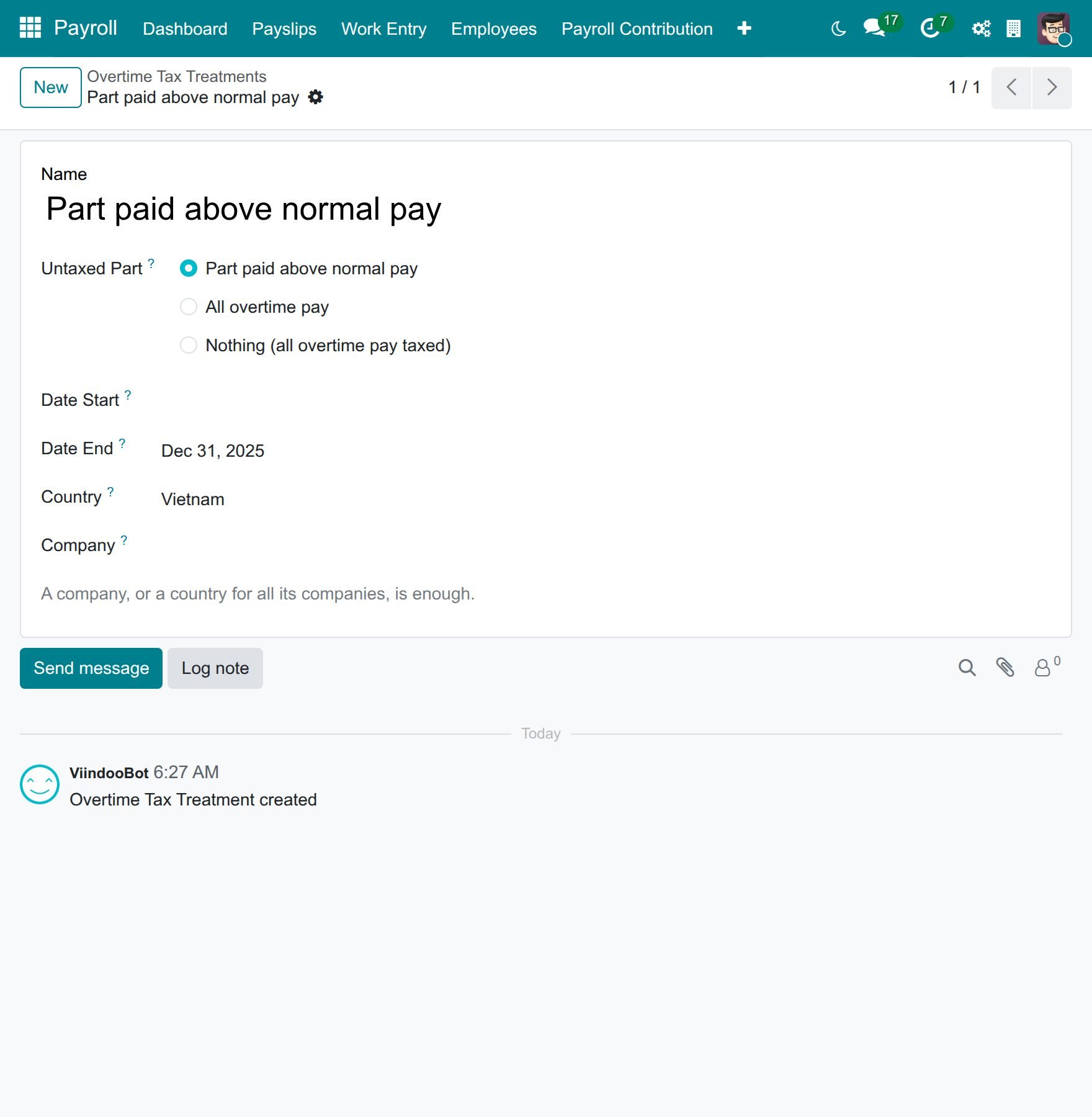
For another country or another policy, click New:
Untaxed Part: choose Part paid above normal pay (the pay of the overtime hours at the normal rate is taxed, the extra part is not), All overtime pay (no overtime pay is taxed) or Nothing (all overtime pay taxed).
Date Start and Date End: the period in which the treatment applies. A newer treatment starts the day after the older one ends.
Company and Country: fill in one of them. A treatment of a company applies to this company and its branches; a treatment of a country applies to every company of the country that has no treatment of its own.
The payslip follows the treatment in force on its Tax Date and keeps it in the Overtime Tax Treatment field of the Overtime Details section. When no treatment is in force, the pay of the overtime hours at the normal rate is taxed and the extra part is not.
Configure Overtime Base Factor
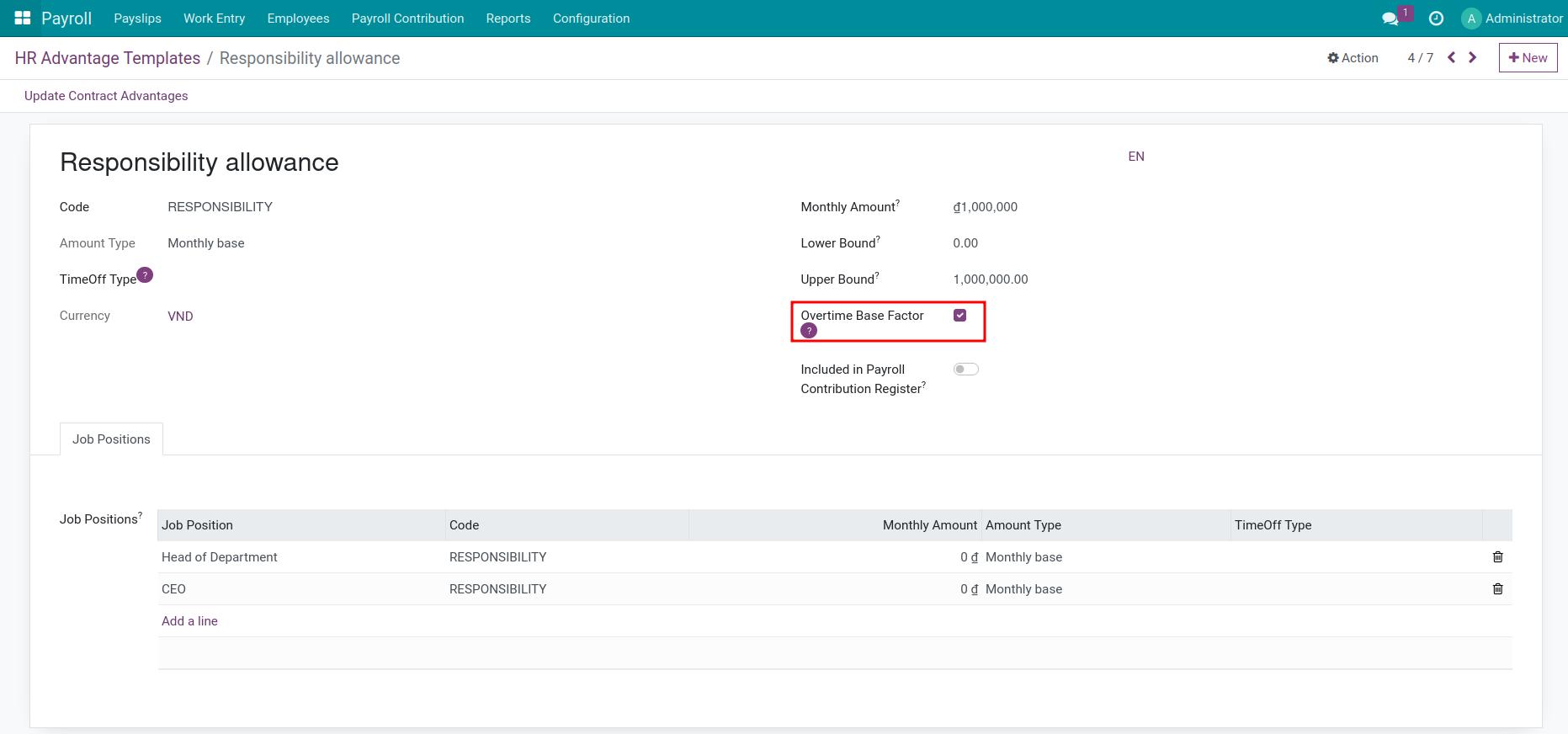
To set up a monthly advantage, you navigate to HR Advantage Templates. Then, you select the allowance you want to configure. Check Overtime Base Factor if you want this monthly allowance to be included in the overtime base amount for the overtime calculation. The templates of a company have it checked by default: uncheck it on an allowance that must not raise the overtime pay, for example a meal allowance.
Overtime Base mode on employee’s contract
The overtime salary rules will be calculated automatically based on the overtime period, the corresponding pay rate specified in the overtime rates and the Overtime Base Amount declared in the employee’s contract.
To set up the Overtime Base Amount, you navigate to , open the employee and choose the Payroll tab, which shows the running contract. The Overtime Base Mode field offers 4 options:
Manual Input: You can define the Overtime Base Amount manually on the contract.
Basic Wage: The overtime base amount is basic wage.
Gross Salary: The overtime base amount is Gross Salary specified on the contract (including the basic wage plus the monthly advantages).
Wage Plus Configurable Advantages: The overtime base amount is the basic wage plus the monthly advantages which are checked as Overtime Base Factor. For example, an advantage such as Responsibility Allowance can be included while an advantage whose template is not checked is left out.
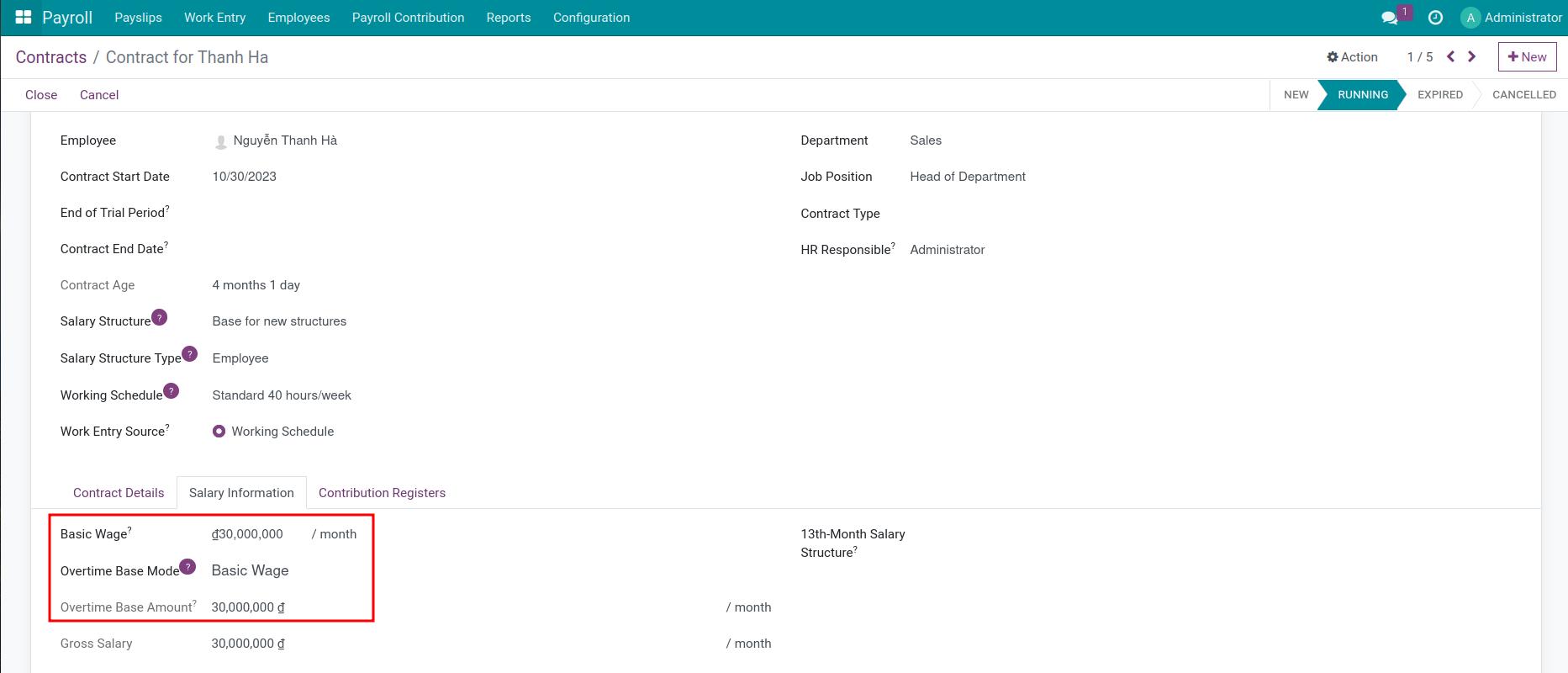
The Standard Pay per Hour of an overtime plan is the overtime base amount divided by the normal working hours of the month, given by the working schedule of the contract.
Integrating Overtime Request with Payslip
First, you need to create and approve an Overtime Request or Overtime plan. At the Plan Lines tab, the system automatically updates information related to the overtime period, actual overtime hours and corresponding overtime rules.
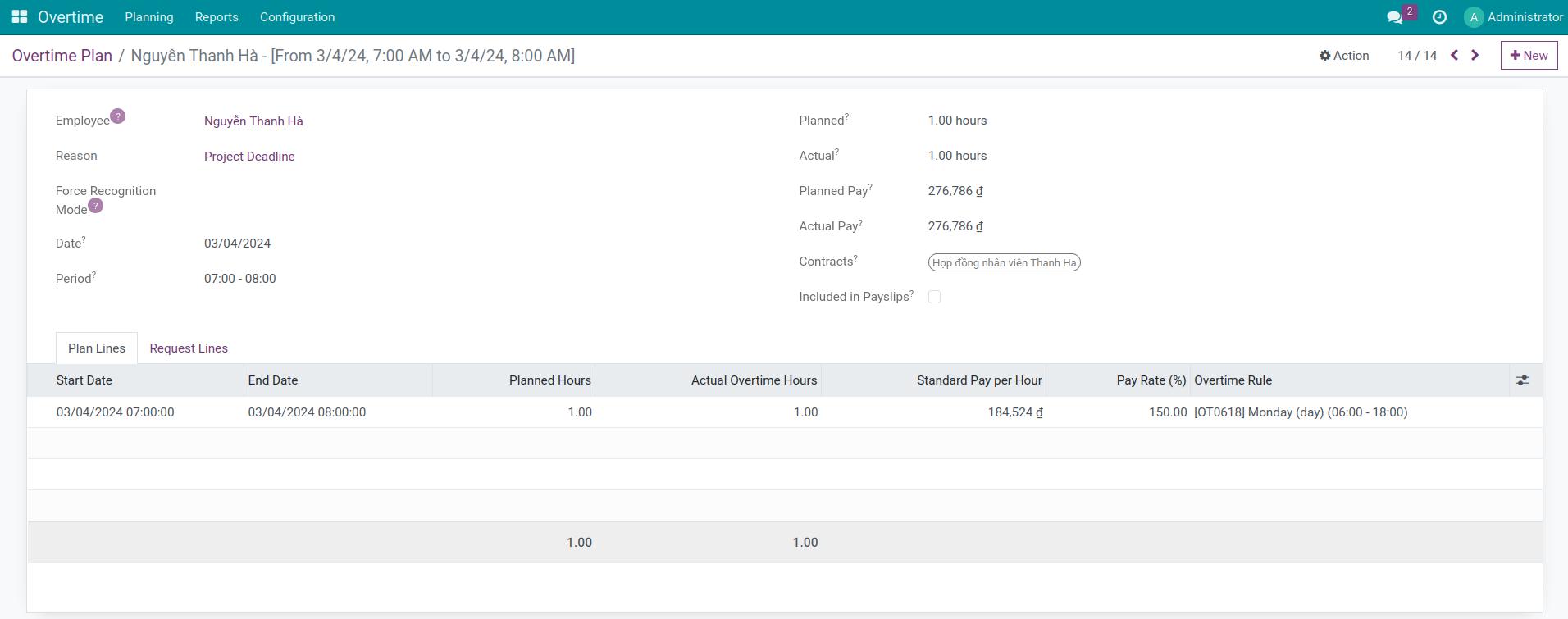
A payslip takes the plan lines that meet these conditions:
They belong to the employee of the payslip, and their plan date falls in the period of the payslip.
Their actual overtime hours are greater than 0.
A plan that was submitted for approval is taken once approved; a plan that was never submitted is taken as planned.
The plan is not converted into compensatory time off: converted hours are never paid.
The plan is not already paid on a payslip that has left the Draft state.
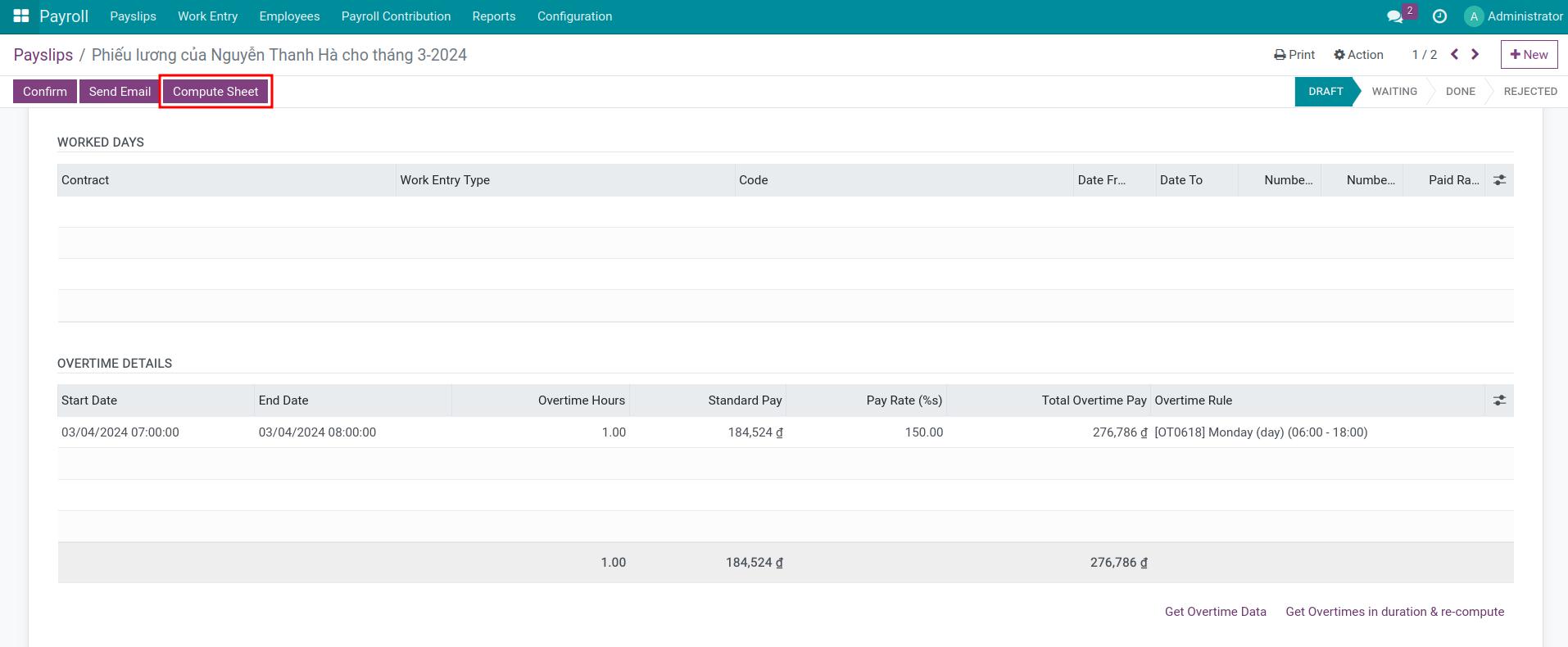
Then, users can create payslips that include overtime pay. You go to to create a new payslip and fill the information: the employee and the period. The salary structure of the contract must contain the overtime salary rules. After that, hit Compute Sheet.
Note
Instead of creating payslips for each employee, you can create Payslips Batches for many employees. Refer to How to create a payslip batch. If overtime plan change after creating payslips batches, you can also recompute overtime entries with the Recompute Overtime Entries button of the payslips batch.
The Overtime button at the top of the payslip lists the overtime plan lines that are included in the payslip, grouped by overtime rule. Expand a group to see its lines:
Start Date/End Date: The start date and end date of the overtime period.
Planned Hours and Actual Overtime Hours: The planned hours and the hours recognized by the selected Recognition Mode.
Standard Pay per Hour: The hourly amount taken from the overtime base amount of the contract.
Pay Rate (%): The pay rate which is specified in the overtime rates.
Overtime Rule: The overtime rule corresponds to the approved overtime period.
The overtime pay of a line is: Standard Pay per Hour * Actual Overtime Hours * Pay Rate (%) / 100.

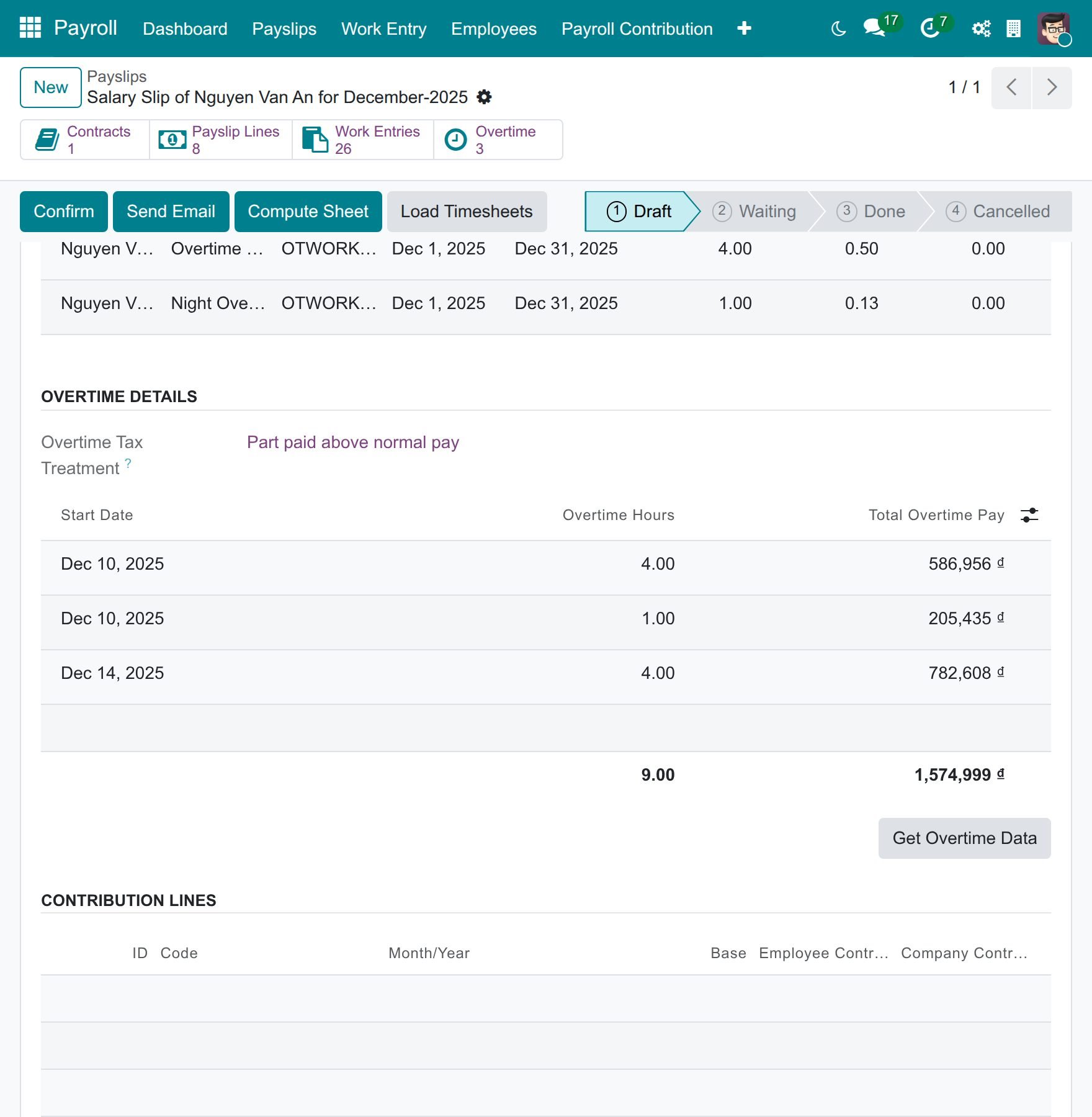
The Overtime Details section of the Work Information tab lists the same lines with their hours and their overtime pay, and shows the overtime tax treatment. While the payslip is a draft, click Get Overtime Data to load the overtime plan lines again after a plan changed.
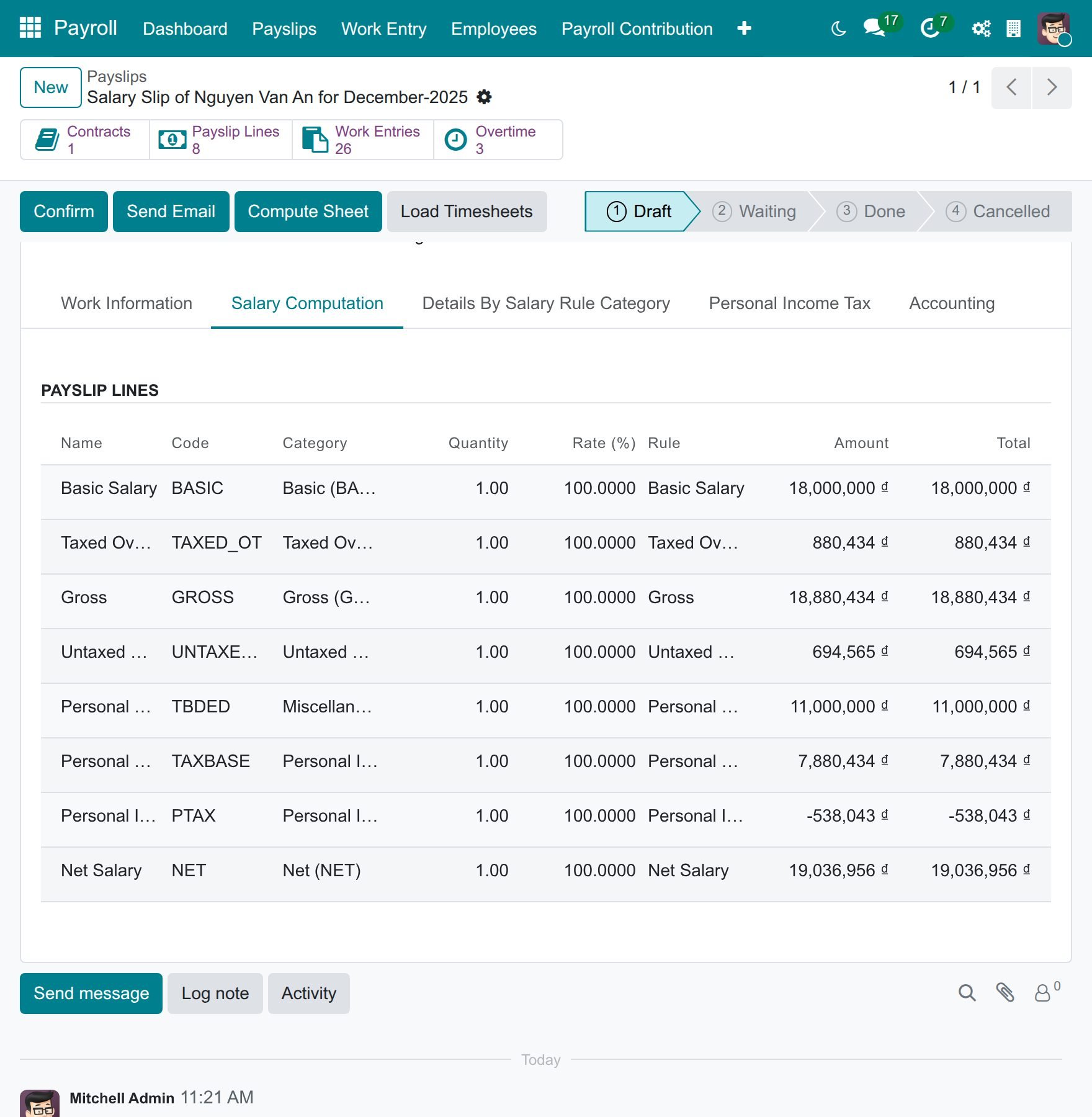
After the payslip is computed, the Salary Computation tab shows the payslip lines, including the Taxed Overtime Work and Untaxed Overtime Work lines that are calculated by the overtime salary rules.
Note
An overtime plan that is paid on a payslip which is not in the Draft state can be neither changed nor deleted. To change it, ask a payroll officer to cancel that payslip and set it back to draft first.
See also
Related article
Optional module