

Overtime Payroll
by Viindoo
| Lines of Code | 1714 |
| Technical name | viin_hr_overtime_payroll |
| License | OPL-1 |
| Website | https://viindoo.com/apps/modules/19.0/viin_hr_overtime_payroll |
| Read description for | v 13.0 v 14.0 v 15.0 v 16.0 v 17.0 v 18.0 |
| Required Apps | Time Off (hr_holidays) Discuss (mail) Employees (hr) Calendar (calendar) |
| Included Dependencies | Payroll Employee Relatives Viindoo Base Overtime Advanced HR Management HR Contracts (Viindoo) Work Entry Work Entry - Contract Viin Time-Off Viin - Holiday Work Entry Base Addendum Safe IR Metadata Proxies Viindoo Holiday & WorkDay Manager |
| Extensions | Overtime Approval Payroll Vietnam - Overtime Payroll with Accounting Overtime Payroll - Compensatory Time Off Vietnam - Overtime Payroll Localization |

Overtime pay on the payslip, split the way your payroll rules say
For payroll teams and HR administrators who pay overtime and must explain every line
Overtime hours become payslip lines, and the taxable part follows dated data you control.
Works inside Overtime and Payroll: the hours planned in the first become the pay lines of the second.
Is this you?
The part of overtime pay that is free of personal income tax changes with the law, and your payroll rules change by hand each time.
An employee asks why the overtime figure is what it is, and the payslip shows a single number with no trace of the rule behind it.
The overtime hour is priced on gross pay for one person and on basic wage for another, and nobody can say which allowances count.
A plan already paid on a confirmed payslip is edited or recognised again, and what was paid no longer matches what is planned.
You hesitate to regenerate payroll rules because the rules your team tuned might be overwritten.
What changes
The taxable part of overtime pay moves with the law.
→ Keep it as dated data per company or country: end the old treatment, start the new one, and edit no payroll rule.
Employees cannot see how the overtime figure was reached.
→ Show a taxed line, an untaxed line and the name of the treatment used, on every payslip with overtime.
The overtime hour has no single, agreed base.
→ Choose per employee between gross salary and wage plus the allowances you mark as overtime-eligible.
Paid overtime drifts away from what was planned.
→ Refuse changes to a paid plan with a message that names the payslip and who can reopen it.
Regenerating payroll rules feels risky.
→ Regenerate whenever you like: missing overtime rules are added, and a rule you edited is left as you made it.
How it works
Rules set once
The Payroll Administrator records which part of overtime pay is untaxed and which allowances enter the overtime base.
Overtime planned
The Overtime Officer plans overtime in Overtime and hands the period over to the Payroll Officer.
Payslip computed
The Payroll Officer computes the sheet; the taxed and untaxed overtime lines and the treatment used appear on the payslip.
Payslip confirmed
The Payroll Officer confirms; from then on the paid plan is protected until the payslip is set back to draft.
Key Features
Overtime Tax Treatments
Decide, per company or country and by dates, which part of the overtime pay is free of personal income tax.
Taxed and untaxed overtime lines
Overtime pay is split into a taxed line inside gross and an untaxed line printed after gross and before personal income tax.
The payslip names its treatment
Each payslip with overtime states the treatment it used and lists the overtime entries it pays.
Paid plans stay as paid
A plan paid on a payslip that is no longer a draft cannot be changed, rematched or deleted, is never recognised again automatically, and carries one internal note saying why.
A base you choose
Mark which allowances enter the overtime base, then price each employee's overtime hour on gross salary or on wage plus those allowances.
Regenerating keeps your edits
Generating payroll rules adds the missing overtime rules and never rewrites a rule a user edited.
Who it is for
Finance and HR leadership
Overtime cost follows the rule in force on the day, and every payslip shows which rule that was.
Payroll Administrator
Changes the tax treatment and the overtime base as data, in one place, without touching payroll rules.
Payroll and Overtime Officers
Compute payslips from planned overtime and meet a clear message, not a silent change, when a plan is already paid.
Consultants and IT
Install on top of Overtime and Payroll; the overtime rules join the salary structure, and Generate Payroll Rules adds any that are missing.
Best for: organisations that pay overtime through payslips and need the taxable part to be configurable, dated and visible to the people who read the payslip.
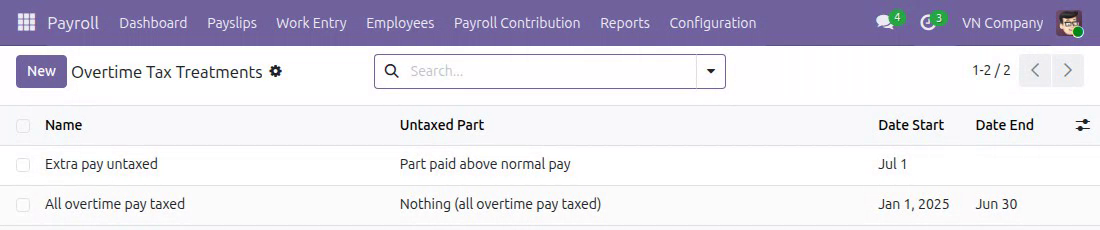
List the overtime tax treatments in force
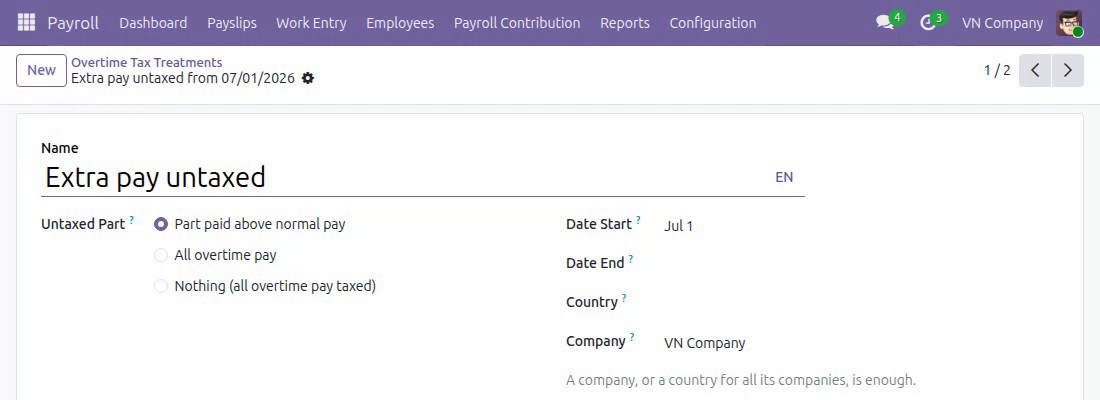
Choose the untaxed part and the dates it applies
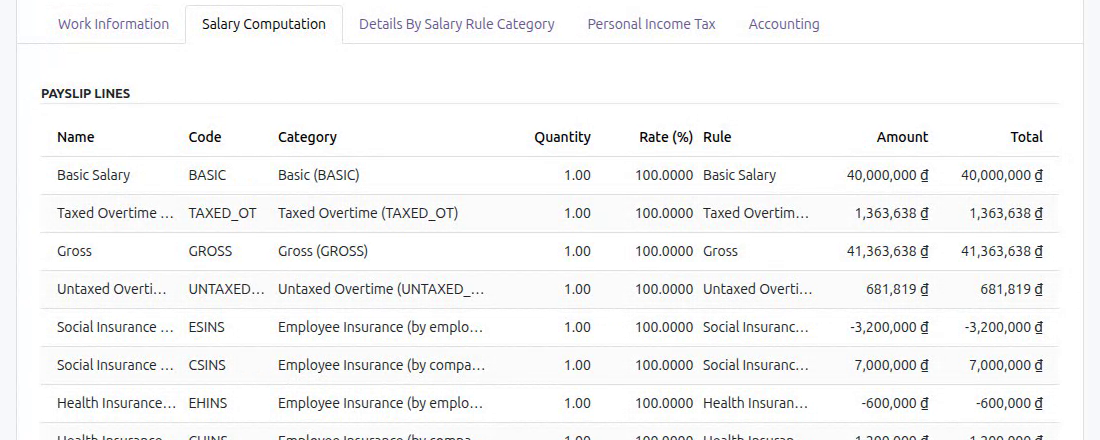
Read the taxed and untaxed overtime lines on the payslip
See which treatment a payslip used
Meet a clear refusal when a plan is already paid
Find the reason on the plan itself
Mark the allowances that count toward overtime
Pick the overtime base of each employee
Frequently Asked Questions
What happens when the law changes the untaxed part?
End the older treatment the day before and create a new one starting on the day the change applies. Each payslip uses the treatment in force on its Tax Date.
What applies when no treatment is in force?
The overtime hours paid at the normal rate are taxed and the extra part is untaxed. Create a treatment for your company or country whenever your rules differ.
Can one country rule apply to all my companies?
Yes. A treatment set for a country applies to every company of that country, and a treatment set for one company comes first. A country localisation can ship its treatments ready to use, for example Vietnam - Overtime Payroll Localization.
Where do the overtime hours come from?
From the plans of the Overtime app. This module prices them and places them on the payslip; planning and recognising hours stay in Overtime.
Does untaxed overtime count toward the flat-rate withholding threshold?
Yes. The untaxed overtime line is part of the amount compared with the threshold, because it is still paid out on the payslip.
What if someone edits a plan that is already paid?
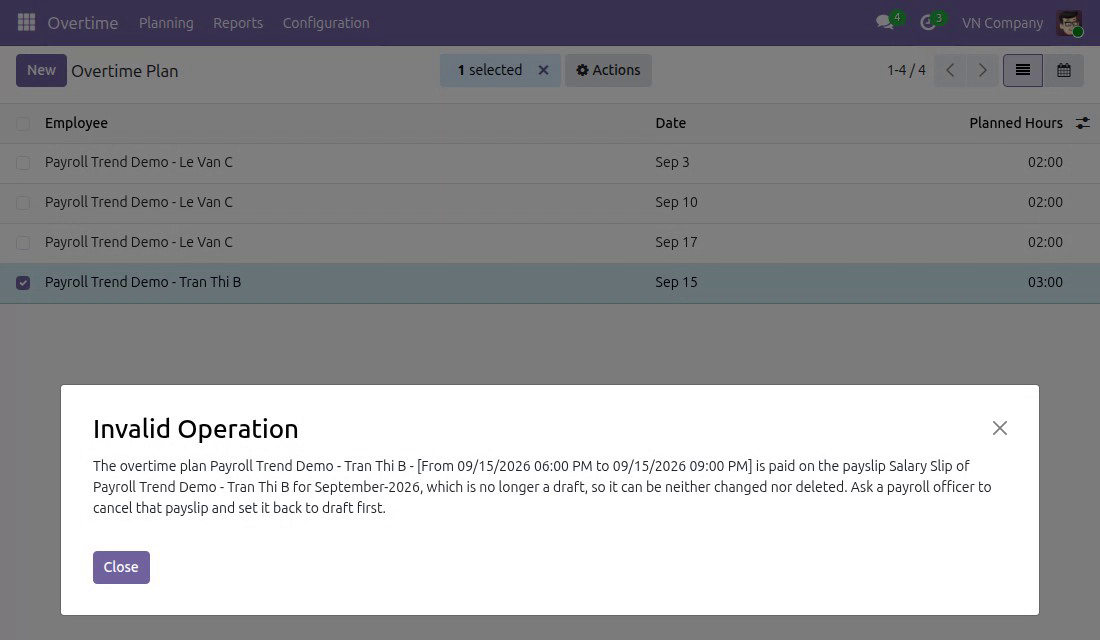
The change is refused, and the message names the payslip and asks for a payroll officer to cancel it and set it back to draft first. Messages, notes and activities stay available on the plan.
Will regenerating payroll rules overwrite my edits?
No. Only the rules that are missing from the structure are created; a rule you edited is kept as it is.
Need help with Overtime Payroll?
Pre-Sales & Partnership
viindoo.com/contactusTechnical Support
viindoo.com/ticketExtend it further
Add the pieces your payroll process needs next: approved overtime, no double compensation, and country treatments ready to use.
Overtime Approval Payroll
Overtime that has been approved is sent to payroll and calculated there.
Overtime Payroll - Compensatory Time Off
Hours converted into compensatory time off are left off the payslip, so each hour is compensated once.
Vietnam - Overtime Payroll Localization
Overtime tax treatments for companies in Vietnam, ready to use as editable dated data.
This guide is written for payroll administrators, payroll officers and overtime officers: the people who decide how overtime is taxed, compute payslips and plan overtime.
Note
Extends Overtime - see the documentation of Overtime.
Note
Extends Payroll - see the documentation of Payroll.
Installation
- Navigate to Apps.
- Search with keyword viin_hr_overtime_payroll.
- Press Install.
Instruction
Instruction video: Overtime Payroll
1. Manage the types of advantages that are included in the overtime salary calculation
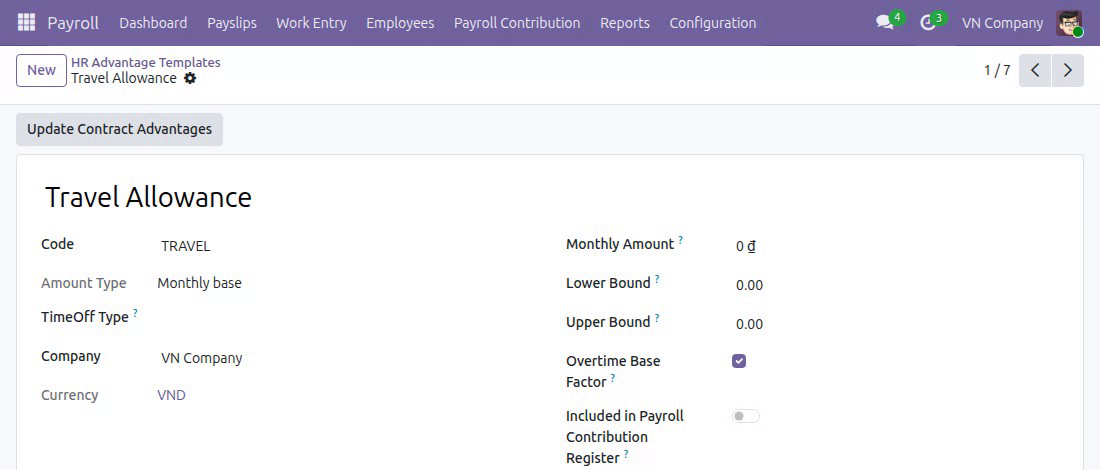
Go to Payroll ‣ Configuration ‣ Payroll Entry ‣ HR Advantage Templates to create a new one or select an advantage, then activate the Overtime Base Factor feature:
2. Choose the overtime base mode of an employee
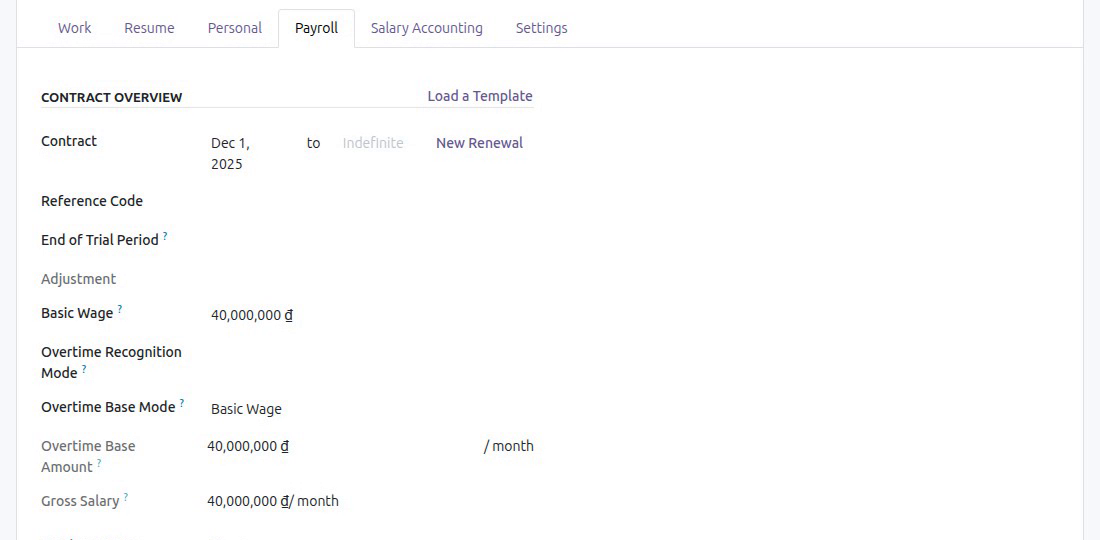
Go to Payroll ‣ Employees ‣ Employee Records, open the employee and switch to the Payroll tab. In the Overtime Base Mode field, select the appropriate mode. This module adds two modes to the ones of the Payroll application:
- Gross Salary: the overtime hour is priced on the gross salary of the employee;
- Wage Plus Configurable Advantages: the overtime hour is priced on the basic wage plus the advantages whose template has Overtime Base Factor ticked.
Only people who may change the pay terms of a contract can change Overtime Base Mode and Overtime Base Amount; payroll officers can read them.
3. Choose which part of the overtime pay is untaxed
The overtime pay of a payslip has two parts: the pay of the overtime hours at the normal rate, and the extra pay on top of it (for example the 50 percent added to a rate of 150 percent). Which part is free of personal income tax depends on the law of your country and can change from one year to the next, so a payroll administrator keeps it as dated data.
Go to Payroll ‣ Configuration ‣ Payroll Entry ‣ Overtime Tax Treatments:
Press New (or open a treatment) and fill in:
- Name: the name of the treatment, shown on the payslips that use it.
- Untaxed Part: the part of the overtime pay that is free of personal income tax:
- Part paid above normal pay: the pay of the overtime hours at the normal rate is taxed, the extra part is not;
- All overtime pay: no overtime pay is taxed;
- Nothing (all overtime pay taxed): all overtime pay is taxed. A payroll administrator whose law taxes overtime pay in full creates this treatment.
- Date Start and Date End: the days the treatment is in force. Leave Date End empty for a treatment without an end. To change the rule from a given day, end the older treatment the day before and create a new one starting on that day.
- Company or Country: one of them is enough. A treatment of a company (and its branches) applies whatever the country of the company; a treatment of a country without company applies to every company of that country. A treatment of the company wins over the one of its country.
The treatment that applies to a payslip is the one in force on the Tax Date of the payslip. With no treatment in force, the pay at the normal rate is taxed and the extra part is not. Two treatments of the same company, or of the same country without company, cannot cover the same days. A treatment already used by a payslip that is no longer a draft cannot be deleted: archive it, it then applies to no new payslip.
Note
The treatments of Vietnam come with the localization Overtime Payroll Vietnam (l10n_vn_viin_hr_payroll_overtime); install it instead of entering them by hand.
Only payroll administrators open Overtime Tax Treatments; payroll officers see the treatment a payslip used on the payslip itself.
4. Automatically identify actual overtime hours and calculate overtime pay on employee payslips
Go to Payroll ‣ Payslips ‣ Payslips to create a new payslip (or you can create a batch of payslips for employees by going to Payroll ‣ Payslips ‣ Payslips Batches). Then, you will see the following information on the payslip:
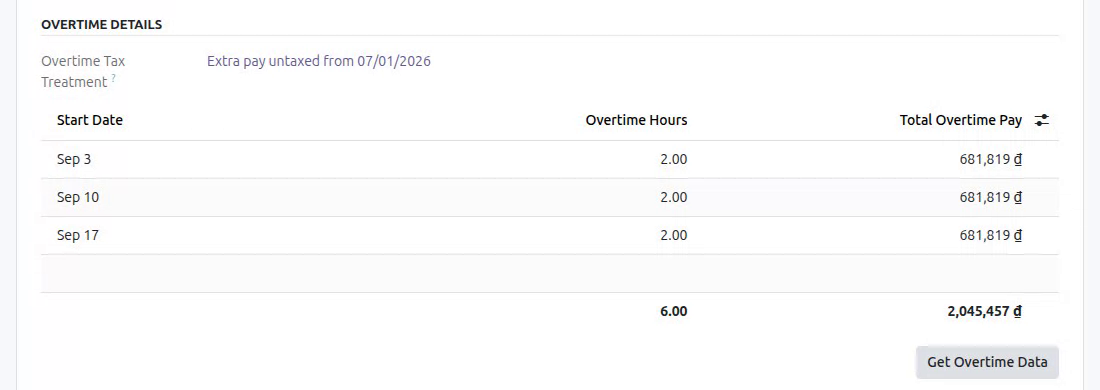
- Overtime details: on the Work Information tab, the section Overtime Details lists the overtime entries the payslip pays and, above them, the Overtime Tax Treatment the payslip used. Press Get Overtime Data to load the overtime entries of the period again.
- Overtime pay split into taxed and untaxed overtime: on the Salary Computation tab, Taxed Overtime Work is part of the gross salary, and Untaxed Overtime Work is printed right after the Gross line and before the personal income tax line. The two lines add up to the overtime pay of the entries. A line with no amount does not appear.
The untaxed overtime pay is part of what the payslip pays, so when the personal income tax of your country is a flat rate withheld only above a threshold per payment, the amount compared with the threshold includes it.
5. Payroll rules generated for overtime
Installing the module and pressing Generate Payroll Rules in Payroll ‣ Configuration ‣ Settings add the two overtime salary rules, Taxed Overtime Work and Untaxed Overtime Work, to the base structure of each company. A rule that already exists is kept as it is: a rule you edited is never rewritten, only a missing rule is created.
6. Overtime already paid is protected
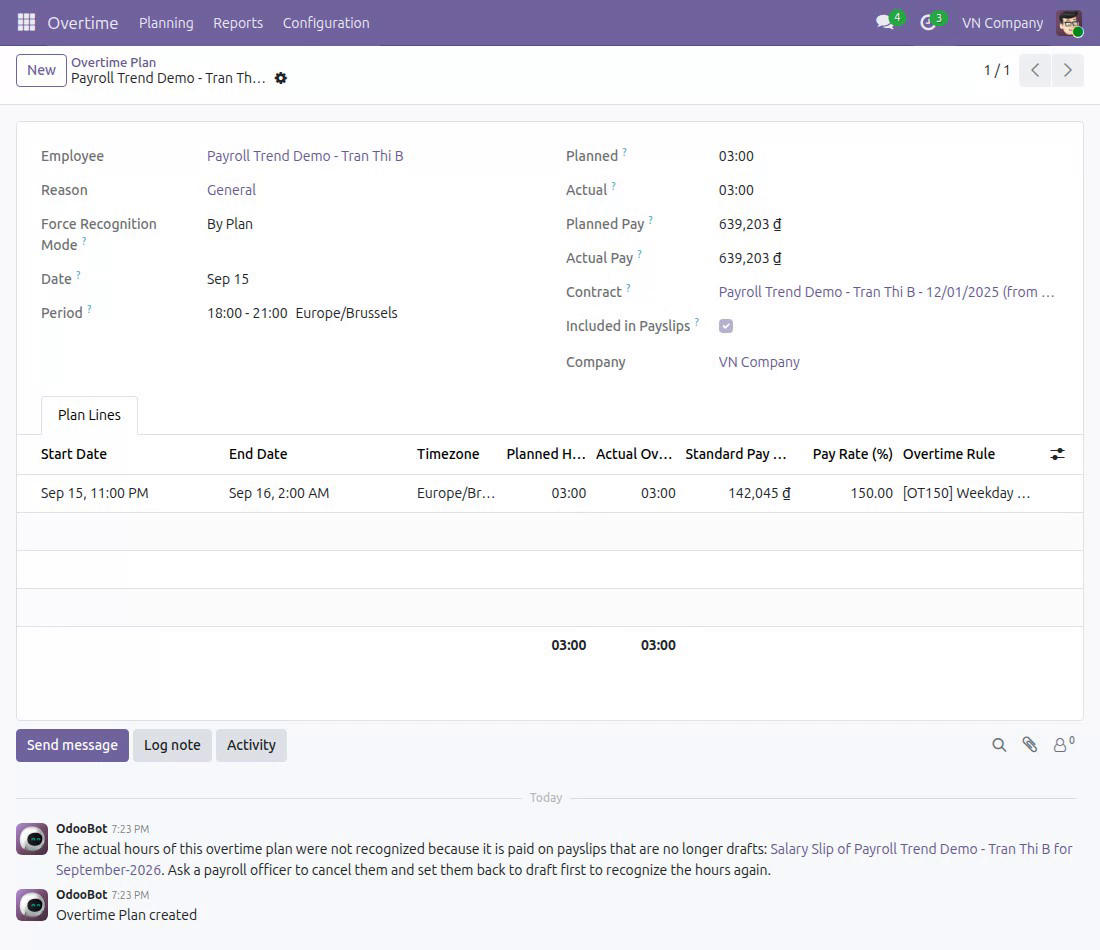
An overtime plan whose overtime is paid on a payslip that is no longer a draft (a payslip in the state Waiting, Done or Cancelled) keeps the hours it was paid on:
- Changing the plan, Resolve Contract Mismatch (in the Actions menu of the plan list), Recognize Overtime (shown when a recognition mode from another module is in use), and deleting the plan or one of its lines are refused. The message names the payslip and tells you to ask a payroll officer to cancel that payslip and set it back to draft first.
- When the actual hours of the plans are recognized automatically, for example from attendance or timesheets, a paid plan is left as it is. The plan carries one internal note, in its chatter, that says the recognition was skipped and names the payslips. The note is not repeated while nothing else is posted on the plan.
- Computing a payslip never recognizes a plan again, and a plan already paid is not taken by another payslip.
- The Reload button of the plan is hidden. You can still send messages, log notes and schedule activities on a paid plan.
After a payroll officer cancels the payslip and sets it back to draft, the plan can be changed again.
This software and associated files (the "Software") may only be used (executed, modified, executed after modifications) if you have purchased a valid license from the authors, typically via Odoo Apps, or if you have received a written agreement from the authors of the Software (see the COPYRIGHT file).
You may develop Odoo modules that use the Software as a library (typically by depending on it, importing it and using its resources), but without copying any source code or material from the Software. You may distribute those modules under the license of your choice, provided that this license is compatible with the terms of the Odoo Proprietary License (For example: LGPL, MIT, or proprietary licenses similar to this one).
It is forbidden to publish, distribute, sublicense, or sell copies of the Software or modified copies of the Software.
The above copyright notice and this permission notice must be included in all copies or substantial portions of the Software.
THE SOFTWARE IS PROVIDED "AS IS", WITHOUT WARRANTY OF ANY KIND, EXPRESS OR IMPLIED, INCLUDING BUT NOT LIMITED TO THE WARRANTIES OF MERCHANTABILITY, FITNESS FOR A PARTICULAR PURPOSE AND NONINFRINGEMENT. IN NO EVENT SHALL THE AUTHORS OR COPYRIGHT HOLDERS BE LIABLE FOR ANY CLAIM, DAMAGES OR OTHER LIABILITY, WHETHER IN AN ACTION OF CONTRACT, TORT OR OTHERWISE, ARISING FROM, OUT OF OR IN CONNECTION WITH THE SOFTWARE OR THE USE OR OTHER DEALINGS IN THE SOFTWARE.
