
How to install Employees and give users access to employee data
To start using employee management, install the Employees app from Apps, then set each user’s access level for Employees in Settings > Users & Companies > Users. Three levels exist: No, Officer: Manage all employees and Administrator.
Who does this |
Application |
|---|---|
The system administrator |
Apps and Settings |
Installation
How do I install the Employees app?
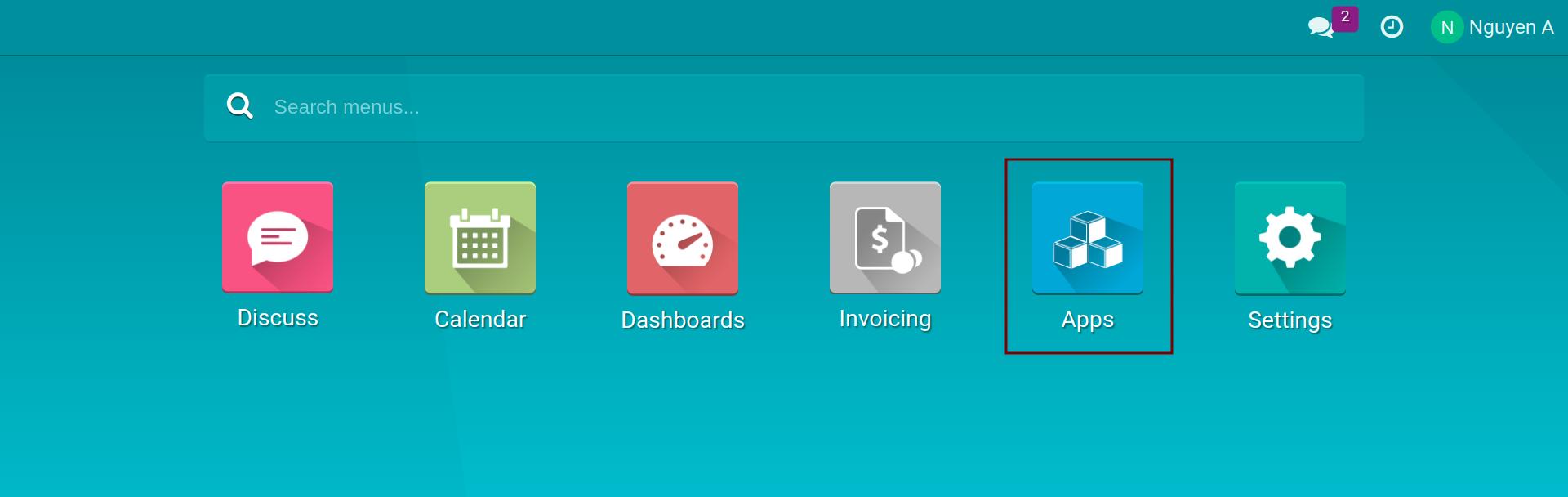
Open the Apps application.
![The list of applications in Apps]()
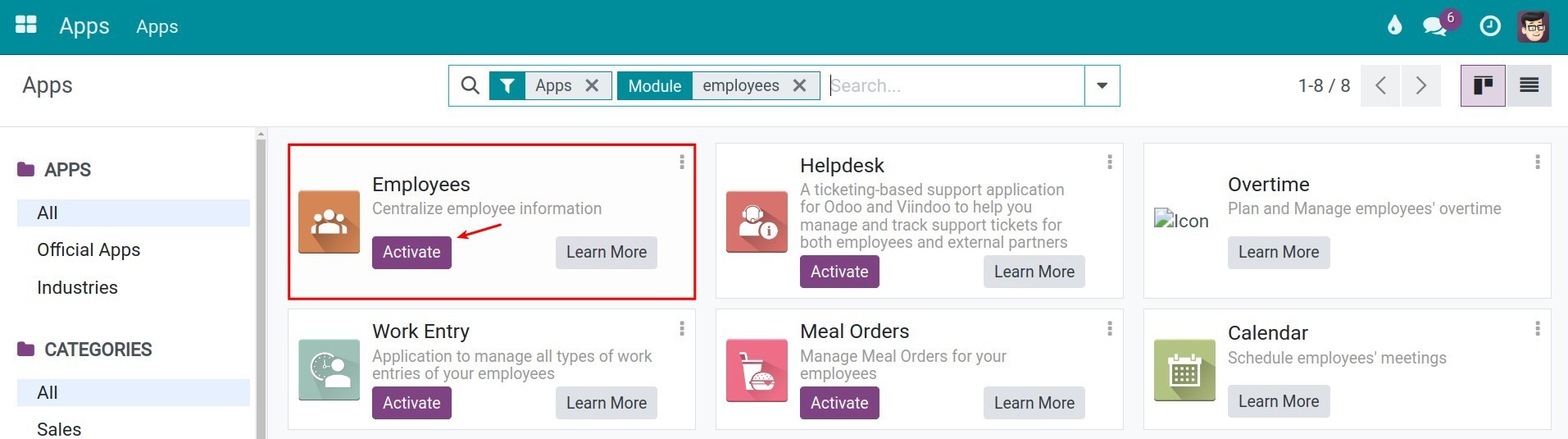
Type Employee in the search bar. On the Employees card, click Activate. When the app is already installed, its card has no Activate button, as in the example below.
![Apps filtered by the word Employee; the cards of the installed apps have no Activate button]()
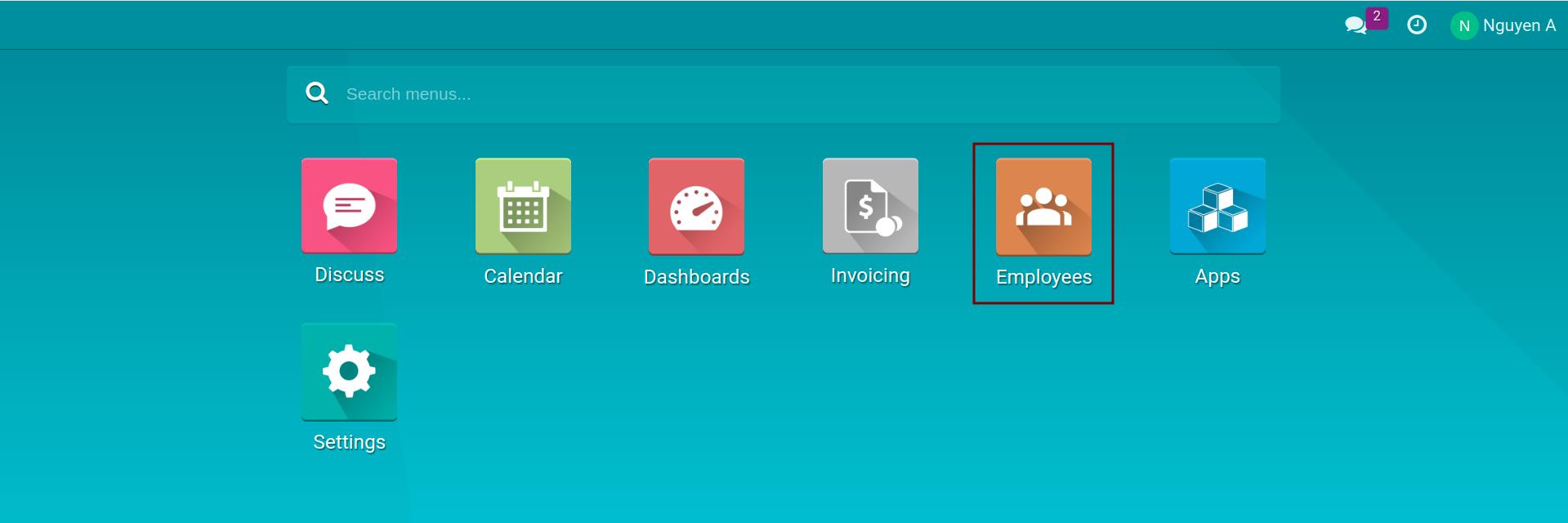
When the installation finishes, the Employees application appears in the application menu.
![The Employees application in the application menu]()
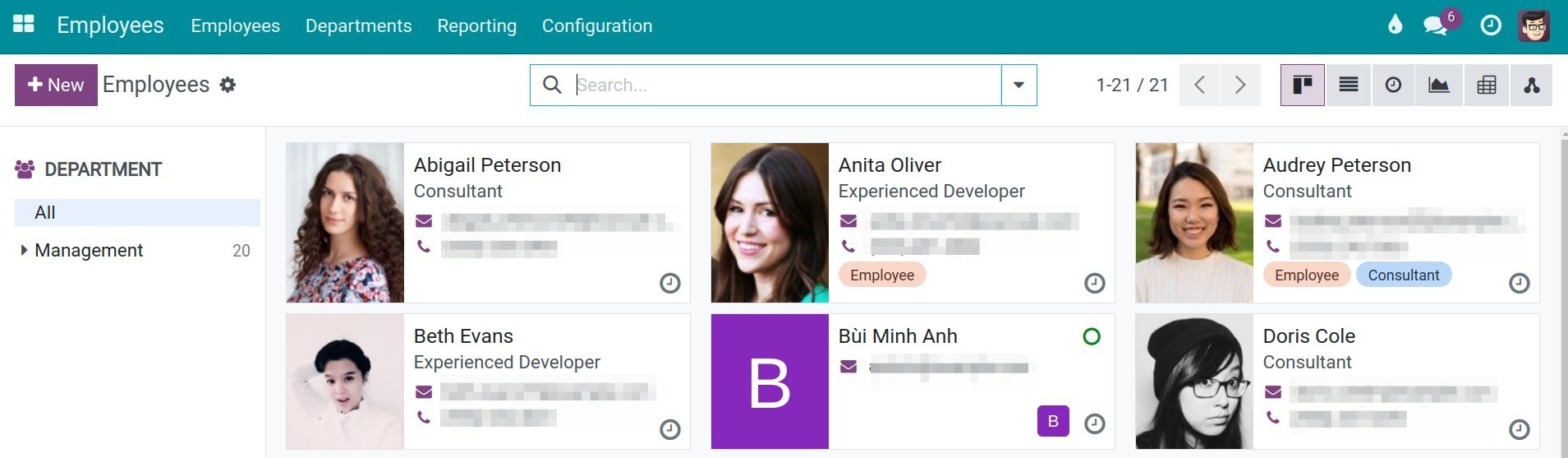
Open Employees. The employee cards are displayed, with the department tree on the left.
![Employees application overview with the department panel]()
User access rights
How do I choose what a user can do in Employees?
Granting access rights requires a user who can open Settings.
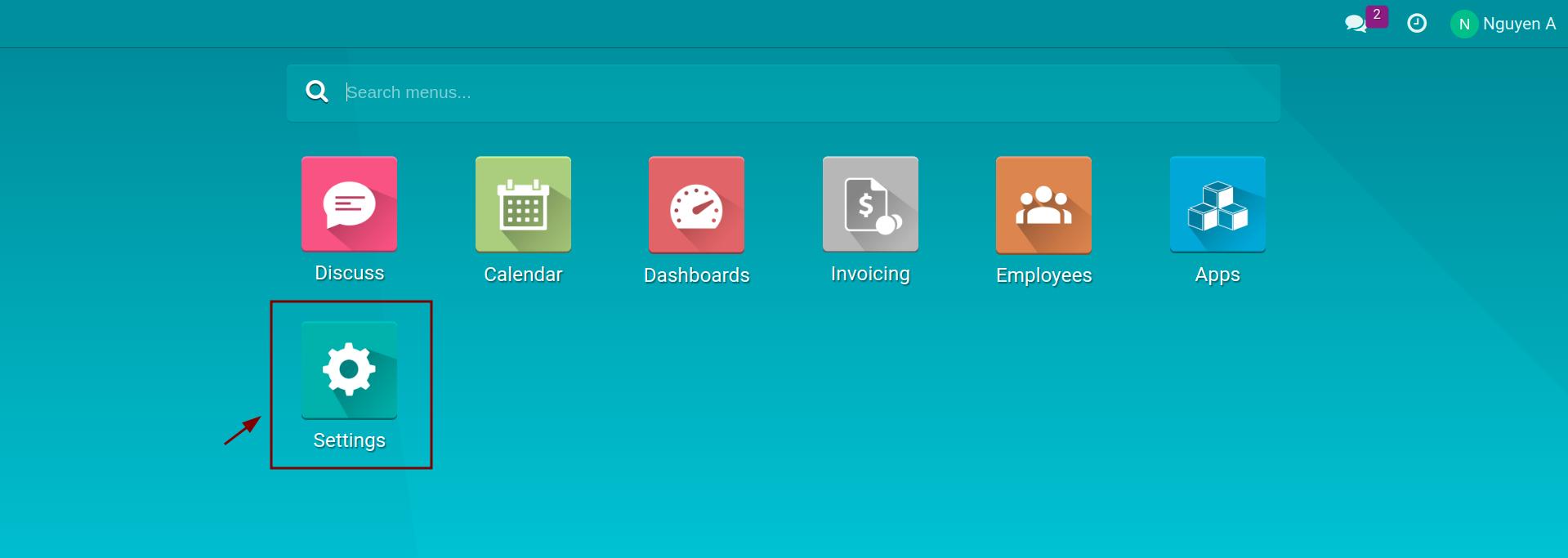
Open Settings.
![The Settings application]()
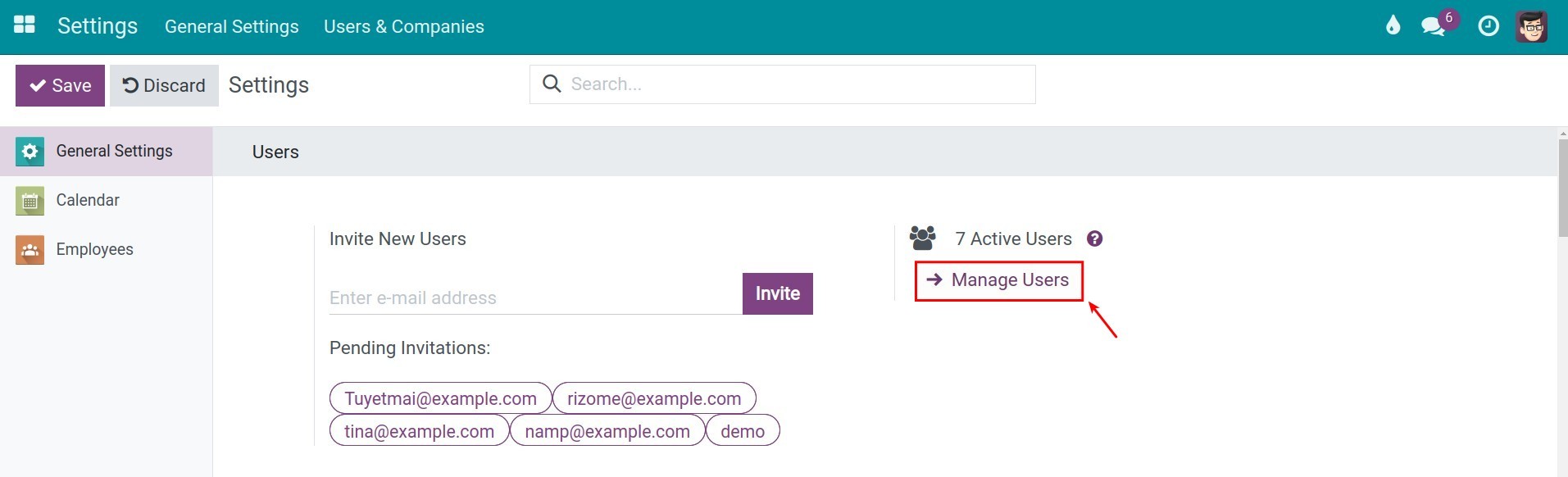
In the Users block, click Manage Users.
![Manage Users link in the Users block of Settings]()
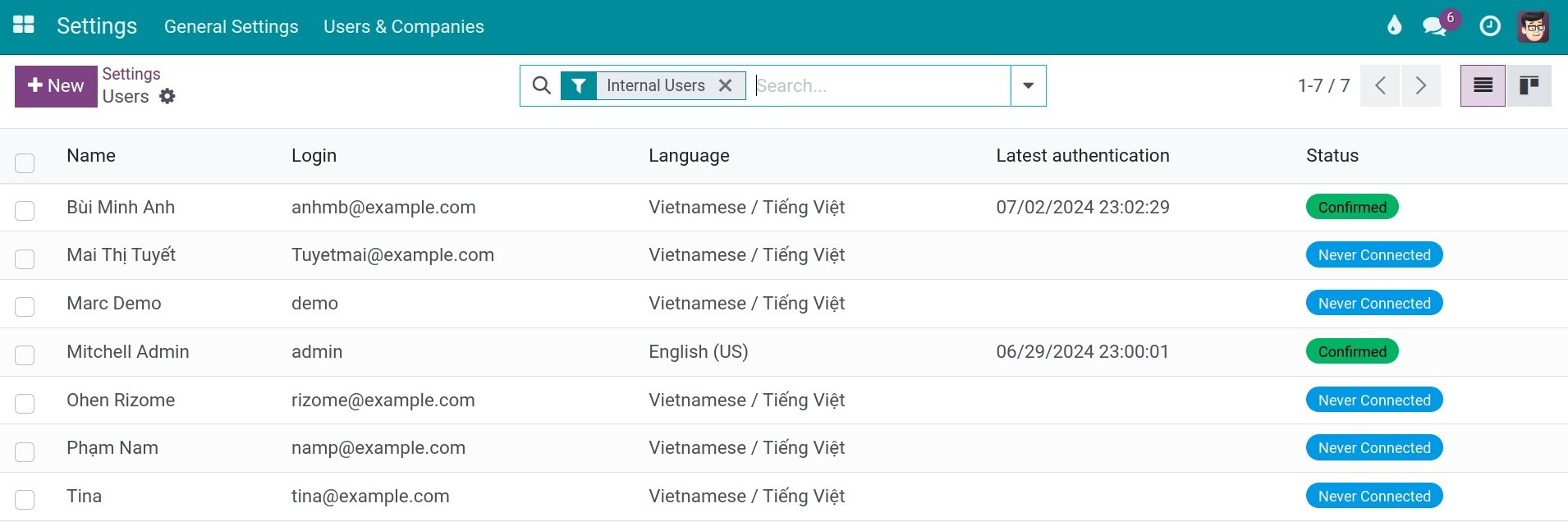
Search for the user and click on the user’s name. The list shows internal users by default.
![The users list filtered by the user's name]()
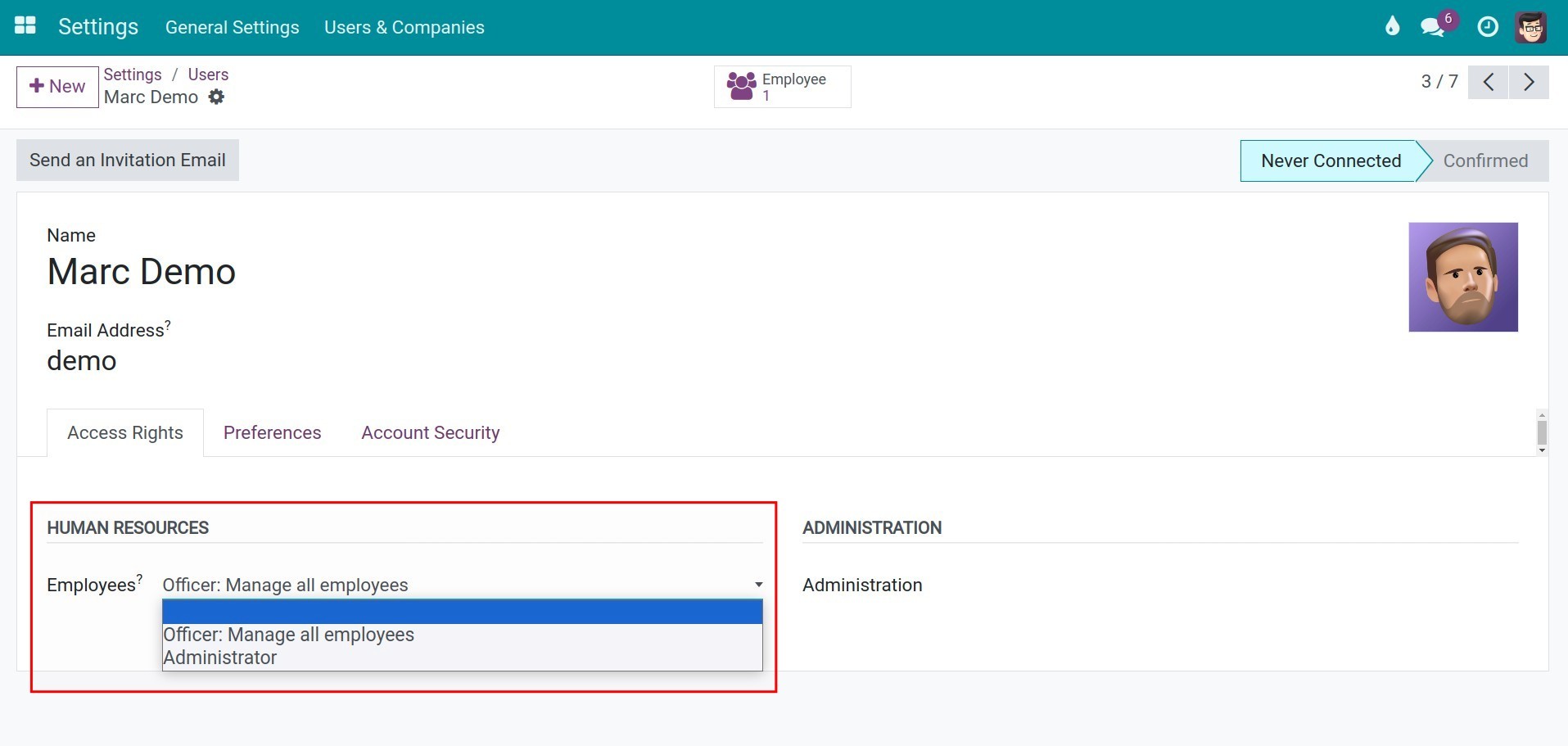
On the Access Rights tab, find the Employees field in the Human Resources section and choose one of the options below.
![The Employees field in the Human Resources section with its three options]()
Save the user.
Option |
What the user can do |
|---|---|
No |
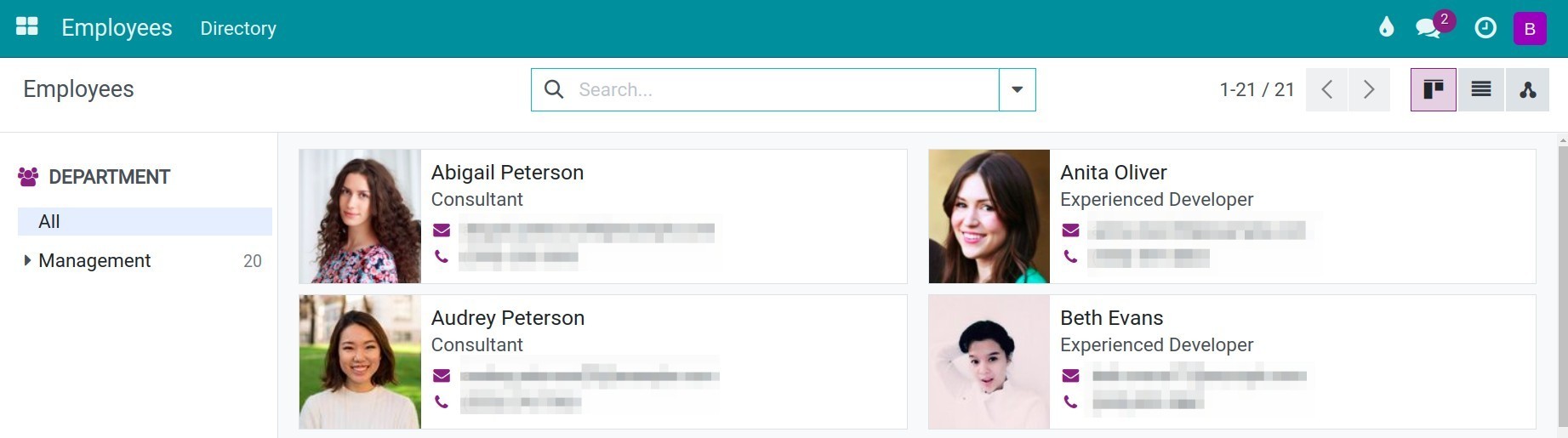
Open a read-only list of employee profiles. The user cannot create or change employee records and has no Reporting or Configuration menu. |
Officer: Manage all employees |
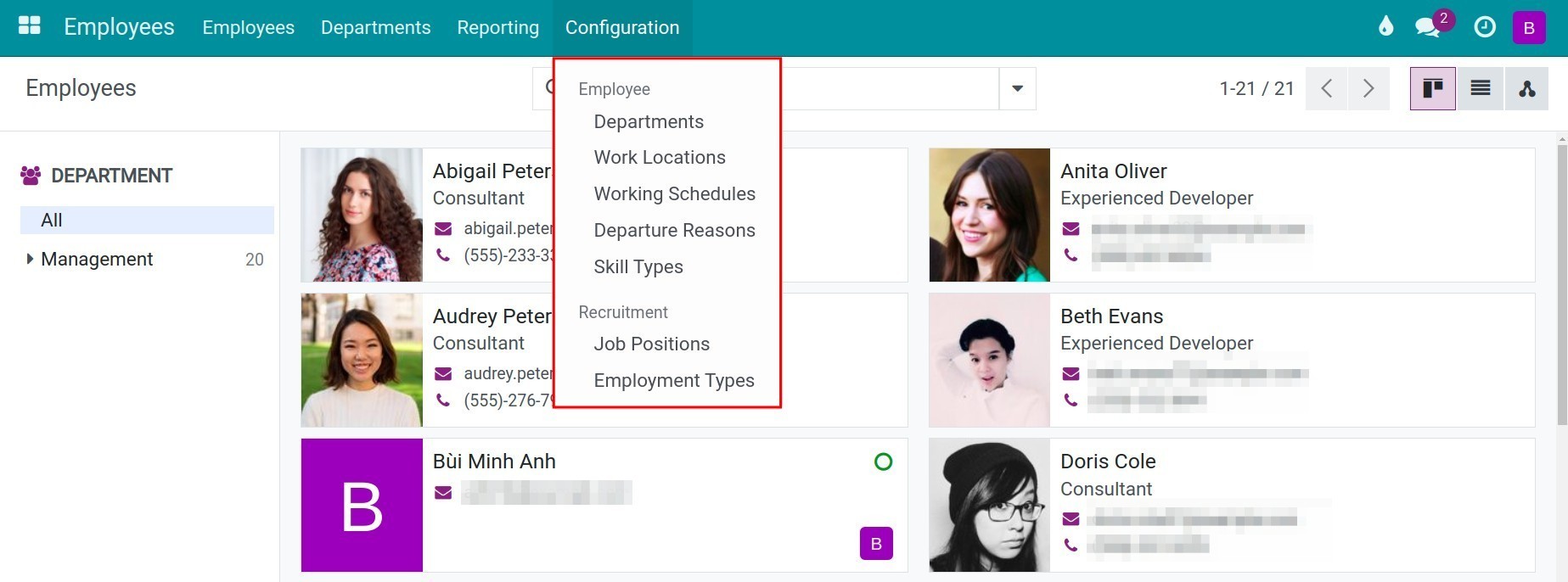
Create, edit and delete employees and departments, and open Reporting. The Configuration menu is not available. |
Administrator |
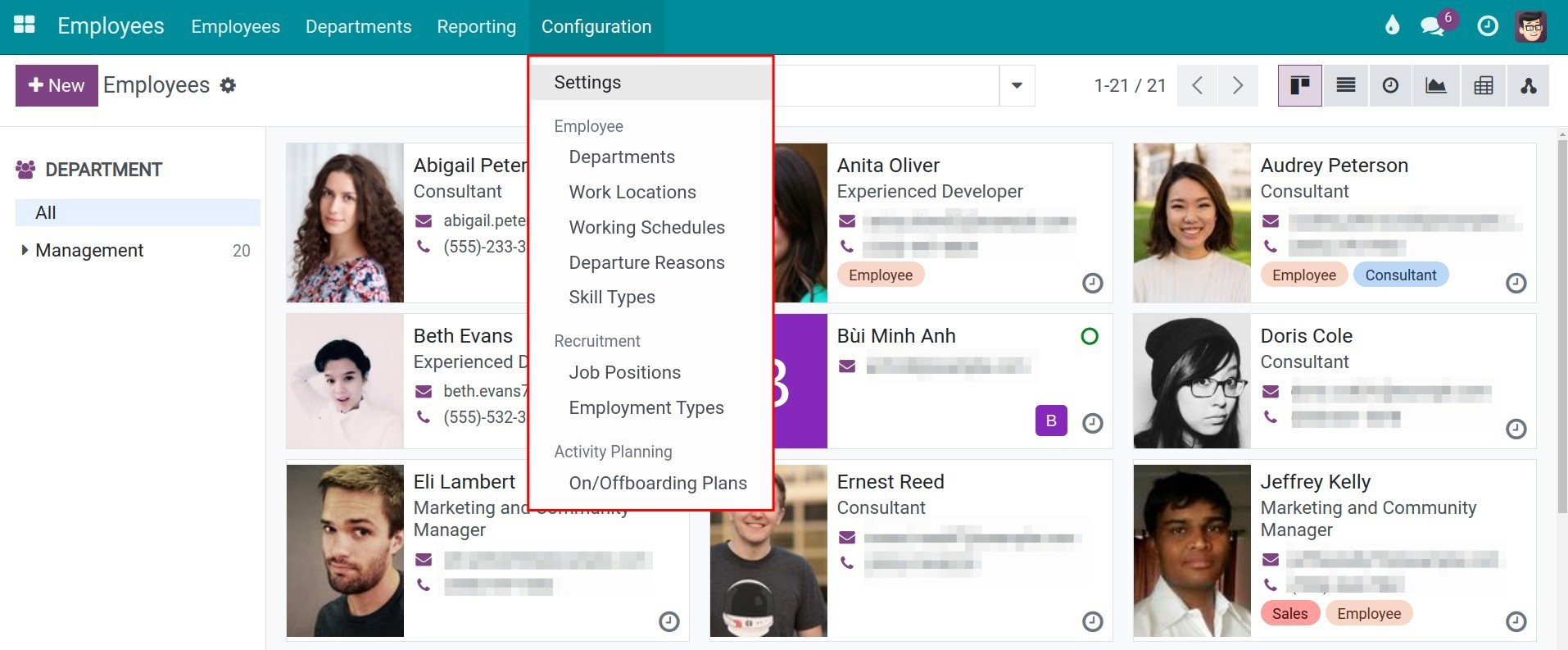
Everything an Officer can do, plus the Configuration menu, for example Working Schedules, Departure Reasons and Work Locations. |
No: the user has no Employees access level.
Officer: Manage all employees:
Administrator:
Expected result
The user opens Employees and sees the menus that match the chosen level. An Officer sees Employees, Departments and Reporting; an Administrator also sees Configuration.
Common problems
Problem |
Cause |
What to do |
|---|---|---|
The user cannot create an employee. |
The Employees field is set to No. |
Set it to Officer: Manage all employees and save. |
The Configuration menu is missing. |
The user is not an Administrator. |
Set the Employees field to Administrator. |
The user is not in the users list. |
The list shows internal users only, and the user may be archived. |
Remove the Internal Users filter or check the archived users. |
See also
Related article
Optional module