
How to link customer advance payments to sales orders
When a customer pays before you invoice, the Sale Advance Payment option of the Sales settings lets you choose the sales orders on the customer payment: the amount still due is proposed, and the order shows a Payments smart button. When you post the invoice, assign the outstanding payment to it: the order then shows the Reconciled Payments Amount.
Who |
A Settings administrator turns on Sale Advance Payment in the Sales settings. An accountant with the Invoicing role of Accounting records and assigns the payments. |
App |
Sales, Accounting |
Before you start
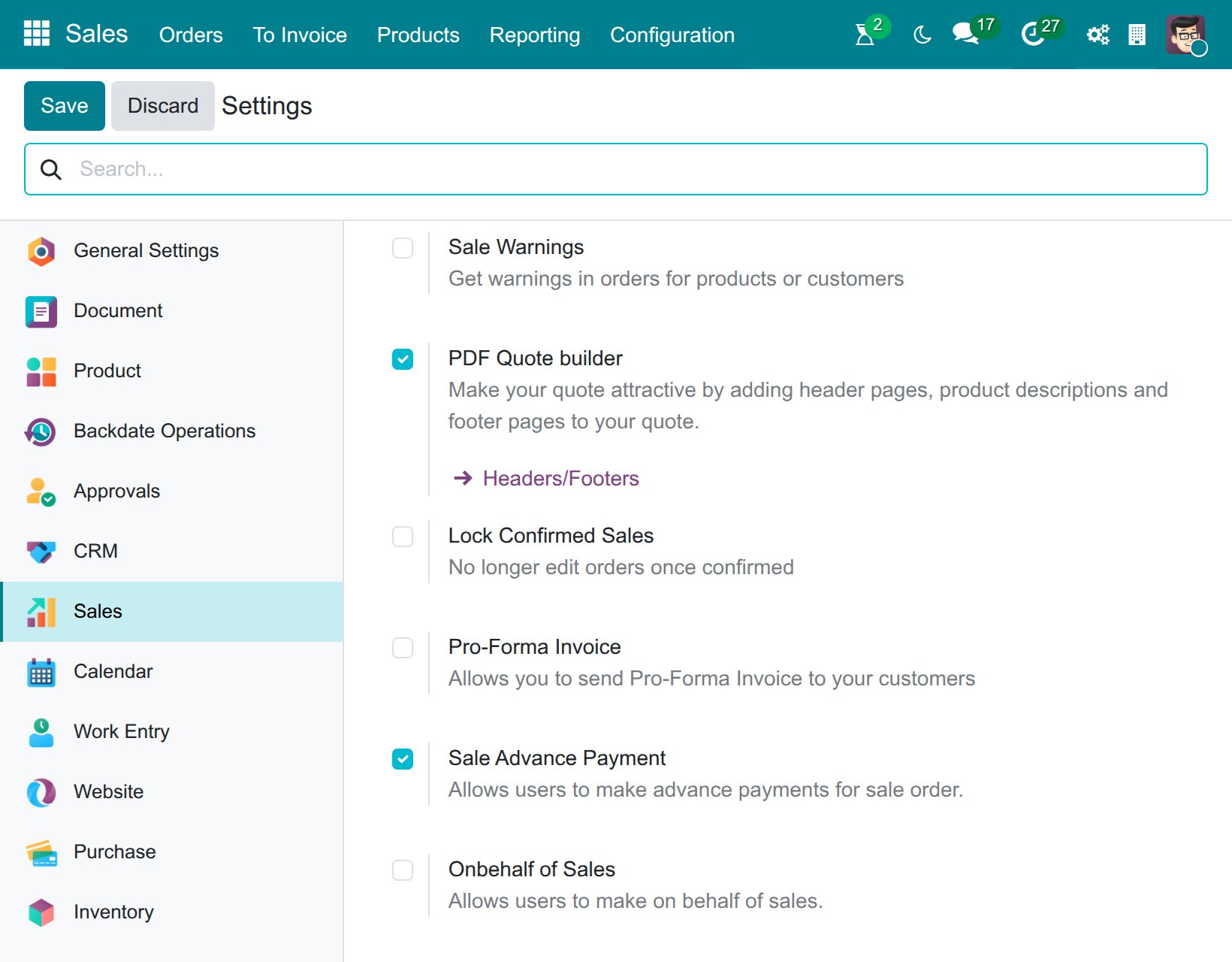
Go to Sales ‣ Configuration ‣ Settings, tick Sale Advance Payment in the Quotations & Orders section and click Save.
![Sale Advance Payment option ticked in Viindoo Sales settings]()
Confirm the sales order. Quotations cannot be linked to payments.
Know how to record a customer payment.
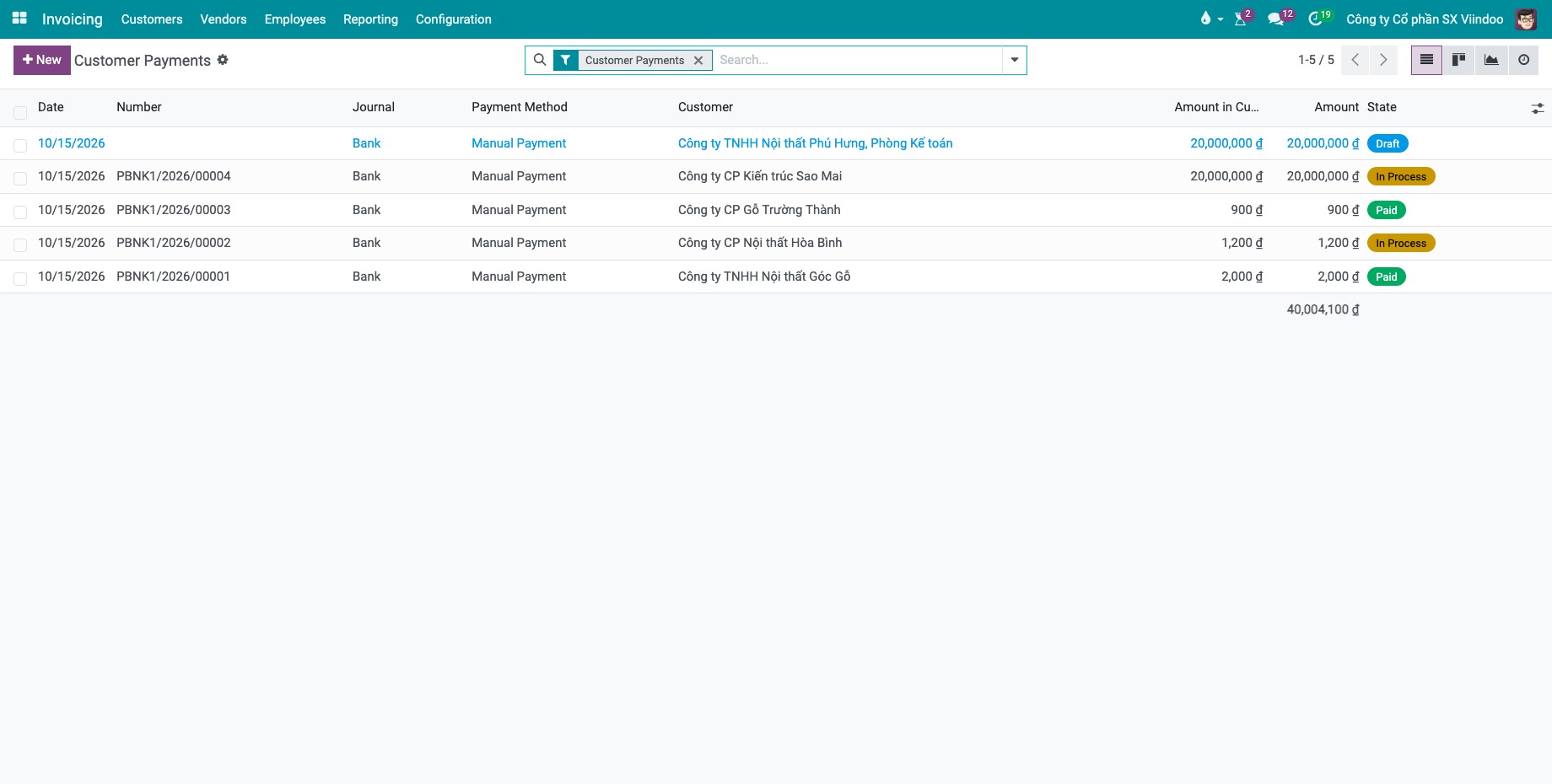
How do I link a payment to a sales order?
Go to Accounting ‣ Customers ‣ Payments and click New.
![Customer Payments list in Viindoo Accounting with the New button]()
Keep Receive as Payment Type, choose the Customer, then choose one or more orders in Sales Orders. Only confirmed orders whose invoice address is this customer are proposed. The Amount still due on these orders is filled in; change it if the customer paid only part of it.
![Customer payment with the Sales Orders field and the amount]()
Click Confirm.

On the sales order, the Payments smart button lists the linked payments. The quotations and orders list has a Reconciled Payment column. These buttons are shown to users with the Invoicing role of Accounting. You can also link an already confirmed payment with the Add button next to Sales Orders.
How do I use the payment on the invoice?
On the sales order, click Create Invoice and confirm the invoice.
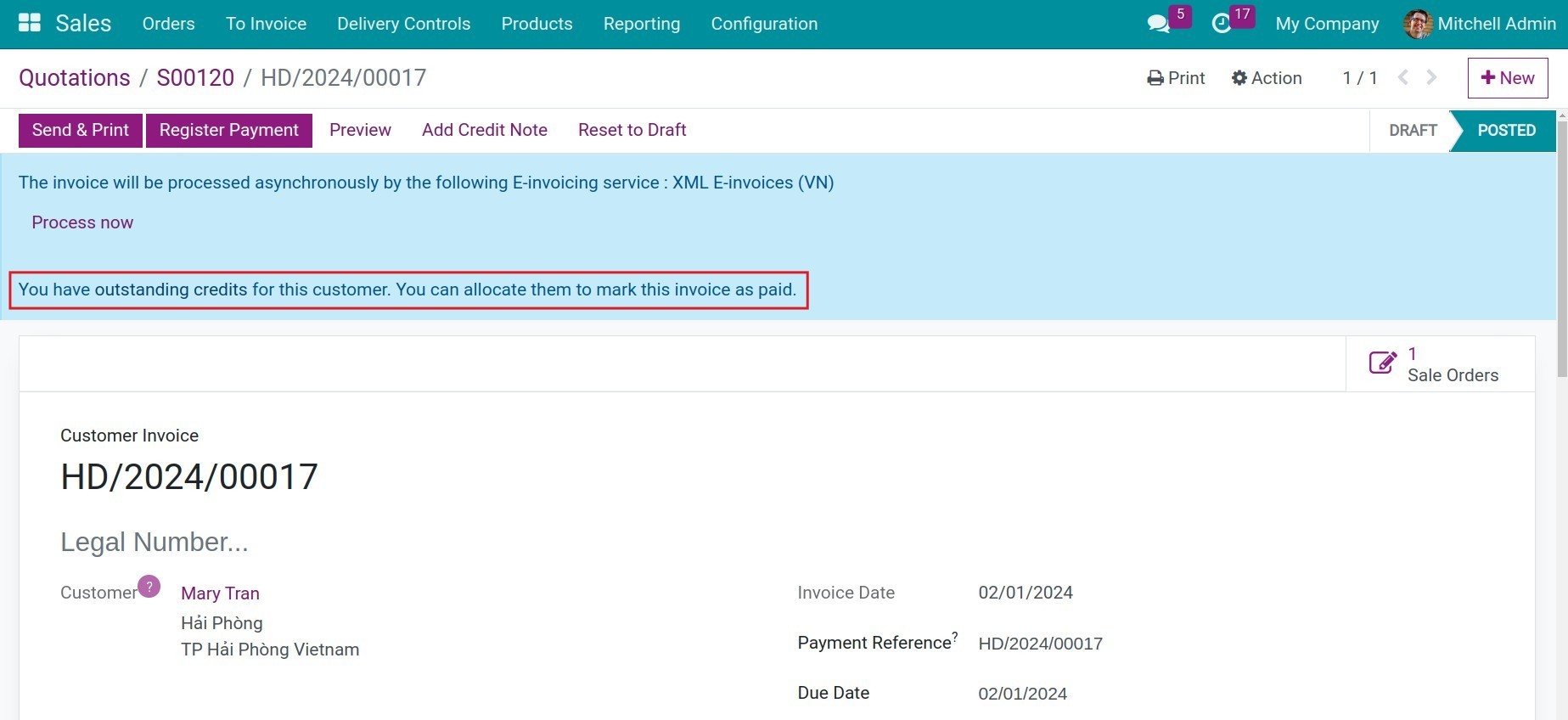
The invoice shows You have outstanding credits listed below for this customer. Under Outstanding credits, click Add next to the payment. Only the payments linked to the orders of the invoice, and the payments linked to no order, are proposed.
![Outstanding credits on a customer invoice with the Add button]()
In the window, check the Amount to assign to the invoice, by default what is left on the payment, and click Add.
![Window with the amount of the advance payment to assign to the invoice]()

The invoice is marked Partial, or Paid when the payment covers it, and its Payments smart button lists the payment.

The sales order now shows the Reconciled Payments Amount next to Payments.

Common errors
Message or problem |
What to do |
|---|---|
The order is not proposed in Sales Orders. |
Choose the Customer first. Only confirmed orders whose invoice address is that customer are proposed: confirm the quotation first. |
The partner on payment ‘…’ and the sale order should be the same. |
The customer of the payment differs from the invoice address of the order. Choose the customer first, then the order. |
You can not reconcile entries those belong to different sale orders. Please add the sale order ‘…’ to the payment ‘…’ to reconcile. |
The payment is linked to other orders than the ones on the invoice. Add the order of the invoice to the payment with the Add button next to Sales Orders. |
The amount that is assigned to invoice must be greater than 0! |
Enter an Amount above zero in the window. |
The amount that is assigned to invoice is greater than the amount for advance payment …! |
The amount is above what is left on the payment. Lower it. |