
How to close a fiscal year by locking dates
At the end of a period or fiscal year, lock the accounting dates so nobody can add or change journal entries dated on or before the lock date. Go to Accounting > Accounting > Closing > Lock Dates, enter the dates, then click Save.
Who does this: an Accounting administrator changes the lock dates; an accountant can open the screen but only sees the current lock dates. Application: Accounting.
Before you start
This tutorial requires the installation of the following applications/modules:
Viindoo Finance & Accounting
Post, change the date of, or delete the draft entries dated in the period first: the screen warns you about them.
How do I lock a period?
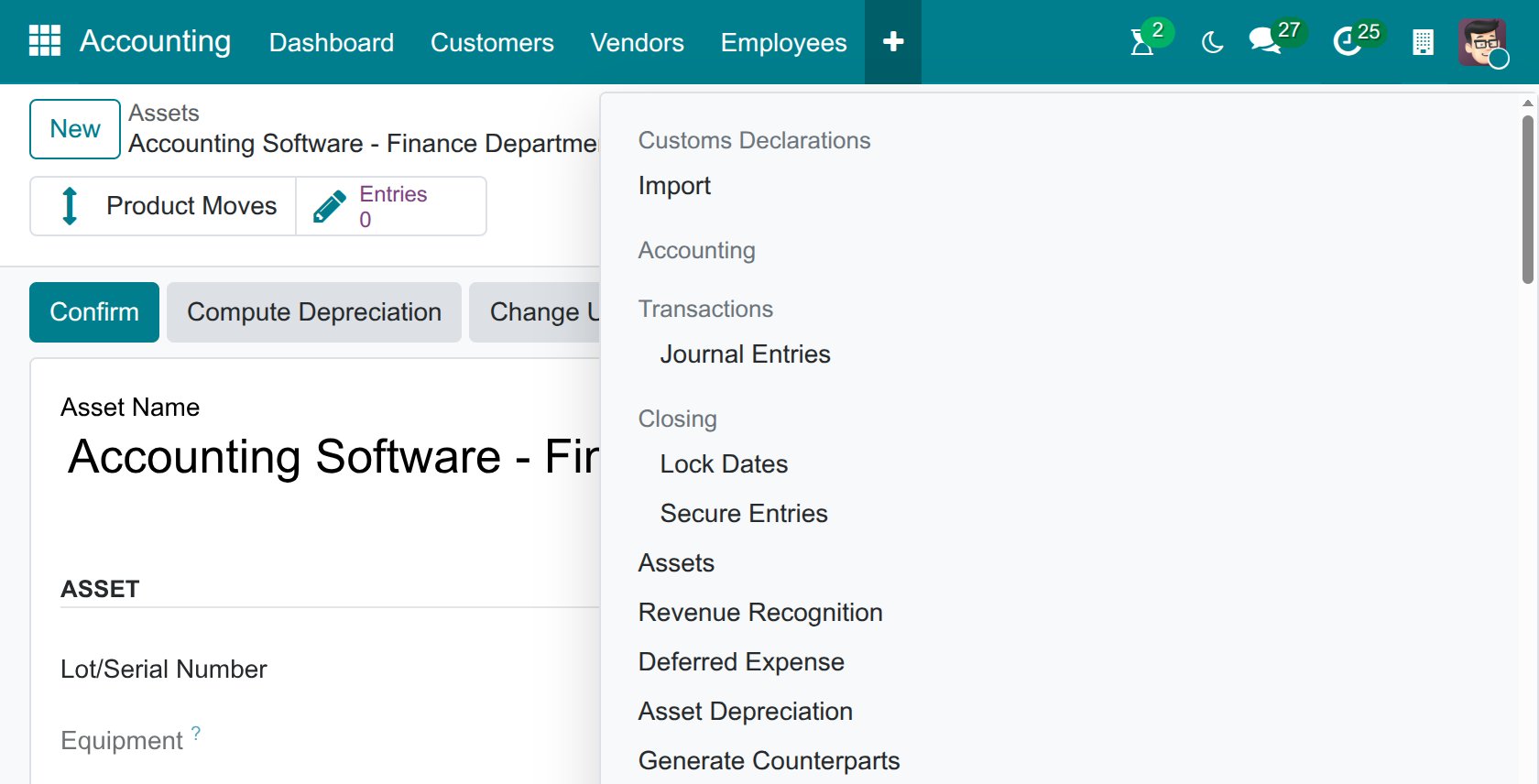
Navigate to Accounting > Accounting > Closing > Lock Dates.
![Open the Lock Dates menu in Viindoo Accounting]()
In the Lock Journal Entries window, enter the dates (inclusive: entries dated on or before the date are locked).
![Lock Journal Entries window in Viindoo Accounting]()
Field
What it locks
If wrong or empty
Lock Everything
All journal entries dated on or before the date, for every user.
Empty: no global lock.
Lock Sales
Entries of the sales journals only.
Empty: only the global and hard locks apply to sales.
Lock Purchases
Entries of the purchase journals only.
Empty: only the global and hard locks apply to purchases.
Lock Tax Return
Tax-related entries, so that a filed tax return does not change. See Taxes and tax rules configuration.
Empty: only the global and hard locks apply to tax entries.
Hard Lock
Irreversible lock for all users, up to the date. No exception can bypass it.
It can only be moved forward: The Hard Lock Date cannot be removed. and A new Hard Lock Date must be posterior (or equal) to the previous one.
For a given journal, the date that applies is the latest among the global lock, the hard lock and the lock of its type (sales, purchases or tax).
Click Save.
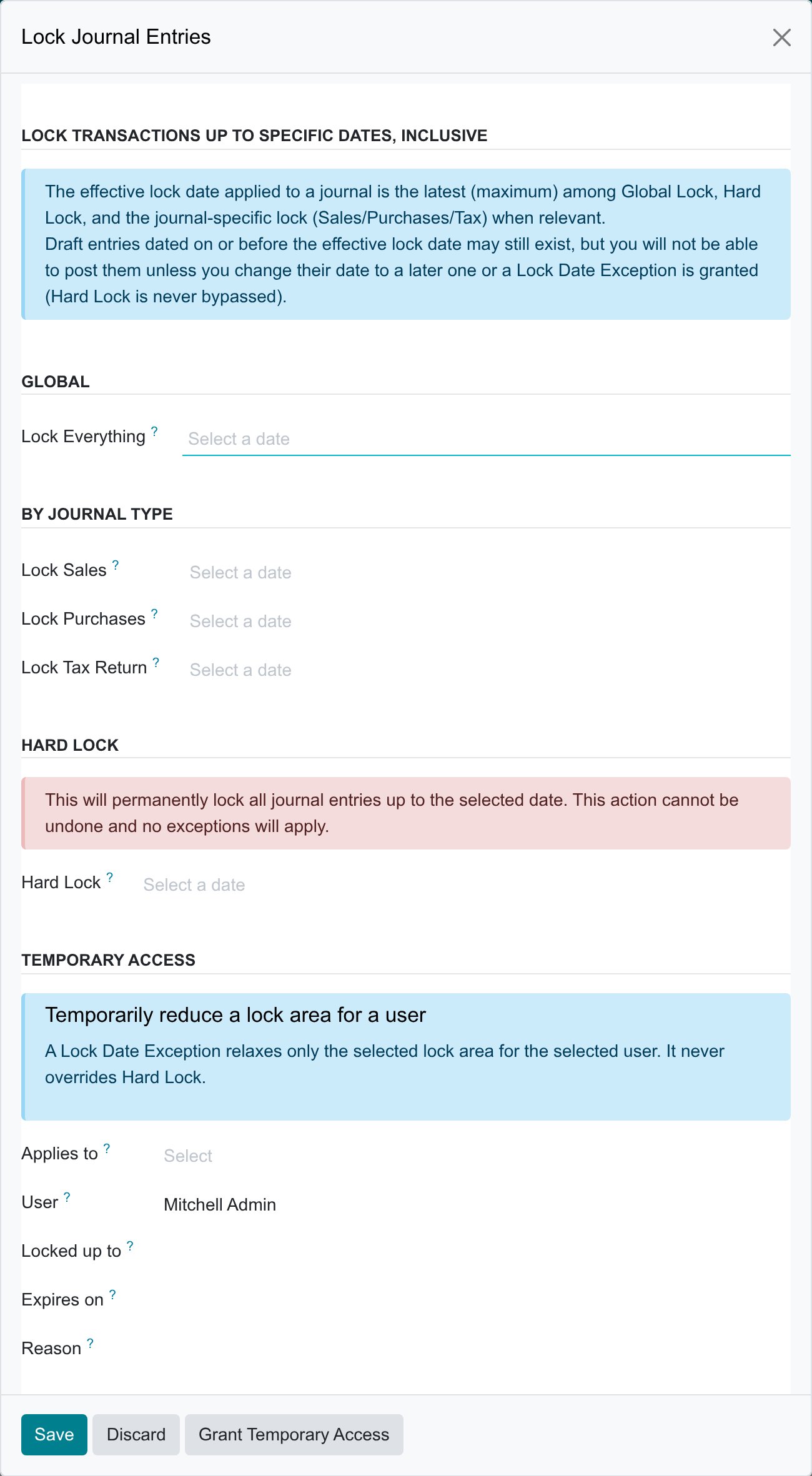
If draft entries are still dated before the lock date, the window shows a warning and a Review link that opens them. Viindoo does not let you post such entries unless you change their date to a later one or grant a temporary access.
How do I let one user work in a locked period?
In the same window, use the Temporary Access group: choose Applies to (Global Lock, Sales Lock, Purchase Lock or Tax Lock), the User, the Locked up to date and, optionally, the expiry (Expires on) and the Reason, then click Grant Temporary Access. The exception relaxes only that lock area for that user and never overrides the hard lock. The exceptions are listed in Accounting > Configuration > Accounting > Lock Date Exceptions.
Expected result
Adding or changing an entry dated on or before a lock date is refused with You cannot add/modify entries prior to and inclusive of: ….
Accountants who open Lock Dates see the current lock dates as read-only badges.
Common mistakes
Locking a period with draft entries in it - post them, change their date or delete them first, using Review.
Setting a Hard Lock by mistake - it cannot be removed. Use the other locks while the figures can still change.
Next steps
See also
Related article
Optional module