
How to create and set up job positions
A job position is the job title of an employee in the company, for example Sales Director, Purchase Staff or Accountant. You create it in (or from the Recruitment app), then give it to each employee to define their duties, job scope and responsibilities. The same position also drives recruitment: its target, recruiter and interviewers are used when you hire for it.
This guide is for recruiters and HR officers. When the Recruitment app is installed, only the Recruitment officers can create or edit job positions; the Employees officers can read them.
Requirements
This tutorial requires the installation of the following applications/modules:
Who can do this, and where?
Task |
Role needed |
Application |
|---|---|---|
Create, edit or archive a job position |
Officer of the Recruitment app |
Employees or Recruitment |
View the job positions |
Officer of the Employees app |
Employees |
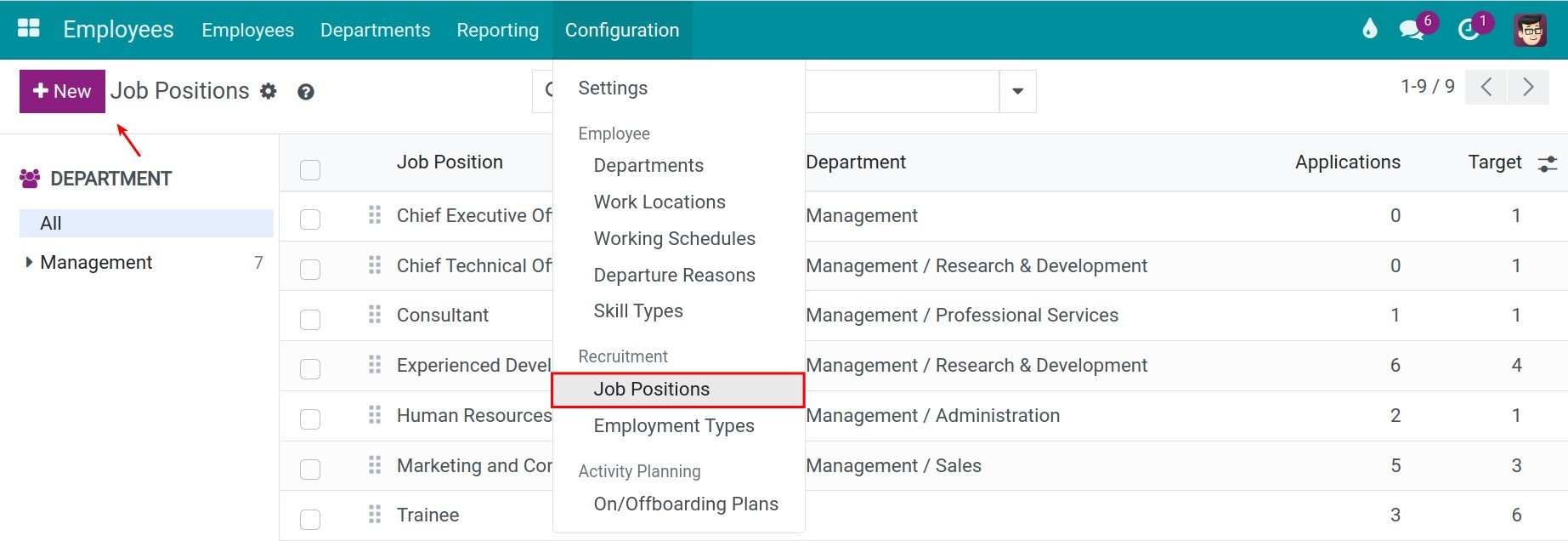
How do I create a job position from the Employees app?
Go to .
![The Job Positions menu in the Configuration menu of the Employees app]()
Click New, enter the Job Position (its title) and fill in the tab Details: the hiring process, the job posting and the job itself.
![The Details tab of a new job position form]()
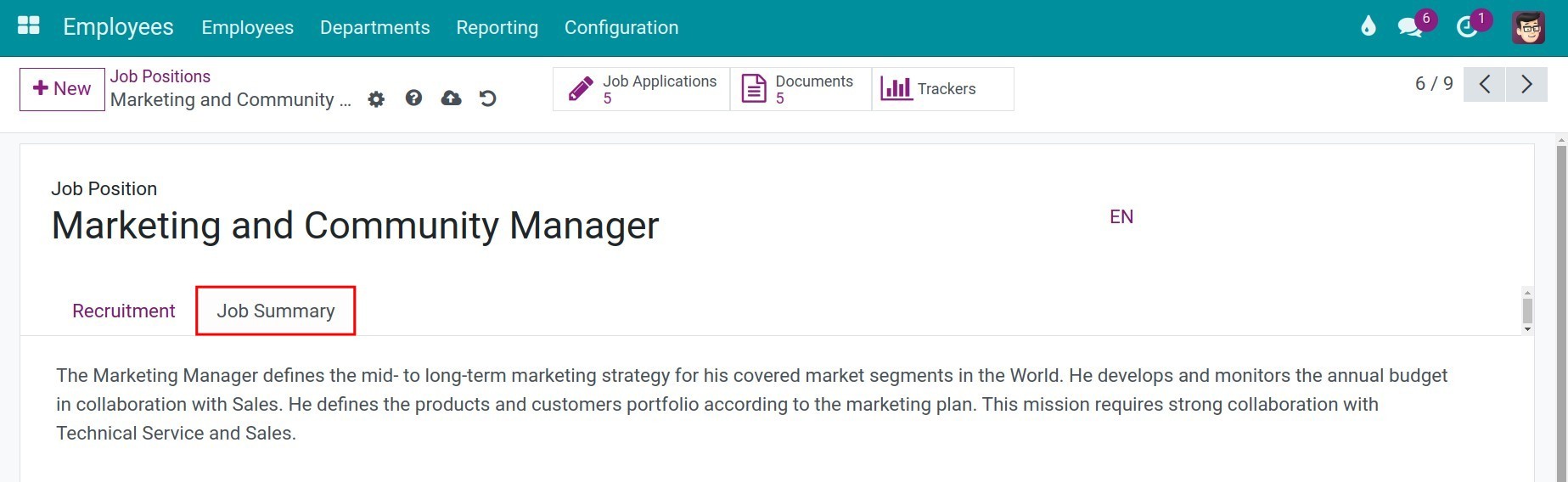
Open the tab Summary and describe the requirements, the daily tasks and so on of the position.
![The Summary tab of a job position]()
The position is saved when you leave the form, or when you click the save icon (the cloud).
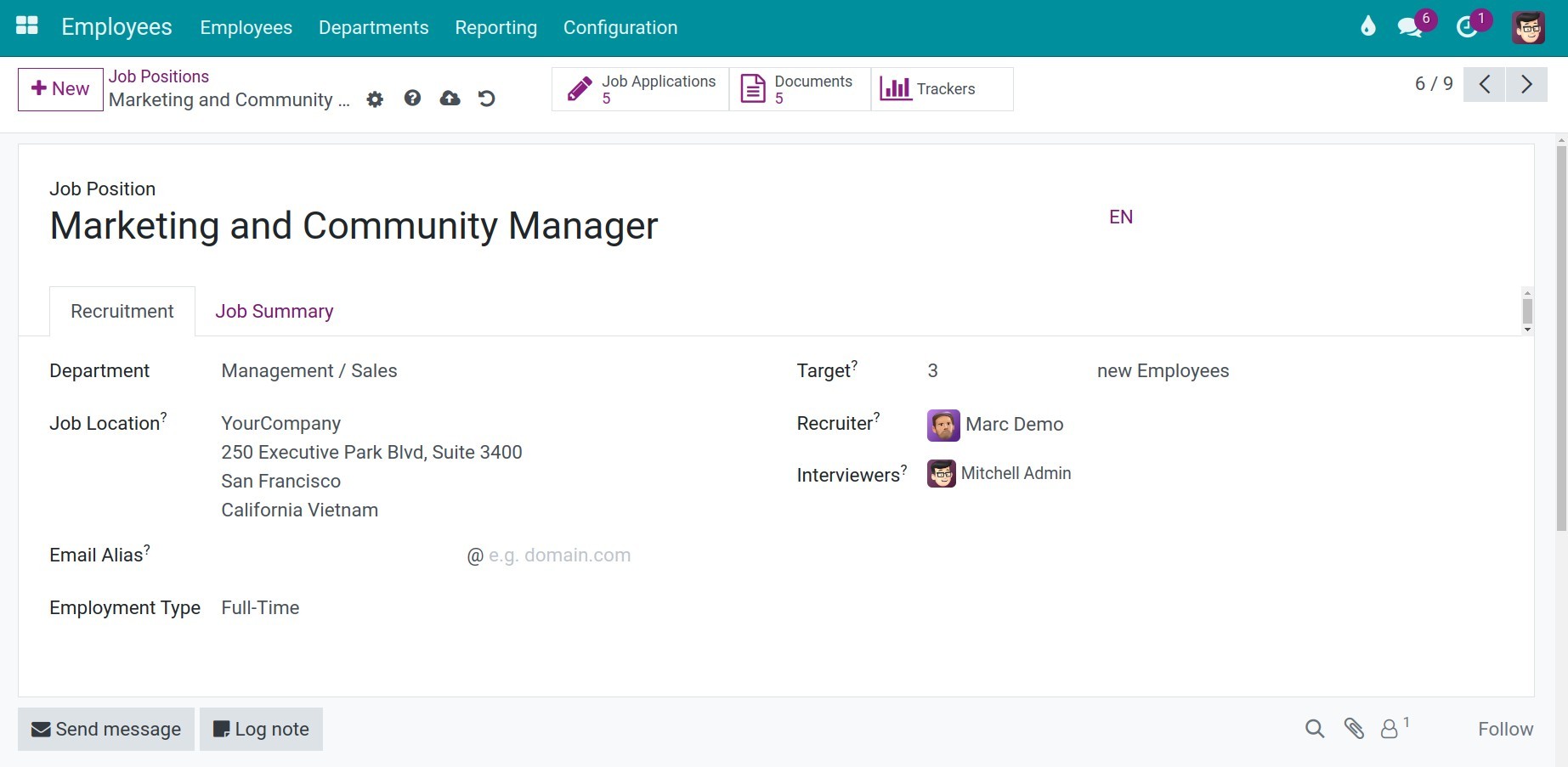
The name of a job position must be unique per department in a company, and the Target cannot be negative; otherwise the position cannot be saved. The tab Application Info holds the process details that candidates read on the job page of the website, and the tab Payroll appears when the Payroll application is installed.
Which fields does the tab Details contain?
Field |
What it does |
Notes |
|---|---|---|
Department |
The team in which the position works. |
Used to filter positions by department. |
Job Location |
The work address of the position, chosen among the addresses of your company. |
Empty means Remote. |
Email Alias |
An email address that receives the applications for this position. Each email creates an application. |
Leave empty if applicants never write by email. |
Website |
The website on which the position is published. The field is shown only when your database has several websites. |
Empty means all websites. |
Employment Type |
The type of contract of the position. You can edit the list in . |
Optional. |
Expected Degree |
The degree you expect from the candidates; only shown to the Recruitment interviewers and officers. |
Optional. |
Published |
Publishes the position on the job page of the website, where candidates can apply. The smart button Go to Website at the top of the form and the button Job Page on the card of the position open that page. |
Off by default. Archiving a position unpublishes it. |
Target |
The number of new employees you plan to recruit for this position. |
Cannot be negative. |
Expected Skills |
The skills that a candidate should have, each with the level you expect. Click + to add a skill. |
Optional. |
Recruiter |
The person in charge of recruitment. The recruiter follows the applications and receives their emails. |
The user who creates the position by default. |
Interviewers |
Users who see every application of the position, with its information and attachments, set up meetings and can refuse an application. |
They do not need recruitment rights. |
What do C-Suite Role and C-Suite Mode do?
These two fields are in Job Architecture, above the tabs. They tell whether the holders of the position are executives in their Management Level.
Field |
What it does |
Notes |
|---|---|---|
C-Suite Mode |
With Automatic, the position follows its department: it is a C-suite position when the Executive Department box of that department is ticked. With Manual, the choice you made is kept. |
Automatic by default. |
C-Suite Role |
Ticked when the position is a C-suite position, such as chief executive or chief technical officer. |
Ticking or clearing it yourself sets the mode to Manual. |
The website fields and buttons (Website, Published, Go to Website and Job Page) come with the Online Jobs module, which installs itself with Recruitment. The management fields (C-Suite Role, C-Suite Mode) come with the Management Levels module.
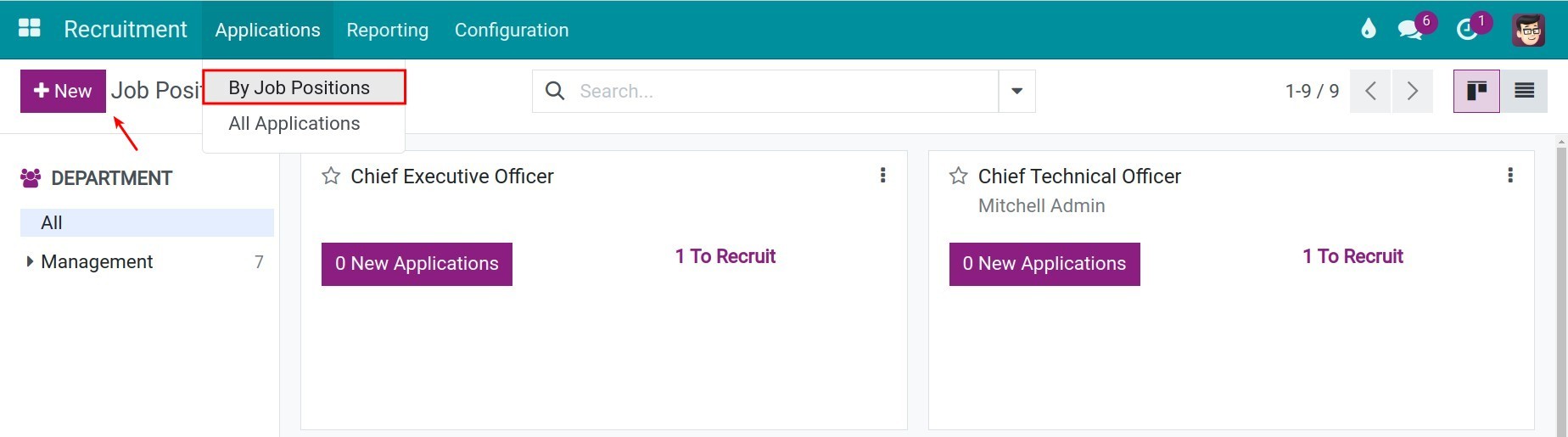
How do I create a job position from the Recruitment app?
Go to .
![The By Job Positions menu of the Recruitment app]()
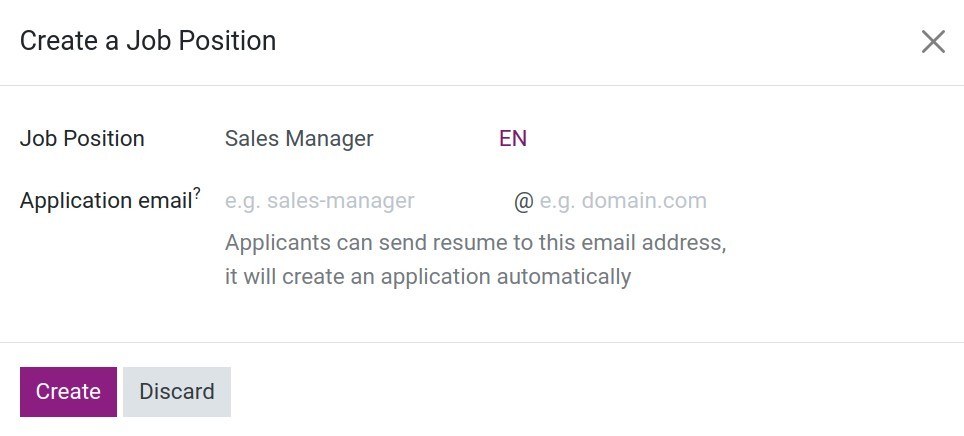
Click New. In the window Create a Job Position, enter the Job Position title. In Application email, you can enter the address that creates an application for this position when a candidate writes to it; you can leave it empty.
![The window Create a Job Position]()
Click Create. Viindoo opens the applications of the new position: use the breadcrumb Job Positions to go back to the list.
On the card of the position, click Configure.
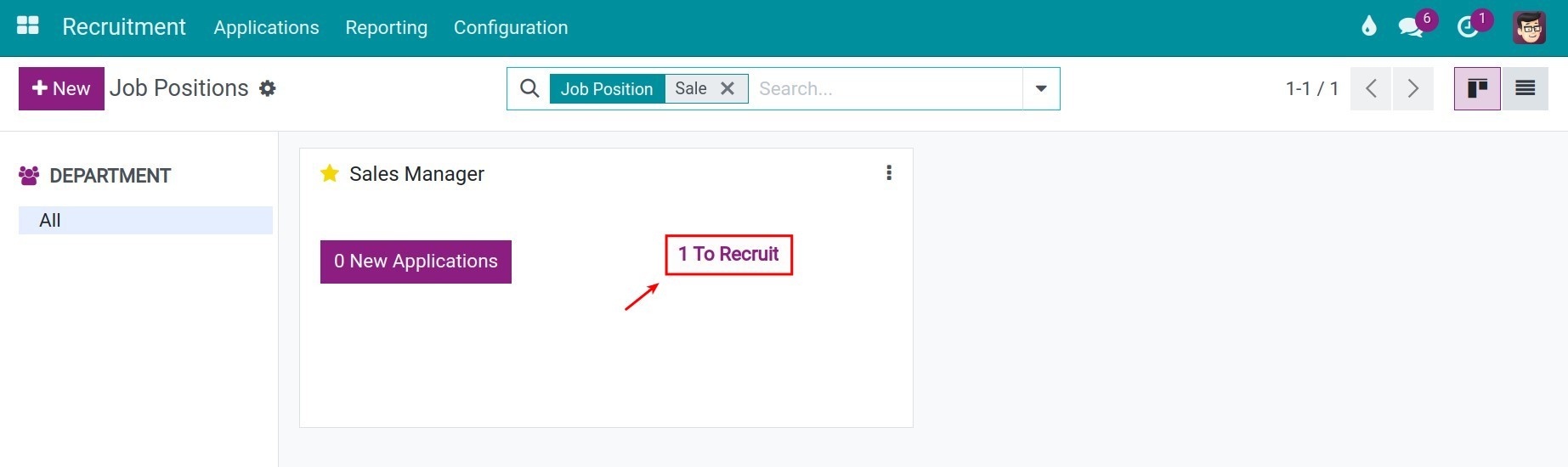
![The cards of the positions in the Recruitment app with the Job Page and Configure buttons]()
The button Job Page of the card opens the page of the position on the website. A green Published ribbon marks the positions that are published, and they are listed first.
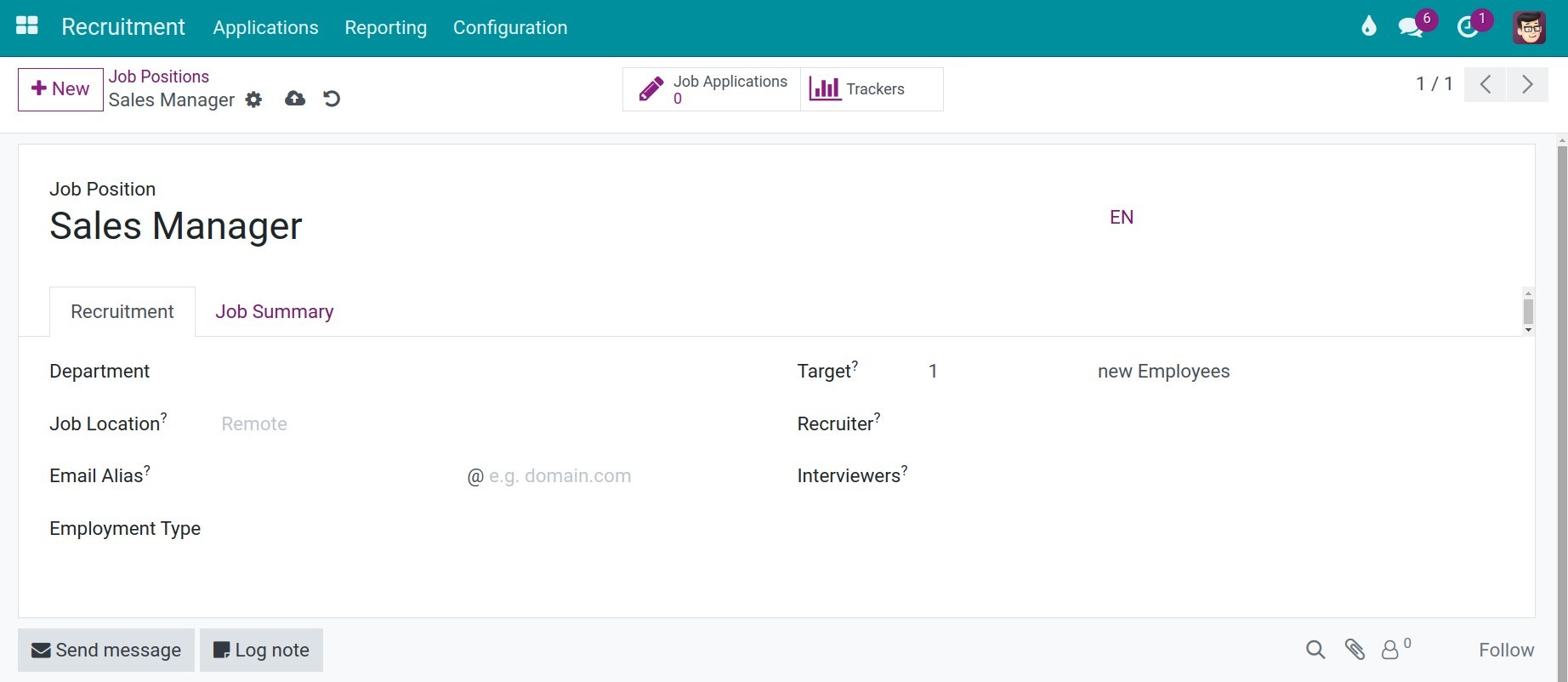
The form of the position opens. Fill in the tab Details as described above, then save.
![The form of a job position created from the Recruitment app]()
What do the smart buttons of a position show?
The smart buttons at the top of a position give you quick figures about it.
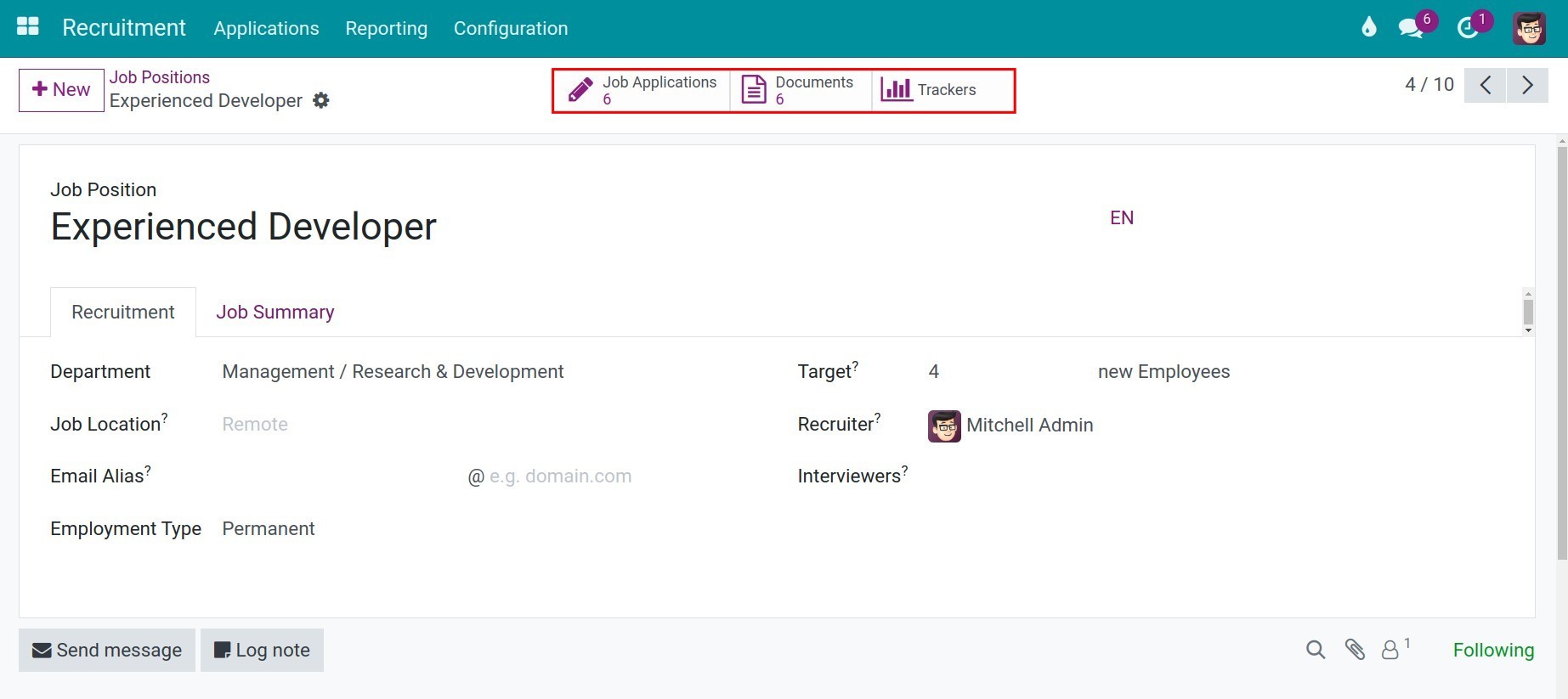
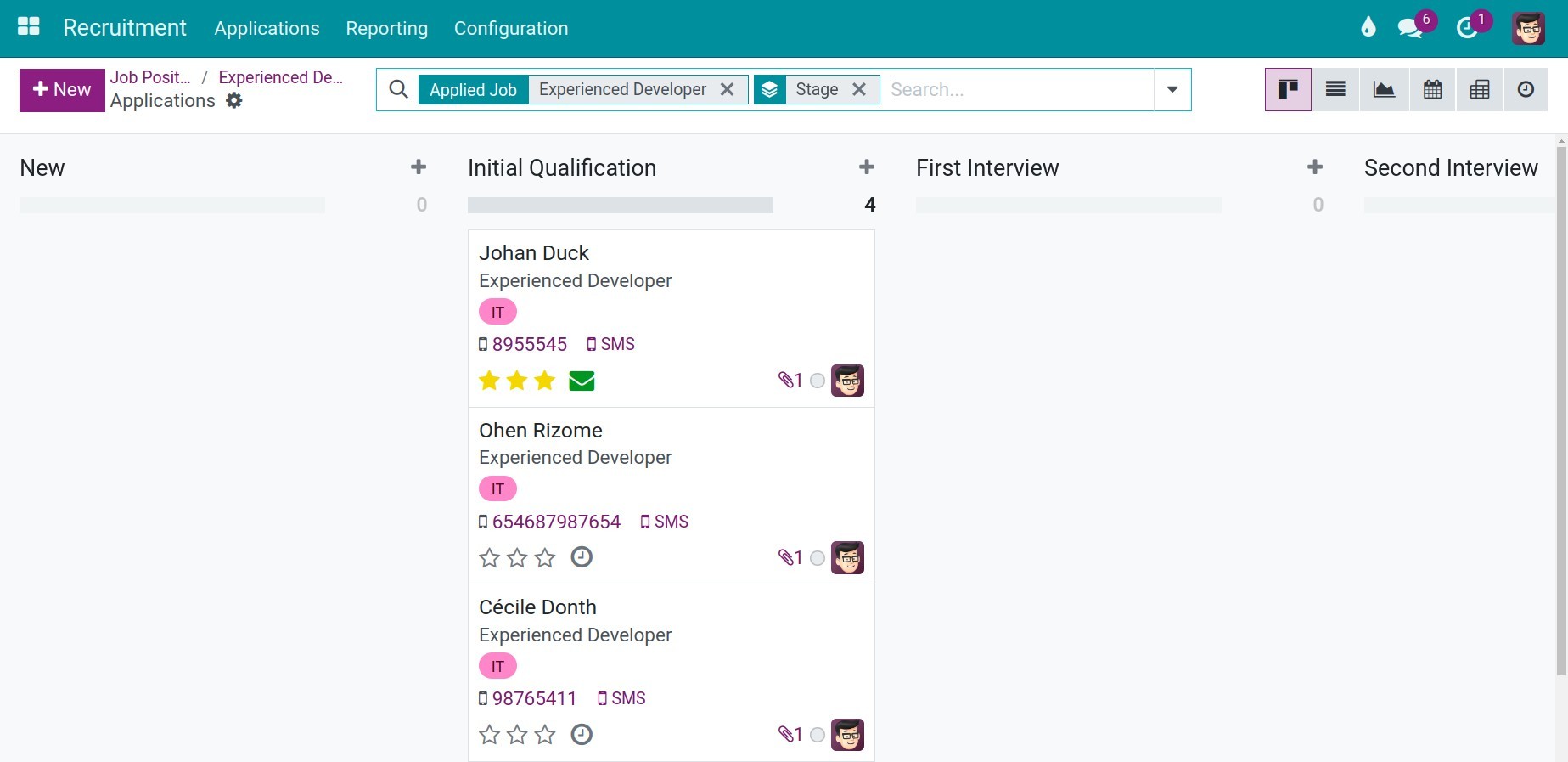
Applications: the number of applications for the position. Click it to open them.
![The applications of a job position]()
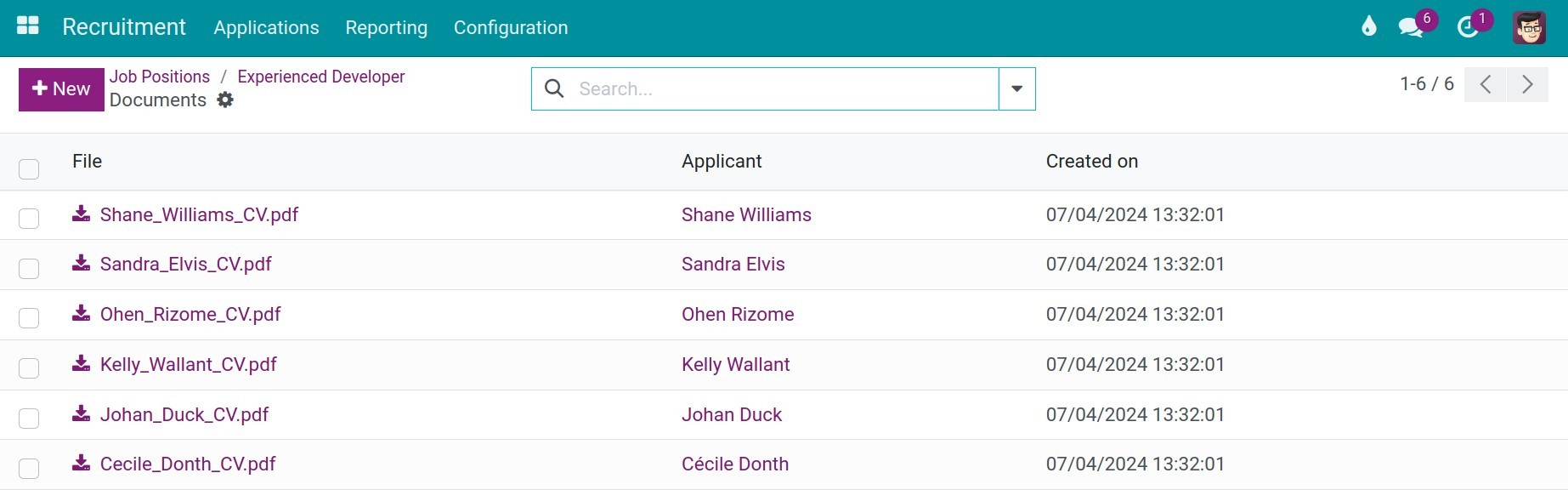
Documents: the attachments of those applications, such as resumes. The button only appears when at least one application has an attachment.
![The documents attached to the applications of a job position]()
Employees: the employees who hold the position. Click it to open them.
Go to Website: opens the page of the position on the website. The globe is green when the position is published and red when it is not.
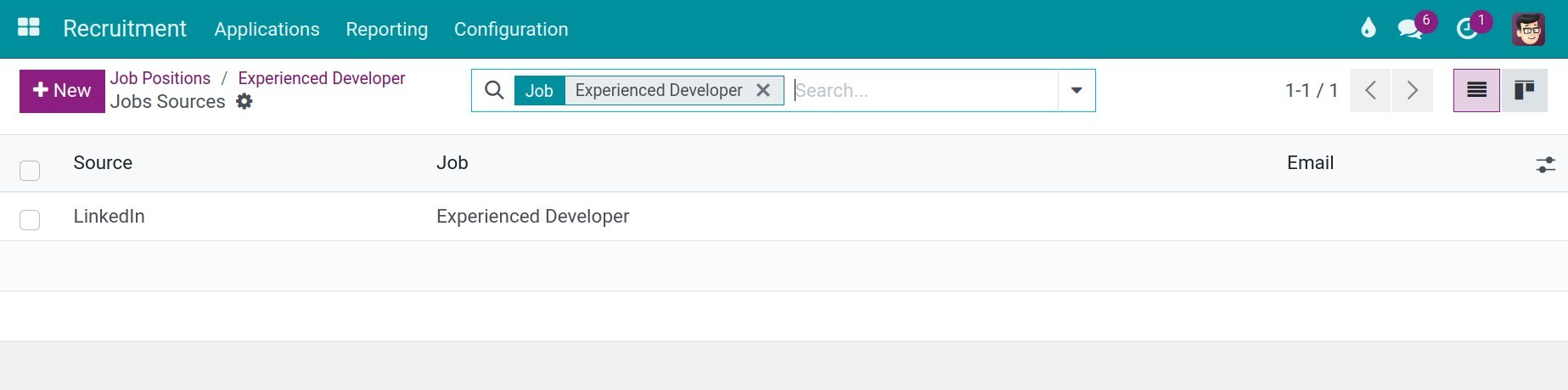
Tab Trackers: the job sources through which candidates reach the position.
![The sources of the applications of a job position]()
What should I see afterwards?
The position is listed in and on the Recruitment app, and it can be selected on every employee.
Its smart buttons count the applications, the documents and the employees of the position.
A published position carries the ribbon Published on its card in the Recruitment app.
Common problems
Problem |
Cause |
What to do |
|---|---|---|
The position cannot be saved |
Another position already has the same name in the same department, or the Target is negative. |
Rename the position, choose another department, or enter a target of 0 or more. |
The button Documents is missing |
No application of the position has an attachment yet. |
Nothing: it appears as soon as an application has an attachment. |
Next steps
See also
Related article
Optional module