
How to connect an IoT box to Viindoo
Pairing connects one box to one database. It takes a one-time code made in Viindoo and typed (or pasted) on the box page: in Viindoo, open IoT ‣ Overview, click Connect an IoT Box and Generate Pairing Code; on the box page, click Connect and paste the pairing link.
Who |
An IoT Box Creator or an Administrator of the Internet of Things app. |
App |
Before you start
The box is started and you can open its page: How to start the IoT box and connect it to your network.
The box can reach your Viindoo server (see What travels where on the network?).
How do I make a pairing code in Viindoo?
Open Viindoo with an address the box can reach (the pairing link carries the address you are using).
Open IoT ‣ Overview and click Connect an IoT Box (an Administrator also finds it on IoT ‣ Configuration ‣ IoT Boxes).
![IoT Overview with the Connect an IoT Box button and one connected and two disconnected boxes]()
Read the steps, then click Generate Pairing Code. In a multi-company database, first choose the Company the box belongs to.
![Connect an IoT Box window with the steps to open the page of the box and the Generate Pairing Code button]()
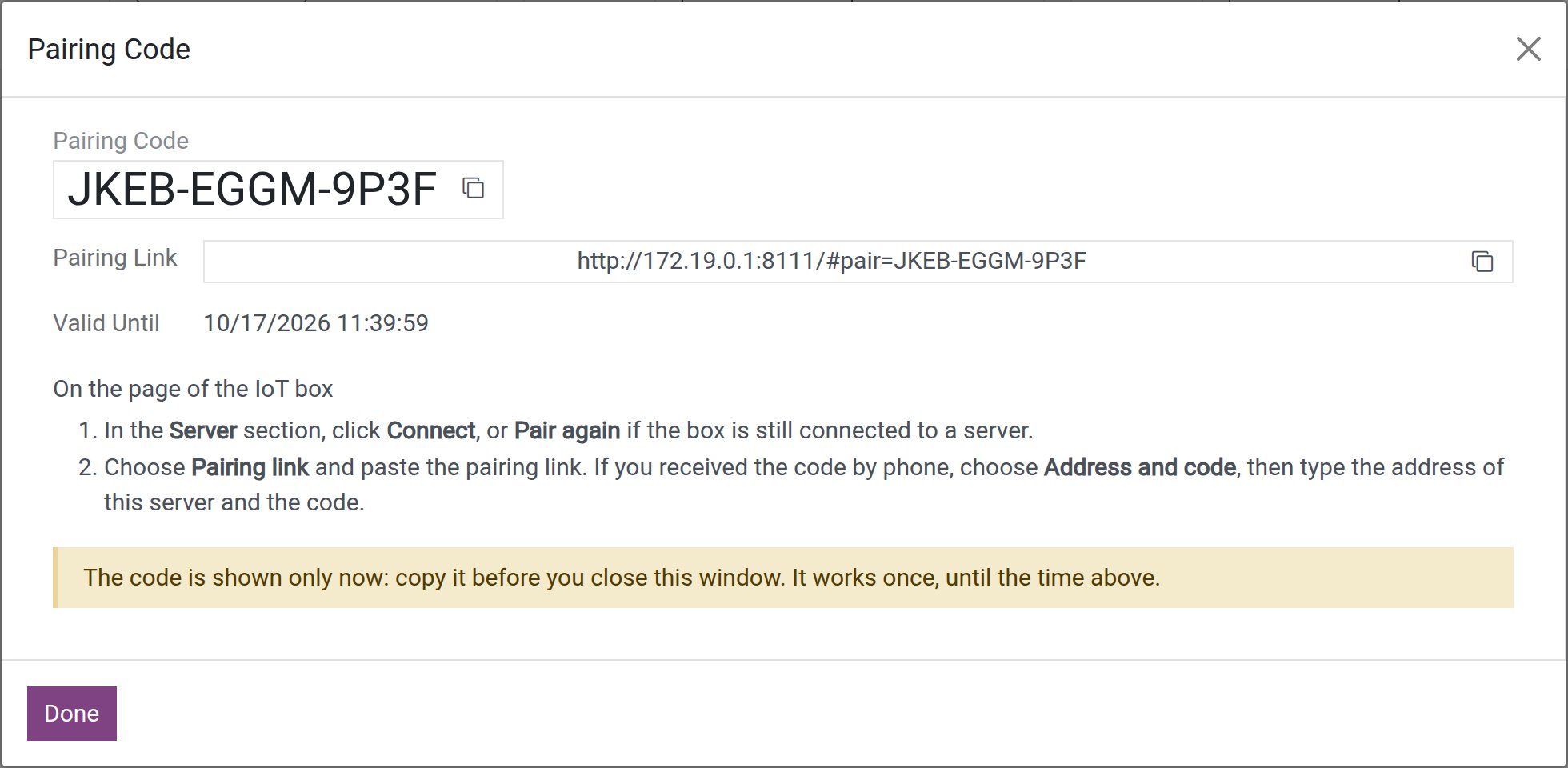
The Pairing Code window shows the Pairing Code (12 characters), the Pairing Link and Valid Until. Copy the link (copy button) or note the code. The code is shown only now, works once and for 15 minutes.
![Pairing Code window with the code, the pairing link, the expiry time and the Done button]()
Keep the window open until the box is paired, then click Done. If you closed it earlier, reload the list to see the new box.


How do I connect the box on its page?
In the Server section, click Connect (or Pair again if the box is still connected to a server; it first asks the settings code).
Choose Pairing link and paste the whole link, including the part after
#.![Connect the box to a server dialog with a pasted pairing link and the warning about an http address]()
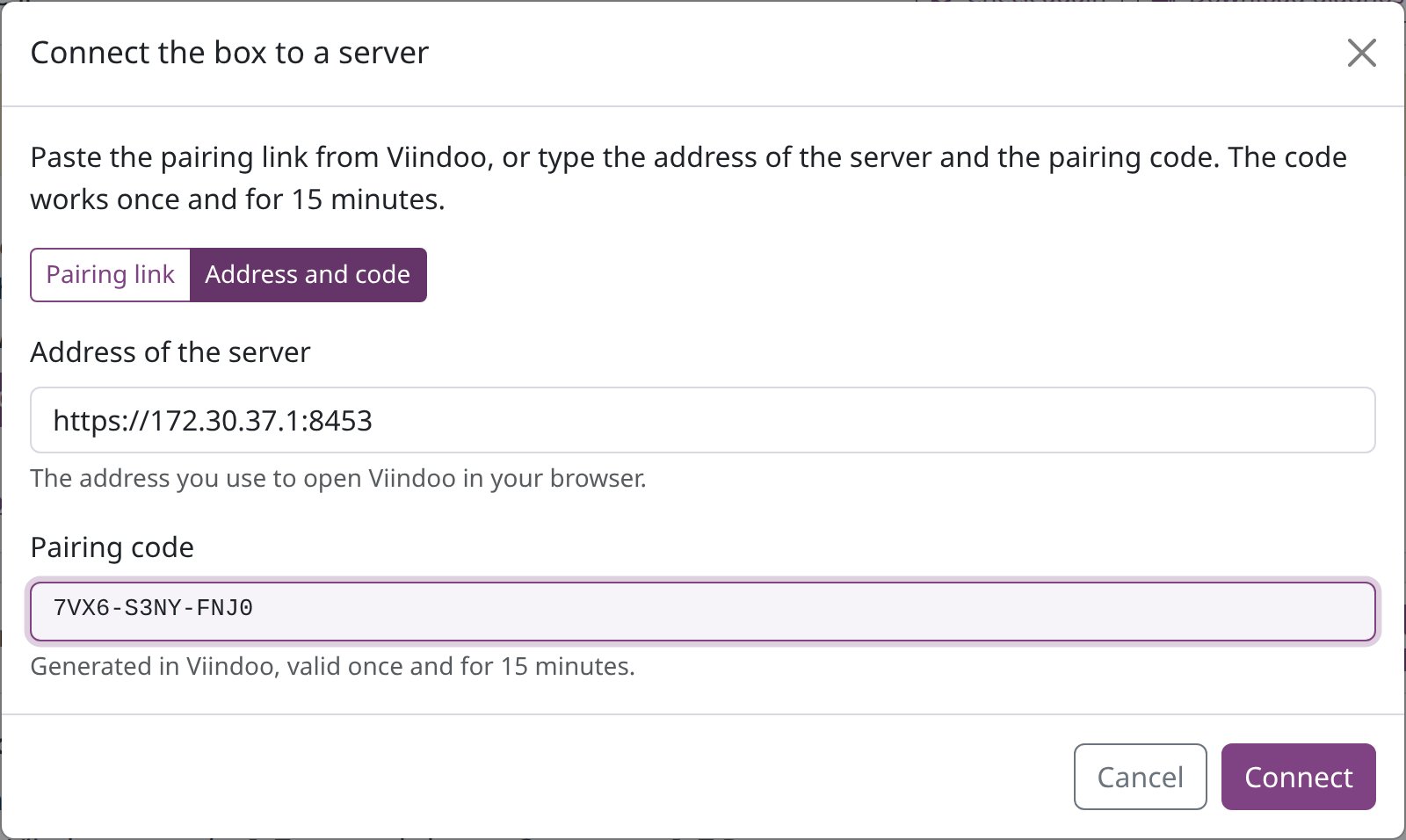
Or, if you received the code by phone, choose Address and code, type the Address of the server (the address you open Viindoo with, nothing after the server name) and the Pairing code. An address typed without
http://orhttps://is read ashttps://.![Connect the box to a server dialog in Address and code mode with the server address and the pairing code]()
Click Connect. The box connects, restarts (“The box is connected and restarts to finish.”) and the page comes back by itself. Do not switch the box off meanwhile.
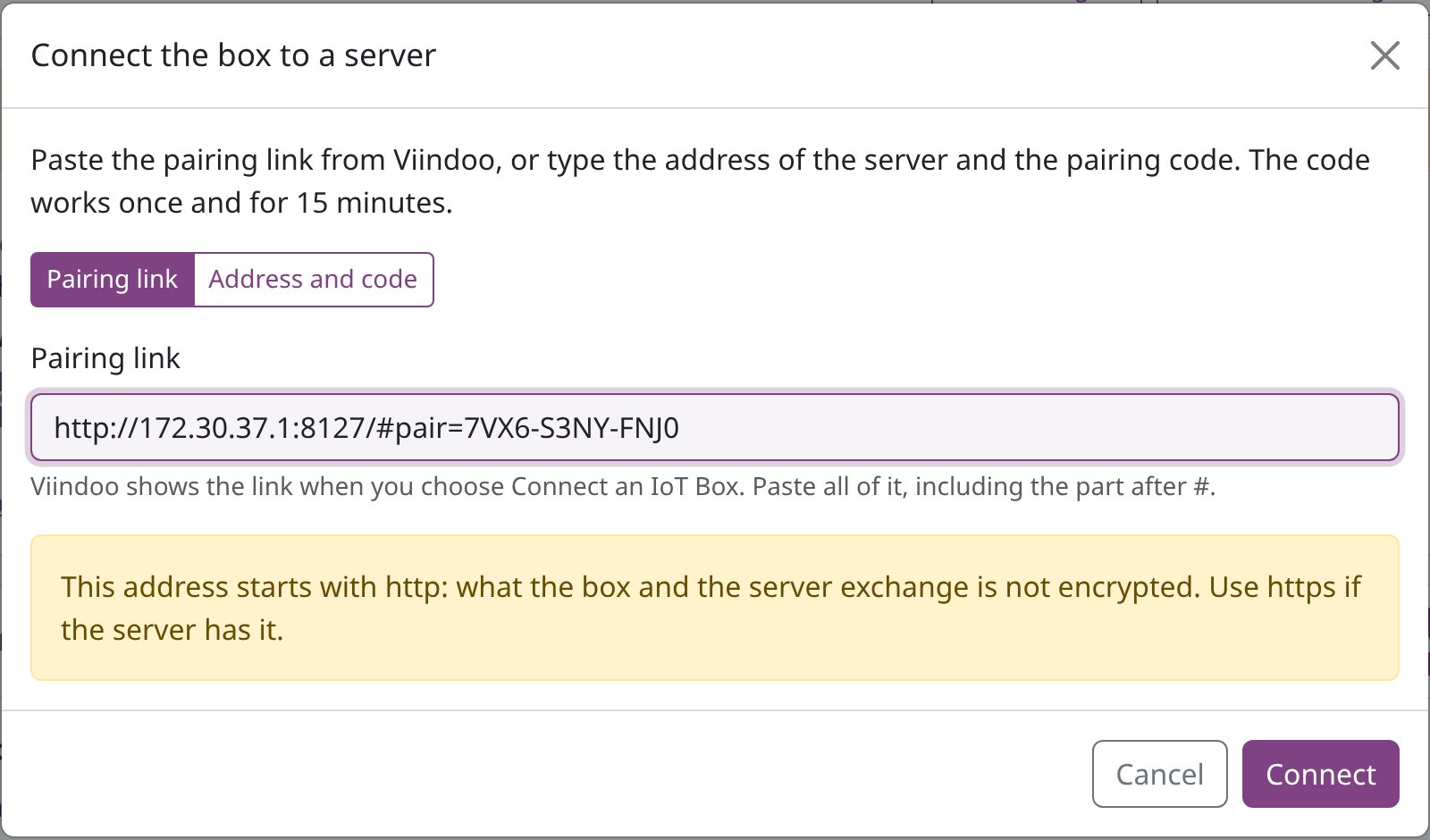
When the address starts with http://, the dialog warns that what the box and the server exchange
is not encrypted. Use https:// when your server has it.

After the restart the page says “Connected to <server> as <name>.” and the Server section shows Registered, the Live channel open and Settings of the box Locked. In Viindoo, the box appears in IoT ‣ Overview as Connected, and its chatter notes who generated the code.
What if the box cannot verify the server certificate?
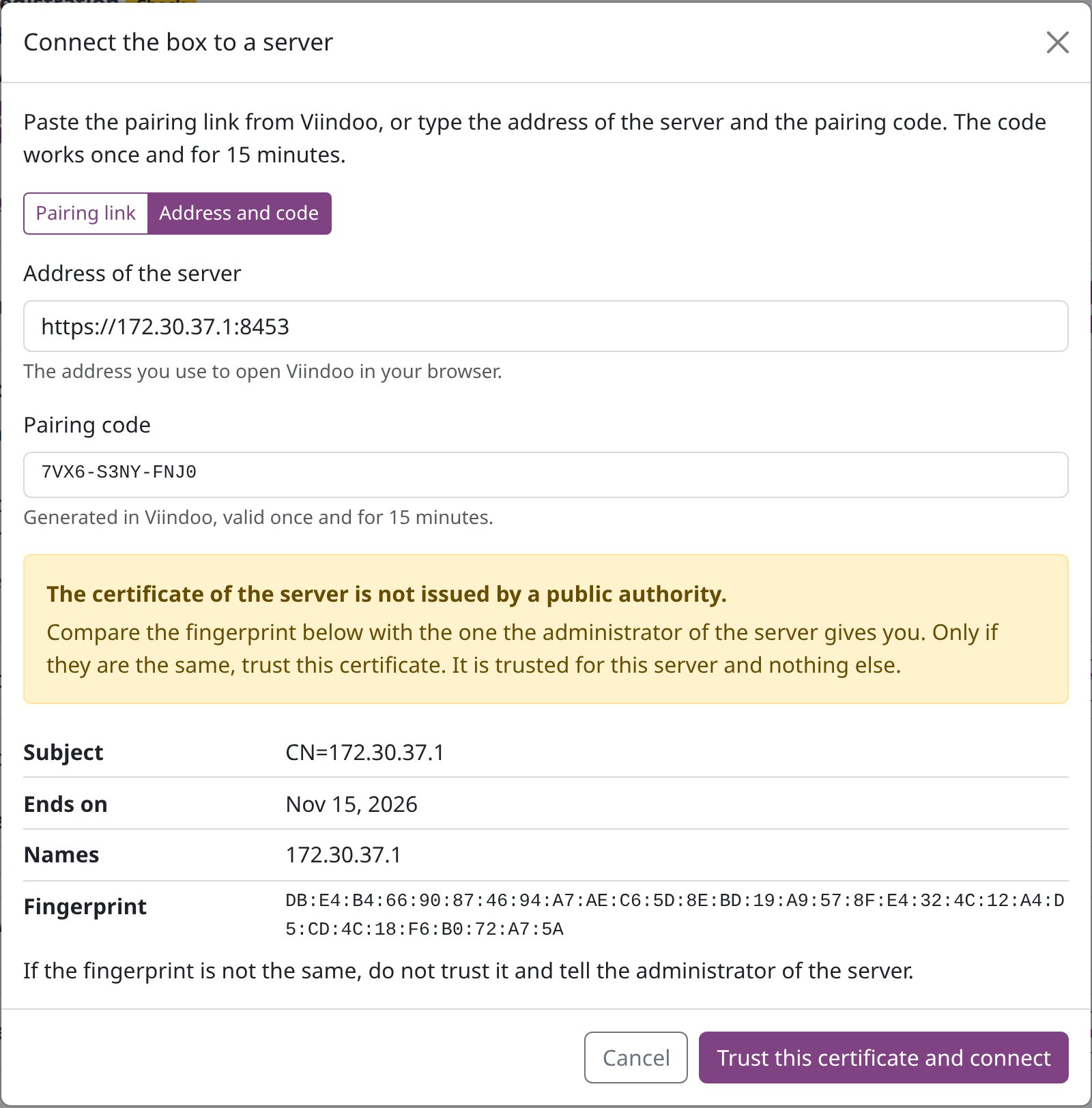
The box checks an https:// server against the public certificate authorities. When that check
fails, the dialog shows the server’s certificate (Subject, Ends on, Names,
Fingerprint) and one of three answers:
The certificate of the server is not issued by a public authority. Ask the administrator of the server for the fingerprint of its certificate. Only if it is the same, click Trust this certificate and connect. The certificate is trusted for this server only.
The certificate of the server was issued by an authority of your own organization. Paste the root certificate of your authority into Root certificate of your authority (as text, from
-----BEGIN CERTIFICATE-----to-----END CERTIFICATE-----), click Use this authority, then confirm its fingerprint the same way.The certificate was issued for another name, has expired, is not valid yet, or is not valid: it cannot be trusted from the box. Ask the administrator of the server to fix the certificate, and check the address you typed.
When the certificate looks out of date only because the box’s clock is wrong, the dialog says so instead and offers Set the clock from the server, then Back to connecting.
How do I pair a box again, replace a box or move a box?
Pair the same box again (after rewriting its card, or after a Disconnect): open the box in Viindoo and click Re-pair. The Re-pair IoT Box window makes a code for that box; enter it on the box page. The box keeps its name, its devices and the places where they are used; whatever was connected with the previous pairing stops working, and the settings code changes.
![Re-pair IoT Box window with the IoT Box field and the warning that the previous pairing stops working]()
Replace a broken box: click Re-pair on the record of the old box and enter the code on the new box. Its devices are found again by their own identifiers. Reported Name changes to the new box’s host name; the Box Name you set stays.
Move a box to another database: on the box page, click Disconnect (it asks the settings code), then pair the box with a code from the other database. The box forgets its server and its credential (the settings code is then no longer asked), the certificates it trusted for that server and its Viindoo name. It keeps the Update automatically choice and its Wi-Fi network. A name you typed with your own certificate stays only while that certificate is installed; the Disconnect dialog says which applies to your box. In the old database the record stays, shown disconnected: archive it there.

How do I name the box?
The name your team sees is set in Viindoo only:
Open the box (IoT ‣ Overview, click its card).
Type the name in Box Name, for example Packing station, and save.
Every app shows the new name at once. Nothing changes on the box itself: Reported Name is the host name the box shows on its page and screen, and the box page says under its name that this name stays with the box for its whole life.
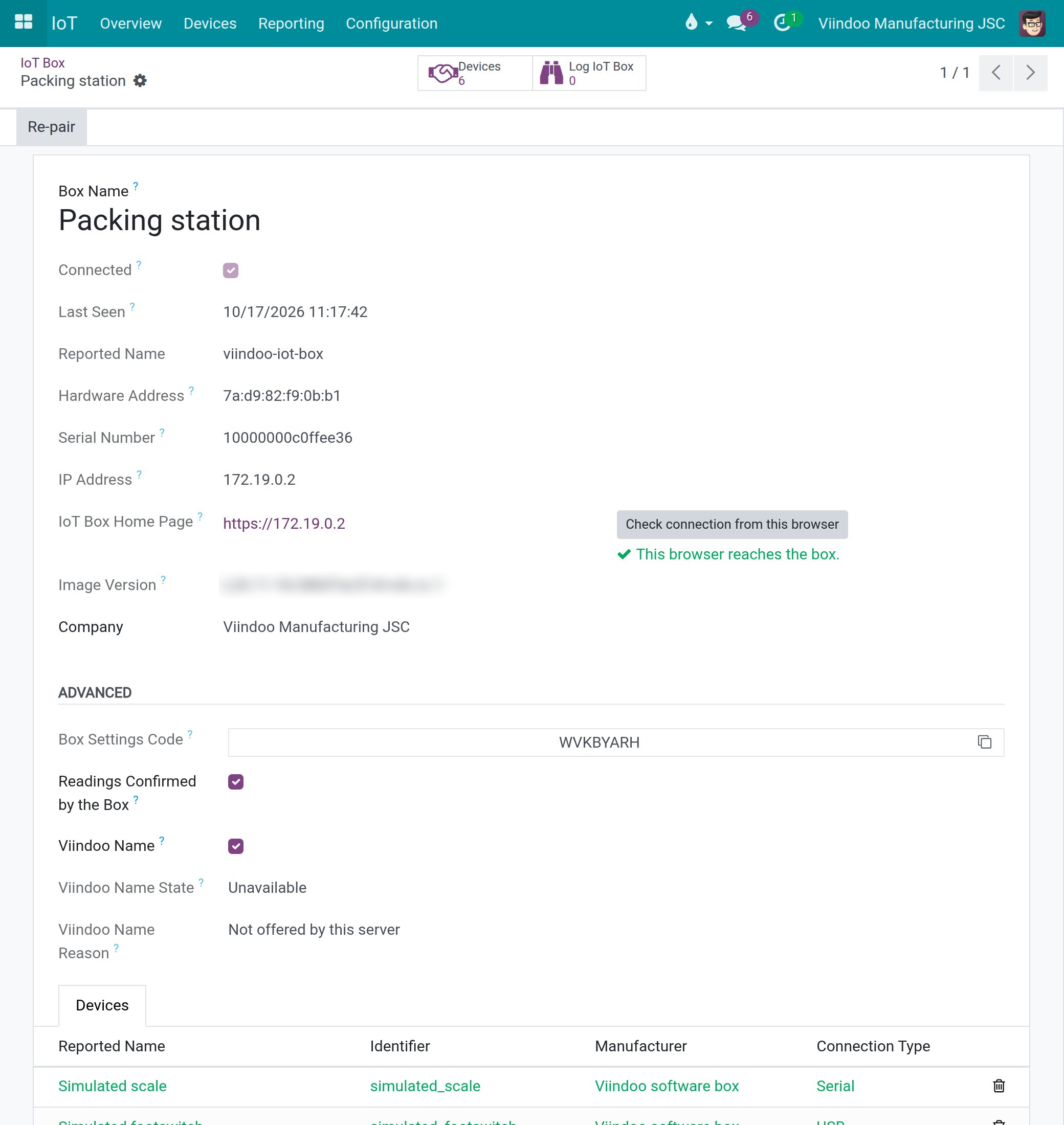
The box form also shows Hardware Address, Serial Number, IP Address, IoT Box Home Page (the box page), Check connection from this browser (see How do I make each browser reach the box?) and Image Version. Administrators see the Advanced group:
Box Settings Code - the code the box page asks for (see What is the settings code?).
Readings Confirmed by the Box - ticked by Viindoo when the box confirms its readings; from then on a reading from its instruments is recorded only when the box confirmed that same value. Untick it only if the box is replaced by one that does not confirm its readings.
Viindoo Name, Viindoo Name Given, Viindoo Name State and Viindoo Name Reason - the name that lets browsers reach the box without a certificate warning, and what became of it (see How do I control the Viindoo name of a box?).
How do I control the Viindoo name of a box?
On Viindoo Cloud, a box can have a Viindoo name of its own, with a certificate: browsers then open the box by that name and show no warning about its certificate. A box has one by default. The box asks its own database for it; the database passes the question to Viindoo Cloud and the answer back to the box. The box then reports the name to Viindoo as its address, so IoT Box Home Page opens the box by its name. On Viindoo Cloud this comes with the module Internet Of Things - Viindoo Cloud, which installs itself together with the Internet of Things app.
Before you switch it on or leave it on
The name is a random one. It and the address of the box on the network of its site are visible in public records, like the name of every secured website. If your site cannot accept that, switch the name off.
On a database that is not on Viindoo Cloud nobody is contacted: the box keeps working with its own certificate (see How do I make each browser reach the box?).
Only an Administrator of the Internet of Things app sees the Advanced group of the box form and can change the name. To read or change it:
Open IoT ‣ Overview, click the card of the box, and look at the Advanced group.
Read Viindoo Name State and, below it, Viindoo Name Reason. They appear once the box has asked for its name; Viindoo Name Given shows the name when the box holds one.
![Advanced group of the box form with Viindoo Name ticked, the state Unavailable and the reason Not offered by this server]()
To stop giving the box a name, untick Viindoo Name and save. The reason then reads Switched off for this IoT box. Tick it again and save to give the box a name again: the box asks for it by itself.
![Advanced group of the box form with Viindoo Name unticked, the state Unavailable and the reason Switched off for this IoT box]()


The two screens above come from a database that is not on Viindoo Cloud, so they show the state such a database really shows: Unavailable. On Viindoo Cloud the state moves on as the box gets its name.
Archiving or deleting a box, or switching its name off, releases the name: once the change is saved, Viindoo Cloud is told to take it back. If it cannot be told, it drops the name itself after a while. Every change of Viindoo Name is kept in the chatter of the box, with who made it.
What does each state mean?
State |
Meaning |
|---|---|
Unavailable |
The box has no name now. Viindoo Name Reason says why. |
Name Given |
Viindoo Cloud gave the box a name; its certificate is the next step. |
Pending |
The certificate is being made. The box asks again by itself. |
Issued |
The box has its name and its certificate: browsers reach it by that name with no warning. |
Refused |
Viindoo Cloud refused. Viindoo Name Reason says why. |
What does each reason mean, and what do I do?
Reason |
What it means |
What to do |
|---|---|---|
Not offered by this server |
The database is not on Viindoo Cloud. |
Nothing: the box works with its own certificate. |
Switched off for this IoT box |
Viindoo Name is unticked. |
Tick it and save if the box should have a name. |
The name provider could not be reached |
The database could not reach Viindoo Cloud, or got no usable answer. |
Check that the server has internet access. The box asks again by itself, at most once a minute. |
The address of the IoT box is not a private one |
The box is on an address that is not one of a private network. |
Put the box on a private network of its site, then wait for the box to ask again. |
This database has all the names it may have |
The database is at its limit of names. |
Archive or delete the boxes that are gone, or untick Viindoo Name on boxes that do not need one: that releases their names. Then the box asks again. |
Too many certificates for this IoT box this week |
Viindoo Cloud limits the certificates made for one box in a week. |
Wait: the box asks again later, and meanwhile keeps its own certificate. |
The name provider answered an error, The name provider failed, The request of the IoT box is not valid, Not offered, The name provider gave no reason |
Viindoo Cloud answered something the box cannot use. |
The box asks again by itself. If the reason stays for a day, restart the box; if it still stays, download the diagnostic file from the box page and send it to support. |
Whatever the reason, the box keeps working with its own certificate until it has its name. What the box page itself says about its Viindoo name is in What does the Viindoo name line say?.
Common errors
Problem |
What to do |
|---|---|
The box page says The server does not know this code., This code is too old. or This code was already used. |
Generate a new code in Viindoo and copy it exactly. A code works once and for 15 minutes. |
The box page says This is not a pairing link. |
Copy the whole Pairing Link with its copy button, or use Address and code. |
The box page says The server does not offer pairing for Viindoo IoT boxes. |
Use the address that opens this database; install the IoT app. |
The box page says This box is already registered as <name>. |
Open that box in Viindoo, click Re-pair and use its code. The first code stays usable. |
The box is missing from IoT ‣ Overview after pairing. |
Reload the list. |
Viindoo Name State shows Unavailable or Refused. |
Read Viindoo Name Reason and follow How do I control the Viindoo name of a box?. |
Every pairing message, with its cause, is listed in Messages when pairing on the box page.
Next steps
How to connect and test devices on an IoT box: plug in the devices and test them.