
How to offset debts of a partner who is also your vendor
When the same partner owes you money and you owe it money, create an automatic transfer model that moves the payable balance (account 331) to the receivable account (131). Viindoo then generates the offsetting journal entry for you and you reconcile the journal items of the two accounts.
Who does this: an Accounting administrator (the Automatic Transfer Models menu is under Configuration > Management); reconciling journal items needs an accountant. Application: Accounting.
Before you start
This tutorial requires the installation of the following applications/modules:
You also need a journal of type General to record the transfer entries, and a partner with a posted customer invoice and a posted vendor bill.
How do I configure the automatic transfer model?
Navigate to Accounting > Configuration > Management > Automatic Transfer Models and click New.
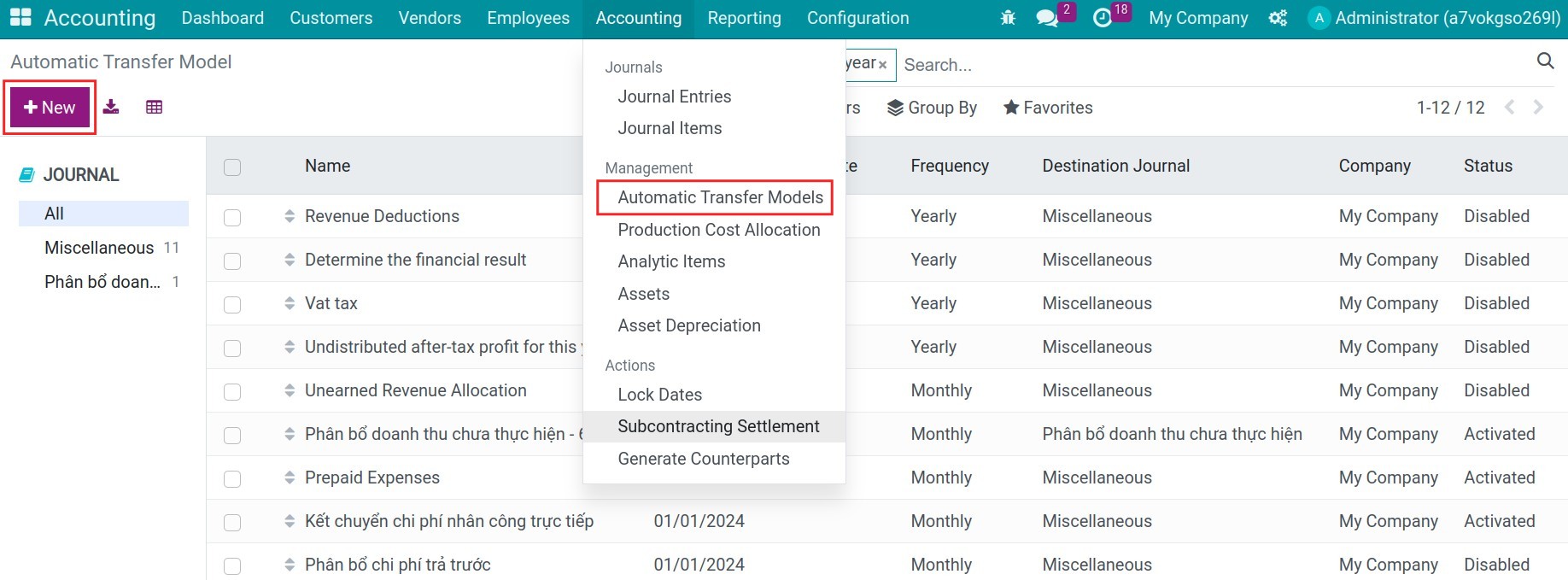
Enter a Description, then fill in the general fields:
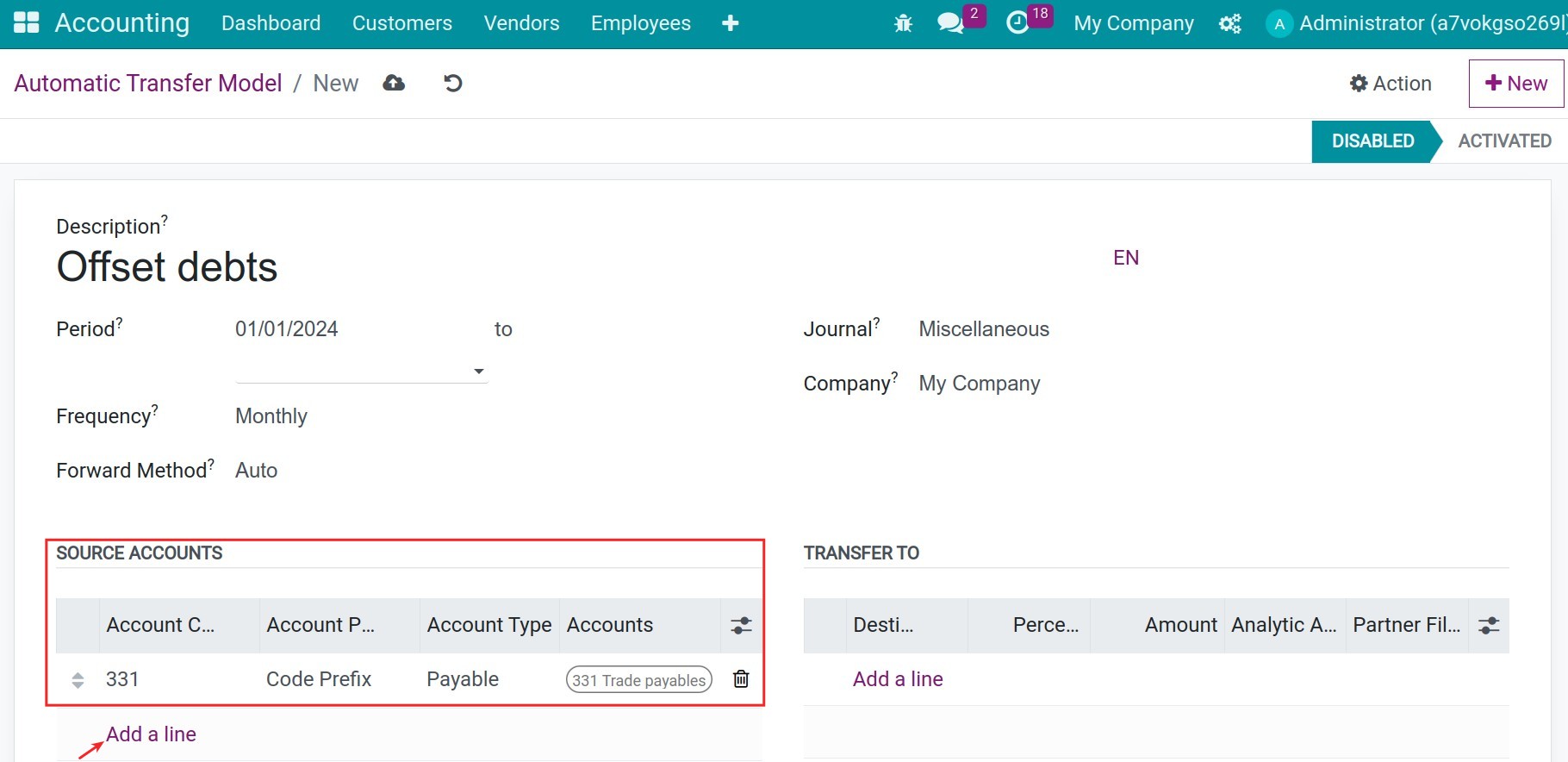
Period: The start date of the model and, optionally, its stop date. Transfers are generated from the start date on.
Frequency: Monthly, Quarterly or Yearly. One transfer entry is generated for each finished period.
Forward Method: Auto debits the destination account and credits the source account when the source balance is a debit, and does the opposite when it is a credit. Credit -> Debit only transfers a credit balance of the source account and Debit -> Credit only a debit balance; Viindoo raises an error if the balance is on the other side. If you are not sure, keep Auto.
Journal: The journal of type General in which the transfer entries are recorded.
Source accounts
Click Add a line under Source Accounts and enter the Account Code Prefix of the account to empty, for example 331 (Trade payables). Account Prefix Type is Code Prefix (every account whose code starts with the value) or Exact (only that code).
Transfer accounts
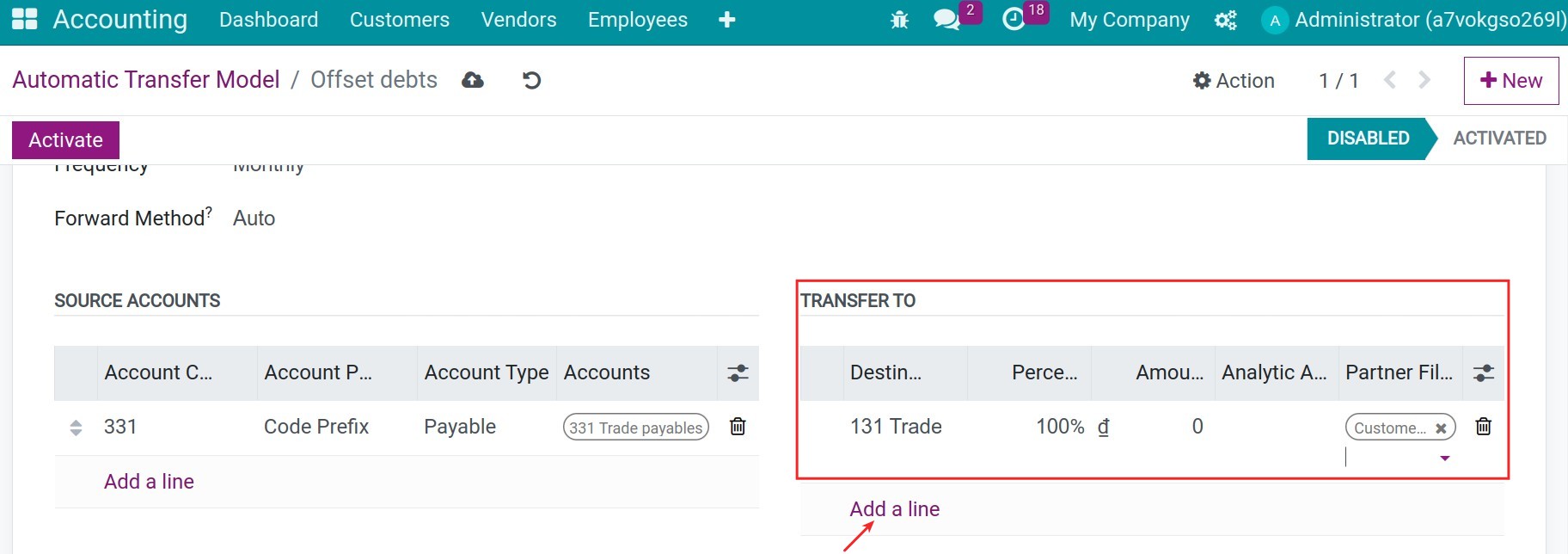
Click Add a line under Transfer To to define where the balance goes.
Field |
What it does |
If wrong or empty |
|---|---|---|
Destination Account |
Account that receives the transferred balance, for example 131 (Trade receivables). |
Each destination account can be used once in a model. |
Percentage |
Share of the source balance that is transferred. Enter 100% to transfer everything. |
The total of all lines must not exceed 100%. |
Amount |
Fixed amount to transfer instead of a percentage (hidden by default, add it from the column selector). Fill in either Percentage or Amount, not both. |
Viindoo refuses a line with both or neither. |
Analytic Account Filter |
Only the journal items of the source account that carry these analytic accounts are counted. |
Empty: no analytic filter. |
Partner Filter |
Only the journal items of these partners are counted. With several partners, the entry has separate lines for each partner. |
Empty: all partners are counted together. |
After filling in the lines, click Activate. The status changes from Disabled to Activated.
How are the offsetting entries generated?
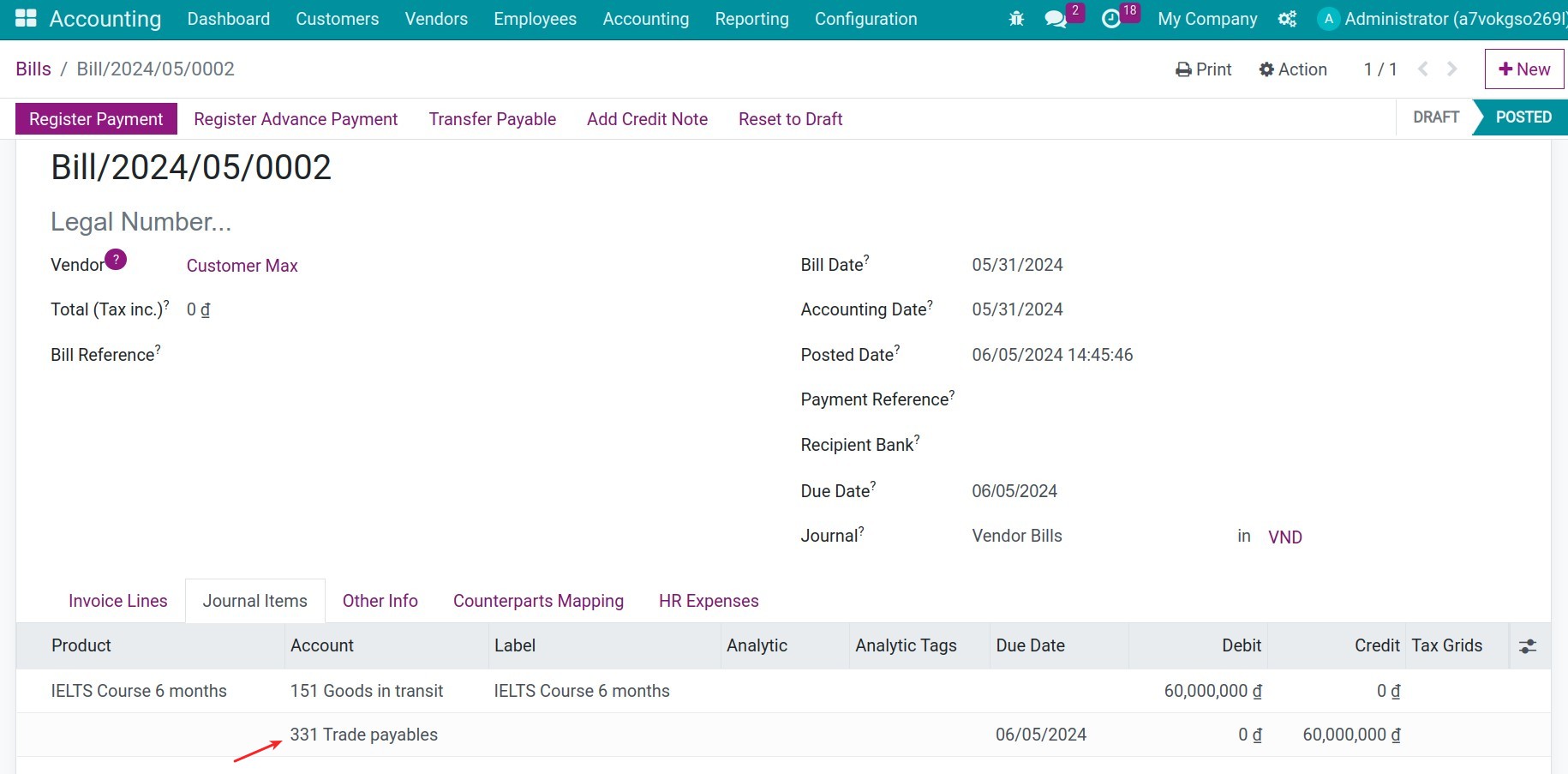
The partner already has a customer invoice and a vendor bill:
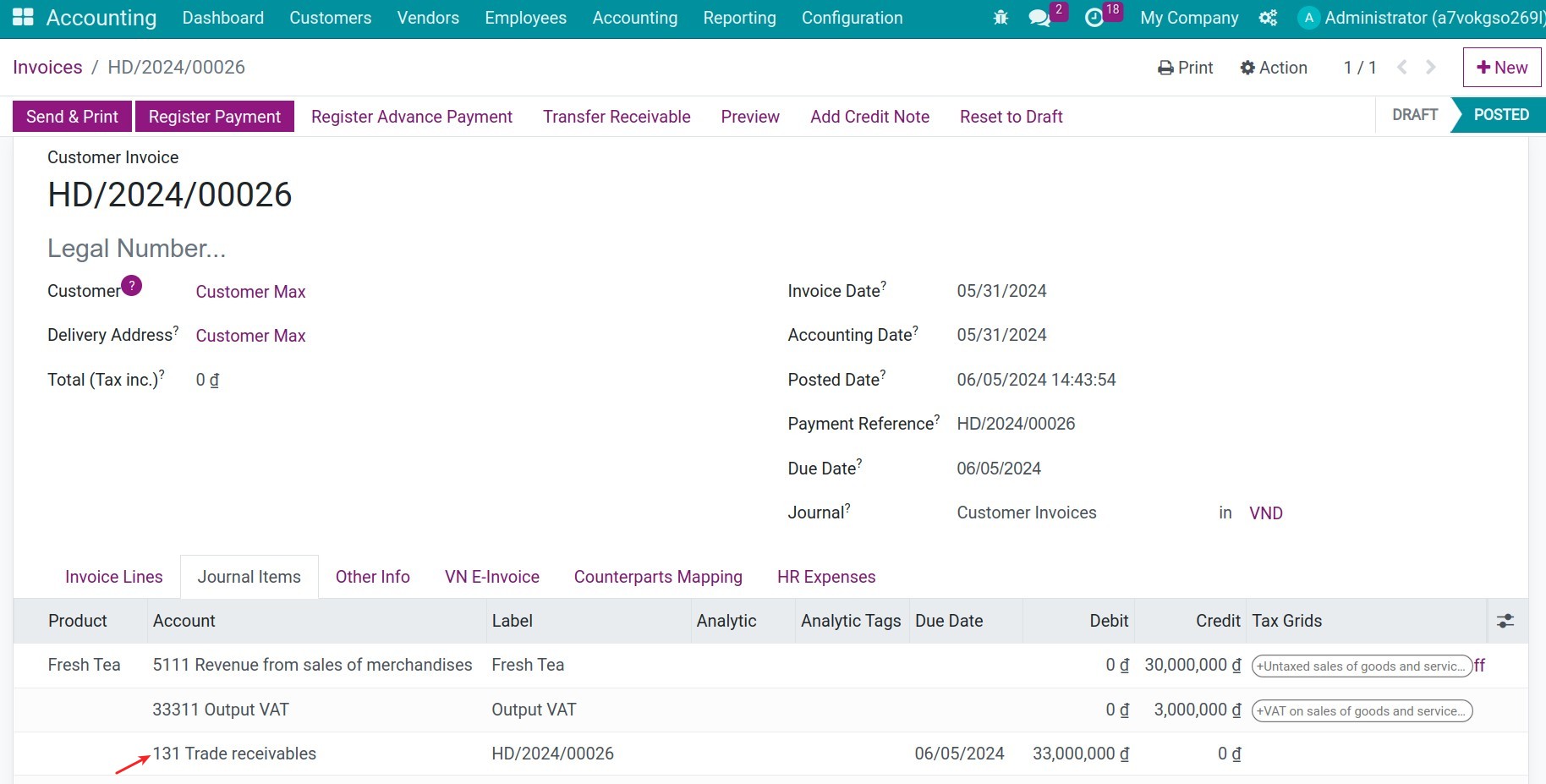
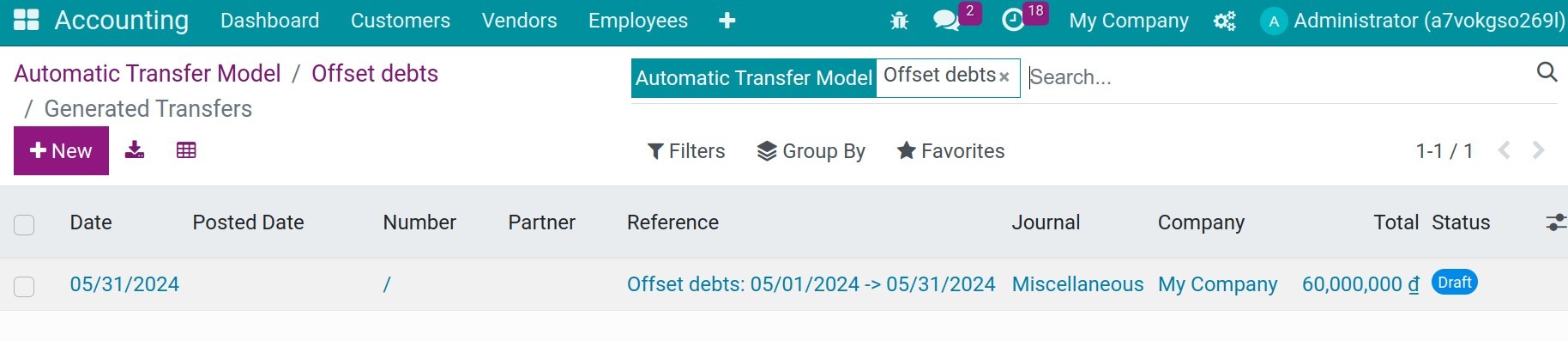
Viindoo generates the transfer entry of a period once the period is over, either when the daily scheduled action Perform Automatic Transfer runs or when you click Perform Transfer on the activated model. The Transfers button of the model lists the generated entries.
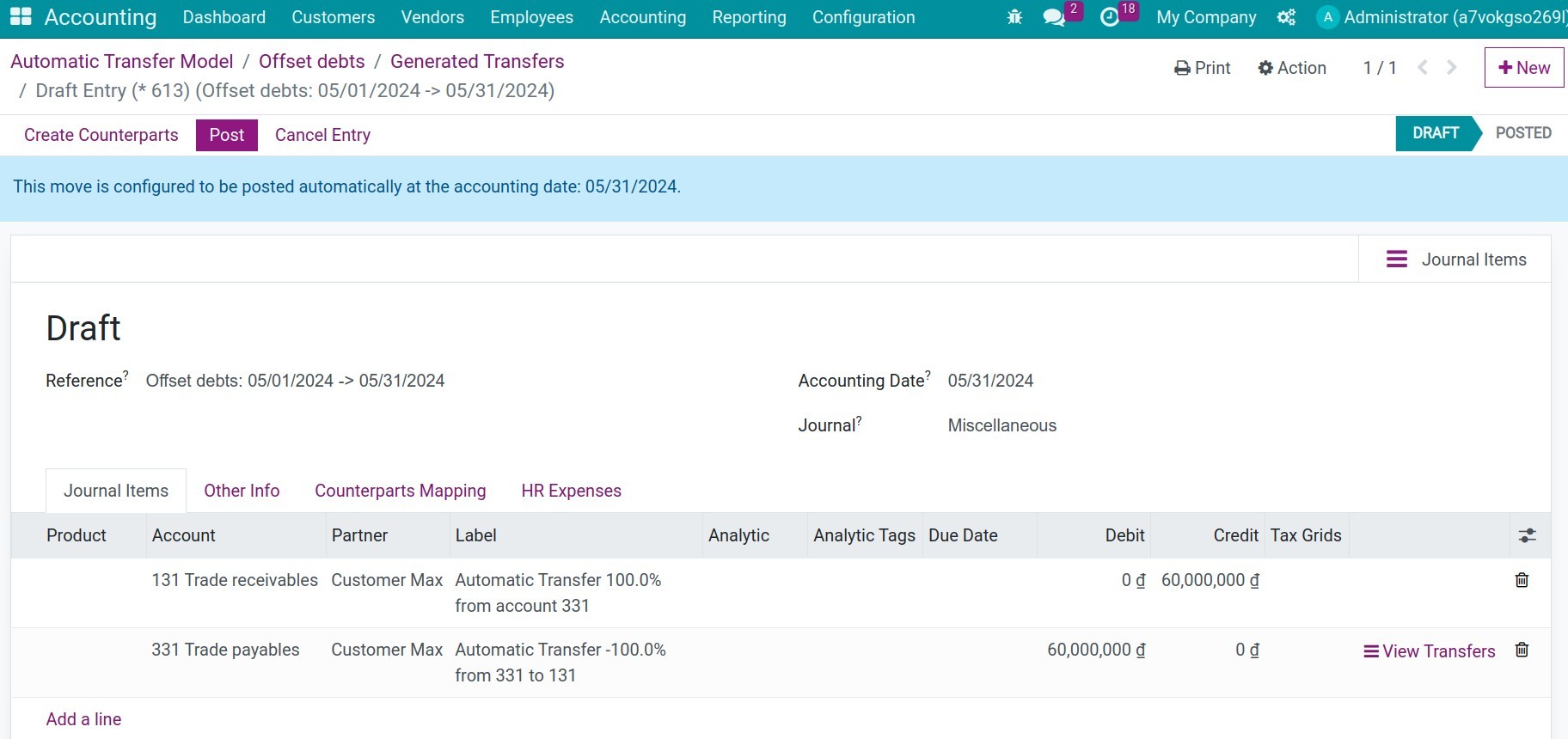
The entry is dated on the last day of the period and is posted automatically on that date. It credits the destination account (131) and debits the source account (331) with the balance of the partner.
How do I reconcile the offset balances?
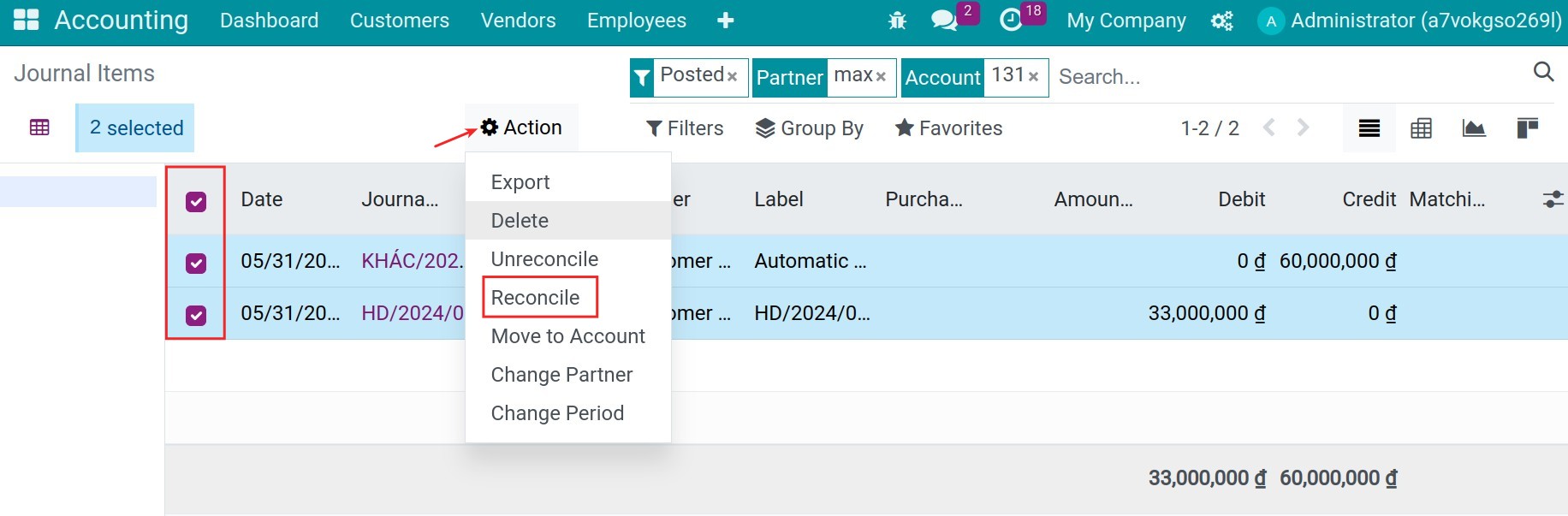
The entry only moves the balance; the accountant still has to reconcile the journal items. Navigate to Accounting > Accounting > Journal Items, filter on the partner and on the destination account (131).
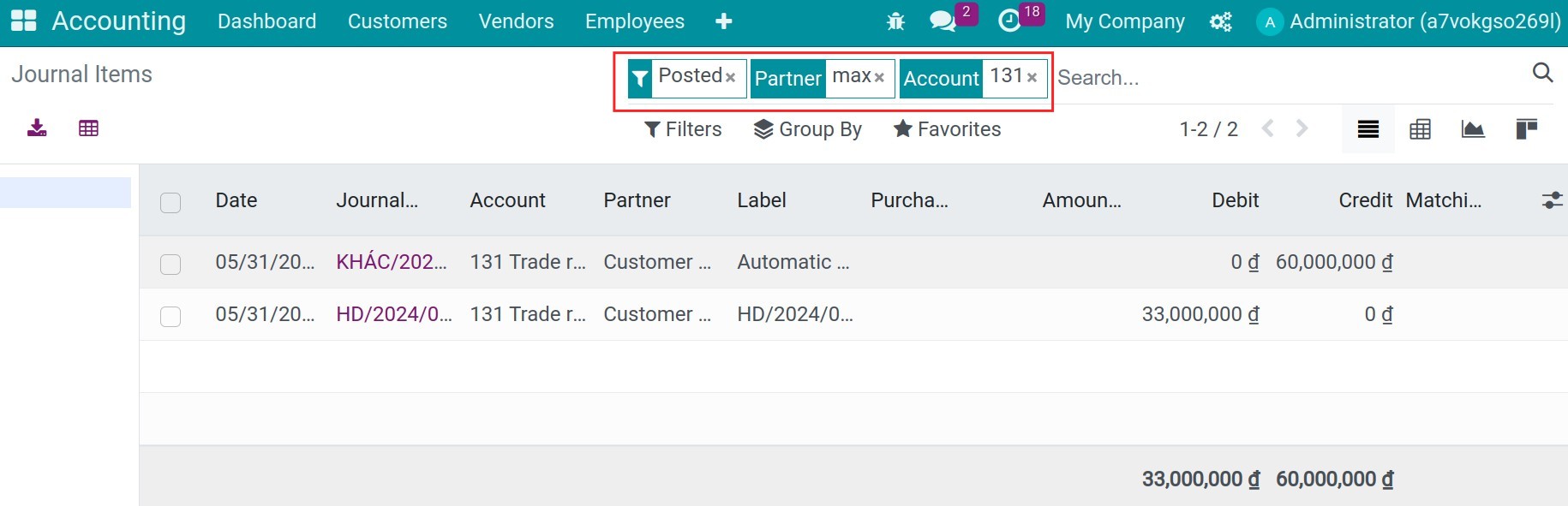
Select the journal items (the invoice line and the transfer line), then click Actions > Reconcile.
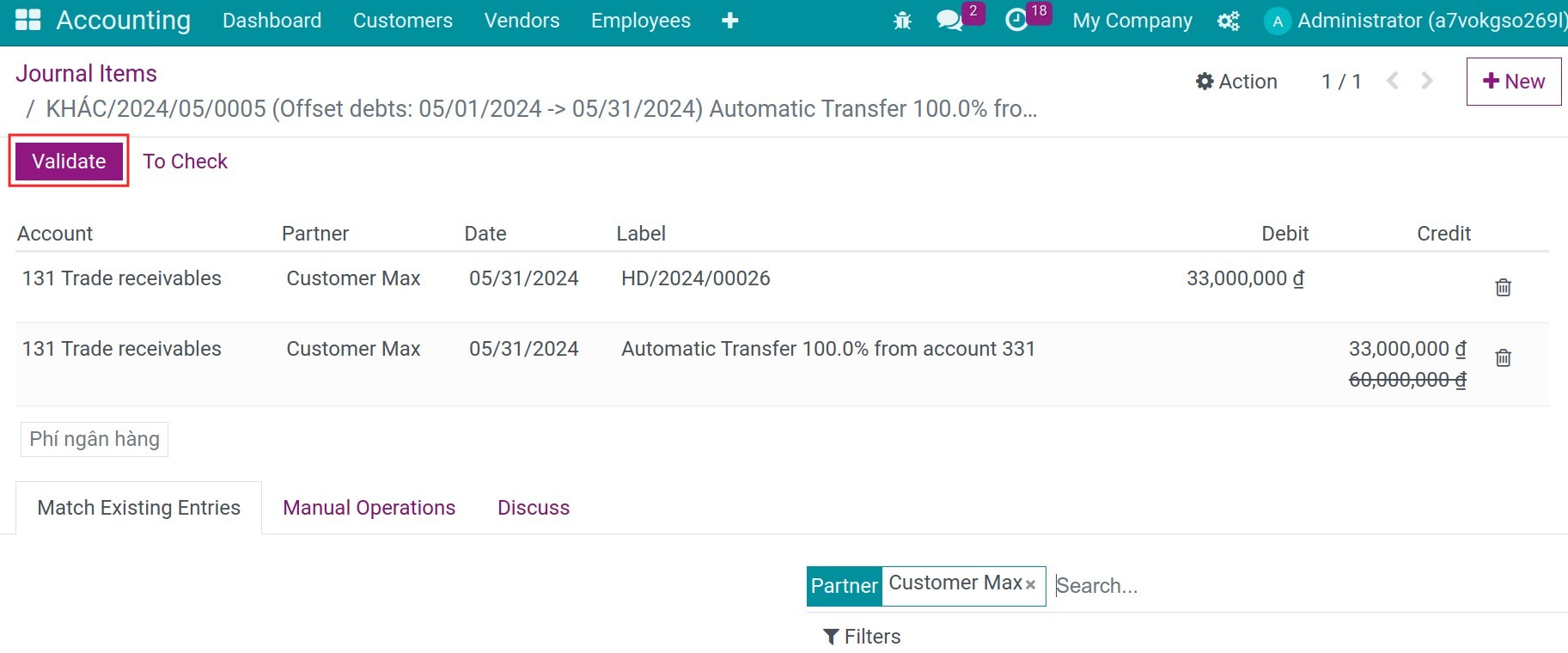
On the reconciliation screen check the amounts and click Validate. If the credit side is larger, Payment Difference shows what remains open; keep Keep open unless you want to mark it as fully paid.
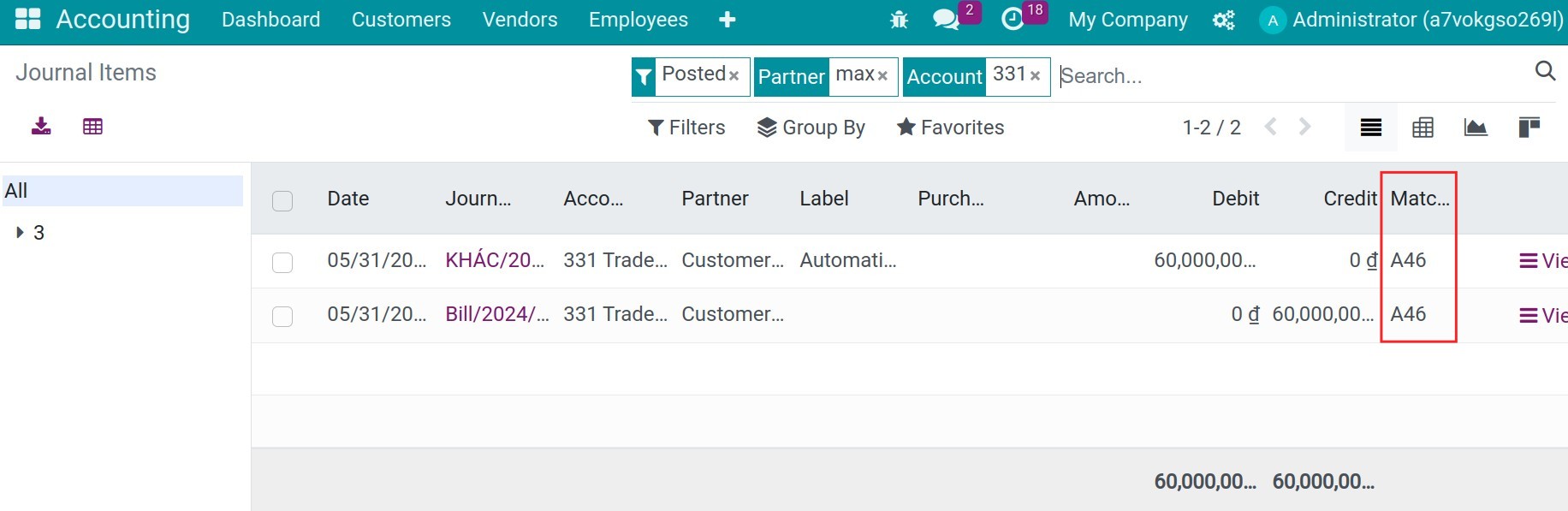
Do the same with the journal items of the source account (331).
How do I check the balance of the partner?
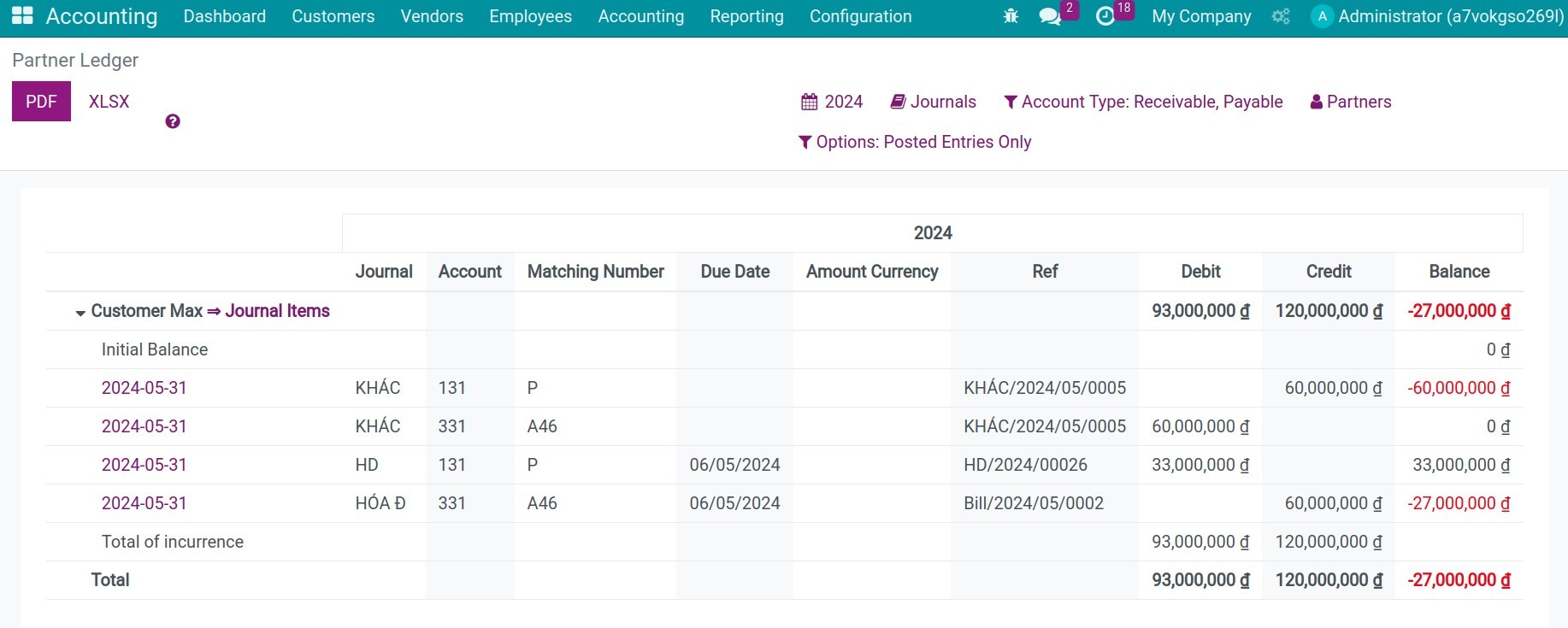
Navigate to Accounting > Reporting > Partner Reports > Partner Ledger.
Expected result
A posted transfer entry per finished period, debiting 331 and crediting 131 for the partner.
Journal items of both accounts carry a matching number after reconciliation.
The partner ledger shows the balance that remains after the offset.
Common mistakes
The total percentage must not be greater than 100% - lower the percentages of the destination lines.
One and only one of the two fields ‘Percentage’ and ‘Amount’ should be set! - fill in only one of them.
The line ‘…’ of the transfer model ‘…’ contains the account ‘…’ which is already defined by another line. - an account appears twice among the source lines, or twice among the destination lines.
No entry is generated - the model is still Disabled, the period is not finished yet, or the partner filter excludes the journal items.
Next steps
See also
Related article
Optional module
Version note
In Viindoo 18 the source accounts of a model are defined by an Account Code Prefix and a prefix type, and the transfer menu is Configuration > Management > Automatic Transfer Models.