
How to choose the delivery flow of a warehouse
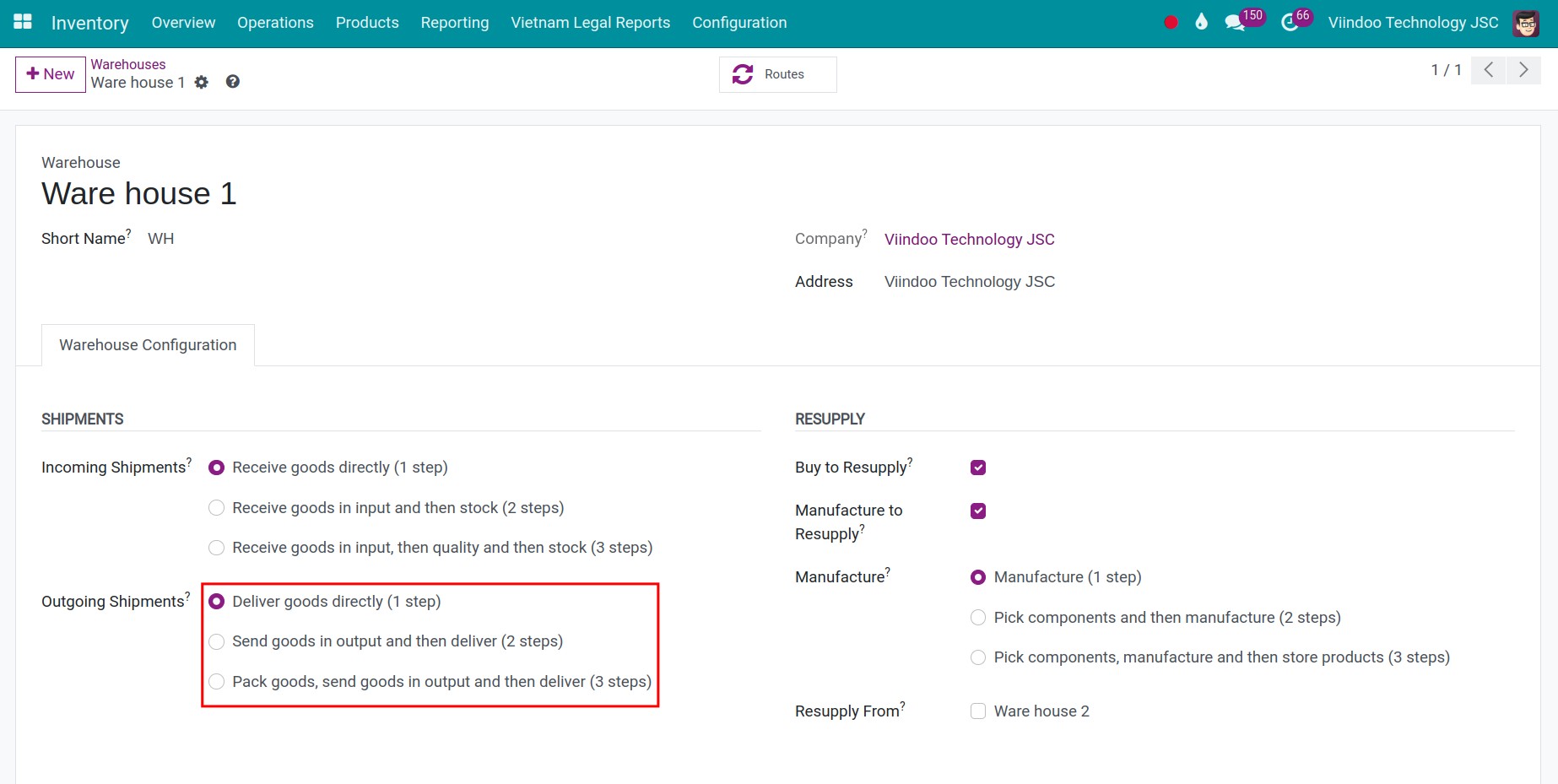
A warehouse can deliver goods in one, two or three steps. Open the warehouse in , go to the Warehouse Configuration tab and pick the flow under Outgoing Shipments. Choose one step when you ship straight from stock, two steps when you pick goods into an output area first, and three steps when you also pack them before shipping. Viindoo then creates the matching transfers every time goods leave that warehouse.
Who |
Users with the Inventory Administrator access right. |
App |
Inventory ‣ Configuration |
Before you start
Install the Inventory app.
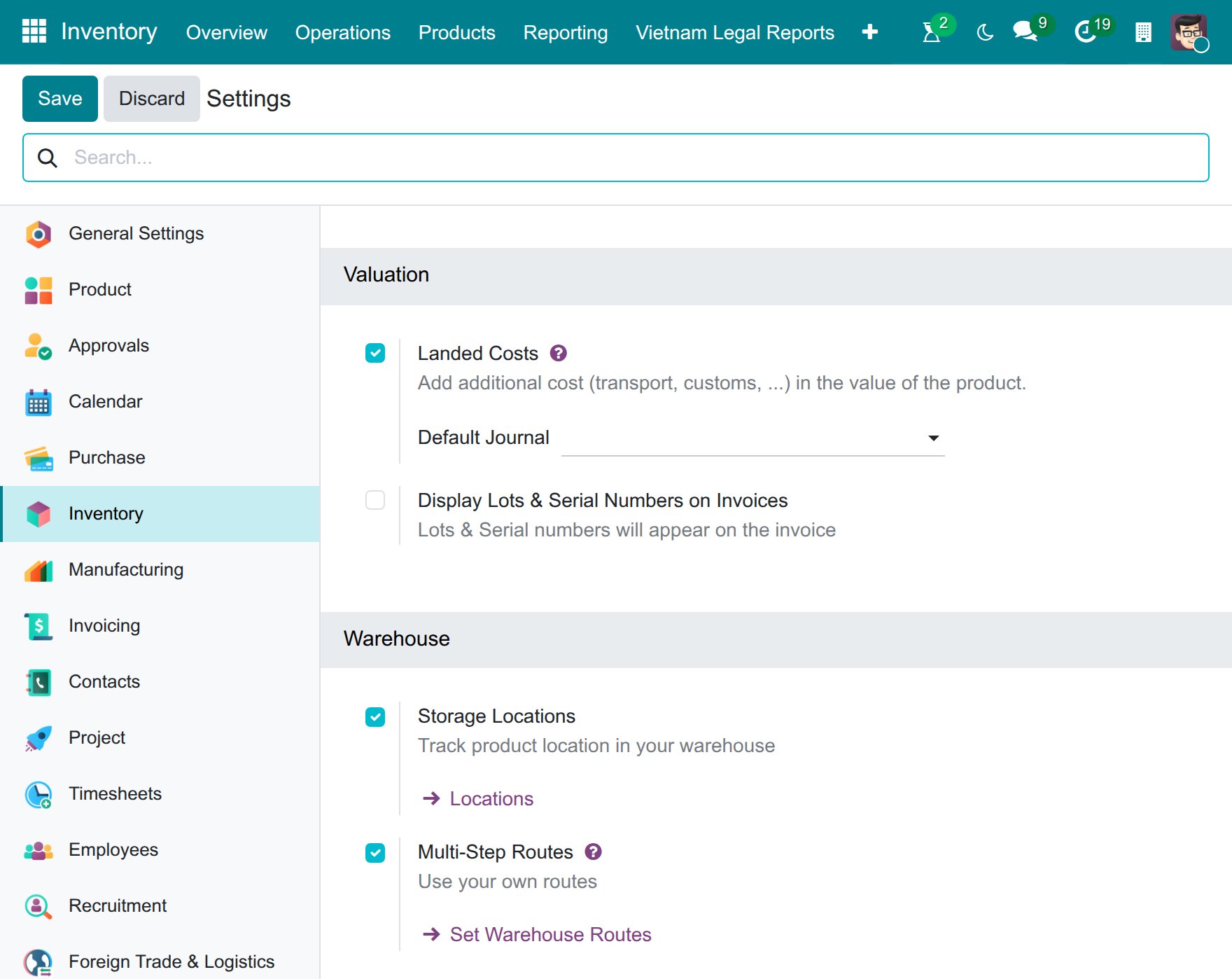
Turn on Multi-Step Routes in (see the first step below). Without it, the Outgoing Shipments options do not appear and every warehouse delivers in one step.
The delivery transfers are created when you confirm a sales order. Install the Sales app to use them with orders. Without it, you can still create delivery orders by hand (see How to deliver goods in one step).
Note
Changing the flow does not change transfers that already exist. The transfer that follows a pick or a pack is created when you validate it, using the flow set at that moment.
Which delivery flow should I choose?
Flow |
Option to choose |
What happens when goods leave |
|---|---|---|
One step |
Deliver (1 step) |
A Delivery Orders transfer moves goods from the stock location straight to the customer. Use it when you ship as soon as you pick. |
Two steps |
Pick then Deliver (2 steps) |
A Pick transfer moves goods from stock to the output location (WH/Output), then a Delivery Orders transfer moves them to the customer. |
Three steps |
Pick, Pack, then Deliver (3 steps) |
A Pick transfer moves goods from stock to the packing zone (WH/Packing Zone), a Pack transfer moves the packed goods to the output location, then a Delivery Orders transfer moves them to the customer. |
How do I turn on Multi-Step Routes?
Go to .
In the Warehouse section, tick Multi-Step Routes and click Save. Viindoo ticks Storage Locations at the same time, because the extra steps need several locations.
![Multi-Step Routes ticked in the Warehouse section of the Inventory settings]()
How do I choose the flow of a warehouse?
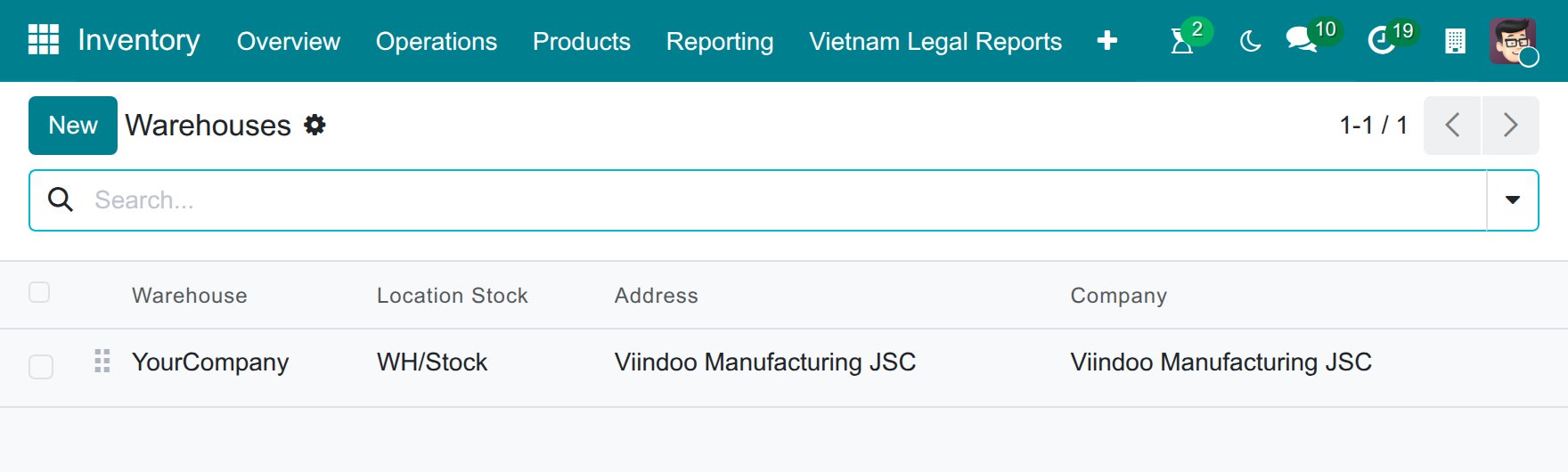
Go to and open the warehouse. You can also click Set Warehouse Routes under Multi-Step Routes in the settings.
![The Warehouses list in the Inventory configuration menu, where you click the warehouse to open it]()
On the Warehouse Configuration tab, choose the flow under Outgoing Shipments.
![Outgoing Shipments options of a warehouse with the two-step flow selected]()
Click Save.
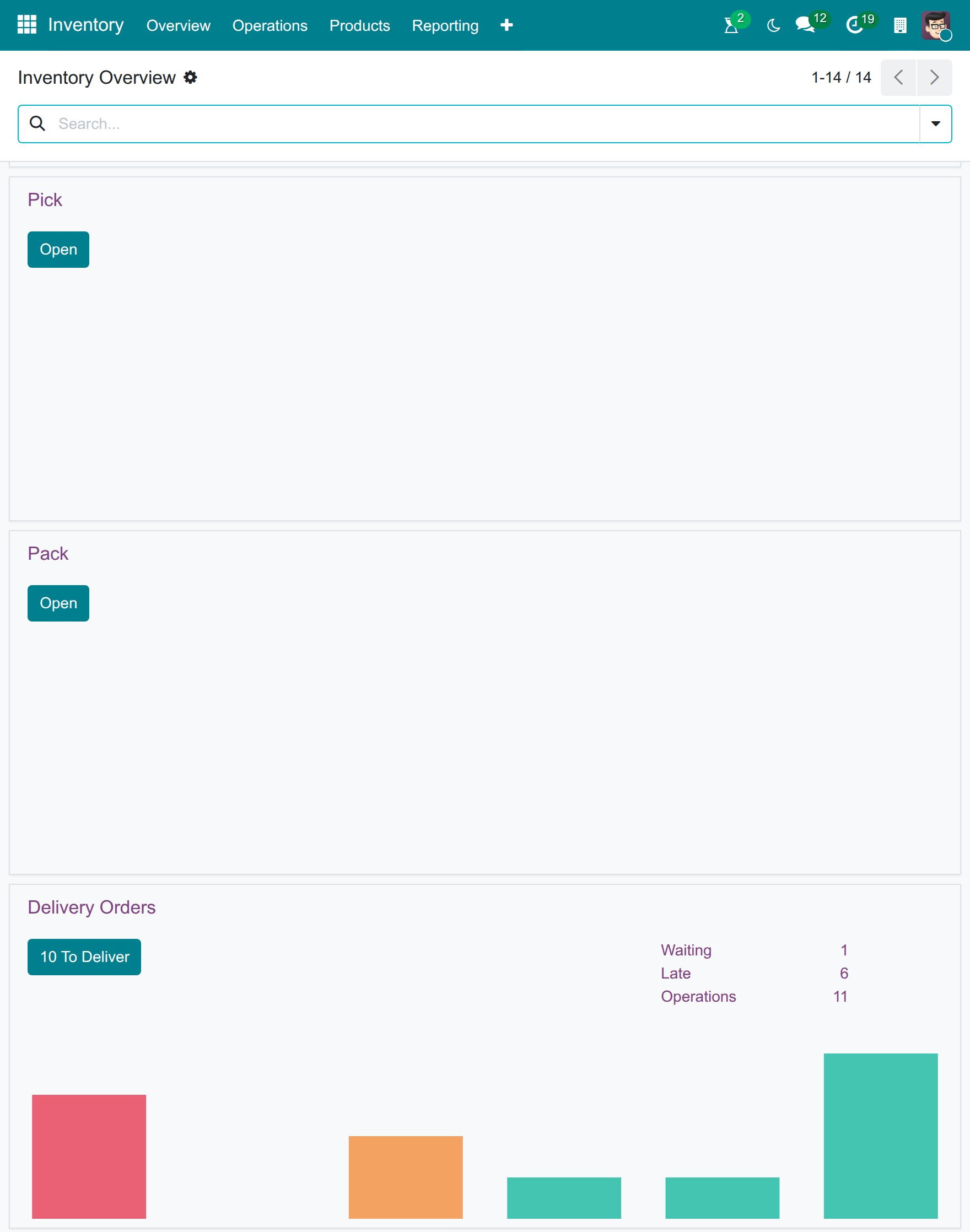
You should now see the flow you chose on the warehouse. When you pick two or three steps, Viindoo turns on the Output location (and the Packing Zone location for three steps) and the Pick (and Pack) operation types of that warehouse, and they appear in the Inventory overview. You can rename these locations in . When you go back to fewer steps, Viindoo archives the locations you no longer use.
What if my deliveries do not follow the flow I chose?
Problem |
What to do |
|---|---|
There is no Outgoing Shipments option on the warehouse. |
Turn on Multi-Step Routes in the settings. |
You can’t disable locations WH/Output because they still contain products. when you go back to fewer steps. |
Goods are still in the output or packing location. Validate the transfers that follow the pick first so the location is empty, then change the flow again. |
Next steps
How to deliver goods in three steps (pick, pack, then deliver)
How to deliver from vendor to customer with Dropship: let the vendor deliver to your customer.
How to choose the receipt flow of a warehouse: choose the receipt flow of the same warehouse.