
Grant freight access by role
Guide information
Requirements
This tutorial requires the installation of the following applications/modules:
Logistics Sales Team (installed automatically with Logistics Shipment when the Sales app is also installed) - grants every Salesperson User: Own Shipments automatically, with no manual step from the Administrator. Every Sales group that includes the Salesperson role (for example User: All Documents and Administrator in the Sales app) receives it too.
A forwarder shipment record carries the sell rate, the buy rate, the booking reference and the customer’s contact details, and four different roles read that same record every day. Grant the wrong level and a new Sales hire can read every other salesperson’s margin instead of only their own, or a new Booking Officer can only work on the shipments assigned to them. This page maps the three internal access levels, plus the customer Portal, to what each one can actually see and change.
Example in this article: Hai Long Logistics brings on Lan (Sales), Minh (Booking Officer), Hoa (Documentation) and Tuan (Accounting), and gives Duc (Operations Manager) the Administrator role. The customer Nhat Long Footwear tracks its own shipment on the Portal.
Which module ships which access
Module |
Adds |
|---|---|
Logistics Shipment |
The three internal access levels below, the Shipment Management app menus, and the record rules that decide which shipments each level can see. |
Logistics Sales Team |
The automatic rule that grants every Salesperson User: Own Shipments, without a separate assignment by the Administrator. |
Access levels
Label on screen |
What it means |
Where you see it |
Filled by |
|---|---|---|---|
User: Own Shipments |
Sees a shipment only when they are the responsible user, a follower, or the customer on it. Creates and edits the shipments they are Responsible for, together with everything inside them; every other shipment is read-only. Cannot delete a shipment (see What Own, All and Admin can do inside a shipment). |
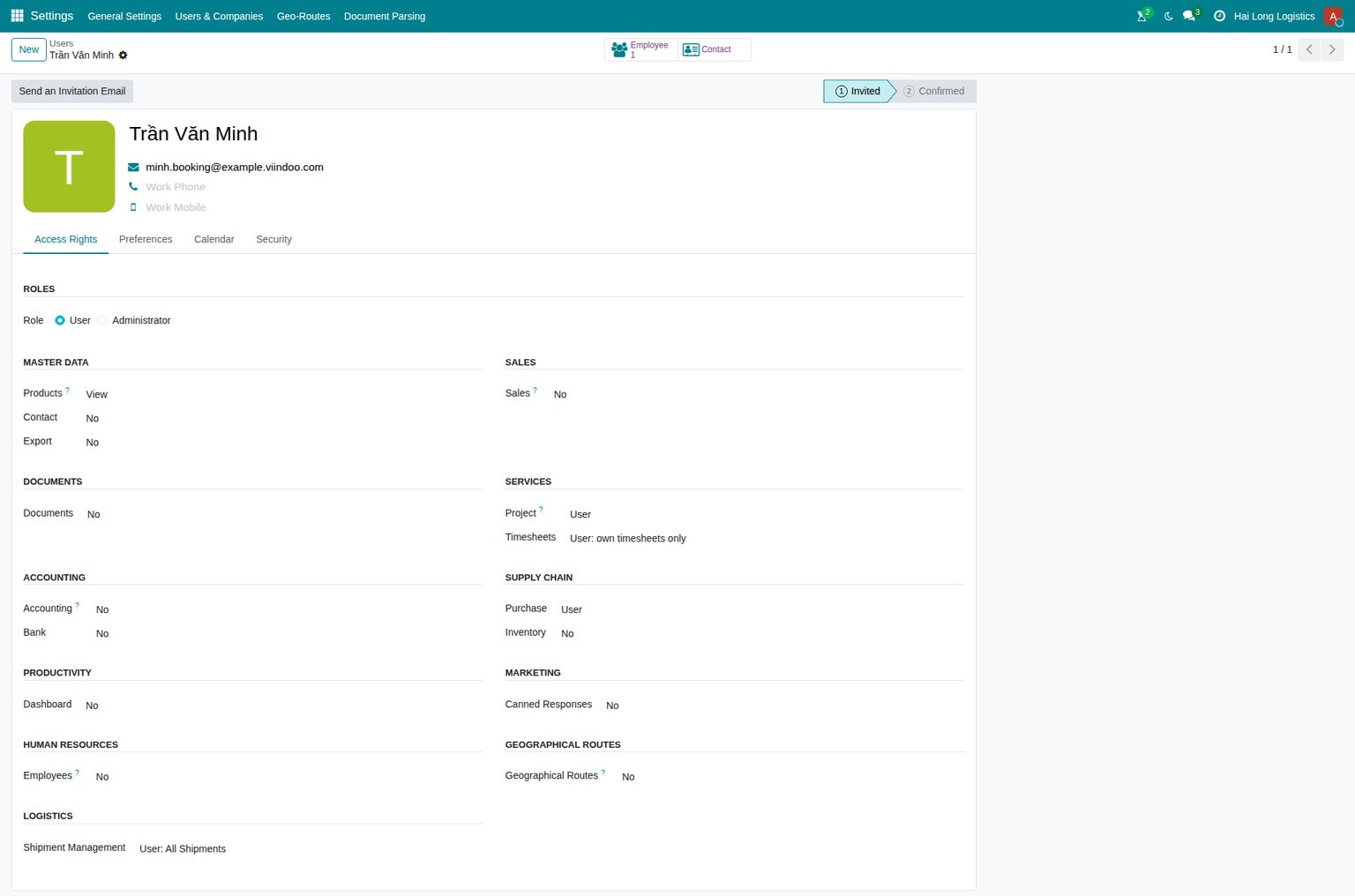
, tab Access Rights, section LOGISTICS, field Shipment Management |
Administrator, or automatic for a Salesperson (see the note below) |
User: All Shipments |
Everything Own Shipments sees, plus every other shipment, container, booking and charge in the company - and can create and edit them. Deletes the data inside any shipment, but not the shipment itself. |
same tab, section LOGISTICS, field Shipment Management |
Administrator |
Administrator |
Everything All Shipments sees, plus the only level that can delete a shipment itself and the only level that opens the Configuration menu. |
same tab, section LOGISTICS, field Shipment Management |
Administrator |
Portal |
Read-only for the customer. Sees only the shipments where they are the customer, at
|
Users & Companies, invited as a Portal user, not as an internal user |
An Administrator, who invites the customer |
Note
If a user is already a Salesperson in the Sales app, Logistics Sales Team grants them User: Own Shipments automatically. Lan needs no separate assignment for this reason - and removing her from the Logistics access levels alone does not remove this automatic grant; only removing her Salesperson role does.
What Own, All and Admin can do inside a shipment
The three internal levels differ in which shipments a user can change and what they can delete. The rule is the same on every page of this guide:
User: Own Shipments - A user creates shipments and becomes their Responsible. On a shipment where they are the Responsible, they edit and create all the data inside it: cargo, packages, legs, containers, stages, tracking, bookings, charges, house package lines and outturn reports. They also read the bookings of that shipment. On a shipment where they are only a follower or the customer, they read and cannot change anything. They cannot delete the shipment itself. With Freight Consolidation installed, the owner of a house shipment can also read the master shipment it travels under.
User: All Shipments - The same actions on every shipment in the company, whoever is Responsible, plus deleting the data inside any shipment (except a charge that is already on a document, below). Deleting the shipment itself stays with the Administrator.
Administrator - The only level that deletes a shipment itself.
A charge that is already carried by a customer invoice created directly from the charge, or by a vendor bill, cannot be deleted by anyone, Administrator included, even when that document is still a draft. The error message names the document and how to release the charge from it. A charge that sits only on a purchase order line (an RFQ) can still be deleted: the purchase order line is flagged and the shipment records a note.
The shared catalogs - shipment stages, tags, truck types, border crossings and vessel schedules - are read-only for User: Own Shipments and User: All Shipments; only the Administrator edits them.
Tip
The access levels are set correctly when: Minh (All Shipments) can click New on the Shipments menu and create a booking on any shipment, while Lan (Own Shipments) can also click New and save a shipment, but her Shipments list only ever shows the shipments where she is Responsible, a follower or the customer, and she can edit only the ones where she is Responsible.
Choosing the right level
Grant |
Use when |
Least-privilege starting point |
|---|---|---|
User: Own Shipments |
The person only needs to follow shipments they are already involved in, and never clicks a button on someone else’s shipment. |
|
User: All Shipments |
The person must act on shipments regardless of who is responsible for them - Minh booking, Hoa printing documents, Tuan reconciling charges. |
Assign only when the person’s duties require acting on shipments outside their own responsibility; this is a broader access level, so have the administrator confirm the scope before granting it. |
Administrator |
The person configures master data (ports, carriers, rate cards) or needs to read the Dashboard. |
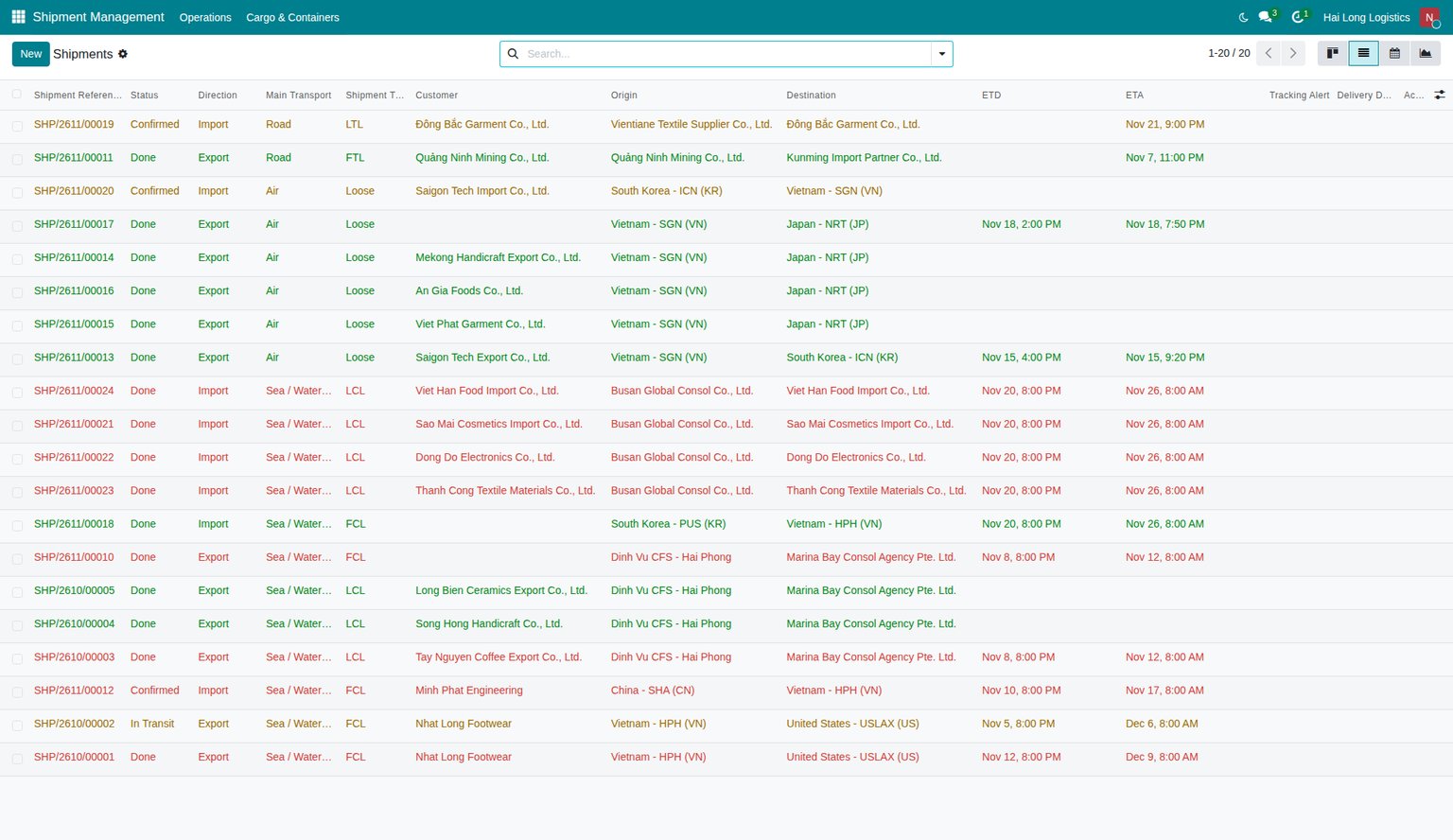
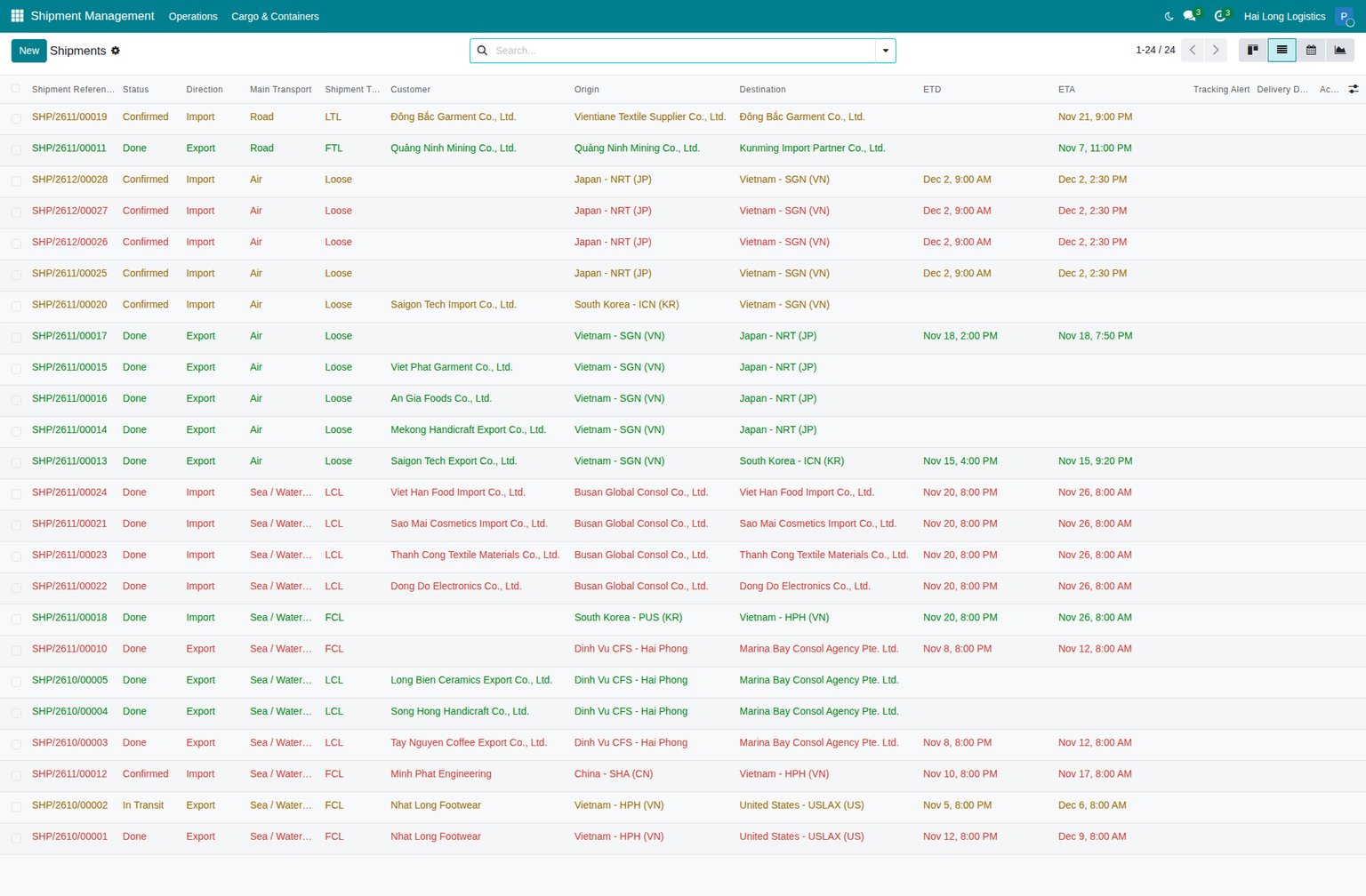
The first list below is the Shipments list as Lan sees it with User: Own Shipments: 20 shipments, only the rows where she is Responsible, a follower or the customer, without the master shipment and the house shipments of the consolidation. The second list is the same screen for Hoa with User: All Shipments: 24 shipments, every shipment of the company.
Where each level opens the Configuration menu
The Configuration menu is visible only to Administrator, in both the Shipment Management app and the Freight Forwarding app, and so are the Services menu of Freight Forwarding, where freight and local charge products are set up, and the Report menu of both apps. Minh and Lan therefore see neither Services, Report nor Configuration. Once you know who reaches Configuration, continue with Set up master data in the right order to enter master data in the right order.


Known limitations
What Viindoo does today |
What you do instead |
|---|---|
Own Shipments is the level that lets someone edit only the shipments they are responsible for. If they are not Responsible, they can only read the shipment. |
Give All Shipments only to people who must act on shipments they are not responsible for; everyone else works with Own Shipments and the shipments assigned to them. |
Troubleshooting
A new user does not see the Shipment Management app
Symptom: After logging in, the Shipment Management app icon does not appear on the Apps home screen.
Cause: The user has not been granted any Logistics access level yet, not even Own Shipments - the app’s root menu requires at least that level.
Fix:
Go to and open the user.
On the Access Rights tab, in the Shipment Management field of the LOGISTICS section, select at least User: Own Shipments.
Save, then ask the user to reload the page.
Lan cannot see the shipment from the order she just sold
Symptom: Lan creates and confirms a quotation, but the shipment it generates does not appear in her Shipments menu.
Cause: The shipment’s Responsible is filled from the Salesperson field on the sales order at confirmation, not from whoever confirmed it. If someone else is set as Salesperson on that order, the shipment belongs to them, and Lan - who only has Own Shipments - cannot see it.
Fix:
Check the Salesperson field on the sales order before confirming it, as a rule going forward.
For a shipment already created, ask someone with All Shipments, or the current Responsible, to open it and either change Responsible to Lan or add her as a follower. Lan cannot make this change herself, because the shipment is not hers yet.
Note
The Responsible field is visible on a draft shipment, so the person in charge can hand it over themselves. After the hand-over, they can only read that shipment. Do not change Responsible and add child lines (cargo, legs, charges) in the same save: an access error appears, so save the hand-over first.
Removing a user from All Shipments does not remove their access
Symptom: Duc removes a Sales user from User: All Shipments, but that user still reads shipments that are not theirs.
Cause: If the user is still a Salesperson in the Sales app, Logistics Sales Team grants them Own Shipments again automatically, and that alone is enough to read every shipment where they are a follower.
Fix:
On the user’s Access Rights tab, under Sales, remove the Salesperson role if they no longer need it, instead of only removing the Logistics access level.
Otherwise, remove the user from the follower list of the shipments that are not theirs, on each shipment’s chatter.
See also
Related articles
Optional modules