
How to set discounts and price formulas with pricelist rules
A pricelist rule tells Viindoo how to compute the price of a product or category: a Fixed Price, a Discount in percent, or a Formula based on the sales price, the cost or another pricelist (with rounding and an extra fee). Add the rules in Sales ‣ Products ‣ Pricelists, then give the pricelist to a customer or choose it on a quotation; Viindoo computes the price of each line from the matching rule.
Who |
A Sales administrator creates rules; salespeople apply pricelists on quotations. |
App |
Sales |
Before you start
Set the Sales Price, and the Cost if you price from the cost, on the products.
How do I add a rule to a pricelist?
Go to Sales ‣ Products ‣ Pricelists, open the pricelist and click Add a line on the Sales Prices tab. The Create Pricelist Rules window opens.
In Apply To, choose Product and select a product (and a variant if the product has several), or choose Category and select a product category. Leave the product or category empty to apply the rule to all products.
Choose the Price Type and fill in its values (see Which price type should I choose?).
If needed, set Min Qty (the rule applies from this quantity) and the Validity Period.
Click Save & Close.
Which price type should I choose?
Fixed Price
The product is sold at the price you type, whatever its sales price.
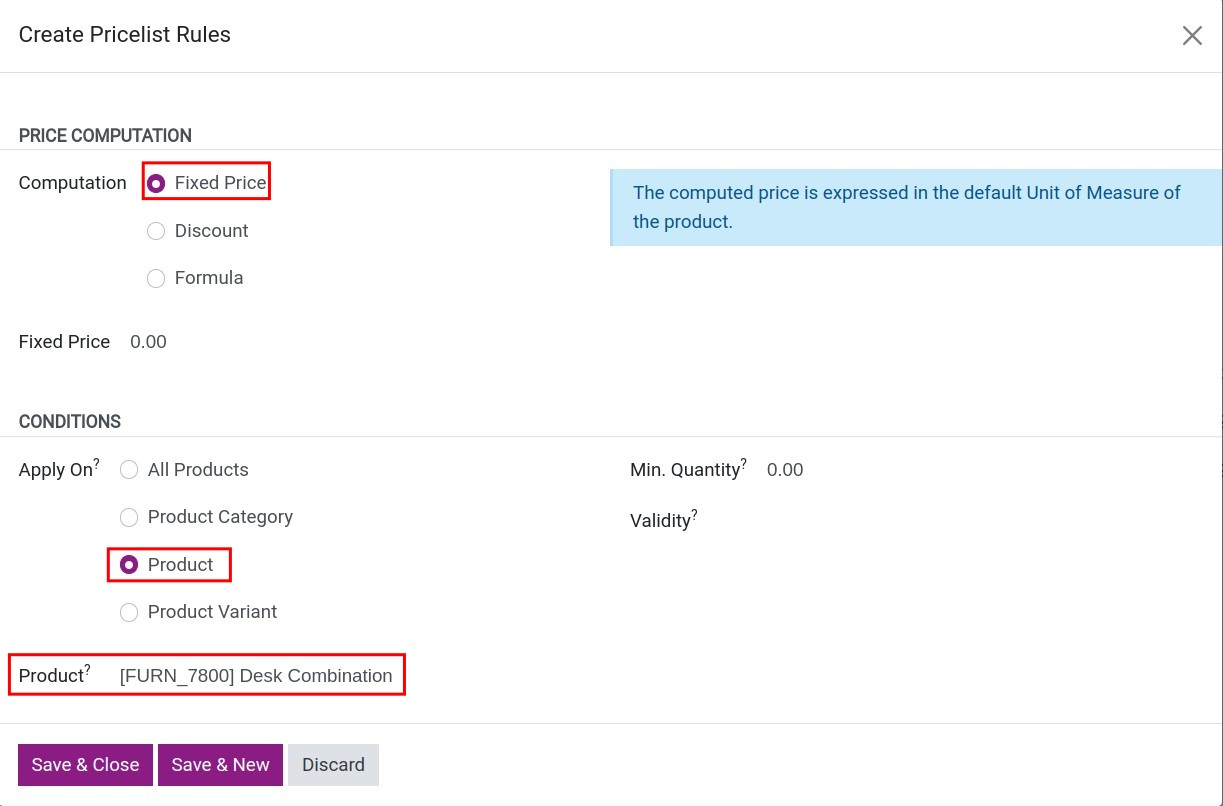
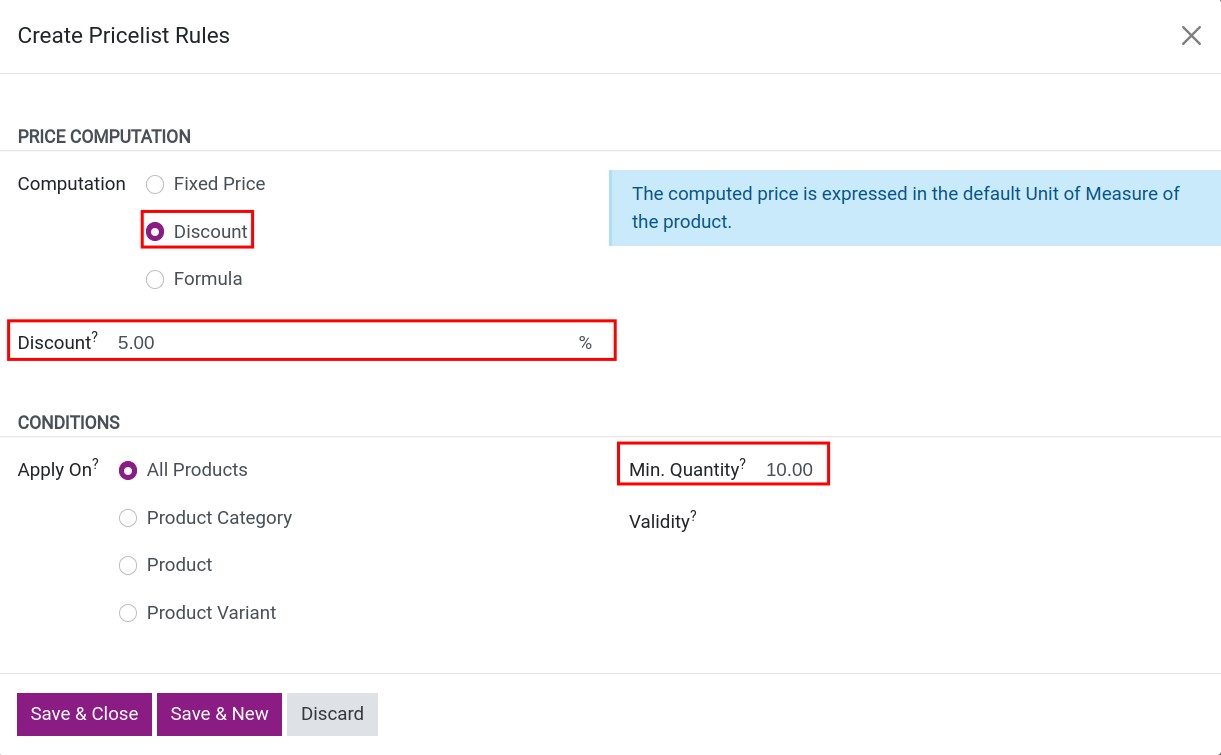
Discount
The price is lowered by a percentage of the sales price, or of the price in another pricelist if you select one after on. For example, 5% off all products from 10 units. Type a negative percentage to raise the price.
If Discounts is ticked in Sales ‣ Configuration ‣ Settings, the quotation line shows the sales price and the discount percentage instead of the reduced price.
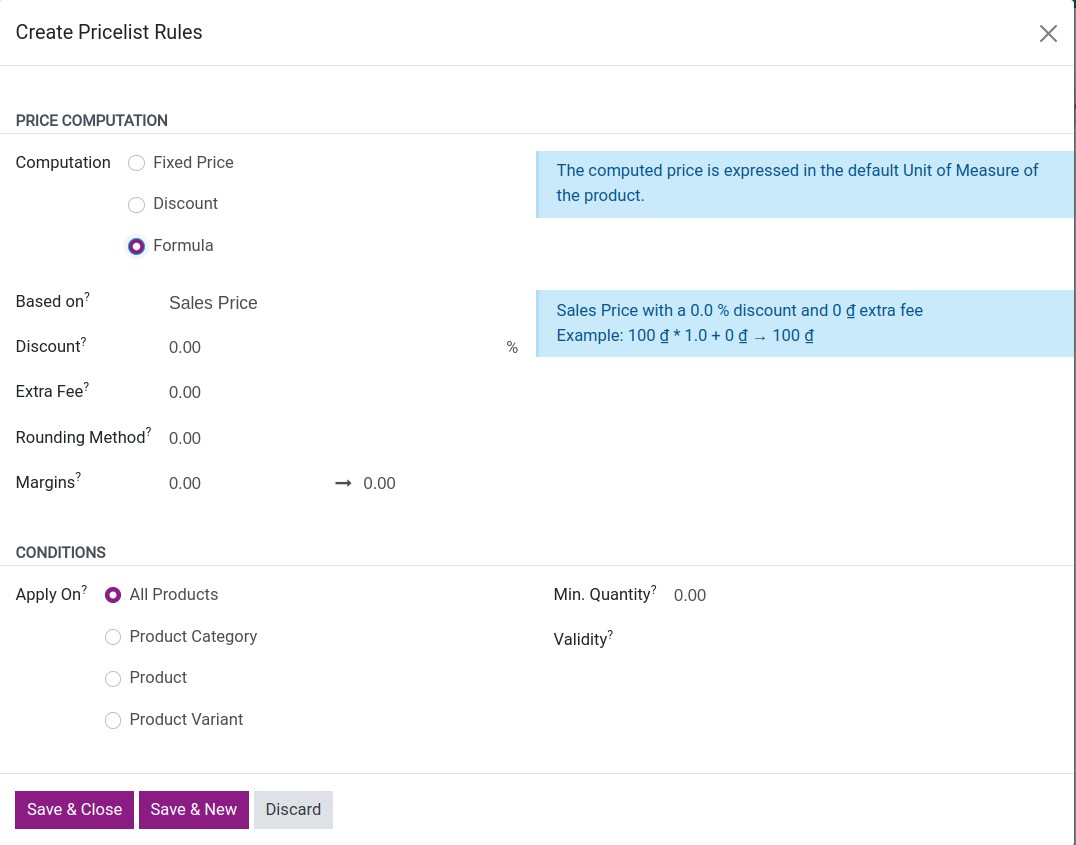
Formula
Use it for prices computed from the cost or from another pricelist.
Field |
What it does |
|---|---|
Based price |
The starting price: Sales Price, Cost, or Other Pricelist (then choose it). |
Discount / Markup |
A percentage removed from the based price (Discount), or added to the cost when the based price is Cost (Markup). A negative discount raises the price. |
Round off to |
The price becomes a multiple of this value, for example 1,000. Applied after the discount and before the extra fee. 0 means no rounding. |
Extra Fee |
A fixed amount added after rounding; a negative amount is subtracted. |
Min. Margin / Max. Margin |
Shown in developer mode. The price stays between based price + Min. Margin and based price + Max. Margin. 0 means no limit. |
The price is computed in this order: based price - Discount (or + Markup), then Round off to, then + Extra Fee, then the margins.
Example: the sales price is 300,000, Round off to is 1,000, Extra Fee is 35,000, Min. Margin is 50,000 and Max. Margin is 100,000. The formula gives 335,000, which is below 300,000 + 50,000, so the quotation shows 350,000. With an extra fee of 110,000 the formula gives 410,000, above 300,000 + 100,000, so the quotation shows 400,000.
Tip
To end prices in 9,999, round off to 10,000 and set an Extra Fee of -1.
How do I apply a pricelist to a customer or a quotation?
Give a customer a default pricelist
Open the customer in Sales ‣ Orders ‣ Customers (or in Contacts).
On the Sales & Purchase tab, choose the Pricelist and save.
![Pricelist field on the Sales and Purchase tab of a customer]()
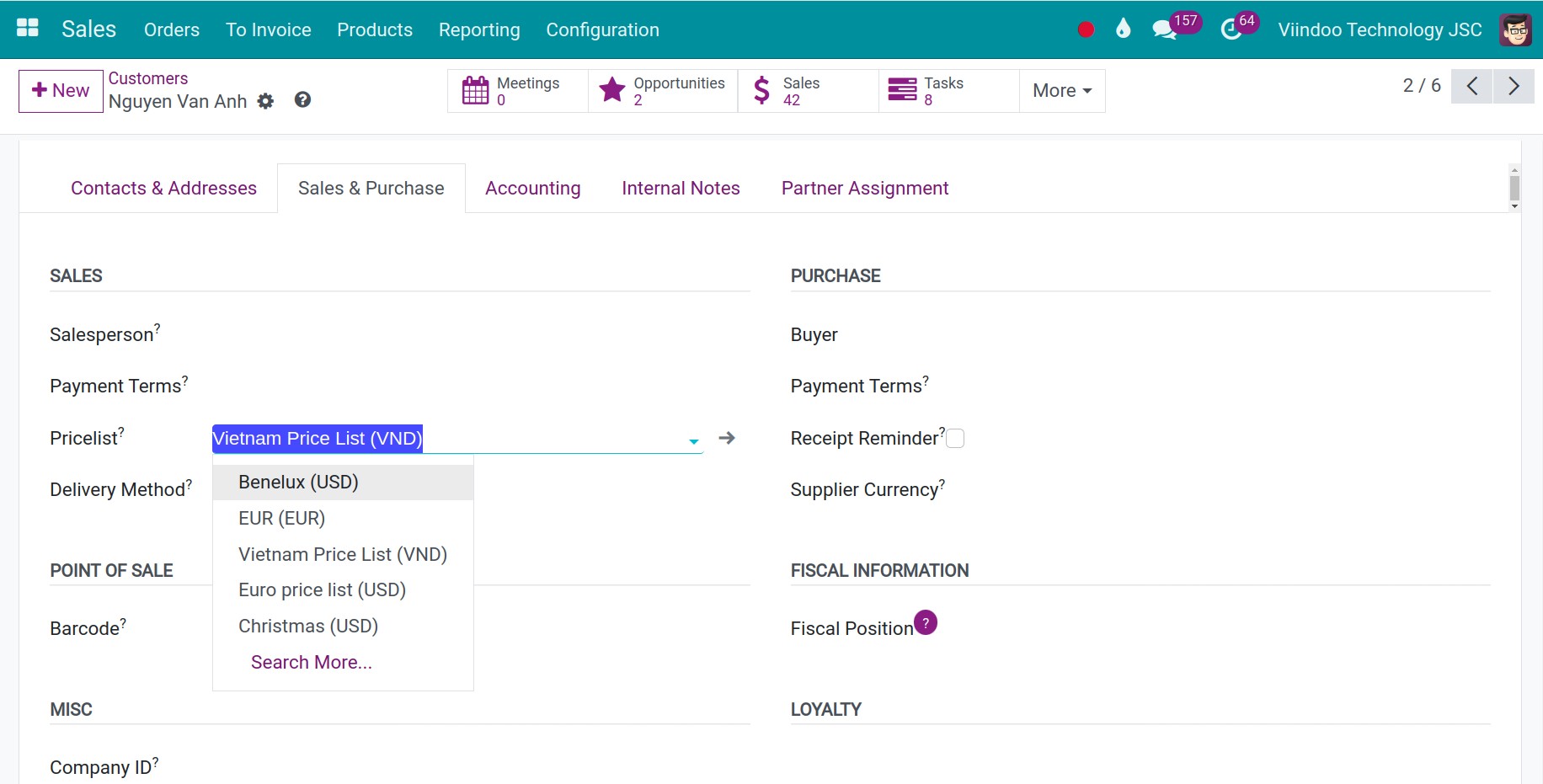
Contact persons use the pricelist of their company: set it on the company. New quotations for this customer now use this pricelist automatically.
Change the pricelist of a quotation
On the quotation, choose another Pricelist.
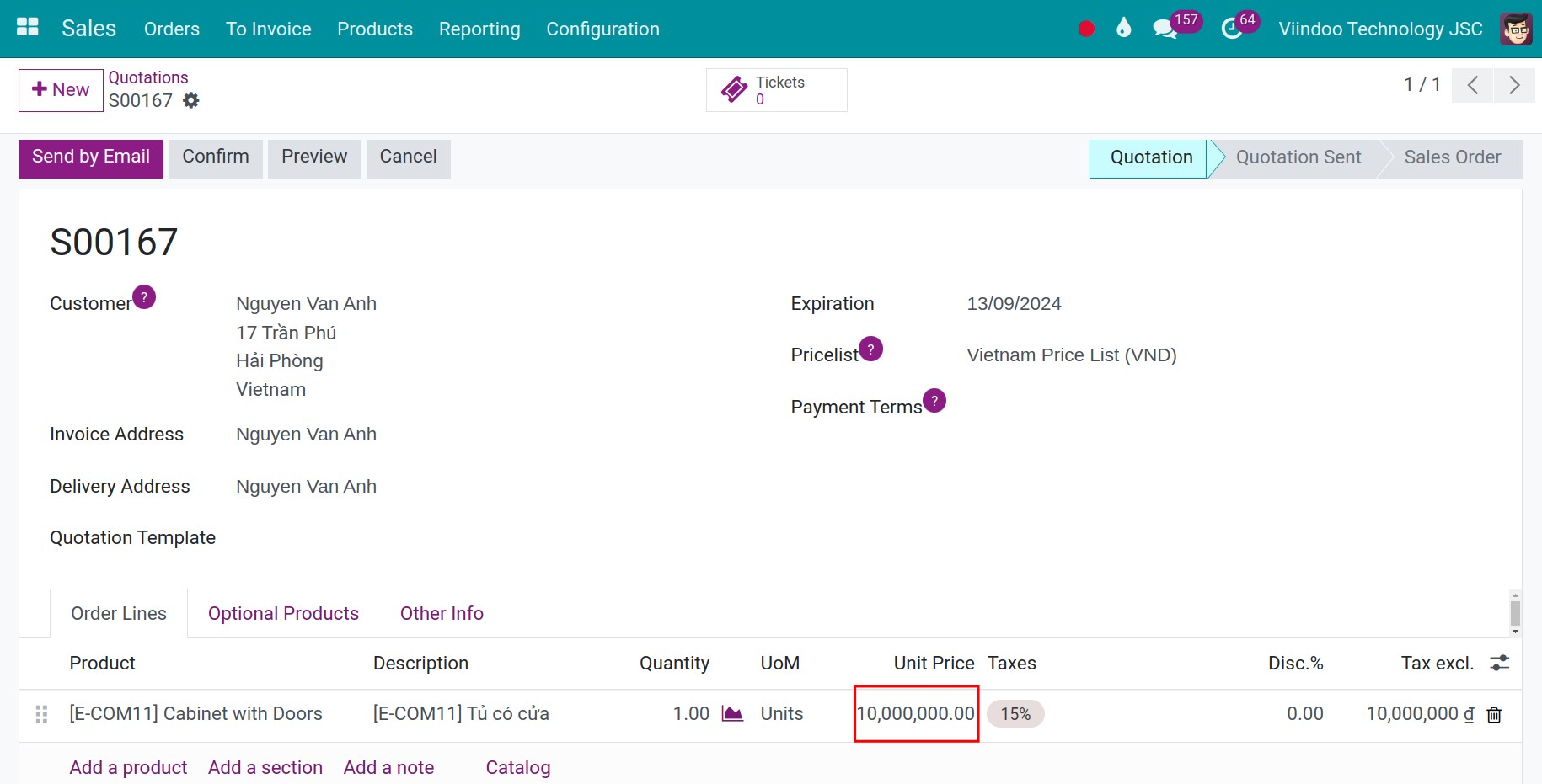
Click Update Prices next to the field, then Ok to recompute every line.
![Pricelist field and Update Prices button on a Viindoo quotation]()
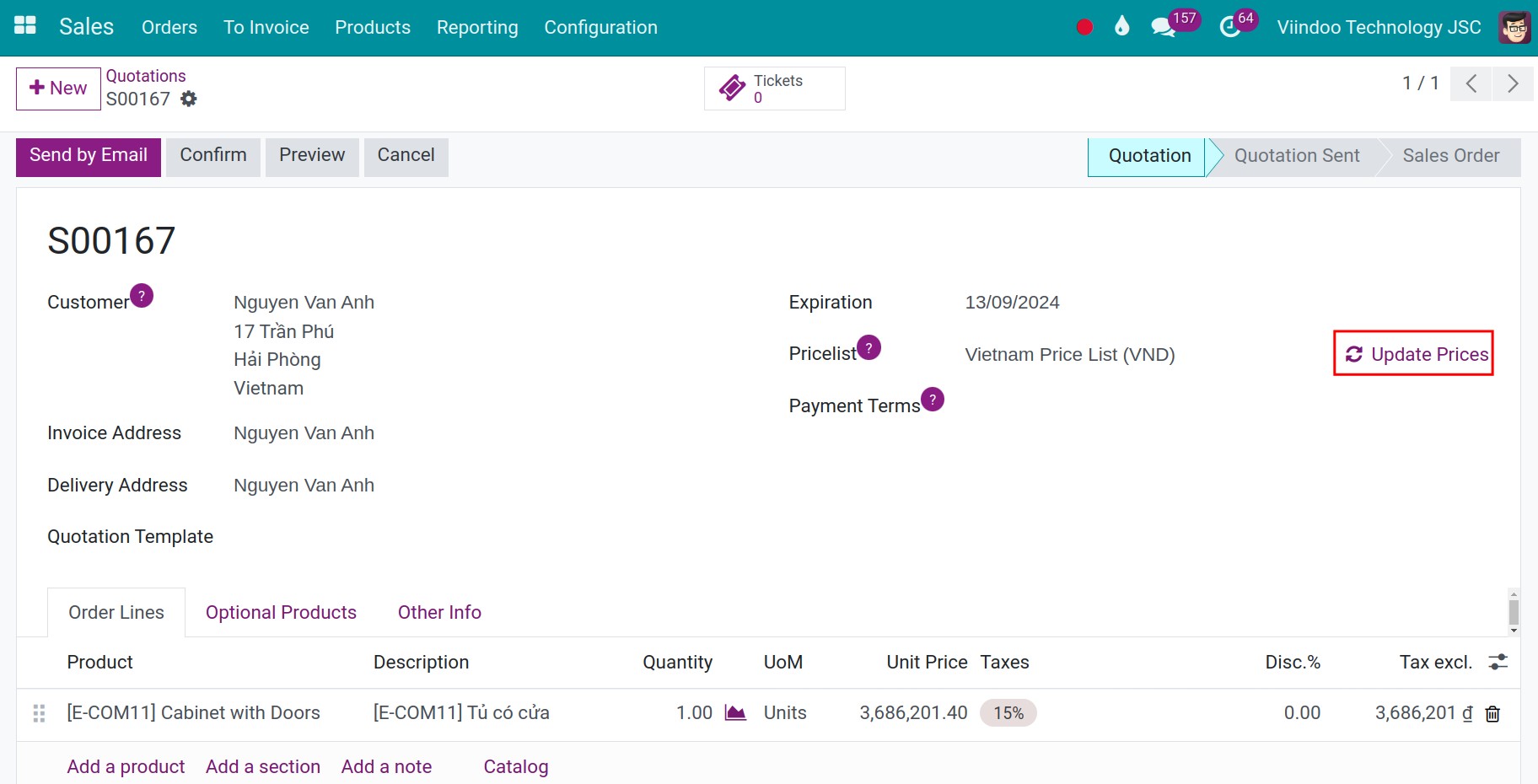
The chatter of the quotation logs Product prices have been recomputed according to pricelist … and each line shows the price from the new pricelist.
Common errors
Message or symptom |
What to do |
|---|---|
Please specify the category for which this rule should be applied |
Apply To is Category but no category is selected. |
A pricelist item with “Other Pricelist” as base must have a base_pricelist_id. |
Based price is Other Pricelist: choose the pricelist to start from. |
The minimum margin should be lower than the maximum margin. |
Lower Min. Margin or raise Max. Margin. |
You cannot delete pricelist(s): … They are used within pricelist(s): … |
Another pricelist is based on this one. Change those rules first. |
The price did not change on the quotation. |
Click Update Prices: changing the pricelist does not update lines already entered. |
Next steps
How to sell in a foreign currency: a pricelist in another currency.
How to create a quotation and confirm a sales order: create and send the quotation.