
Process of vendor invoicing, payment and reconciliation
Each vendor has its own pricing, invoicing, and payment policies. With the Viindoo system, you can not only set up various purchasing prices from different vendors but also proceed with the payment more effectively (not too late or too soon from the payment deadline). Besides, the Viindoo Accounting app also provides tools that help you keep track of the Aged payables to the vendor.
Requirements
This tutorial requires the installation of the following applications/modules:
Create a Vendor bill
When you receive a vendor bill, record it by going to Accounting ‣ Vendors ‣ Bills ‣ New, or directly from Accounting ‣ Dashboard ‣ Purchases ‣ New. For more details, read the article How to create and manage vendor bills.
Confirm Vendor bill
When you click Confirm, the bill is posted and all the journal entries related to it are recorded. To view them, open the Journal Items tab of the bill:

Then, you can check the reports on Profit and Loss , Balance Sheet , and Trial Balance to see how these journal items affect the accounting data.
Create Payment
On a posted bill, the Pay, Credit Note and Reset to Draft buttons are available. Create a payment directly on the bill by clicking Pay:

In the Pay window, review the Journal, Payment Method, Recipient Bank Account, Amount, Payment Date and Memo, then click Create Payment:

The payment is created in the In Process status and is already linked to the bill. When the payment is matched with a bank statement line, its status changes to Paid.
See also
Register bank statement & payment reconciliation
With Viindoo, you can register bank statements manually or import them in bulk from CSV or RJE files: use Import Statement on the Bank card of the Accounting ‣ Dashboard. Refer to the article Manage bank statement.
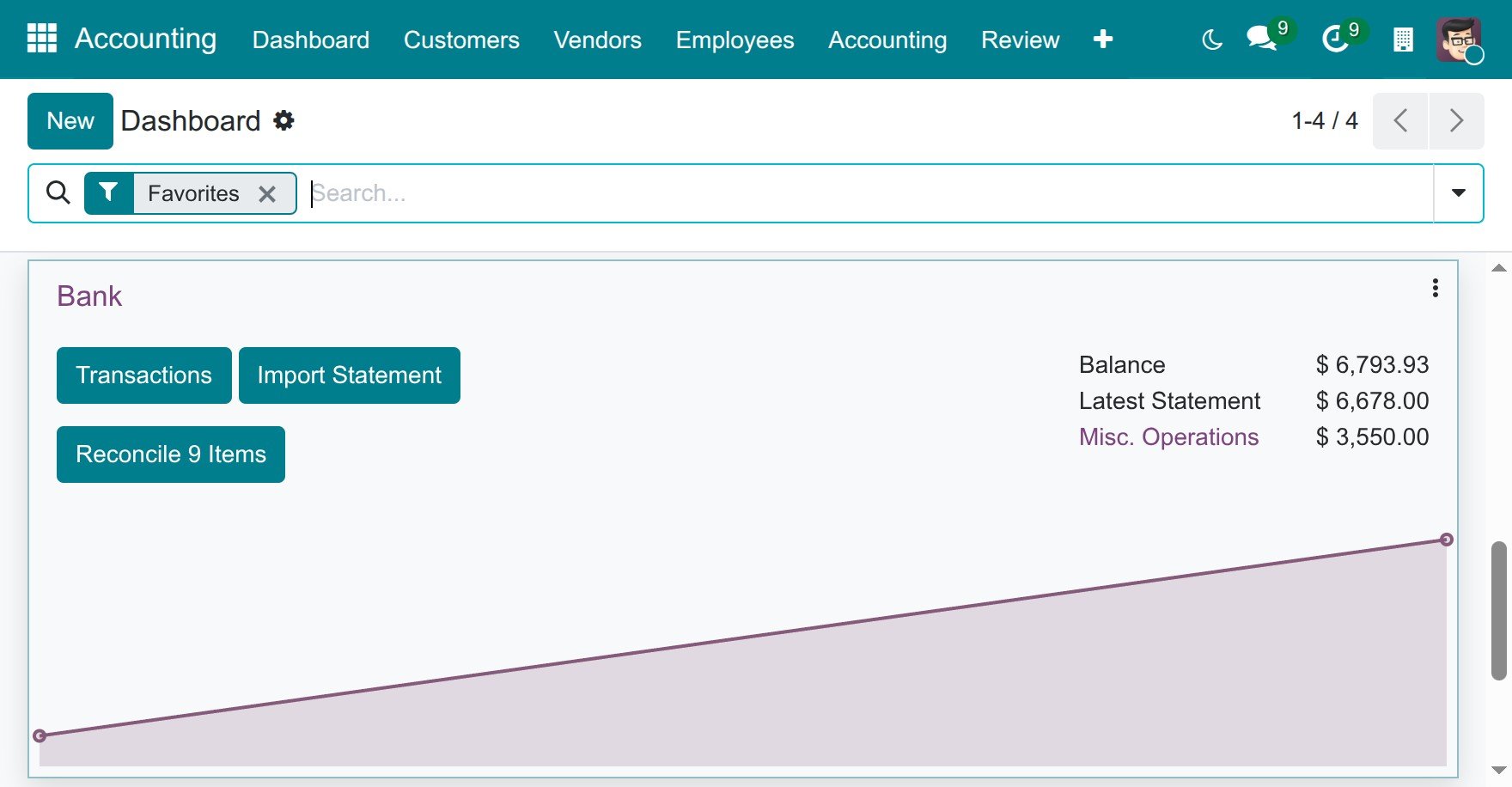
Once everything is done, click Reconcile on the same card to reconcile the money paid with the bank statement lines:

Accounts Payable Reports
To keep track of what you owe and when it is due, check the Partner Ledger report or the Aged Payable report by navigating to Accounting ‣ Reporting ‣ Partner Reports ‣ Partner Ledger or Accounting ‣ Reporting ‣ Partner Reports ‣ Aged Payable:
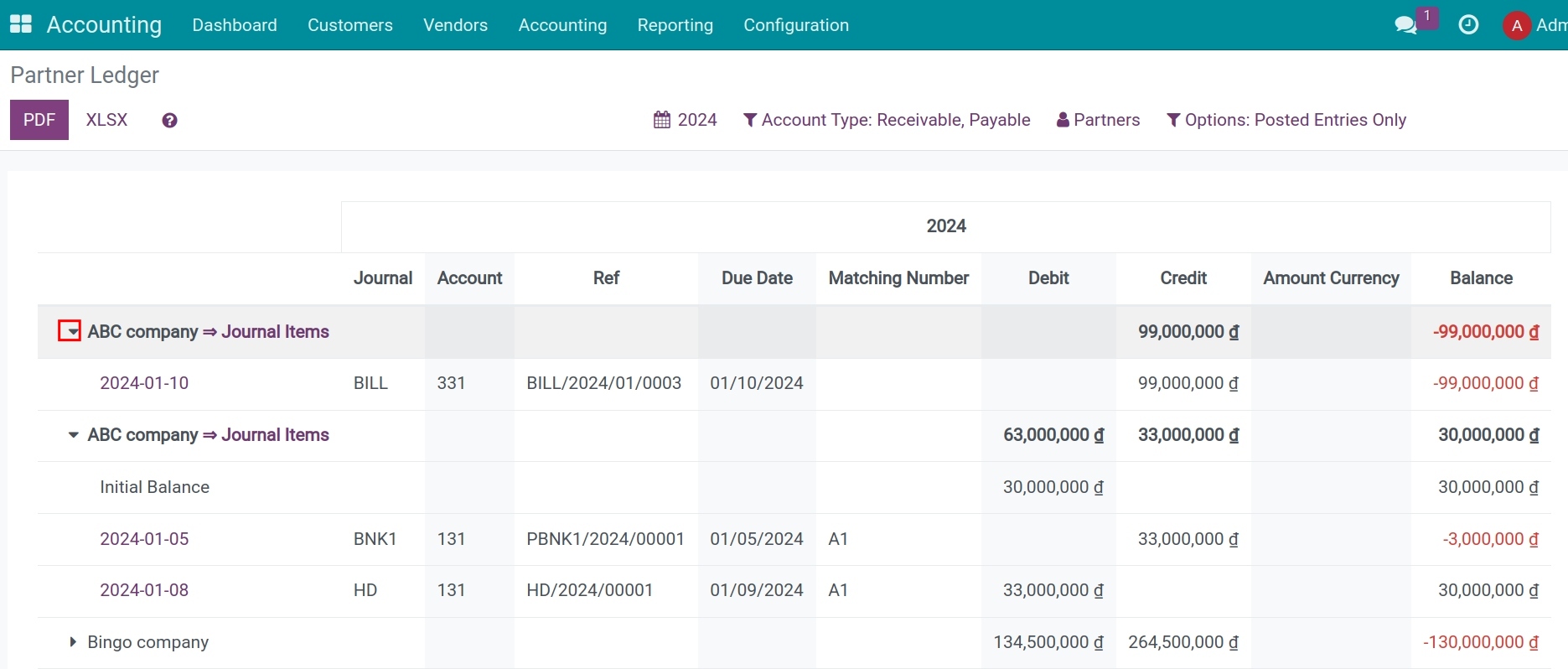
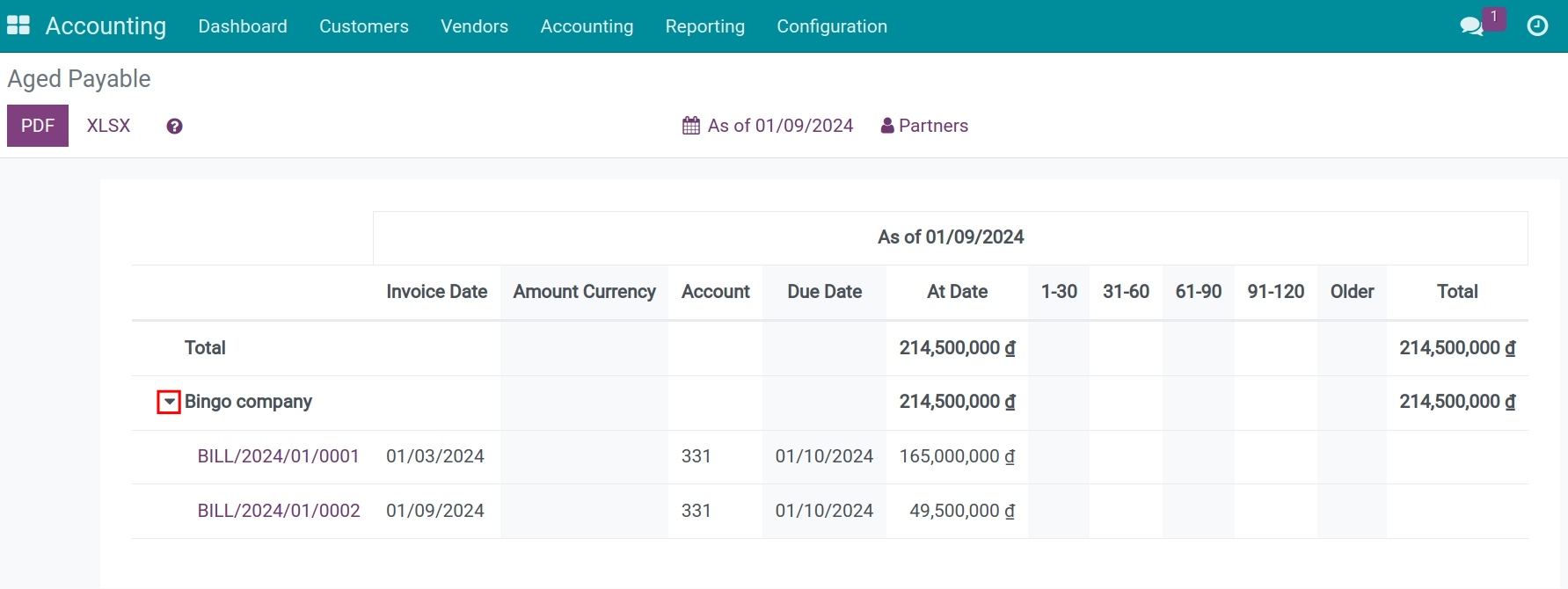
On each report, expand a vendor to see the journal items attached to that vendor’s payable. You can also print the reports in PDF or export them to Excel.
See also
Related Article
Optional Module