
How to print receipts on an Epson ePOS printer without an IoT box
An Epson receipt printer that sits on the same local network as the register can print the receipts of a shop directly from the browser. The register sends the receipt to the printer address you enter in the settings of the shop, so you need no IoT Box. You can also let the printer open the cash drawer that is connected to it.
Who |
Shop managers with the Point of Sale ‣ Administrator access right, who set up the shop. Cashiers then print receipts as usual. |
App |
Point of Sale |
Before you start
The printer is connected to the local network, and the computer or tablet that runs the register is on the same network. The printer cannot be reached from another network.
On the printer, which you set up with the tools of its manufacturer and not in Viindoo, note its IP address, and check that its ePOS-Print service is on and that its Device ID is local_printer.
If the printer has an Automatic Certificate Update option and you turn it on, you can use the serial number of the printer instead of its IP address.
How do I connect the printer to a shop?
Go to Point of Sale ‣ Configuration ‣ Settings and choose the shop in the Point of Sale field at the top.
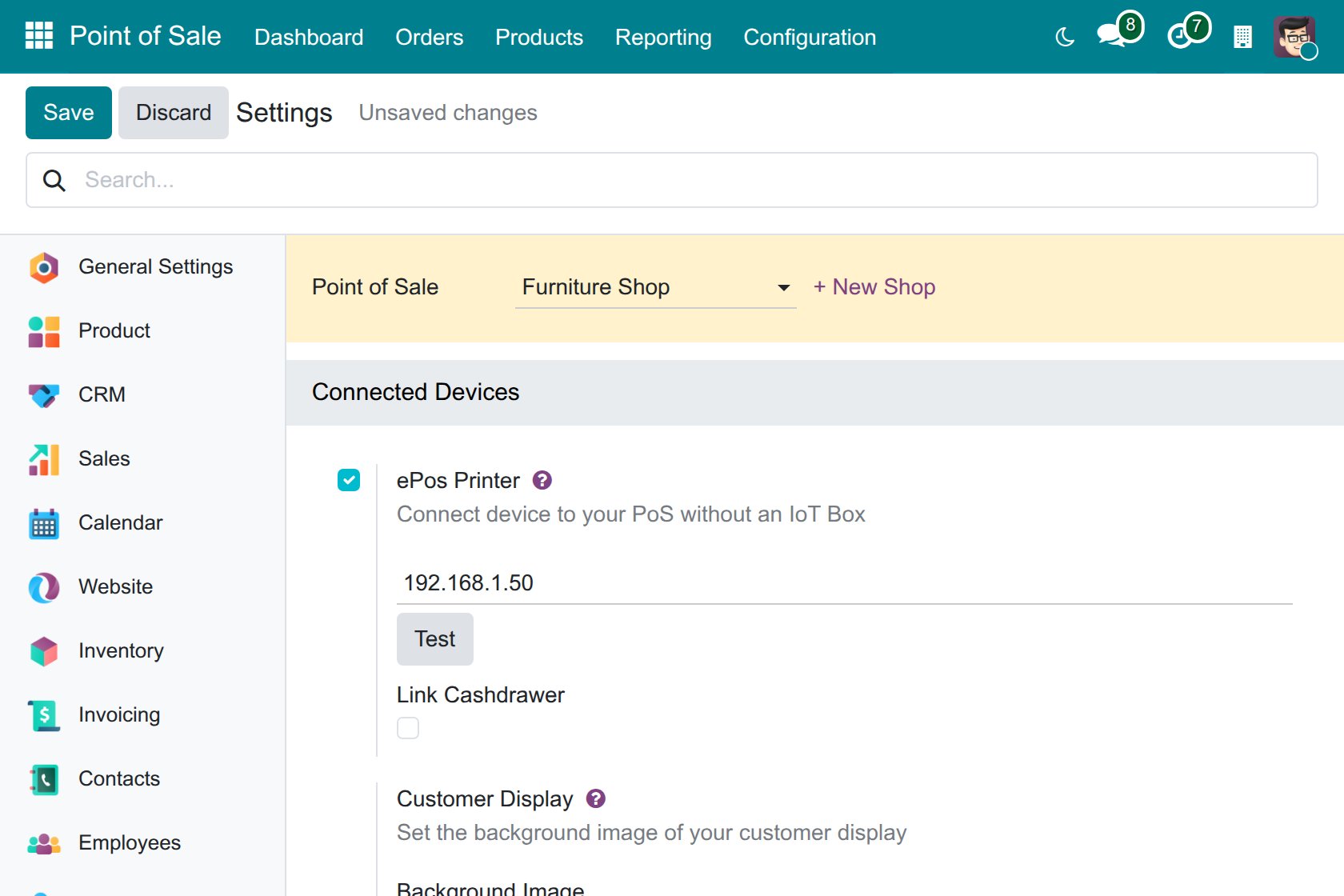
In the Connected Devices section, check ePos Printer.
In the field that appears, type the IP address of the printer, for example 192.168.1.50. If you turn on Automatic Certificate Update on the printer, type its serial number: Viindoo turns it into the domain name of the printer when you leave the field.
Click Test. The printer prints a test receipt and Viindoo confirms it. When the test fails, a message tells why, see Common problems below.
![The ePos Printer setting with the printer address and the Test button]()
To open the cash drawer from the printer, check Link Cashdrawer. This option appears once the printer address is filled in.
Click Save.
Note
When the shop also uses an IoT Box, a warning says that the Epson printer replaces the receipt printer of the IoT Box.
How do I print a receipt?
Open the register of the shop. The receipts are printed on the Epson printer: print a receipt from the receipt screen of an order, or let the register print it as soon as the payment is registered, see Manage PoS Bill. With Link Cashdrawer, the printer opens the cash drawer when an order is paid in cash or when the register gives change, and the payment screen shows an Open Cashbox button.
Common problems
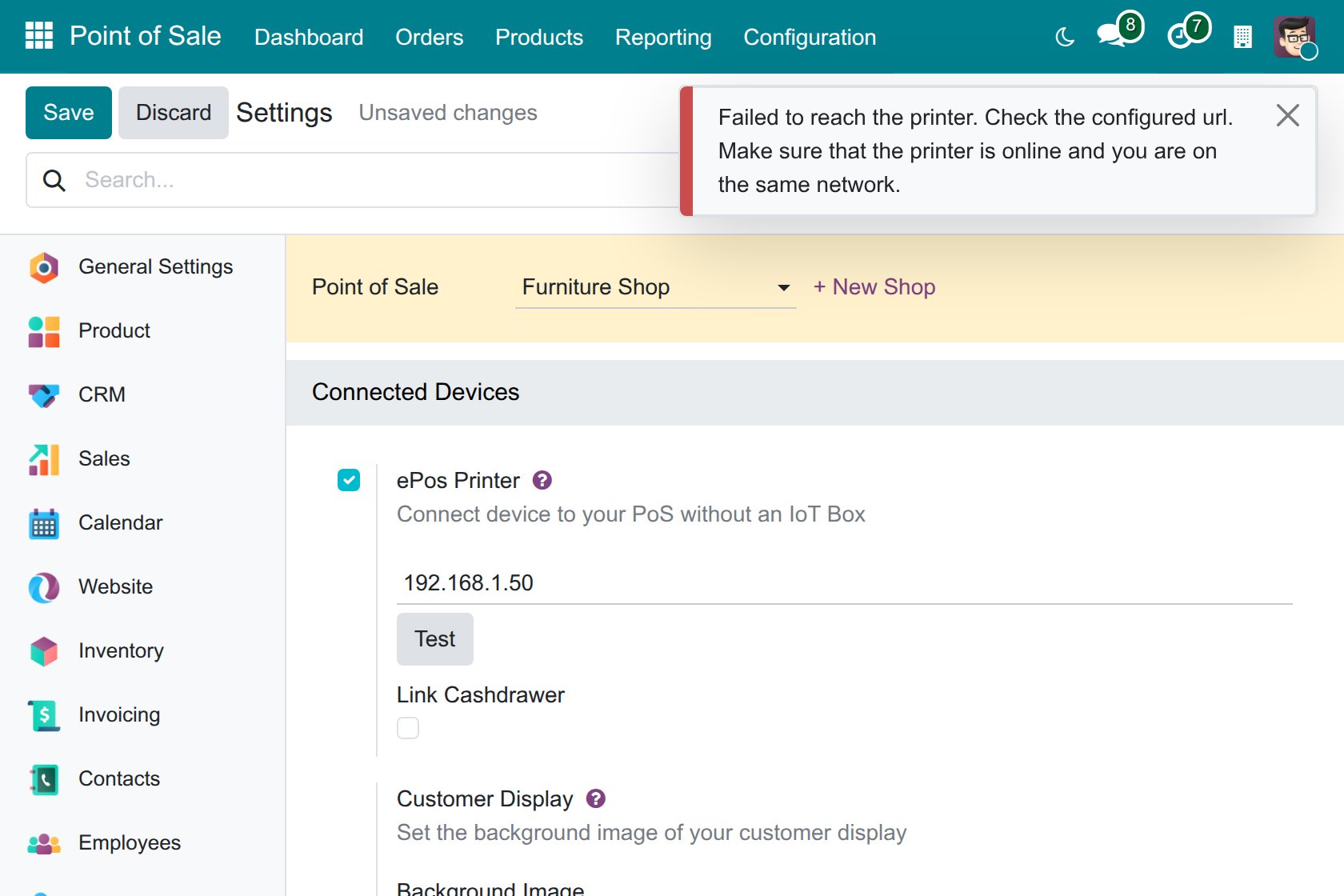
When you click Test and the printer does not answer, Viindoo shows a message.
Message |
What to do |
|---|---|
Failed to reach the printer. Check the configured url. Make sure that the printer is online and you are on the same network. |
Check the printer address, that the printer is on and that the register runs on the same local network. |
Please configure a valid ePoS url in order to test the printer |
Type the printer address before you click Test. |
Printer cover is open, or The paper is empty |
Close the cover or load a roll of paper, then print again. |
Check the printer configuration for the ‘Device ID’ setting. |
Set the Device ID of the ePOS-Print service of the printer to local_printer. |
Local Network Access permission is not yet granted or is denied |
Allow the access to the local network for the Viindoo website in the settings of your browser. Use a browser based on Chromium. |
Printing failed with the message The printer is not reachable. |
The printer went offline: check its power and its network connection, then print again. |
Next steps
Customize the receipt: Manage PoS Bill.
Count the cash of the drawer: Advanced Cash Control: Setting up and Managing.