
How to create and approve a Recruitment request
When a department needs new people, create a recruitment request in Recruitment: go to Recruitment ‣ Recruitment Approvals ‣ Approval Request, click Create Request, fill in the position and the number of people you need, then click Submit. The approvers receive a task to approve it. Once the request is approved, Viindoo raises the target of that job position so the recruiter can start receiving applications.
Who |
Any employee can create a request. The employee’s direct manager (a user with the Approvals access right) approves it. Setting up the approval type needs the Approvals ‣ Administrator access right. |
App |
Recruitment, with Approvals |
Before you start
Install the Recruitment app. See Getting started with Recruitment in Viindoo.
Make sure the requesting employee has a department and a direct manager, and that the manager has a user account.
Create the job position you want to recruit for.
How do I turn on recruitment requests?
Go to Recruitment ‣ Configuration ‣ Settings.
In Recruitment Add-ons, tick Recruitment Requests/Approvals.
![The Recruitment Requests/Approvals option in the Recruitment settings]()
Click Save. Viindoo installs the Recruitment Approvals module and the Approvals app, adds the Recruitment Approvals menu to Recruitment and creates an approval type named Recruitment.

How do I choose who approves recruitment requests?
The approval type Recruitment decides who must approve and in which order. Viindoo creates it for you; change it only if your approval rule is different.
Go to Approvals ‣ Configuration ‣ Approval Types and open Recruitment.
![The Recruitment approval type in the list of approval types]()
In the Approval Process tab, set the approval rules.
![Approval Process tab of the Recruitment approval type]()
In Additional Approval Steps, add the people who approve after the manager. By default the Administrator user is a required approver.
![List of additional approvers of the Recruitment approval type]()


Which settings matter?
Field |
What it does |
If it is wrong |
|---|---|---|
Manager Approval |
Required: the employee’s direct manager must approve first. Optional: the manager may approve but is not needed. None: the manager is not involved. |
With Required, a request cannot be submitted when the employee has no department or direct manager, or the manager has no user. |
Sequential Approvals |
Approvers are asked one after another, in the order of the list. |
Left off, all approvers can approve at the same time. |
Days to Approve |
Used to compute the Deadline of each request. |
Too short a time gives deadlines that are already late. |
Minimum Approvals |
The number of approvals needed before the request becomes Approved. |
A number higher than the number of approvers means the request can never be approved. |
Additional Approval Steps |
Extra approvers: specific users, a job position, a department or an employee tag. Tick Required to make a step compulsory. |
Only users with the Approvals ‣ Officer access right can be chosen as specific approvers. |
How do I create a recruitment request?
Go to Recruitment ‣ Recruitment Approvals ‣ Approval Request and click Create Request on the Recruitment card.
![The Create Request button on the Recruitment approval type card]()
Fill in the request.
![A recruitment request in Draft status with the position, date and number of employees]()
Click Submit. The status changes from Draft to To Approve and the approver gets a scheduled task.
![The Submit button of a recruitment request in Draft status]()


Which fields do I fill in?
Field |
What it does |
If it is wrong |
|---|---|---|
Title |
Name of the request, for example Hire a marketing and community manager. |
A vague title makes it hard to find the request later. |
Employee |
The person who asks. Filled with you; the approvers are found from this employee. |
The wrong employee sends the request to the wrong manager. |
Demand Department |
The department that needs the new people. |
Tells the approvers which team the request is for. |
Requested Position |
The job position to recruit. Required. |
Applications of this position are linked to the request once it is approved. |
Date Expected |
The date by when you want the new employees. Starts one month from today. |
Only informs the recruiter. |
Expected Employees |
The number of people to recruit. Starts at 1. |
Becomes the target of the position when the request is approved. |
Deadline and Minimum Approvals |
Filled from the approval type. |
Change them in the approval type, not in the request. |
Job Requirements and Job Description |
Describe the position for the approvers. Both are required. |
Empty fields stop you from submitting. |
How does the approver approve a request?
The approver opens the task, or goes to Recruitment ‣ Recruitment Approvals ‣ Approval Request, opens the request and clicks Approve. Click Refuse to turn it down.
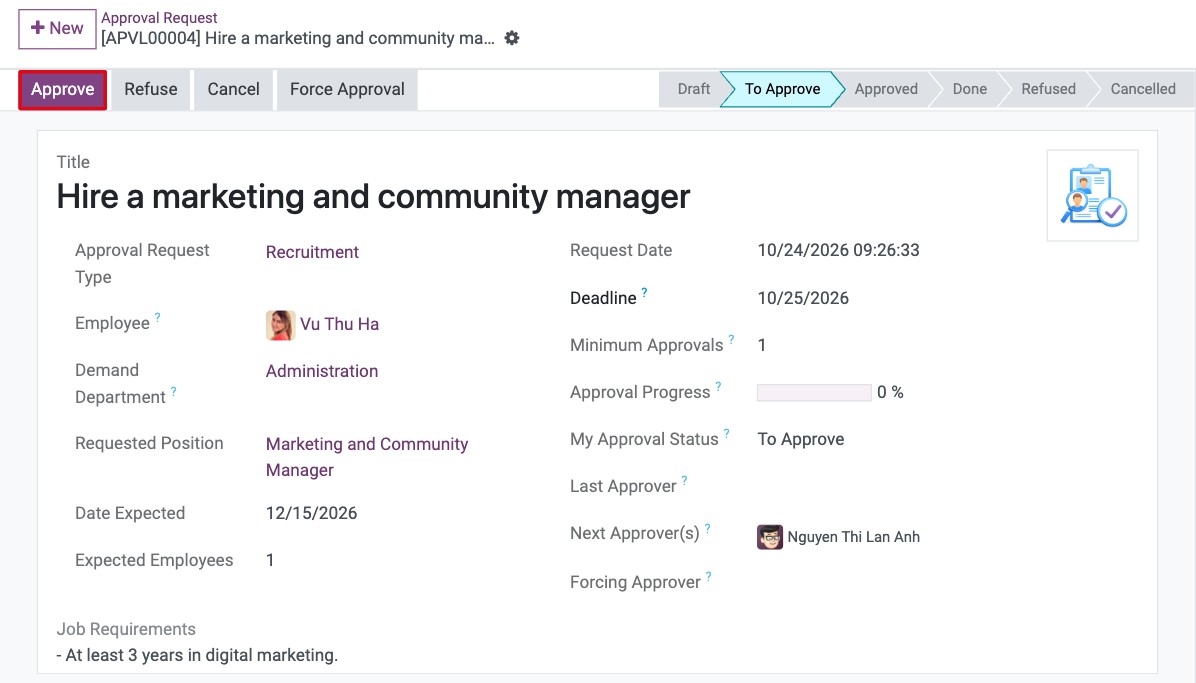
Force Approval: a user with the Approvals ‣ Administrator access right can approve at once, without waiting for the other approvers. Viindoo records who did it.
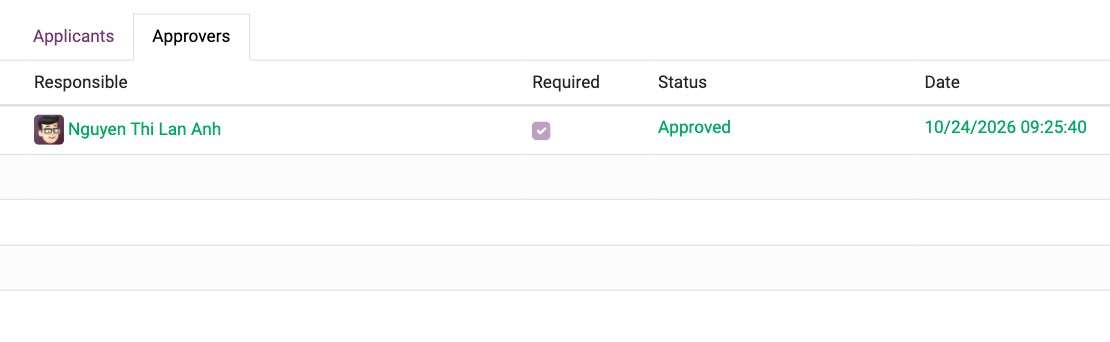
Approval Progress shows the share of required approvals already given. The Approvers tab lists each approver, whether the step is required, the status and the date.
What happens after the request is approved?
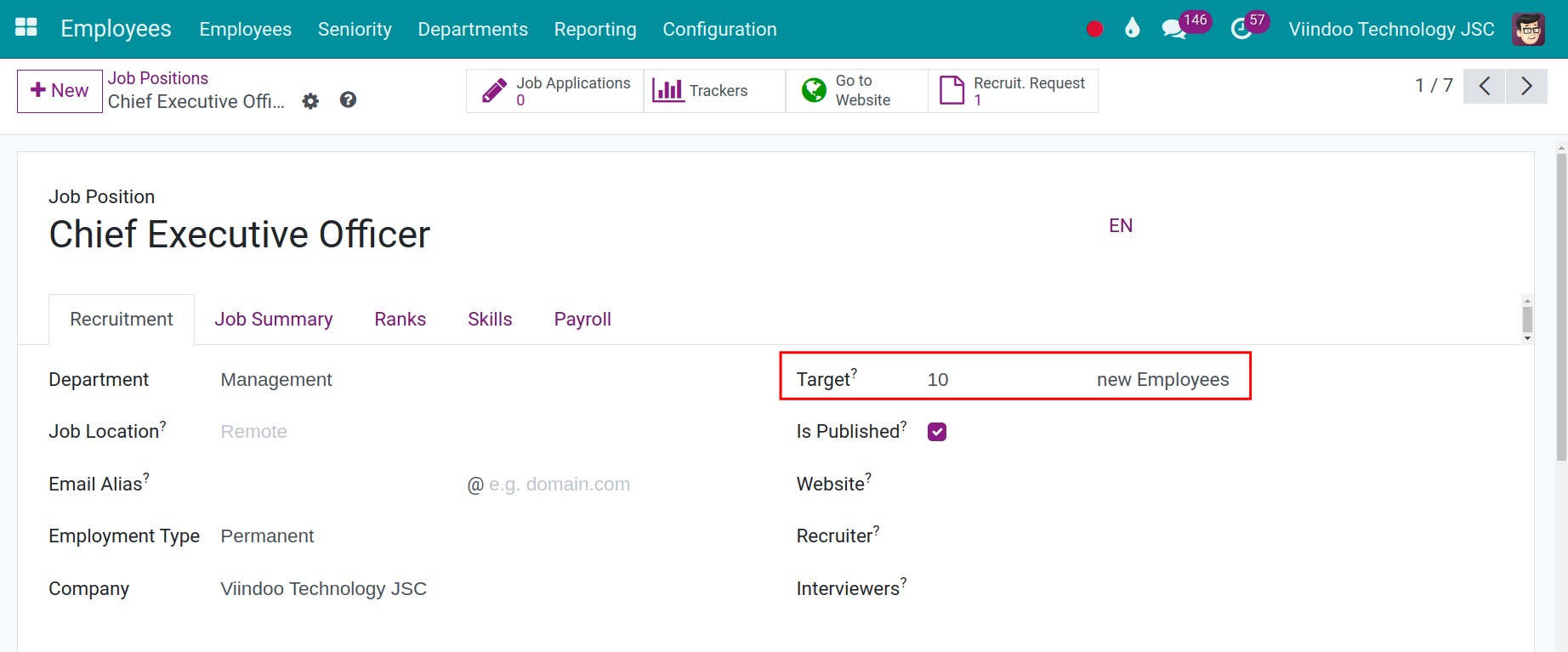
The To Recruit target of the job position is raised to the Expected Employees of the approved requests, if it was lower. Open the position in Recruitment ‣ Applications ‣ By Job Positions ‣ Configuration to see it. The Recruit. Request button counts the requests of the position.
![Recruit. Request button on the job position form]()
The recruitment team receives applications for the position. The Applicants tab of the request lists them and shows how many were hired against the number you asked for.
![Applicants tab of an approved request with the recruited employees rate]()
Each application of that position shows the request in Details ‣ Sourcing ‣ Recruitment Request.
![The Recruitment Request field on the Details tab of an application]()


What do the statuses mean?
Status |
Meaning |
|---|---|
Draft |
The request is being written; nobody has been asked yet. |
To Approve |
Submitted; waiting for the approvers. |
Approved |
Enough approvals were given. The position target is updated. |
Done |
The request is closed. |
Refused |
An approver turned it down. |
Cancelled |
The request was cancelled. |
Common errors
Message |
What to do |
|---|---|
A recruitment request (e.g., …) already exists and is still being processed for this job position. |
Only one request per position can be in the same status at a time. Finish or cancel the earlier request, or ask for a different position. |
Approval request is invalid due to missing required information: Employee linked to the requester, Department, Direct Manager. |
Complete the employee’s department and direct manager in Employees, then submit again. |
Please select an existing job or contact your administrator for further help. |
Choose a Requested Position before approving. |
Next steps
How to publish a job on your website: show the approved position on your website.
How to add an application in Recruitment: record the applications you receive.