
How to allocate annual leave
To allocate annual leave, create an allocation in Time Off ‣ Management ‣ Allocations. Choose Regular Allocation to give a fixed number of days, for example 12 days on 1 January, or Accrual Allocation with an accrual plan to give days month by month. Employees see their balance on the dashboard and use it in their time off requests.
Who |
Users with the Time Off ‣ Officer: Manage all requests access right. |
App |
Time Off, with the Viin Time-Off module for the automatic allocation period |
Before you start
Install the Time Off app, see How to install Time Off and set up access rights, and the Viin Time-Off module for the Automatic Allocation Period field.
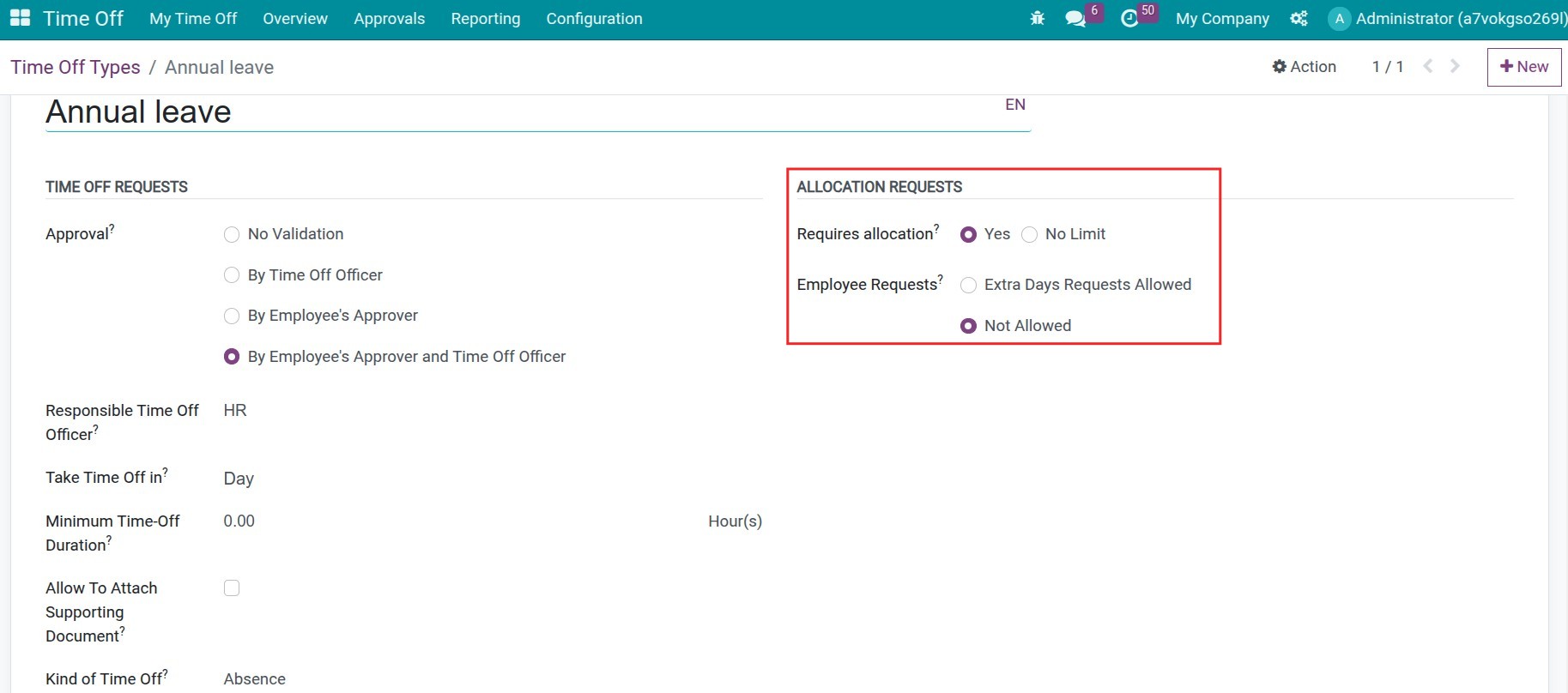
Create a time off type for annual leave with Requires allocation ticked, for example Paid Time Off.
How do I give a fixed number of days at the start of the year?
Use this when the company gives the same number of days to everyone, to be used before the end of the year.
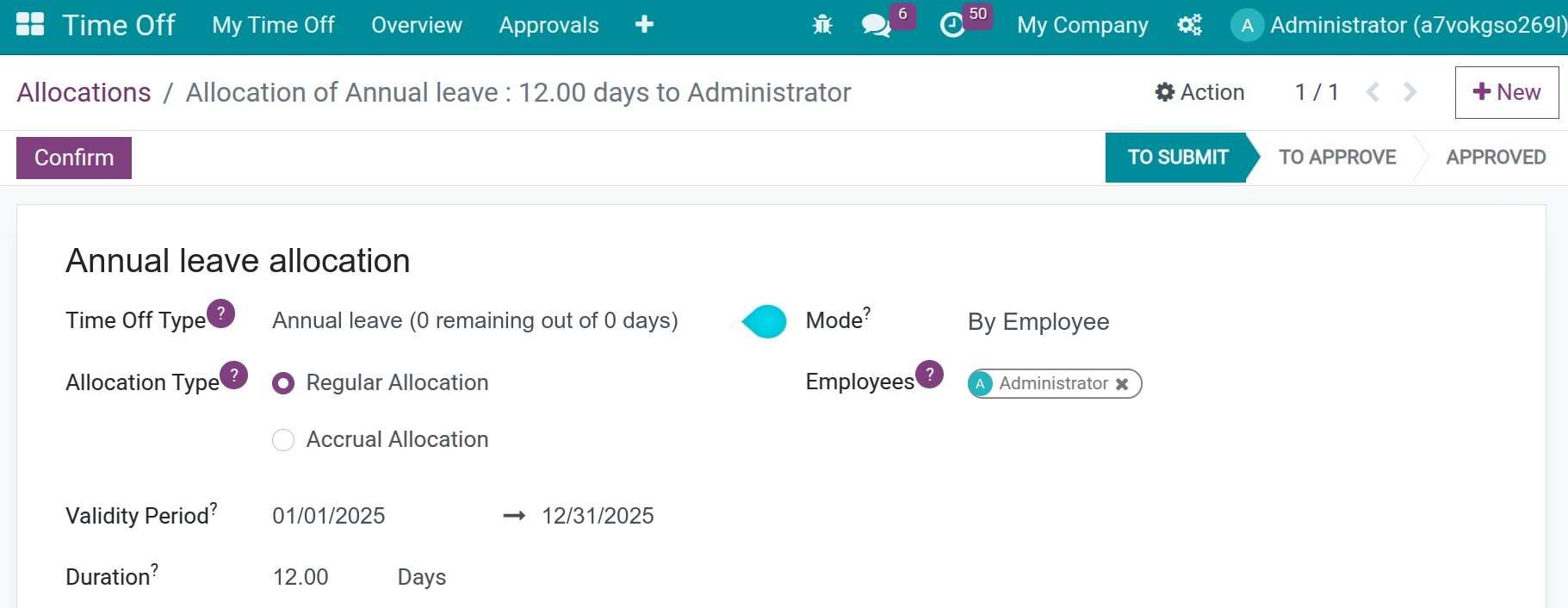
Go to Time Off ‣ Management ‣ Allocations and click New.
Choose the Time Off Type and the Employee, and keep Allocation Type on Regular Allocation.
In Validity Period, enter the first and the last day on which the days can be used, for example 1 January to 31 December. Enter the number of days in Allocation.
Click Save, then Validate.
To give the same days to all employees at once, click New Group Allocation and choose Grant By Company, see How to create a time off allocation. For a new employee, create an allocation with the number of days that matches the date of arrival.
How do I give days month by month?
Use this when employees earn their days over time, for example one day for each month worked.
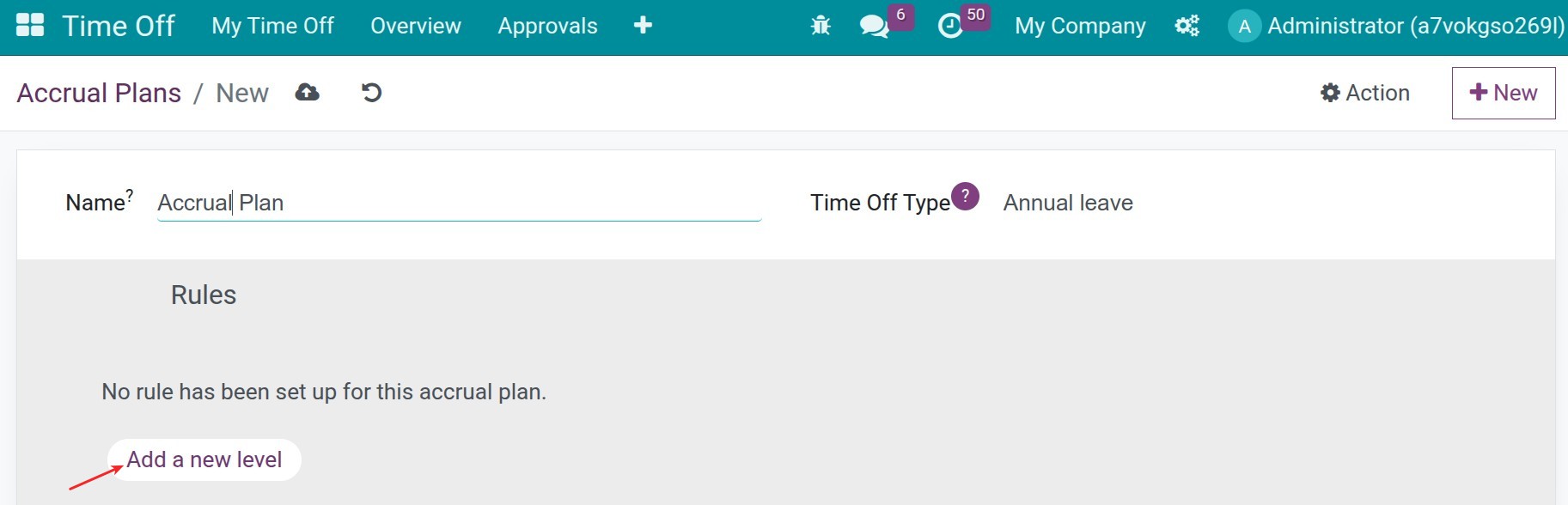
Create an accrual plan in Time Off ‣ Configuration ‣ Accrual Plans and add a milestone: 1 day, every month, on the 1st of the month, reached at the creation of the allocation. See How to configure an accrual plan.
![An accrual plan that gives one day each month]()
To keep the unused days of the year, tick the carry-over of the plan and choose Carried over in the milestone. You can limit how long the carried over days stay available with Define a carry over validity?.
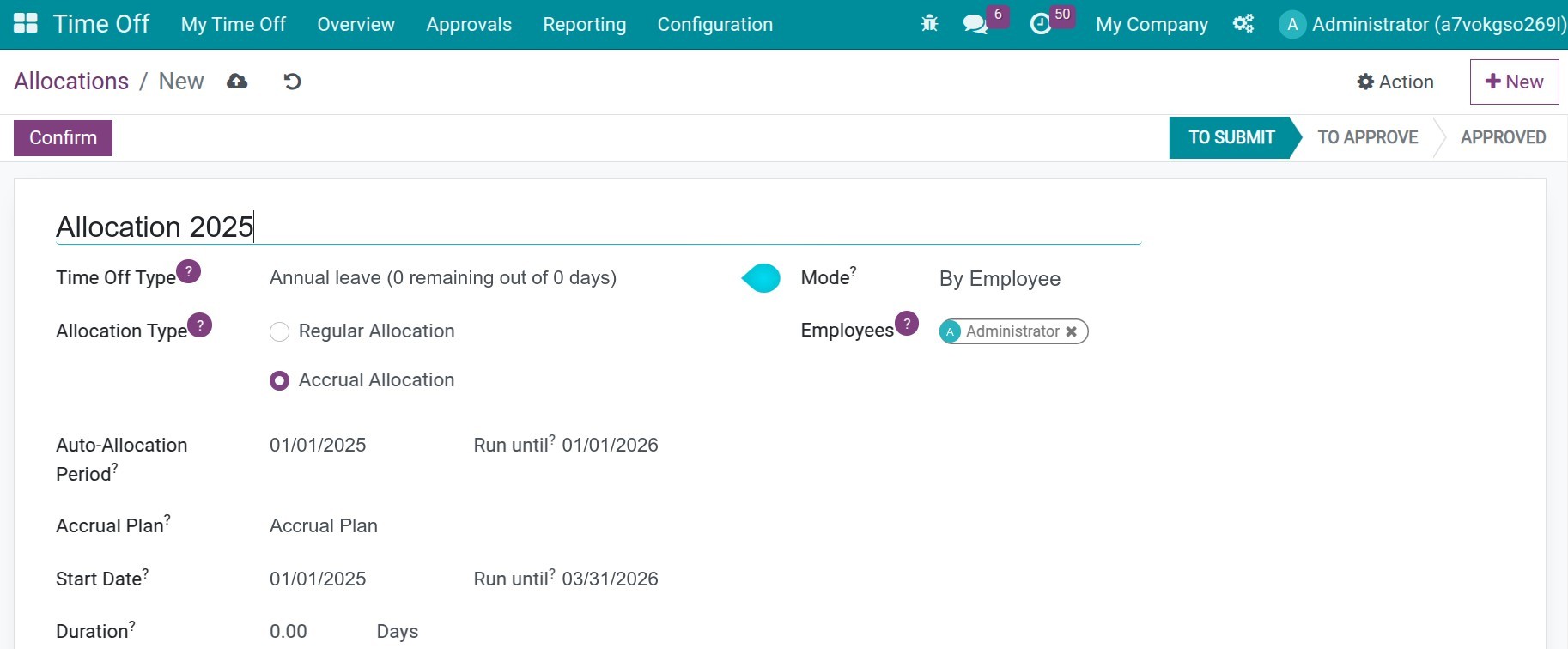
Go to Time Off ‣ Management ‣ Allocations and click New. Choose the Time Off Type and the Employee, set Allocation Type to Accrual Allocation and fill in:
![An accrual allocation with its accrual plan and its periods]()
Field
What it does
If it is wrong
Accrual Plan
The plan that says how many days are earned and how often.
The employee earns days by the wrong rule.
Automatic Allocation Period
The period in which Viindoo adds the days automatically: its start date, and its end date when it is limited.
Days are added outside the period you want.
Validity Period and Run until
The start of the validity of the days and the date after which the allocation stops adding days.
Days are added too long, or expire too early.
Allocation
The number of days already earned, computed by Viindoo from the plan and the start date.
None.
Click Save, then Validate.
How many days does Viindoo allocate?
Viindoo adds the days at the start or at the end of each period, depending on When the time is accrued? in the plan. The number of days is proportional to the part of the period that has passed.
Note
A scheduled action runs every day and updates the accrual allocations. To run it at once, an administrator opens Settings ‣ Technical ‣ Automation ‣ Scheduled Actions with the developer mode on, opens Accrual Time Off: Updates the number of time off and clicks Run Manually.
Common errors
Problem |
What to do |
|---|---|
The accrual plan is not offered in the allocation. |
Check the time off type of the plan, see How to configure an accrual plan. |
The balance does not increase. |
Approve the allocation and check the Automatic Allocation Period. Run the scheduled action to update it. |
Unused days of last year are lost. |
Tick the carry-over of the plan and choose Carried over in its milestone. |
Next steps
How to request time off: use the days in a request.
How to adjust a time off request: adjust the dates of a request.