
How to invoice shipping cost to customers
To charge shipping, add a delivery method to the sales order: click Add shipping, choose the method and click Add. Viindoo adds the shipping cost as an order line, computed with the rules of the method, and you invoice it with the rest of the order using Create Invoice.
Who |
Users with the Sales access right; the delivery methods are set up by the Inventory Administrator. |
App |
Sales |
Before you start
Turn on Delivery Methods and create the method (see How to configure delivery methods). The example below uses the method The Poste, Based on Rules.
If a rule of your method uses the weight, enter the weight of your products. Without it, a weight rule cannot compute the cost.
Example used on this page
The delivery method The Poste, Based on Rules, with the service product The Poste as Delivery Product and, among others, these two rules:
If the quantity is 5 or less, the cost is 20.
If the quantity is 5 or more, the cost is 50.
For an order of 8 units, the shipping cost is 50.
How do I enter the weight of a product?
You need it only if a rule of the method uses the weight.
Go to and open the product.
On the Inventory tab, enter the Weight in the Logistics section, then click Save.
![Weight field in the Logistics section of the Inventory tab of a product]()

How do I add shipping to a sales order?
Create a sales order, add the products and click Add shipping under the order lines.
![Add shipping button under the lines of a sales order]()
In the Add a shipping method window, choose the delivery method. Viindoo shows the cost it computes. Click Add.
![Add a shipping method window with the computed delivery cost]()


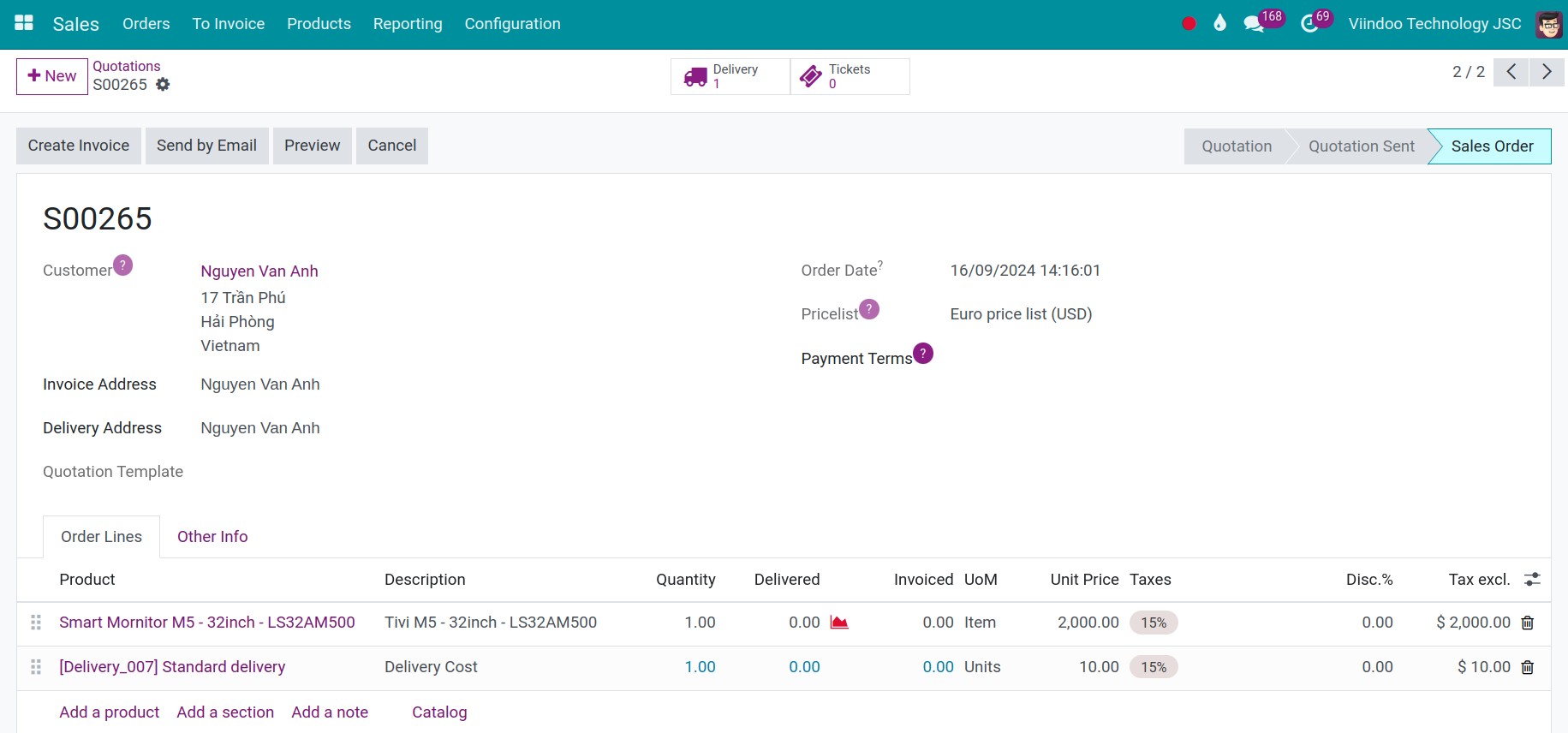
You should now see a line with the delivery product and the shipping cost on the order. If you change the products afterwards, click the Update shipping cost button of the order to compute it again.
How do I invoice the shipping cost?
Click Confirm on the sales order.
Click Create Invoice, choose the invoicing option (for example Regular invoice) and click Create Draft. The shipping line is invoiced with the other lines.
![Create invoice(s) window of a sales order that includes a shipping line]()
For the invoice itself, see How to create a customer invoice.
Common errors
Message |
What to do |
|---|---|
Error: this delivery method is not available for this address. |
Complete the country, state and zip code of the customer, or widen the destination of the method. |
Not available for current order |
No price rule matches the order. Add a rule that covers its weight, or enter the weight of the products. |
Next steps
How to configure delivery methods: fixed price, price rules and availability.
How to use routes and pull or push rules to supply a location: how the delivery is processed in the warehouse.