
Start a shipment from a template
Guide information
Requirements
This tutorial requires the installation of the following applications/modules:
Freight Forwarder Management - only needed for the Charges part of this guide; without it, a template still carries its route legs and stage list, just no charge lines
A forwarder that ships the same customer on the same route every week retypes the same route legs, stage list and set of charges on every new shipment. A shipment template captures the fixed part of that formula so Operations only re-enters what actually changes: order details, container numbers, actual dates. Applying a template replaces whatever is already on the shipment - it does not add to it - so it only pays off on an empty draft that still matches the template’s formula (same direction, shipment type and route). If Full Container Load (FCL) is new to you, see the Freight forwarding glossary.
Running scenario: Hai Long Logistics applies the built-in template TPL-SEA-FCL-EXPORT to the next FCL export order for Nhat Long Footwear, again from Hai Phong Port to Port of Los Angeles - then builds its own company template, TPL-SEA-FCL-EXPORT-HL, by adding the one charge that repeats on every one of these shipments and that the built-in template does not carry: the Delivery Order (D/O) Fee charged by agent Pacific Coast Forwarding Agency, Inc. at destination.
Before you start
11 built-in templates already cover the common route and direction combinations - 3 from Freight Forwarder Management, 4 from Freight Consolidation, 2 from Freight Road and 2 from Freight Air Management. Each one is a shipment record kept archived, so it never shows up in an ordinary shipment list.
To apply a template you are in the User: All Shipments group. A User: Own Shipments user can write the shipments they are Responsible for (see Grant freight access by role) and sees From Template on a draft, but applying a template ends in an access error - ask your administrator to grant the required Logistics access, or ask an All Shipments user to apply it.
To build your own company template you are in the Administrator group, the only group that sees - covered in For Administrators: build a company template below.
Decide whether to apply a template
Option |
Use when |
What changes |
|---|---|---|
Apply a built-in template (TPL-SEA-FCL-EXPORT and similar) |
The order’s formula matches one of the 11 built-in templates |
Fast, no setup - add any company-specific charge by hand right after applying. On a shipment created from a sales order, the template adds no charge lines at all (see the note under Step 1) |
Build and apply your own company template (TPL-…-HL) |
The same extra charge or leg keeps showing up and no built-in template has it |
15-20 minutes to set up once; every later shipment gets the extra charge or leg without retyping |
Apply a structure-only template (no charge lines) |
The route and stages repeat, but the charge set changes with each customer |
Route legs and stage list are filled in; Charges is left for Operations to fill by hand. On a shipment that does not come from a sales order, applying the template still clears existing charge lines, so start from an empty draft or record the charges and re-enter them afterwards |
Do not apply any template |
The shipment is a one-off, or it already carries data worth keeping |
Nothing is overwritten; everything is typed by hand |
Apply a template only when its route, stages and charge structure match the shipment and the draft is safe to overwrite. Do not use a merely similar template for a different service; ask the freight process owner to confirm the setup, or create a company template when the approved pattern recurs.
Step 1: Open a draft shipment
Applying a template overwrites what is already on the shipment, so start from an empty draft.
Go to , or open an existing draft shipment.
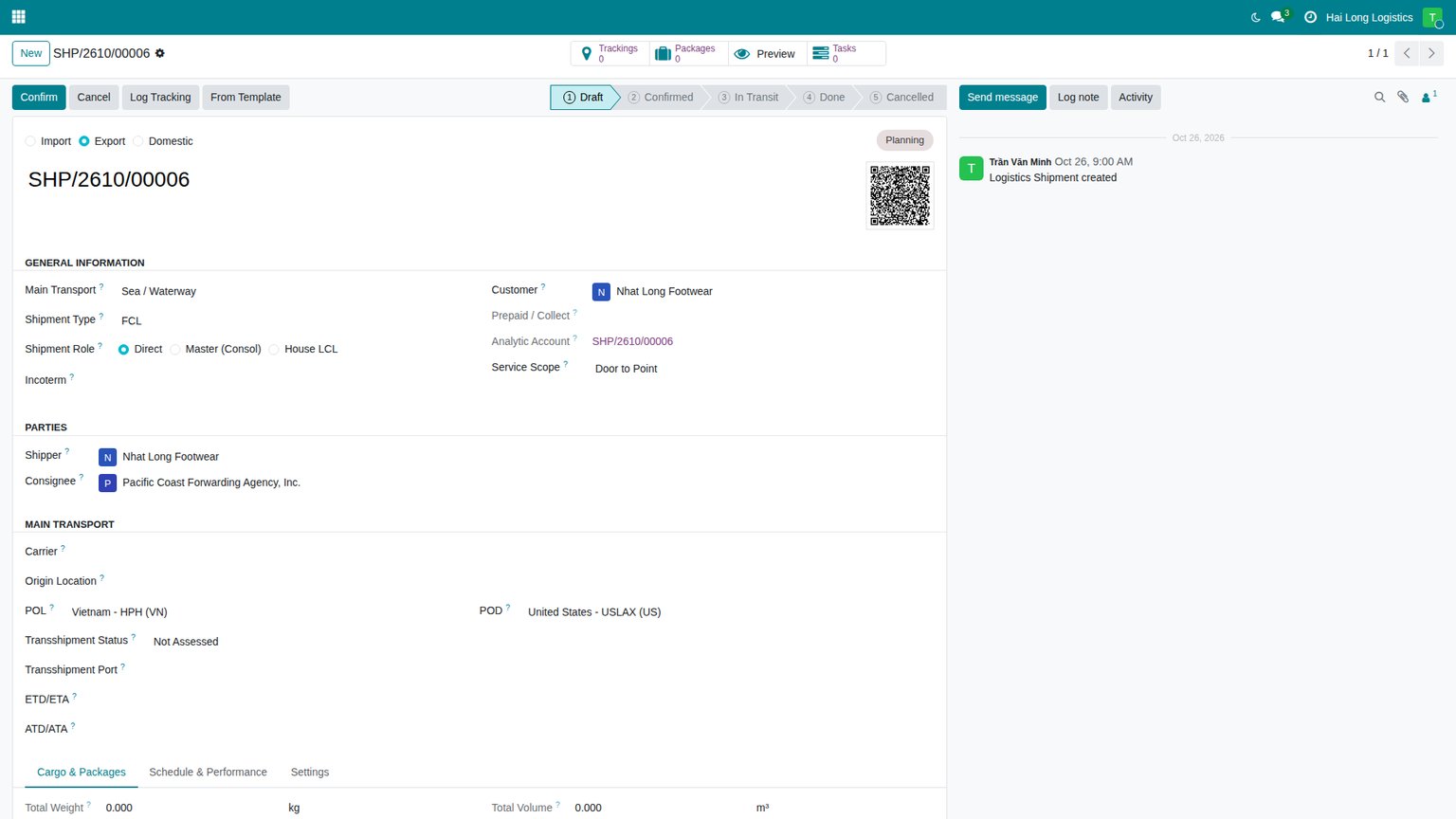
After the shipment opens, the status bar reads Draft and Service Scope reads Door to Point. The template does not carry Service Scope, so a new shipment keeps the value that its Load Mode gives it.
Warning
On a shipment that does not come from a sales order, applying a template deletes the route legs, stage list and charge lines already on the shipment, with no confirmation and no undo. Do not apply once you have typed data to keep.
Note
A shipment created from a sales order keeps every charge line it already has, including lines typed by hand, so the sales price agreed with the customer is never overwritten and the template adds no charge lines. Applying the template still replaces the route legs - a kept charge moves to the new leg of the same type, and a charge whose leg type the template does not have loses its leg - and sets the stage list.
Step 2: Open the Apply Scenario Template dialog
The button lives on the shipment record itself, for whoever opens the shipment - not on a Configuration menu, which is where you build a template instead of applying one.
Click From Template in the header (only visible while the shipment is in Draft).
After you click From Template:
A dialog titled Apply Scenario Template opens - the dialog title and the button use different words.
Step 3: Choose a template and read the preview before applying
The Charges tab on a draft shipment is hidden until Confirm, so this preview is the only place to see the charge content of a template before you commit to it.
Fill in:
Template: TPL-SEA-FCL-EXPORT.
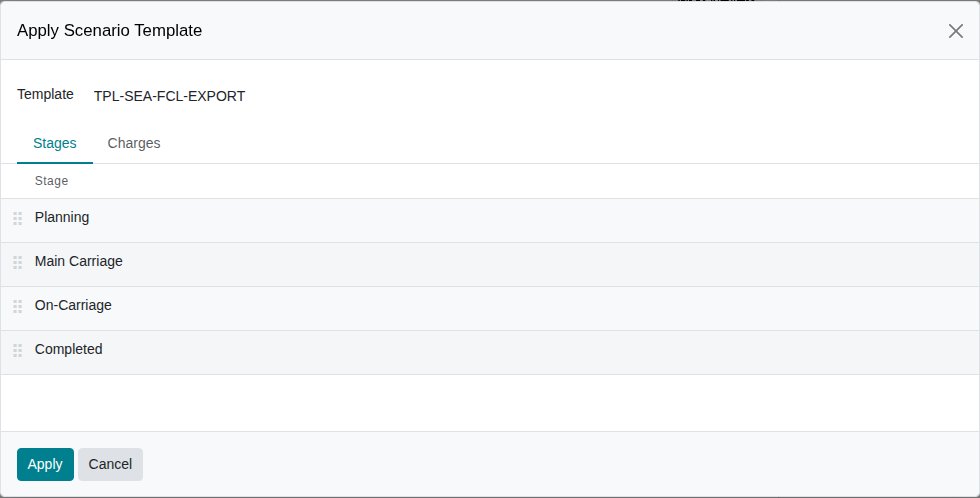
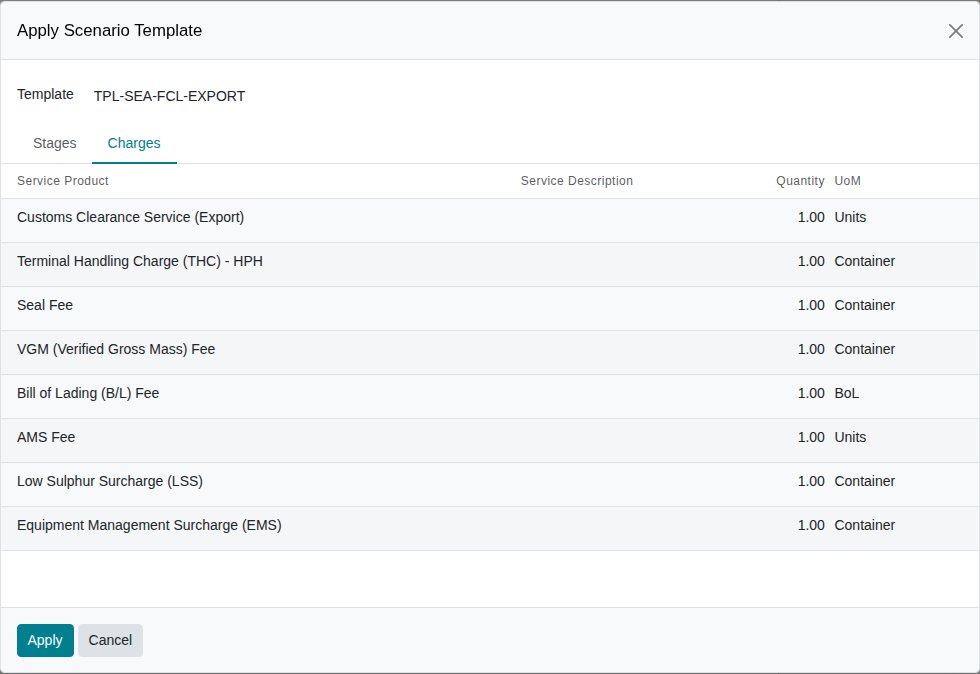
After Template is filled in:
Two tabs appear - Stages (4 rows) and Charges (8 rows: Service Product, Service Description, Quantity, UoM - there is no price column here).
Important
The preview does not show the Direction, Shipment Type or route that the template will write onto the shipment - only Stages and Charges. Cross-check the template by its name before clicking Apply. The Template field only ever lists templates belonging to your company (or to no company), so a template from another company never appears here.
Note
The Charges preview always lists the template’s charge lines, even for a shipment created from a sales order, where Apply adds none of them. Read the preview as “what the template carries”, not as “what this shipment will receive”.
Tip
Step 3 is done when: the preview shows exactly 4 rows under Stages and exactly 8 rows under Charges, matching the count above.
Step 4: Apply and check the result
Applying is the step that cannot be undone - checking right after Apply is far cheaper than finding a missing route leg later at booking.
Click Apply.
After you click Apply:
The dialog closes.
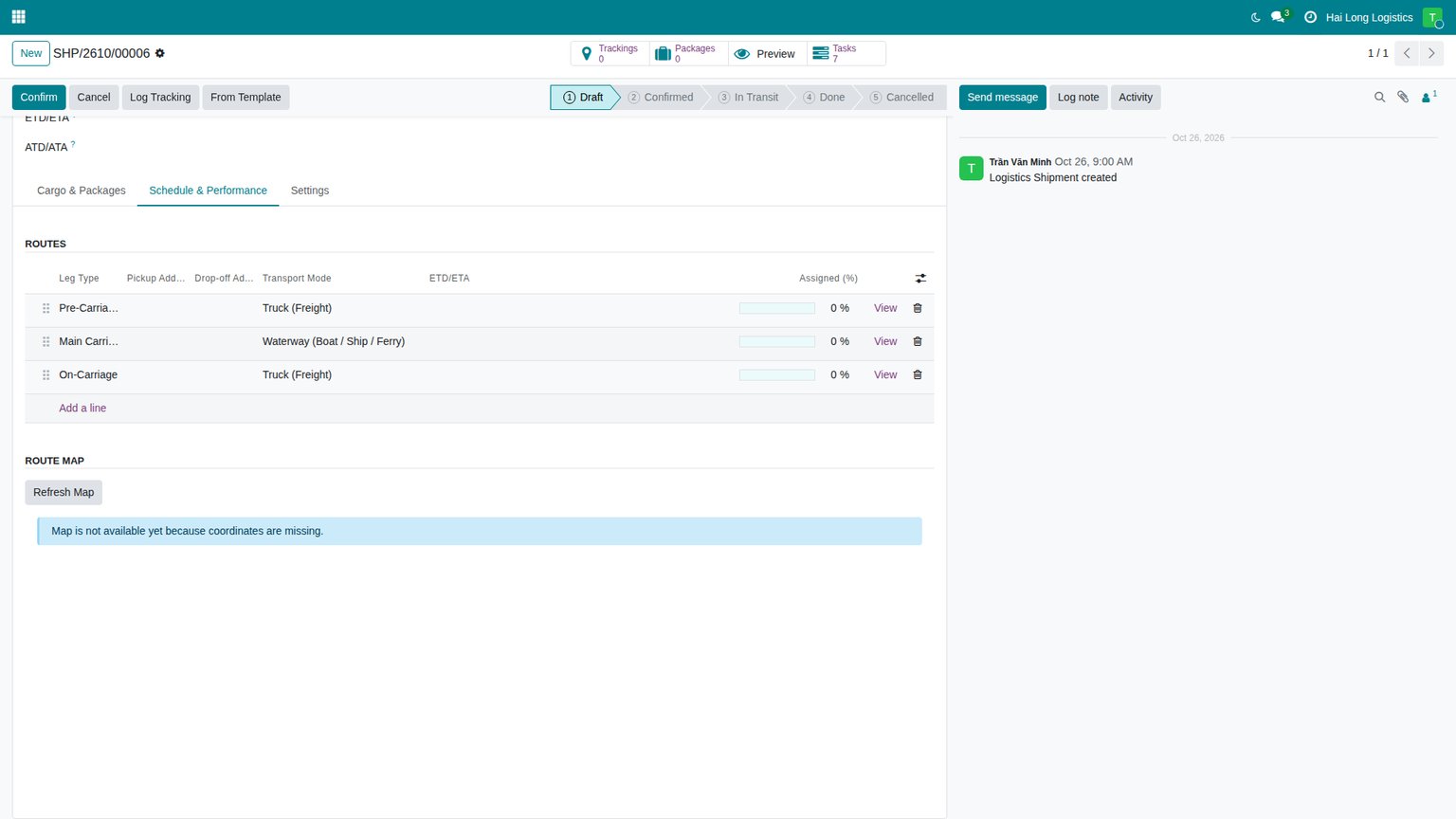
Schedule & Performance –> Routes now lists 3 legs in order - Pre-Carriage (Truck), Main Carriage (Waterway), On-Carriage (Truck) - pickup/drop-off addresses still empty.
The stage tag reads Planning, and Direction / Shipment Type now match the template.
The 8 charge lines already exist, but Charges stays hidden - the shipment is still Draft.
With Freight Project installed, the shipment also gets a project with 7 tasks from the template’s project: the Tasks button of the shipment reads 7.
Tip
Step 4 is done when: Routes shows exactly 3 legs in the order Pre-Carriage / Main Carriage / On-Carriage, and the stage tag reads Planning, not Select Stage.
Step 5: Fill in what the template cannot know, then Confirm
The template only carries the fixed part of the formula. Nothing on the shipment forces you to review what it left out, so this review step is entirely on you. The Charges tab only appears after Confirm, so the legs come first and the prices second.
Fill the pickup and drop-off address on the Pre-Carriage and Main Carriage legs (open a leg with View). Confirm is refused until the main-carriage leg has both, and the POL/POD of the header can no longer be changed once legs exist. This order is sold CFR Port of Los Angeles, so Hai Long’s job ends at the port of discharge: delete the On-Carriage leg. Keep it only when the contract includes delivery at destination. Service Scope stays Door to Point (pick-up at the shipper, no delivery at destination), which matches the two remaining legs; the booking later checks the carrier coverage against this value.
Click Confirm. The Charges tab appears.
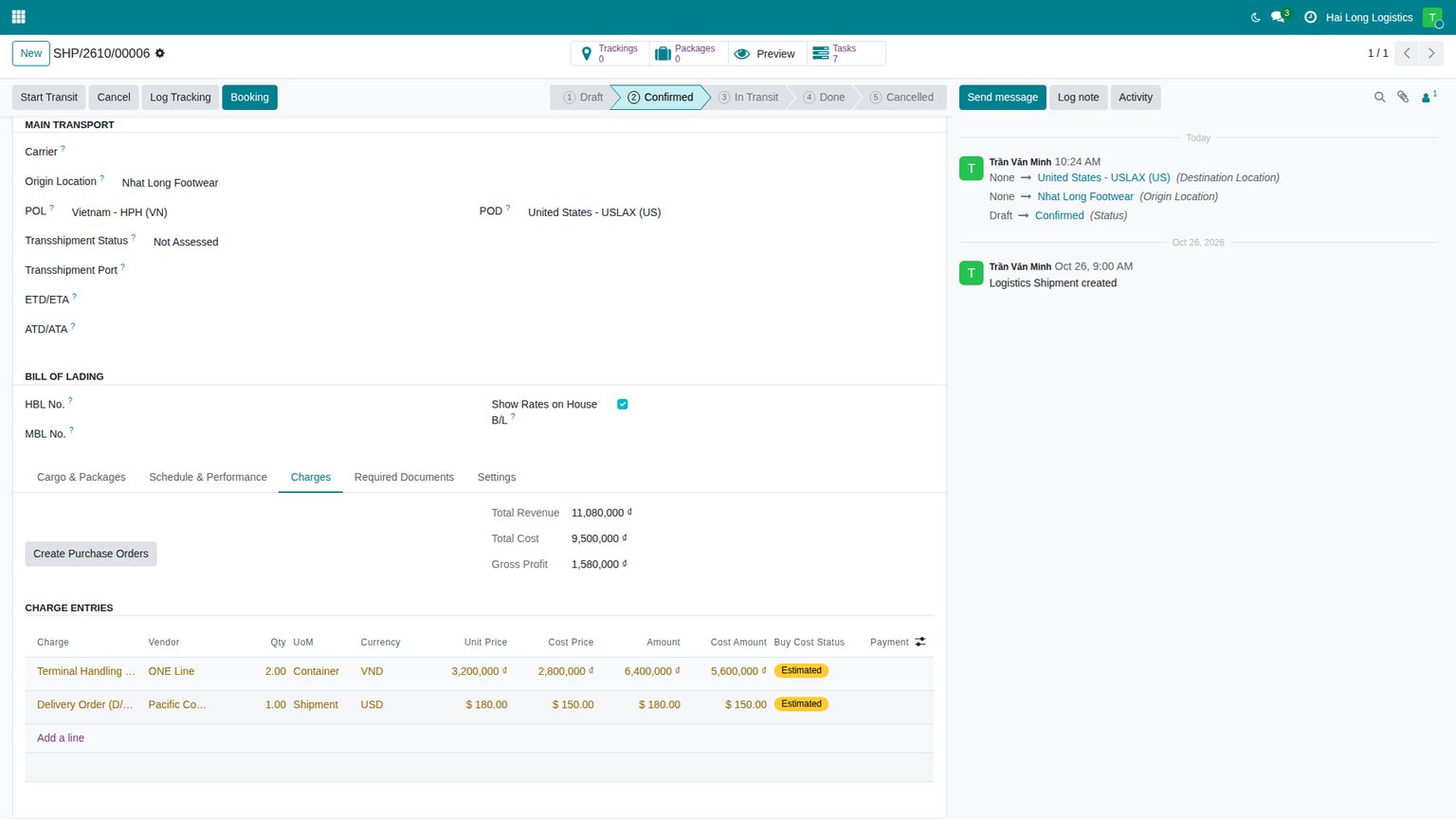
In Charges, delete the template lines this order does not use - here every line except Terminal Handling Charge (THC). Correct THC with the real rate: Quantity 2, Unit Price 3,200,000, Cost Price 2,800,000 (the template lists Quantity 1 per its UoM of Container; this shipment has 2 containers; the amounts are in VND, the company currency).
Add Delivery Order (D/O) Fee - not in the template - with Quantity 1, Currency USD, Unit Price 180 and Cost Price 150. Template lines and new lines start in the company currency; change a line’s Currency when it is billed in another currency, as here.
Warning
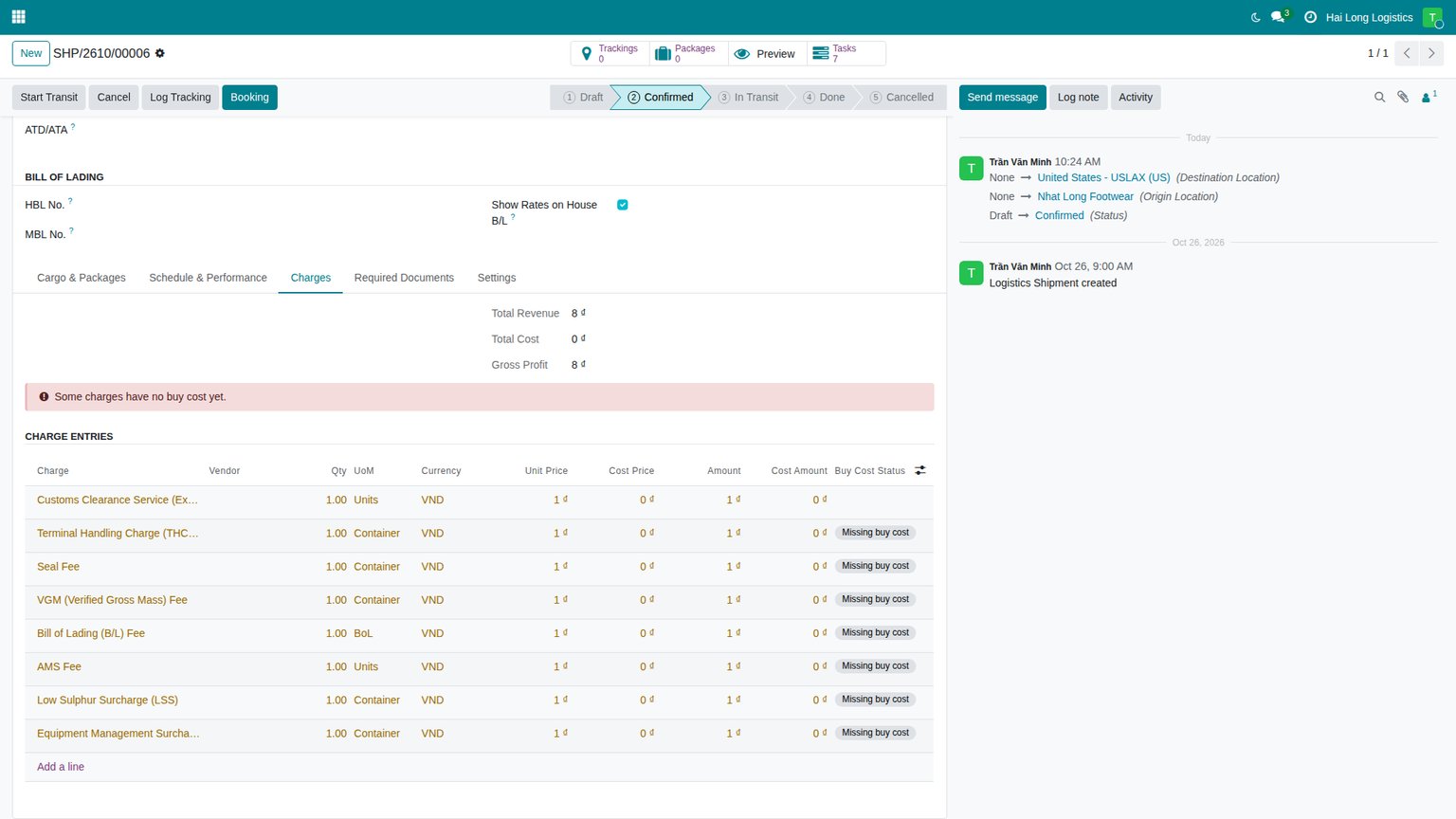
Every charge line copied from the template reads its Unit Price from the product’s list price. None of the 8 built-in charge products has a list price set, so Viindoo defaults each one to 1 (VND 1), and Cost Price is always forced to 0. Left uncorrected, the 8 lines add up to a Total Revenue of VND 8 - nowhere close to the real value of this shipment.
After you click Confirm:
The Charges tab stays visible from now on (it is hidden only while a shipment is both Draft and active).
The 8 template lines are there as copied: Unit Price 1, Cost Price 0. Seven of them carry the badge Missing buy cost (the Customs Clearance Service (Export) line has none), and a red banner reads Some charges have no buy cost yet. They are only correct once you finish the last two actions above.
Tip
Step 5 is done when: only 2 route legs remain (Pre-Carriage, Main Carriage) and Charges holds exactly 2 lines, none of them still at Unit Price 1: Terminal Handling Charge (THC) at Quantity 2 x Unit Price 3,200,000 / Cost Price 2,800,000 (6,400,000 billed, 5,600,000 cost), and Delivery Order (D/O) Fee at USD 180 / Cost 150, which brings Total Revenue to 11,080,000, Total Cost to 9,500,000 and Gross Profit to 1,580,000.
See also
Booking the carrier space and entering the containers for this shipment continue in Book carrier space for a shipment leg and Declare cargo, packages and containers.
For Administrators: build a company template
The 11 built-in templates are generic and route-independent. Hai Long’s own recurring charge - the Delivery Order (D/O) Fee on every Hai Phong -> Los Angeles shipment through Pacific Coast Forwarding Agency - only stops being retyped once it lives in a template of its own.
Go to .
Note
The same list also opens from when Freight Forwarder Management is installed - both point to it.
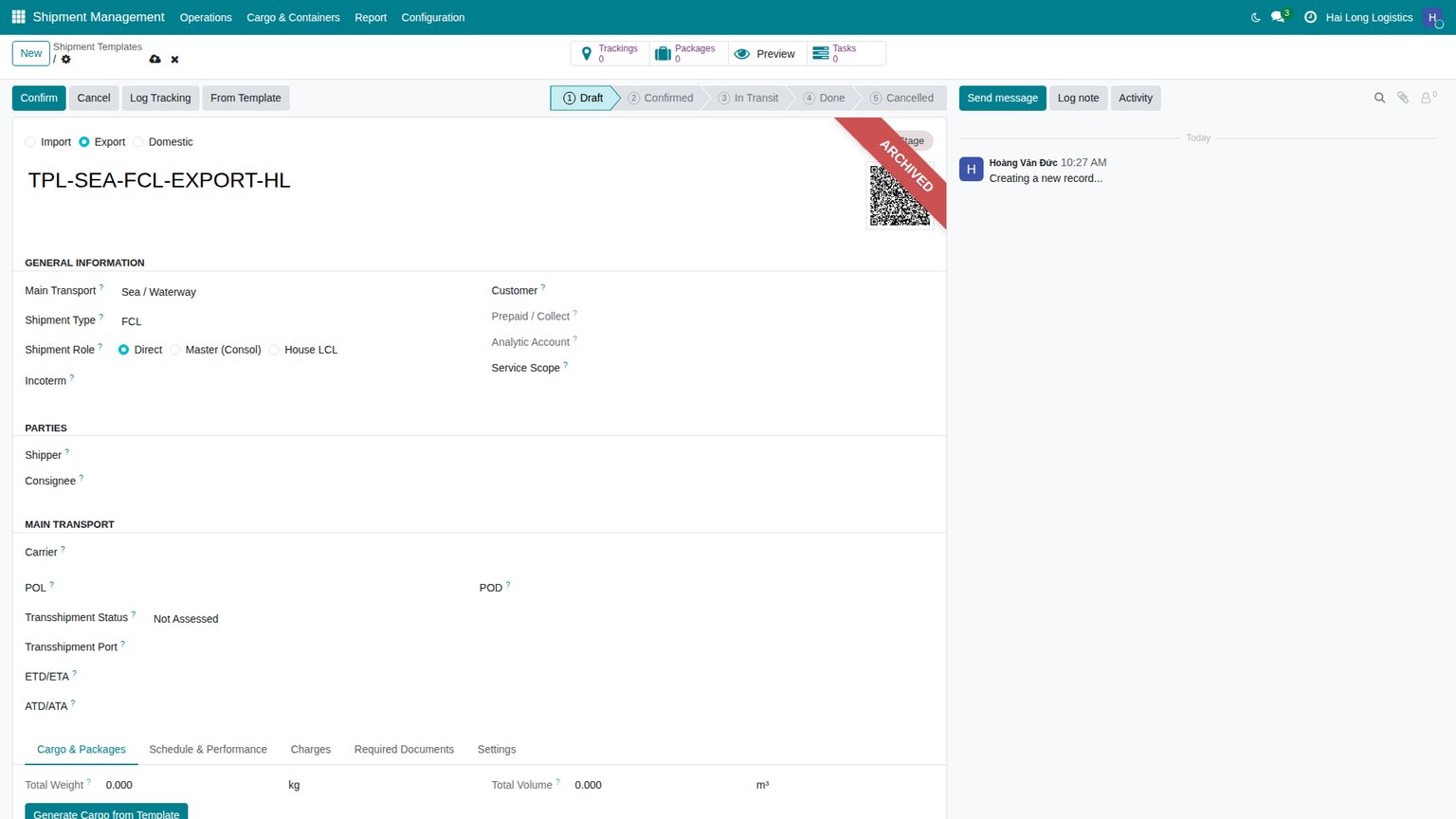
Click New. The Archived ribbon appears immediately - a template is a shipment record that is never meant to be active.
Fill in:
Name: TPL-SEA-FCL-EXPORT-HL (the field shows / until you type a name).
Direction: Export.
Shipment Type: FCL.
On the Schedule & Performance –> Routes tab, add the same 3 legs as the built-in template (Pre-Carriage / Main Carriage / On-Carriage) - leave dates and addresses empty.
On the Settings tab, choose the Stage list used by the built-in template.
On Charges, add the 9 lines: the same 8 as the built-in template, plus Delivery Order (D/O) Fee.
Warning
Do not fill in dates on a template’s route legs. A shipment created from the template copies those dates exactly as typed, with no recalculation against today’s date - a template built once with real dates will keep producing shipments with a departure date in the past.
Tip
Setup is done when: typing a few letters of TPL-SEA-FCL-EXPORT-HL in the Template field of another draft shipment’s From Template dialog shows it in the list - confirming it archived correctly and belongs to the right company.
Known limitations
Step |
What Viindoo does today |
What you do instead |
|---|---|---|
Read the charge prices right after applying a template |
Every copied charge line takes the product’s list price (1 for the built-in charge products) and a Cost Price of 0.00; nothing stops you from confirming at those prices |
Correct Unit Price and Cost Price from the real rate card on the Charges tab right after Confirm |
Read Internal Notes before/after applying a template |
Silently overwritten by the template, but not shown on the Shipment form in any view |
Do not use it as a working field; log internal notes in the chatter instead |
Look for a “Scenario Template” field on the shipment |
Exists on the model with its own domain, but is on no view and From Template never writes to it |
Ignore it - applying a template is only ever done through From Template |
Confirm right after applying a template with no route leg |
Raises a validation error asking for Origin and Destination, since the shipment has no leg |
Fill Origin and Destination on the header first, or add a route leg by hand |
Apply a template a second time on the same draft |
No warning that a template was already applied - the second Apply wipes everything from the first, including hand edits |
Only apply a template once, right at the start |
Apply a template as a User: Own Shipments user |
From Template and Generate Cargo from Template are visible on a draft you are Responsible for, but Apply ends in an access error |
Ask an All Shipments user to apply the template, or type the legs and charges by hand |
Apply a template to a shipment that does not come from a sales order and whose charge is already on an invoice, vendor bill or purchase order |
Apply is refused, because a charge on a document cannot be deleted |
Release the charge from its document first (see Record charges, invoice the customer, and bill vendors), or leave the template out |
Troubleshooting
The Template dropdown is empty
Symptom: Typing a template’s name in Template returns no suggestion.
Cause: The dropdown only lists shipments that are archived and belong to the same company as the shipment you opened it from (or to no company). The template is either not archived yet, or it belongs to a different company.
Fix: Open the template from Shipment Templates, use Actions –> Archive if it is not archived yet, and check that its Company matches the shipment’s Company.
Confirm blocks with an Origin/Destination error
Symptom: Confirming a shipment right after applying a template shows “Shipment SHP/26xx/000nn requires Origin and Destination before confirming operation.”
Cause: The template carried no leg, and confirming a sea FCL or LCL shipment with no leg requires Origin and Destination so Viindoo can create one main-carriage leg automatically.
Fix: Fill Origin and Destination on the header and Confirm again, or add a route leg by hand before confirming.
A shipment created from a company template has an ETD/ETA already in the past
Symptom: A new shipment applied from a company template shows an ETD or ETA already in the past.
Cause: Dates on a template’s route legs are copied exactly as typed; Viindoo does not recalculate them against today’s date.
Fix: Never fill departure or arrival dates on a template’s legs. If an existing template already has dates, correct them on the template itself, not on each shipment created from it.
See also
Related articles
Optional modules
Freight Consolidation - adds 4 built-in templates for LCL consolidation and deconsolidation
Freight Road - adds 2 built-in templates for road freight
Freight Air Management - adds 2 built-in templates for air freight