
How to install Time Off and set up access rights
To start managing leave in Viindoo, open Apps, search for Time Off and click Activate. Then open each user in Settings ‣ Users & Companies ‣ Users, go to the Access Rights tab and choose the level of the Time Off field in the Human Resources section: No for a regular employee, Officer: Manage all requests or Administrator for the people who run leave.
Who |
Users with the Settings ‣ Administration access right. |
App |
Time Off |
Before you start
Create the employees who will take time off. The Time Off app works from the employee record of the signed-in user.
Install the Viin Time-Off module if you need the extra features listed below. It is optional.
How do I install the Time Off app?
Go to Apps, type Time Off in the search box and press Enter.
![The Apps list searched for Time Off]()
Click Activate on the Time Off card. If the card only shows Learn More, the app is already installed.

The Time Off app now appears in the main menu of every internal user.
What does the Viin Time-Off module add?
Search for Viin Time-Off in Apps and click Activate. The module adds:
the Adjust Dates button on a time off request;
the Time Off Details report in Reporting, see How to track time off with reports;
the Automatic Allocation Period field on accrual allocations, see How to allocate annual leave;
the Minimum Time-Off Duration field on a time off type;
the Exclude Employees field when you create time off for a group of employees, see How to request time off.
How do I give a user access to Time Off?
Go to Settings ‣ Users & Companies ‣ Users and open the user.
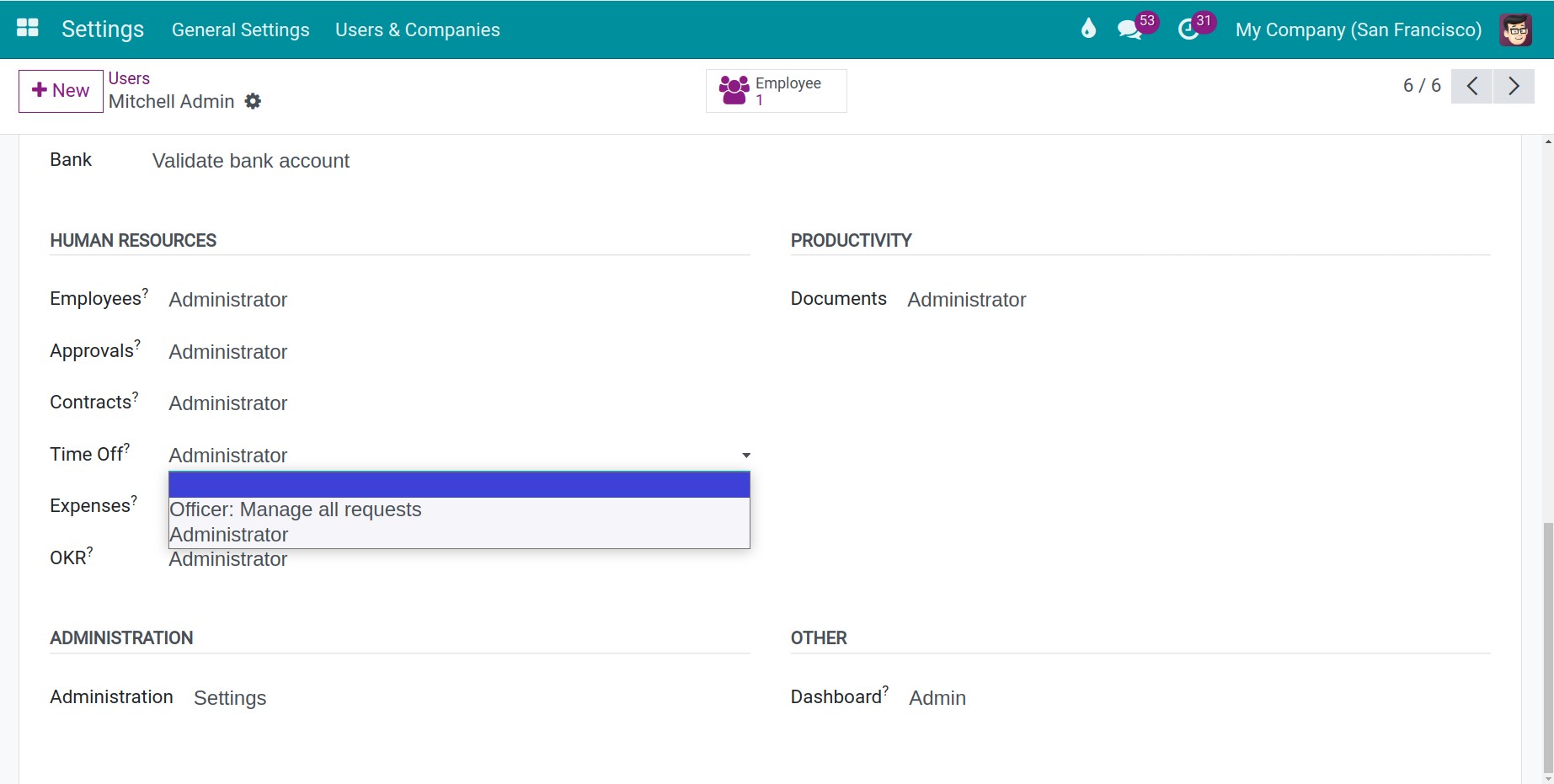
Open the Access Rights tab. In the Human Resources section, choose the level of the Time Off field.
![The Time Off access right in the Human Resources section of a user]()
Click Save.
Access right |
What the user sees and does |
|---|---|
No |
The My Time and Overview menus. Requests time off, requests allocations when the time off type allows it, and follows the company calendar. |
Approver of an employee |
Set in the employee’s profile, not on the user. The user also gets the Management menu, to approve the time off and the allocations of the people they approve for. |
Officer: Manage all requests |
Everything above for all employees, and the Reporting menu with by Employee and by Type. |
Administrator |
Everything above plus the Configuration menu, the Balance and Time Off Details reports and the Adjust Dates button. |
Common errors
Problem |
What to do |
|---|---|
The Time Off card only shows Learn More. |
The app is already installed. Open it from the main menu. |
A user cannot see Reporting or Configuration. |
Give the user the Officer: Manage all requests or the Administrator level in the Time Off field of the user. |
A manager cannot see Management. |
Choose the manager as the Time Off approver in the employee’s profile, or give the user the Officer: Manage all requests level. |
Next steps
How to find your way around Time Off: find your way around the app.
How to create a time off type: define the kinds of leave your company offers.