
How to add languages and change the interface language
To use another language in Viindoo, go to Settings, find the Languages section and click Add Languages, choose the language and click Add. Then switch to it right away, or let each user pick it in their preferences. Administrators can also change the language of any user from .
Who |
Administrator (adding, updating and disabling languages, changing other users’ language). Every user can change their own language. |
App |
Settings |
Before you start
You have a Viindoo instance and sign in as an Administrator.
How do I add a language?
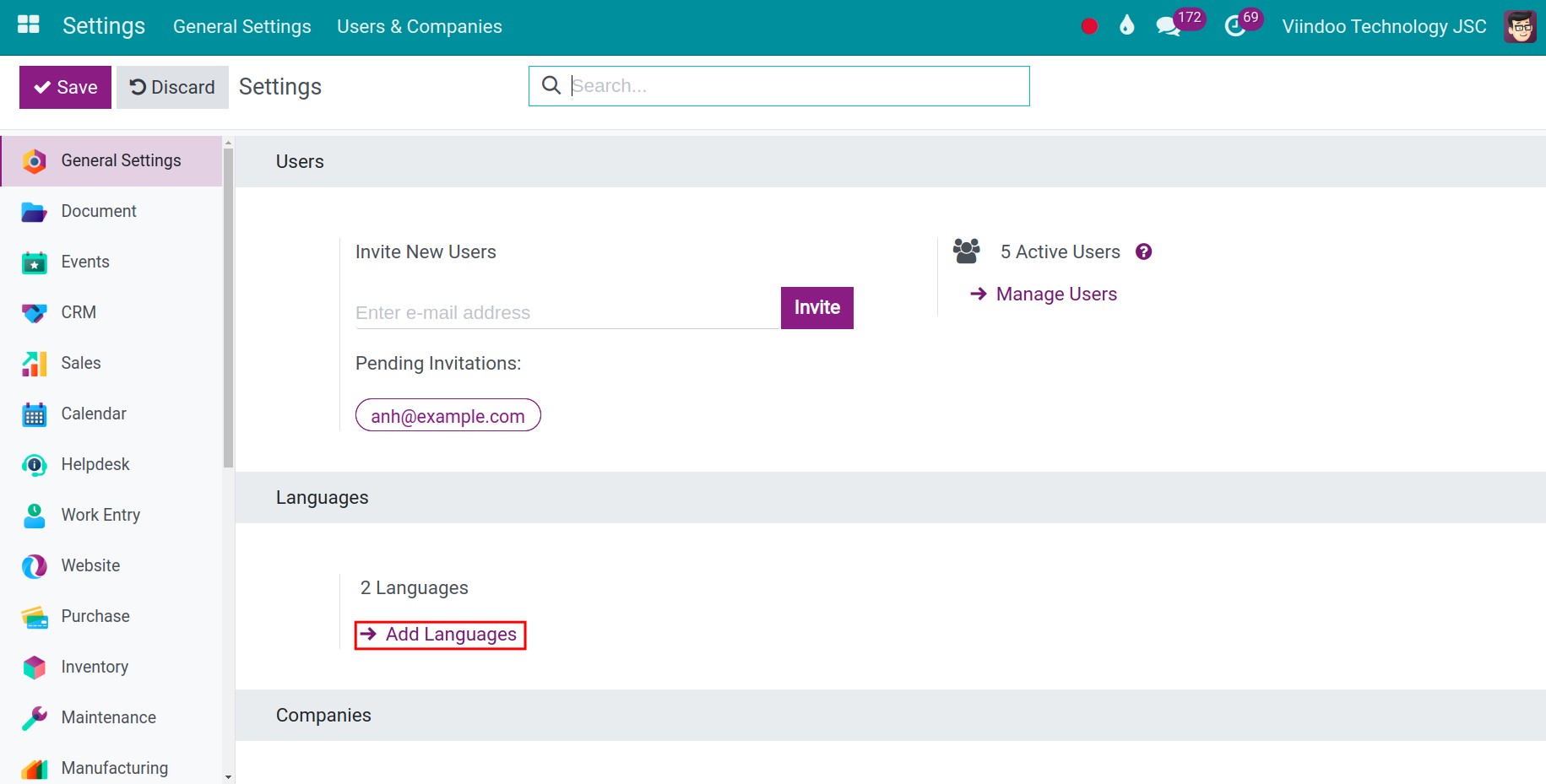
Go to Settings and scroll to the Languages section. It shows how many languages are active.
Click Add Languages.
![Languages section of Viindoo Settings with the number of active languages and Add Languages]()
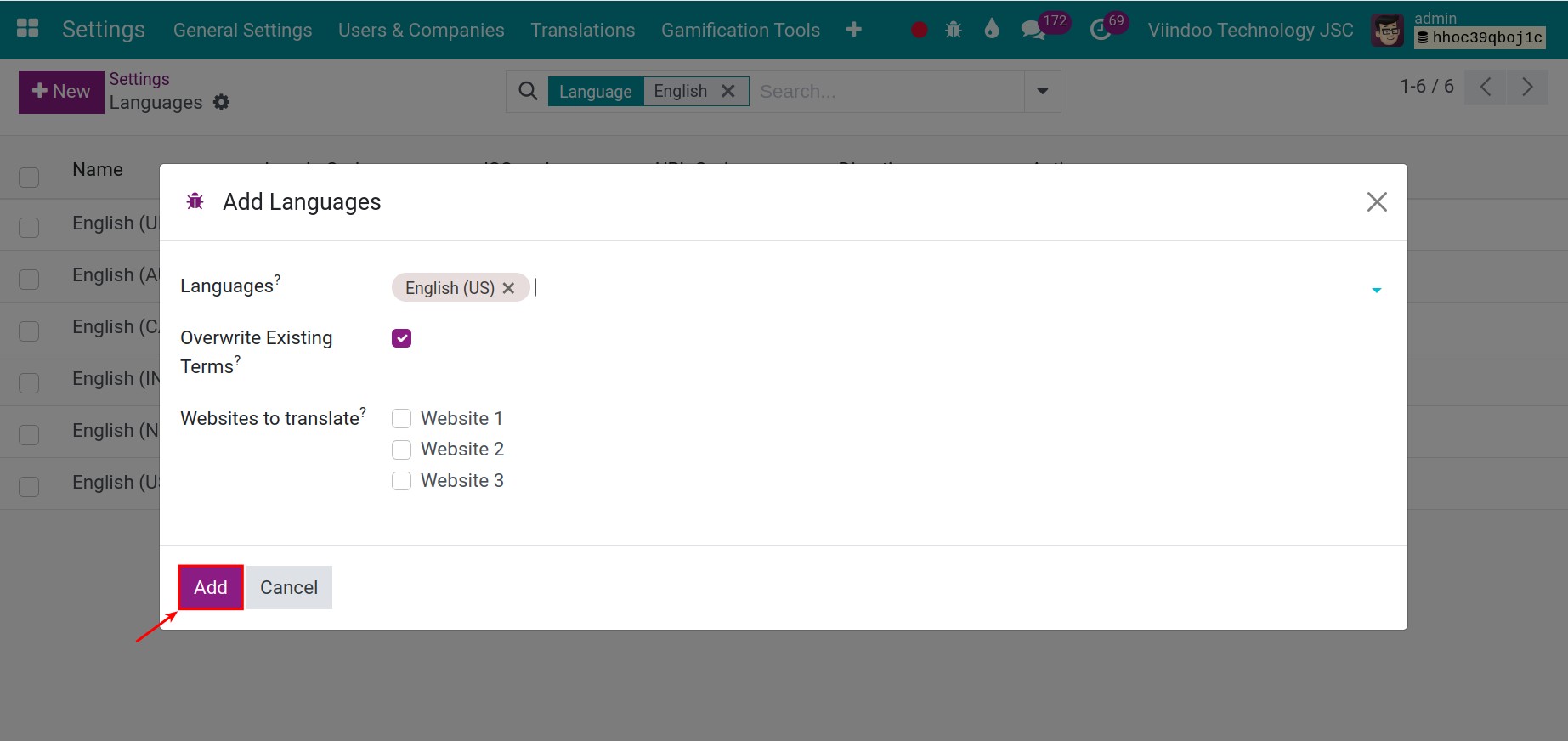
In the Add Languages window, select one or more languages in Languages, then click Add. If your instance has several websites, you can also tick the websites to translate in Websites to translate.
![Add Languages window with a language selected and the Websites to translate list]()
When you added a single language and it is loaded, click Switch to <language> & Close to use it now, or Close to keep your current language. When you added several languages, a confirmation message appears instead.
![Switch to language window after a language has been added]()
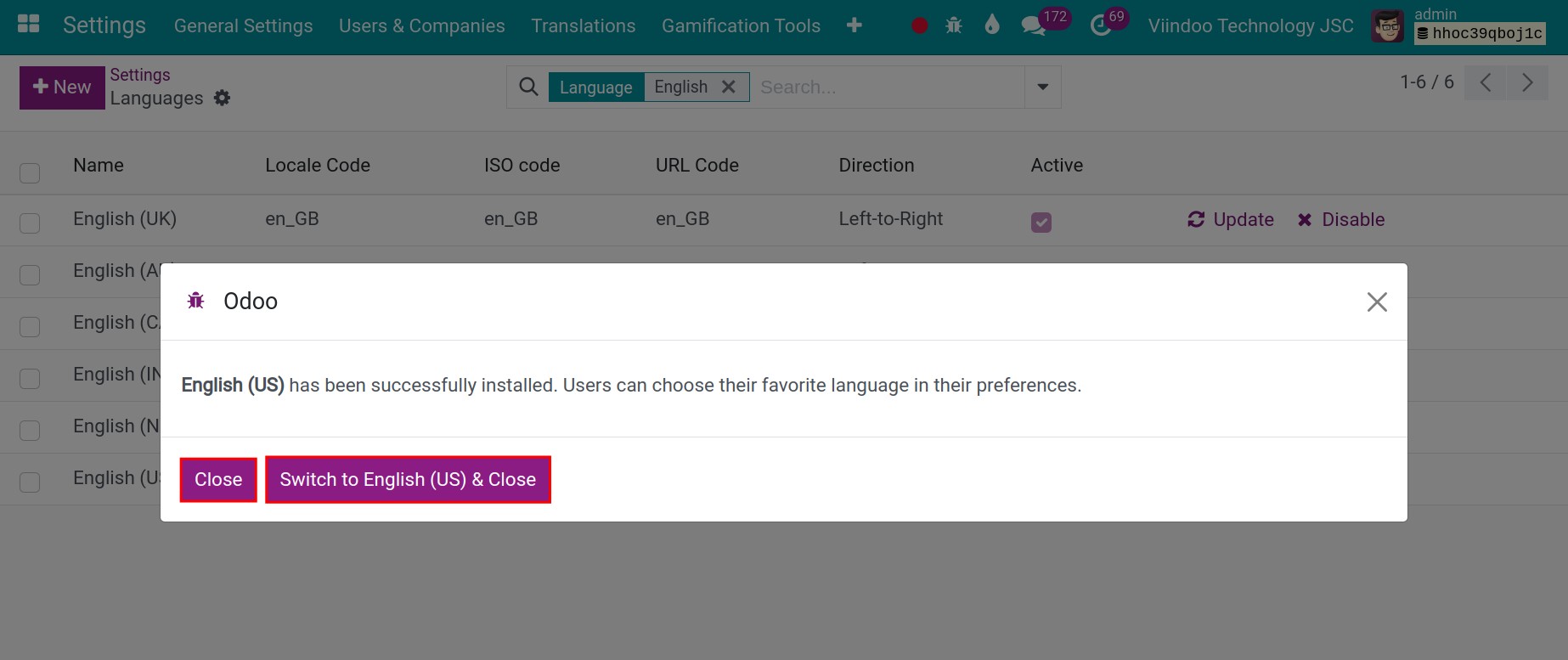
The new language can now be chosen by every user in their preferences.
How do I see and manage all languages?
With developer mode on, click Manage Languages in the Languages section (or go to ).
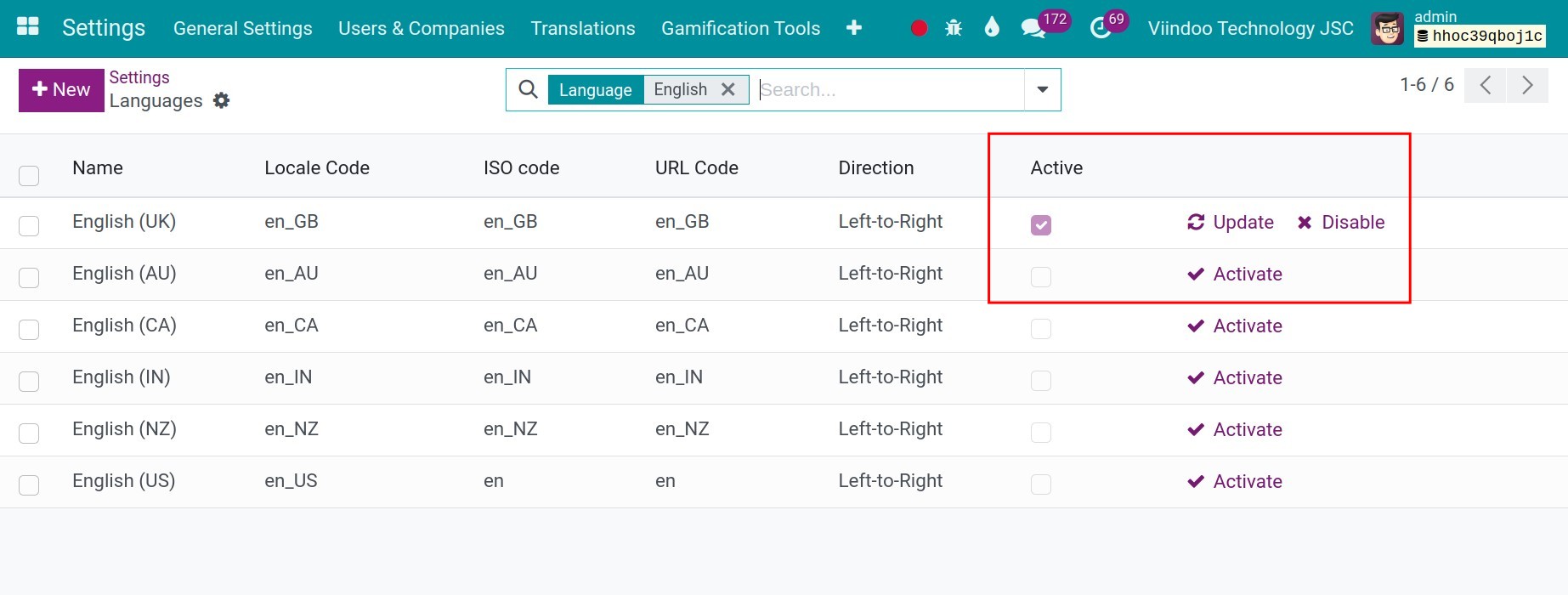
The list shows every language Viindoo supports, the active ones first. For each language you can:
Activate: add the language (same as Add Languages).
Update: reload its translations (see below).
Disable: stop offering the language. You cannot disable a language that a user or a contact still uses.
How do I update the translations of a language?
Viindoo improves its translations with each update. To load the latest ones:
Turn on developer mode and go to .
Click Update on the language.
![Update button on an active language in the Languages list]()
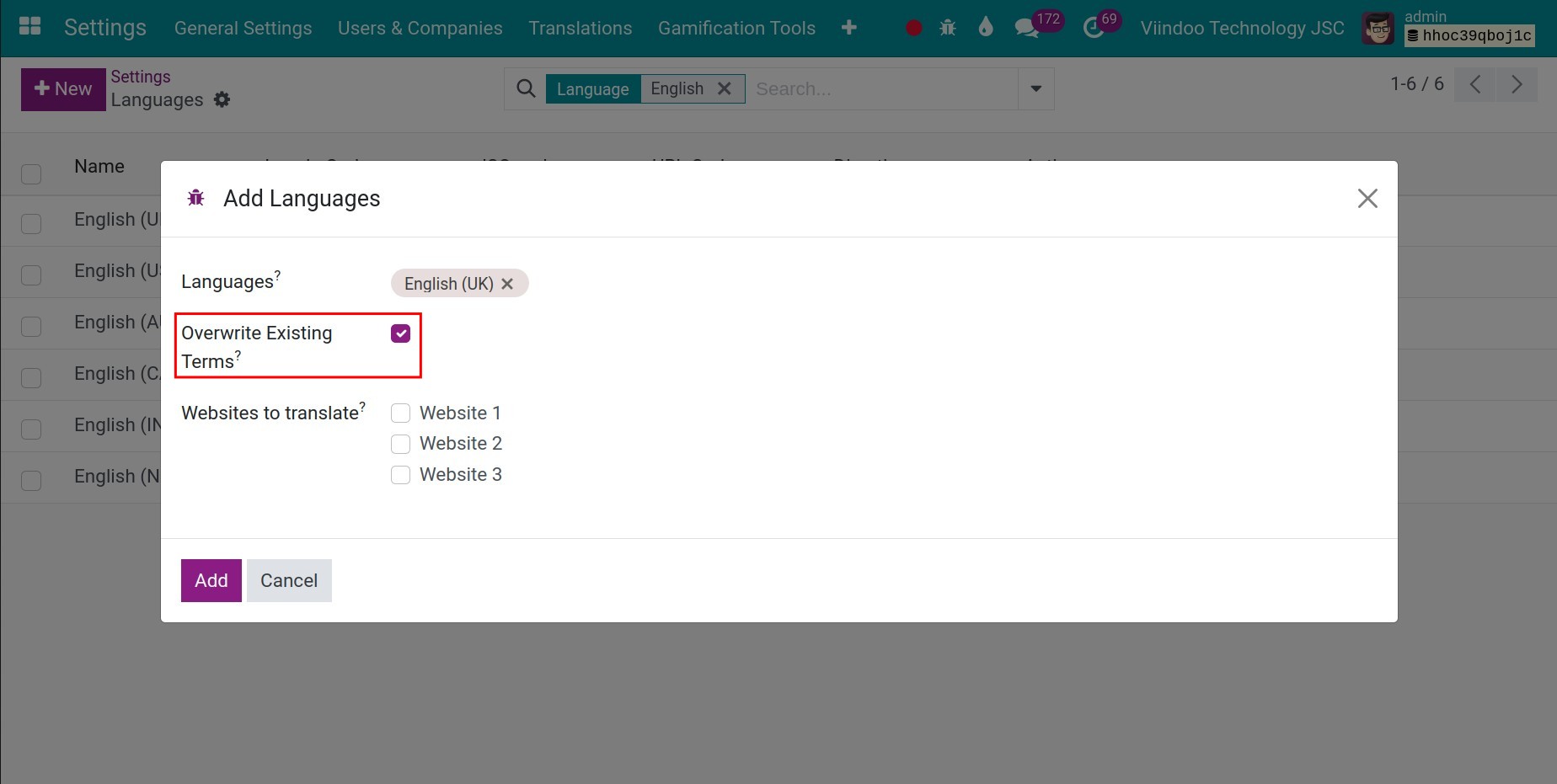
In the Add Languages window, keep Overwrite Existing Terms ticked (it is ticked by default and shown in developer mode) so that old terms are replaced by the new ones, then click Add.
Note
Overwrite Existing Terms also replaces terms you translated yourself. Untick it if you have edited translations and want to keep them.
How do I change the language of a user?
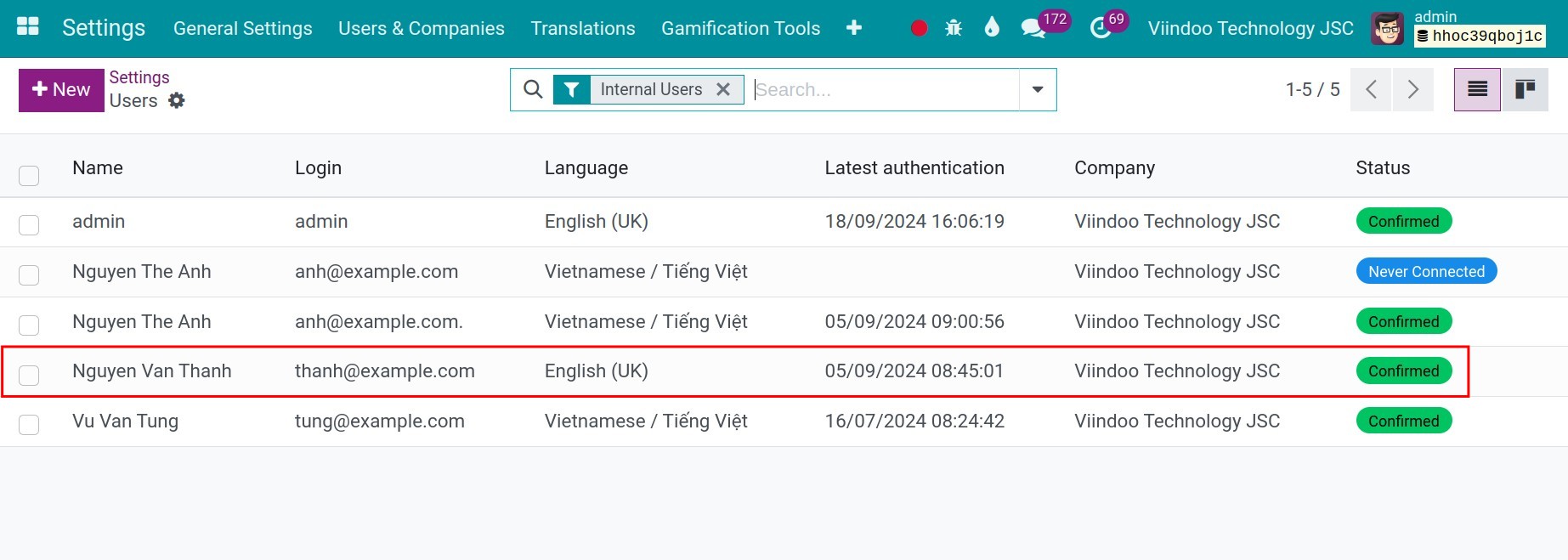
Each user can change their own language: click the avatar in the top right corner, choose My Preferences and select the Language in the Preferences tab. To change it for someone else:
Go to and open the user.
![Users list in Viindoo Settings with the user to change selected]()
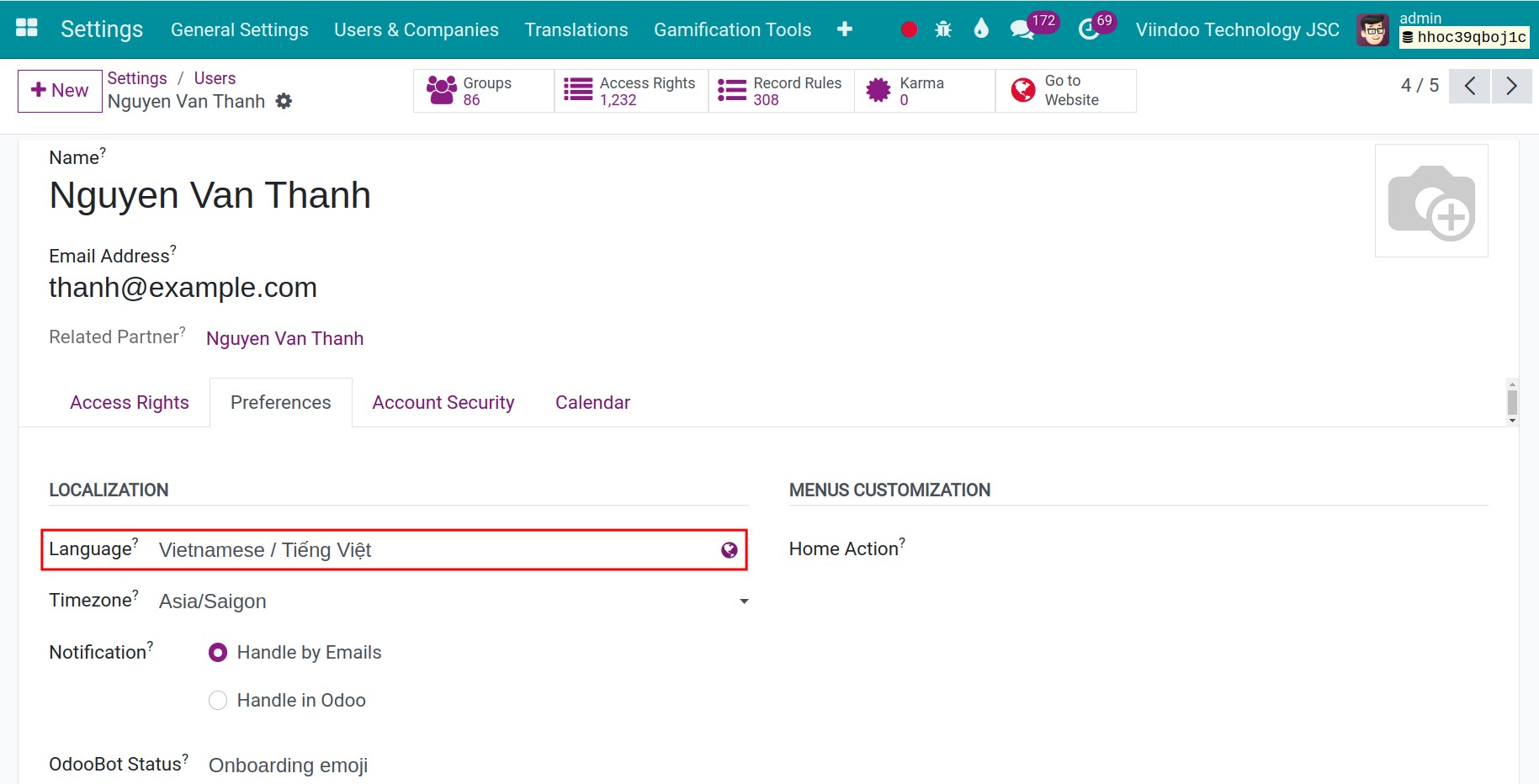
In the Preferences tab, choose the new language in Language.
![Language field in the Preferences tab of a user]()
Save. The user sees the new language the next time they load a page.
Common errors
Message |
What to do |
|---|---|
Cannot deactivate a language that is currently used by users. |
Change the language of those users first, then disable it. |
Cannot deactivate a language that is currently used by contacts. |
Change the Language of those contacts first, then disable it. |
At least one language must be active. |
Activate another language before you disable the last one. |
I do not see Manage Languages or the Translations menu. |
Turn on developer mode. |
Next steps
How to create and edit email templates: translate your email templates.