
How to request time off
To request time off, open Time Off ‣ My Time ‣ Dashboard, click New, choose the time off type and the dates, then click Submit Request. The request gets the status To Approve and an activity is scheduled for the approver, who approves or refuses it. The request, its status and its approvers are kept in Viindoo, so nobody loses a paper form and the whole company sees on the calendar who is away.
Who |
Employees (request), approvers of the employee (approve), users with the Time Off ‣ Officer: Manage all requests access right (create requests for employees and give the final approval). |
App |
Time Off |
Before you start
Install the Time Off app and set the access rights, see How to install Time Off and set up access rights.
Create the time off type. When it requires an allocation, allocate days to the employee first.
Choose the approver of the employee in the Time Off field of the employee’s profile.
How do I request time off?
Go to Time Off ‣ My Time ‣ Dashboard and click New.
![The dashboard with the New button]()
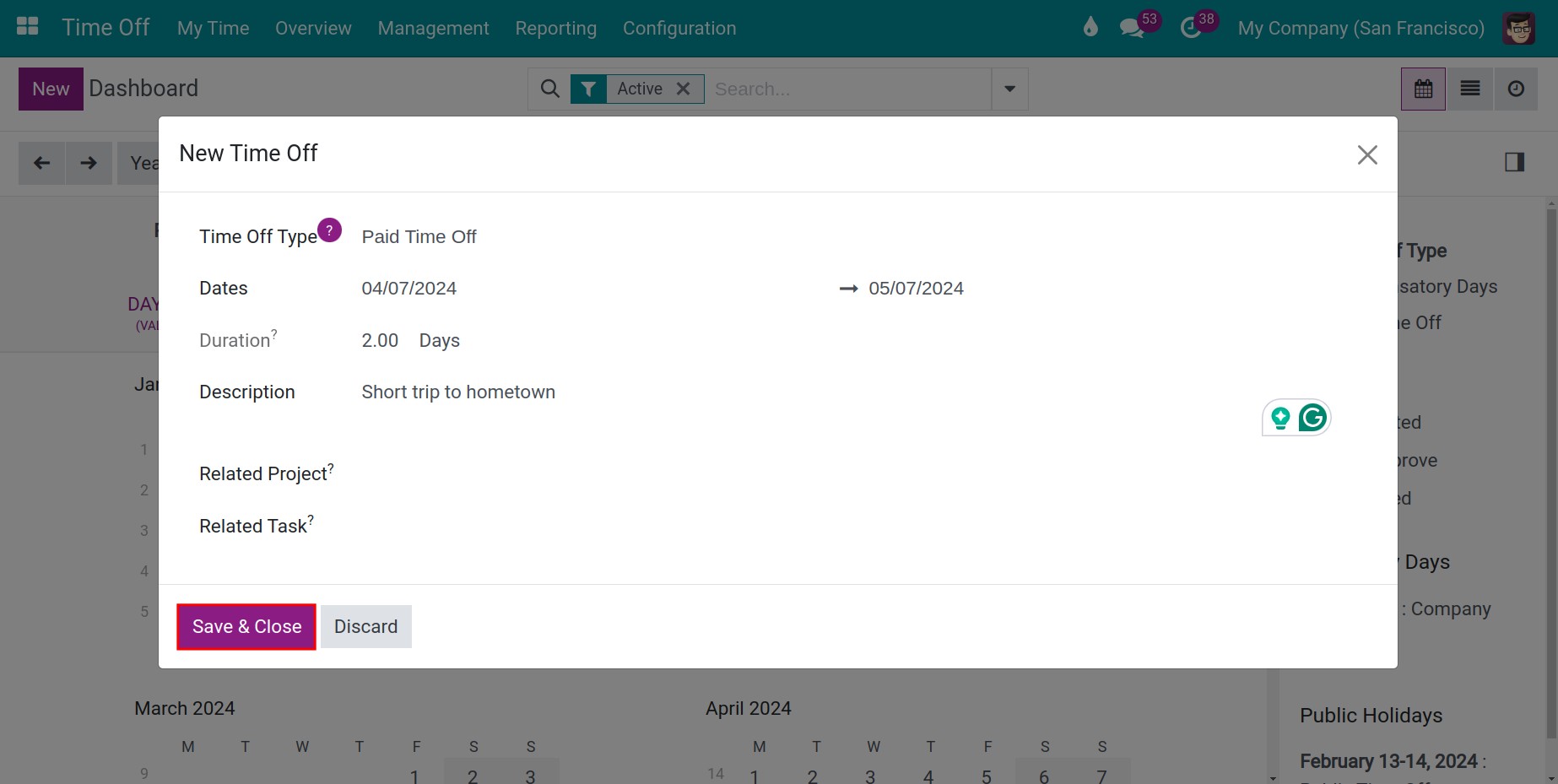
Fill in the request, then click Submit Request.
![The New Time Off window with the dates and the description]()
Field
What it does
If it is wrong
Time Off Type
The kind of leave. The types that require an allocation need a balance.
A type without balance cannot be requested.
Dates
The first and last day of the leave. The number of days is computed next to the dates.
The duration is computed on the wrong days.
Description (no label)
The reason for the request.
The approver cannot see why you are away.
Related Project and Related Task
The project that will receive the timesheet of the time off once it is approved, and the task if the time off concerns one. Shown with the Time-Off Project Timesheet module.
The timesheet goes to the wrong project.
Attach File
Attach a file, such as a medical certificate. A type can require it.
The request cannot be justified.
The request appears on the calendar of the dashboard.
![The calendar of the dashboard with a request waiting for approval]()
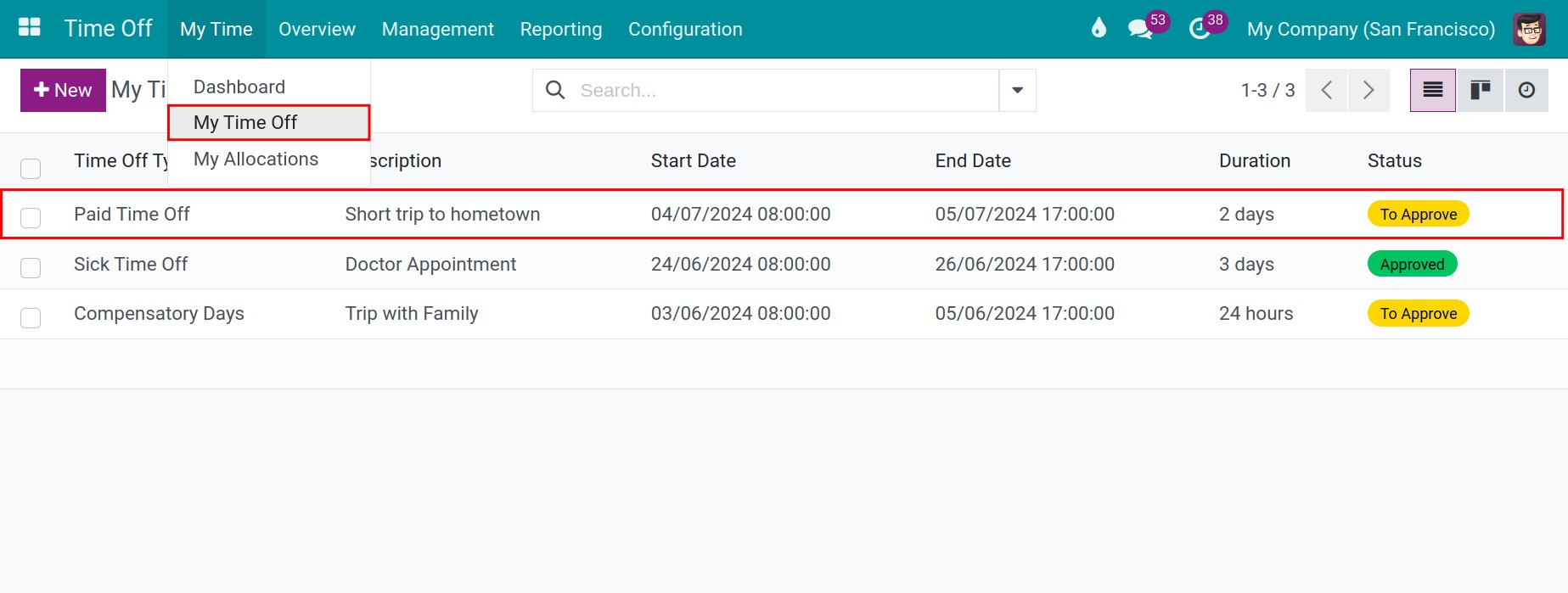
To follow your requests and their status, go to Time Off ‣ My Time ‣ My Time Off.
![The list of my time off requests with their status]()


How does the approver approve a request?
A new request has the status To Approve. Viindoo schedules a Time Off Approval activity for the approver chosen in the profile of the employee.
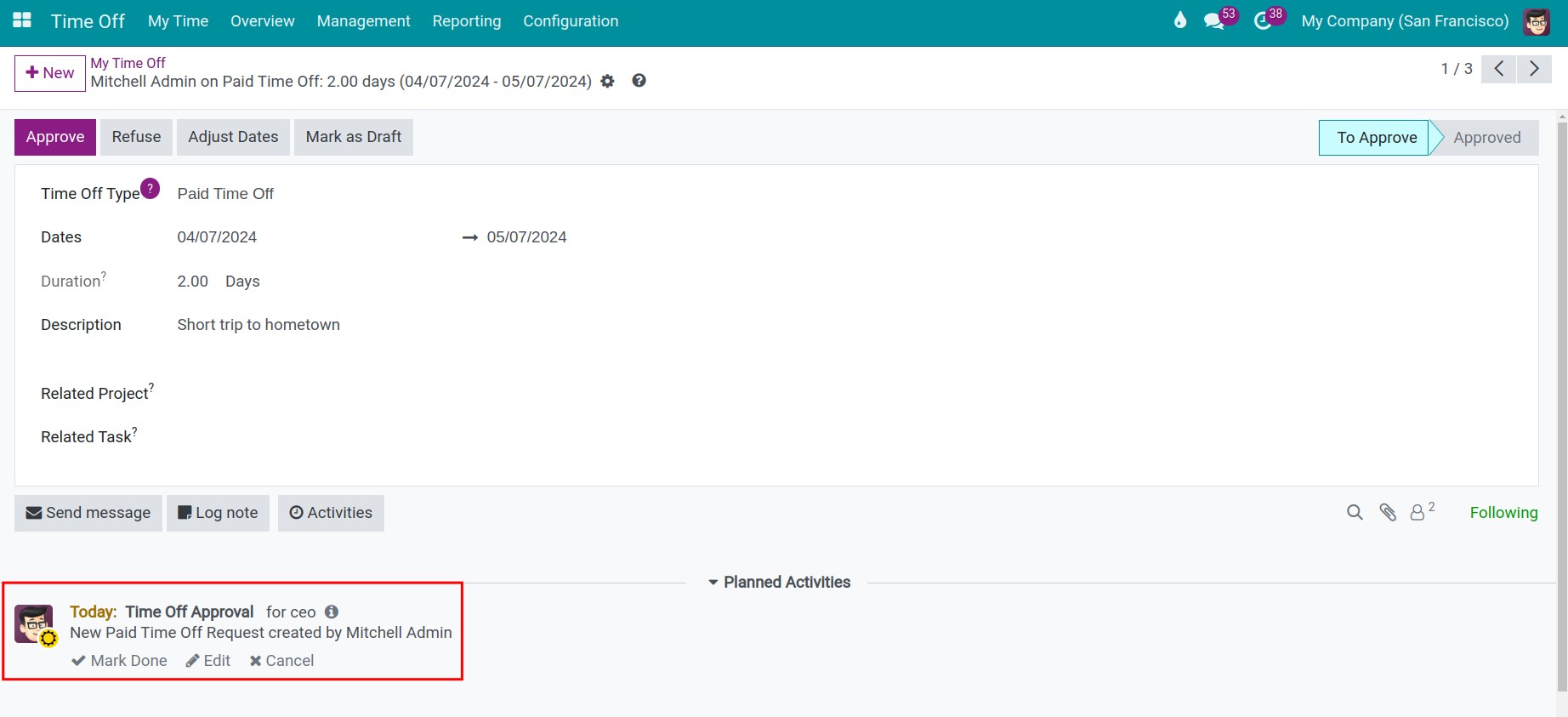
The approver finds the activity in the activities menu at the top of the screen, or opens the request from Time Off ‣ Management ‣ Time Off.
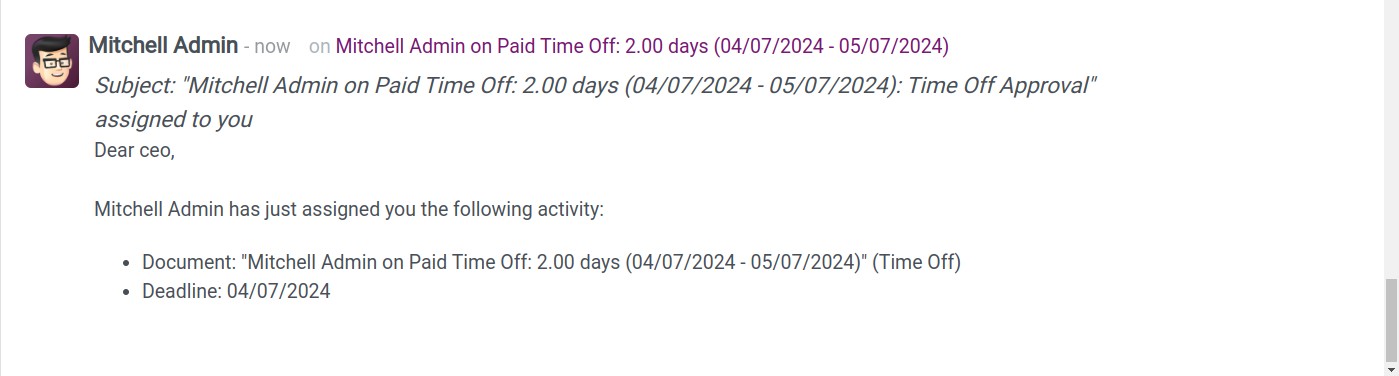
In the request, the approver clicks Approve, or Refuse if the request cannot be accepted.
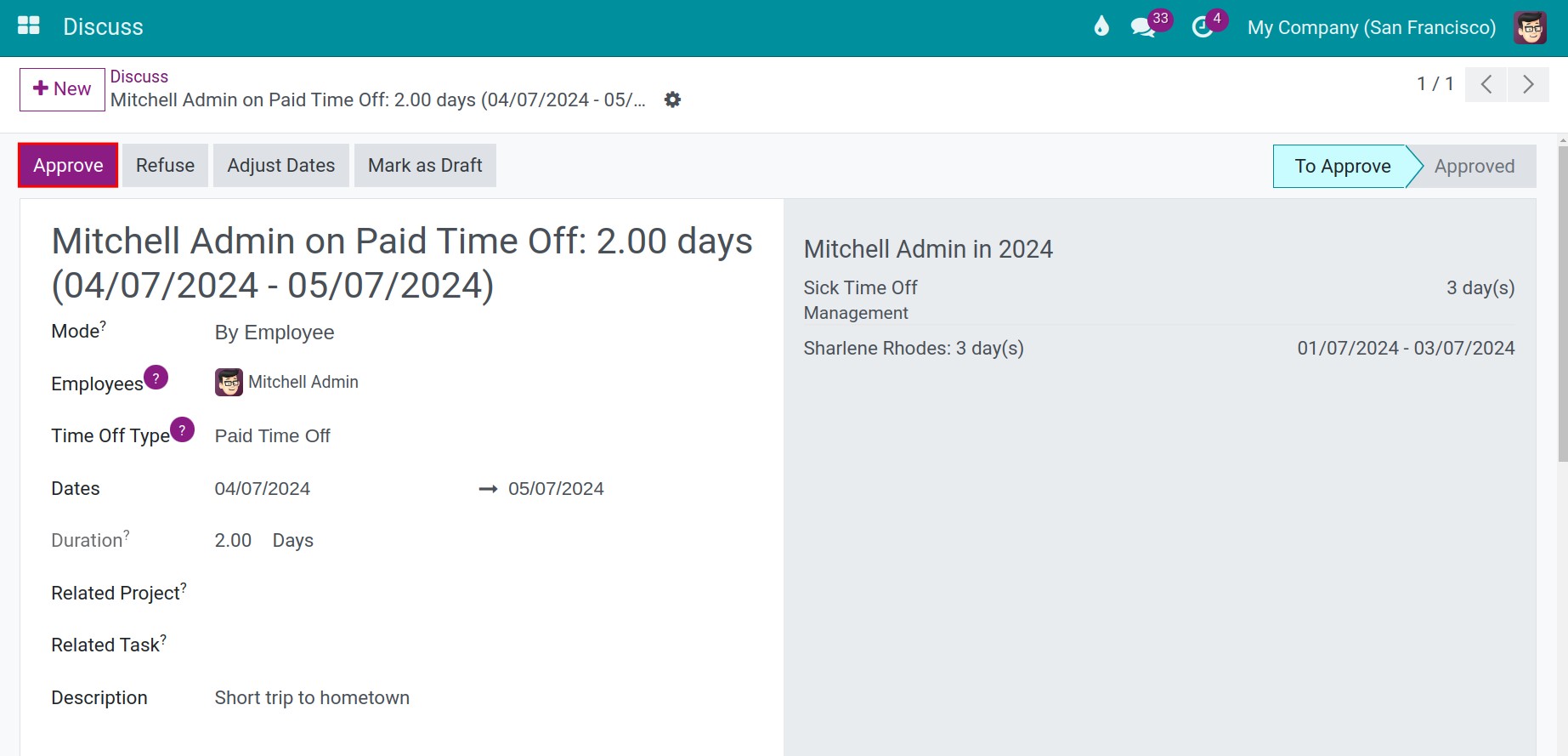
What happens next depends on the Approval of the time off type:
With one approval, the request becomes Approved.
With By Employee’s Approver and Time Off Officer, the request becomes Second Approval and a Time Off Second Approve activity is scheduled for the officers chosen in Notify HR. An officer clicks Validate to approve it.
![A request waiting for the second approval]()
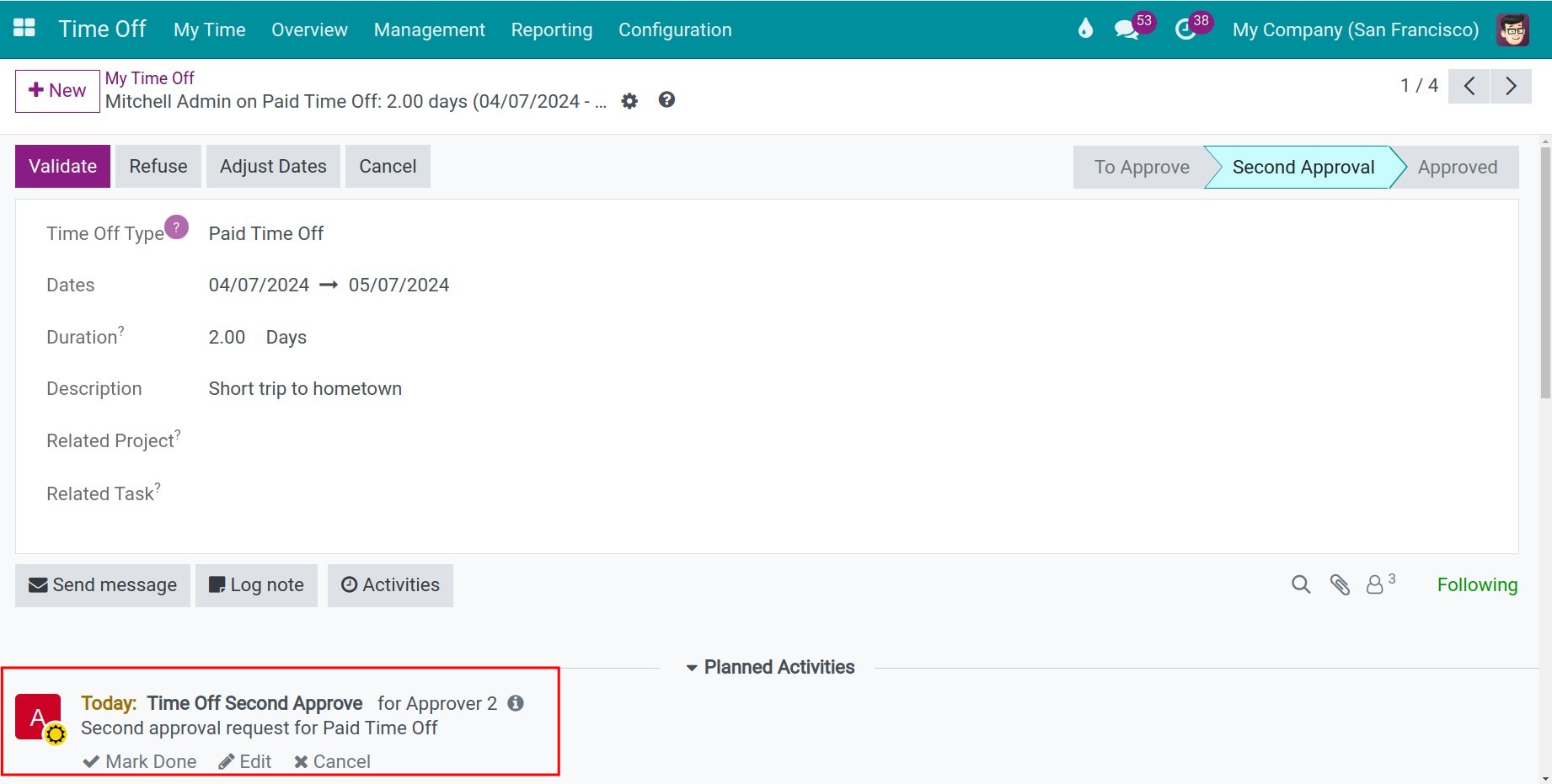

Note
A time off officer or administrator who clicks Approve gives the final approval at once, even when the type asks for two approvals.
A refused request gets the status Refused and stays in the list of the employee.

How do I choose who approves the requests of an employee?
Open the employee in Employees ‣ Employees. In the Settings tab, the Time Off field of the Approvers group holds the approver of the employee. Save the employee.

How does a manager create time off for employees?
A user with the Officer: Manage all requests access right can create the request of an employee in Time Off ‣ Management ‣ Time Off: click New and choose the Employee. The request follows the approval of its time off type.

To create the same time off for several employees at once, click New Group Time Off in the same list. In the Multiple Requests window, choose the Time Off Type (only the types that do not require an allocation are offered) and the Mode: By Employee, By Company, By Department or By Employee Tag. Then choose the employees, the dates and the description, and click Generate Time Off. With the Viin Time-Off module, Exclude Employees lets you leave some employees out when the mode is not By Employee.

Common errors
Problem |
What to do |
|---|---|
The message You do not have any allocation for this time off type appears. |
The type requires an allocation and you have none. Ask your HR officer for an allocation, or send an allocation request when the type allows it. |
The message does not have a valid allocation … to cover that request appears. |
The days requested are above the balance. Request fewer days, ask for an allocation, or let an administrator allow a negative balance on the type. |
Submit Request is missing and a red message shows You’ve already booked time off which overlaps with this period. |
Choose other dates, or ask an administrator to tick Allow Request on Top on the type when the type is Worked Time. |
The message You are not allowed to request time off on a Mandatory Day appears. |
Choose other dates. Only time off officers can request time off on a mandatory day. |
The approver does not see the request. |
Check the Time Off approver in the profile of the employee. |
You need to change the dates of an approved request. |
Ask an administrator to adjust the dates. |
Next steps
How to adjust a time off request: change the dates of a request.
How to track time off with reports: follow the time off of your employees.