
How to add an application in Recruitment
To record someone who applies for a position, go to Recruitment ‣ Applications ‣ All Applications, switch to the kanban view and click + at the top of the first column (or New). Type the applicant’s name and choose the position, then click Add. Open the card later to add contact details, the notes and the skills. Applications from your website, from an email address or from a job board are created by Viindoo without any typing.
Who |
Users with the Recruitment ‣ Officer: Manage all applicants access right. |
App |
Recruitment |
Before you start
Install the Recruitment app. The Skills tab appears when the Recruitment - Skills Management module is installed.
Create the job position the person applies for.
What is an application?
An application is one person applying for one job position. It follows the person through the recruitment stages. A person who applies for two positions has two applications. To keep a promising person for later, open the application and click Add to Pool: the person is then listed in Recruitment ‣ Applications ‣ By Talent Pools, and Create Applications opens a new application for a position.
How do I add an application from the kanban view?
Go to Recruitment ‣ Applications ‣ All Applications and switch to the kanban view. Each column is a recruitment stage.
![Applications in the kanban view, one column per recruitment stage]()
Click + at the top of the column where the person is now (usually New). Type the Applicant’s Name, choose the Job Position and click Add.
![Quick form to add an application in the New column]()
Click Edit instead of Add to open the full form straight away.
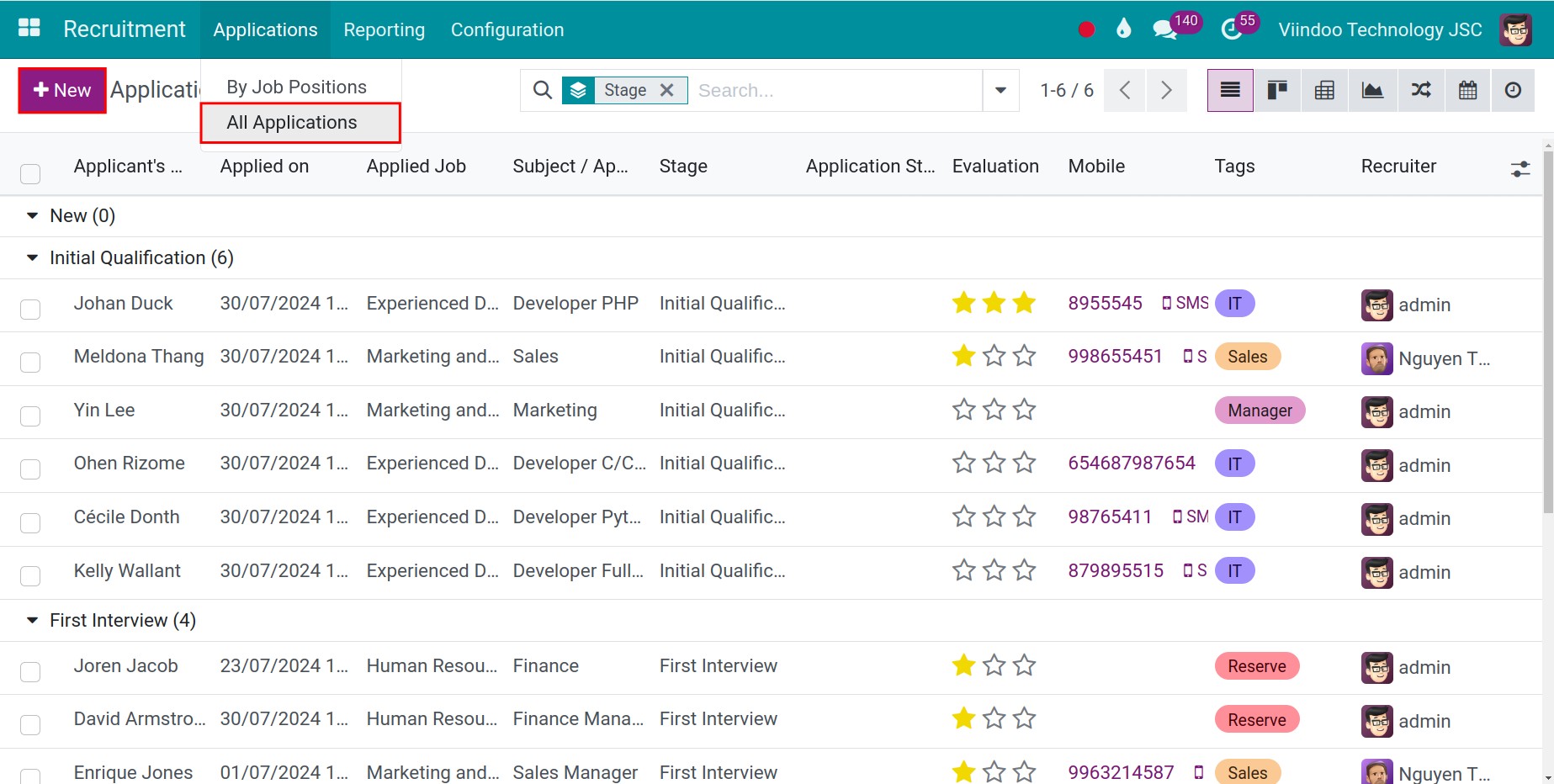

The kanban view shows every application by stage at a glance; use it instead of the list when you follow the recruitment process day by day.
How do I fill in the full application form?
Open Recruitment ‣ Applications ‣ All Applications and click New, or open an existing card.

You can also create an application for a given position: in Recruitment ‣ Applications ‣ By Job Positions, open the menu of the position (the three dots on its card) and click Application under New. The position is already filled in. The Applications command of the same menu lists the applications of that position.


Which fields do I fill in?
Field |
What it does |
If it is wrong |
|---|---|---|
Applicant |
The person’s name. |
A name typed twice for the same person splits their history. |
Job Position |
The position applied for. The department, recruiter and interviewers come from it. Left empty, the application is a spontaneous one. |
A wrong position puts the application in the wrong pipeline. |
Email, Phone, LinkedIn Profile |
Contact details of the applicant. |
A wrong email means the emails you send never arrive. |
Evaluation |
Click the stars to rate the application (one to three stars). |
None. |
Recruiter |
The person in charge of the application. Filled from the position. |
Shown on the card and in the reports. |
Interviewers |
Users who may interview this applicant. They see only the applications they are assigned. |
An interviewer who is not listed cannot open the application. |
Tags |
Keywords to search and filter applications. |
None. |
Note tab |
Your first impression of the applicant, summary of the application. |
Internal notes of the recruitment team. |
Details tab |
Degree, availability, department, expected and proposed salary, Source, Medium and Campaign. |
A missing source makes the source report less useful. |
Click Save when you finish.
How do I record the skills?
Open the Skills tab of the application. Viindoo compares the skills with the Expected Skills of the job position and shows the result as Job Position Matching, in the gauge and in the Matching column of the list of applications.
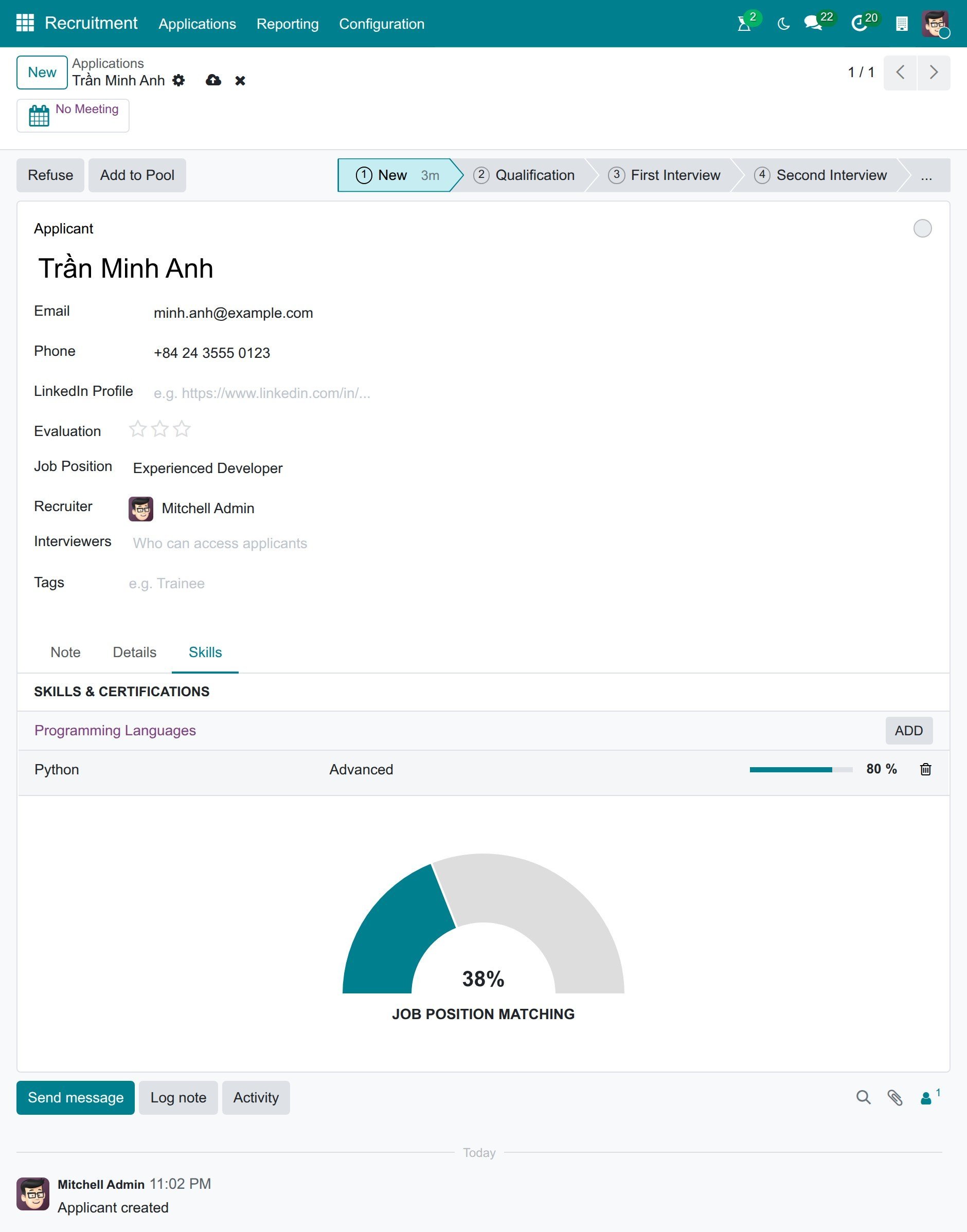
Click Pick a skill from the list (or Add when the applicant already has skills).
In the Update Skills window, choose the Category, then the Skill and its Skill Level. Click Save & Close, or Save & New to add the next skill.
![Window to choose the category, the skill and the level of a skill]()

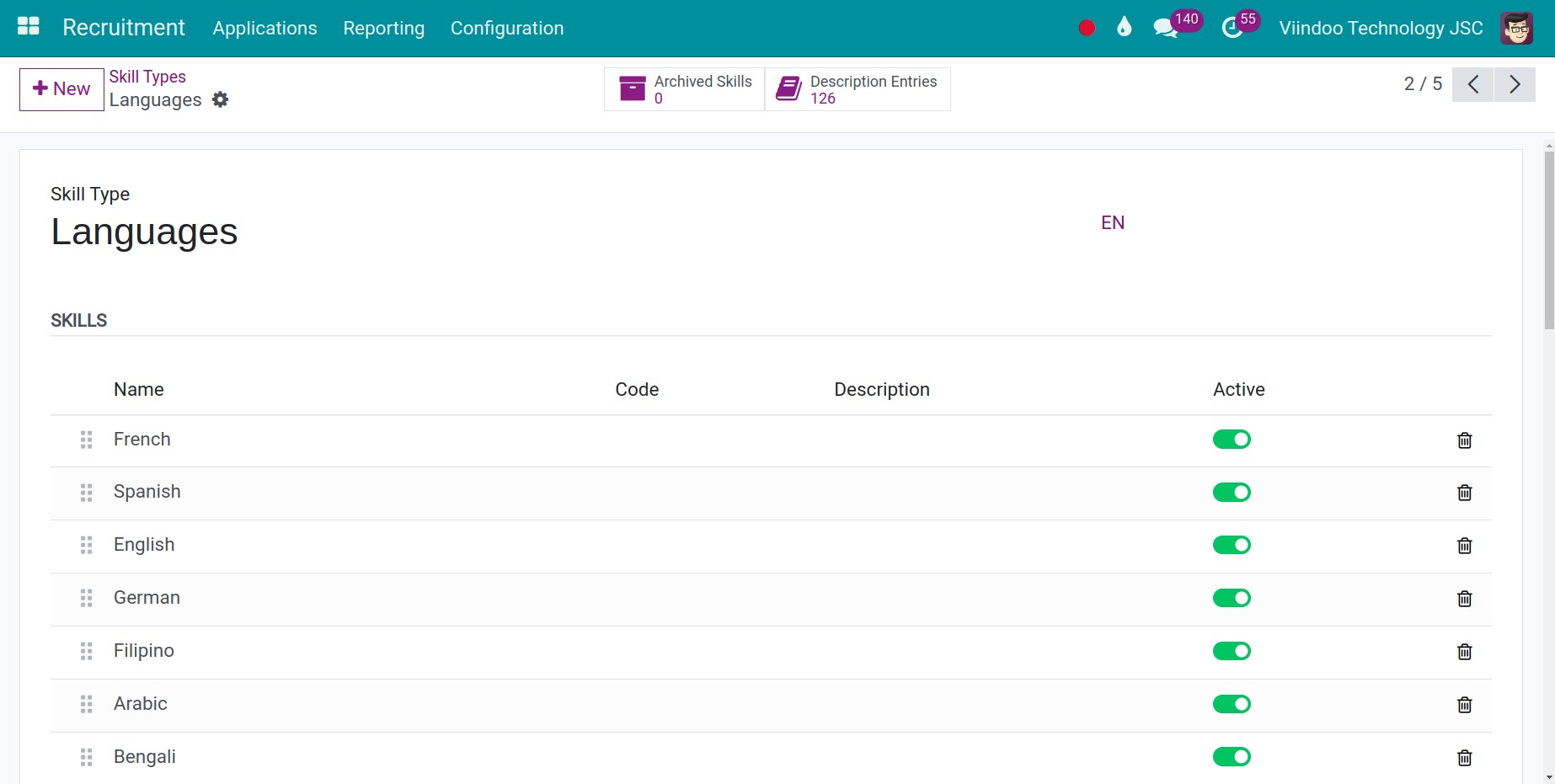
If the skill you need is missing, create it in Recruitment ‣ Configuration ‣ Employees ‣ Skill Types: open a type and add a skill, or click New to create a type.

Which applications are created automatically?
From the website: a candidate fills in the application form of a published position. See How to publish a job on your website.
From an email address: type an Email Alias in the position (Hiring Process section of the position form, open it with the Configuration command of the card menu). An email sent to it creates an application. This needs an email domain set by your administrator.
From a tracker: an email address per source records where the candidate comes from. See How to track where your applicants come from.
From a job board: emails sent by a job board listed in Recruitment ‣ Configuration ‣ Job Boards ‣ Emails are not linked to a contact; Viindoo reads the applicant’s name from the email with the Regex of the board.
The number of new applications of each position shows on its card in Recruitment ‣ Applications ‣ By Job Positions.
Common errors
Problem |
What to do |
|---|---|
The Skills tab is missing. |
Install the Recruitment - Skills Management module. |
An applicant appears twice. |
Open one of the two applications, check the email and phone, and click Refuse on the duplicate: the applicant is archived with the reason Duplicate. |
You cannot see an application. |
Your access right may be Interviewer, which shows only the applications where you are an interviewer. Ask an administrator for the Officer: Manage all applicants access right. |
Next steps
How to message applicants and schedule interviews: invite the applicant to an interview.
How to move applications through the recruitment stages: move the application from stage to stage.