
How to add an application in Recruitment
To record someone who applies for a position, go to Recruitment ‣ Applications ‣ All Applications, switch to the kanban view and click + at the top of the first column (or New). Type the candidate’s name and choose the position, then click Add. Open the card later to add contact details, the resume and the skills. Applications from your website, from an email address or from a tracked link are created by Viindoo without any typing.
Who |
Users with the Recruitment ‣ Officer access right. |
App |
Recruitment |
Before you start
Install the Recruitment app. The Resume tab appears when the Employees Skills app is installed.
Create the job position the person applies for.
What is the difference between a candidate and an application?
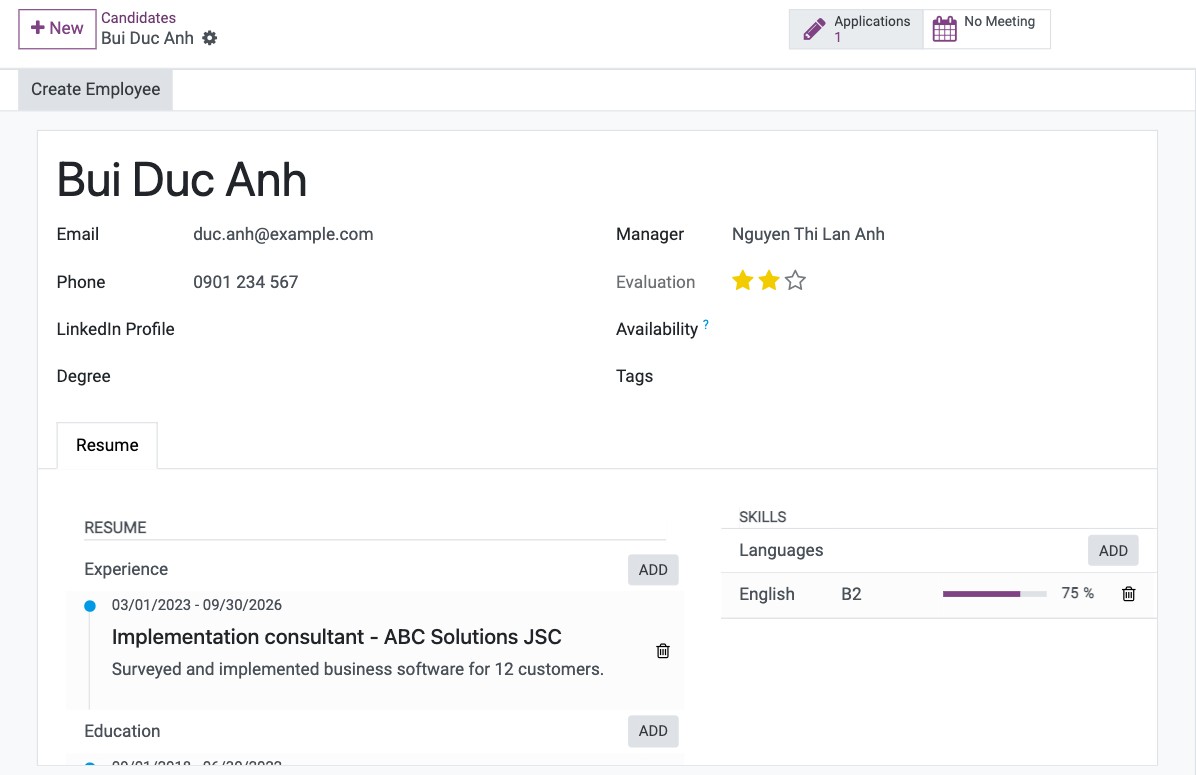
A candidate is the person: name, email, phone, resume and skills. An application links a candidate to one job position and follows the person through the recruitment stages. A candidate who applies for two positions has two applications and one resume. Recruitment ‣ Applications ‣ Candidates lists all the candidates.
How do I add an application from the kanban view?
Go to Recruitment ‣ Applications ‣ All Applications and switch to the kanban view. Each column is a recruitment stage.
![Applications in the kanban view, one column per recruitment stage]()
Click + at the top of the column where the person is now (usually New). Type the candidate’s name, choose the Job Position and click Add.
![Quick form to add an application in the New column]()
Click Edit instead of Add to open the full form straight away.


The kanban view shows every application by stage at a glance; use it instead of the list when you follow the recruitment process day by day.
How do I fill in the full application form?
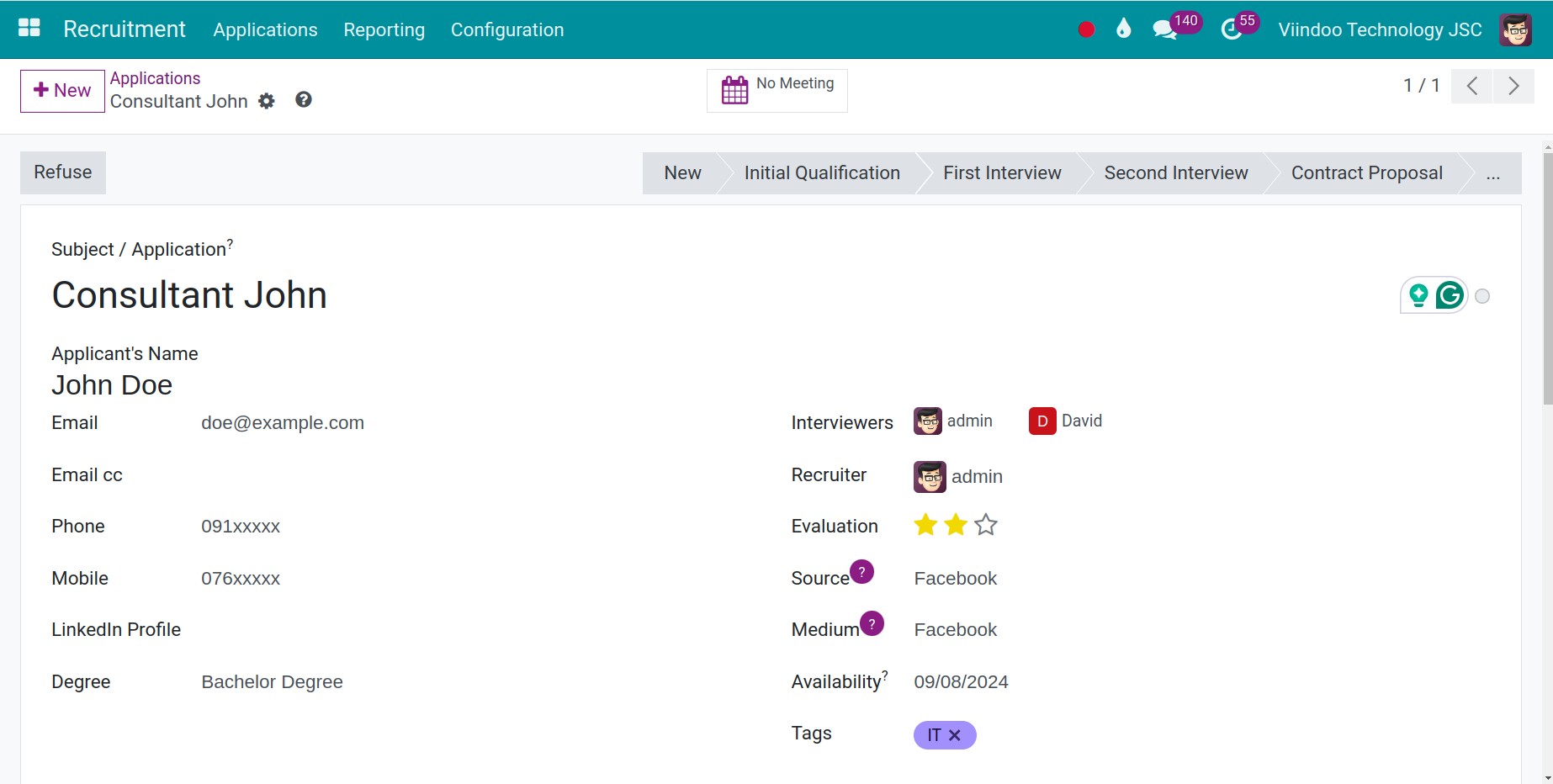
Open Recruitment ‣ Applications ‣ All Applications and click New, or open an existing card.
You can also create an application for a given position: in Recruitment ‣ Applications ‣ By Job Positions, click the New Applications button of the position to see its applications, then click New. The card menu of the position has New ‣ Application too.


Which fields do I fill in?
Field |
What it does |
If it is wrong |
|---|---|---|
Candidate |
The person’s name. Type a new name and choose Create, or pick an existing candidate. |
A second candidate with the same person splits their resume and history. |
Job Position |
The position applied for. The department, recruiter and interviewers come from it. |
Left empty, the application cannot follow the process of a position. |
Email, Phone, LinkedIn Profile |
Contact details of the candidate. Viindoo uses the email and phone to find similar candidates. |
A wrong email means the emails you send never arrive. |
Recruiter |
The person in charge of the application. Filled from the position. |
Shown on the card and in the reports. |
Interviewers |
Users who may interview this applicant. They see only the applications they are assigned. |
An interviewer who is not listed cannot open the application. |
Tags |
Keywords to search and filter applications. |
None. |
Notes tab |
Your first impression of the candidate, summary of the application. |
Internal notes of the recruitment team. |
Details tab |
Degree, availability date, expected and proposed salary, Source and Medium. |
A missing source makes the source report less useful. |
Click the star on the card to rate the application (one to three stars). Click the save icon when you finish.
How do I record the resume and the skills?
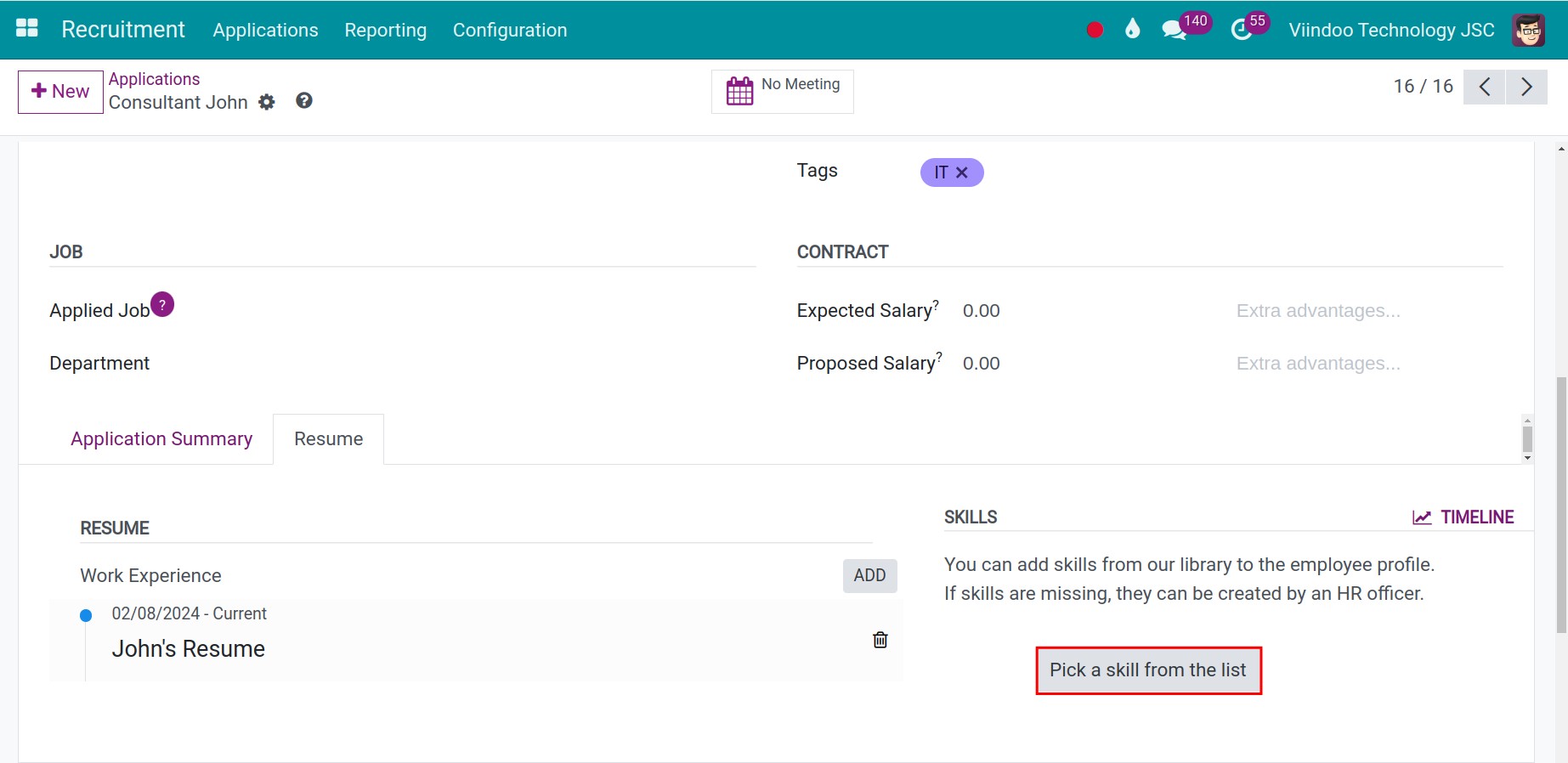
Open the Resume tab of the application. The resume and the skills belong to the candidate, so every application of the same person shows them.
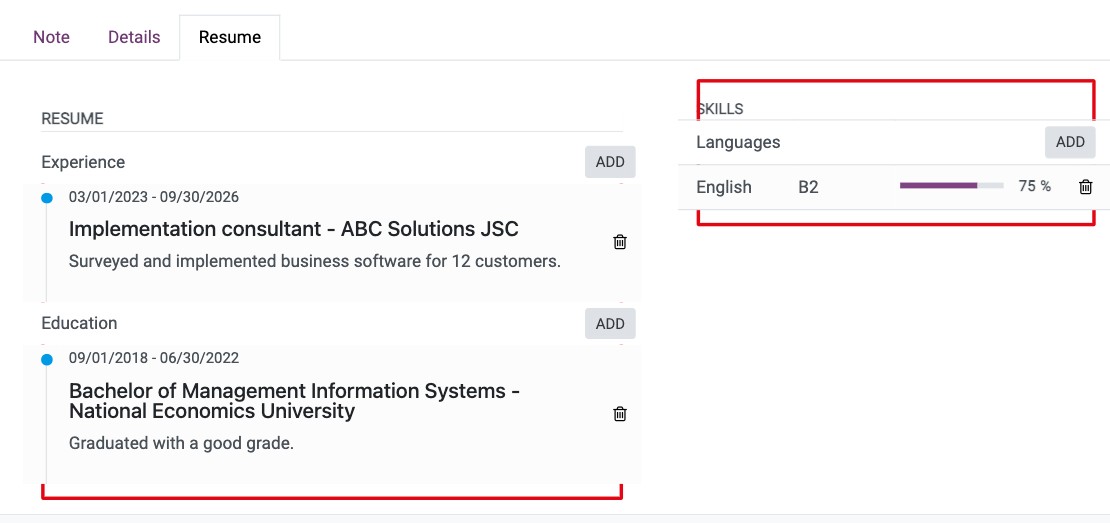
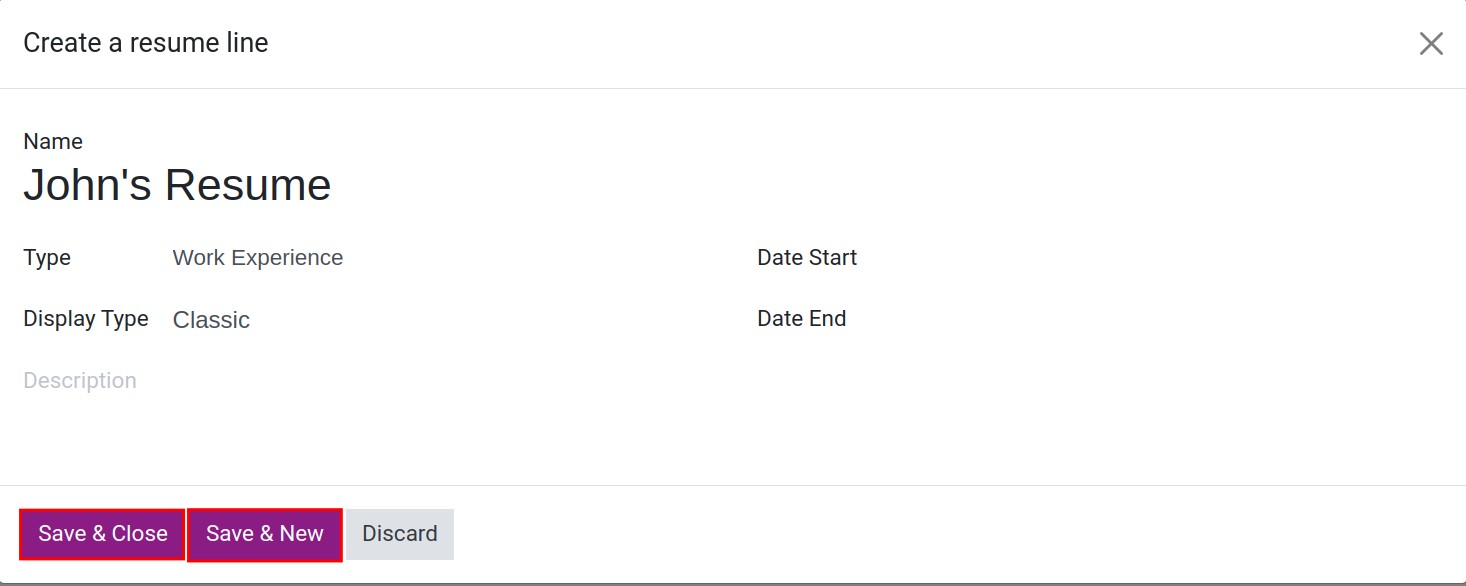
In Resume, click Create a new entry (or Add next to a group such as Experience or Education) and fill in the type, the title, the dates and the description. Leave End Date empty for something that is still going on. Click Save & Close, or Save & New to add the next line.
![Window to add a line to the resume]()
In Skills, click Pick a skill from the list. Choose the skill type, then the skill and its level.
![Window to choose the type of the skill]()
If the skill you need is missing, create it in Recruitment ‣ Configuration ‣ Employees ‣ Skill Types: open a type and add a skill or a level (each level has a percentage), or click New to create a type.


Which applications are created automatically?
From the website: a candidate fills in the application form of a published position. See How to publish a job on your website.
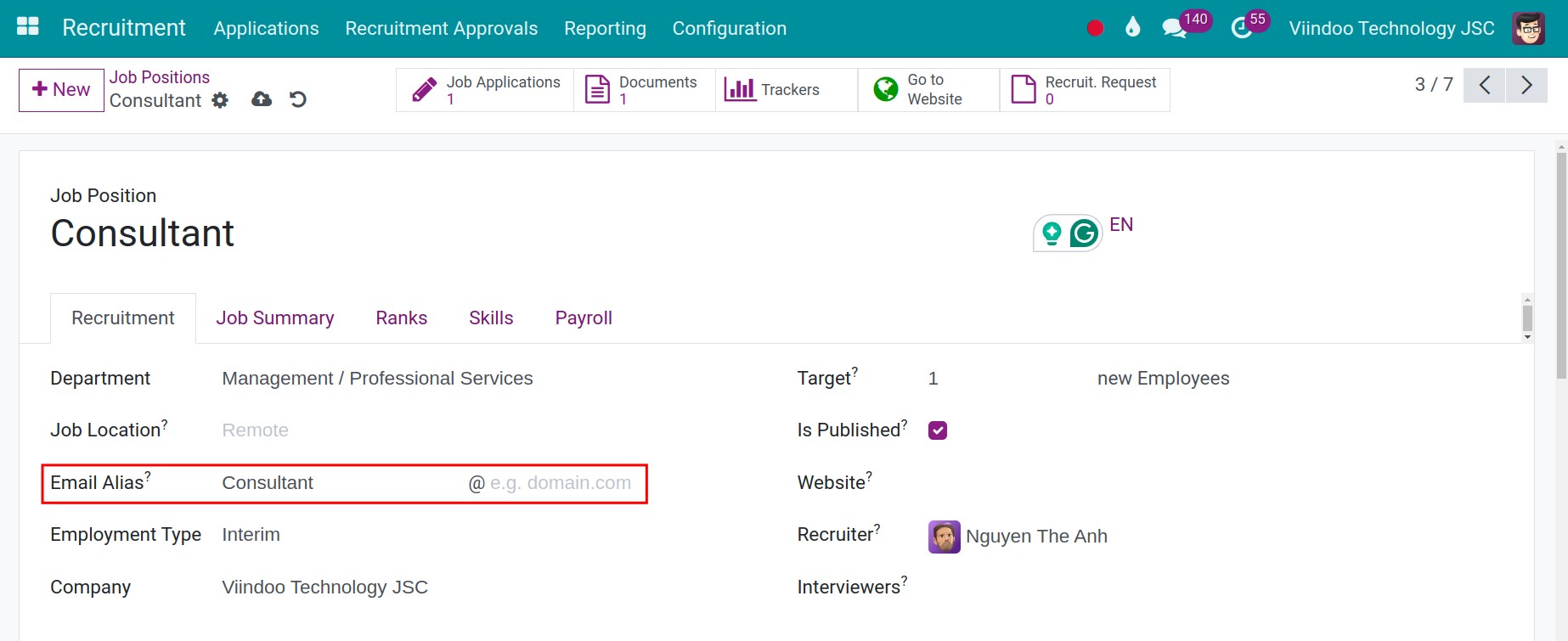
From an email address: each job position has an email alias (Recruitment tab of the position, field Email Alias). An email sent to it creates an application.
![The email alias of a job position]()
From a tracker: a tracked link or email address per source records where the candidate comes from. See How to track where your applicants come from.
From a job board: emails sent by a job board listed in Recruitment ‣ Configuration ‣ Job Boards ‣ Emails are not linked to a contact; Viindoo reads the candidate’s name from the email with the Regex of the board.
The number of new applications of each position shows on its card in Recruitment ‣ Applications ‣ By Job Positions.
Common errors
Problem |
What to do |
|---|---|
The Resume tab is missing. |
Install the Employees Skills app. |
A candidate appears twice. |
Open the candidate and click the Similar Candidates button: it lists the candidates with the same email or phone, so you can find the duplicates. |
You cannot see an application. |
Your access right may be Interviewer, which shows only the applications where you are an interviewer. Ask an administrator for the Officer access right. |
Next steps
How to message applicants and schedule interviews: invite the candidate to an interview.
How to move applications through the recruitment stages: move the application from stage to stage.