
How to set up working hours
A working schedule defines the days and hours that employees are expected to work, plus the public holidays of the company. Create it once in , then choose it on each employee or labor contract. The schedule you set as Company Working Hours is the default proposal for every new employee and every new contract.
For example, an administrative officer works from 8:00 AM to 12:00 PM and from 1:00 PM to 5:00 PM, Monday to Friday, with a lunch break from 12:00 PM to 1:00 PM, and does not work on New Year’s Day.
This guide is for HR officers and administrators. Depending on the job position and the organization, each employee may have a different schedule.
Who can do this, and where?
Task |
Role needed |
Where |
|---|---|---|
Create or edit a working schedule |
Officer of the Employees app when the Contracts app is installed, otherwise a user with the Settings access right |
|
Choose the Company Working Hours |
A user with the Settings access right |
How do I create a one-week working schedule?
Go to . As an alternative, activate the developer mode and go to .
![The Working Schedules menu in the Configuration menu of the Employees app]()
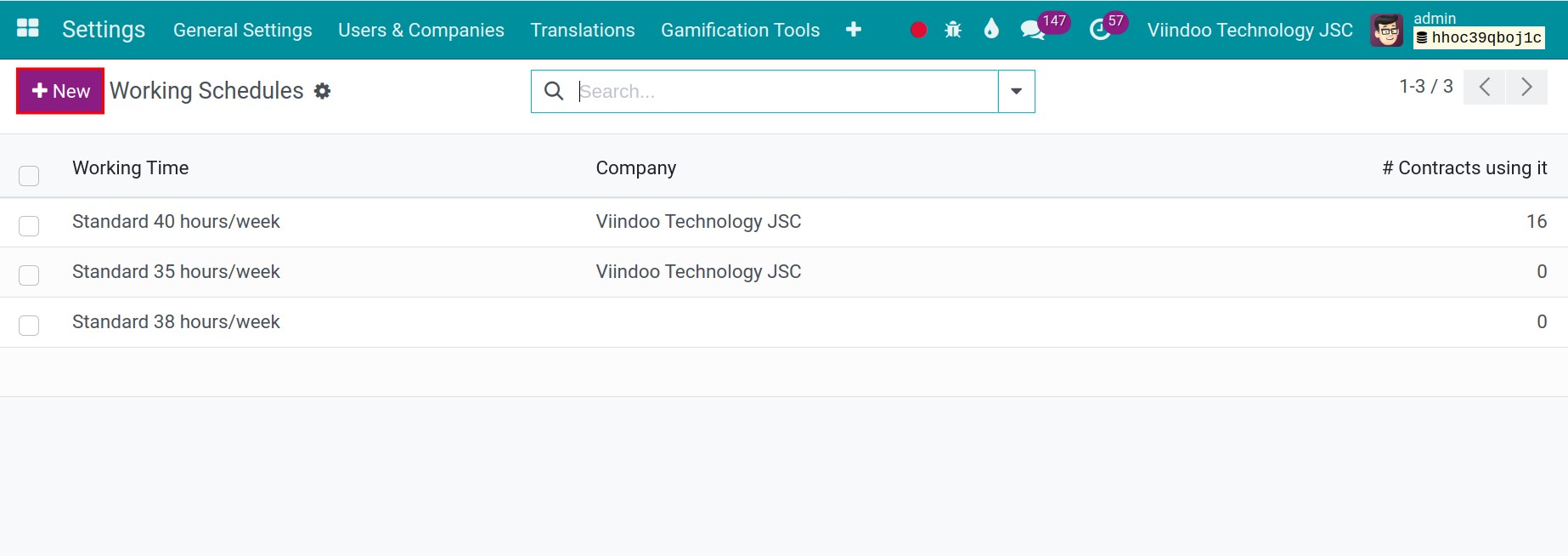
The list shows the working schedules of your company. Click New.
![The list of working schedules with the New button highlighted]()
A new schedule opens, already filled with the working hours of the company: Monday to Friday, 8:00 to 12:00 and 13:00 to 17:00, with a lunch break.
![A new working schedule filled with the default working hours]()
Enter the name of the schedule, the Company Full Time (hours per week) and the Timezone.
![The name, the Company Full Time and the Timezone of a working schedule highlighted]()
In the tab Working Hours, change the lines to match the real hours. Click Add a line to add a line, and the trash icon at the end of a line to delete it. Then save.
![The working hours lines of a schedule with the Add a line link highlighted]()




Field |
What it does |
If left empty or wrong |
|---|---|---|
Name |
Name of the schedule, shown when you choose it on an employee, a contract or in the settings. |
Required. |
Flexible Hours |
Lets employees work flexibly, without relying on the hours of the schedule. |
Off by default. The button to switch to a two-week calendar is hidden when it is on. |
Company Full Time |
Number of hours per week that count as a full-time job on this schedule. |
Optional. |
Average Hour per Day |
Average hours of work per day, computed from the working hours lines. |
Updated when you edit the lines. |
Timezone |
The timezone in which employees work on this schedule. |
Required. A wrong timezone shifts the dates and hours of the public time off. |
Day Period |
Part of the day of a line: Morning, Break or Afternoon. |
A Break line does not count as work time. |
How do I add a public holiday to a schedule?
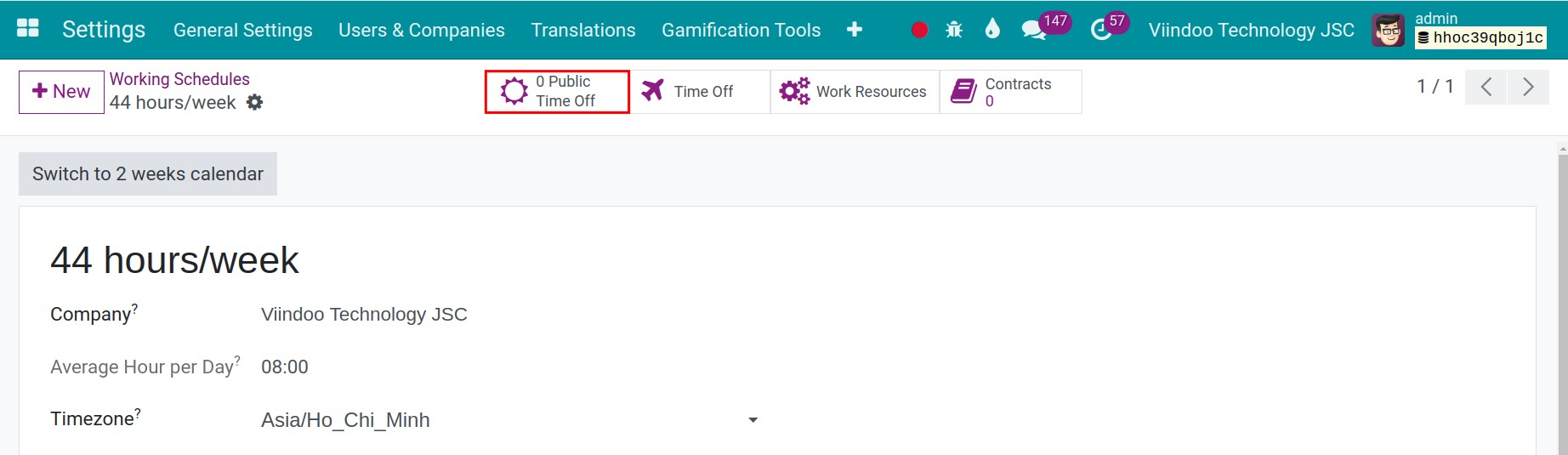
Open the schedule and click the smart button Public Time Off. It applies to every employee who uses this schedule.
![The Public Time Off smart button of a working schedule highlighted]()
Click New, then enter the Name, the Start Date and the End Date. Tick Holiday to consider the period as a holiday. Working Period? keeps the period counted as a working day, so that it does not reduce the number of working days of the month.
![A new public time off line with the Holiday checkbox highlighted]()
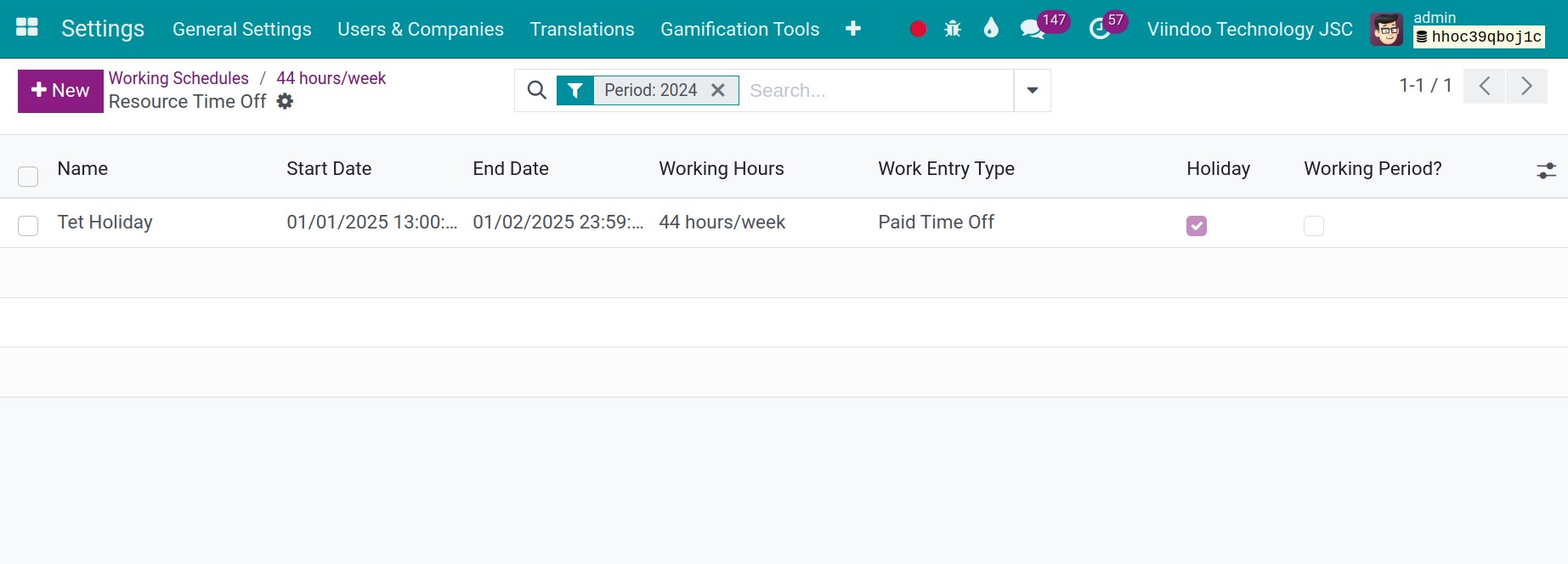
Click Save. The period is now listed as a public time off of the schedule.
![The saved public time off in the list of the schedule]()

How do I set up a two-week schedule for shifts?
Use a two-week schedule when employees alternate, for example one week of day shifts and one week of night shifts.
Open the schedule (or create a new one) and click Switch to 2 weeks calendar.
![The Switch to 2 weeks calendar button of a working schedule]()
A confirmation asks if you are sure: All work entries will be lost. Click Switch to continue. The hours of the schedule are replaced by the default hours for each week.
![The confirmation window before switching to a two-week calendar]()
The schedule now shows a sentence telling which week number the current week is, and one block of lines for each week.
![A two-week working schedule with the explanation of the current week]()
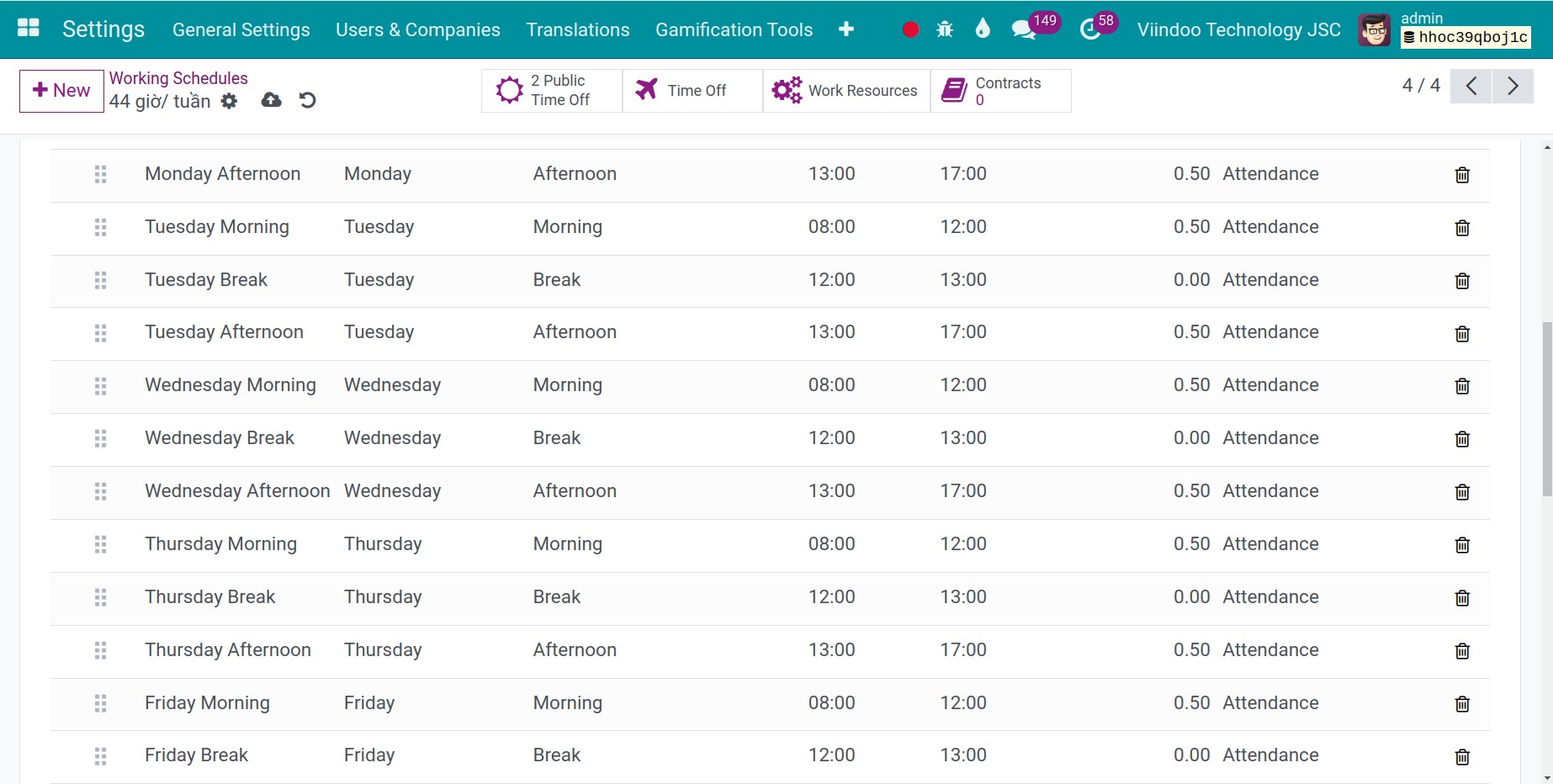
Edit the lines of the first week.
![The working hours lines of the first week]()
Edit the lines of the second week, below the first one.
![The working hours lines of the second week]()
Adjust the name, the Company Full Time, the Timezone and the lines, then save.
![A two-week schedule with the save icon highlighted]()




Note
Click Switch to 1 week calendar to return to a one-week schedule. After the confirmation, the working hours are replaced by the default one-week hours, so the hours you set for the two weeks are lost.
How do I choose the Company Working Hours?
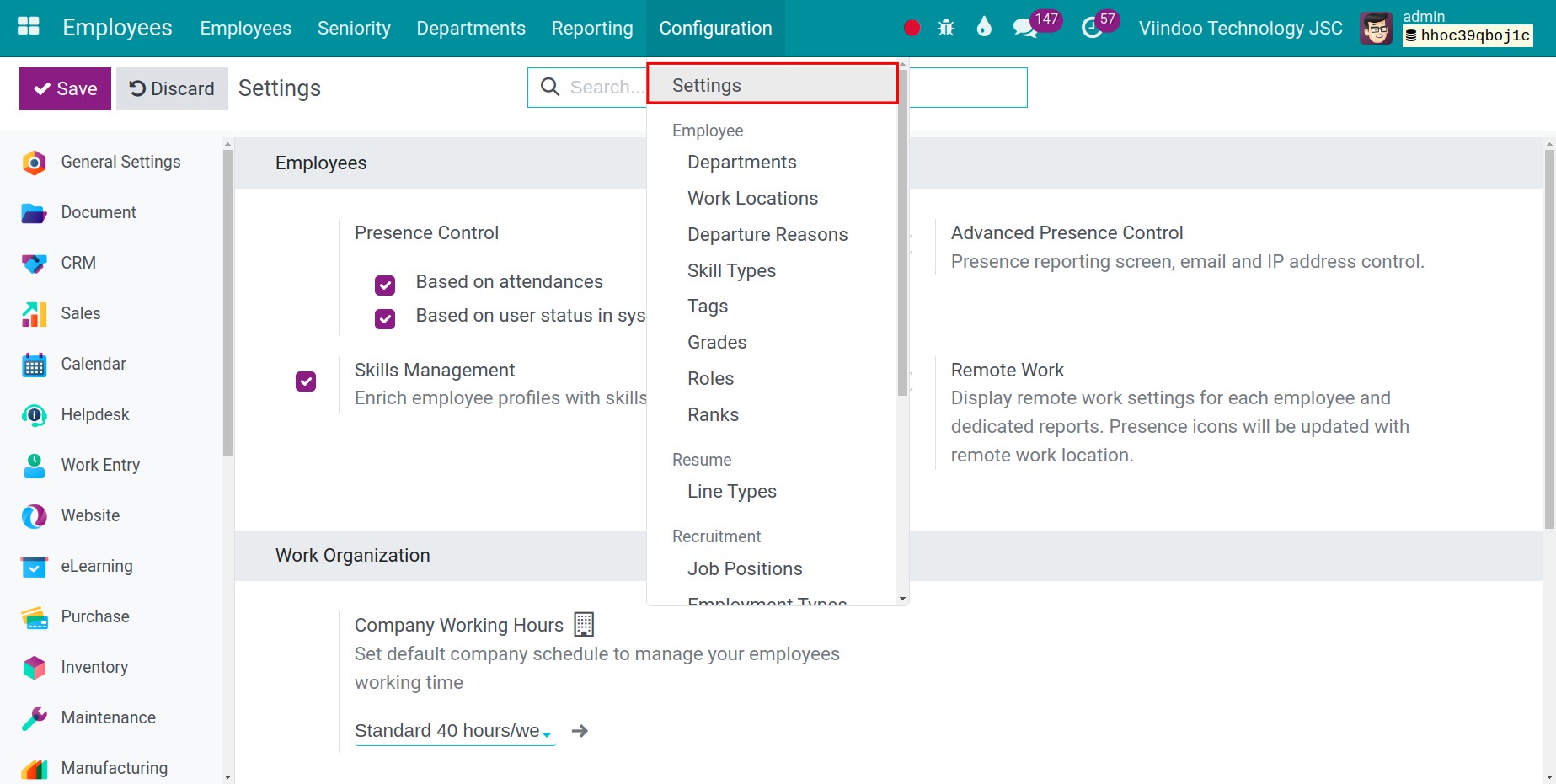
Go to . In the section Work Organization, the field Company Working Hours shows the schedule used by default.
![The Company Working Hours field in the settings of the Employees app]()
Click the field and choose a schedule in the list.
![The list of working schedules offered for the Company Working Hours]()
If the schedule you want is not in the list, click Search More…, then New to create it with the same information as above (or create it first in the menu Working Schedules).
![The window to search or create a working schedule with the New button highlighted]()
Click Save to record the Company Working Hours.
![The Save button of the settings of the Employees app highlighted]()


What should I see afterwards?
The new schedule is listed in and can be chosen on employees and labor contracts.
A new employee, and a new labor contract, starts with the Company Working Hours; you can choose another schedule.
The public time off of a schedule applies to all employees working on it.
Common problems
Problem |
Cause |
What to do |
|---|---|---|
The menu Working Schedules or Settings is missing |
Your user does not have the required role or access right. |
Ask an administrator to give you the access right. |
The button Switch to 2 weeks calendar is missing |
The schedule uses Flexible Hours, or it is already a two-week schedule. |
Untick Flexible Hours. |
Holidays start or end at the wrong hour |
The Timezone of the schedule is not the one of your company. |
Correct the Timezone, then enter the dates again. |
Next steps
See also
Related article
Optional module