
How to read quality measurements from an IoT instrument
A quality control point defines a norm and a tolerance band, but the number that goes into a quality check is normally whatever someone typed in from an instrument’s display. IoT Quality lets a control point name the registered measuring instrument (a scale) that supplies its reading. The inspector then takes the reading into the check with one click, and every check keeps a note of whether its measurement was read from an instrument or entered by hand, which instrument produced it, and when.
The pass or fail verdict does not change: it stays the control point’s own tolerance rule. This module only supplies the number. A control point with no instrument named is filled in by hand, exactly as before.
For a quality check that belongs to a work order, Quality Control IoT for Manufacturing makes the check read from the scale that the work center of the work order has nominated, so the inspector at the station has nothing to choose.
Who |
The Quality Manager names the instruments; the Quality Inspector measures; the Production Manager nominates the scale of each work center. |
App |
IoT Quality (with Quality and Internet of Things); for work orders also Quality Control IoT for Manufacturing |
Before you start
The IoT box is paired and its scale is connected: follow Set up and manage IoT boxes. Each instrument belongs to the box’s company.
The process
To do - the Quality Inspector opens the check, clicks
Measureand thenRead from instrument. The check passes to the same person for the verdict.Passed / Failed - the Quality Inspector confirms. The control point’s tolerance decides whether the check is
PassedorFailed.
Who uses these modules
Role |
What they do |
Access right to assign |
|---|---|---|
System Administrator |
Installs the module, pairs IoT boxes and gives each person their access right. |
Administration / Settings |
Production Manager |
Nominates the scale of each work center, so that work-order measurements read from the right station. |
Manufacturing / Administrator (it brings Internet of Things (IoT) / User with it) |
Quality Manager |
Defines the control points and chooses the measuring instrument of each. |
Quality / Administrator |
Quality Inspector |
Runs quality checks and reads the measurement from the instrument in hand. |
Quality / User |
How do I install the modules?
IoT Quality installs itself as soon as both the IoT and the Quality applications are
installed. It has no menu and no app icon of its own.
Open
Apps.Install
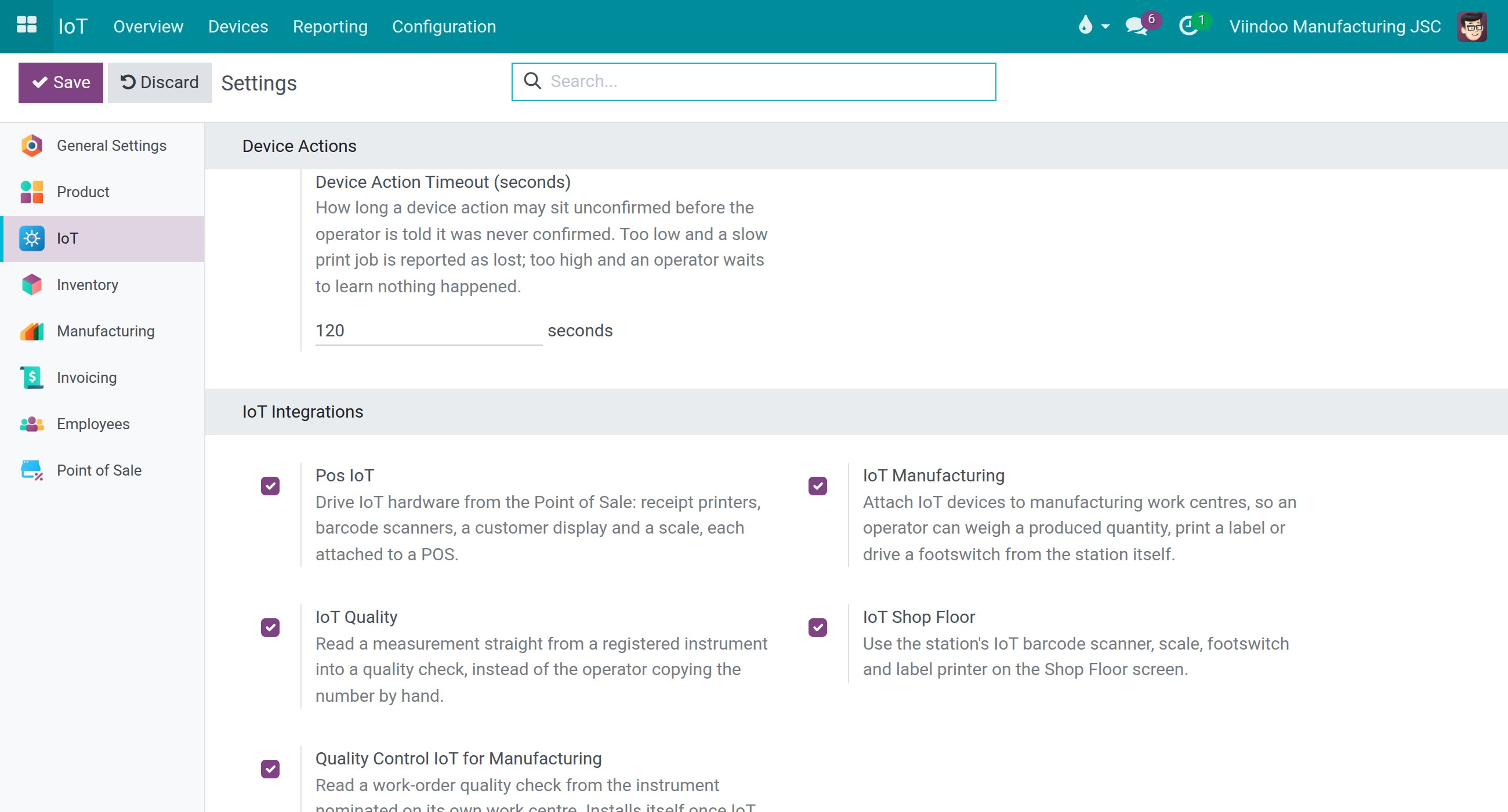
IoTandQualityif they are not installed yet.Open IoT ‣ Configuration ‣ Settings and, under
IoT Integrations, check thatIoT Qualityis switched on. Switch it off to remove the module.
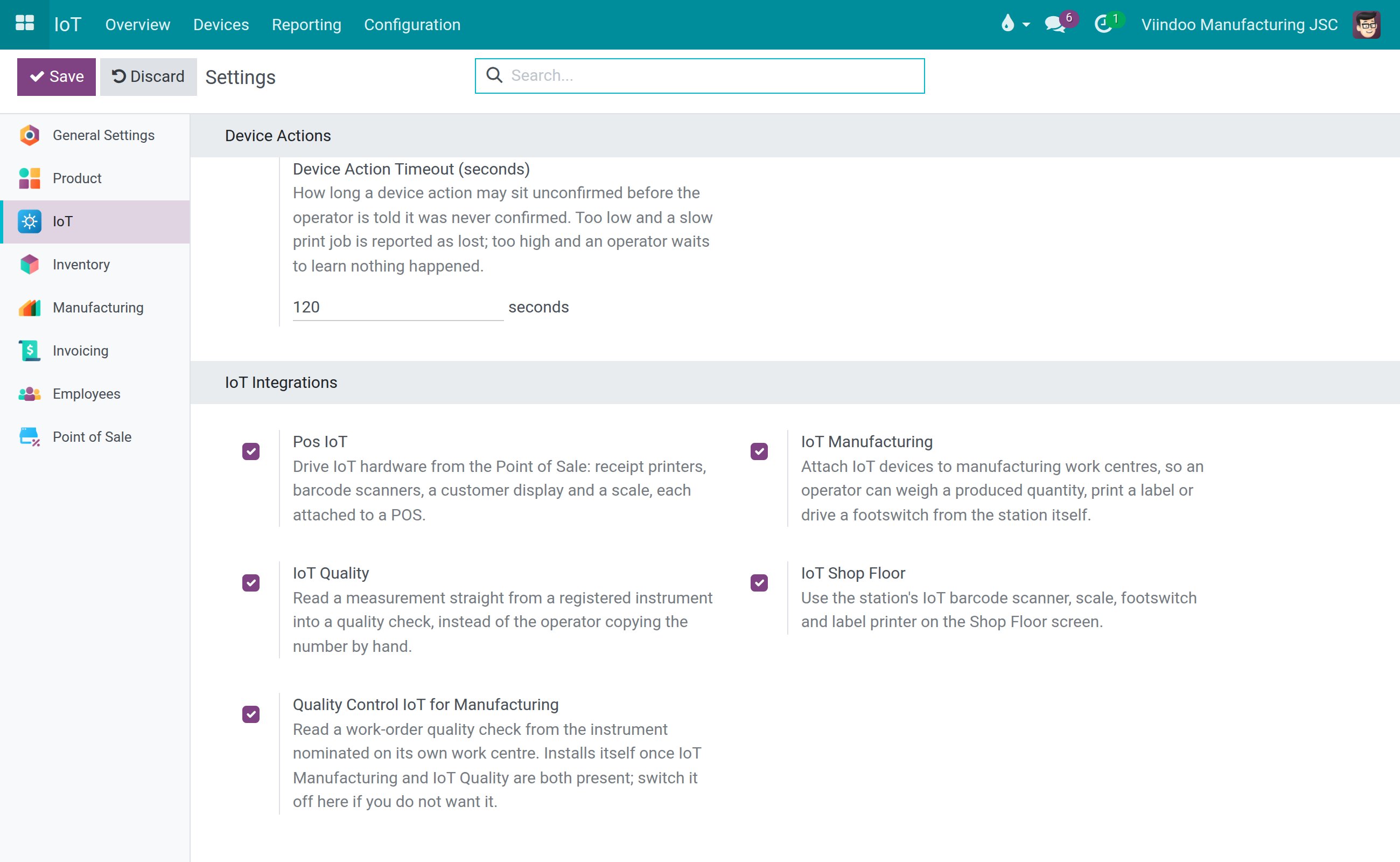
Quality Control IoT for Manufacturing installs itself as soon as IoT Manufacturing, IoT
Quality and the quality control of the Manufacturing application are all installed. Check under
IoT Integrations that Quality Control IoT for Manufacturing is switched on. Switch it off to
remove the module.
Neither module has settings of its own.
How do I give the access rights?
Open Settings ‣ Users & Companies ‣ Users and open the person.
Under
Quality, chooseQuality / Administratorfor a Quality Manager orQuality / Userfor a Quality Inspector.Under
Manufacturing, chooseAdministratorfor each Production Manager who nominates scales. It bringsInternet of Things (IoT) / Userwith it;Manufacturing / Usercannot change a work center.
Quality / User brings Internet of Things (IoT) / User with it, so a Quality / User can read the name of the instrument and no further right needs to be assigned.
If you uninstall IoT Quality, Quality / User no longer brings Internet of Things (IoT) / User with it, but the people who already hold it keep it. Remove it by hand from those who no longer need it.
How does the Quality Manager name the instrument of a control point?
Open Quality ‣ Quality Control ‣ Quality Controls ‣ Control Points and open the control point, or click
New.Set
TypetoMeasure. TheMeasuring Instrumentfield only appears for this type.In
Measuring Instrument, pick the scale that supplies this control point’s reading. The list offers only scales that belong to the control point’s own company.Save.
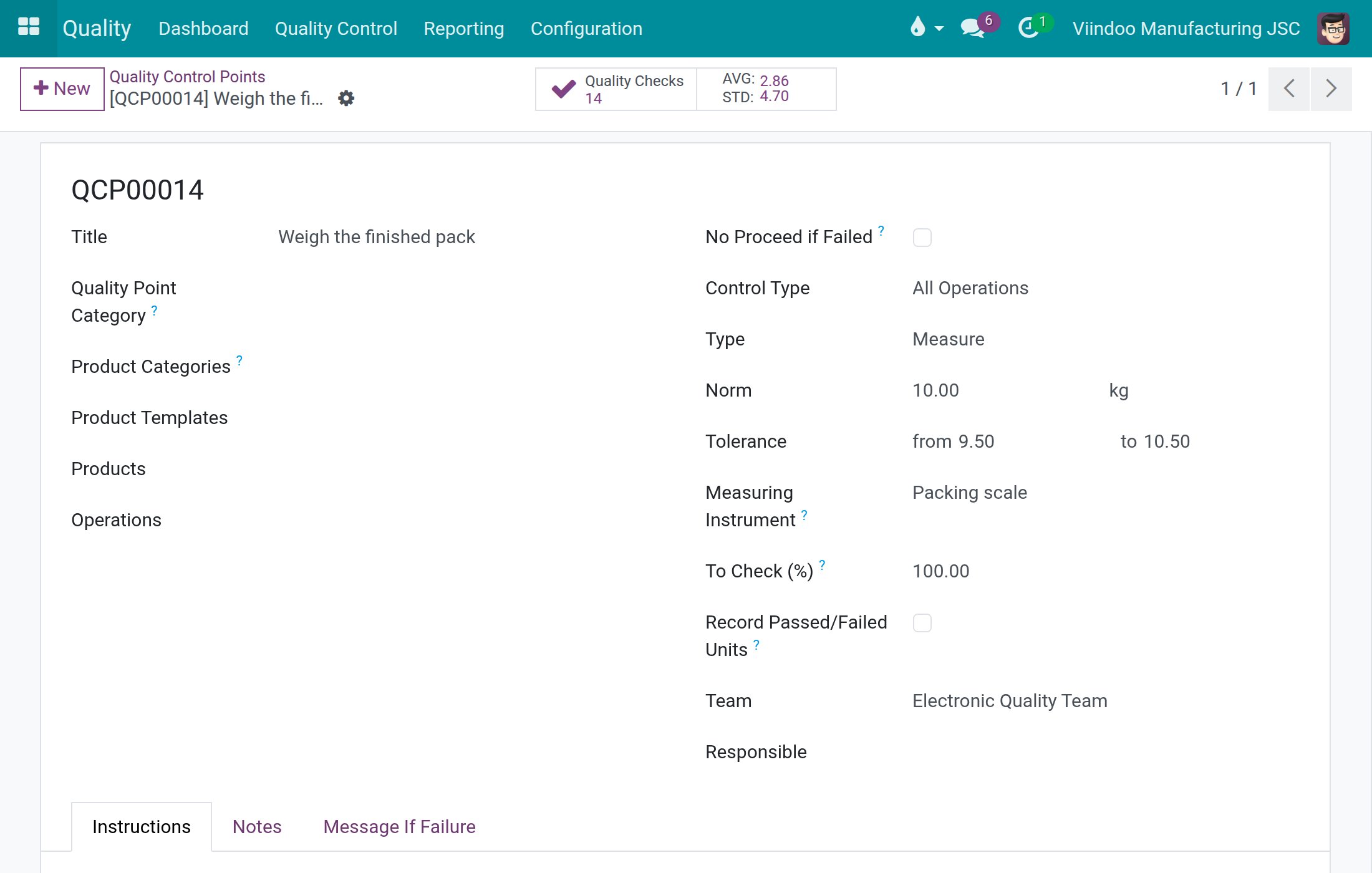
Leave Measuring Instrument empty to keep filling the checks of this control point by hand. Do
the same, and leave Responsible empty as well, for control points that are performed by
station operators: the check is then open to whoever works at the station, instead of waiting for
one named person.
Changing the instrument later only changes where the next check reads from. Checks already recorded keep the instrument that actually produced their measurement.
How does the inspector take a measurement from the instrument?
Open Quality ‣ Quality Control ‣ Quality Controls ‣ Quality Checks and open a check whose control point names an instrument.
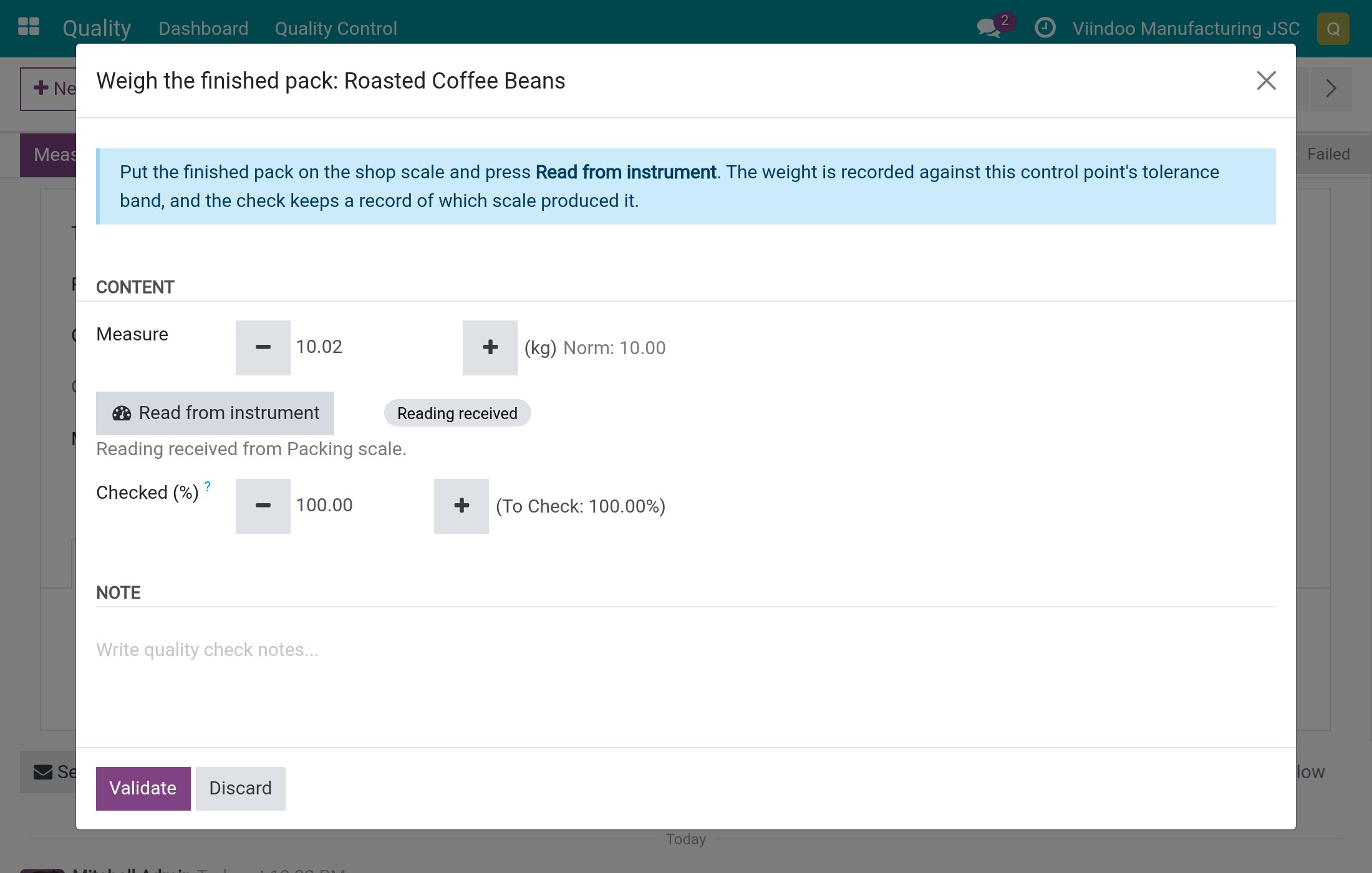
Click
Measure.In the dialog, put the item on the scale and click
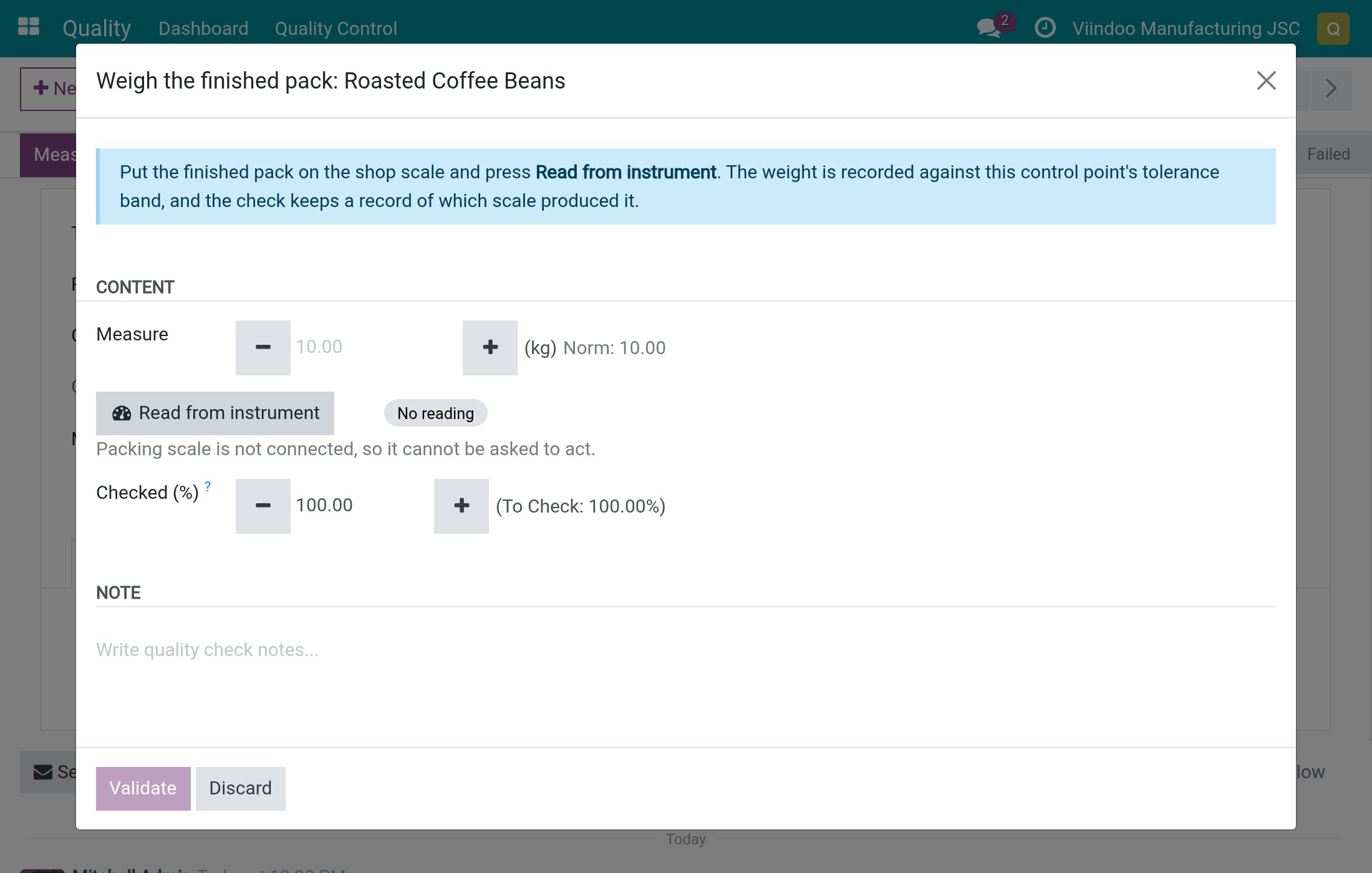
Read from instrument.Wait for the status next to the button to show
Reading received. TheMeasurefield now holds the value.Click
Validate. The check becomesPassedorFailedaccording to the tolerance band, and the measurement, the instrument and the time are recorded on it.
Good to know about the reading:
One click takes one fresh reading at that moment. To measure again, click the button again.
A scale that shows zero, or that is not stable yet, is refused. Wait until the weight settles and read again.
The unit is the one of the control point. If the instrument reports another unit, the dialog warns you instead of converting the value: check it before you validate.
If you type a value into
Measureyourself, or type over the value the instrument gave you, the check is recorded asEntered manually.The record of who read it, from which instrument and when cannot be edited.
There is no camera capture in this module. A
Take a Picturecheck keeps using the picture flow of the Quality application.
How do I see where a measurement came from?
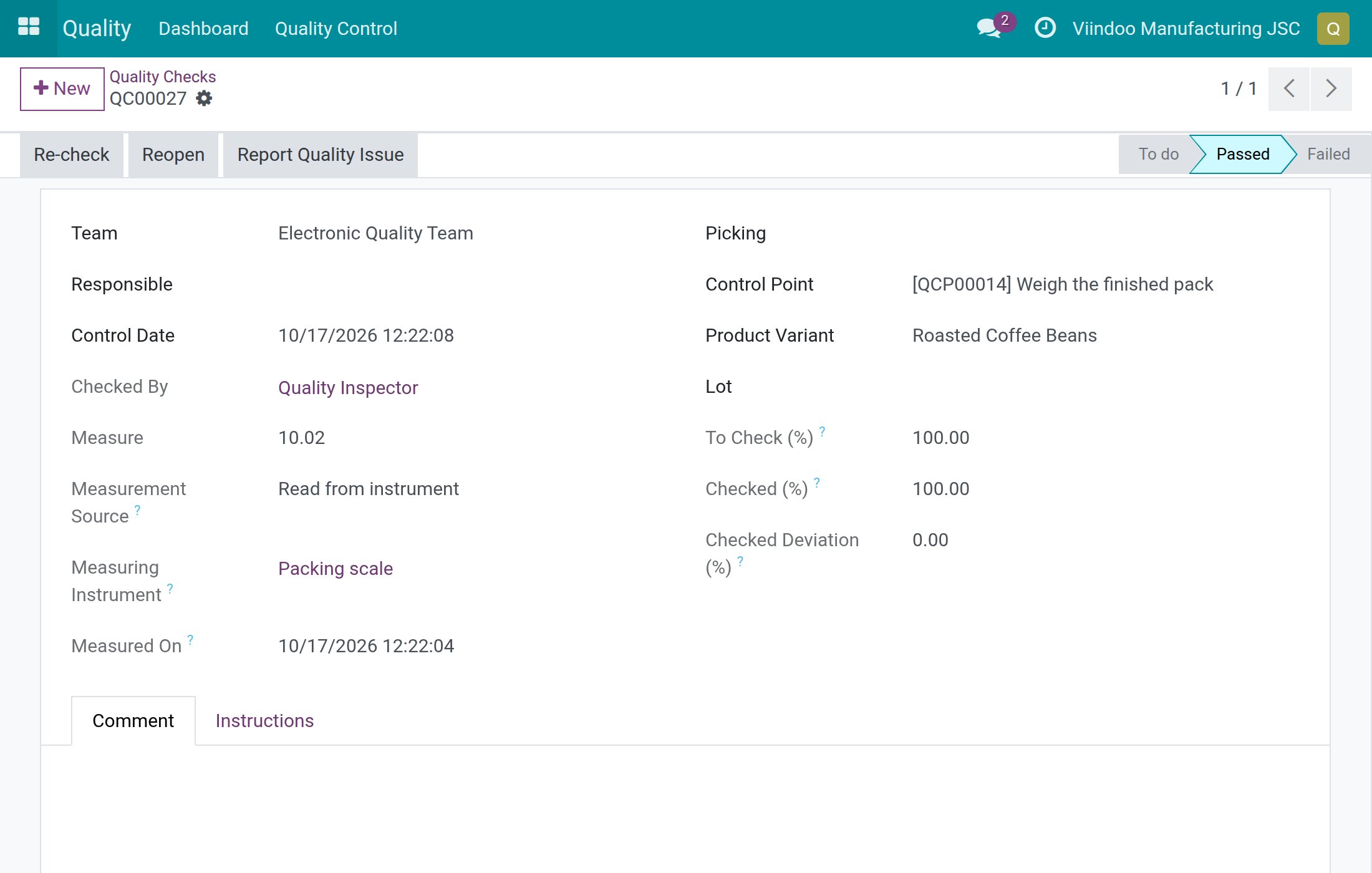
On the form of a check, Measurement Source, Measuring Instrument and Measured On appear
under Measure once an instrument has supplied the value. A check filled in by hand looks as it
always did.
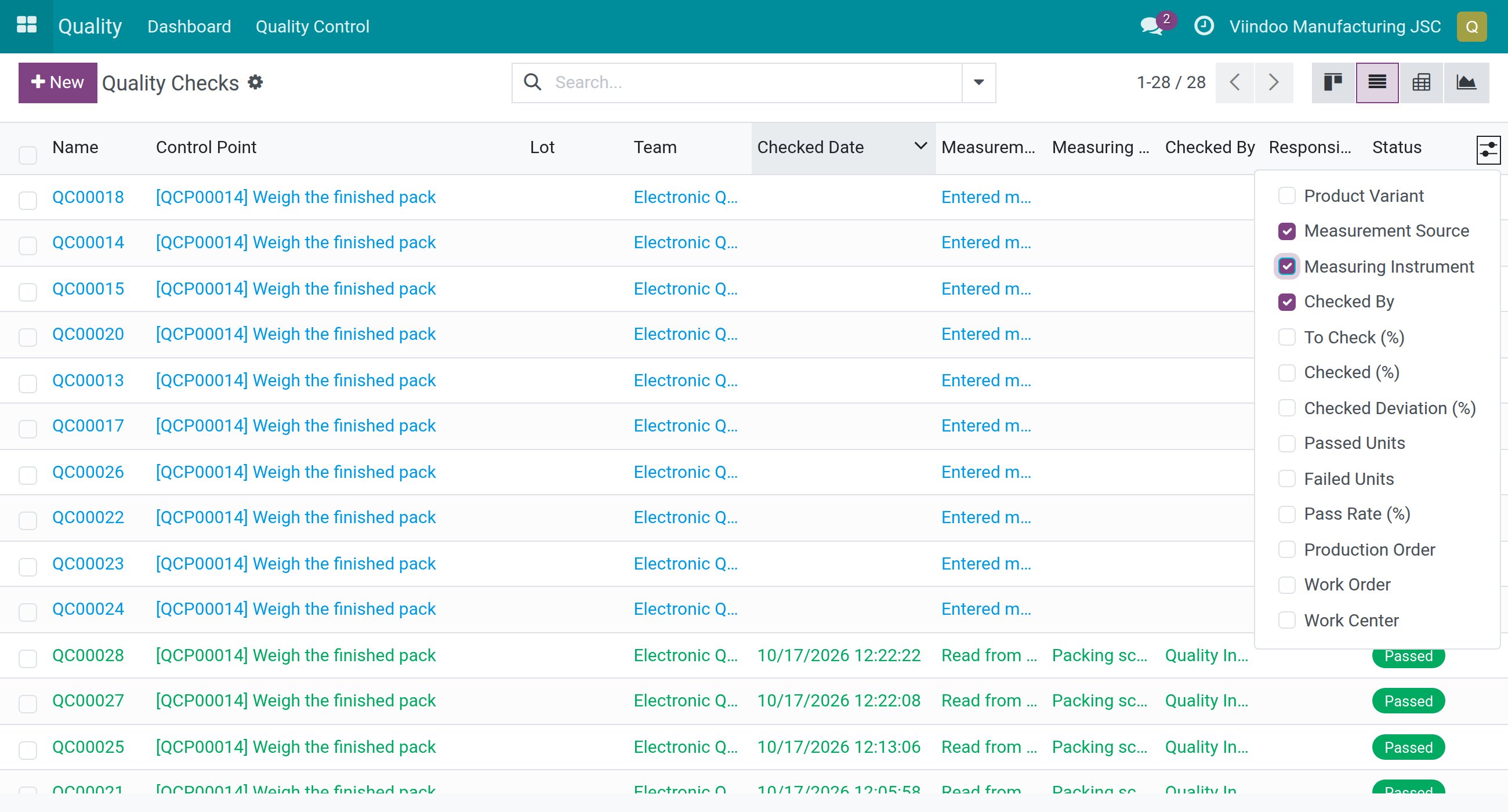
On the Quality Checks screen, switch to the list view, open the optional-columns menu at the right of the column headers
and tick Measurement Source and Measuring Instrument to compare many checks at once.
How do I measure again?
Re-check on a finished check does not offer Read from instrument: it lets you adjust the
recorded values. To take a new reading, click Reopen, then Measure, then
Read from instrument. Reopening needs the rights of a Quality / User on the check; on a
cancelled or completed manufacturing order a shop-floor operator cannot read from the instrument,
while a Quality / User keeps the right to revise the check.
How are the checks of a work order read?
A quality check that belongs to a work order is carried out at a station, but without Quality Control IoT for Manufacturing it would read its measurement from the instrument named on the control point, which may stand at a completely different station. With it, the check reads from the scale that the work center of the work order has nominated.
Nominate the scale of a work center
The Production Manager does this once for every station where measurements are taken.
Open Manufacturing ‣ Configuration ‣ Work Centers and open the work center.
Go to the
IoTpage.In
IoT Devices, add the scale that stands at this station.In
Scale, choose that scale.Save.
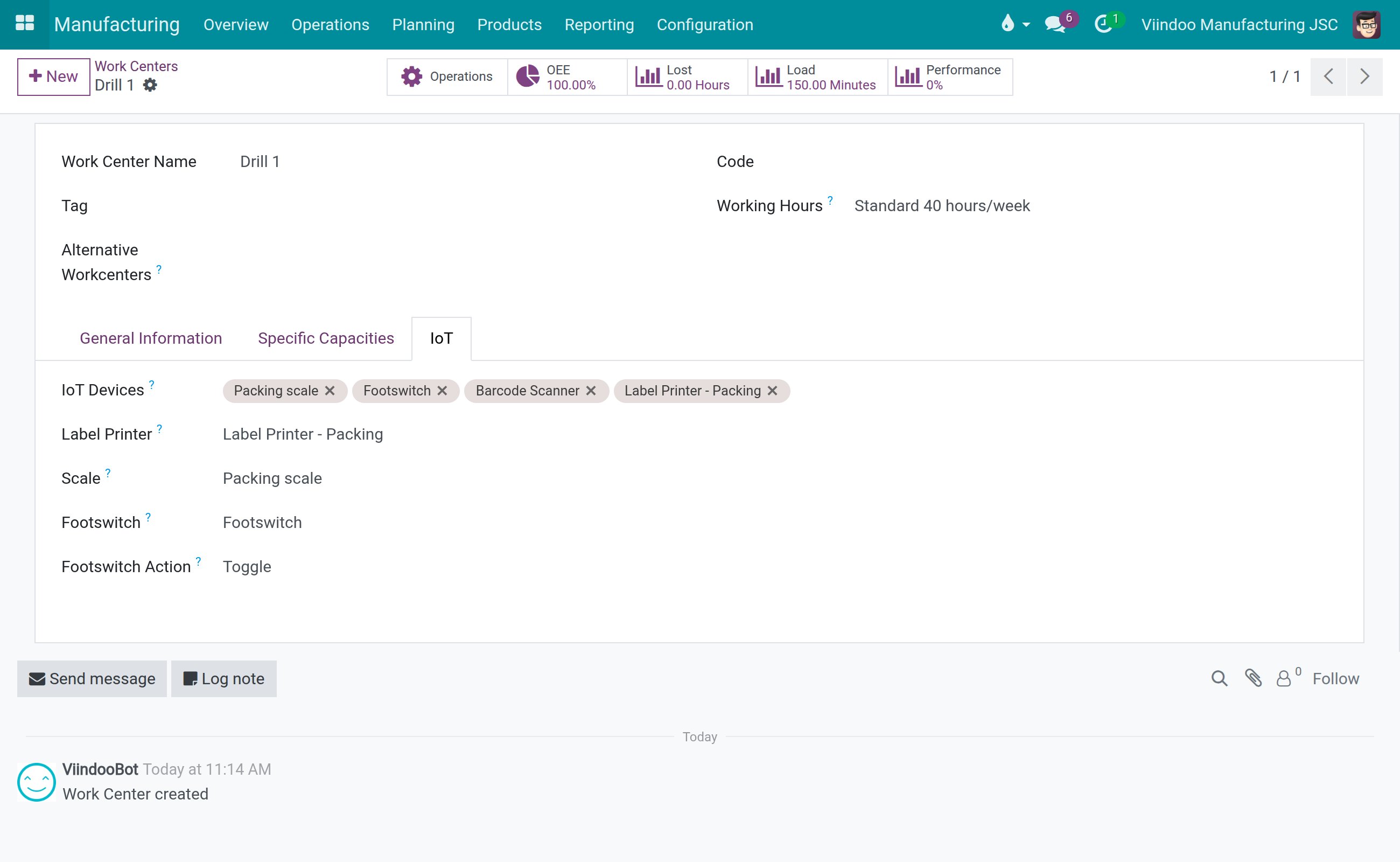
From now on every Measure check of a work order that runs at this work center reads from this
scale. If you choose another scale later, the next reading comes from the new one.
A work center that has devices attached but no Scale chosen does not count as having a scale:
the module never guesses among several attached devices.
Name a fallback instrument
Open Quality ‣ Quality Control ‣ Quality Controls ‣ Control Points and open the control point, or click
New.Set
TypetoMeasure.In
Measuring Instrument, pick the scale to use when the check has no work center scale to read from.Save.
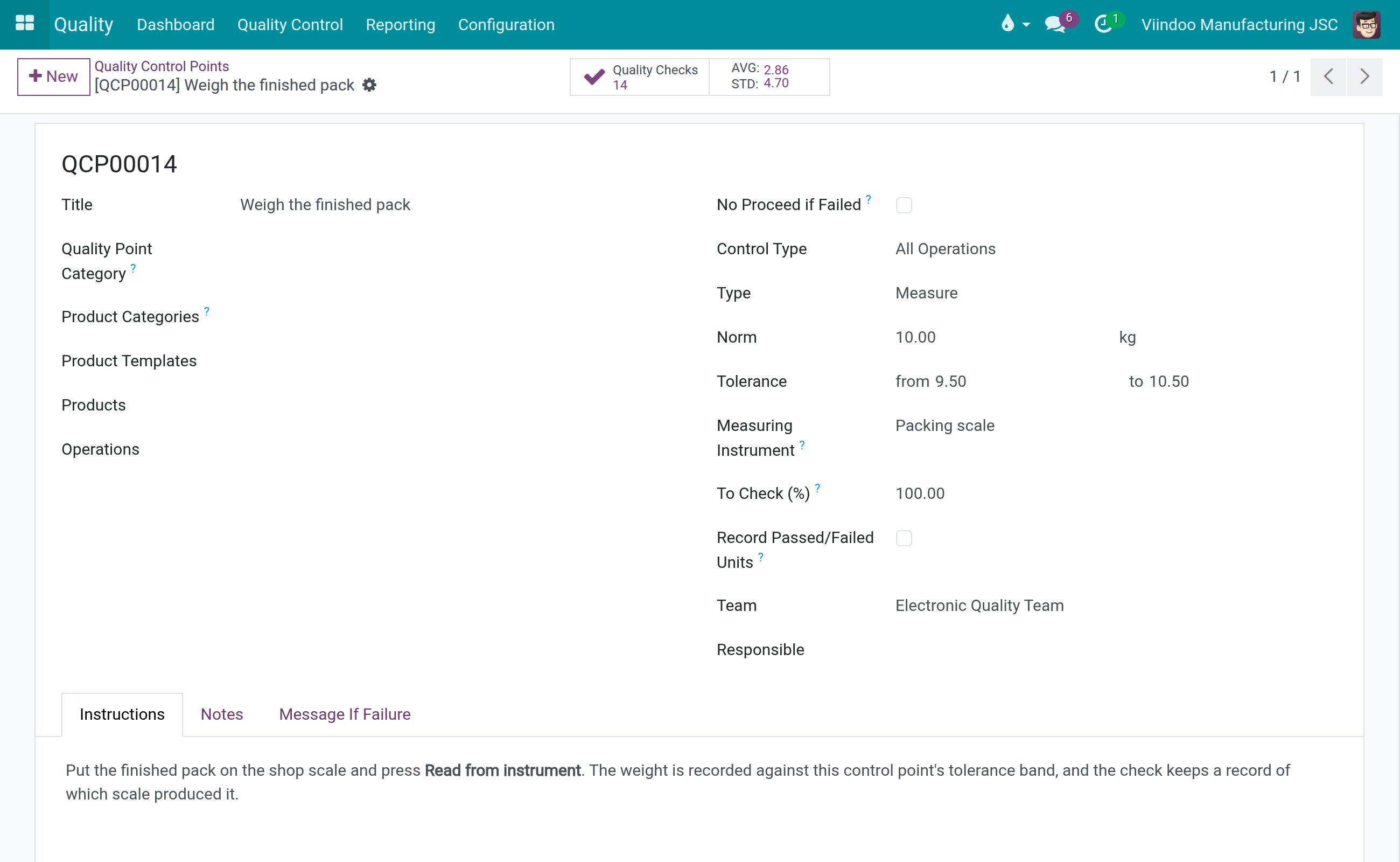
The instrument of the control point is read only in these cases: the check is not on a work order, or the work center of the work order has no scale chosen. When both exist for a work-order check, the scale of the work center wins, even if the control point names a different one.
Read the weight from the station’s scale
Open Quality ‣ Quality Control ‣ Quality Controls ‣ Quality Checks and open a check of a work order whose type is
Measure. TheWork Orderfield of the check tells you which one it is.Click
Measure.Put the item on the scale of the station and click
Read from instrument.Wait for the status
Reading received. The line under the button names the scale that supplied the value, andMeasureholds it.Click
Validate. The check becomesPassedorFailedaccording to the tolerance band.
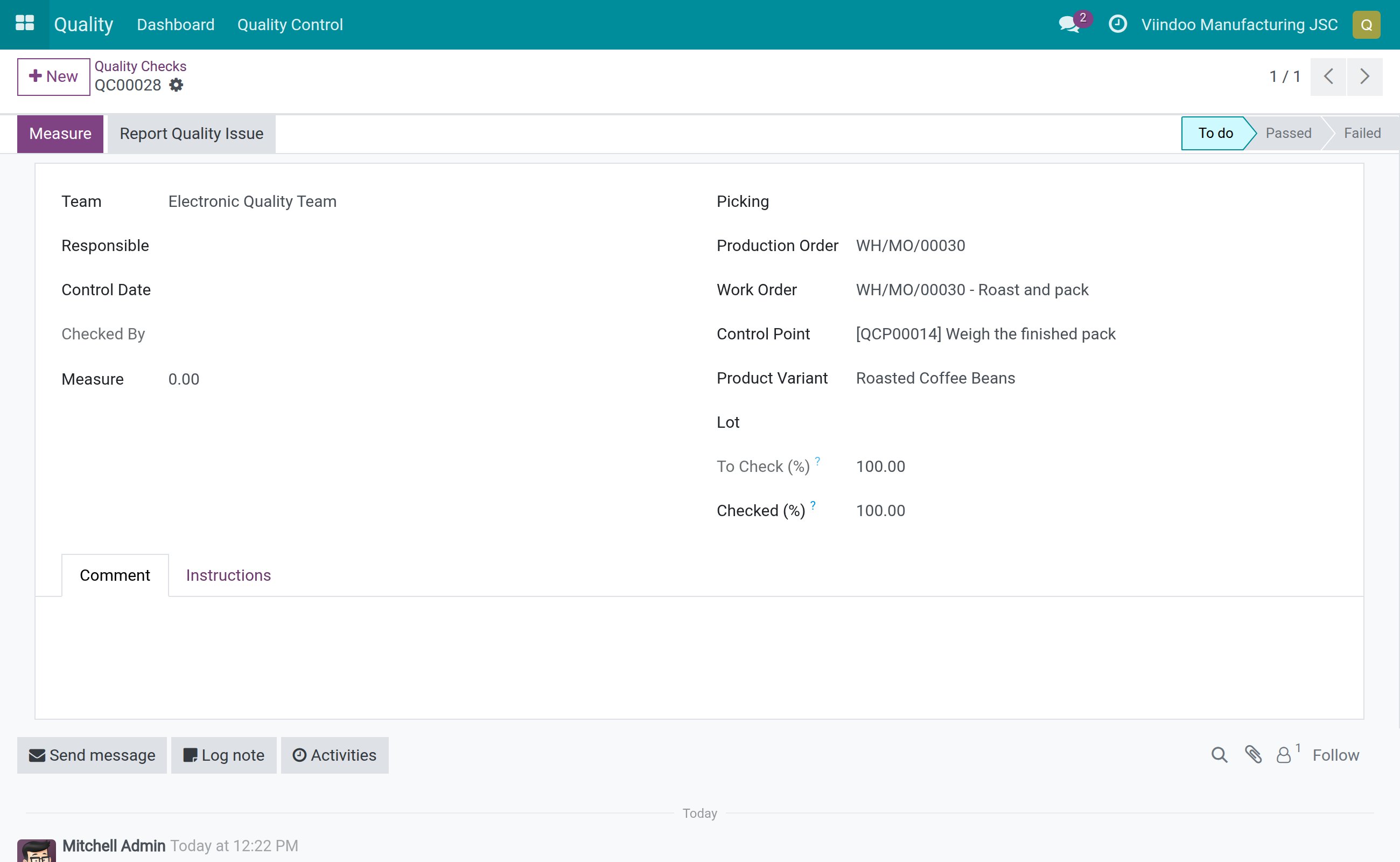
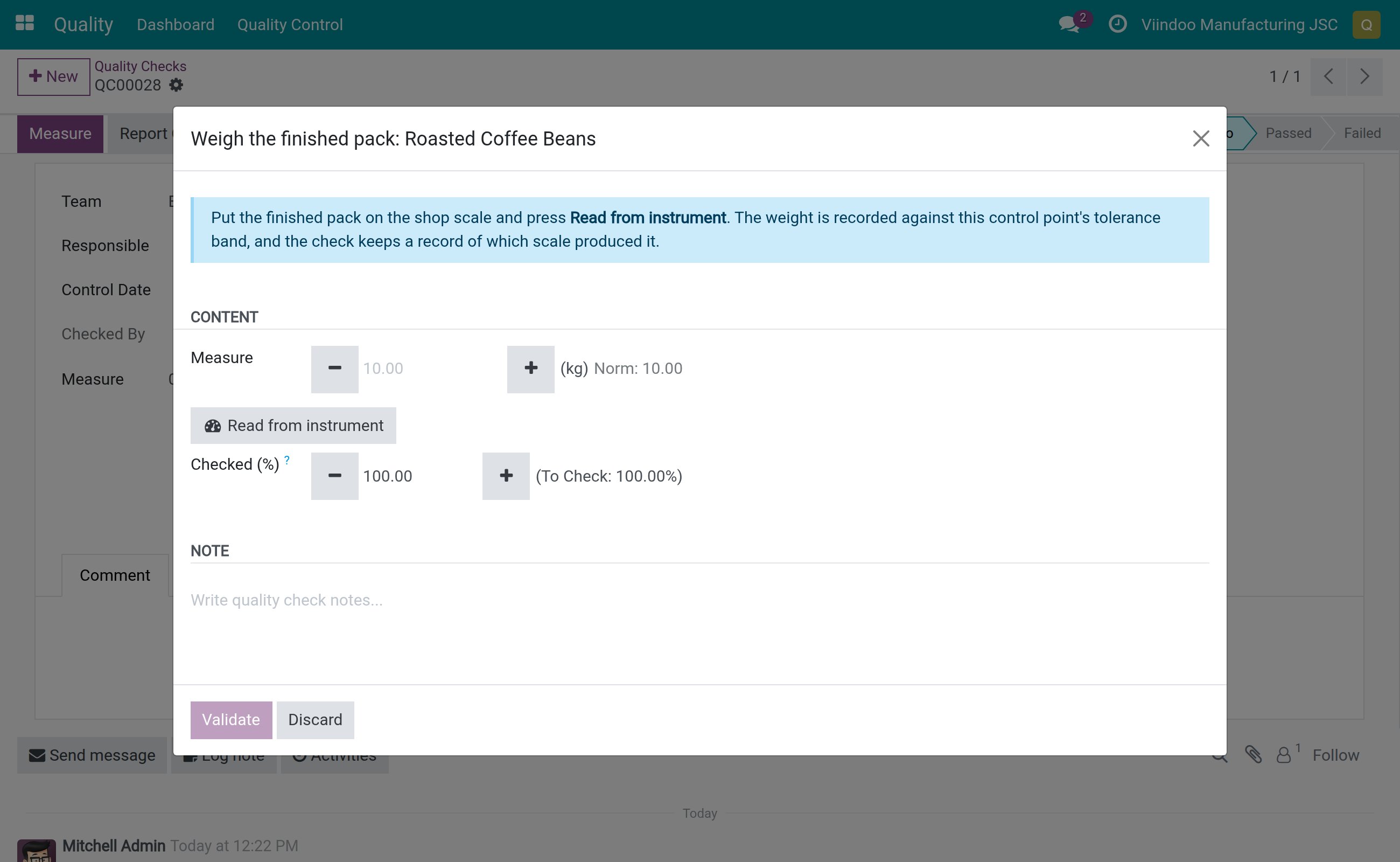
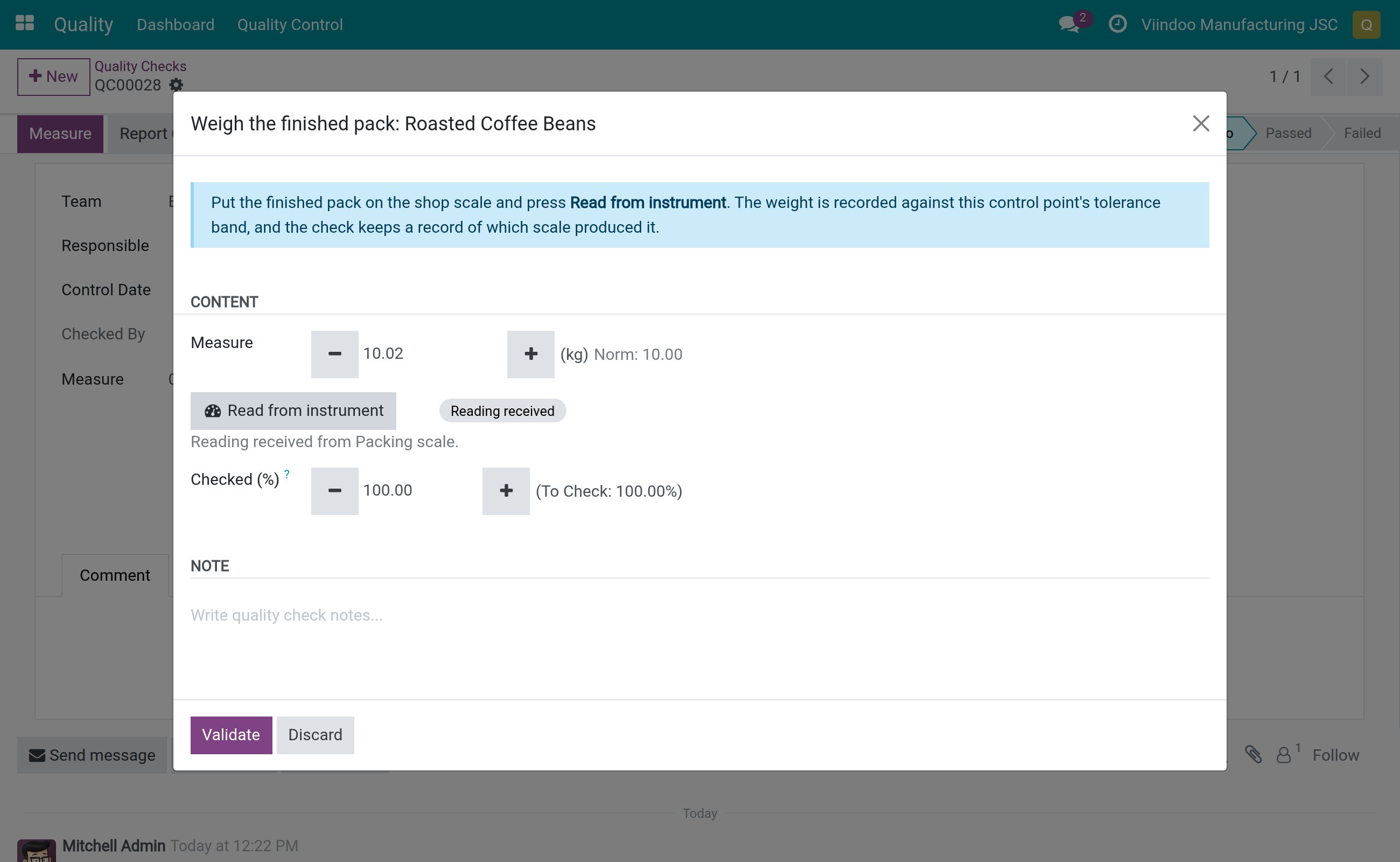
There is no list of instruments to choose from: the scale of the work center is the only one offered. This holds even when the control point behind the check names an instrument at another station, or none at all.
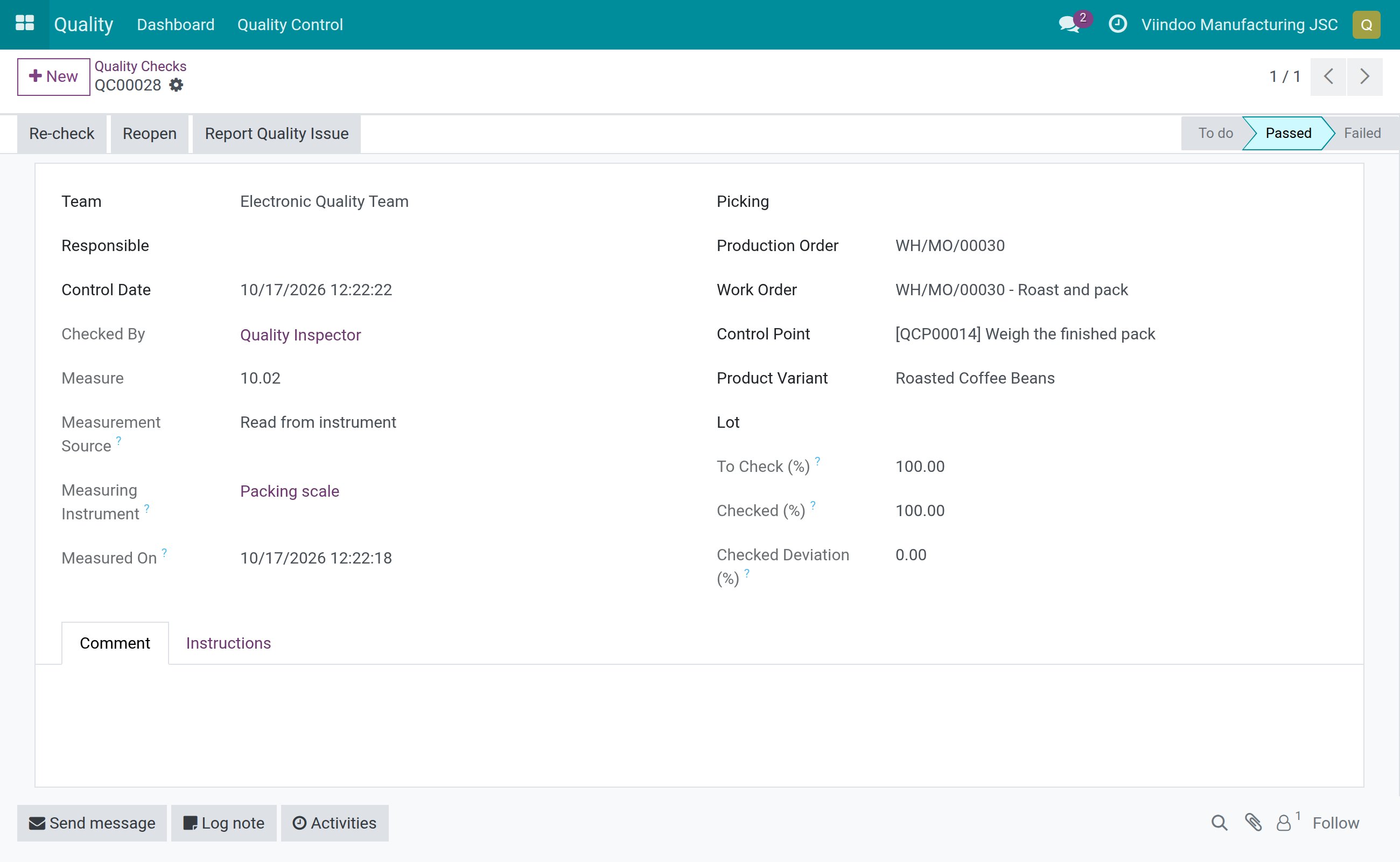
On the finished check, Measurement Source, Measuring Instrument and Measured On show
that the value was read from the scale of the station, which scale it was and when. This record
cannot be edited.
When the work order moves to another work center
The instrument is taken from the work center the work order sits at when you click Read from
instrument. If the work order is moved to another work center, the next reading comes from the
scale of that work center, with nothing to set up again. If the new work center has no scale
chosen, the check falls back to the instrument of its control point.
What happens when the box or the instrument fails?
The dialog never shows a measurement that was not taken, and never leaves a stale value on the check.
The instrument or its box is not connected:
Read from instrumentreports it at once. The status showsNo readingand the message names the instrument and says it is not connected (for example “Packing scale is not connected, so it cannot be asked to act.”).The request ended without a usable reading: the status shows
No reading. Check the instrument, then read again or type the value.Typing the value by hand is always possible. The check is then recorded as
Entered manually.The history of the check (chatter) notes a request that ended with no usable reading. A new reading replaces the earlier request without leaving a false note.
Known limits
A reading travels from the box through the browser to the server. A person who is allowed to record the check could therefore submit one invented value for the request they opened.
Devices unplugged while the box was offline can show as connected until the box’s next report.
Some browsers may block a page served over HTTPS from calling the box’s private network address, and ask for permission or need a setting.
Common errors
Problem |
What to do |
|---|---|
|
It only appears when |
The instrument list is empty. |
Only scales of the control point’s own company are offered. Pair the box and connect the scale first, or check its company. |
|
Neither the work center nor the control point names an instrument, the check already has a result, or you may not record this check. Reopen the check if it has a result. |
|
Check that the box is online and the scale shows as connected in the |
The scale is refused. |
It showed zero or was not stable. Wait until it settles and read again. |
A warning about the unit appears. |
The instrument reported a unit different from the control point’s. Check the value yourself before validating. |
The check reads from the instrument of the control point, not from the work center. |
The work center has no scale chosen. Open Manufacturing ‣ Configuration ‣ Work Centers,
open the work center of the work order and choose a |
The check reads from the scale of the wrong station. |
Check the |
FAQ
Does this module decide whether a check passes or fails? No. The tolerance of the control point does. The module only supplies the number.
What happens if I type over the value the instrument gave me?
The check is recorded as Entered manually.
Does replacing a control point’s instrument change past checks? No. Only the next check reads from the new instrument.
Do I need a separate IoT access right to read from an instrument?
No. Quality / User is enough.
Which instrument wins when both the work center and the control point name one? For a check of a work order, the scale of the work center.
Next steps
How to read Shop Floor quality steps from an IoT instrument: read a Measure step of the Shop Floor from the instrument.