
How to install the Purchase app and set up access rights
The Purchase app records what your company buys: you send requests for quotation (RFQs) to vendors, confirm them into purchase orders, control vendor bills and analyse your purchases. To start, install the app from Apps (search Purchase, click Activate), then give each buyer the User or Administrator access right for Purchase in Settings ‣ Users & Companies ‣ Users.
Who |
The Administrator installs the app and sets access rights. |
App |
Purchase (with Settings for access rights) |
Before you start
You need the Administration: Settings access right to install apps and edit users.
Create the user accounts of your buyers first, see How to create and manage user accounts.

What can I do with the Purchase app?
The app follows the purchasing process from a need to the vendor bill:
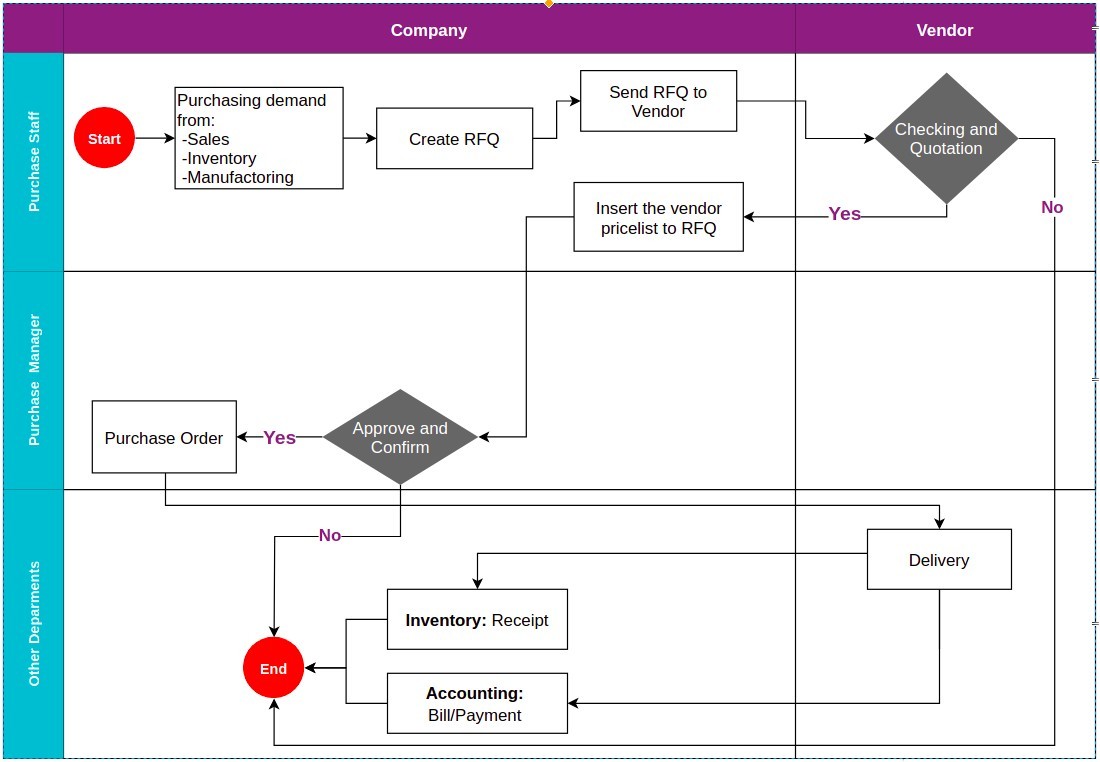
Create and send requests for quotation, then confirm them into purchase orders.
Store the prices and lead times of each vendor so they are filled in automatically on RFQs.
Use purchase agreements: calls for tenders and blanket orders.
Control vendor bills against ordered or received quantities.
Analyse purchases with graphs and pivot tables.
Installing Purchase also installs Invoicing, so you can record vendor bills. If you also install Inventory, Viindoo creates receipts for confirmed purchase orders and can reorder products automatically.
How do I install the Purchase app?
Go to Apps, type Purchase in the search bar and press Enter.
On the Purchase card, click Activate.
![Purchase app found in Apps with the Activate button]()

When the installation finishes, the Purchase icon appears on the home menu. See How to install, upgrade and uninstall apps and modules for more about installing apps.
How do I give a user access to Purchase?
Go to Settings ‣ Users & Companies ‣ Users and open the user.
On the Access Rights tab, find Purchase (listed under Inventory) and choose the access right from the table below.
![Purchase access right on the Access Rights tab of a user form]()
Save the user. The user sees the change after reloading the page.

Which access right should I choose?
Access right |
What the user can do |
|---|---|
(empty) |
The Purchase app does not appear for the user. |
User |
Creates, edits, sends, confirms and cancels RFQs and purchase orders, manages vendors and products, and opens Orders ‣ Purchase Analysis. Does not see the Reporting and Configuration menus and cannot approve orders waiting for approval. |
Administrator |
Everything a User can do, plus the Reporting and Configuration menus (settings, vendor pricelists, product categories), and approves orders when Purchase Order Approval is turned on in the Purchase settings. |
You should now see the Purchase app on the user’s home menu, with the menus that match the access right.
Common errors
Message |
What to do |
|---|---|
The user does not see the Purchase app. |
The Purchase access right is empty. Choose User or Administrator, save, and ask the user to reload the page. |
The user does not see Reporting or Configuration. |
These menus are for the Administrator access right. A User can analyse purchases from Orders ‣ Purchase Analysis. |
In order to delete a purchase order, you must cancel it first. |
Click Cancel on the order, then delete it. |
Next steps
How to find your way around the Purchase app: find your way around the Purchase app.
How to create a purchase order: create your first RFQ.