
Barcodes in manufacturing
On the shop floor, hands are busy and screens are far. With a barcode scanner, an operator presses the buttons of a manufacturing order or of a Shop Floor work order by scanning a command code printed on a sheet next to the machine, and records the output by scanning the label of what was just made.
Who |
Operators with the Manufacturing ‣ User access right, who scan; production managers (Manufacturing ‣ Administrator), whose buttons, such as restarting a stopped station, can also be scanned. |
App |
Manufacturing, Shop Floor |
Before you start
Install the MRP Barcode module. The Shop Floor app and the stock barcode module are installed with it.
A scanner that types the code and ends with Enter, as most USB and Bluetooth scanners do.
Products to scan have a Barcode; lots and serial numbers are scanned by their name.
How do I print the command sheets?
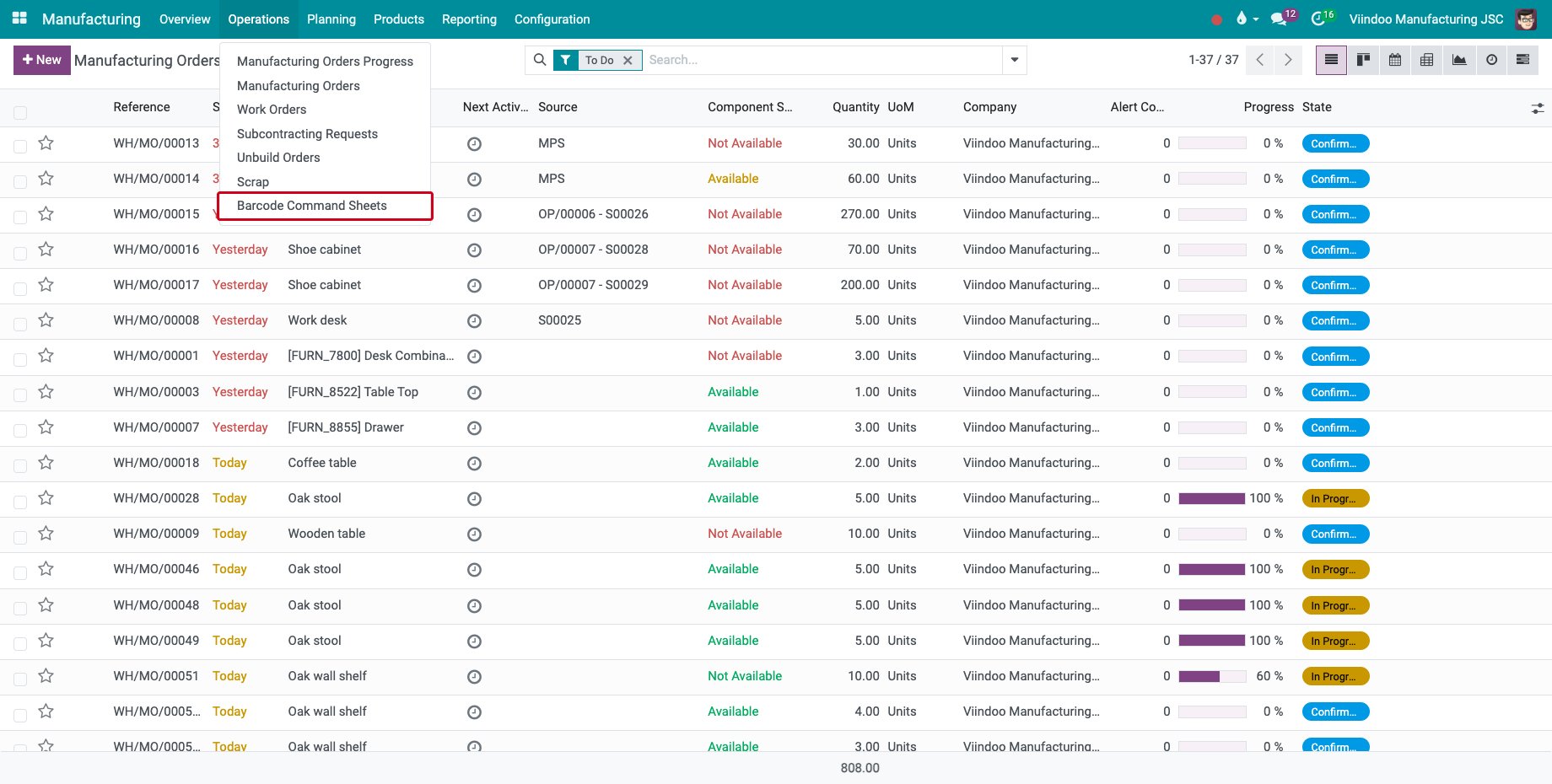
Go to Manufacturing ‣ Operations ‣ Barcode Command Sheets.
![The menu Barcode Command Sheets]()
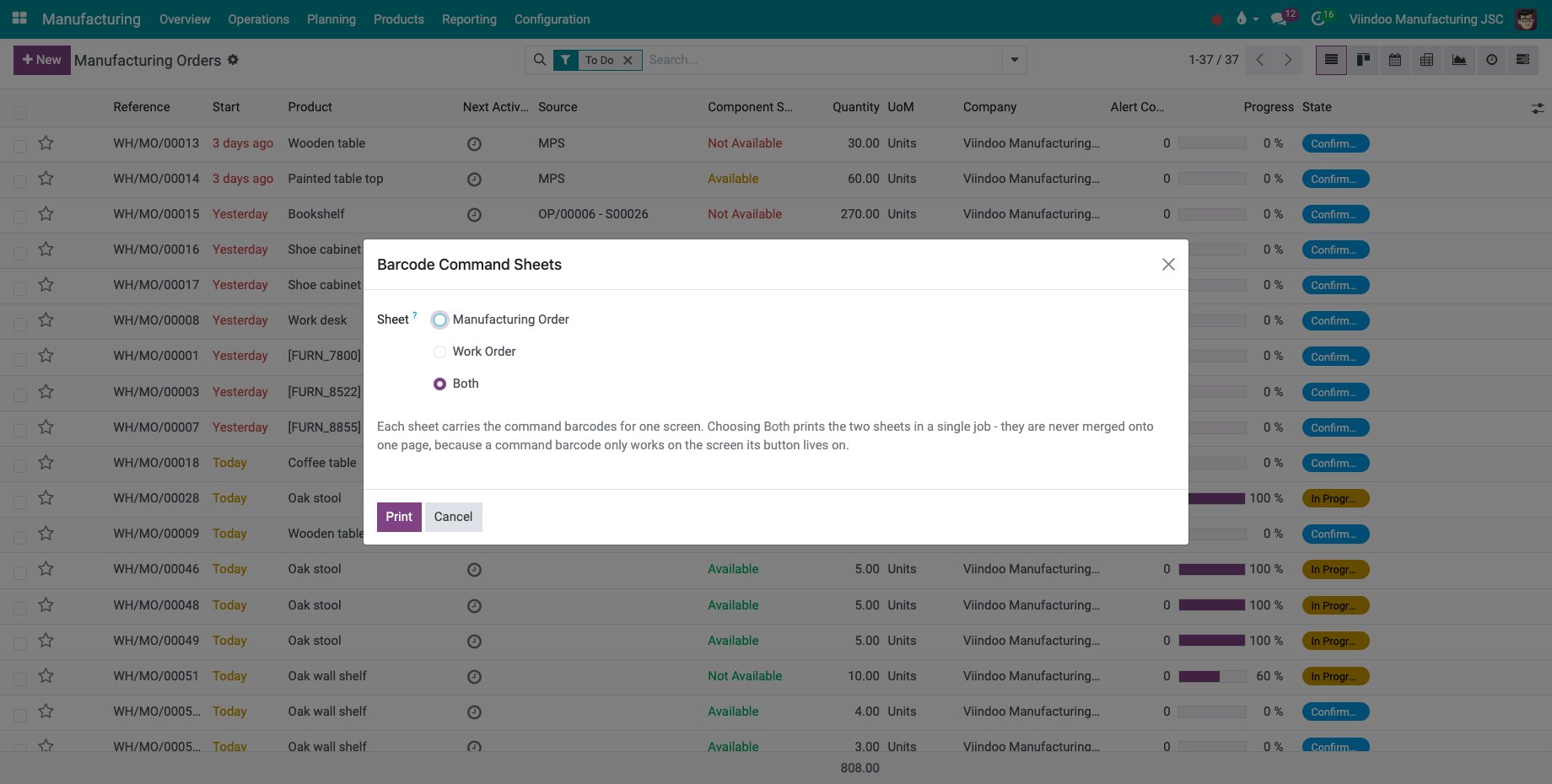
Choose the Sheet to print, Manufacturing Order, Work Order or Both, and click Print. Each screen gets its own page, because a command code only presses a button of the screen that is open.
![The window Barcode Command Sheets]()
The sheets are the same for every order, so they are printed once. Each code is OBT followed by the name of the command:
Sheet |
Commands |
|---|---|
Manufacturing Order |
Produce (presses Produce or Produce All), Plan, Unplan, Start, Check availability, Unreserve, Cancel. |
Work Order |
Start / Resume, Pause, Record output, Finish, Stop the machine (report an incident), Restart the station, Generate a lot/serial number, Confirm the quantity, Confirm closing the order. |
A command whose button is not shown at that moment does nothing. Keep the sheets away from casual scanning: the cancel code cancels the open order.
How do I start a job by scanning?
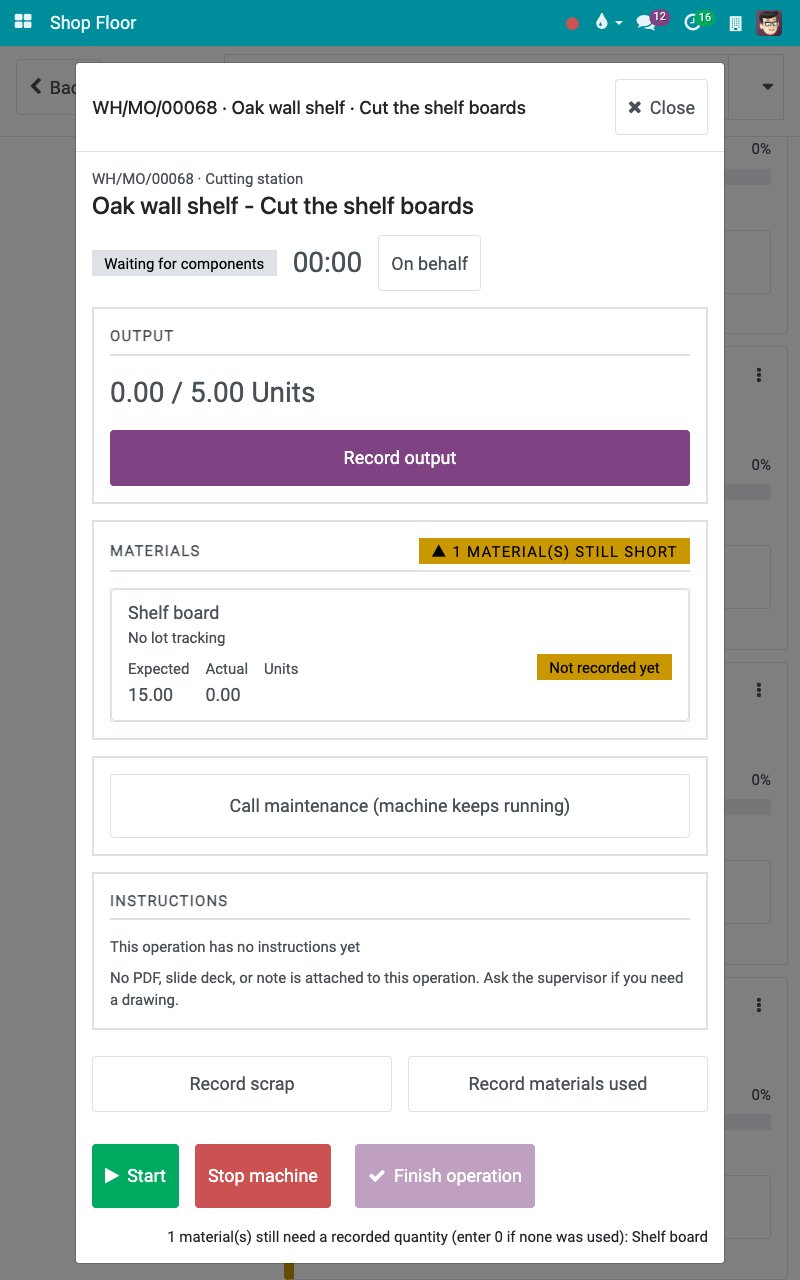
On the Shop Floor tablet, open the job by tapping its card. The operation screen opens without starting the clock.
![The operation screen of a job before the scan]()
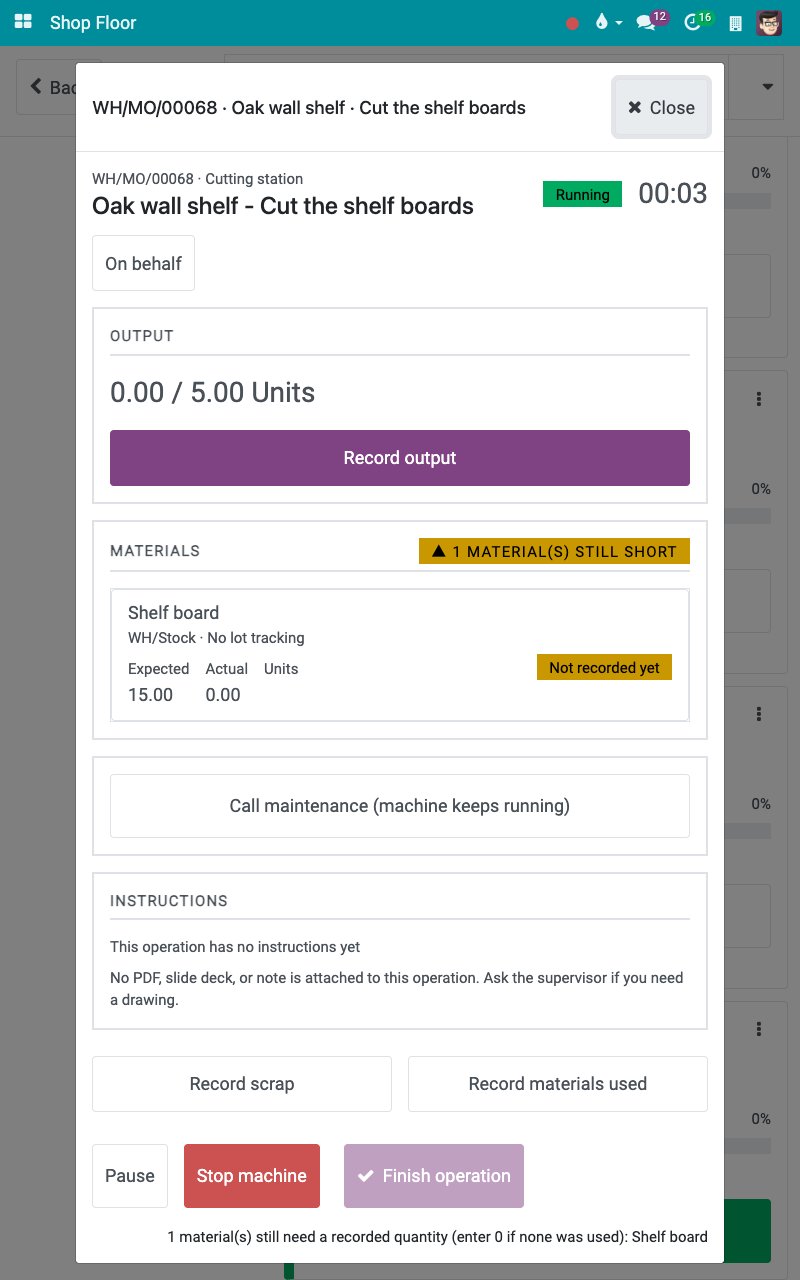
Scan the start code of the Work Order sheet. The job is Running and the clock counts, as after a tap on Start.
![The job running after the scan of the start code]()
Pause, record the output and finish the job the same way, with the codes of the sheet. On the job board, before a job is open, a scan does nothing.
How do I record the output by scanning a label?
With the job open, scan the label of the finished product:
a product that is not tracked records one unit at once;
a product tracked by lot opens Record output to choose the lot; once the finished lot of the order is chosen, each scan of the product records one unit under it;
a lot name opens Record output with that lot ready;
a serial number is recorded at once.
A label of another product is refused. A recording made by a scan is undone from Record output, like one made by a tap.
Common errors
Problem |
What to do |
|---|---|
A scan does nothing. |
Open the job first, or check that the button of the code is shown on the screen at that moment. |
The restart code does nothing. |
Only users who see the Restart station button can use it. |
Next steps
Expiry dates and lot traceability in manufacturing: follow the lots made and used.
Job board and operation screen: open a job and run it on the Shop Floor tablet.
Stop a machine, report a breakdown and restart: stop a machine and report a breakdown.
See also
Related articles