
How to create a new contact
To create a contact in Viindoo, go to Contacts, click New, choose Individual or Company, type the name and fill in the address, tax ID, phone and email. The contact is saved automatically and can then be selected on quotations, orders, invoices and every other document of Viindoo. Add the contact persons, invoice address and delivery address of a company in the Contacts & Addresses tab.
Who |
Users with the Contact Creation right (see Contacts app: overview and configuration). |
App |
Contacts. You can also create a contact directly from the customer or vendor field of a quotation, order or invoice. |
Before you start
Install the Contacts app.
Optional: create the tags, titles and banks you want to use in Contacts ‣ Configuration (see Contacts app: overview and configuration).
Optional modules for some parts of this guide, each installed from Apps: Partners Geolocation (latitude and longitude of a contact), Contacts Map (map view) and Accounting (invoices of a contact). Without them, the matching tab, button or view is not shown.
How do I create a contact?
Go to Contacts and click New.
![New button in the Viindoo Contacts app]()
Choose Individual for a person or Company for a legal entity, then type the name.
![New contact form with the Individual and Company options and the name field]()
Fill in the details described in Which fields should I fill in?.
Leave the form or click the save icon (cloud). Viindoo also saves automatically when you leave the form.


You should now find the contact in the Contacts list and in the customer and vendor fields of your documents.
What is the difference between an individual and a company contact?
Company: a legal entity, for example a customer company, a vendor, a bank or a tax authority. It can have several contact persons and addresses.
Individual: a person. Link the person to a company in the Company Name field: the person’s address is then taken from the company and cannot be edited on the person.
Which fields should I fill in?

Field |
What it is used for |
|---|---|
Name |
Full name of the person or the company. Shown on every document. |
Company Name (individual only) |
The company the person works for. The person’s address follows the company address. |
Address: Street, Street 2, City, State, ZIP, Country |
Printed on quotations, invoices and delivery slips. Choosing the state usually fills in the country. |
Tax ID |
The tax code. Required on tax invoices in many countries. On an individual linked to a company, it is taken from the company. |
Job Position (individual only) |
The person’s job title in the company. |
Phone, Mobile, Email |
Used to call and to send quotations, invoices and other emails from Viindoo. |
Website |
The contact’s website. |
Title (individual only) |
Mister, Madam, Doctor… Managed in Contacts ‣ Configuration ‣ Contact Titles. |
Language |
Language of the emails and printed documents sent to this contact. Shown only when more than one language is active. |
Tags |
Labels to group and filter contacts, for example Dealer or Northern Region. |

The tabs at the bottom of the form hold more information:
Contacts & Addresses: contact persons, invoice addresses, delivery addresses and other addresses of the company (see How do I add a contact person, invoice address or delivery address?).
Sales & Purchase: the Salesperson and the internal Reference of the contact. With the Sales or Purchase app installed, it also holds payment terms, pricelist and other sales and purchase defaults.
Internal Notes: notes visible only to your company.
If you also install Accounting, the form has an Invoicing tab (bank accounts, receivable and payable accounts) shown to users with Accounting rights. If you also install Partners Geolocation, it has a Partner Assignment tab with the latitude and longitude of the contact (see How do I show a contact on the map?).
How do I add a contact person, invoice address or delivery address?
Add them when a company has several people you deal with, or when it invoices or receives goods at a different address.
Open the company contact and, in the Contacts & Addresses tab, click Add.
![Add button in the Contacts and Addresses tab of a company contact]()
Choose the type:
Contact: a person working in the company.
Invoice Address: the address printed on invoices, for example the registered office or a branch that receives its own invoices.
Delivery Address: the address used on delivery slips.
Other Address: any other address of the company.
Fill in the name and details, then click Save & Close (or Save & New to add another one).
![Create Contact dialog with the Contact, Invoice Address, Delivery Address and Other Address types]()


When you select the company on a quotation or an invoice, Viindoo proposes its invoice and delivery addresses.
How do I show a contact on the map?
Install the Partners Geolocation module, open the contact and go to the Partner Assignment tab.
Click Compute based on address. Viindoo fills in the latitude and longitude from the address; the button then becomes Refresh.
![Partner Assignment tab with latitude, longitude and the Refresh button]()
With the Contacts Map module installed, go back to Contacts and switch to the Map view to see all located contacts. Click Open in Google Maps to open them in Google Maps.
![Map view of the Contacts app with located contacts]()


How is a contact used in other apps?
Sales, Purchase, Inventory, Accounting, Project, Employees and the other apps all use the same contact list, so a contact is entered once and reused everywhere. For example, if you also install Accounting, on a customer invoice (Accounting ‣ Customers ‣ Invoices ‣ New) you choose the contact in Customer: its address and tax ID are filled in on the invoice. You can also create a new contact right from that field.

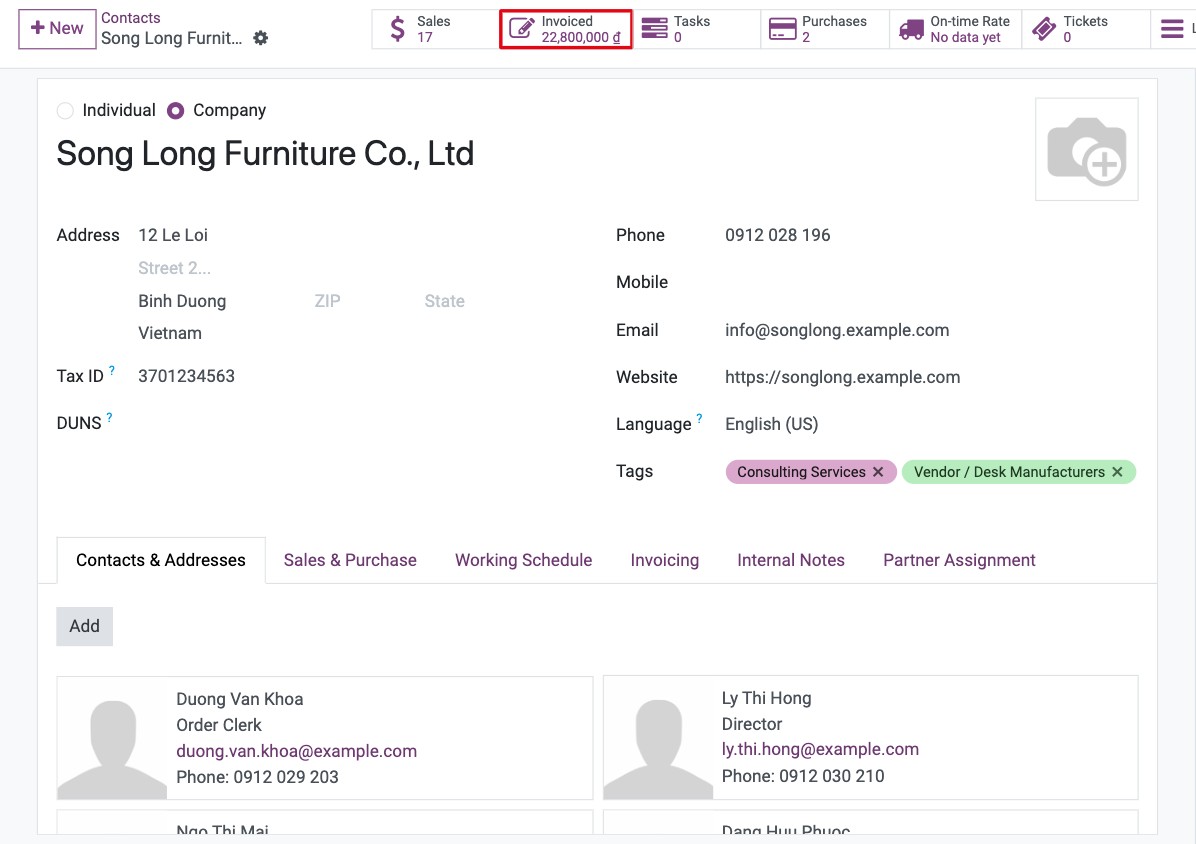
With the apps installed, the buttons at the top of the contact form show the documents of this contact, for example Invoiced (Accounting): click one to open the list.
Common errors
Problem |
What to do |
|---|---|
The address of a person cannot be edited. |
The person is linked to a company and uses its address. Change the address on the company, or add a Delivery Address or Other Address in the company’s Contacts & Addresses tab. |
The Language field is missing. |
Only one language is active. See How to add languages and change the interface language. |
The same customer appears several times. |
Merge the copies, see How to find and merge duplicate contacts. |
Next steps
How to find and merge duplicate contacts: find and merge duplicate contacts.
How to archive, restore or delete a contact: archive contacts you no longer use.
Schedule activities: plan calls and meetings with a contact.