
How to get started with the CRM app
The Viindoo CRM app tracks every sales opportunity from the first contact to the signed order: you record leads and opportunities, move them through the stages of your pipeline, plan calls and meetings, send quotations and analyze why you win or lose. To start, install CRM from Apps, then give each salesperson a Sales access right.
Who |
An Administrator installs the app and grants access rights; salespeople then use it. |
App |
CRM (shares its access rights and sales teams with Sales) |
Before you start
You sign in as an Administrator.
Know how to install apps.
What can I do with the CRM app?
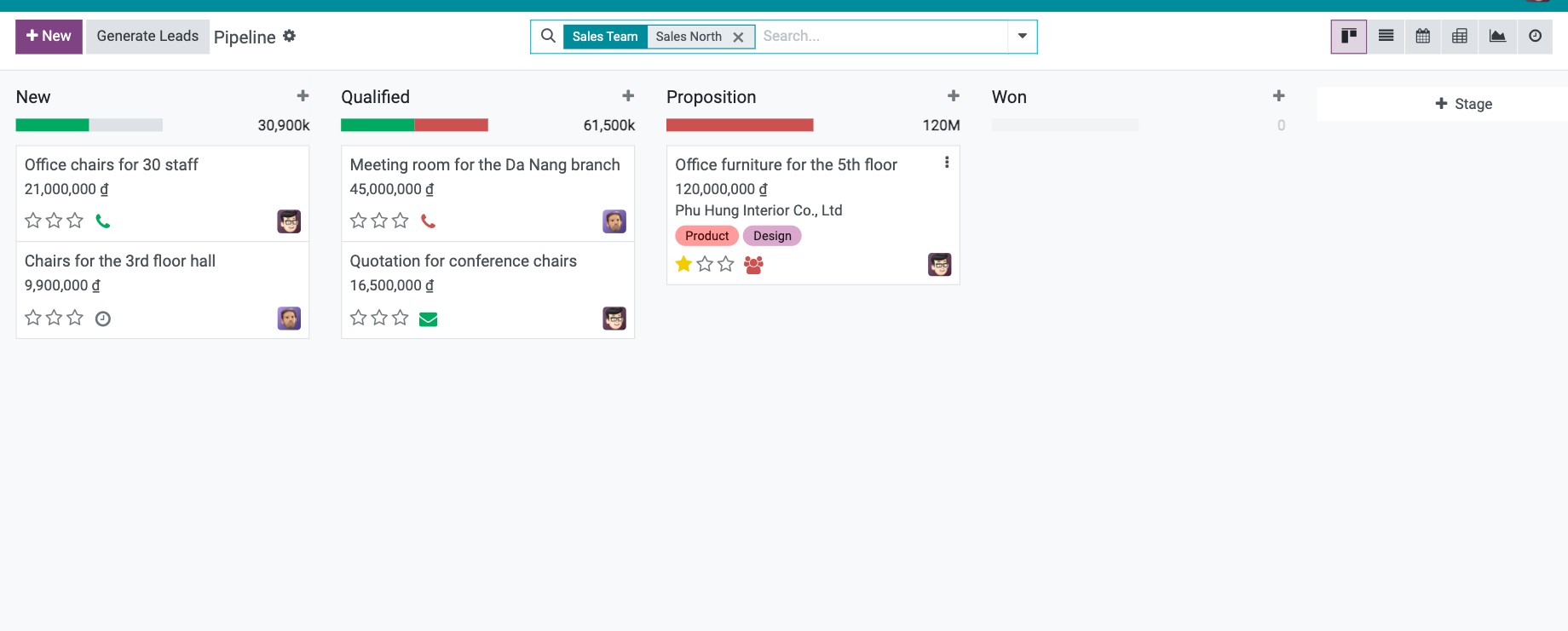
Record leads and opportunities by hand, or let them be created from emails, the website contact form or live chat.
Organize the work of sales teams.
Plan calls, emails and meetings with each customer.
Send quotations from an opportunity.
Record why an opportunity is lost.
Analyze the pipeline with reports and the conversion chart.
For a tour of the menus, see How to find your way around the CRM app.
How do I install the CRM app?
Open Apps and search for CRM.
Click Activate on the CRM card.
The CRM app now appears on the home screen. Installing CRM also installs the modules it needs, such as Sales Teams and Discuss.
Which access right does a salesperson need?
CRM uses the Sales access rights. Set them on the user form, in the Access Rights tab (see How to create and manage user accounts):
Sales access right |
What the user can do in CRM |
|---|---|
User: Own Documents Only |
Sees and works on the leads and opportunities assigned to them, or not assigned to anyone. |
User: All Documents |
Sees and works on all leads and opportunities of the companies they can access. |
Administrator |
Also changes the CRM settings, stages, sales teams, tags and lost reasons. |
Common errors
Problem |
What to do |
|---|---|
The CRM app does not appear on the home screen after installing. |
Your user has no Sales access right. Ask the Administrator to set one. |
A salesperson cannot see an opportunity of a colleague. |
Their access right is User: Own Documents Only. Assign the opportunity to them or give them User: All Documents. |
Next steps
How to find your way around the CRM app: find your way around the CRM menus.
How to set up sales teams and sales regions: set up your sales teams.