
How to allocate unearned revenue over several periods
When a customer pays in advance for a service that you deliver over several months, record the invoice on the Deferred revenue account (3387) and create an automatic transfer model that moves a percentage of it to revenue (511) at the end of every period (for example 10% a month for a 10-month service). Viindoo generates and posts the allocation entries for you. The same method works for prepaid expenses.
Who does this: an Accounting administrator (the Automatic Transfer Models and Product Categories menus are under Configuration > Management). Application: Accounting.
Before you start
This tutorial requires the installation of the following applications/modules:
You also need a journal of type General to record the allocation entries.
How do I configure the allocation model?
Navigate to Accounting > Configuration > Management > Automatic Transfer Models and click New.
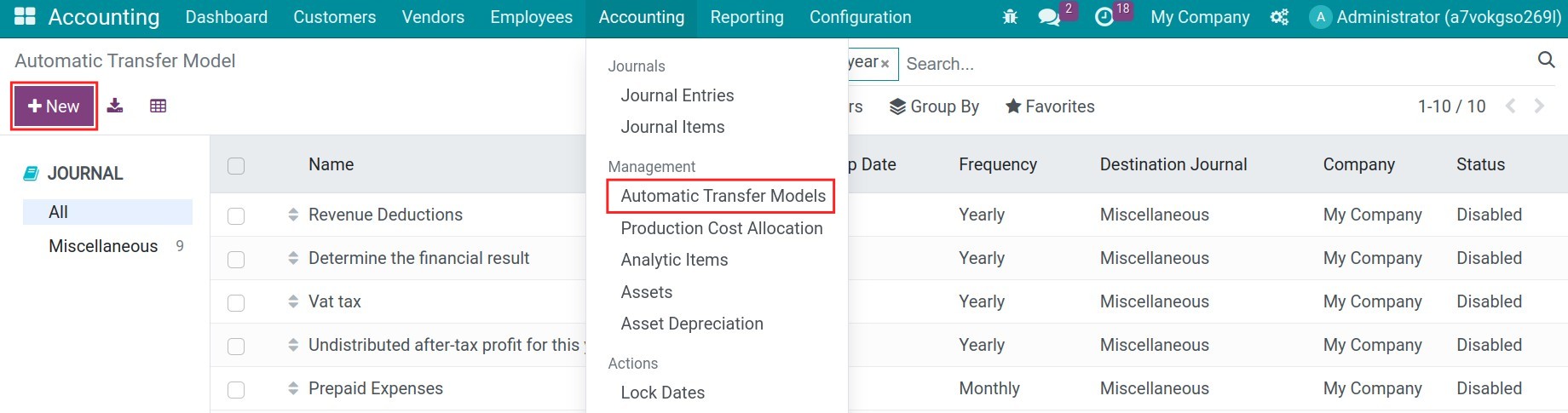
Enter the Description, the Period (start date and optional stop date), the Frequency (Monthly, Quarterly or Yearly) and the Journal. Keep the Forward Method on Auto unless you know you need another one; the fields are explained in How to offset debts of a partner who is also your vendor.
Source accounts
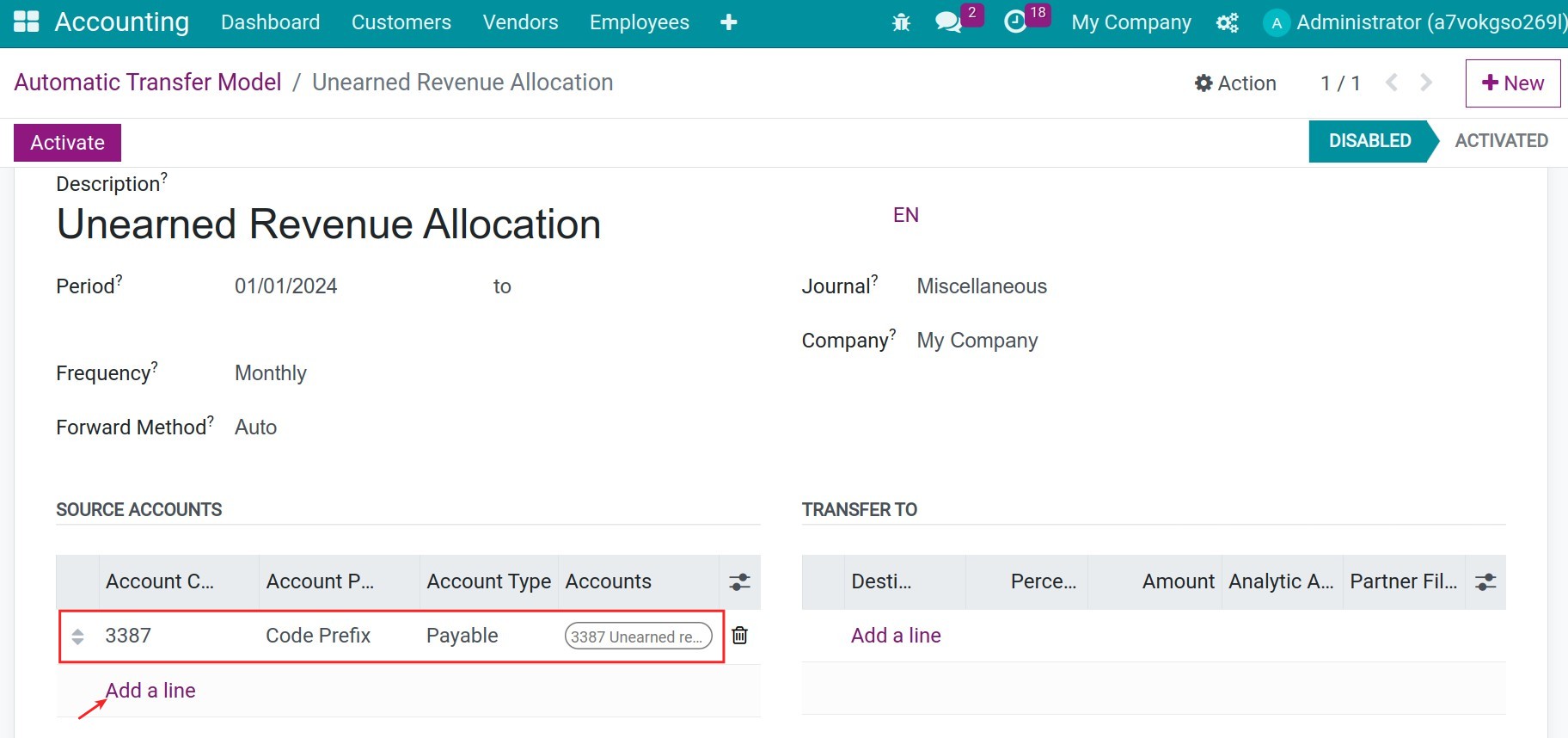
Click Add a line under Source Accounts and enter the Account Code Prefix of the unearned revenue account, for example 3387, with the prefix type Exact.
Transfer accounts
Click Add a line under Transfer To to add the revenue account, for example 511.
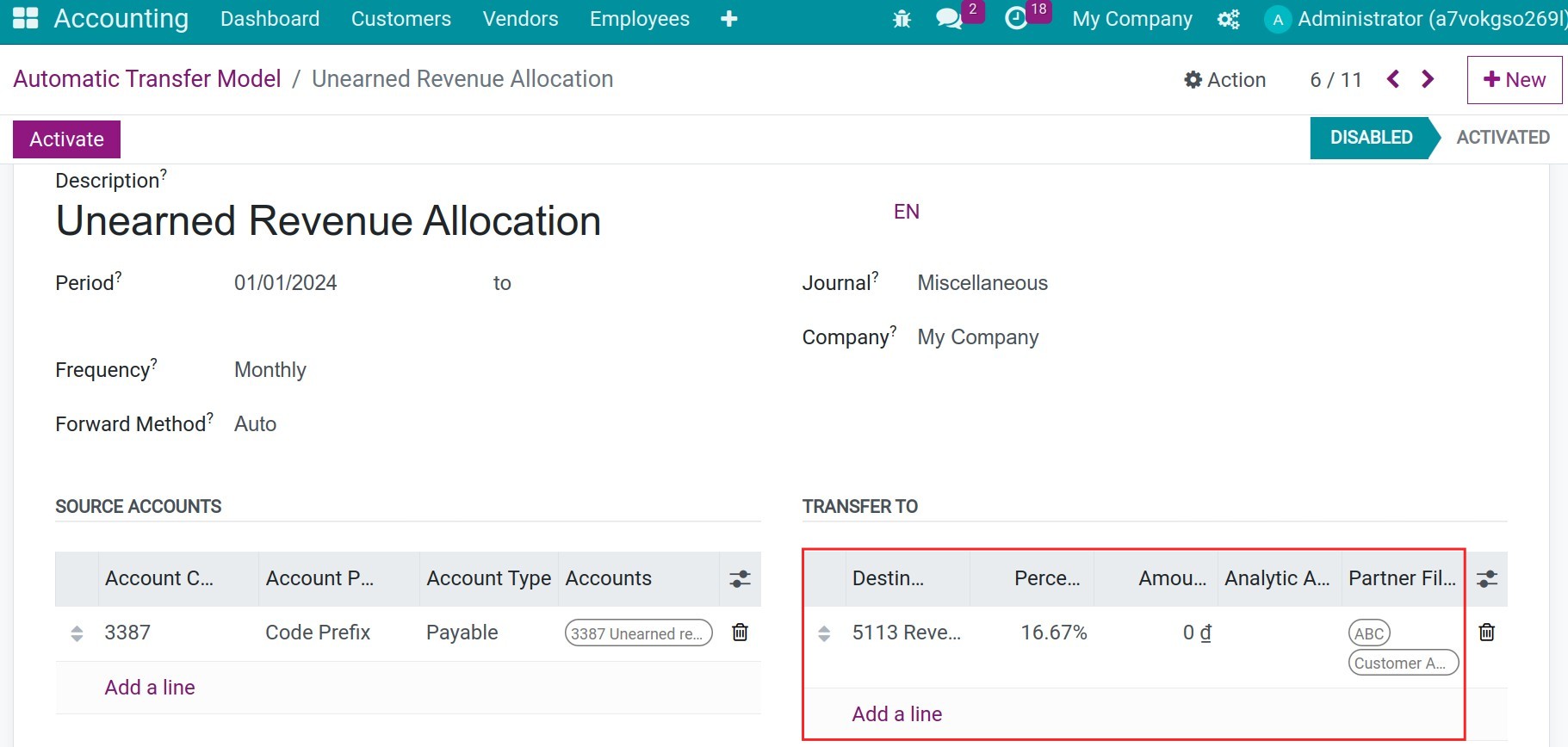
Destination Account: The account that receives each allocation, such as 511.
Percentage: The share of the source journal item allocated in each period, calculated on its original amount. For a 10-month service enter 10%.
Analytic Account Filter: Only the journal items of the source account with these analytic accounts are allocated.
Partner Filter: Only the journal items of these partners are allocated. Leave it empty to allocate all items without looking at the partner; with several partners, the entry has separate lines per partner.
When all lines are set, click Activate. The status changes from Disabled to Activated.
How do I record the unearned revenue?
Set the income account of the product category
Navigate to Accounting > Configuration > Management > Product Categories, open the product category of the prepaid service and set its Income Account to the unearned revenue account (3387).
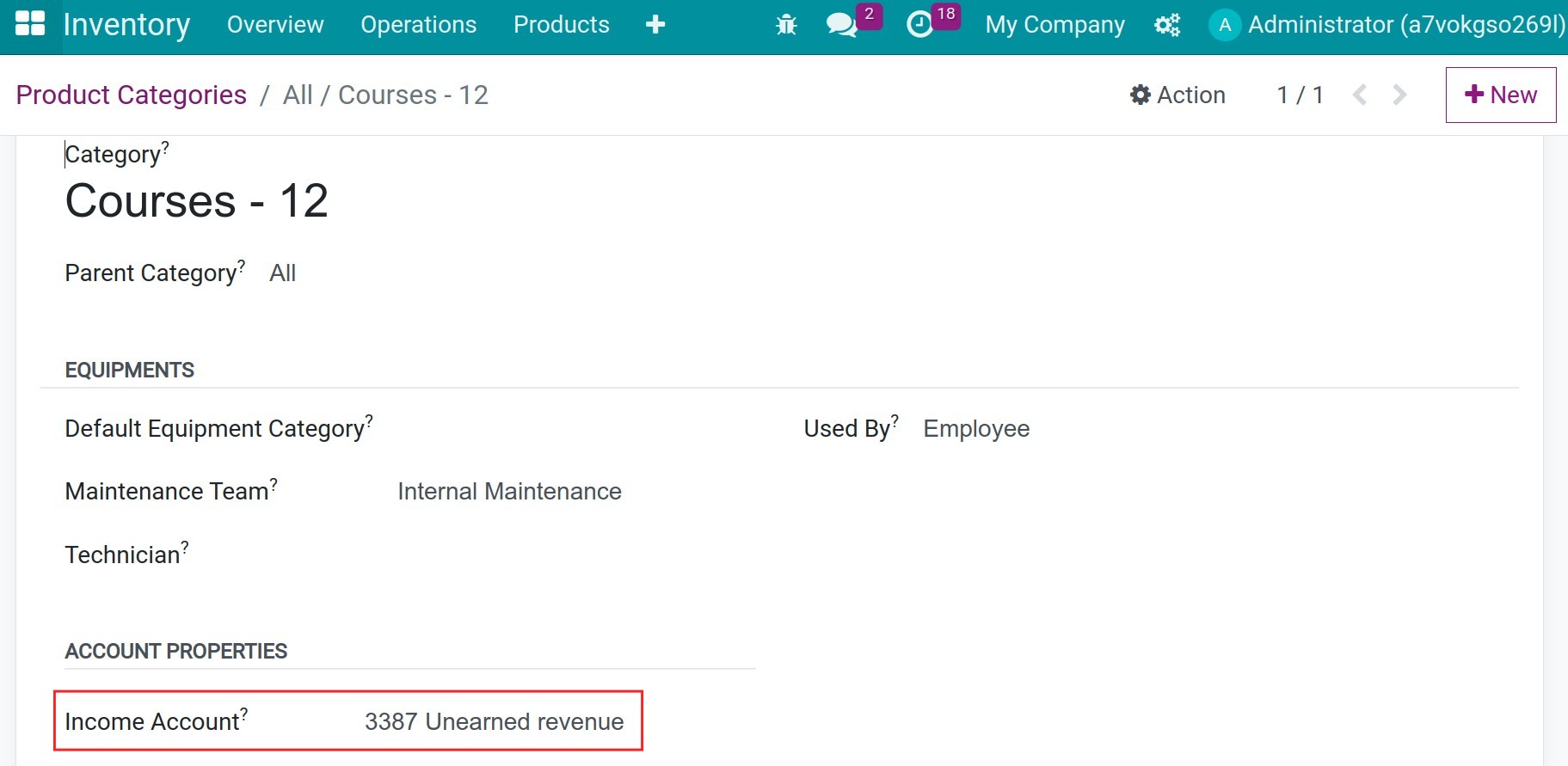
Each product of this category takes this income account on its invoice lines.
Create the customer invoice
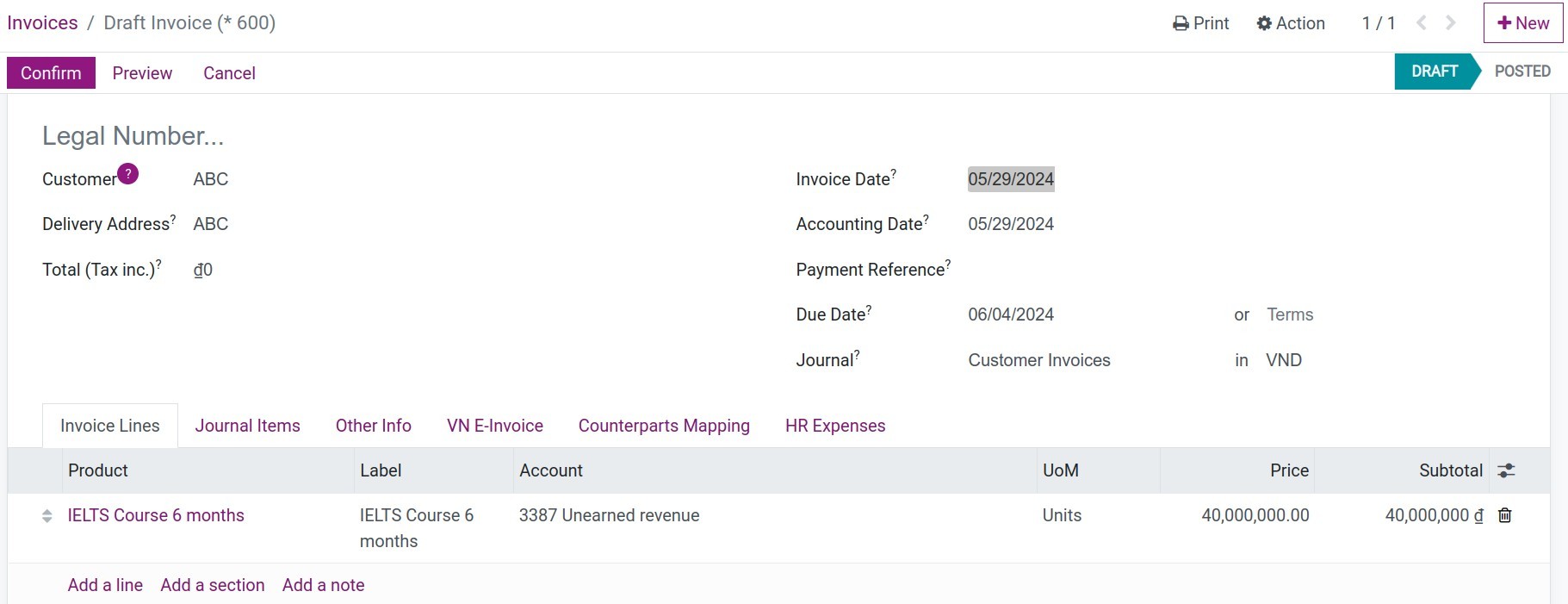
Create and post the customer invoice for the product. The invoice line is recorded on the unearned revenue account.
How are the allocation entries generated?
Once a period is over, Viindoo generates the allocation entry of that period, either when the daily scheduled action Perform Automatic Transfer runs or when you click Perform Transfer on the model. The Transfers button of the model lists the entries.
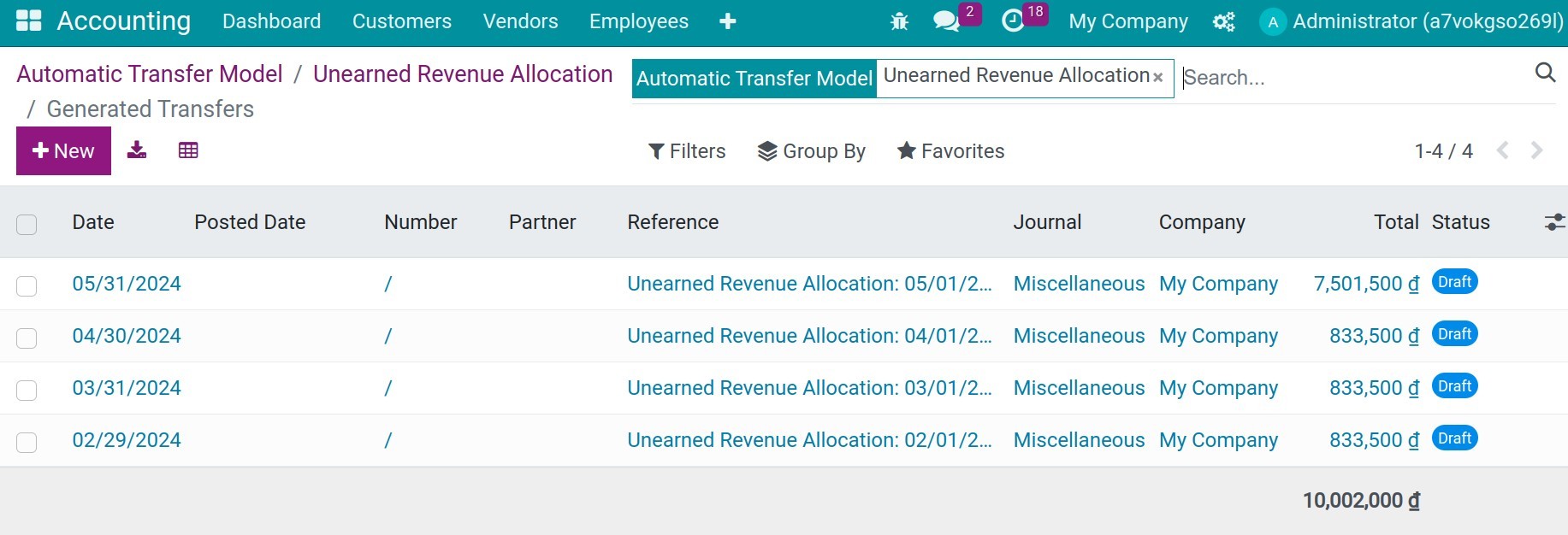
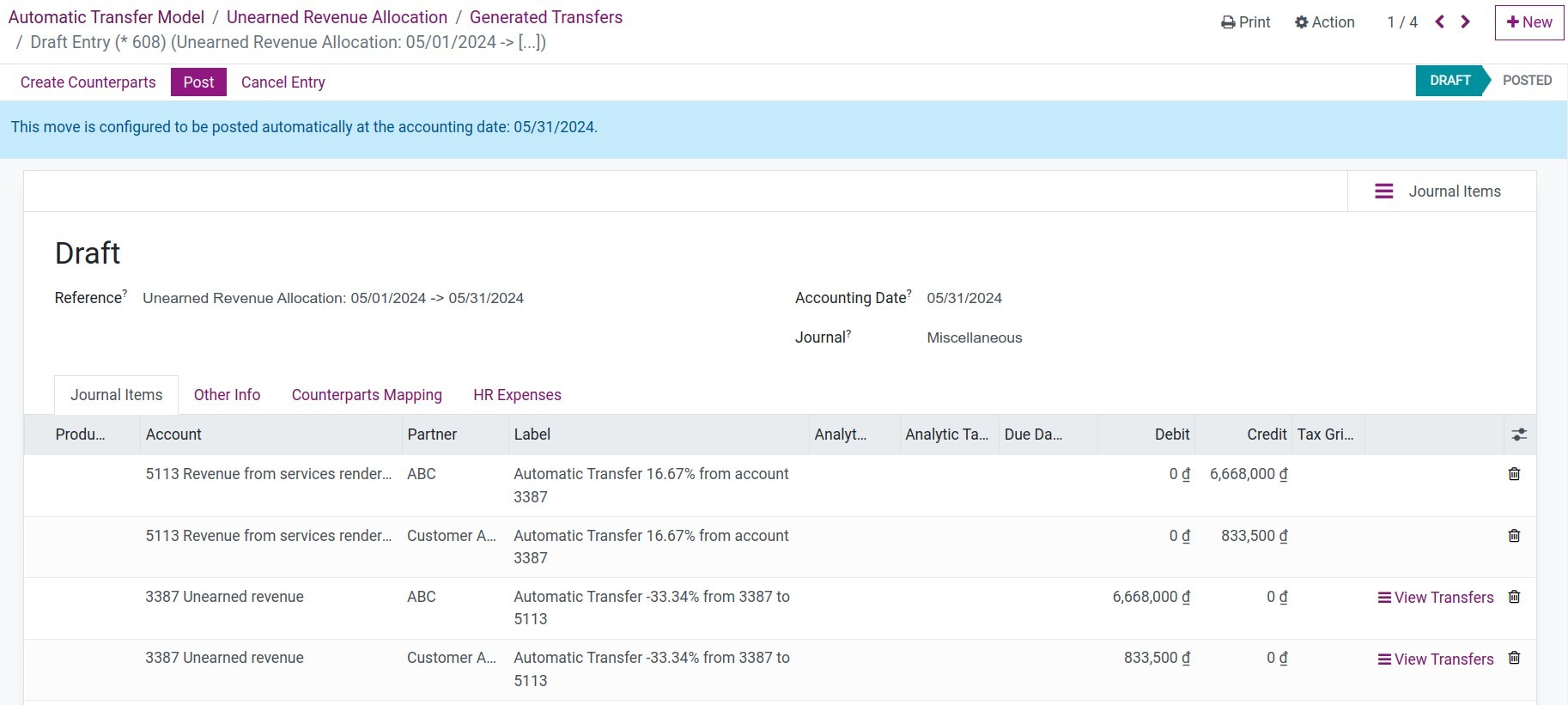
Each entry is dated on the last day of its period and is posted automatically on that date. It debits the unearned revenue account and credits the revenue account with the allocated amount.
Check the balance that is not yet allocated
Navigate to Accounting > Accounting > Journal Items and filter on the account 3387. The difference between the credit and the debit totals is the balance that is not allocated yet.
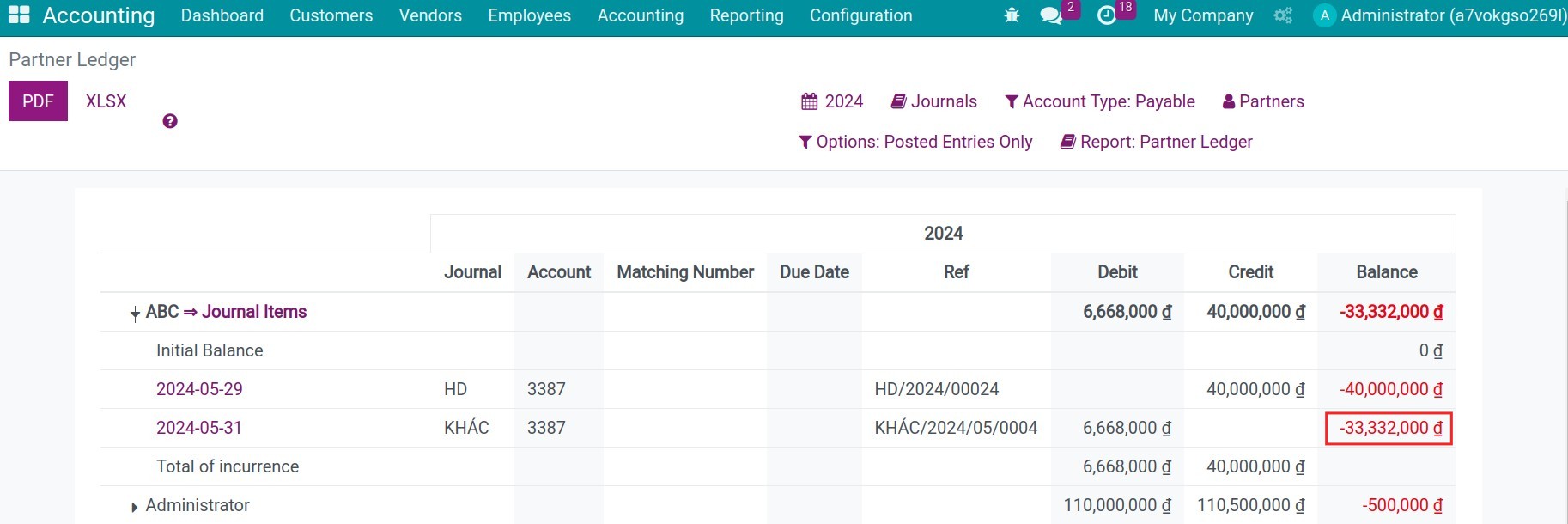
To follow one partner, add a filter on this partner.
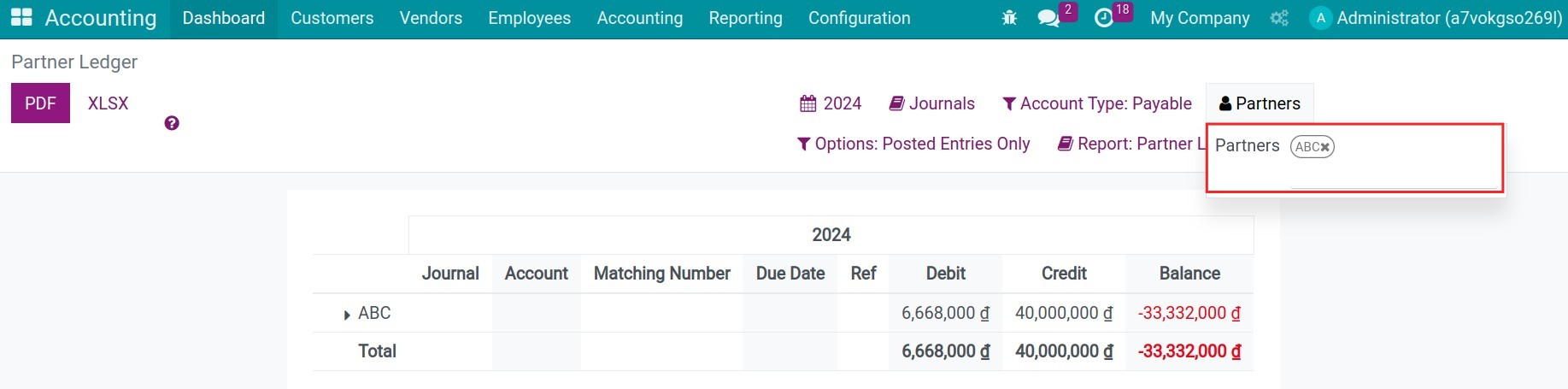
You can also use the accounting reports to analyze the data.
Expected result
One posted entry per finished period, for the allocated amount, debiting 3387 and crediting 511.
The part of the invoice that is not allocated yet stays on 3387.
Common mistakes
The total percentage must not be greater than 100% - lower the percentages of the destination lines.
No entry is generated - the model is still Disabled, the first period is not finished yet, or the partner or analytic filter excludes the invoice line.
Next steps
See also
Related article
Optional module
Version note
In Viindoo 18 the source accounts of a model are defined by an Account Code Prefix and a prefix type, and the transfer menu is Configuration > Management > Automatic Transfer Models.