
How to create employee documents
Viindoo software system lets you save, categorize and track every document of an employee in one place, from the document number and its scanned copies to who keeps the original and when it expires. You create a document in Employees > Employee Documents. Employee documents might include a National ID, a Passport, a Social Security Card or a Labor Contract.
Requirements
This tutorial requires the installation of the following applications/modules:
Who can create and see employee documents?
Who |
What they can do |
|---|---|
Users with the Officer: Manage all employees access right |
Create, view, edit and delete the documents of all employees. |
Other employees |
View, create and edit only their own documents. They cannot delete documents. |
Before you start
Create the Document Types you need, for example National ID or Passport.
Create the employee the document belongs to.
If you want to record which authority issued the document, create it as a contact first.
Installation
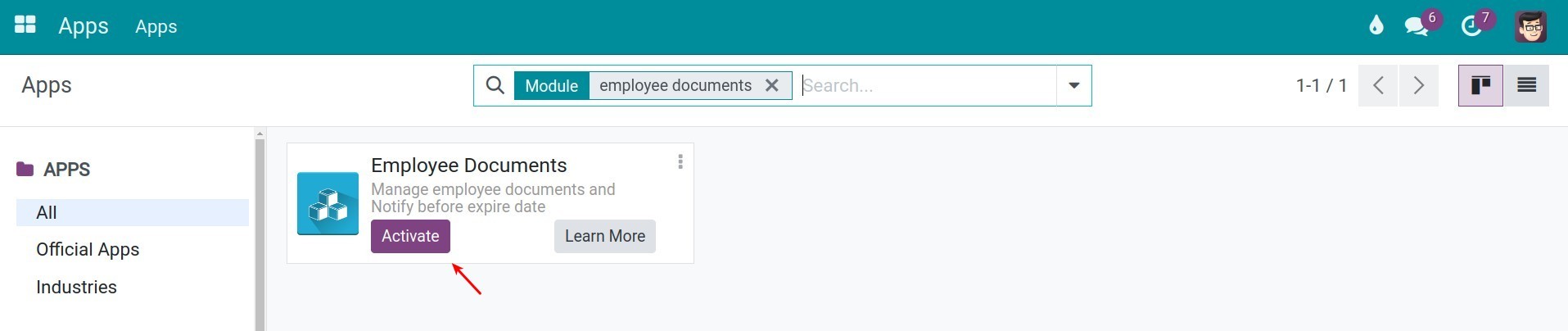
You access the Viindoo Apps, search for the keyword Employee Documents, then click Activate.
How to upload documents to an employee profile?
In the Employees app, go to Employees > Employee Documents.
Click New.
![The Employee Documents list with the New button]()
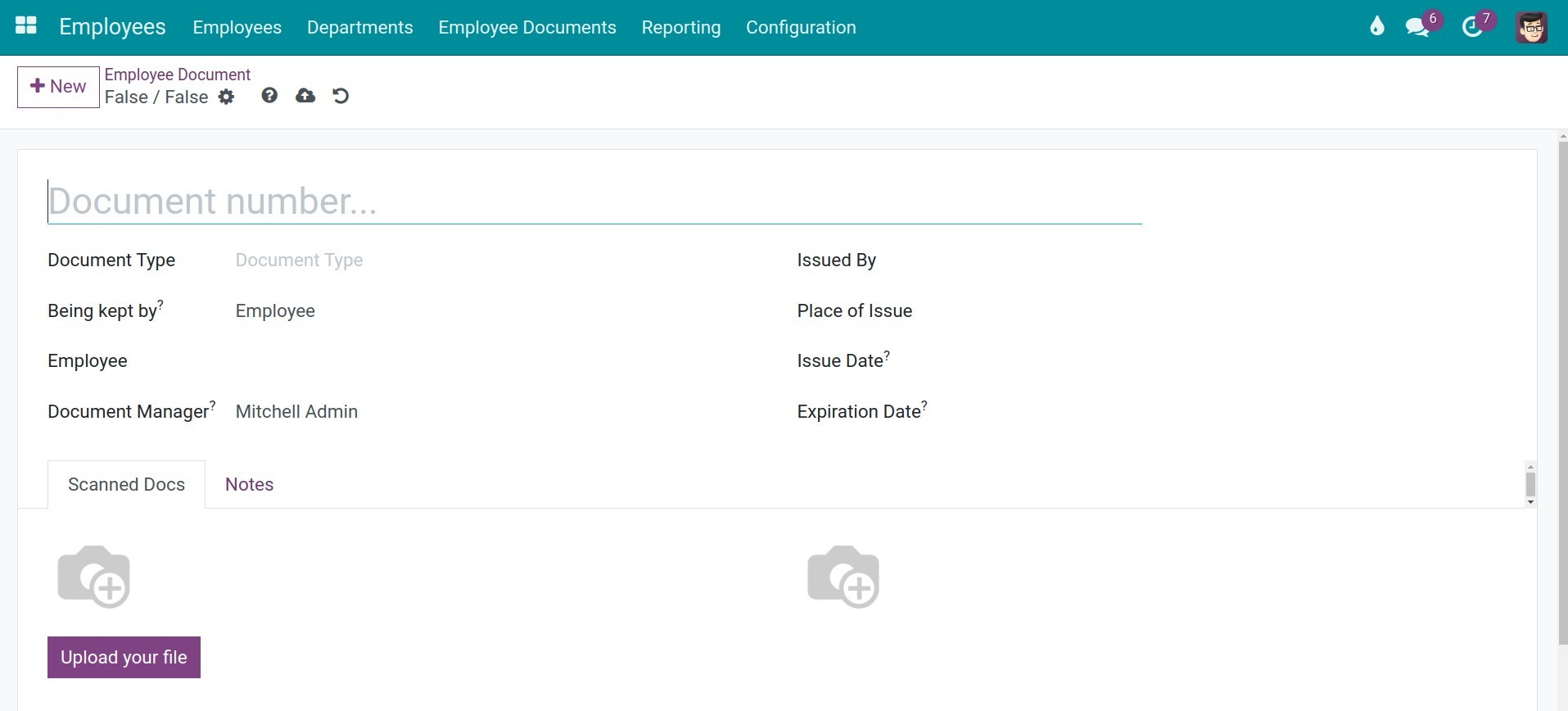
Choose the Document Type and the Employee, and type the document number at the top of the form.
![The employee document form with the document type and the employee filled in]()
Complete the other fields described below, then save.
![A completed employee document]()


Field |
What to enter |
|---|---|
Document number |
The number or name of the document, for example the number printed on an identity card. It must be unique for each document type and each employee. |
Document Type |
One of the Document Types you have created beforehand. Choosing a type fills in Being kept by, Return Upon Termination and Days to Notify from the type, and you can still change them. |
Being kept by |
Who keeps the original document: Employee or The Company. |
Return Upon Termination |
Shown only when the document is kept by The Company. Tick it if the company has to give the original back to the employee when the employee leaves. |
Employee |
The person to whom this document belongs. |
Document Manager |
The user in charge of the document. The manager is notified when the document is about to expire. |
Issued By |
The contact of the authority that issued the document. The Place of Issue is filled in from the city, state and country of this contact. |
Place of Issue |
The place where the document was issued. |
Issue Date |
The issue date and the expiration date. Click the field and pick the two dates in the calendar. Leave the expiration date empty if the document never expires. |
Days to Notify |
Shown once an expiration date is set. The number of days before the expiration date on which the employee and the document manager are notified. Enter 0 to switch the notification off. |
Scanned Docs tab: upload a scan or a copy of the document. Click each image slot to upload Image 1 and Image 2, for example the two sides of an identity card, and click Upload your file to attach one PDF file.

Notes tab: write any note about the document here.
How to give a document back to the employee?
When a document is kept by The Company and Return Upon Termination is ticked, a Return to owner button appears in the header of the document. Click it once the original has been handed back to the employee: Being kept by changes to Employee and Return Upon Termination is cleared.

Where do I find the documents of an employee?
Once an employee document is created, it appears under the HR Document smart button of the employee form.

How to access and edit all employee documents?
Users with the Officer: Manage all employees access right can open Employees > Employee Documents to see all documents, with their employee, type, expiration date and days to notify.

Use the search bar to filter the list, for example by documents that are not expiring, expired, expiring in 7 or 30 days, with or without scanned documents, or by document type, and to group it by employee, type, issue date or expiration date. Open a document to review or edit it at any time.
Common problems
Problem |
What to do |
|---|---|
The message “The document number must be unique per document type per employee!” appears. |
The employee already has a document of this type with the same number. Open the existing document, or use another number. |
The message “Issue date must be before Expire date” appears. |
Correct the issue date and the expiration date. |
You cannot see Return Upon Termination. |
Set Being kept by to The Company. |
You cannot see the Return to owner button. |
The button is shown only for a document kept by the company with Return Upon Termination ticked. |
See also
Related article
Optional module