
Work center load
Before promising a date, a planner checks that the work centers can take the work. The load of a work center is the expected duration of its work orders that are not done yet. Viindoo shows it per week on the work center overview, against the working hours, and per day in the Work Center Loads report.
Who |
Production planners and managers with the Manufacturing ‣ User access right. |
App |
Manufacturing |
Before you start
Install the Manufacturing app and turn on Work Orders, see Manage Manufacturing process in Viindoo.
The work centers have their Working Hours and the operations their durations.
How do I see the load of the week?
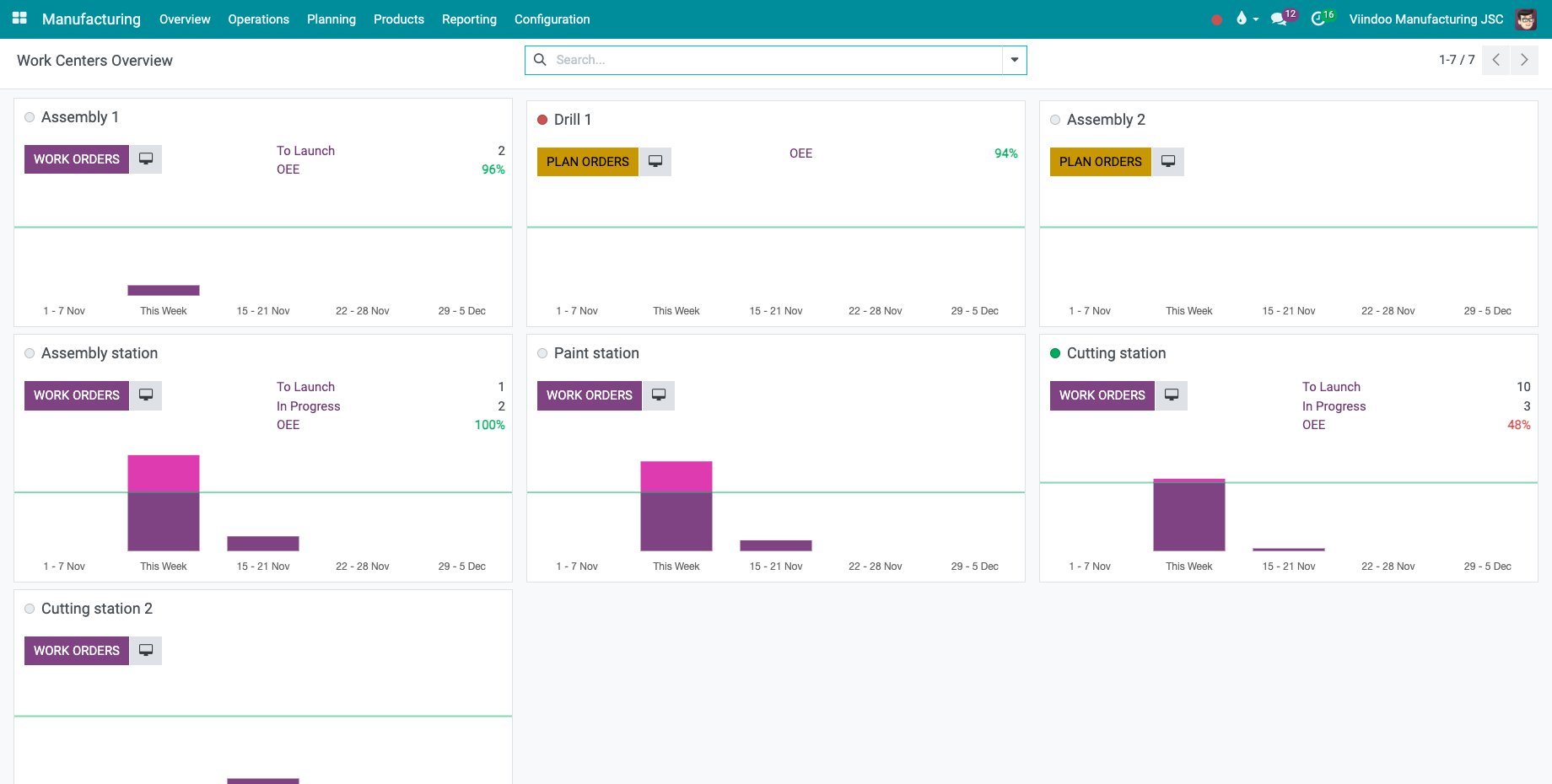
Go to Manufacturing ‣ Overview. Each work center card shows a bar per week, from last week to three weeks ahead, in hours. The line is the capacity of a week, from the working hours of the work center; the part of a bar above it is the work that does not fit. The card also counts the work orders to launch and in progress, and the effectiveness (OEE).
How do I see the load per day?
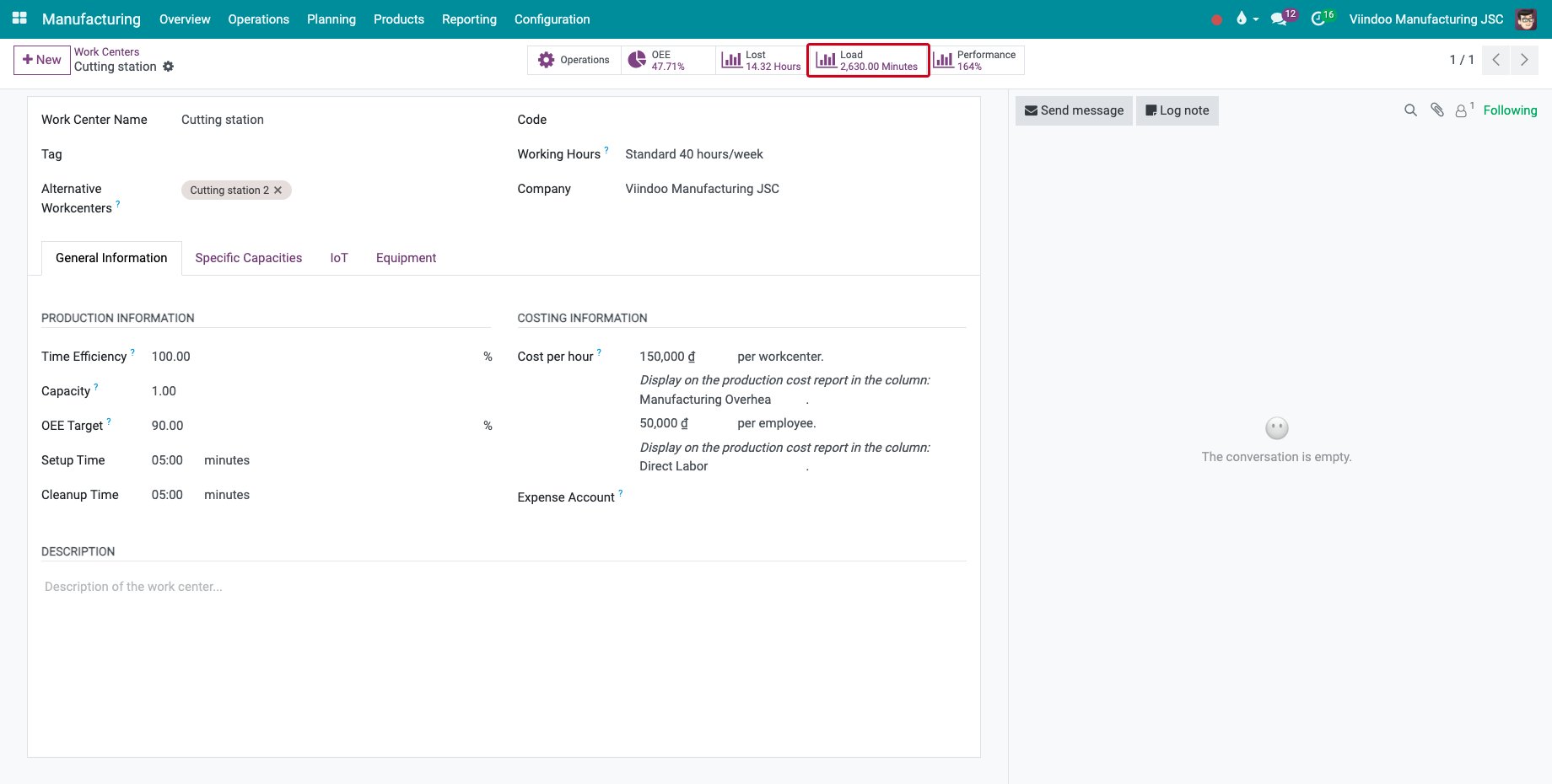
Go to Manufacturing ‣ Configuration ‣ Work Centers and open the work center, here the Cutting station. The Load button shows the minutes of work not done yet.
![The Load button of the Cutting station]()
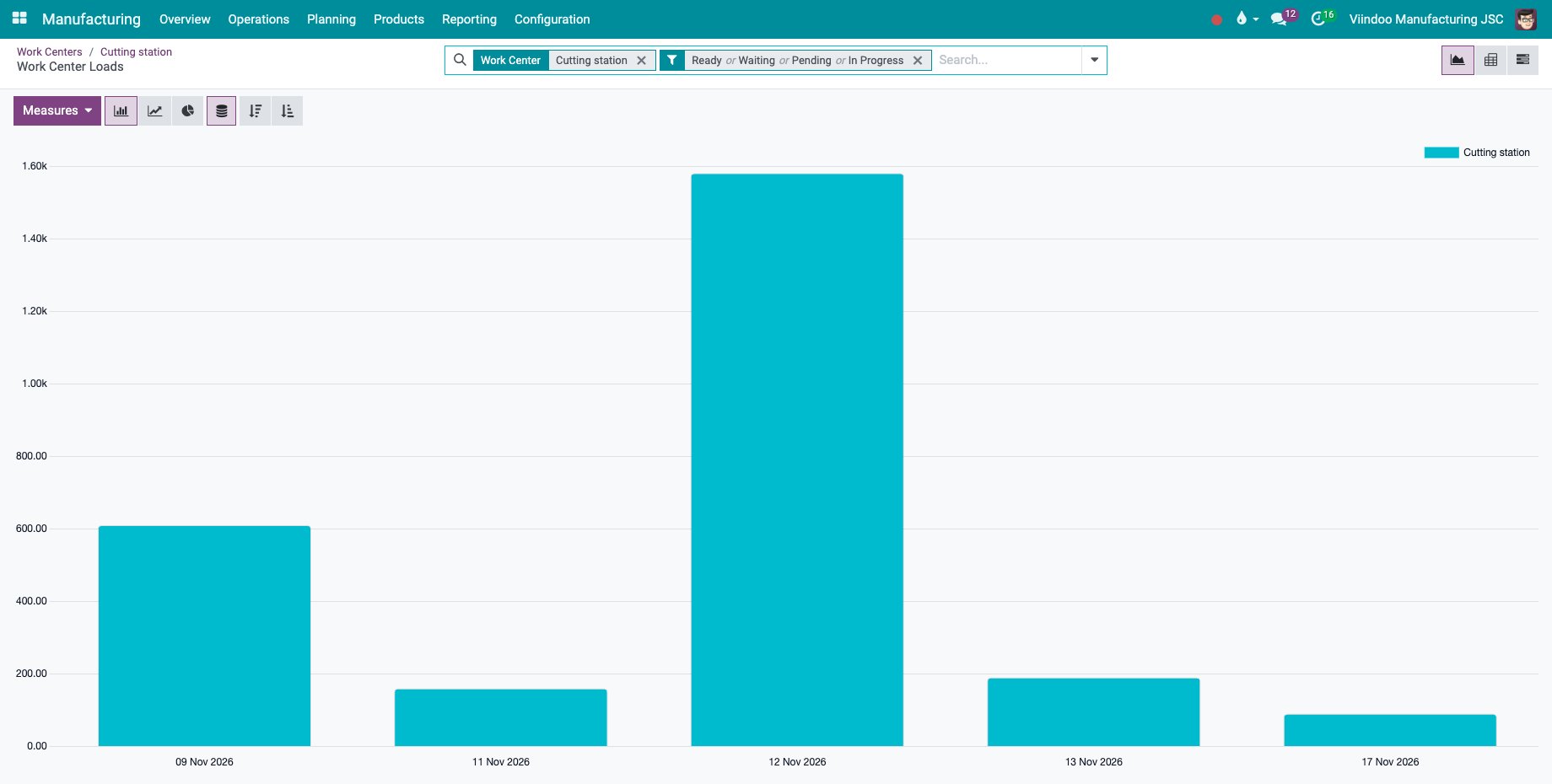
Click Load. Work Center Loads shows the Expected Duration (minutes) of the work orders that are ready, waiting, pending or in progress, per day.
![The load of the Cutting station per day in a graph]()
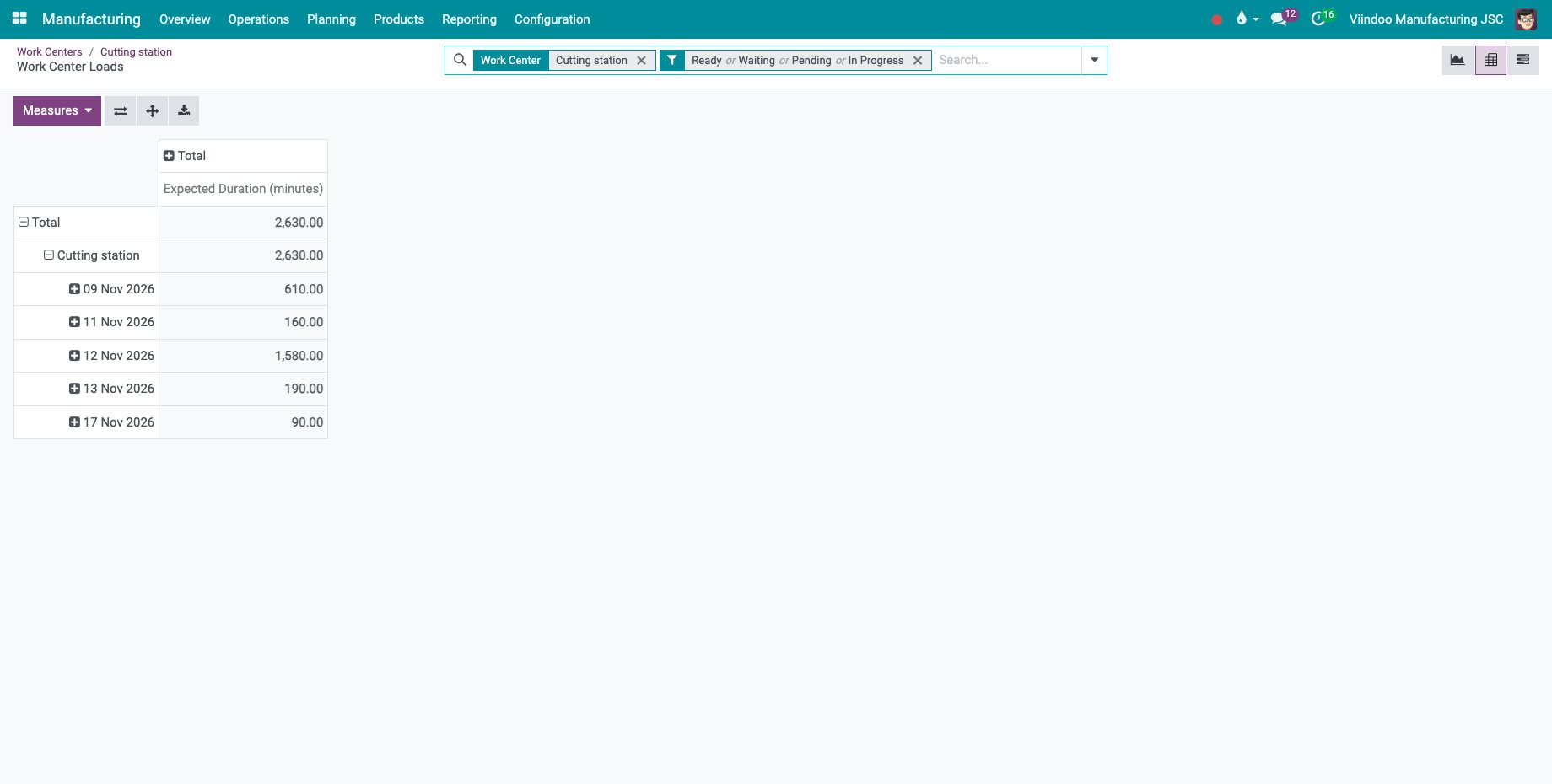
Switch to the pivot view to read the figures, or remove the work center filter to compare all work centers.
![The load of the Cutting station per day in a pivot table]()
When a day is overloaded, move work orders to another day or to an alternative work center, see Create and use Alternative Work Centers.
Common errors
Problem |
What to do |
|---|---|
A work center shows no load. |
It has no work order that is not done. |
The bars of the overview look too high. |
Check the Working Hours of the work center: the capacity line comes from them. |
Next steps
Plan by component availability and operation order: plan the orders.
Manufacturing report in Gantt: move the work orders in a Gantt chart.
Shop Floor entries and work center overview: open the Shop Floor from the work center overview.