
How to use batch transfers and wave transfers
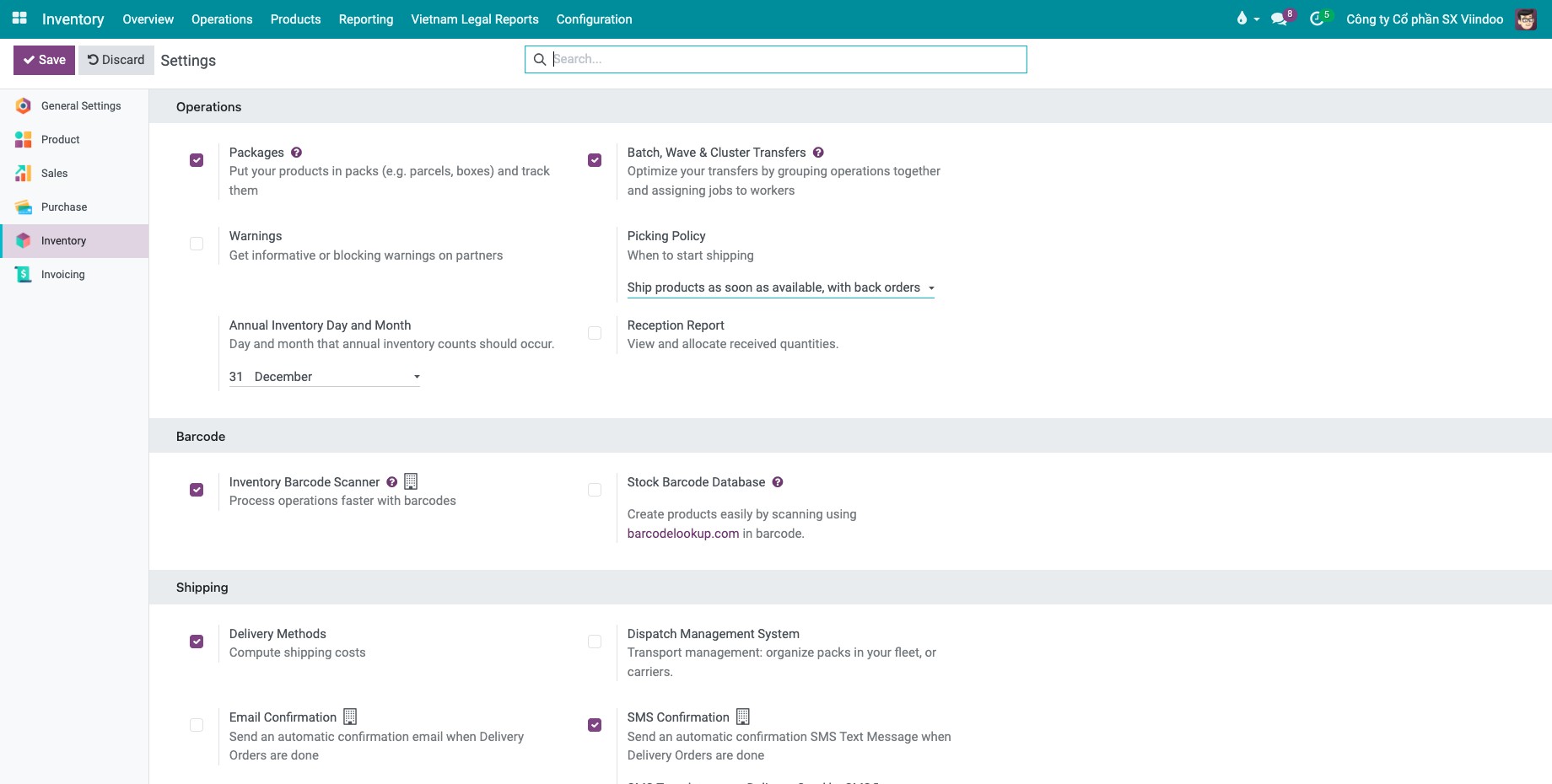
To process several transfers in one trip, turn on Batch, Wave & Cluster Transfers in the Inventory settings. Then group transfers of the same operation type into a Batch Transfer (whole transfers) or a Wave Transfer (selected product lines of several transfers), and validate the group once.
Who |
Inventory Administrator to turn on the setting; Inventory User to create and process batches. |
App |
Inventory |
Before you start
Install the Inventory app.
Tick Batch, Wave & Cluster Transfers in Inventory ‣ Configuration ‣ Settings ‣ Operations and click Save. This installs the Warehouse Management: Batch Transfer module (
stock_picking_batch).
How do I create a batch transfer?
A batch transfer groups whole transfers of the same operation type (for example several deliveries) under one responsible user. There are two ways to create it.
From the Batch Transfers menu
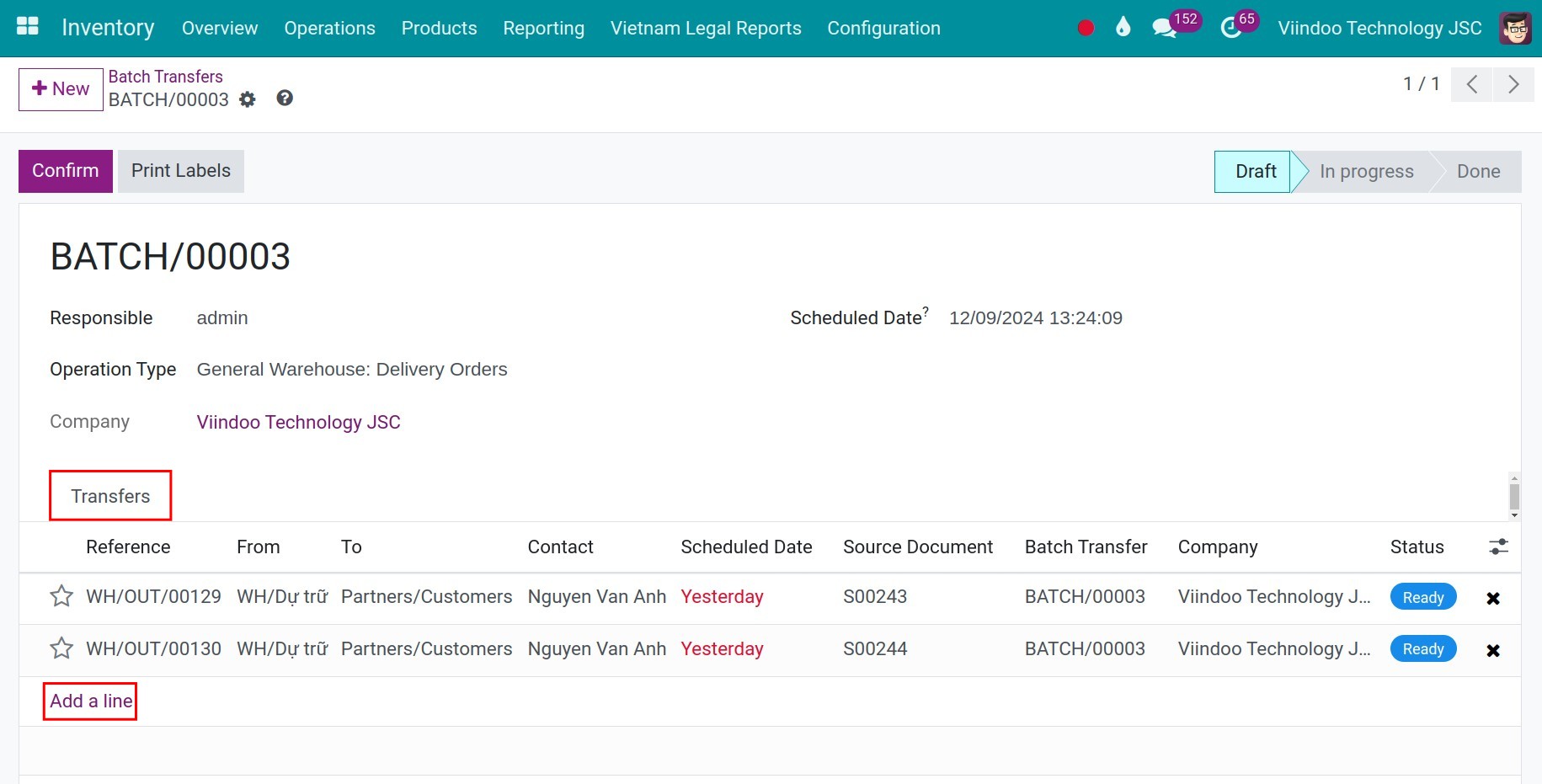
Go to Inventory ‣ Operations ‣ Jobs ‣ Batch Transfers and click New.
Choose the Responsible and the Operation Type (a receipt or a delivery type), optionally a Scheduled Date and a Description.
On the Transfers tab, click Add a line and pick the transfers. Viindoo proposes the transfers of the chosen operation type.
![New batch transfer with the responsible user, the operation type and the transfers tab]()
Click Confirm. The batch goes to In Progress and its transfers to Ready.
![Confirmed batch transfer in the In Progress state]()
Do the work, enter the quantities, then click Validate. The batch and its transfers become Done.
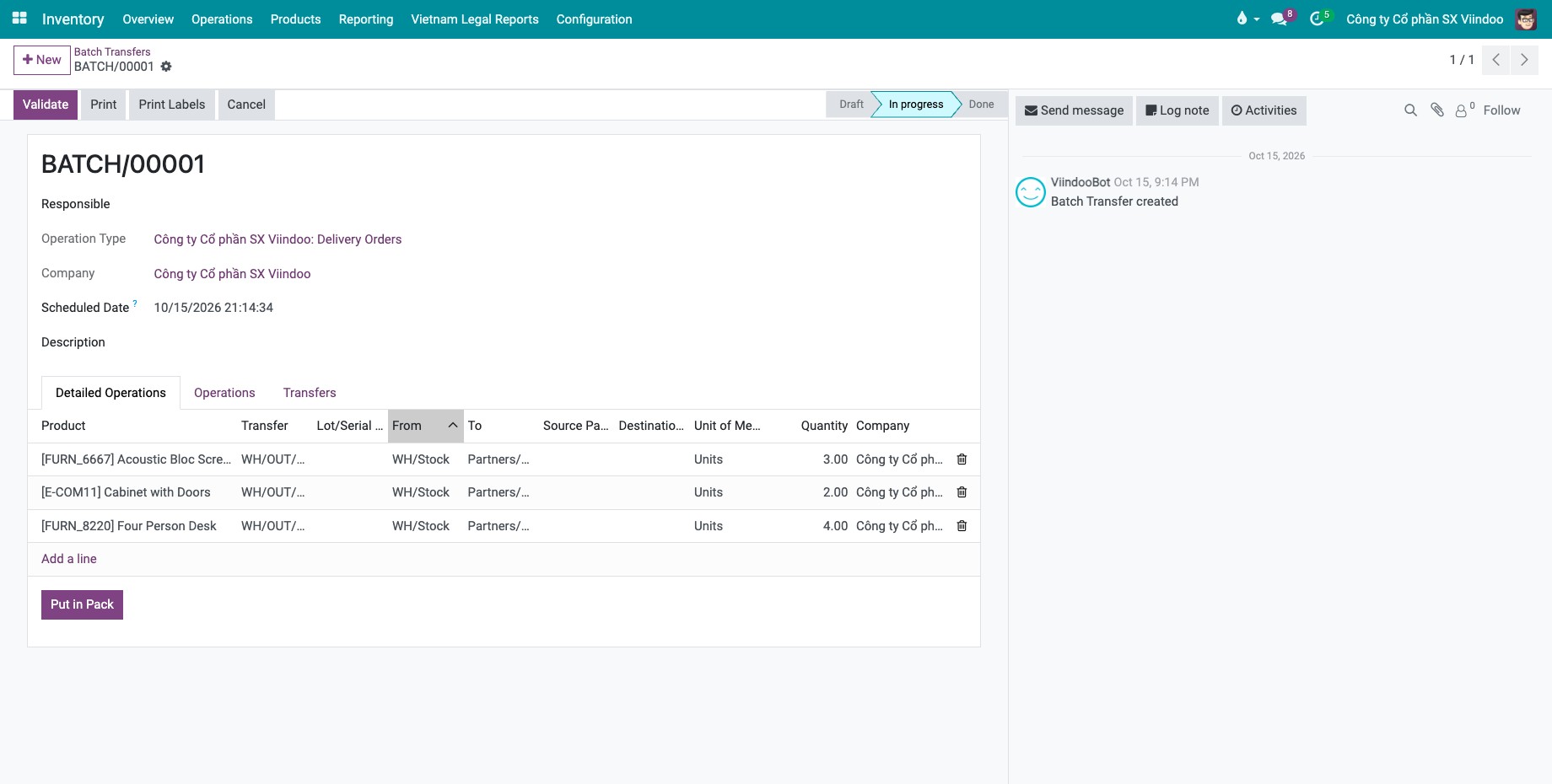
Open the Detailed Operations tab to see the products of all transfers in one list.
From a list of transfers
Go to Inventory ‣ Operations ‣ Transfers ‣ Deliveries (or Receipts) and tick the transfers.
Click Actions ‣ Add to batch.
![Deliveries list with transfers selected and the Add to batch action]()
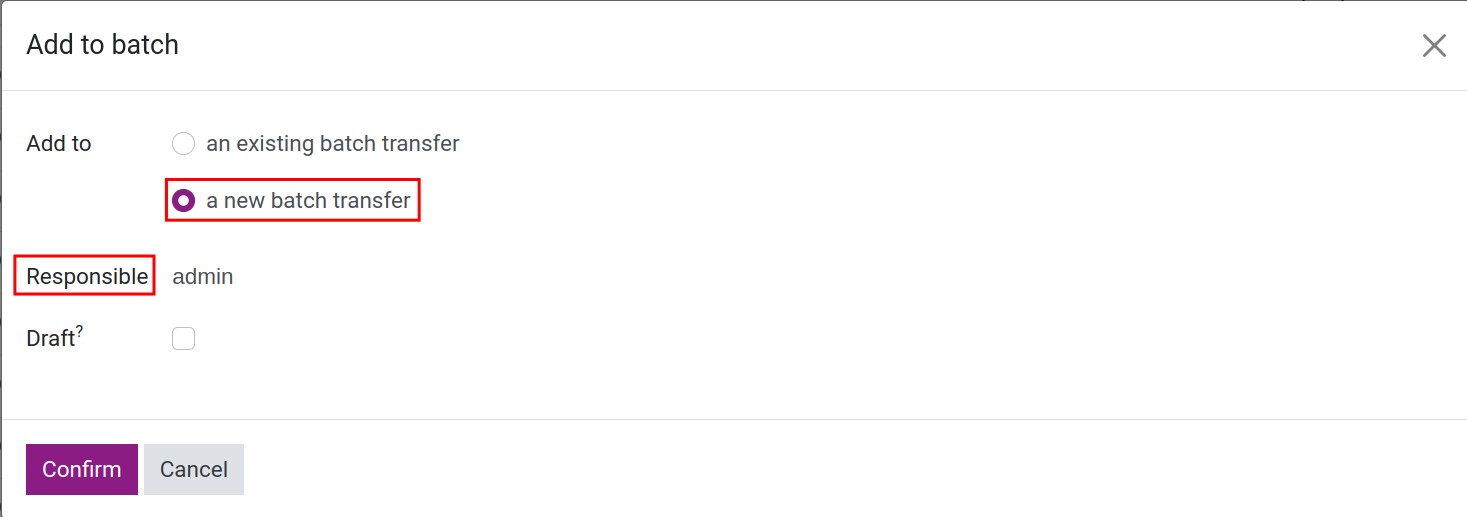
Choose Add to: an existing batch transfer (pick it in Batch Transfer) or a new batch transfer (choose the Responsible and optionally a Description; tick Draft to keep the new batch in Draft). Click Confirm.
![Add pickings to window with the new batch transfer option and the responsible user]()
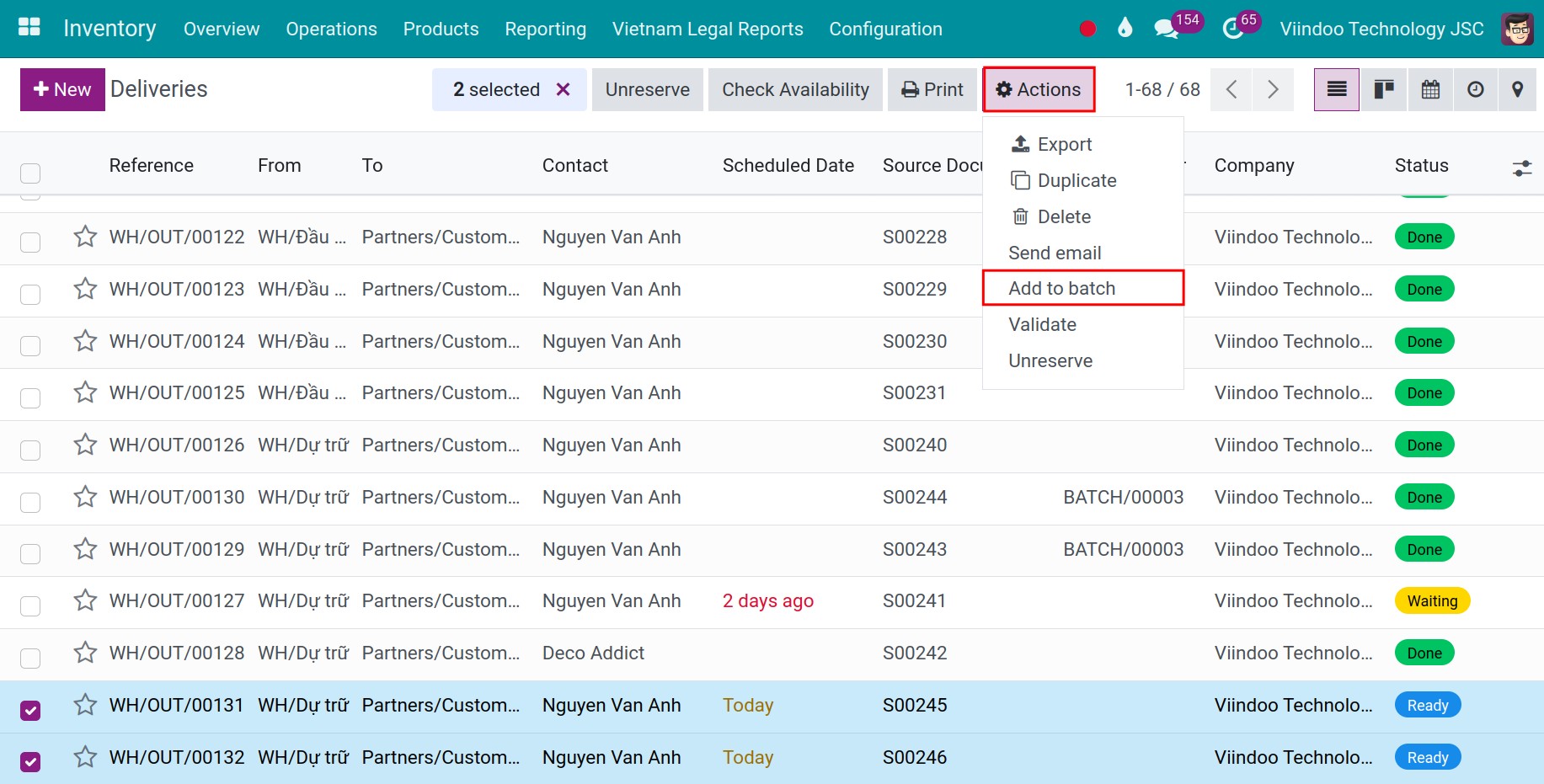
Use the Batch Transfer filter or the Batch Transfers menu to find the batch later. All transfers of a batch must belong to one company.
How do I create a wave transfer?
A wave groups selected product lines of several transfers, for example to pick the same product for many orders at once. Wave transfers are for companies with many orders and products. The transfers must be Ready and of the same operation type.
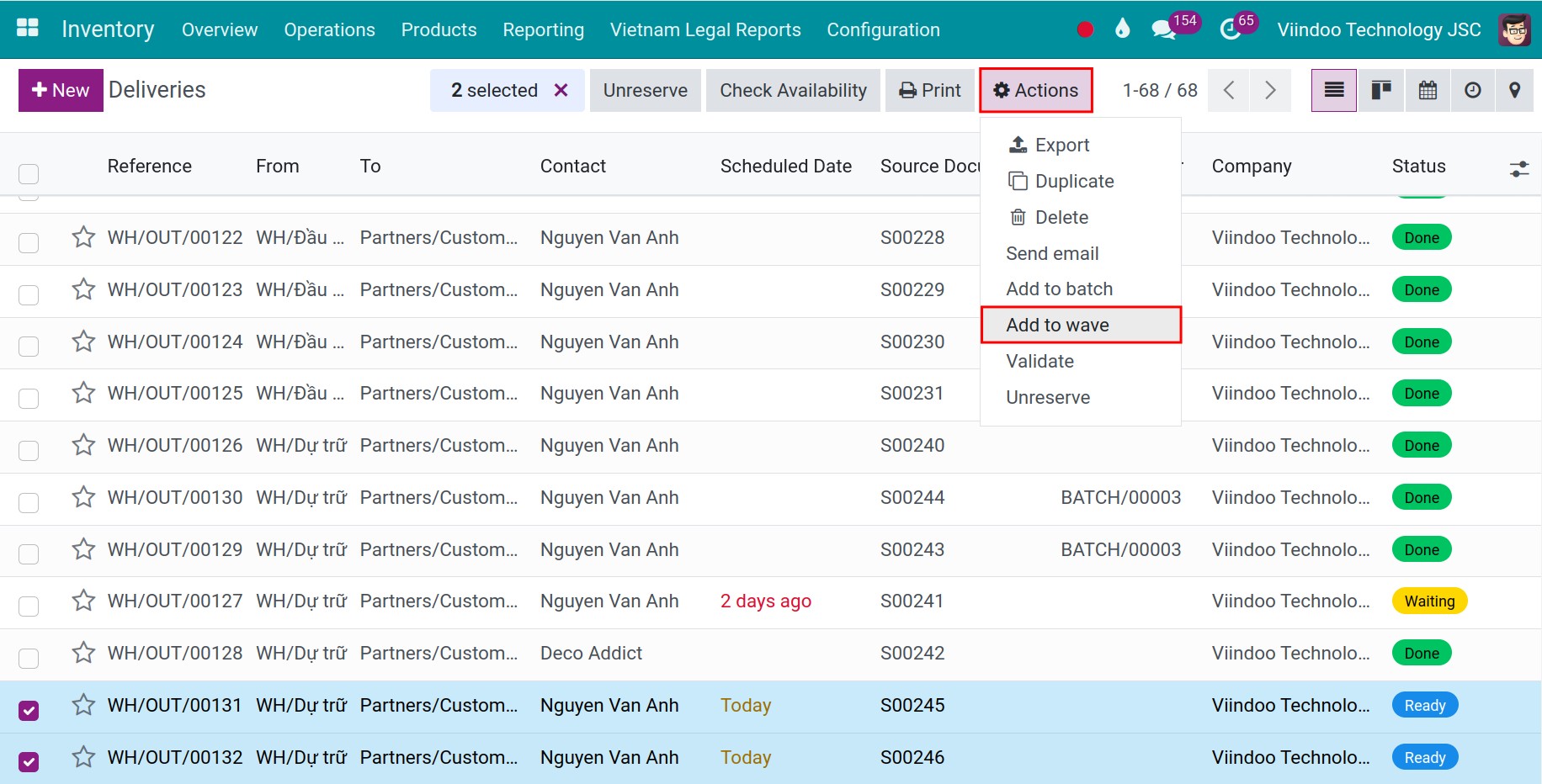
In Inventory ‣ Operations ‣ Transfers ‣ Deliveries, tick the transfers and click Actions ‣ Add to wave.
![Deliveries list with transfers selected and the Add to wave action]()
Choose Add to an existing wave transfer or a new wave transfer, choose the Responsible, and click Confirm.
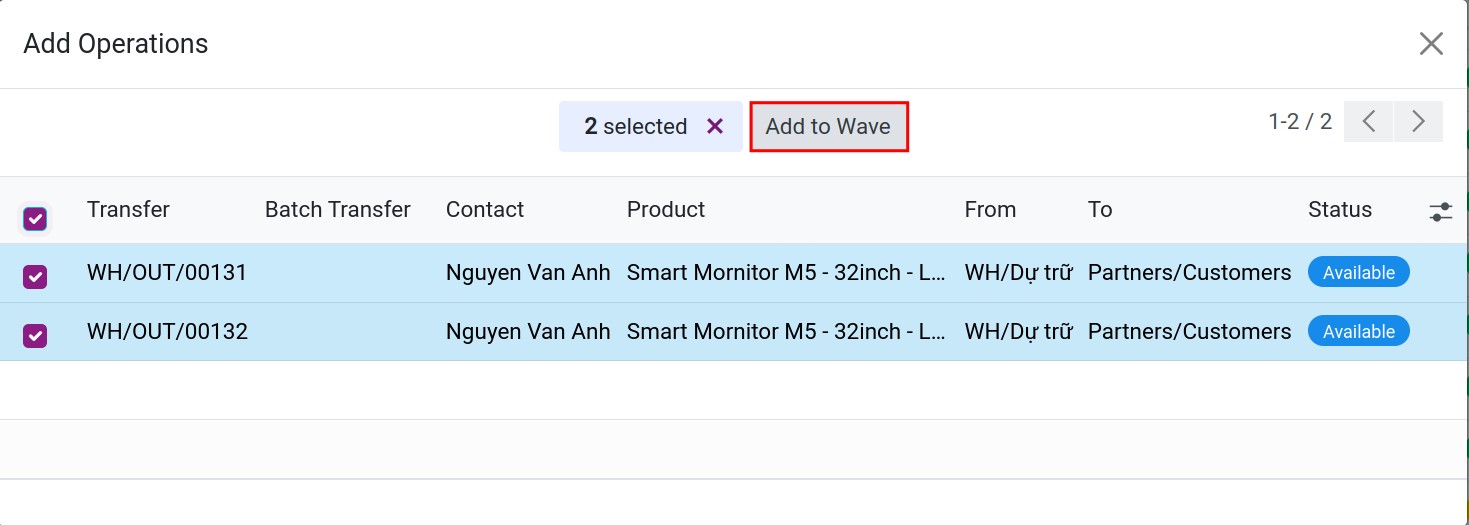
In the Add Operations window, tick the product lines to put in the wave and click Add to Wave.
![Add Operations window listing the detailed operations of the selected transfers]()
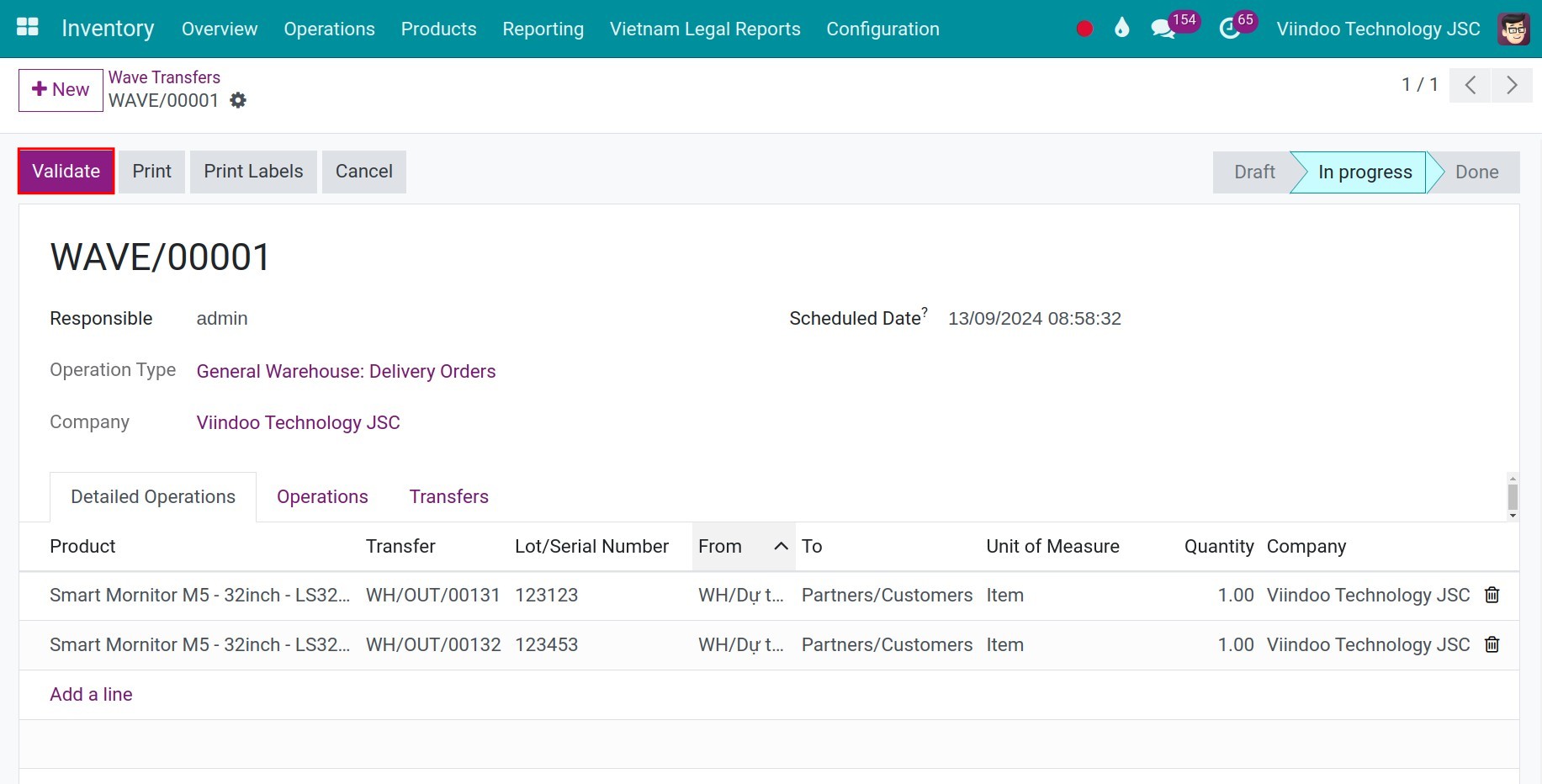
Open Inventory ‣ Operations ‣ Jobs ‣ Wave Transfers and open the wave. Its Detailed Operations tab lists the lines with product, transfer, source and destination location. Add more lines with Add a line.
![Wave transfer with its detailed operations]()
Enter the done quantities and click Validate. The wave becomes Done.
How do I let Viindoo group transfers automatically?
Open an operation type in Inventory ‣ Configuration ‣ Warehouse Management ‣ Operations Types. In the Batch & Wave Transfers group, tick Automatic Batches to put transfers in batches as they are confirmed, set the maximum lines and transfers per batch, and choose the grouping (contact, destination country, source or destination location).
Common errors
Message |
What to do |
|---|---|
You have to set some pickings to batch. |
You clicked Confirm or Validate on a batch without transfers. Add transfers on the Transfers tab. |
The selected transfers should belong to the same operation type |
Wave transfers need transfers of one operation type. Select only deliveries, or only receipts. |
The selected pickings should belong to an unique company. |
Select transfers of one company. |
You cannot delete Done batch transfers. |
A done batch is a record of what was processed; keep it. |
Next steps
Version notes
One setting, Batch, Wave & Cluster Transfers, turns on batch, wave and cluster transfers. There is no separate Wave option.
The menus Batch Transfers and Wave Transfers are under Operations ‣ Jobs.