
Repairing at customer’s location
When your technician repairs the product where it stands, at the customer’s site, the product never enters your warehouse. You give the order an operation type whose product locations are the customer location, and the parts come from your stock.
Who |
Technicians who repair at the customer’s site and the staff who prepare their parts. |
App |
Repairs |
Before you start
Activate the Repairs app, see How to install and set up Repairs app.
Create the operation type for on-site repairs, see Repair overview and operation types: the Product Source Location and the Product Destination Location are Partners/Customers, and the Component Source Location is the stock of your warehouse.
The product is at the customer’s, recorded in the location Partners/Customers, for example after the delivery.
How do I create the order for the customer’s site?
Go to Repairs ‣ Orders, click New and fill in the order as explained in Create repair order: customer, product, serial number and the parts to add.
Open the Miscellaneous tab and choose the on-site type in Operation Type.
Check the Locations group: Product Source Location is Partners/Customers and Component Source Location is the stock of your warehouse.
![The Miscellaneous tab with the on-site operation type and the customer location]()
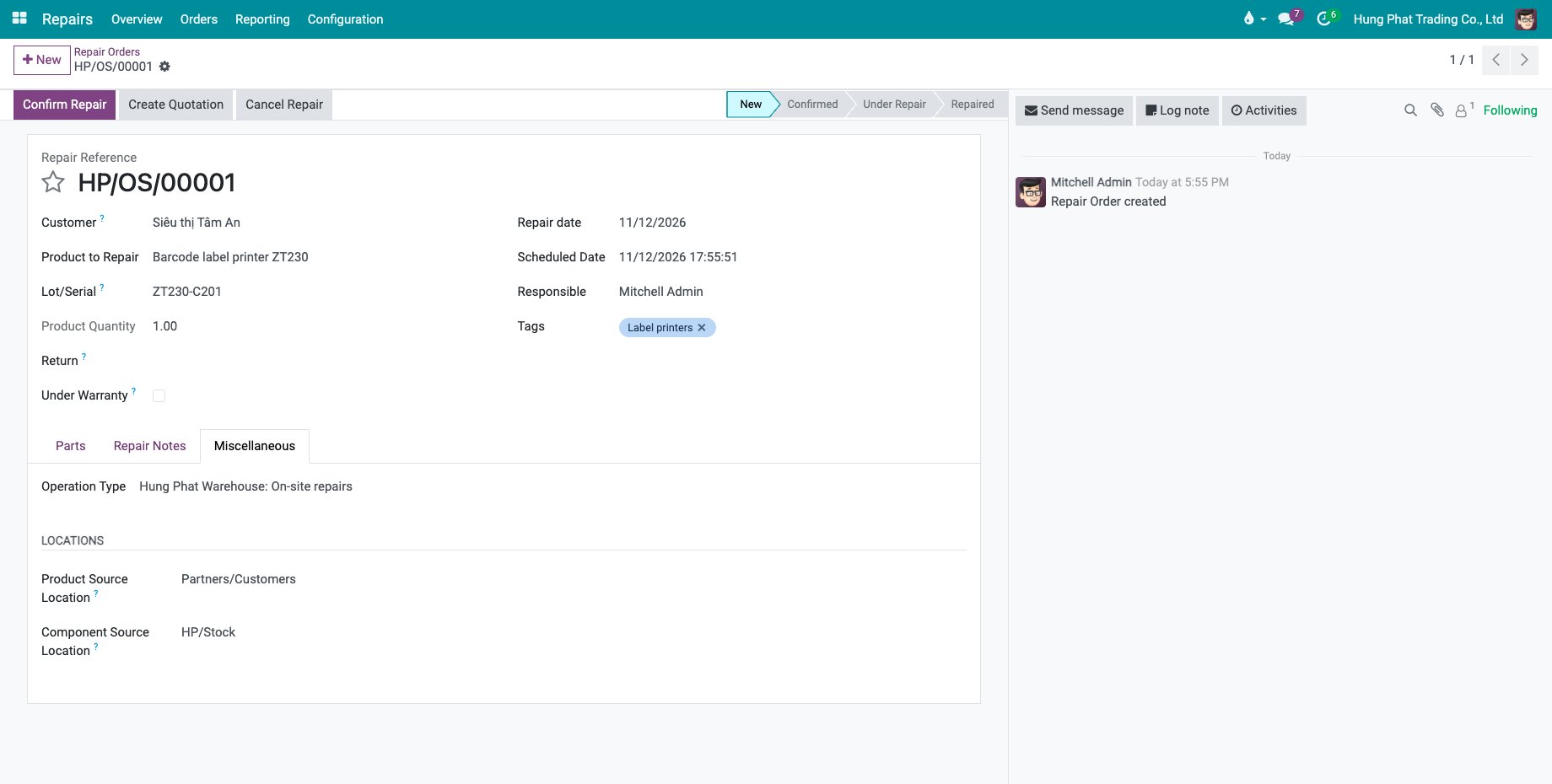
The reference of the order takes the prefix of the on-site type, for example HP/OS/00001.
How do I run the repair?
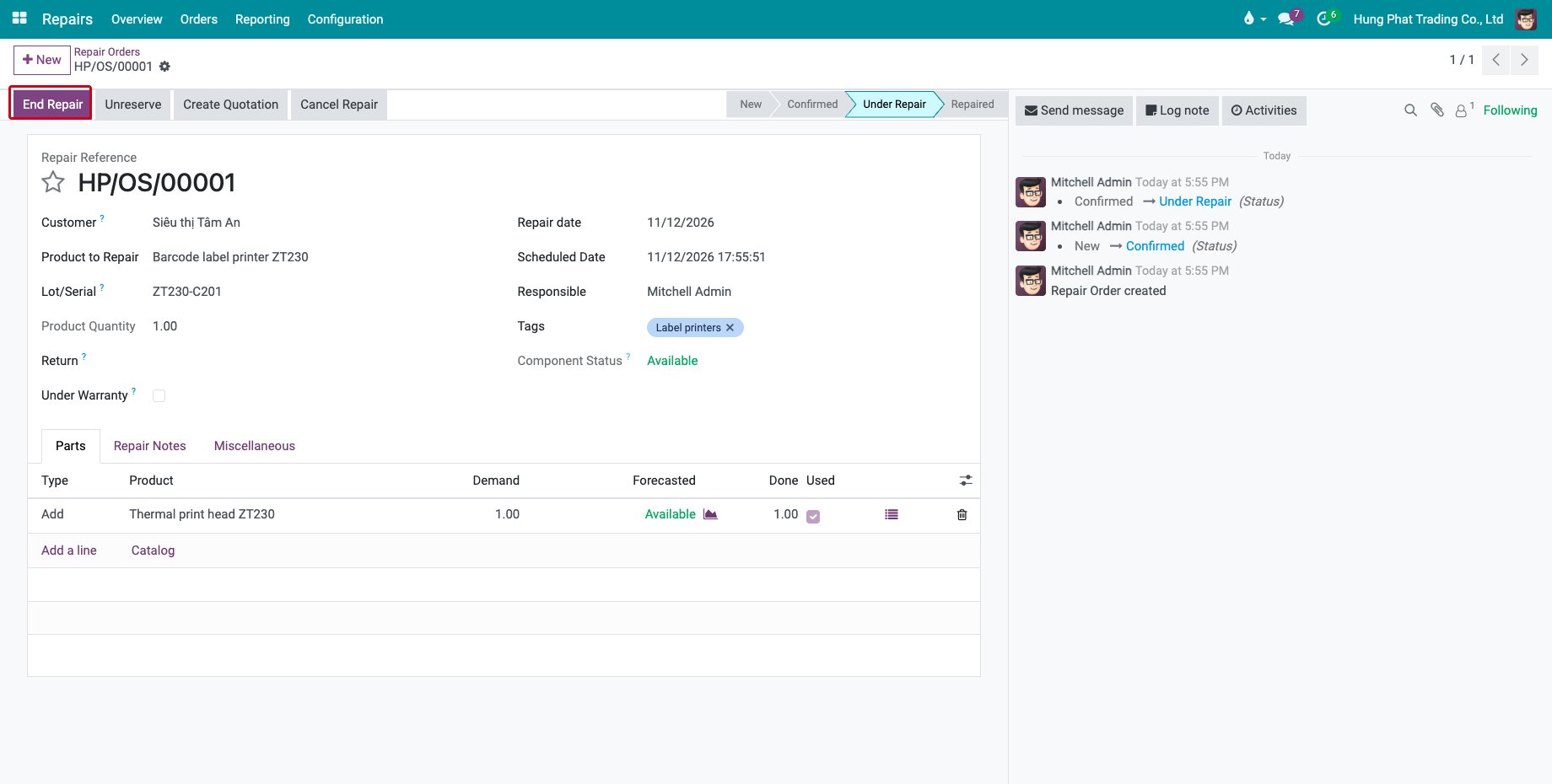
Click Confirm Repair, then Start Repair. The parts are reserved in your stock, so the technician can take them to the customer.
On site, tick Used on the parts fitted, then click End Repair.
![An on-site repair order under repair with the End Repair button]()
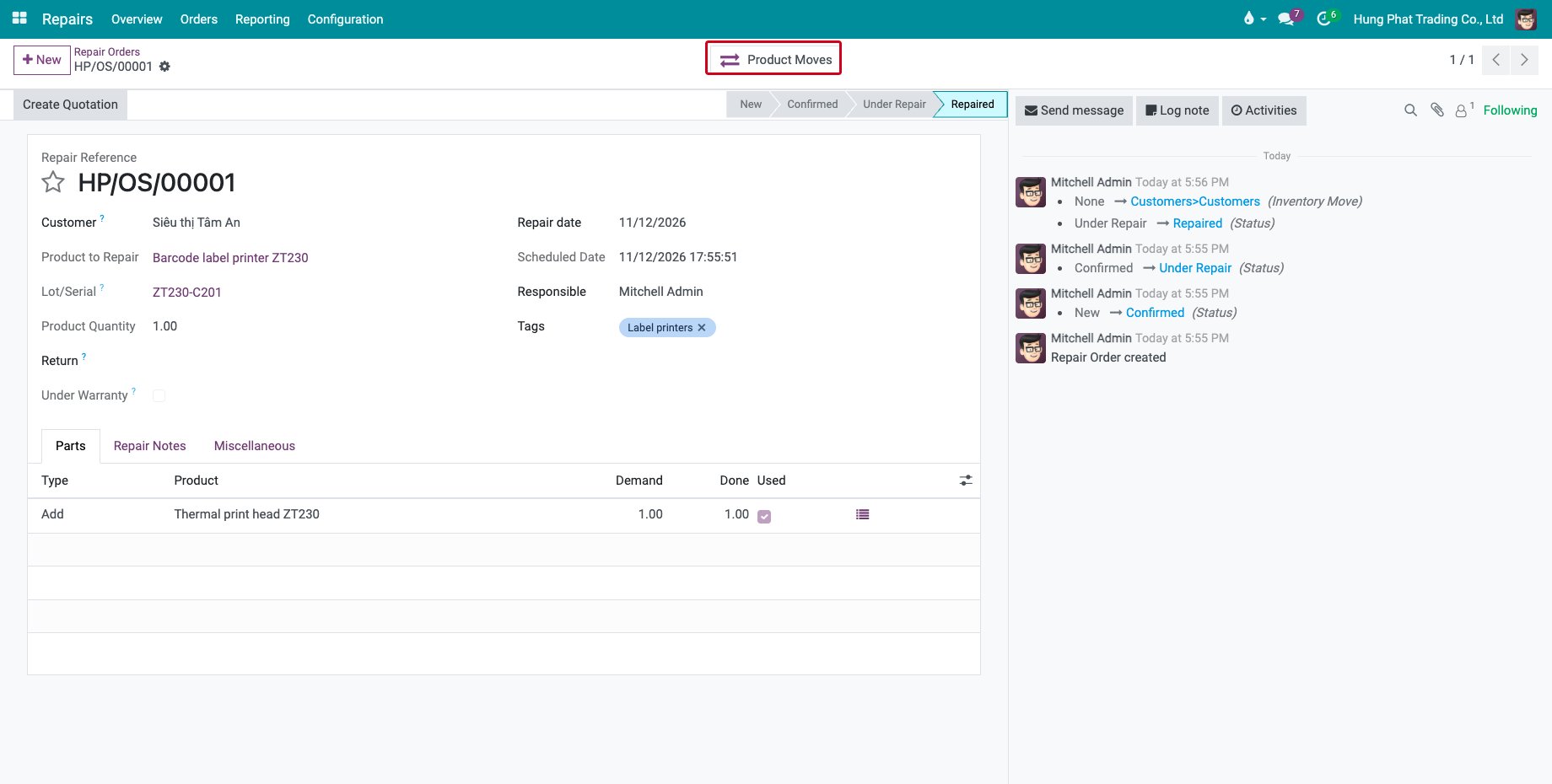
The order is Repaired. Click Product Moves to read the stock moves.
![A repaired on-site order with the Product Moves button]()
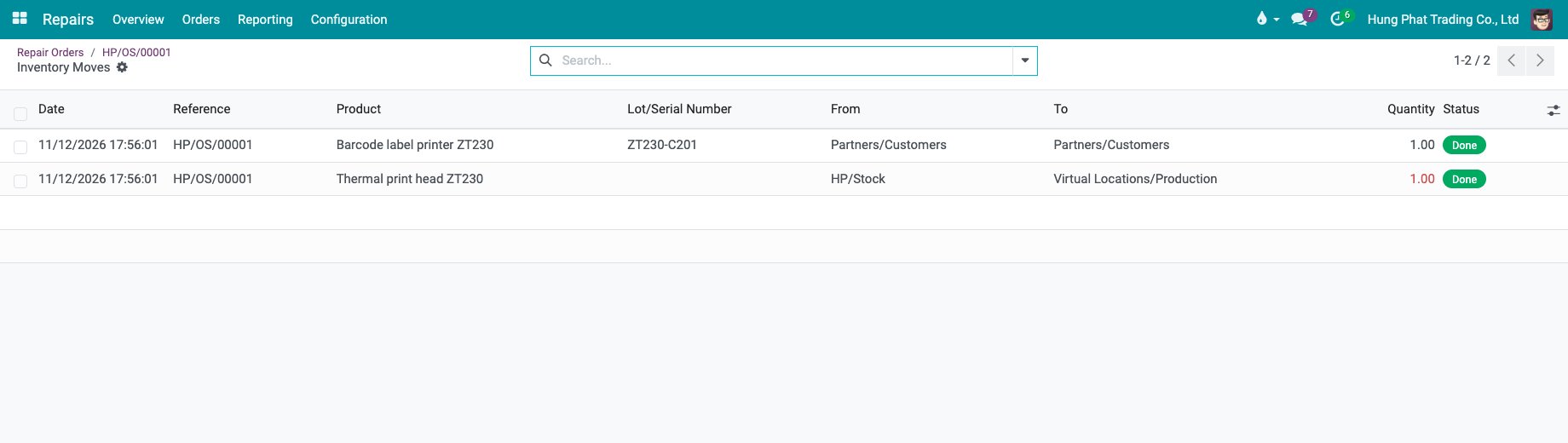
The list shows the product moving from Partners/Customers to Partners/Customers: it stays at the customer’s. Each part used leaves your stock for Virtual Locations/Production.
How do I charge the customer?
Click Create Quotation on the order, add your labour on the quotation and invoice the sale order, as in Repairing at an internal location. Tick Under Warranty before creating the quotation when the repair is free for the customer.
Common errors
Problem |
What to do |
|---|---|
Confirm Repair shows “Insufficient Quantity To Repair”. |
The product is not recorded in Partners/Customers. Click Discard and check the Product Source Location. |
The repaired product goes to your stock. |
The order uses the default Repairs type. Choose the on-site type in Operation Type. |
The Locations group is missing. |
Tick Storage Locations in the Inventory settings. |
Next steps
Repairing at an internal location: repair in your workshop.
Quote and invoice repair orders: price and invoice the repair.
See also
Related articles