
How to buy and stock assets
There are three ways to create an asset in Viindoo Accounting: enter it manually, let a vendor bill create it, or allocate a stocked product to use with an Asset Allocation transfer. Use the vendor bill for items you do not stock (land, services, long-term prepaid expenses) and the transfer for equipment you receive in your warehouse first.
Who does this: an accountant with the Accounting Assets Management right (vendor bills), and an Inventory user (transfers). Applications: Accounting, Purchase, Inventory.
Before you start
This tutorial requires the installation of the following applications/modules:
Purchase and Assets Purchase (the asset category follows the product onto the vendor bill)
Inventory and Stock Asset (asset allocation transfers)
How do I create an asset manually?
How do I create an asset from a vendor bill?
Use this method for items that are not stocked before use, such as intangible fixed assets, tools and long-term prepaid expenses.
Example: You buy a plot of land for 2 billion VND and receive the land use right certificate. This intangible fixed asset is worth 2 billion VND.
Step 1: Create the product
Configure the asset category first, then create the product. On the product, choose a product that does not track inventory (for example a service) and set its Asset Category (field below the expense account, visible to accountants). If you leave it empty, you can choose the category on the vendor bill line.
Step 2: Create and confirm the vendor bill
To create a bill, navigate to Accounting > Vendors > Bills > New. With Assets Purchase installed, the Asset Category of the product is filled in on the line.

Note
When a product is chosen, its details are reflected on the vendor bill. Configuring them on the product beforehand saves time.
Click Confirm. The bill status changes from Draft to Posted and a View Assets button appears.
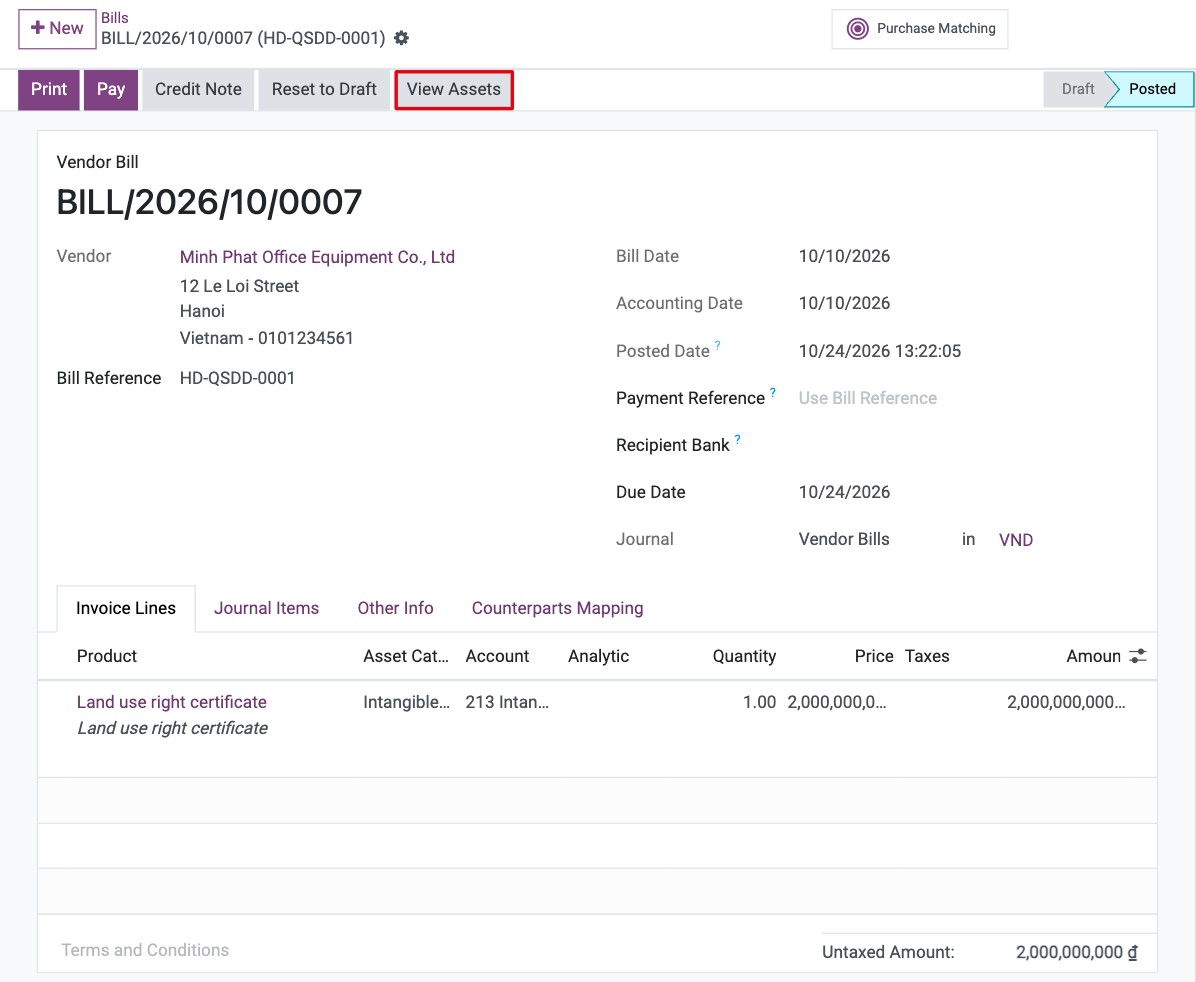
Click View Assets to open the asset, created in Draft with the information of the bill and of the asset category. (If Auto-Confirm Assets is enabled on the category, the asset is already Running.) A line with a quantity above one creates one asset per unit.

The list of the assets of your company is in Accounting > Accounting > Assets.

See also
How do I create an asset from a stocked product?
Use this method for equipment that you receive in your warehouse before use. Example: you buy 2 tablets at 20,000,000 VND each; they are received in the warehouse and then put into use.
Step 1: Create the product
See How to create a new product. The product must:
track inventory, with tracking By Unique Serial Number (or by lots);
belong to a product category with the Automated inventory valuation, which Viindoo requires for asset allocation;
have an Asset Category (you can also choose it on the transfer).
Also turn on Storage Locations and Lots & Serial Numbers in the Inventory settings: the Asset Transfers menu is only visible with Storage Locations.
Step 2: Buy and receive the product
In the Purchase application, create a purchase order and validate the receipt with the serial number of each unit. See how to buy a storable product.
Step 3: Create the bill
Create the vendor bill from the purchase order and post it. A bill line of a product that tracks inventory does not create an asset: the asset is created by the allocation below.
Step 4: Allocate the asset
The allocation uses the Stock Asset app. Install it from Apps, see How to install, upgrade and uninstall apps and modules.
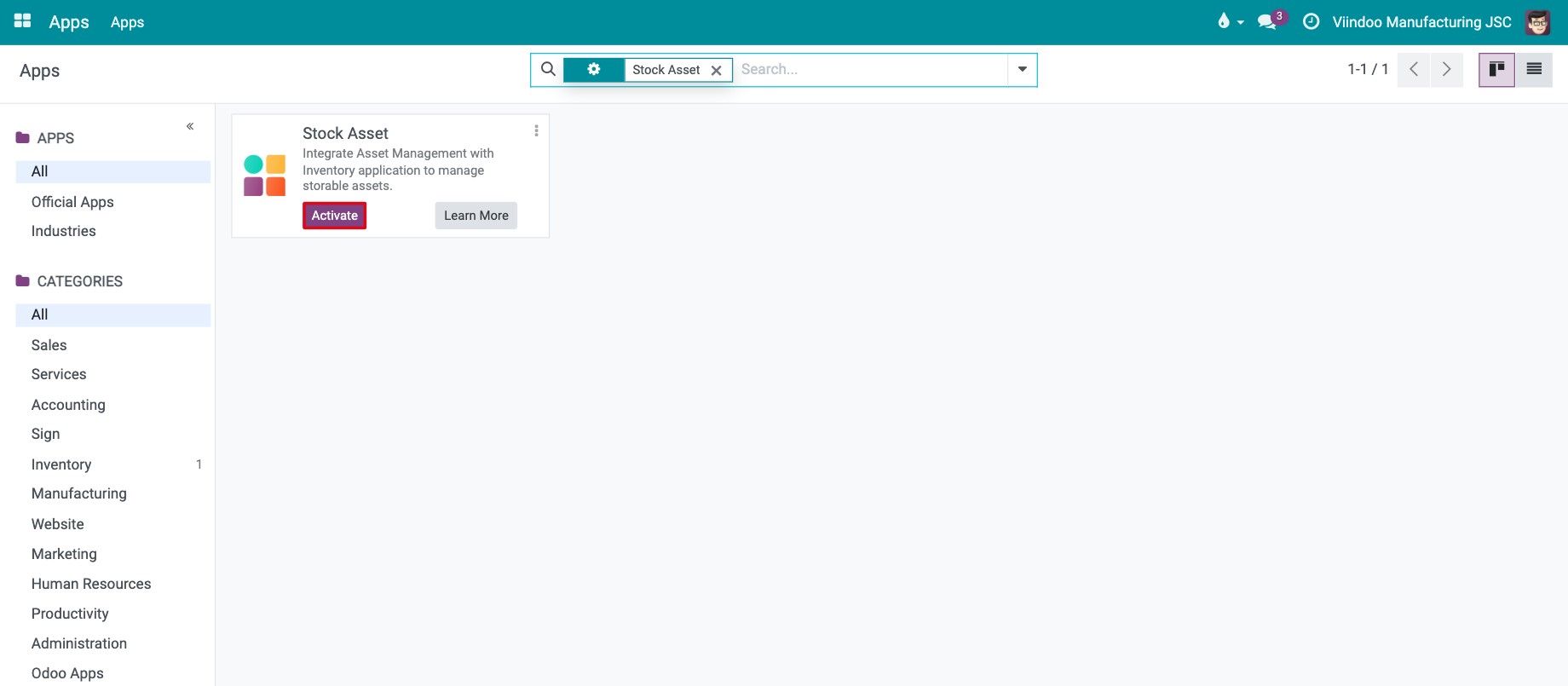
Create a new transfer: navigate to Inventory > Operations > Asset Transfers > New.

Fill in:
Operation Type: Asset Allocation. The destination is the Asset Location.
On the Operations tab: the Product, the Asset Category (default: the one of the product) and the Demand.
Click Mark as Todo.

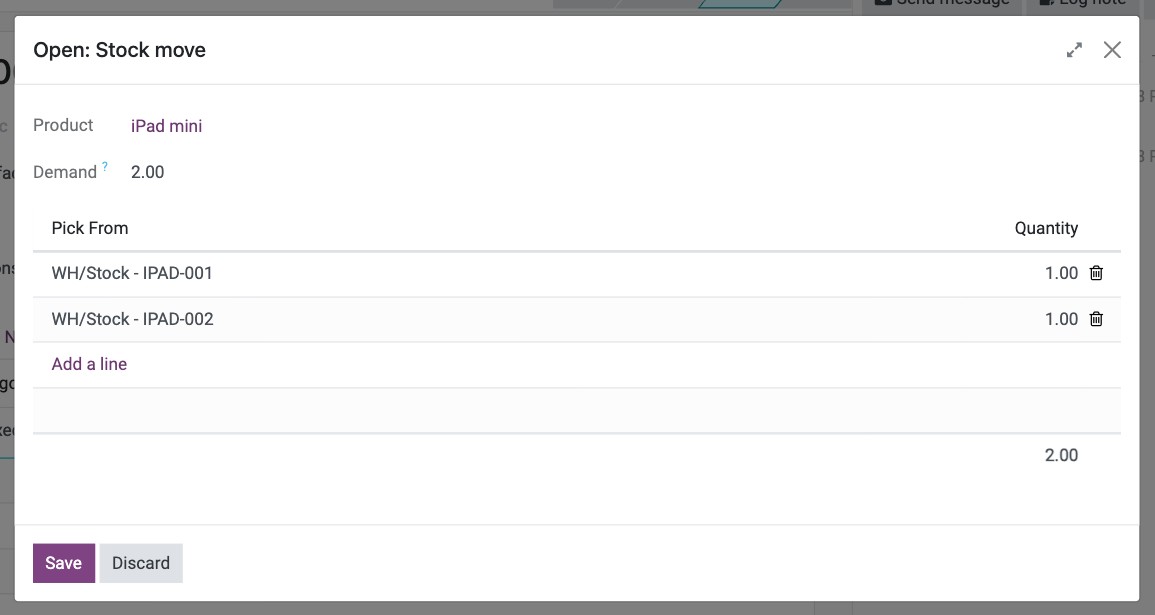
Viindoo reserves the units from stock: the Quantity column shows the reserved units. Click the list icon at the end of the line to open the stock move: its Pick From list shows the serial number of each unit taken from stock. Change a serial number there if you want to allocate other units.
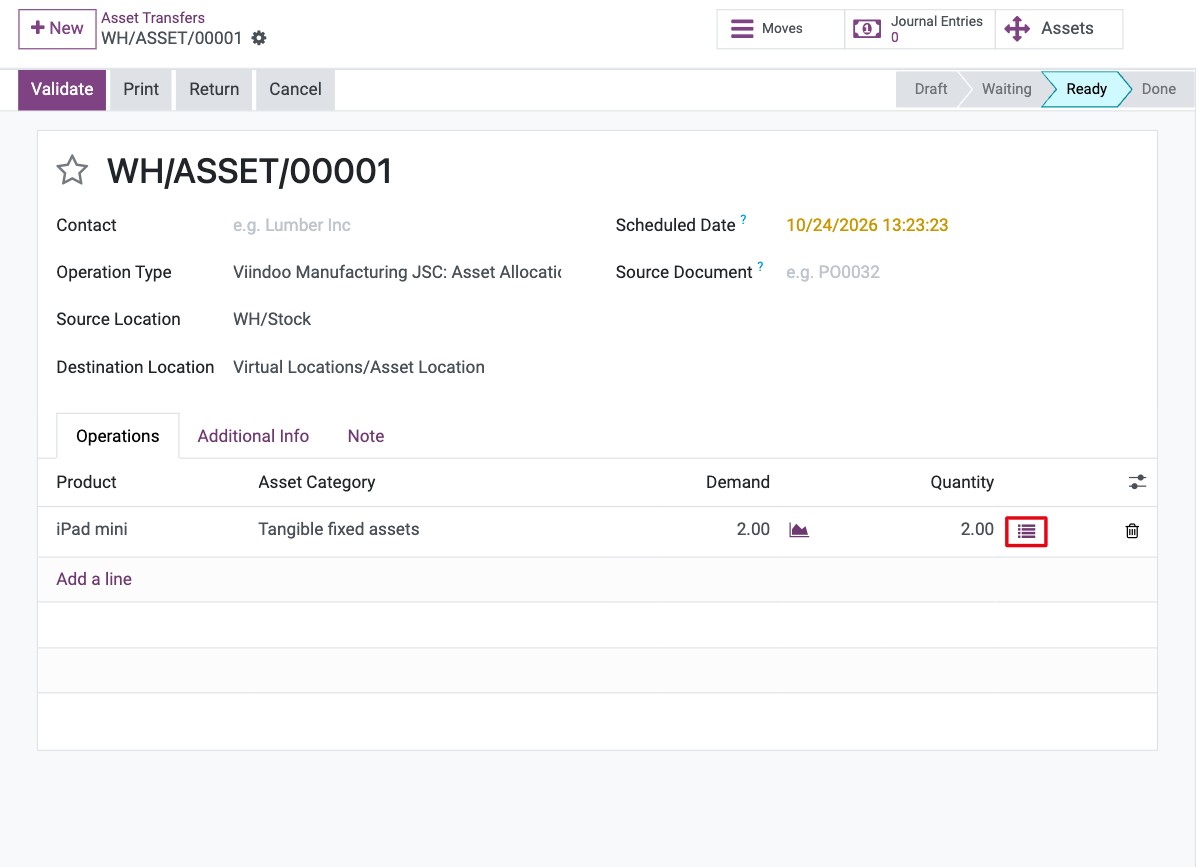
Click Validate to confirm the transfer.
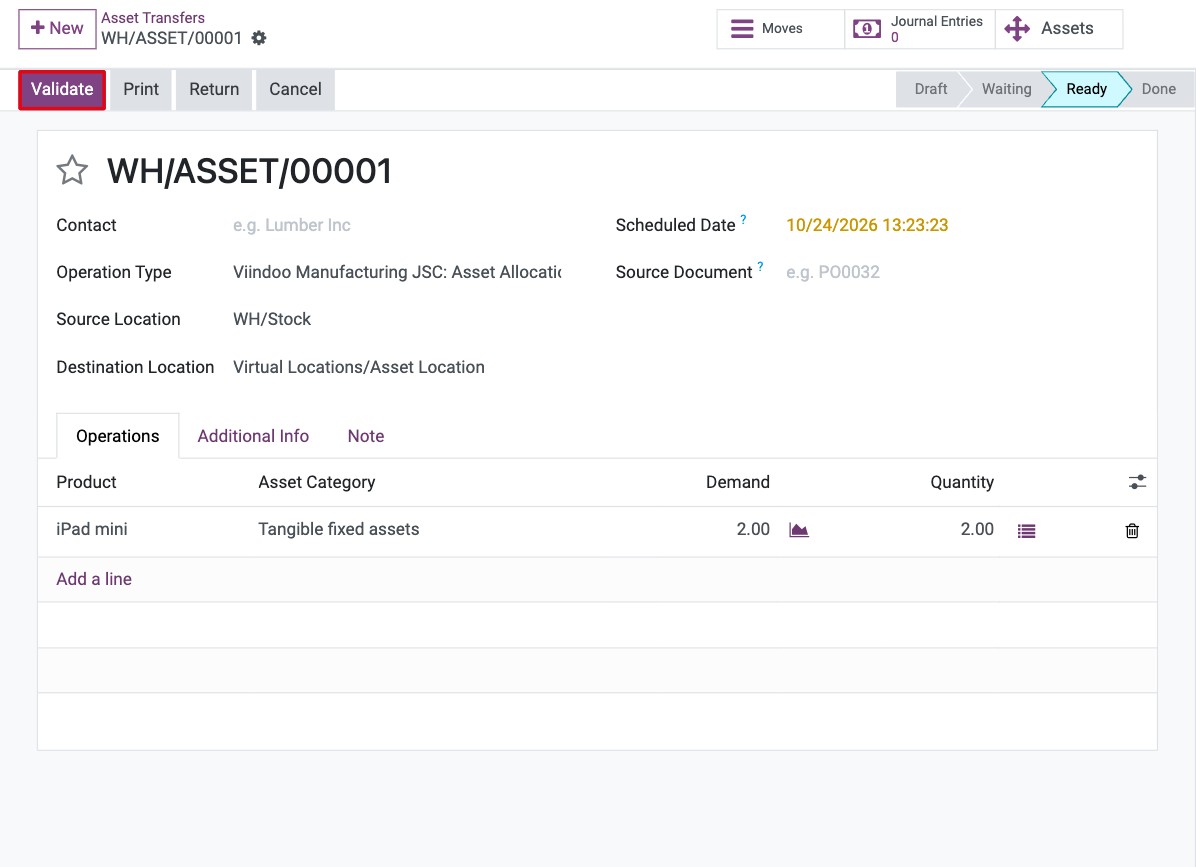
An Assets button appears on the transfer.

It opens the assets created, one per serial number.

The full list is also in Accounting > Accounting > Assets, where you can start depreciating them.
Expected result
A vendor bill of a product without inventory tracking creates a Draft asset when it is posted.
A validated asset allocation transfer creates one asset per unit.
Common mistakes
The Asset Transfers menu is missing - turn on Storage Locations in the Inventory settings.
Please enable Product Traceability on … product! - set a tracking by serial number or lot on the product.
The product ‘…’ of the transfer ‘…’ must be configured in automated valuation method! - set the product category valuation to automated.
The following field on Product is invalid: Asset Type - fill in the Asset Category on the product or on the transfer line.
No quantity available in stock with Lots/Serial Numbers ‘…’! - receive the units in the source location first.
Next steps
Version note
In Viindoo 18 a bill line only creates an asset when the product does not track inventory; stocked products create their assets through the Asset Allocation transfer.